Quickstart
Get started with Teams SDK quickly using the Teams Developer CLI.
Set up a new project
Prerequisites
- Node.js v.22.12 or higher. Install or upgrade from nodejs.org.
Instructions
Install the Teams Developer CLI
Install teams globally:
npm install -g @microsoft/teams.cli
teams --version
The Teams Developer CLI is the command-line tool for scaffolding, registering, and managing Teams apps.
Creating Your First Agent
Let's begin by creating a simple echo agent that responds to messages. Run:
teams project new typescript quote-agent --template echo
This command:
- Creates a new directory called
quote-agent. - Bootstraps the echo agent template files into it under
quote-agent/src.
The
echotemplate creates a basic agent that repeats back any message it receives - perfect for learning the fundamentals.
Running your agent
- Navigate to your new agent's directory:
cd quote-agent
- Install the dependencies:
npm install
- Start the development server:
npm run dev
- In the console, you should see a similar output:
> quote-agent@0.0.0 dev
> tsx watch -r dotenv/config src/index.ts

[WARN] @teams/app No credentials configured and dangerouslyAllowUnauthenticatedRequests is not enabled. All incoming requests will be rejected. Configure client authentication to securely receive messages, or set dangerouslyAllowUnauthenticatedRequests: true for local development.
[INFO] @teams/app listening on port 3978 🚀
The HTTP server is now listening on port 3978. To test your agent locally without sideloading it into Teams, use the Microsoft 365 Agents Playground.
The playground sends unauthenticated requests, so a default new App() will reject them (you'll see the No credentials configured warning above). For local testing, enable dangerouslyAllowUnauthenticatedRequests so your agent accepts them:
const app = new App({ dangerouslyAllowUnauthenticatedRequests: true });
Only use dangerouslyAllowUnauthenticatedRequests for local development — never in production, as it disables inbound request authentication.
Install the playground globally:
npm install -g @microsoft/m365agentsplayground
Then, with your agent still running, open a second terminal and launch the playground pointed at your agent:
agentsplayground -e http://localhost:3978/api/messages -c emulator
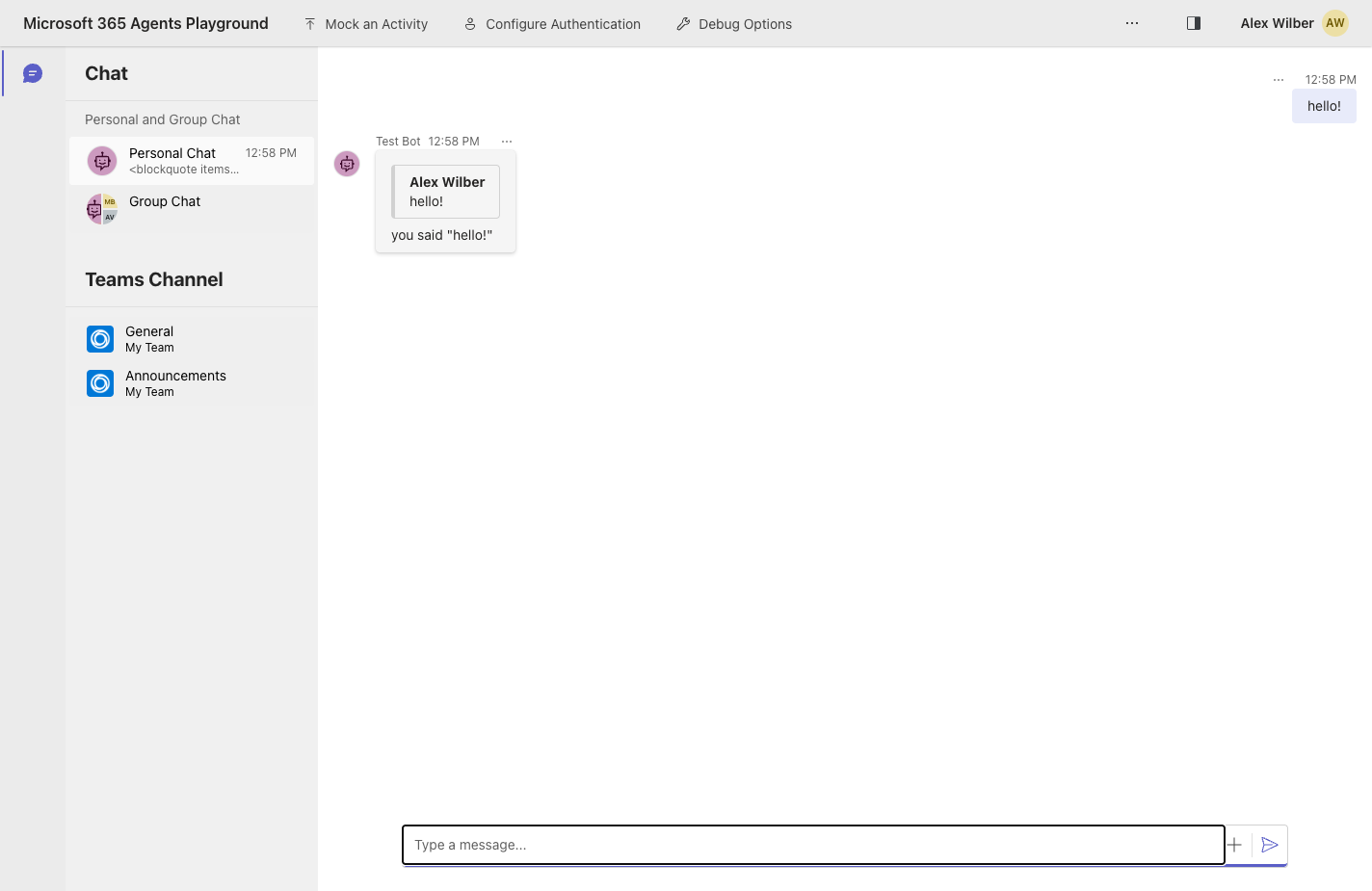
The playground opens at http://localhost:56150. Send a message in the compose box and your agent's reply renders inline.
Add to an Existing Project
If you already have a project and want to add Teams support, install the SDK directly:
npm i @microsoft/teams.apps
Then initialize the Teams app with your existing server:
import http from 'http';
import express from 'express';
import { App, ExpressAdapter } from '@microsoft/teams.apps';

// Your existing Express server
const expressApp = express();
const server = http.createServer(expressApp);

// Wrap your server in an adapter and create the Teams app
const adapter = new ExpressAdapter(server);
const app = new App({ httpServerAdapter: adapter });

app.on('message', async ({ send, activity }) => {
  await send(`You said: ${activity.text}`);
});

// Register the Teams endpoint on your server (does not start it)
await app.initialize();

// Start your server as usual
server.listen(3978);
app.initialize() registers the Teams endpoint on your server without starting a new one — you keep full control of your server lifecycle.
See the HTTP Server guide for full details on adapters and custom server setups.
Next steps
After creating and running your first agent, read about the code basics to better understand its components and structure.
Otherwise, if you want to run your agent in Teams, you can check out the Running in Teams guide.