Running In Teams
Now that you completed the quickstart and your agent is running locally, let's install it in Microsoft Teams. The fastest path is the Teams Developer CLI.
Prerequisites
- The CLI installed:
npm install -g @microsoft/teams.cli - An M365 account with custom app upload (sideloading) enabled on the tenant
- A public HTTPS tunnel pointing at your local server — see Local Tunnels if you haven't set one up yet
If you haven't run through this before, the Quickstart: Register your app walks the full flow end-to-end. The summary below is for developers already familiar with the steps.
1. Log in
teams login
teams status
teams status should report Sideloading: enabled. If not, your tenant admin needs to enable custom app upload.
2. Register the bot infrastructure
From your project directory:
teams app create \
  --name <your-bot-name> \
  --endpoint https://<tunnel-host>/api/messages \
  --env .env
This creates a Teams-managed bot by default — no Azure subscription needed. The command prints a summary including the Teams App ID and an Install in Teams link, and writes CLIENT_ID, CLIENT_SECRET, and TENANT_ID into .env. For C# projects use --env appsettings.json.
If you need OAuth or SSO, add --azure --resource-group <rg> (or migrate later with teams app bot migrate). See Bot Locations for the details.
3. Run your agent
npm install
npm run dev
You should see listening on port 3978 🚀 once the server starts.
4. Install the app in Teams
The Install in Teams link from step 2 is your sideload URL. Click it from a browser signed in to Teams, then Add.
If you closed the terminal, get the link back with the Teams App ID printed in step 2:
teams app get <teamsAppId> --install-link
(Run teams app list to see all your apps with IDs.)
Send the bot a message to confirm it's working.
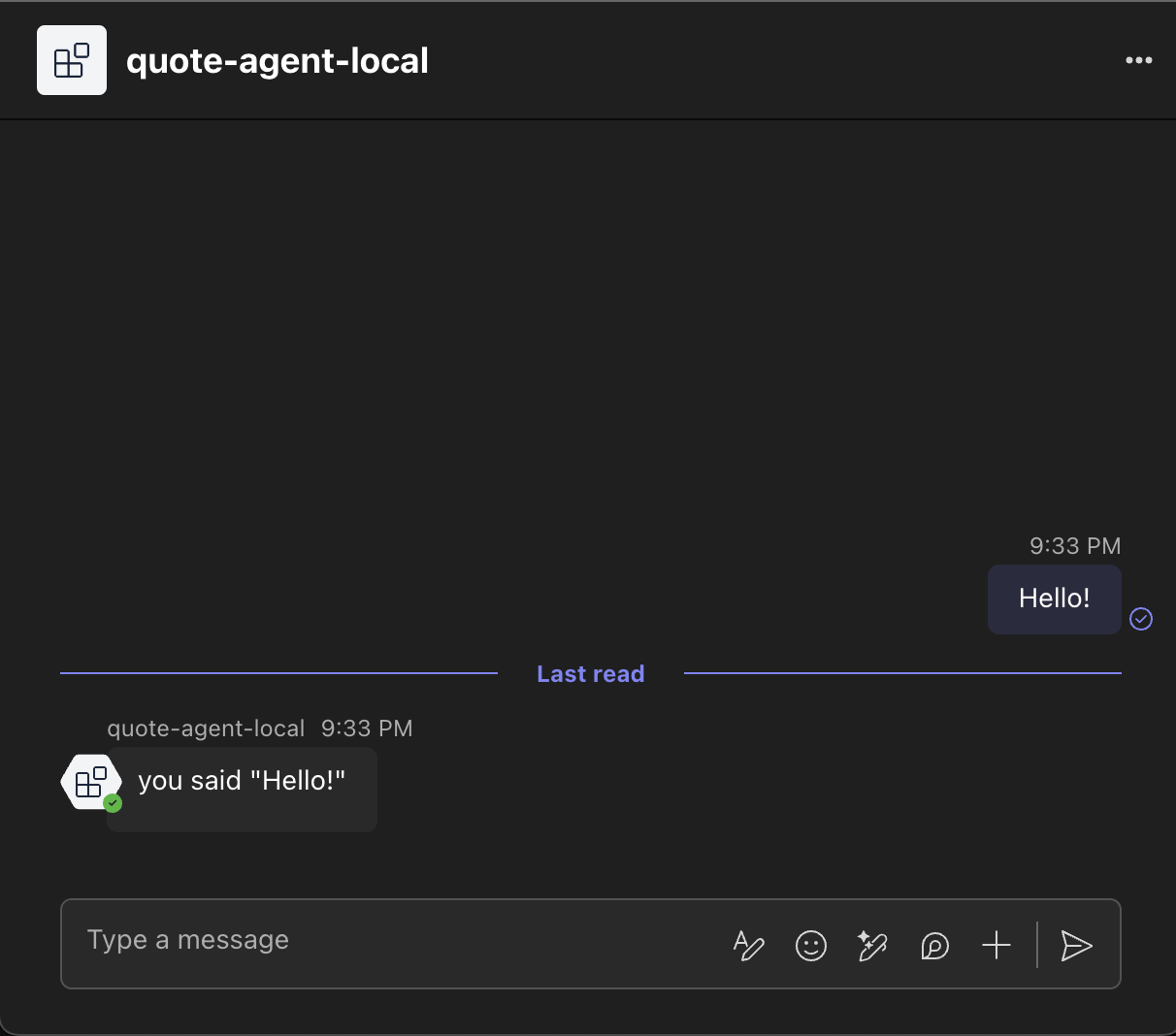
Congratulations! Now you have a fully functional agent running in Microsoft Teams. Interact with it just like any other Teams app and explore the rest of the documentation to build more complex agents.
To exercise the agent locally without going through Teams, run the Microsoft 365 Agents Playground in a second terminal:
agentsplayground -e http://localhost:3978/api/messages -c emulator
It opens at http://localhost:56150 and lets you send messages, mock activities, and inspect the wire traffic with your agent.
Troubleshooting
- Run
teams app doctoragainst your app to surface configuration issues. - Tunnel returning
502or Teams can't reach your bot? See Local Tunnels. - For authentication problems, see Authentication Troubleshooting.
- For manual Azure setup, see Azure Configuration.
Using Microsoft 365 Agents Toolkit instead
If you want everything managed for you — including bot setup, scaffolding to deployment — and you're natively using VS Code, the Microsoft 365 Agents Toolkit extension is a good fit. Install the extension, sign in, select Local under Environment Settings, and click Debug. Agents Toolkit handles tunnels, manifest stamping, and sideloading in-IDE.
Next steps
Continue with essential concepts to build more complex agents, or jump to the in-depth guides for AI, message extensions, dialogs, and more.