

This page covers information about a Windows MIDI Services feature and application that will be released to consumers in 2027. It’s currently available for developers.
Windows MIDI Clock sends MIDI beat clock to your instruments so their arpeggiators, sequencers, delays, and drum machines run at a tempo you set, and run together.
It’s the tool for a rig where nothing is the master. A drum machine, a groovebox, and a delay pedal all want a clock, and without one they each drift at their own rate. Start a clock here and they lock to it.
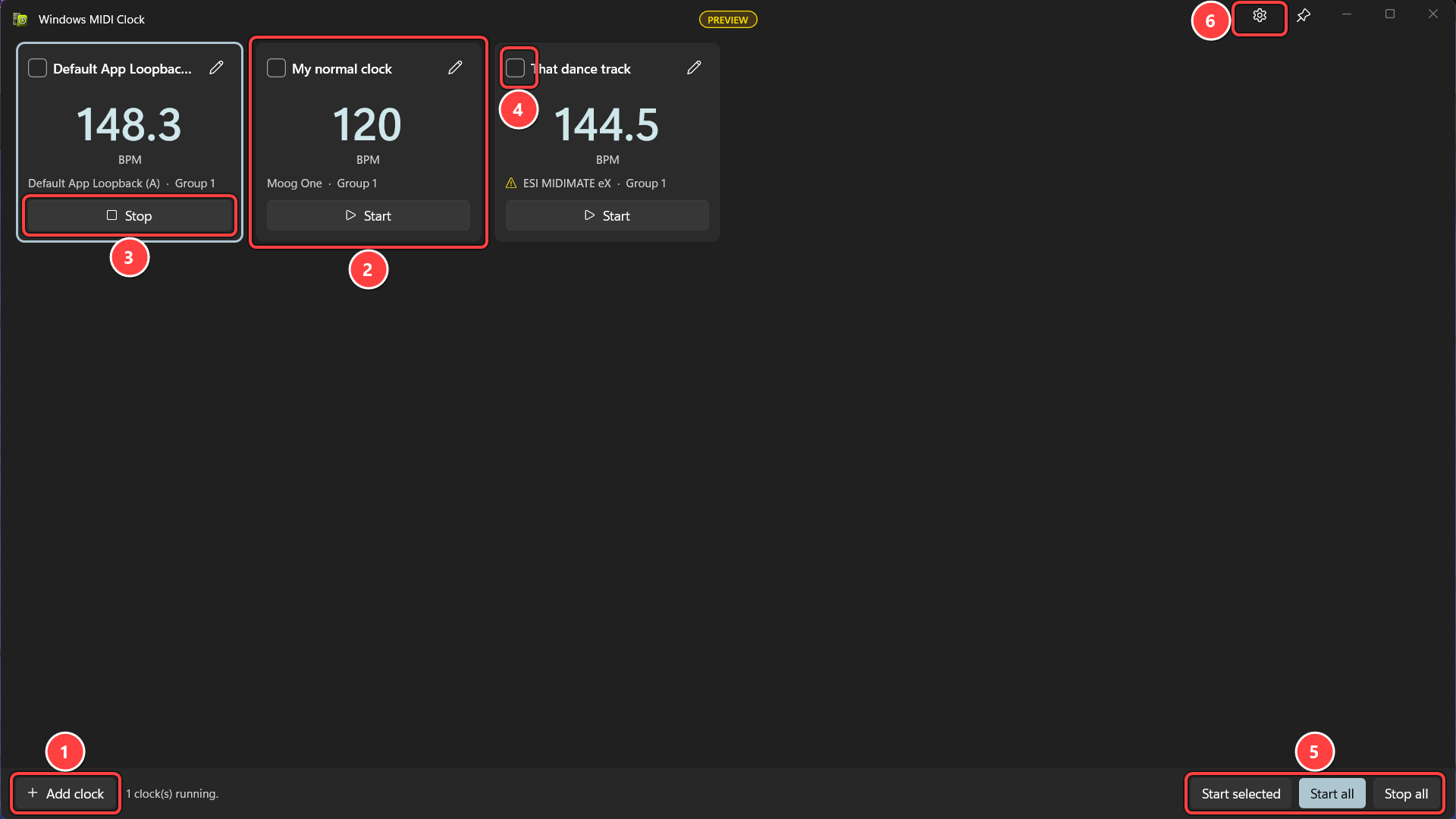
Clocks are saved as soon as you make them, and they come back the next time you open the app. They’re saved for everyone who uses this PC, not per account, so a clock you set up is there for every user. You can have up to 128 of them.
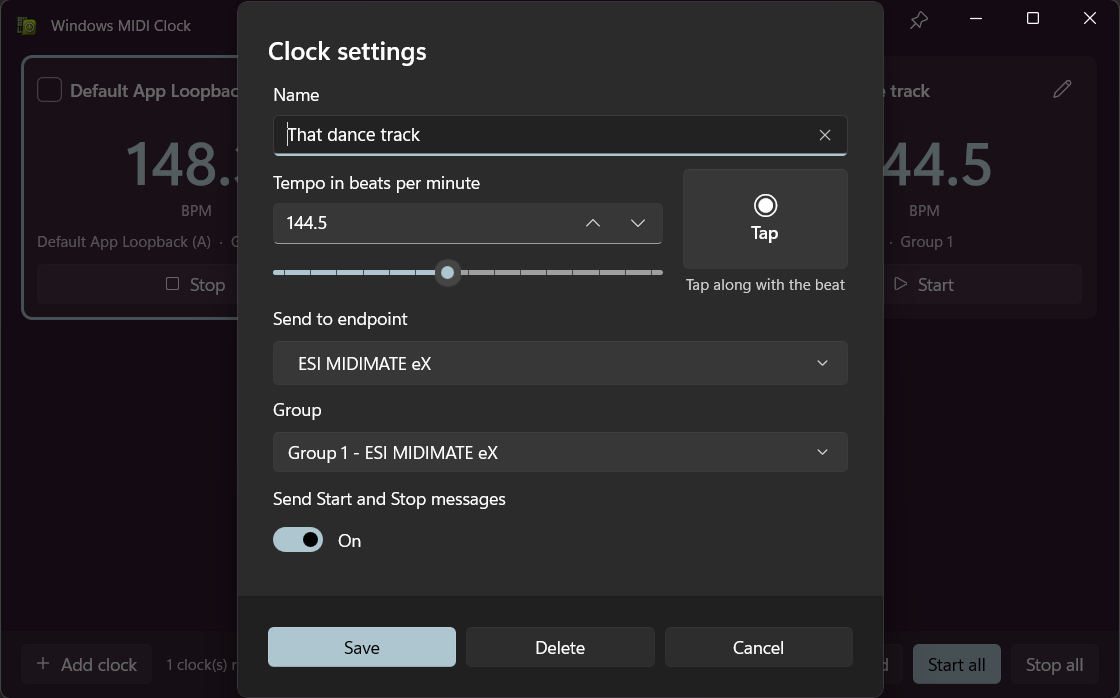
| Field | What it’s for |
|---|---|
| Name | Optional. The endpoint’s name is used when you leave it empty, which is usually enough |
| What this clock sends | A beat clock at a tempo, or MIDI Time Code at a frame rate |
| Tempo | 20 to 300 beats per minute. Type it, drag the slider, or tap it in |
| Send to endpoint | Which device gets the clock |
| Group | One group, or every group the endpoint declares |
| Send Start and Stop messages | Whether to send Start when the clock starts and Stop when it stops |
Tap tempo is for matching something you’re listening to. Tap along with the beat and the tempo follows, rounded to the nearest half a beat per minute so you don’t end up with 148.2628. Type a number directly if you need an exact one from a DAW.
Stop tapping and start again at a different tempo and it works out that you’ve started over, rather than averaging the old taps into the new ones. While it’s working that out it holds the number it had rather than showing you a half-measured one.
Send Start and Stop messages is the setting to think about. With it on, a device that’s waiting for a Start will begin its pattern when you start the clock, and go back to the top when you stop. With it off, only the timing clock goes out, and a device follows the tempo without being told when the bar begins. Some gear wants the first, some gets confused by it, so it’s per clock.
All groups this endpoint declares is for a MIDI 2.0 device where you don’t know, or don’t care, which group the sequencer is listening on. A MIDI 1.0 device has one group and the choice doesn’t arise.
Open Divider, swing and offset at the bottom of the clock settings when you want a device to run at a different speed from the others, or with a different feel. A clock with any of these set opens the section already expanded, and its tile says what is going on underneath the tempo.
Clock rate is the divider and multiplier. A drum machine at 1/2 speed plays half-time against a sequencer at normal speed, from the same tempo; 2x speed gets you double time. Dotted and Triplets are there too. This app is the clock source rather than a box counting somebody else’s pulses, so every one of these rates is exact — there is no rounding and no drift, whichever you pick. The line under the picker tells you the tempo the device will think it is running at.
Swing shapes the feel without changing the tempo. At 50 the clock is straight. Higher holds the first note of each pair a little longer and shortens the second by the same amount, so the pair, and the bar, still takes exactly as long as it did. 66.7 is the classic triplet shuffle. Swing applies to chooses whether the pairs are eighth notes or sixteenths.
Offset in milliseconds shifts one clock against the others. Use it when a device answers late, or when a long cable run or a wireless link costs time: give that device a negative offset and it starts early enough to land with everything else. It only applies to clocks started together, and it takes effect when the clock starts.
Set What this clock sends to MIDI Time Code and the clock stops sending a tempo and starts sending a position on a timeline: hours, minutes, seconds and frames. This is what you use to line a MIDI rig up with picture, or with anything else that follows timecode rather than a beat.
A timecode clock has no tempo, no divider and no swing, so those fields go away and two others appear.
Frame rate is how many frames there are in a second. 24 is film, 25 is PAL, 30 is plain, and 29.97 drop frame is what NTSC broadcast uses. Drop frame is the one that surprises people: it still counts thirty frame numbers a second, but it throws two of those numbers away at the top of every minute except every tenth minute. That is not a glitch, and nothing is missing from the audio. It is how a count that runs very slightly fast is kept level with the clock on the wall, so an hour of timecode really is an hour long.
Start at is where the timecode begins, written as hours:minutes:seconds:frames. A shorter entry fills from the right, so typing 12 means twelve frames and 1:20 means one second and twenty frames. The line under the box shows what will actually be sent.
Send a full timecode when starting and stopping is on by default and should usually stay on. A running timecode is spelled out a piece at a time and takes two frames to say one position, so a receiver that joins in the middle has to wait. A full timecode says the whole position in one message, which lets the device you are driving find its place the moment you press Start.
To watch a timecode clock count on its tile, turn on Show the running time code in Settings. It’s off by default, because redrawing the time uses some CPU, and with it off a timecode tile shows no time at all. With it on, the time updates ten times a second, so the frames jump a few at a time, but the device you’re driving still gets every frame. It stops updating while nobody can see the window: when it’s minimized, covered by other windows, on another desktop, or the screen is locked or off. When you stop the clock, the tile goes back to its Start at time.
The offset works the same way it does for a beat clock, and matters more here: lining sound up with picture is exactly the job it exists for.
The buttons along the bottom are where the app earns its place.
Clocks started together begin on the same instant, even at different tempos and on different devices. That’s the point of starting them as a group rather than pressing Start on each tile in turn: pressing them one at a time gets you clocks that are a few hundred milliseconds apart, which is audible.
A clock whose device isn’t connected says so on its tile and is left out rather than holding up the others.
The settings panel carries a note about this, and it’s worth reading before you rely on the clock for anything critical.
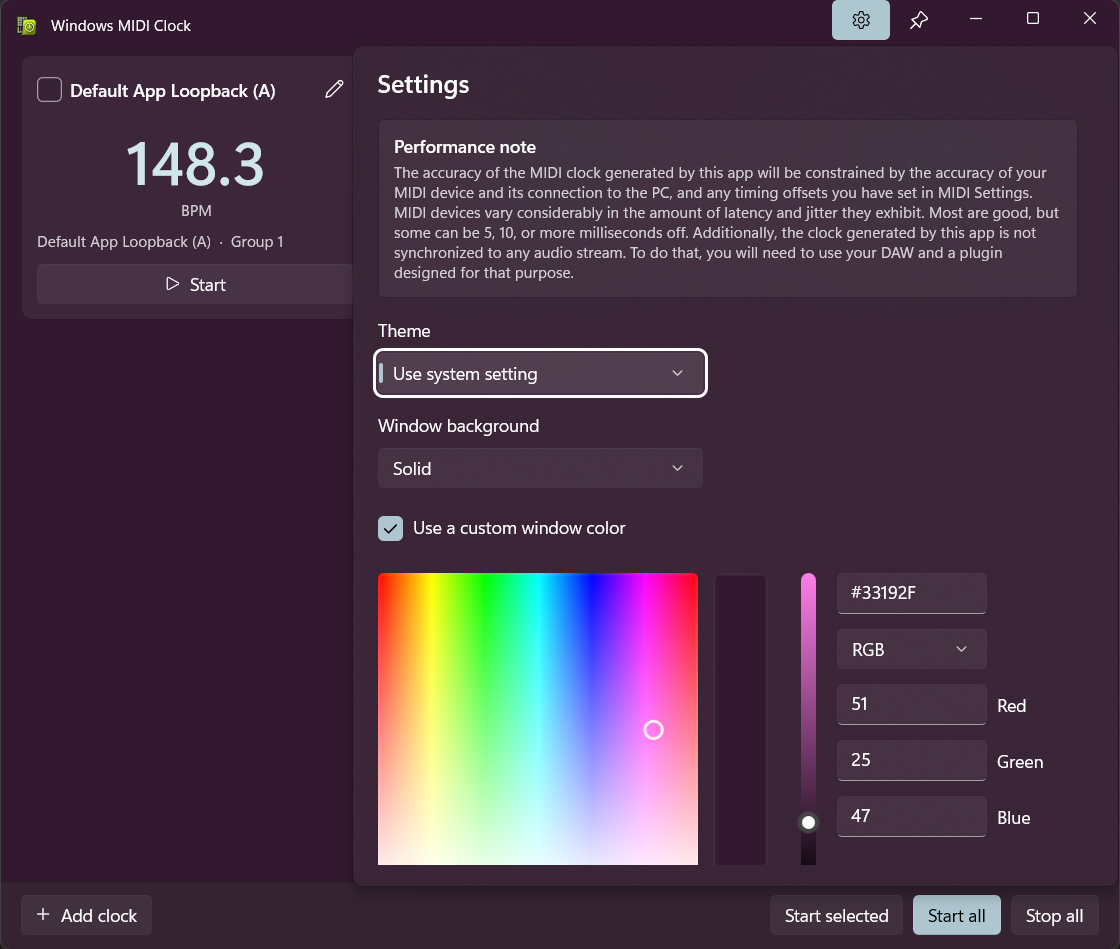
The accuracy of the clock this app generates is limited by your MIDI device, by its connection to the PC, and by any timing offset you’ve set in MIDI Settings. MIDI devices vary a lot in latency and jitter. Most are good; some are five, ten, or more milliseconds out.
The clock is not synchronized to any audio stream. If you need MIDI clock locked to audio you’re recording or playing back, that’s a job for your DAW and a plugin built for it, not for this app.
Appearance in the same panel sets whether the app follows your Windows light or dark mode, and which window background to use. The pin button next to the settings button keeps the window above your other windows.
midiclock.exe [endpoint device id] [options]

  [endpoint device id]   Optional. The full endpoint device id to send to.

  --start                Optional. Start the clock for the endpoint given, or
                         every saved clock when no endpoint is given.

  --group, -g    number  Optional. The group number, 1 through 16. Only valid
                         when an endpoint device id is supplied.

  --bpm, --tempo number  Optional. The tempo in beats per minute. Only valid
                         when an endpoint device id is supplied.
Giving an endpoint that already has a clock updates that clock; giving one that doesn’t creates it. That makes midiclock.exe <id> --bpm 128 --start a one-line way to get a rig running from a shortcut or a script.
You can find the endpoint device id for a device using the MIDI Console or the MIDI Settings app.
Windows MIDI Services is an open source project with all source available on GitHub. We have a great community on Discord as well. Between GitHub and Discord, you should find the information you are looking for.
