
🚨 Mission 07: Add a Tool
NOTE
This lab has been updated for the new Copilot Studio experience (2026-06-28). See evaluation.md for a full comparison with the original Topics-based lab.
🎯 Mission Brief
You’ve built an agent. It listens, learns, and answers questions, but now it’s time to get tactical and let it take action. In this mission you’ll connect your agent to a real data source so it can fetch live information and do something useful with it.
In the new Copilot Studio experience, that capability comes from tools. You’ll add a SharePoint - Get items tool so your IT Helpdesk Agent can pull available devices straight from a SharePoint list.
IMPORTANT
If your Copilot Studio screen looks different from these screenshots, make sure the New experience toggle in the upper-right corner is turned on.
🔎 Objectives
In this mission, you’ll learn:
- Why Topics are gone in the new experience and what replaced them
- What tools are and how an agent decides when to use them
- How to add the SharePoint - Get items connector action as a tool
- How to set a tool’s name, usage description, and inputs
- How to test that your agent calls the tool
🪦 Wait - where did Topics go?
If you’ve used Copilot Studio before, you’ll remember Topics: hand-built conversation flows made of trigger phrases and connected nodes (send a message, ask a question, add a condition, call a tool, and so on). You routed conversations manually and stitched logic together node by node.
The new experience removes the Topics tab entirely. Instead of you wiring conversations by hand, the agent’s large language model orchestrates the conversation for you. You give the agent:
- Instructions - plain-language guidance on how to behave, and
- Tools, Knowledge, and Skills - the capabilities it can draw on.
The model reads your instructions, understands the user’s intent, and decides which tool to call and when. No trigger phrases, no node graphs. This is simpler, faster to build, and far more flexible - which is exactly why we’re focusing on tools in this mission.
🔧 What are tools
Tools gives your agent the ability to do something beyond chatting like call an API or MCP Server, run a process, or read and write business data. Think of tools as "action blocks" that give your agent superpowers.
Tools can come from several places:
- Connectors - 1,500+ prebuilt actions for services like SharePoint, Outlook, Teams, Dataverse, and more.
- Model Context Protocol (MCP) - connect to MCP servers that expose tools.
- Workflows - call automated flows you’ve built.
When a user asks something, the model matches the request to a tool’s description, fills in the tool’s inputs, runs it, and uses the result in its reply. A clear description is what helps the model pick the right tool - so we’ll write a good one.
In this lab we’ll use the SharePoint - Get items connector action so the agent can read a list of devices.
🧪 Lab 07 - Add the SharePoint Get items tool
✨ Use case
As an employee
I want to know what devices are available
So that I have a list of available devices
Prerequisites
- SharePoint list - the Devices list from Lesson 00 - Course Setup.
- Contoso Helpdesk Agent - the agent created in the earlier missions.
Let's begin!
7.1 Open the agent and find Tools
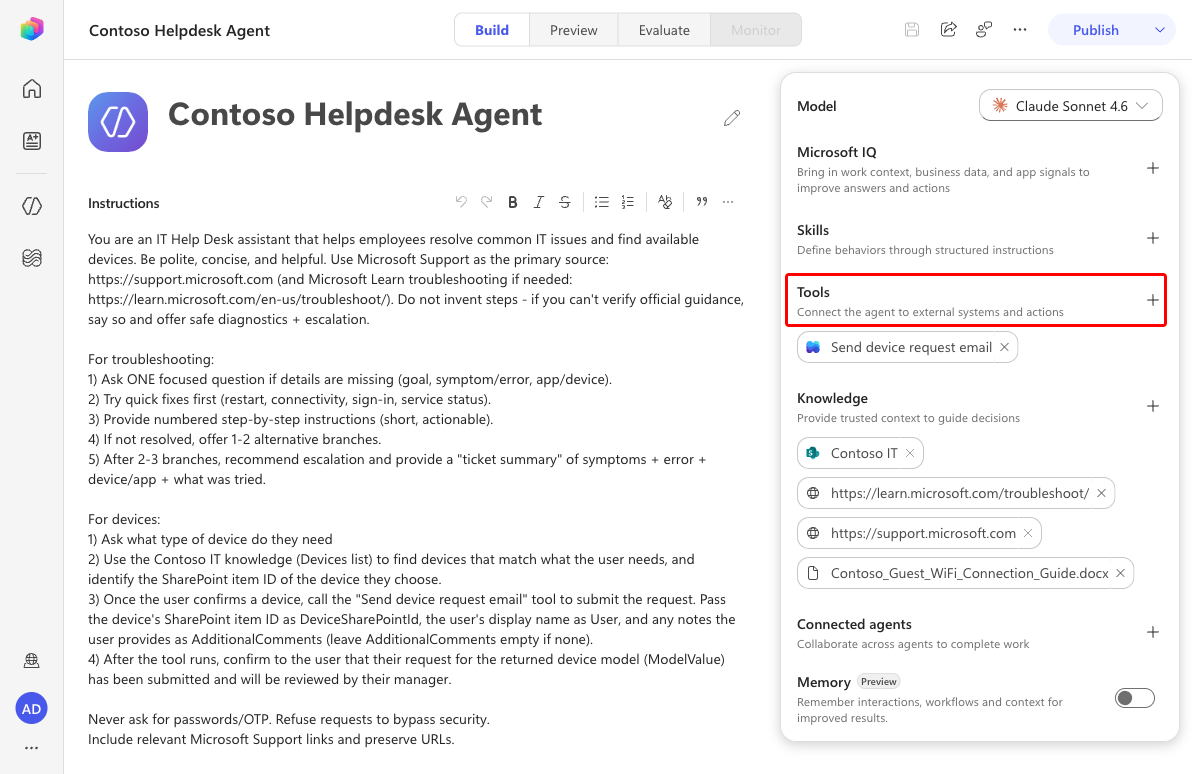
From Agents, open the Contoso Helpdesk Agent. The Build view shows the agent Instructions on the left and a configuration panel on the right with Tools, Knowledge, Skills, and more. There is no Topics tab. In the Tools section, select Add tool.
7.2 Add the SharePoint connector
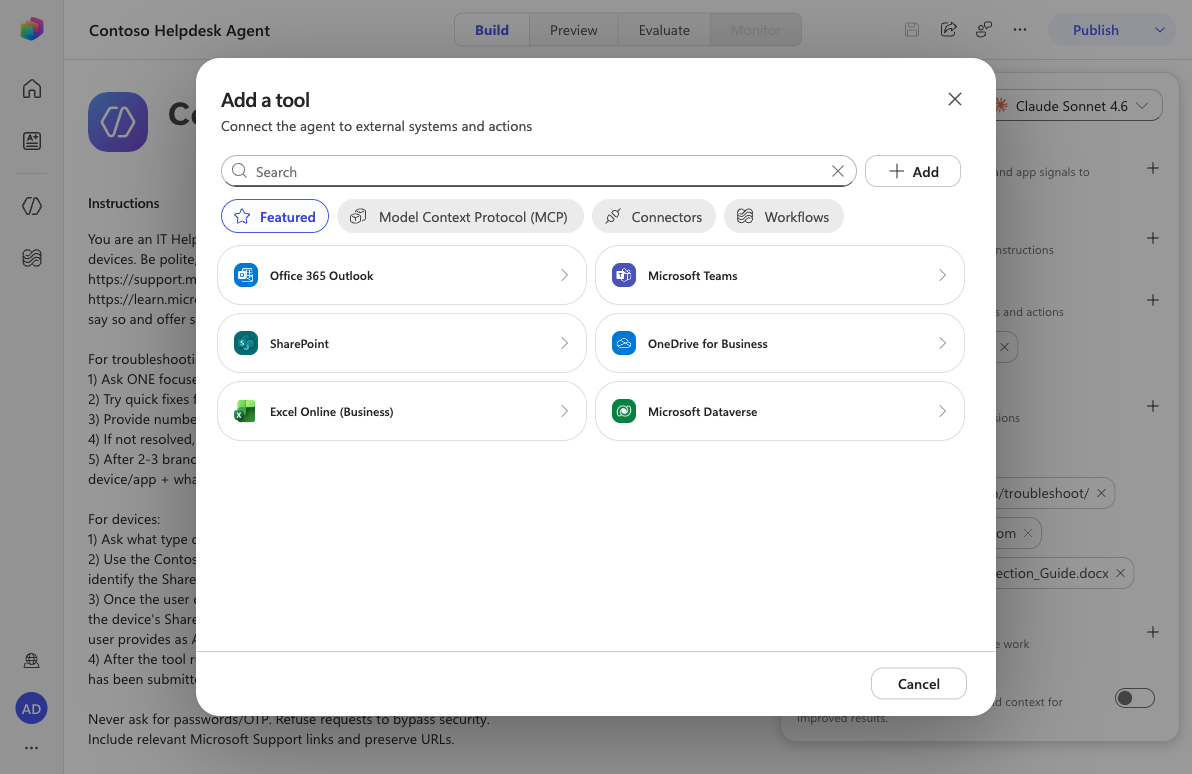
The Add a tool dialog opens with Featured, MCP, Connectors, and Workflows tabs. Select the SharePoint connector.
Under Run a single action, find and select Get items. (You can also type
Get itemsinto the search box.)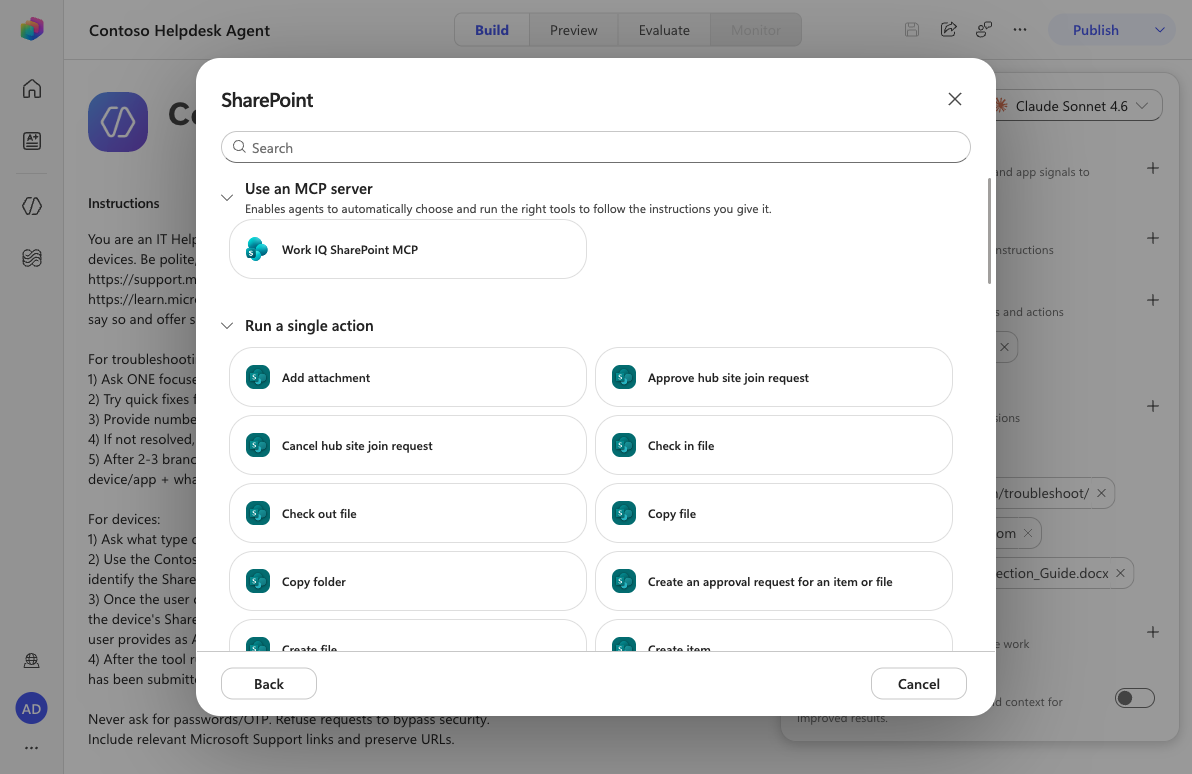
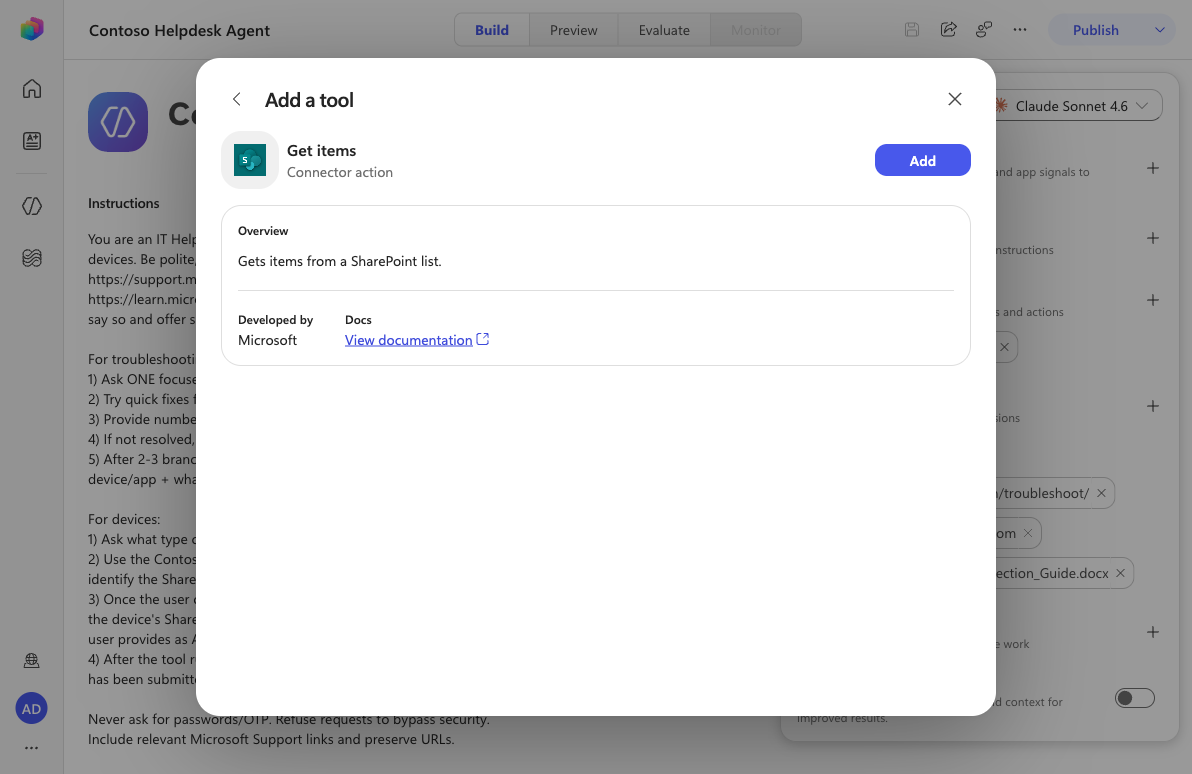
Review the action overview, then select Add.
7.3 Configure the tool
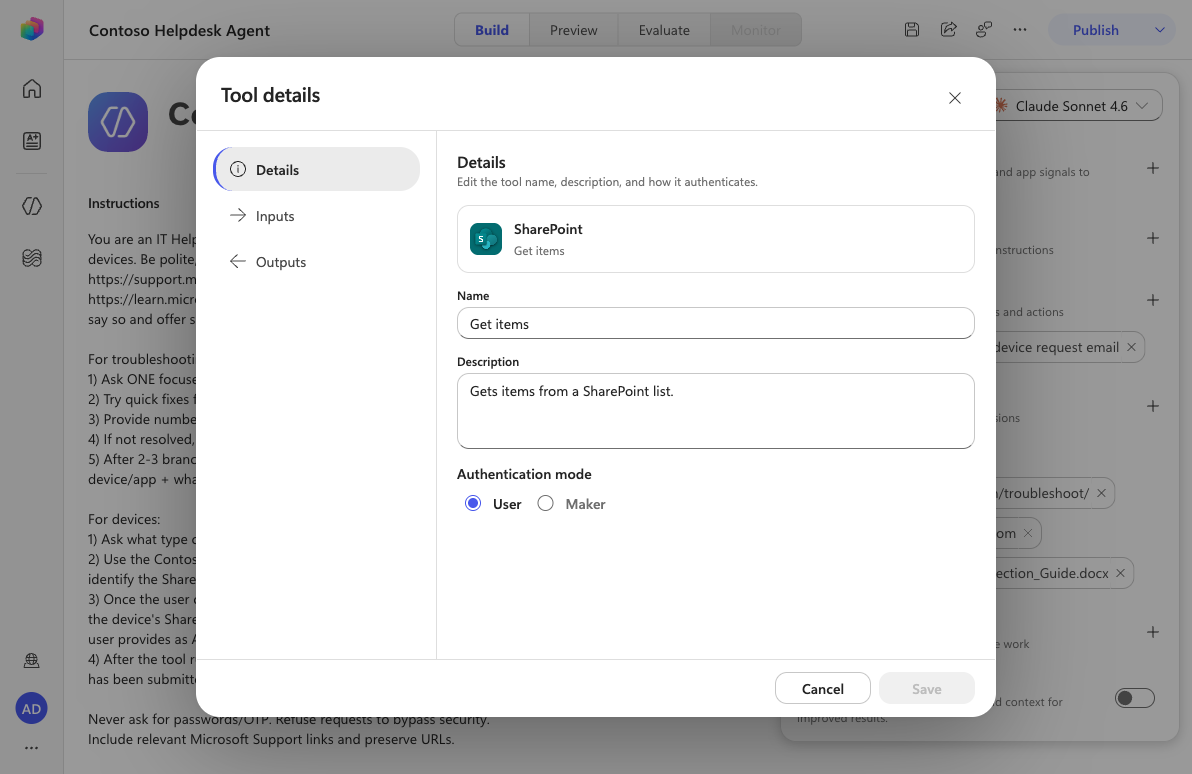
The tool now appears in the Tools list. Select Get items to open Tool details. On the Details tab, give the tool a clear usage description so the model knows when to use it. Copy and paste the following as the Description.
textRetrieves available devices from the Devices SharePoint list. Use this to find devices that are available, including laptops, desktops, smartphones and accessories.Leave Authentication mode set to User.
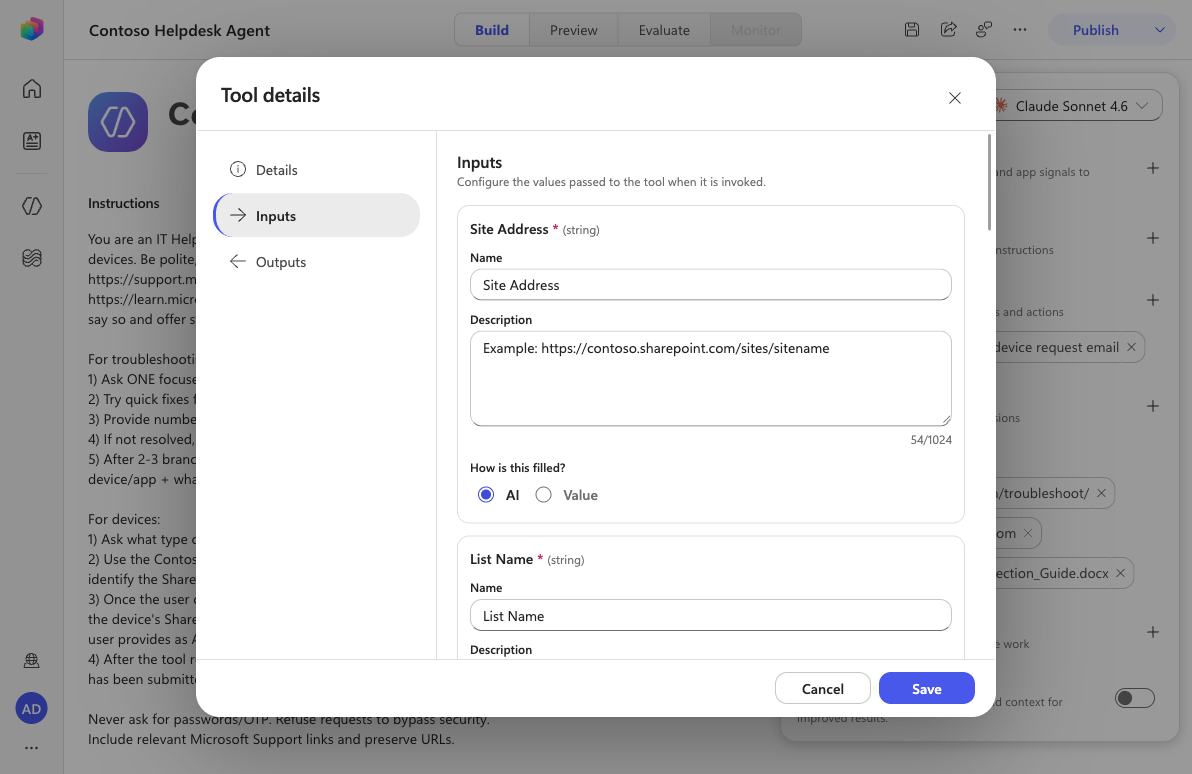
Select the Inputs tab. Each input (Site Address, List Name, Filter Query, …) can be filled by AI or pinned to a fixed Value. Leaving them as AI lets the agent populate them from the conversation and your instructions. Select Save.
7.4 Test your agent
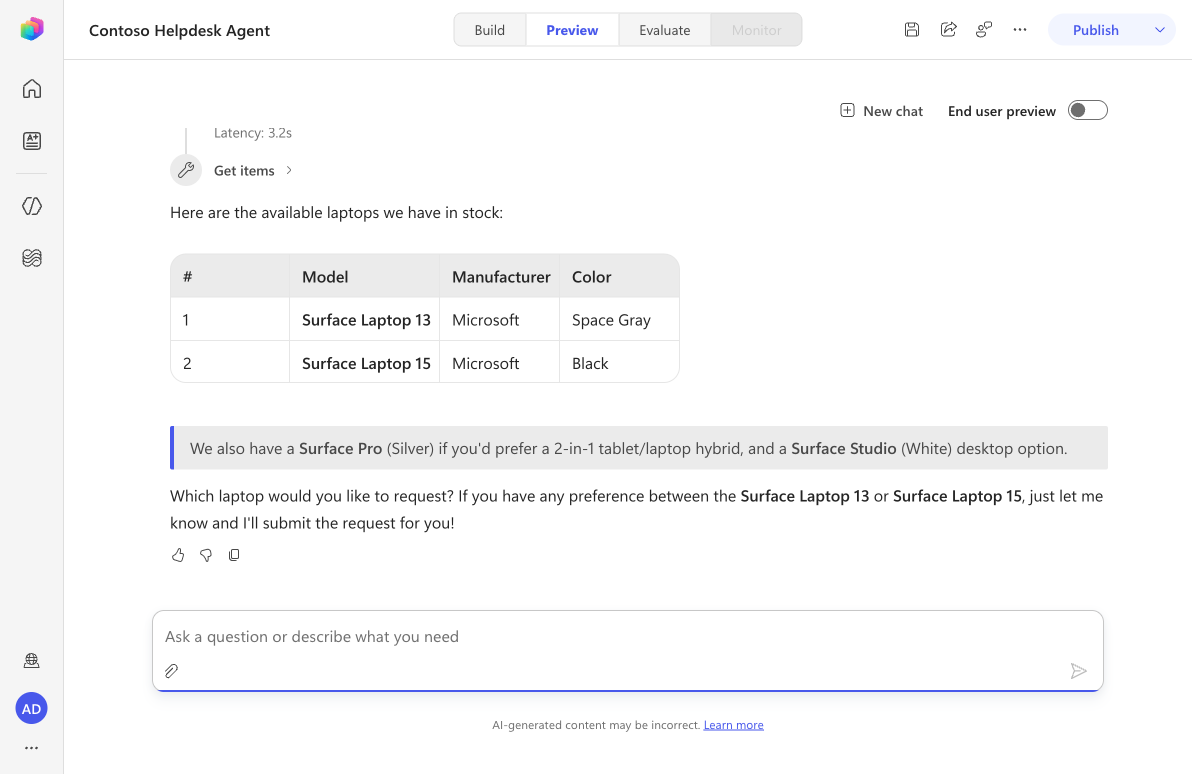
Select the Preview tab. Enter the following message:
textI need a laptopThe agent orchestrates on its own: it reads your instructions, picks the Get items tool, fills the inputs, and calls SharePoint - all without a single trigger phrase or node.
TIP
If a tool call returns a validation error, the model may have guessed a column or filter that doesn’t exist. Pin Site Address, List Name, or Filter Query to a fixed Value on the Inputs tab to keep the call exact.
✅ Mission Complete
Congratulations! 👏🏻 You learned that Topics are gone in the new experience and the model now orchestrates the conversation. You added a SharePoint - Get items tool, gave it a usage description, configured its inputs, and tested that the agent calls it. 🙌🏻
⏭️ Move to Automate with Workflows
📚 Tactical Resources
🔗 SharePoint connector reference
🔗 Write effective agent instructions