Combining Agent Flows with Agents: Gotchas, Errors, and Patterns
Standard harness
Best practices and common issues when deploying solutions that combine agent flows with agents in Copilot Studio — timeouts, credentials, schema mismatches, collaboration, and more.

Agent flows and agents are a powerful combination in Copilot Studio. Need to automate a multi-step business process while keeping a conversational front end? Agent flows deliver the automation muscle, and your agent delivers the natural language interface. In theory, they complement each other perfectly.
In practice, you’ll probably hit a few walls — and some of them are not obvious at all.
This guide covers the most common issues teams run into when deploying solutions that combine agents with agent flows in Copilot Studio. Some of these are gotchas that’ll have you scratching your head for hours the first time you see them. Others are architectural decisions you’ll want to get right before you build too much on top of the wrong foundation.
Here’s what’s covered — jump to whichever section you need:
| # | Topic | Quick answer |
|---|---|---|
| 1 | Agent flow not showing up in the agent | Missing trigger/action, async toggle, or not in a Solution |
| 2 | 100-second timeout (FlowActionTimedOut) |
Async continuation pattern — respond early, run long logic in background |
| 3 | Schema mismatch (FlowActionBadRequest) |
Refresh the agent flow node; check for unsupported parameter types |
| 4 | Agent flow actions not using maker credentials | Update individual Connection References, not just the tool setting |
| 5 | Sharing an agent flow with another maker | Add a co-owner directly in Power Automate |
| 6 | Displaying images from an agent flow in chat | Base64 inline for small images; cloud storage + link for larger ones |
| 7 | Calling an agent from inside an agent flow | Use the “Add an agent” step in agent flows |
#1 Why isn’t my agent flow showing up?
Before troubleshooting anything else, make sure your agent flow actually shows up as a tool in your agent. If it doesn’t appear, you can’t do anything else. Here are the main reasons it won’t:
Missing the right trigger or action. For an agent flow to appear as an agent tool, it needs two things: the “When an agent calls the flow” trigger at the start, and the “Respond to the agent” action at the end. Miss either one, and the agent flow won’t surface in the agent tool picker.
Async response toggle is on. Under the “Respond to the agent” action settings, there’s an Asynchronous response toggle. It must be set to Off. If it’s On, the agent flow won’t appear as a tool the agent can invoke synchronously.
The flow lives outside a Solution. Flows created directly in Power Automate and not placed inside a solution frequently fail to show up when called from an agent. Always create or move your agent flow into a Solution before trying to use it in Copilot Studio.
The agent flow is not running under the Copilot Studio plan. Make sure the agent flow is set to run under the Copilot Studio plan, or it won’t show up as an agent tool.
#2 The 100-second wall (and how to get past it)
This is the one that catches teams most off guard. Agent-triggered agent flows in Copilot Studio have a hard synchronous response limit of 100 seconds. If your agent flow doesn’t return a response to the agent within that window, you’ll see a FlowActionTimedOut error.
For the full list of Copilot Studio error codes, see the official error codes reference.
For many agent flows this is fine — a few API calls, some data transformations, a quick response. But two of the most powerful features of agent flows are, by definition, incompatible with a 100-second limit:
- Multistage and AI approvals — a manager might approve in 2 minutes or 2 days.
- Request information from humans in the loop — same story. 100 seconds is rarely enough for a human to read, think, and respond.
Both of these pause the agent flow and wait for human input before continuing. That’s exactly what makes them useful, and exactly why they’ll always exceed 100 seconds when triggered synchronously from a chat window.
This means that today, there is no way to call “Run a multistage approval” or “Request for information” through a synchronous conversational experience. These features are only available in autonomous scenarios — unless you restructure your agent flow with the async pattern described below.
The async continuation pattern
The solution is elegant once you see it. The agent flow is split into two phases — a fast synchronous part and a slow asynchronous part — with the agent freed up as soon as the first phase is done:
- The agent triggers the agent flow as a tool call.
- The agent flow handles any quick, short-running logic and responds back to the agent within the 100-second window.
- The agent and the agent flow now continue independently. The agent processes the quick response and carries on with its conversation. The agent flow moves on to the long-running part — approvals, human-in-the-loop steps, whatever it needs.
- When the long-running work is done, the agent flow asynchronously invokes the agent again, passing the results as a payload.
- The agent is triggered by the agent flow, receives the results, and continues its execution from there.
Here’s what the agent flow looks like:
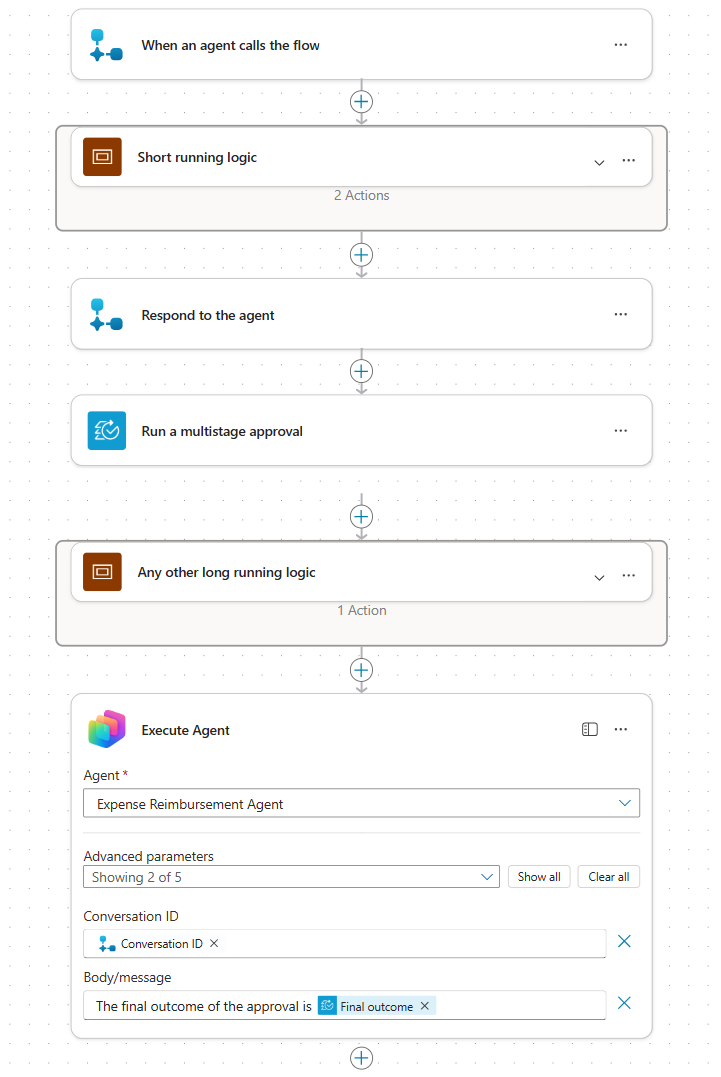 The agent flow split into a fast synchronous phase (before “Respond to the agent”) and a long-running asynchronous phase, ending with an “Execute Agent” callback
The key ingredients:
- Split at the “Respond to the agent” action. Short-running logic goes before it (must complete within 100 seconds); long-running logic goes after it. Once the agent flow responds, the agent is unblocked and both sides continue on their own.
- Use the “Execute Agent” action (from the Microsoft Copilot Studio connector) to asynchronously trigger the agent with the long-running results. This is a new, independent invocation — not a continuation of the original agent session.
-
Pass the Conversation ID. When the agent first invokes the agent flow, pass
System.Conversation.Idas an input. When the agent flow later calls “Execute Agent,” use the same Conversation ID so the new agent session can be correlated with the original one — essential for tracing and a coherent user experience. - Update the agent instructions to handle both the initial agent flow invocation and the eventual asynchronous callback with results.
Expense approval example: A user starts a claim through chat. The agent invokes the agent flow, which immediately acknowledges the request and responds within 100 seconds. The agent tells the user their request is submitted and moves on. Meanwhile, the agent flow sends an approval to the manager — which may arrive days later. Once the manager approves, the agent flow asynchronously triggers the agent again with the outcome, and the agent resumes to deliver the news to the user.
Express mode can speed up the synchronous portion of your agent flow. See the Express mode documentation for details.
Quick summary of your options
If you’re dealing with a 100-second timeout, you have three paths:
- Optimize the flow to finish under the limit — works for flows that are slow but not inherently long-running.
- Use the async continuation pattern described above — the right approach for approvals and human-in-the-loop scenarios.
- Simplify the flow and move heavy processing outside the synchronous action call — sometimes a redesign is the cleanest answer.
#3 Keeping your schema in sync (FlowActionBadRequest)
FlowActionBadRequest is the most common runtime error you’ll see when working with agent-triggered agent flows. It almost always means there’s a schema mismatch — the input or output parameters the agent expects don’t match what the agent flow actually provides.
The most common triggers:
- You modified the agent flow’s input or output parameters after already adding it to the agent, without refreshing the tool configuration in Copilot Studio.
- You’re passing an unsupported variable type. Agent flows natively support only Text, Boolean, and Number. Passing a Table, Record, or complex object directly won’t work without conversion.
How to fix it
The most common fix is to refresh the flow in Copilot Studio:
- Open the topic that contains the agent flow action.
- Select the ellipsis (…) on the Action node, then select Refresh.
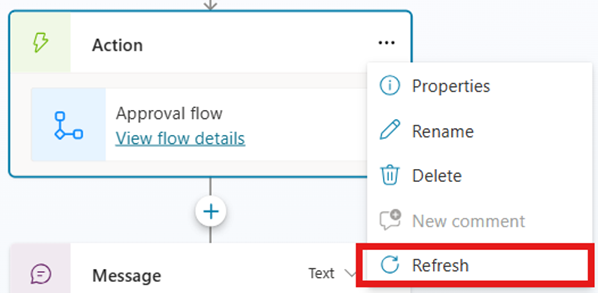 Refreshing the agent flow node to pull in the latest input/output schema
- Verify that the input and output parameters in Copilot Studio now match what’s in the agent flow.
If the error persists after refreshing, compare the actual values being passed from Copilot Studio against what the agent flow expects:
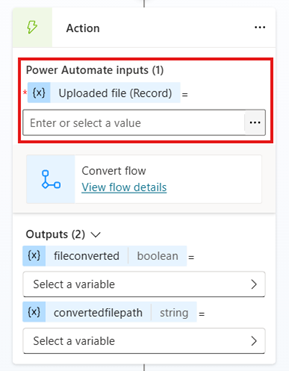 Reviewing input values on the agent side
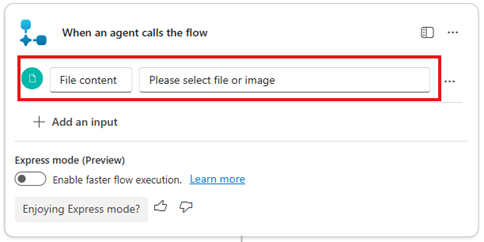 Reviewing the corresponding input values in agent flow
Look for type mismatches (e.g., a number where a string is expected), missing required parameters, and extra parameters that no longer exist in the agent flow.
#4 Running agent flow actions with maker credentials
When you add an agent flow as a tool in an agent and want it to run with the maker’s credentials, you’ll find the setting quickly: go to the tool configuration, expand Credentials, and set it to Maker-provided credentials.
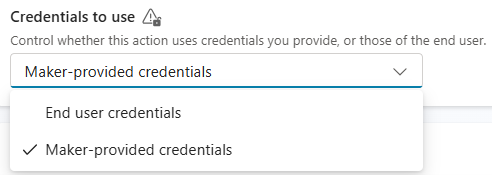 Setting Maker-provided credentials on the agent flow tool in Copilot Studio
Done, right?
Not quite.
Changing the credentials setting on agent side affects how the agent invokes the agent flow, but it doesn’t change how the actions inside the agent flow authenticate. Each action in the agent flow uses its own Connection Reference, and those are separate from the agent tool configuration.
To make the actions inside the agent flow actually run with maker credentials, you need to update the Connection References in the agent flow itself to use the maker’s connections.
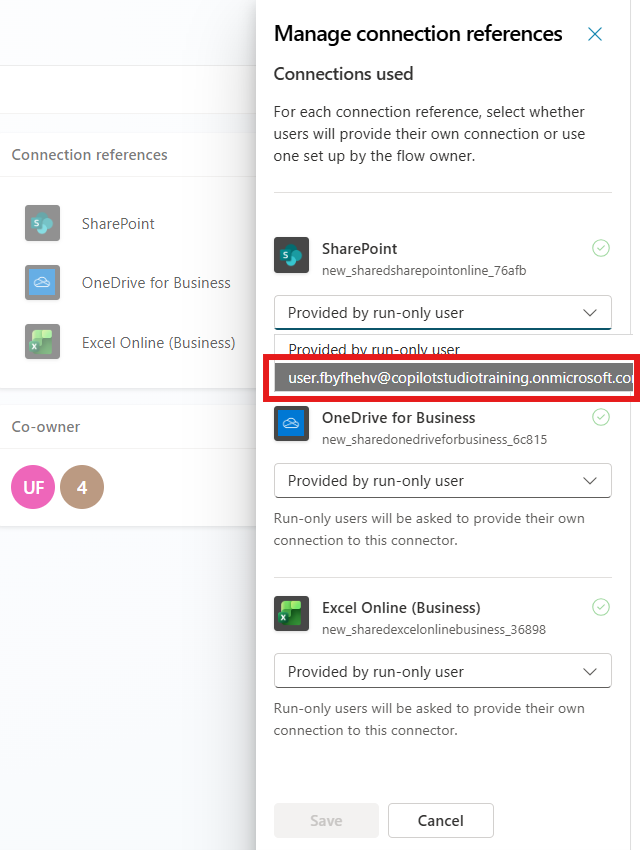 Updating Connection References to use the maker’s own connections
#5 Collaborating on agents and agent flows
Here’s something that trips up teams once they start working in a shared environment: sharing and collaboration behavior is different for agents versus agent flows.
Sharing an agent with editor permissions does also share the agent flows it uses. If you add another maker as an editor of the agent in Copilot Studio, they’ll get access to the associated agent flows as well. No extra steps needed for that scenario.
Sharing just an agent flow is a different story — and it comes with a useful benefit. This isn’t currently possible directly from Copilot Studio. To share an agent flow with another maker independently, you need to:
- Go to make.powerautomate.com.
- Find the agent flow in question.
- Open the flow’s settings and add the other maker as a co-owner.
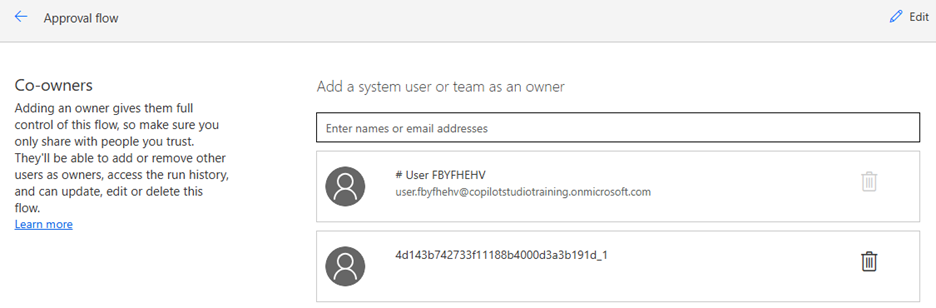 Adding a co-owner to an agent flow directly in Power Automate
The benefit of this approach is scoped access: the co-owner gets full edit access to the agent flow, but gains no access to the agent at all. This is useful when you want a maker to own and maintain the automation logic without exposing the agent’s configuration, instructions, or other tools to them.
#6 Getting images out of an agent flow and into the chat window
When your agent flow generates or retrieves an image and you want to display it in the agent’s chat window, you have two options depending on the image size and your setup.
For the reverse scenario — passing files from the user to an agent flow — check out Tutorial: Passing Files from Copilot Studio to Agent Flows, Connectors and Tools.
Option 1: Return as Base64 and display inline
Have the agent flow output the image as a Base64-encoded string via the “Respond to the agent” action. Configure a Text output parameter and set its value to the Base64 representation of the file.
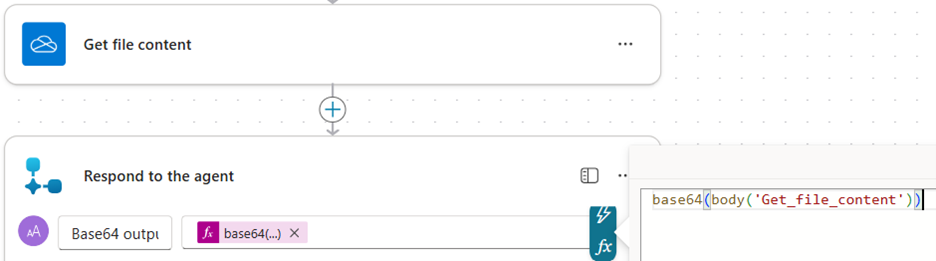 Returning the Base64-encoded image as a Text output from the agent flow
The agent receives the Base64 string (as Topic.Base64output) and can display it inline in two ways:
Send as a message. Set a variable to the following Power Fx expression and send it as a message:
1

$"<img src='data:image/png;base64,{Topic.Base64output}'/>"
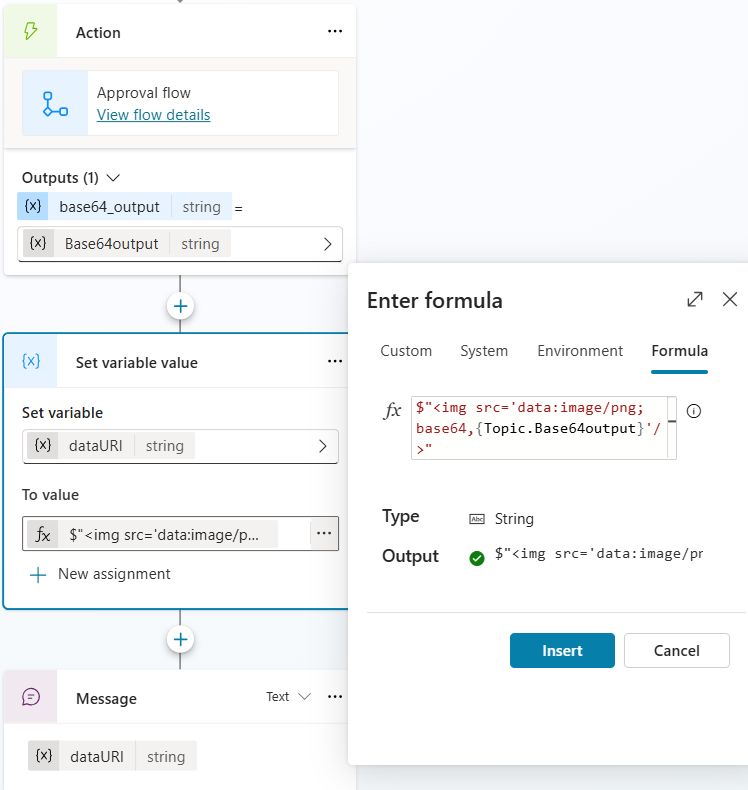 Sending a simple message with an inline image
Send as a message with a Basic card. Use the following Power Fx expression as the image URL in the Basic card:
1

"data:image/png;base64," & Topic.Base64output
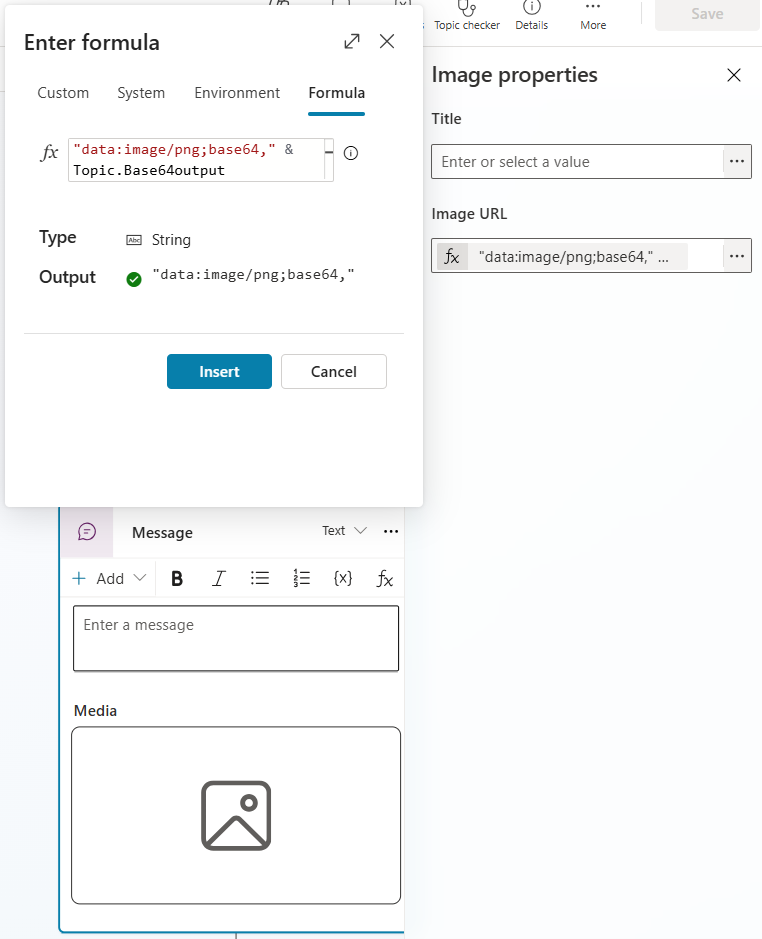 Sending a Basic card with an inline image
Option 2: Store in cloud storage and return a link (recommended for large images)
Base64 encoding inflates file size by roughly 33%, and embedding large Base64 strings in responses adds overhead. For larger images, a better approach is:
- Store the generated image in cloud storage — Azure Blob, SharePoint, or a Dataverse File column all work well.
- Create an access link: use a public or SAS (Shared Access Signature) URL for Azure Blob Storage, a sharing link for SharePoint, or an authenticated API endpoint (or proxy) for Dataverse.
- Return that URL to the agent and render the image via HTTPS.
This keeps your response payload small and gives you proper access control over the image.
Both options work well for different scenarios. The Base64 approach is simpler to implement and requires no external storage setup. The cloud storage approach fits better when you’re working with larger images or already have a storage layer in your solution.
#7 Calling an agent from inside an agent flow
You have a deterministic agent flow doing structured automation, and at one specific point you need AI reasoning. Rather than rebuilding the agent flow as an agent or calling an external API, you can drop an agent node directly inside the agent flow. The agent flow stays fully in charge — the agent just handles the one step that needs it — so you don’t give up the reliability and predictability of a structured flow.
This is a great pattern when:
- Most of your process is rule-based and reliable as an agent flow
- There’s one step that benefits from natural language understanding or generative reasoning
- You want to keep the automation deterministic everywhere it can be
If you’ve explored triggering agents from outside an agent flow — say, from an HTTP call or an external system — check out Triggering Copilot Studio Agents with HTTP Calls for a different angle on the same idea.
How to set it up
- In your agent flow, add a new step: Add an agent.
- Select the Copilot Studio agent you want to invoke.
- Provide the instructions or task the agent needs to fulfill. You can include context from earlier agent flow steps and specify who the agent should contact if it needs clarification.
- Add the rest of your agent flow steps after the agent node.
When the agent flow runs, execution reaches the agent node, hands off to the agent, waits for the result, and then continues with the next agent flow step automatically. The agent does its reasoning, returns a structured output, and the agent flow continues as if nothing unusual happened.
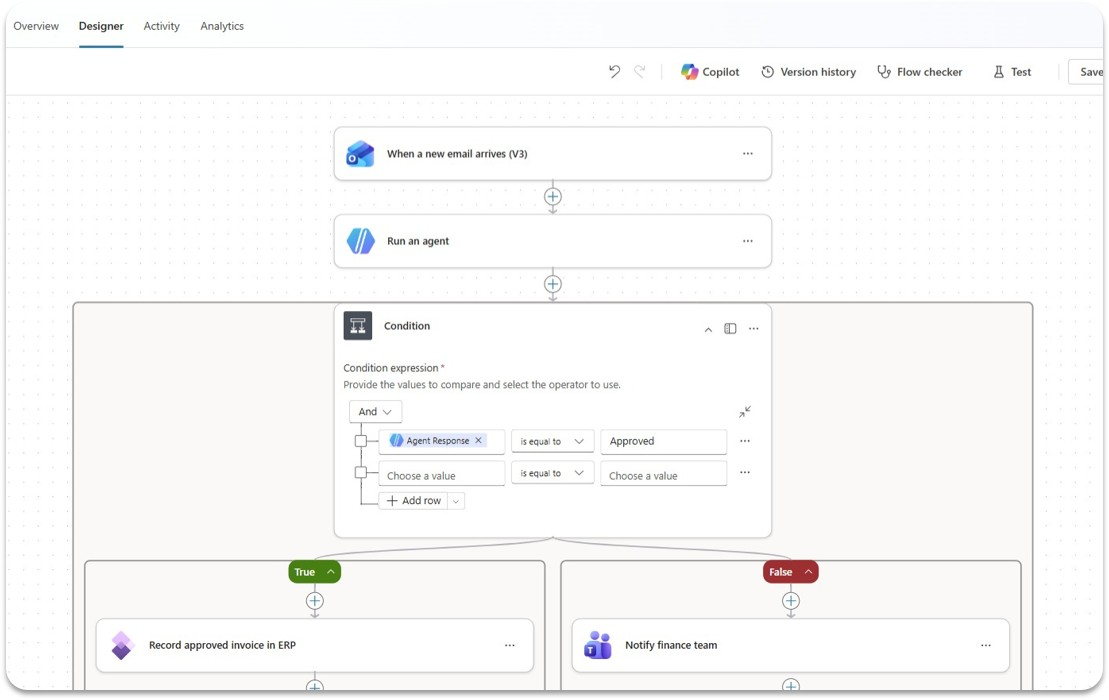 An agent node inside an agent flow — the agent flow pauses, the agent reasons, the agent flow continues with the result
This is different from the async continuation pattern in #2. Here, the agent flow is calling the agent — the flow of control is inverted. The agent flow waits for the agent response before continuing.
Wrapping up
Agent flows and agents unlock genuinely powerful automation patterns in Copilot Studio, but the integration has some sharp edges. A quick summary of what to watch for:
- Can’t see your flow? Check for the “When an agent calls the flow” trigger, the “Respond to the agent” action, the async toggle, whether it’s in a Solution, and whether it’s running under the Copilot Studio plan.
- 100-second timeout? Restructure with the async continuation pattern — respond early, run long logic in the background, call back with “Execute Agent.”
- FlowActionBadRequest? Refresh the agent flow node in Copilot Studio and verify your parameter types are Text, Boolean, or Number.
- Actions running as the wrong identity? Update the Connection References in the agent flow itself, not just the credentials setting in Copilot Studio.
- Sharing an agent flow independently? Add a co-owner directly in Power Automate — they get agent flow access without touching the agent.
- Displaying images? Return Base64 from the agent flow and display inline, or store in cloud storage and return a link.
- Need AI reasoning inside an agent flow? Use the “Add an agent” step to drop an agent node right into your agent flow.
Have you run into any of these in production? Which one took you the longest to figure out? Drop a comment below — especially if you’ve found a cleaner workaround than the ones above.