Embed Copilot Studio Agents in Canvas Apps with a PCF Control
Standard harness
The built-in Copilot control for Canvas Apps is deprecated. Use this PCF control to embed your Copilot Studio agent with custom styling and two-way communication.
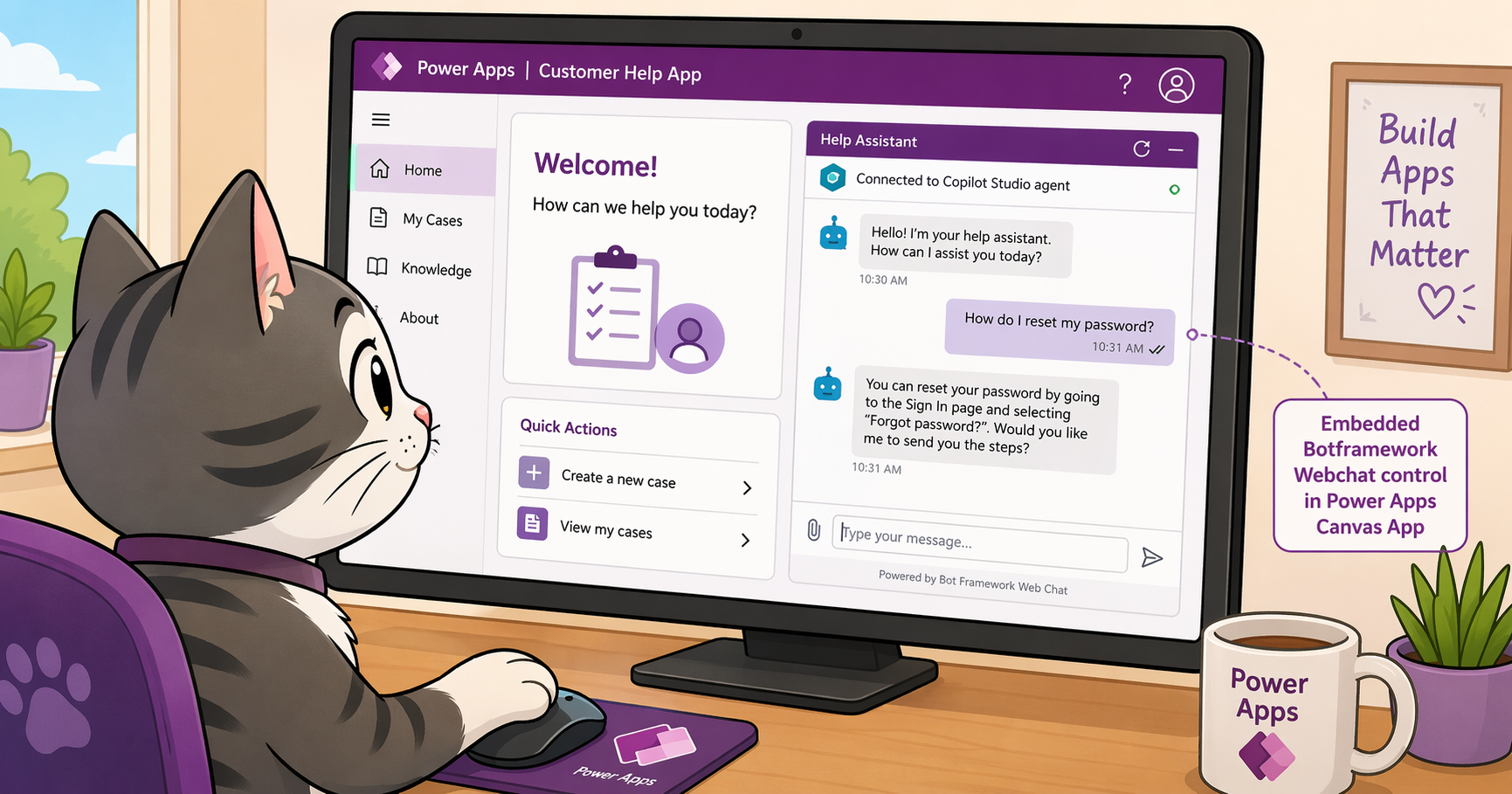
If you’ve been building Canvas Apps in Power Apps and wanted to add an AI-powered chat experience, you’ve probably come across the built-in Copilot control. It let you drop an AI assistant right into your app with a few clicks. Convenient, right?
Well, here’s the thing: that control is now deprecated. As of February 2, 2026, you can no longer add it to new Canvas Apps. Existing apps that already use it will keep working for a limited time, but the writing is on the wall. Microsoft recommends migrating to Microsoft 365 Copilot in Canvas Apps, but that isn’t available everywhere yet.
So what do you do if you need to embed a Copilot Studio agent in a Canvas App today?
Enter the ChatControl PCF Component
The Copilot Studio Samples repository on GitHub includes a ChatControl PCF component built specifically for this scenario. It’s a Power Apps Component Framework (PCF) control that lets you embed a Copilot Studio agent directly into your Canvas App, using Bot Framework WebChat with a Fluent UI theme under the hood.
If you’re new to Canvas Apps or PCF controls, here’s a quick primer on both.
What Are Canvas Apps?
Canvas Apps are one of the app types you can build in Power Apps. Think of them as a visual, drag-and-drop app builder where you have pixel-level control over the layout. You place controls on a canvas (hence the name), wire up data sources, and write formulas in Power Fx to define behavior. They’re popular for building task-specific apps, like a field service tool, a customer lookup screen, or an approval dashboard, without writing traditional code.
What Are PCF Controls?
PCF stands for Power Apps Component Framework. It’s a framework that lets developers build custom, reusable controls using standard web technologies like TypeScript, HTML, and CSS, and then use those controls inside Power Apps just like any built-in control. If the out-of-the-box controls don’t cover your needs, PCF is how you extend the platform. The controls are packaged as Power Platform solutions, so they can be imported and shared across environments. The ChatControl we’re discussing here is exactly that: a PCF control that wraps Bot Framework WebChat and the M365 Agents SDK into a component you can drop onto your Canvas App.
PCF controls need to be enabled in your environment before you can use them in Canvas Apps.
Why Not Just Wait for the Replacement?
Fair question. Microsoft has announced that Microsoft 365 Copilot in Canvas Apps is the recommended path forward. But depending on your environment and rollout timeline, that might not be available to you yet. If you have a production app that needs an embedded agent now, this PCF control bridges the gap.
And honestly, it does more than just bridge a gap. It comes with additional capabilities the old built-in control never had.
What Makes This Control Interesting
Built-in SSO Authentication
The control uses the Microsoft 365 Agents SDK for TypeScript to establish a secure connection to your Copilot Studio agent. It supports single sign-on (SSO) out of the box, so users authenticate seamlessly without an extra login prompt.
Setting up SSO requires an Azure app registration and some configuration in both Azure and Copilot Studio. The setup guide walks you through the steps in detail.
Custom Styling
One of the additional benefits: you can style the chat interface to match your app’s look and feel. Since the control is built on Bot Framework WebChat, it supports the same style options that WebChat exposes. Want to match your company’s brand colors, adjust font sizes, or tweak the chat bubble layout? You can. If you’re interested in what’s possible with WebChat styling, the embedding WebChat without JavaScript post covers some of the options, and the ServiceNow embedding field report shows a real-world example of custom-styled WebChat.
Send Messages and Events to the Agent
Here’s where it gets really useful. The control lets your Canvas App send messages, or even custom events, to the Copilot Studio agent. Why does this matter?
Imagine you have a Canvas App that shows customer records. A user selects a customer and opens the chat. Instead of making the user type “I’m looking at customer Contoso,” the app can automatically send that context to the agent when the conversation starts. The agent picks it up and can immediately retrieve relevant information for that customer, no extra prompting needed.
This kind of context passing turns the agent from a generic chat assistant into something that feels deeply integrated with the app. The agent knows what you’re looking at before you say a word.
Get Agent Responses Back in the App
The communication goes both ways. Your Canvas App can also receive responses from the agent and act on them. Think about what this enables:
- The agent looks up a customer’s latest support ticket and returns a summary. The app displays it in a dedicated panel outside the chat.
- The agent recommends an updated address for a contact. The app takes that response and pre-fills an update form so the user can confirm and save it with a single click.
- The agent classifies an incoming request. The app uses that classification to route a workflow.
This bidirectional communication is what separates a simple embedded chat from a truly integrated experience. Your app and your agent become collaborators, not just neighbors on the same screen.
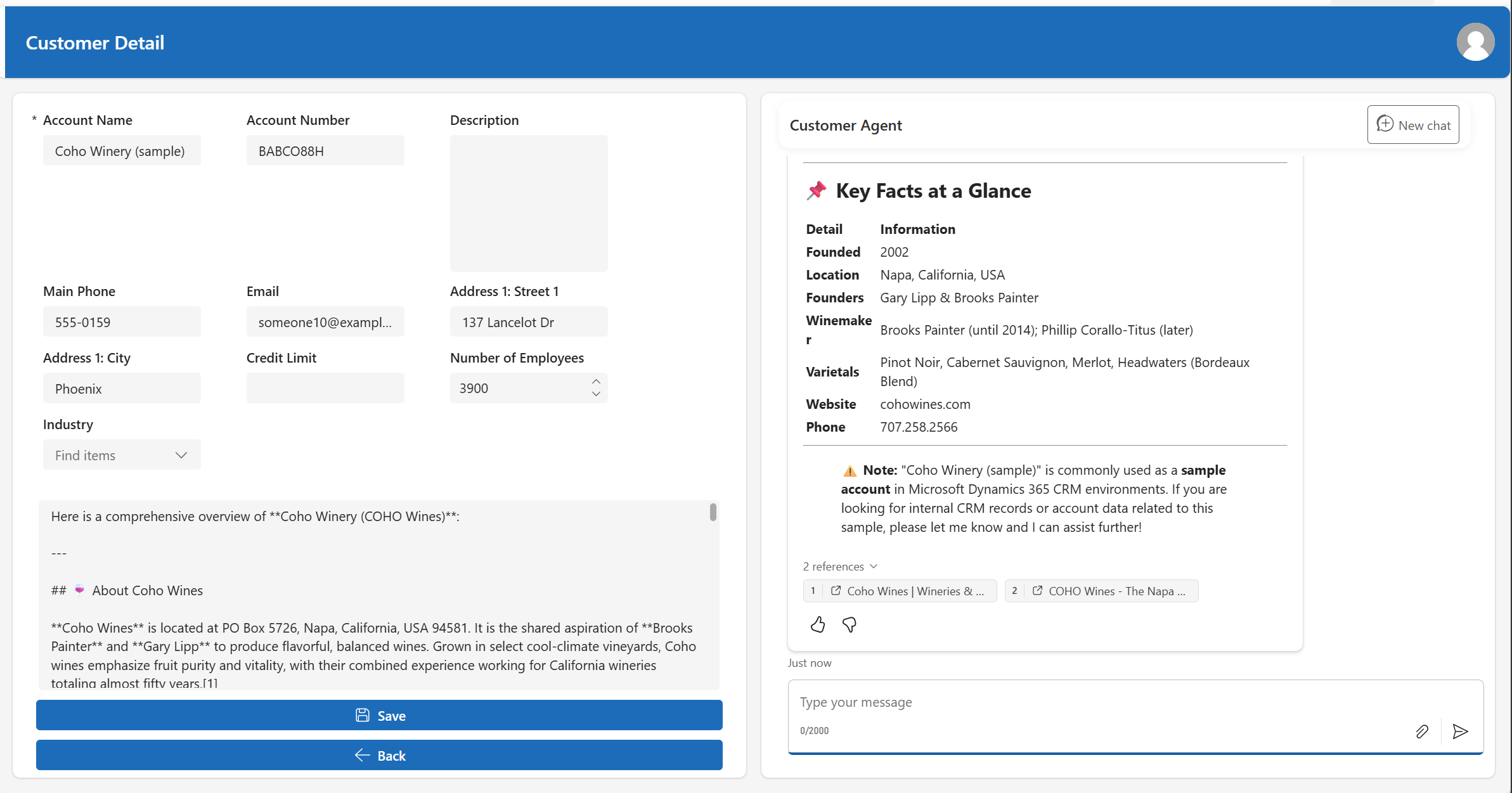 A sample Canvas App with bidirectional communication: the text box on the left captures the agent’s response, while the embedded agent chat is on the right.
Prerequisites and Setup
Getting this up and running requires a few things:
- A published Copilot Studio agent configured with Microsoft authentication
- An Azure app registration with the right permissions for SSO
- System Administrator rights in your Power Platform environment
- PCF components enabled in your target environment
The control is distributed as a Power Platform solution file. You import it into your environment, then add the component to your Canvas App like any other control. The configuration properties include your Azure app’s client ID, tenant ID, the environment ID, and the agent identifier.
The full setup guide on GitHub covers each step in detail, including the Azure app registration, increasing the file size limits for solution import, and wiring up the properties in your Canvas App.
When Should You Use This?
| Scenario | Recommendation |
|---|---|
| Need an embedded agent in a Canvas App today | Use this PCF control |
| Want custom styling to match company branding | Use this PCF control |
| Need bidirectional communication between app and agent | Use this PCF control |
| Not allowed to use PCF controls in your environment | Wait for new native Microsoft 365 Copilot control for Canvas Apps |
| Having a model-driven app instead of a canvas app | Use new Microsoft 365 Copilot in model-driven apps |
| Building a web app outside of Power Apps | Look at WebChat embedding or the integration decision guide instead |
Key Takeaways
- The built-in Copilot control for Canvas Apps is deprecated as of February 2026. You can’t add it to new apps anymore.
- The ChatControl PCF component from the Copilot Studio Samples repo is a ready-to-use alternative that works today.
- Beyond being a replacement, it adds capabilities the old control didn’t have: custom styling, sending context from the app to the agent, and receiving agent responses back in the app.
- It’s built on WebChat and the M365 Agents SDK, so it benefits from the same ecosystem and extensibility.
- It’s designed exclusively for Canvas Apps and uses the PCF framework to integrate natively with the Power Apps runtime.
Have you tried embedding Copilot Studio agents in your Canvas Apps? Are you already using this PCF control, or waiting for the M365 Copilot replacement? Let us know in the comments.