Bridging the Gap: Connecting Legacy Desktop Applications to Copilot Studio Agents
Standard harness
A technical deep-dive into connecting legacy desktop applications to Microsoft Copilot Studio agents - exploring how a Separation of Concerns pattern lets you reuse your existing RPA stack today, and how Computer Use Agents (CUA) enable a fully agentic alternative.

The Legacy Application Challenge
Many organizations still rely on legacy desktop applications that are critical to business continuity and success. In most cases, these applications do not expose an API, making modern programmatic interaction with them tedious, error-prone, and sometimes outright impossible.
RPA (Robotic Process Automation) was created precisely to bridge this gap. Power Automate enables the creation of deterministic desktop flows with sophisticated tooling for UI automation, flow execution, and error handling.
We are now well into the Agentic Automation era. As organizations move toward agentic automation, surfacing data from legacy desktop applications and making it available to AI agents becomes increasingly critical.
Which leads to a natural question: What if I could connect my existing Power Automate RPA stack to Copilot Studio and amplify my agents with data that lives exclusively inside desktop apps?
In this post we explore two approaches to answer exactly that:
- Separation of Concerns with Power Automate - a pattern that keeps your existing RPA stack intact, using it as a reliable data retrieval layer that feeds a Copilot Studio agent through Dataverse.
- Computer Use Agents (CUA) - a fully agentic, vision-based approach where a Copilot Studio agent interacts with desktop applications directly, as a human would.
Choosing Your Approach: CUA vs RPA
Before diving into implementation, it is worth understanding how these two technologies compare and where each fits best.
| Aspect | RPA | CUA |
|---|---|---|
| Automation type | Rule-based / Deterministic | LLM-driven / Outcome-based |
| Interacts via | UI tree | Vision |
| Authoring | Visual scripting | Natural language instructions |
| Decision making | Predefined rules | Autonomous, visual-based decisions |
| Error handling | Predefined error handling | Self-correcting based on visual feedback |
When to use each - today
| Use RPA when… | Use CUA when… | |
|---|---|---|
| UI stability | UI is stable - screens, fields, and selectors hardly change | UIs shift or vary widely - multiple apps, frequent redesigns |
| Decision complexity | Rules are clear - decisions can be captured in logic | Decisions are fuzzy - the agent must reason or self-correct |
| Speed | Speed matters - high-volume where every second counts | Vision matters - the task depends on what’s visible on screen |
| Team capacity | An RPA team owns it - existing skills and tooling in place | RPA team can’t take it - backlog is full, faster to build with CUA |
| Criticality | GA is a must - mission-critical systems require stability | Tolerance for retries is acceptable - e.g. read-only scenarios |
Approach 1: Retaining the RPA Stack with Separation of Concerns
CUA is a compelling capability, but there is a pragmatic alternative that leverages the maturity and reliability of Power Automate - one that maps cleanly to the Separation of Concerns architectural principle.
The idea is simple: let each layer do what it does best.
Knowledge / Data Retrieval Layer: A scheduled cloud flow, executed at defined intervals (e.g. once per day), invokes a desktop flow. The desktop flow retrieves all requisite data from the legacy desktop application using UI Automation, then stores it in a custom Dataverse table using the dedicated Power Automate Dataverse actions.
Execution Layer: The Custom Agent uses the custom Dataverse table as a knowledge source, having direct access to clean, structured, up-to-date data on every interaction - without ever touching the desktop application directly.
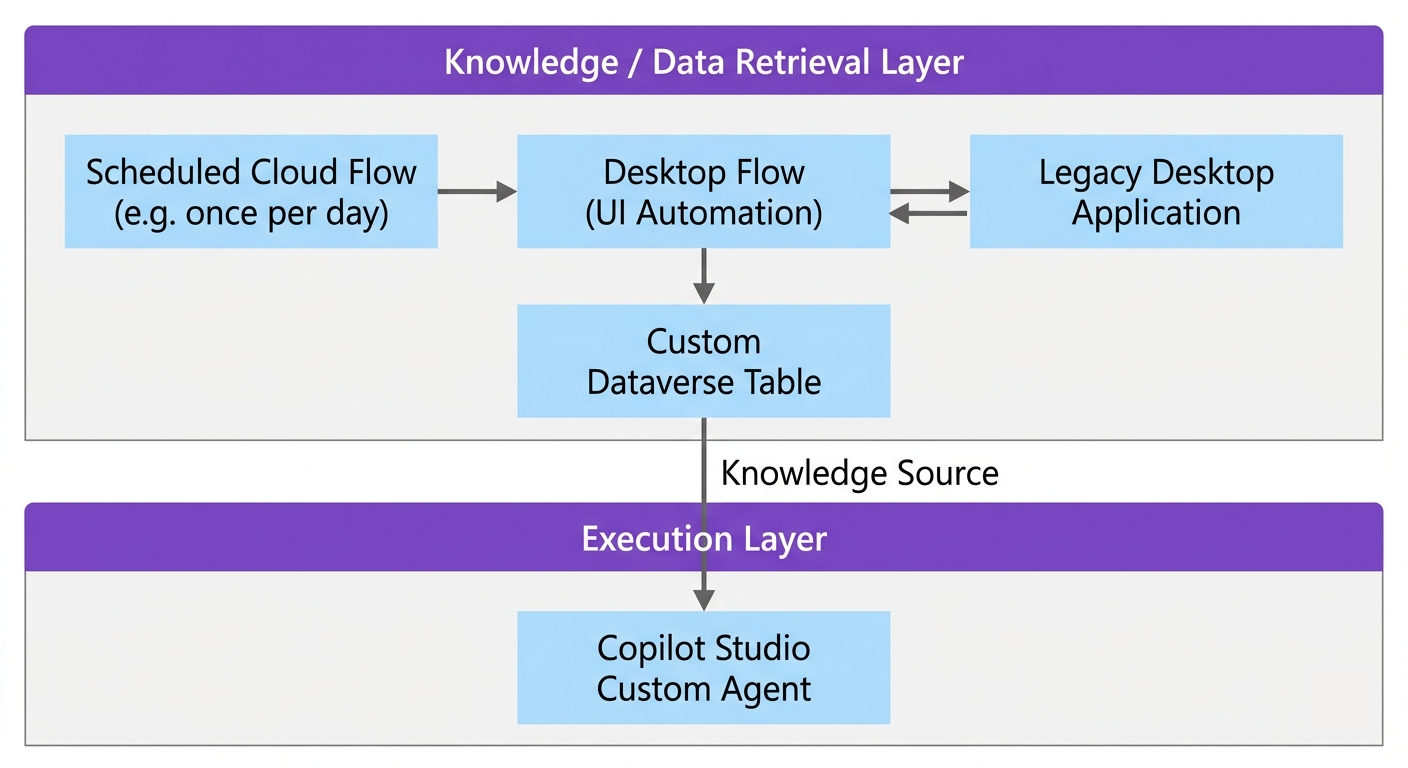 The Knowledge Layer handles data retrieval and storage. The Execution Layer handles agent interactions.
This approach offers several concrete advantages:
- Speed - the agent queries structured data instantly, with no UI navigation overhead
- Robustness - Power Automate desktop flows are deterministic and battle-tested
- Scalability - Dataverse handles concurrent agent queries without additional machine load
- Auditability - every flow run, data write, and agent query is logged and traceable
- Decoupling - the desktop application, the data pipeline, and the agent can each evolve independently
This pattern won’t suit every scenario. If you need real-time data or genuinely ad-hoc UI interactions, CUA is the right choice. But for recurring, structured data retrieval, this approach delivers production-grade reliability today, allowing you to reuse your existing RPA stack without modification.
Approach 2: Going Fully Agentic with Computer Use Agents (CUA)
Microsoft has introduced a fundamentally different approach to desktop automation in Copilot Studio: Computer Use Agents (CUA).
Rather than scripted, deterministic flows, CUA emulates human behavior. You set it up, provide objectives in natural language, and watch it interact with desktop and web applications exactly as a human user would - clicking, reading, navigating.
Learn more: Automate web and desktop apps with computer use (preview) – Microsoft Copilot Studio
Prerequisites
Before starting, ensure the following are in place:
- A US-based Power Platform environment - CUA is currently only available in US regions. See the full requirements here.
- A target machine with Power Automate Machine Runtime installed and registered. See how to set up a machine in Power Automate.
- The machine enabled for Computer Use: Power Automate > Machines > select your machine > Settings > toggle “Enable for computer use” to ON.
- A dedicated CUA user account on the target machine - see best practices for securing machines.
Important: Enabling Computer Use on a machine removes it from the pool available for standard desktop flow connections and will break any existing connections tied to it. Ensure no active desktop flows depend on this machine before proceeding.
Choosing where CUA runs: local VM, Hosted Machines, or Hosted Browser
CUA gives you three options for where automation runs, each suited to different scenarios.
Bring-your-own machine (local VM) is the right choice when you already have infrastructure in place - the legacy desktop application is installed and running on a machine you control. This is the approach used in this demo, as it reflects how most organizations with an existing RPA stack operate today.
Power Automate Hosted Machines are the recommended path for production deployments and scale. They are a fully managed, SaaS-based offering - Microsoft provisions and maintains the underlying infrastructure. Key advantages:
- No infrastructure overhead - no VM provisioning, patching, or maintenance
- Scalability - spin up additional machines on demand for concurrent workloads
- Reliability - no dependency on on-premises uptime
- Simplified setup - configure a golden image once, replicate at scale
Learn more: Hosted Machines in Power Automate · Use custom VM images
Hosted Browser is the lightest option - no machine setup required at all. If your automation target is a web application, CUA can run directly against a hosted browser session managed by Microsoft. It is the fastest way to get started and ideal for web-only scenarios.
Learn more: Configure where computer use runs (preview)
Demo setup: For this walkthrough, I used a locally hosted Hyper-V Virtual Machine with a dedicated CUA user account, Power Automate Machine Runtime, and the Contoso Invoicing desktop application installed.
Demo: Adding Computer Use to a Custom Agent
Step 1 – Create a Custom Agent
Create a new Custom Agent in Copilot Studio. For this demo, I named mine Contoso Invoicing Assistant. Leave the Instructions section empty for now - we will return to it in Step 5.
Step 2 – Add the Computer Use Tool
Navigate to the Tools tab and click Add the Computer Use tool.
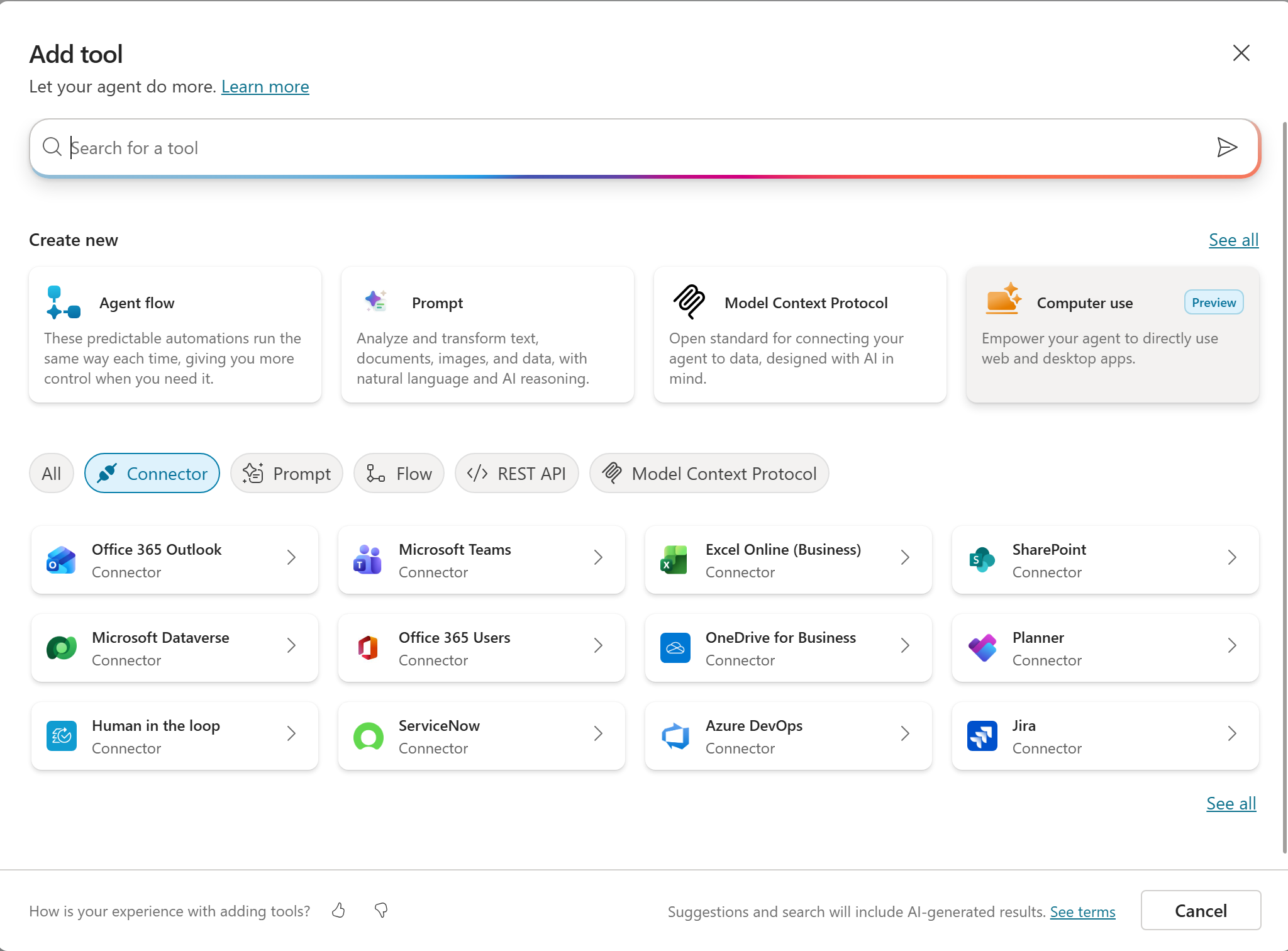
Provide instructions for the tool and click Add and configure.
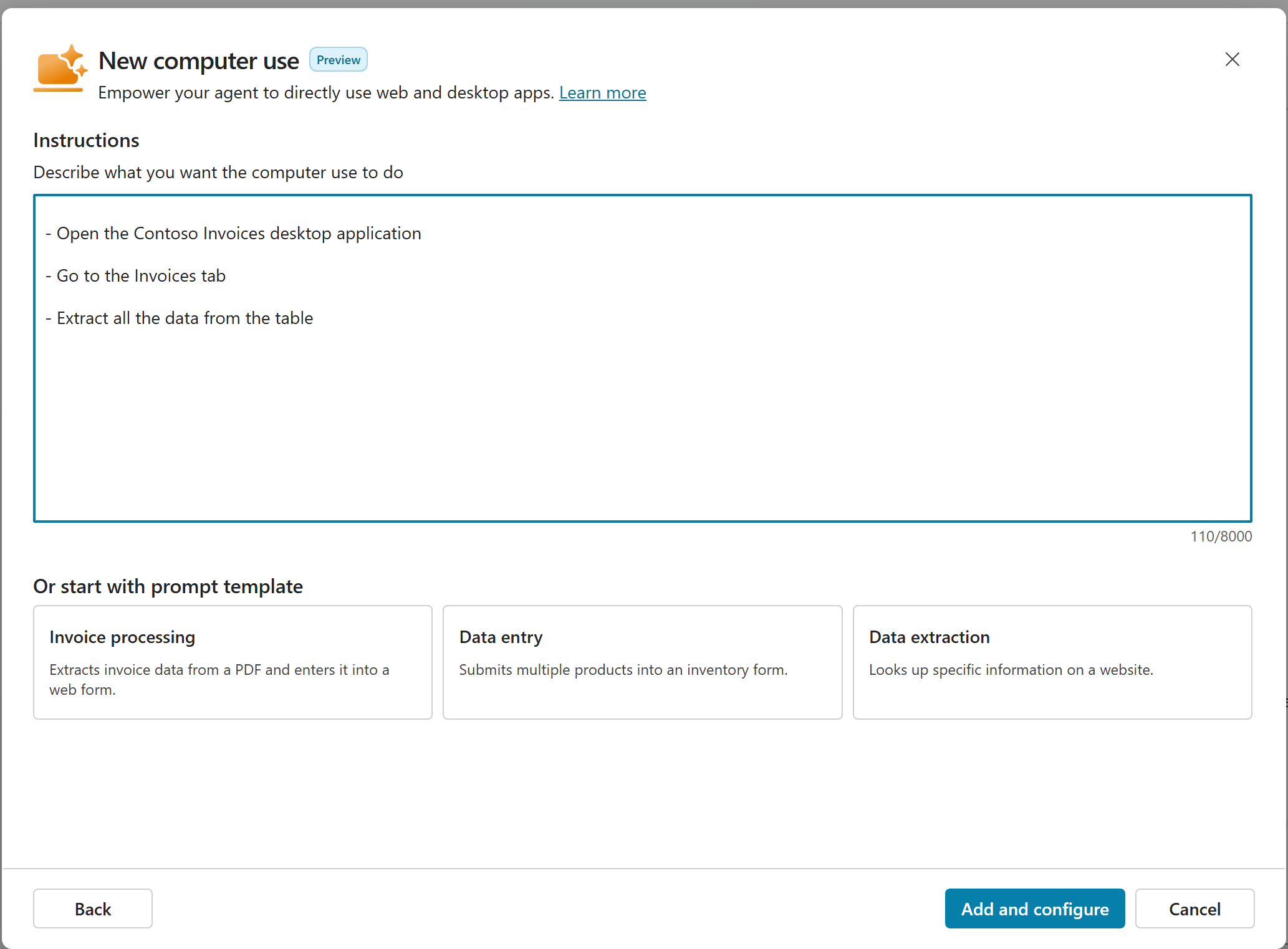
On writing good instructions: Be thorough and specific. CUA automation is outcome-based, not action-based - every instruction is a goal, and the tool will use every method at its disposal to achieve it. If the target application isn’t visible on screen, CUA will search via Windows Search, browse the file system, locate the
.exe, and more. Instructions should clearly describe the desired outcome in terms of the application being automated.See: Best practices for instructions for computer use – Microsoft Learn
Step 3 – Connect Your Machine
- Scroll down to the Machines section of the Computer Use tool configuration.
- In the dropdown, select Bring-your-own machine and choose the machine registered in the Prerequisites step.
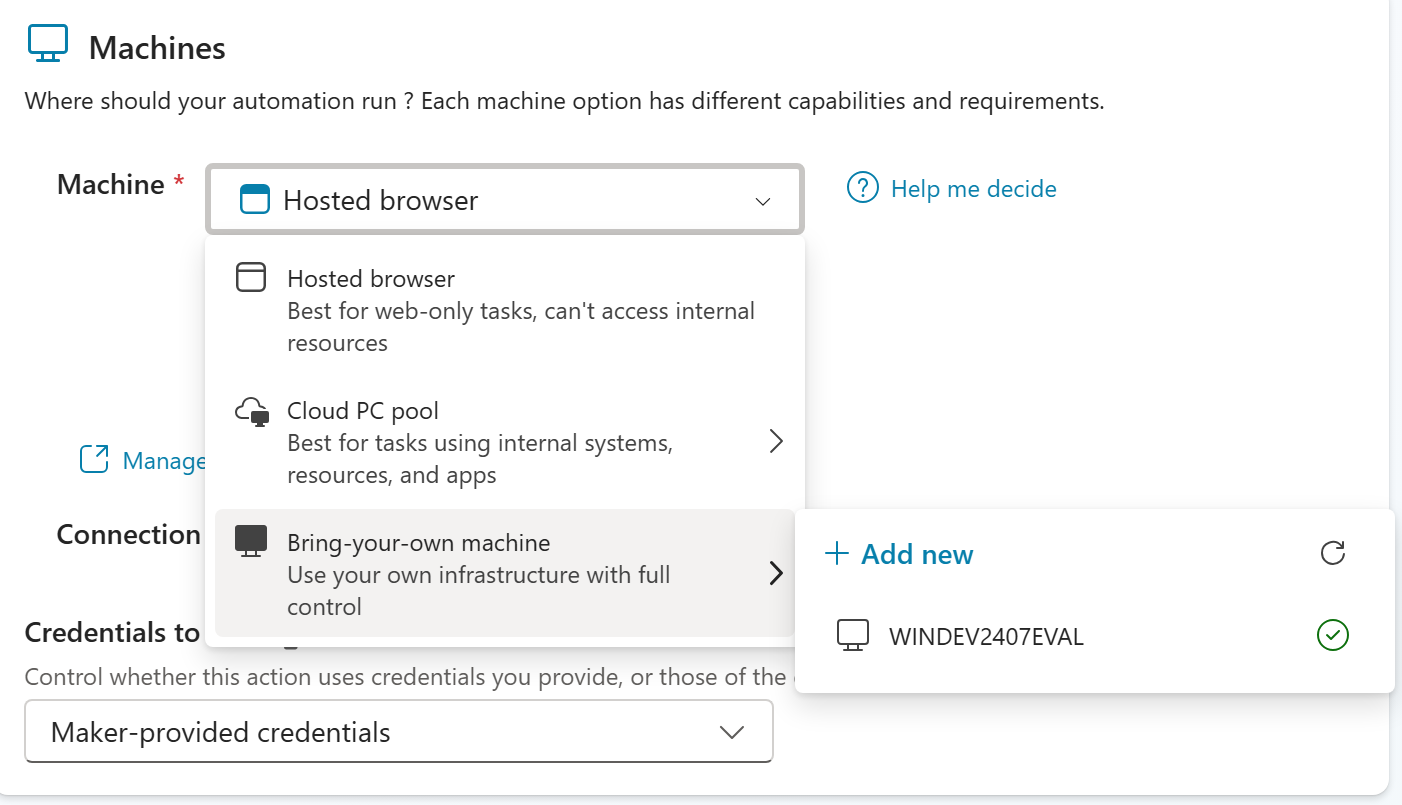
Step 4 – Create a Connection and Test
With your machine selected, create a connection for CUA.
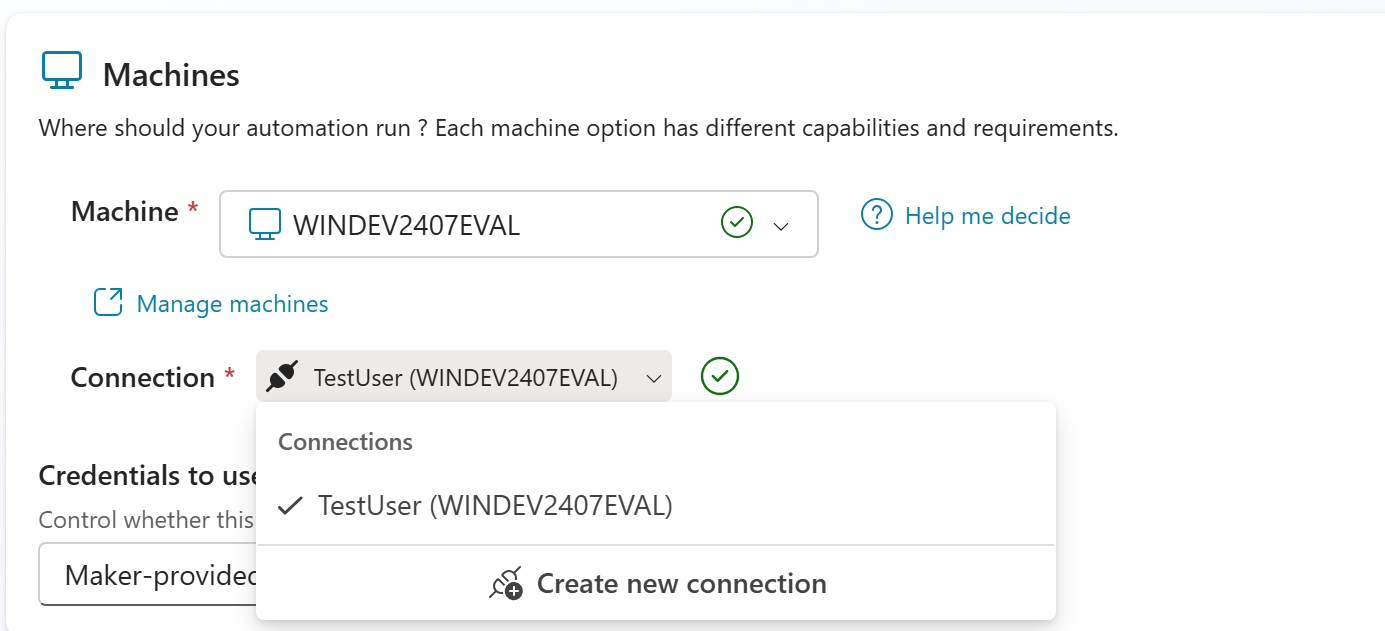
Click Test - your registered machine should appear and be ready.
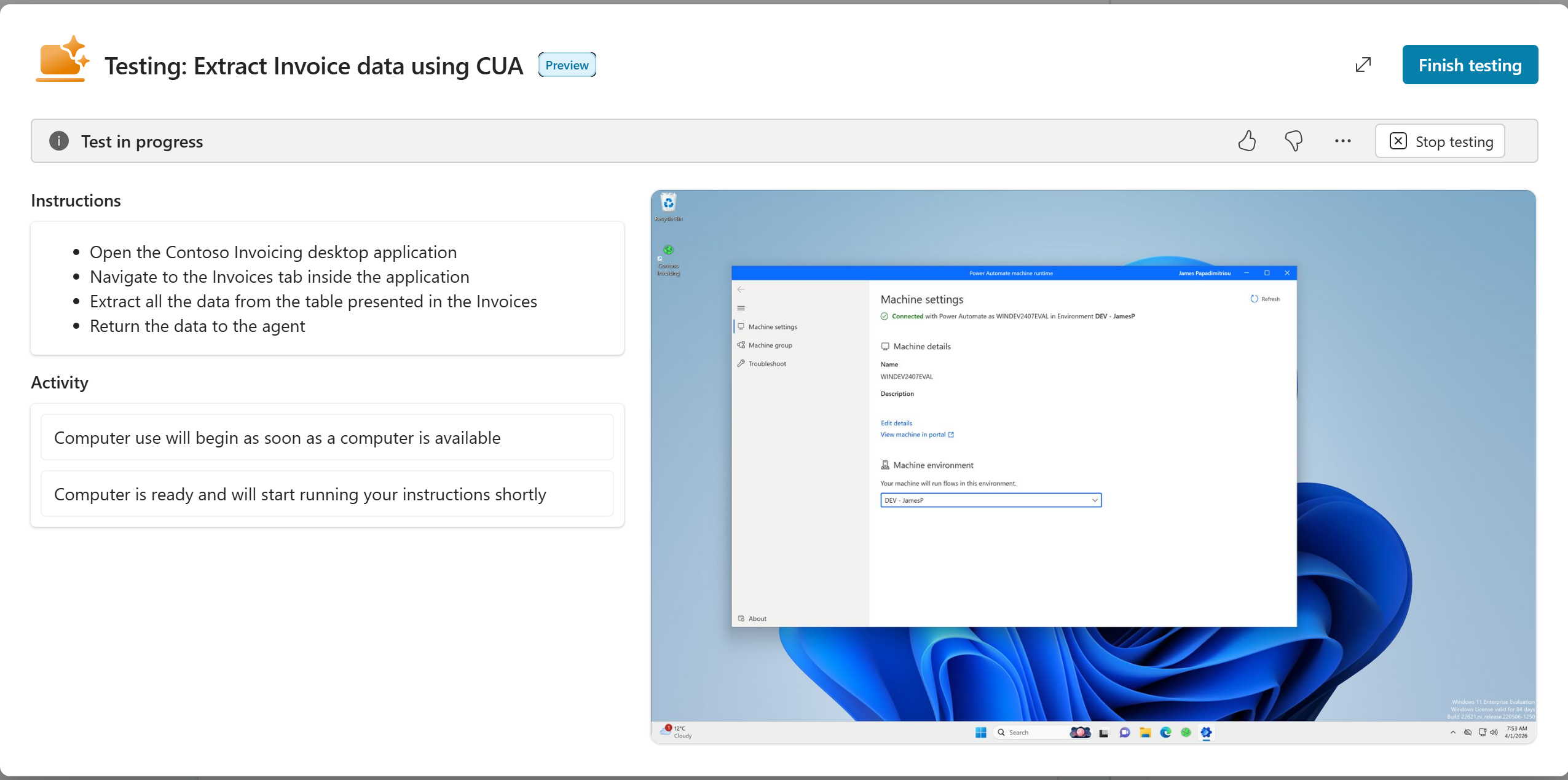
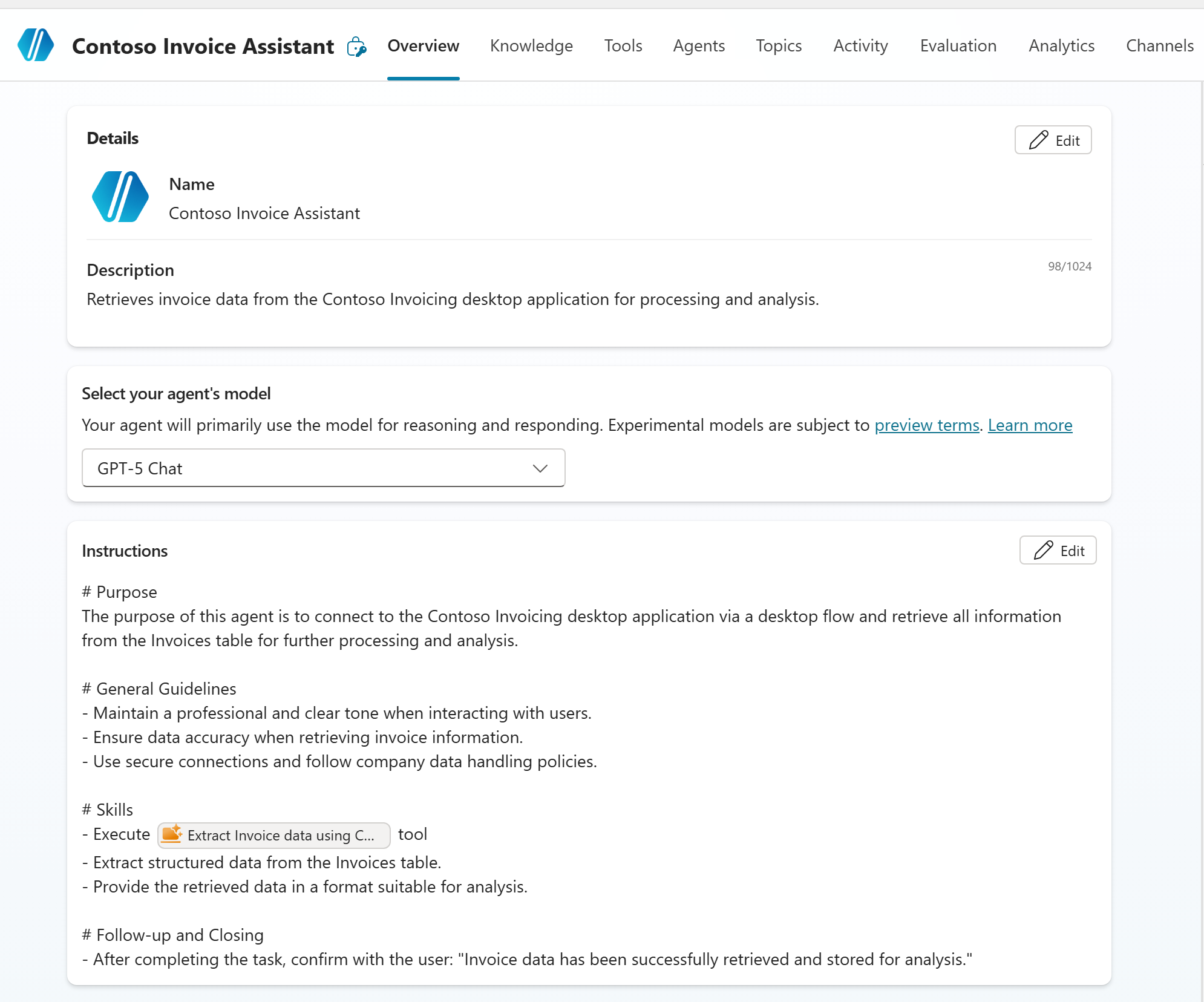
Step 5 – Configure Agent Instructions and Run
Return to the agent’s Instructions section and provide thorough guidance, explicitly referencing the CUA tool and the objectives it should pursue against the target application.
Save your changes and open the Test panel.
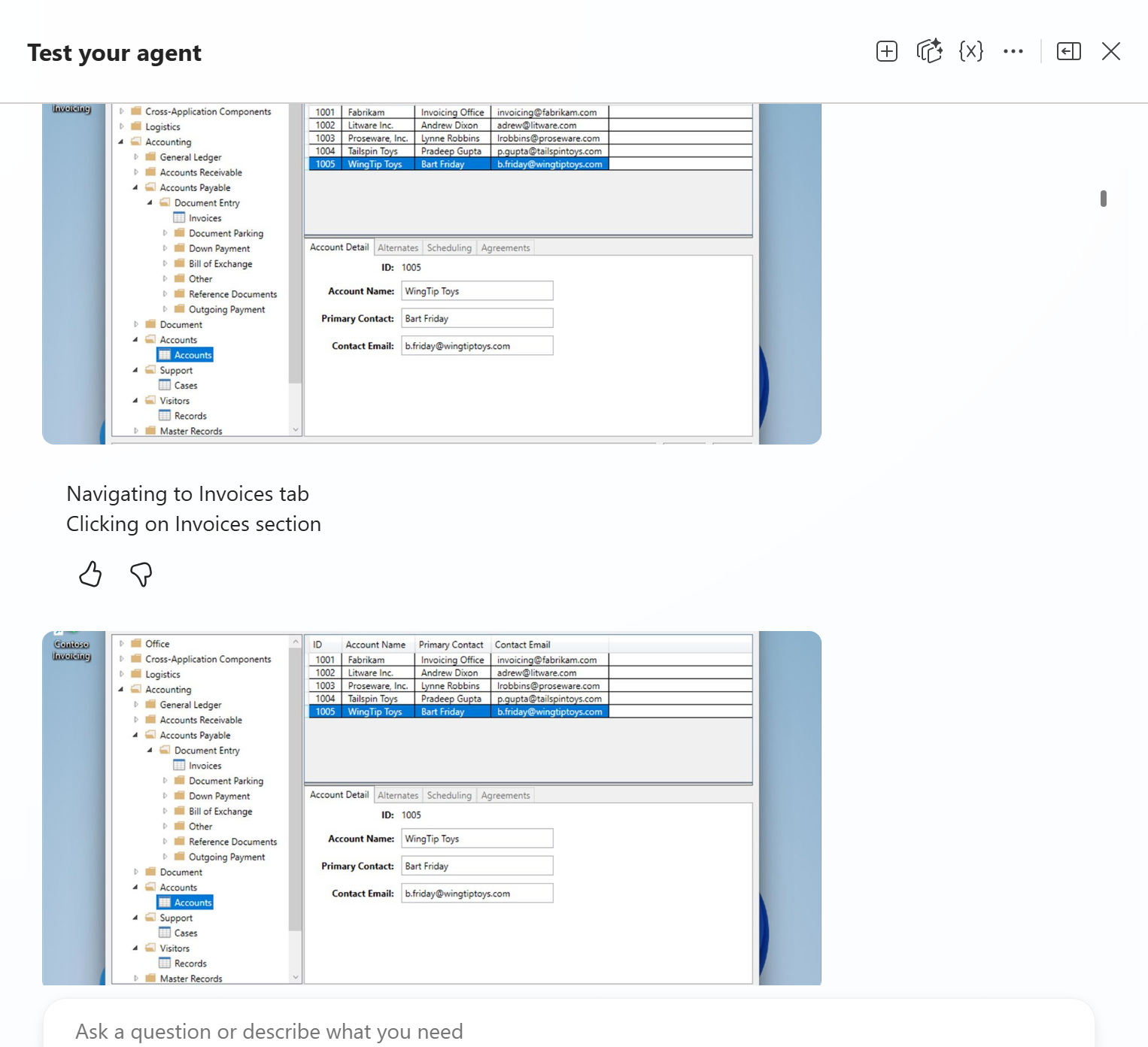
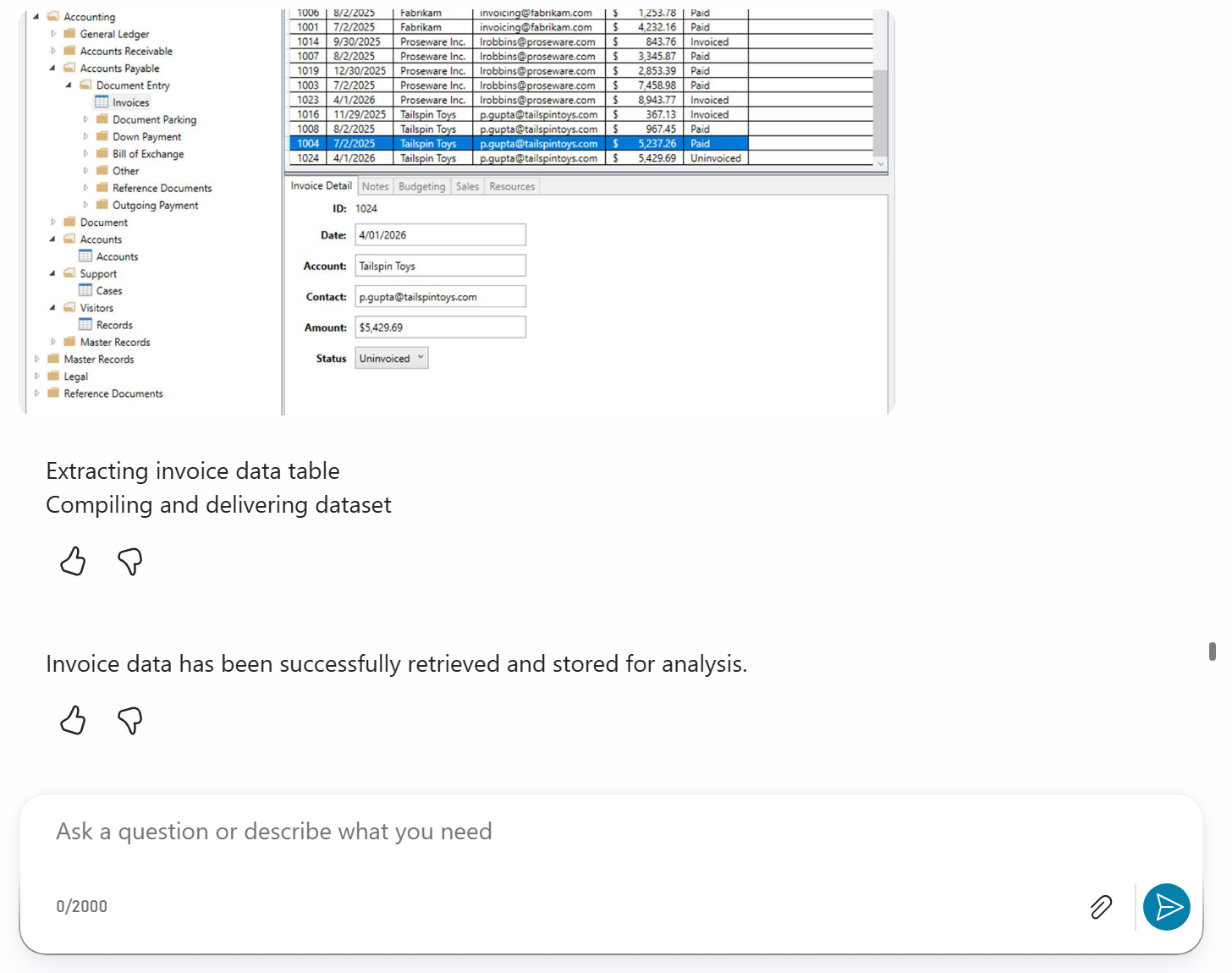
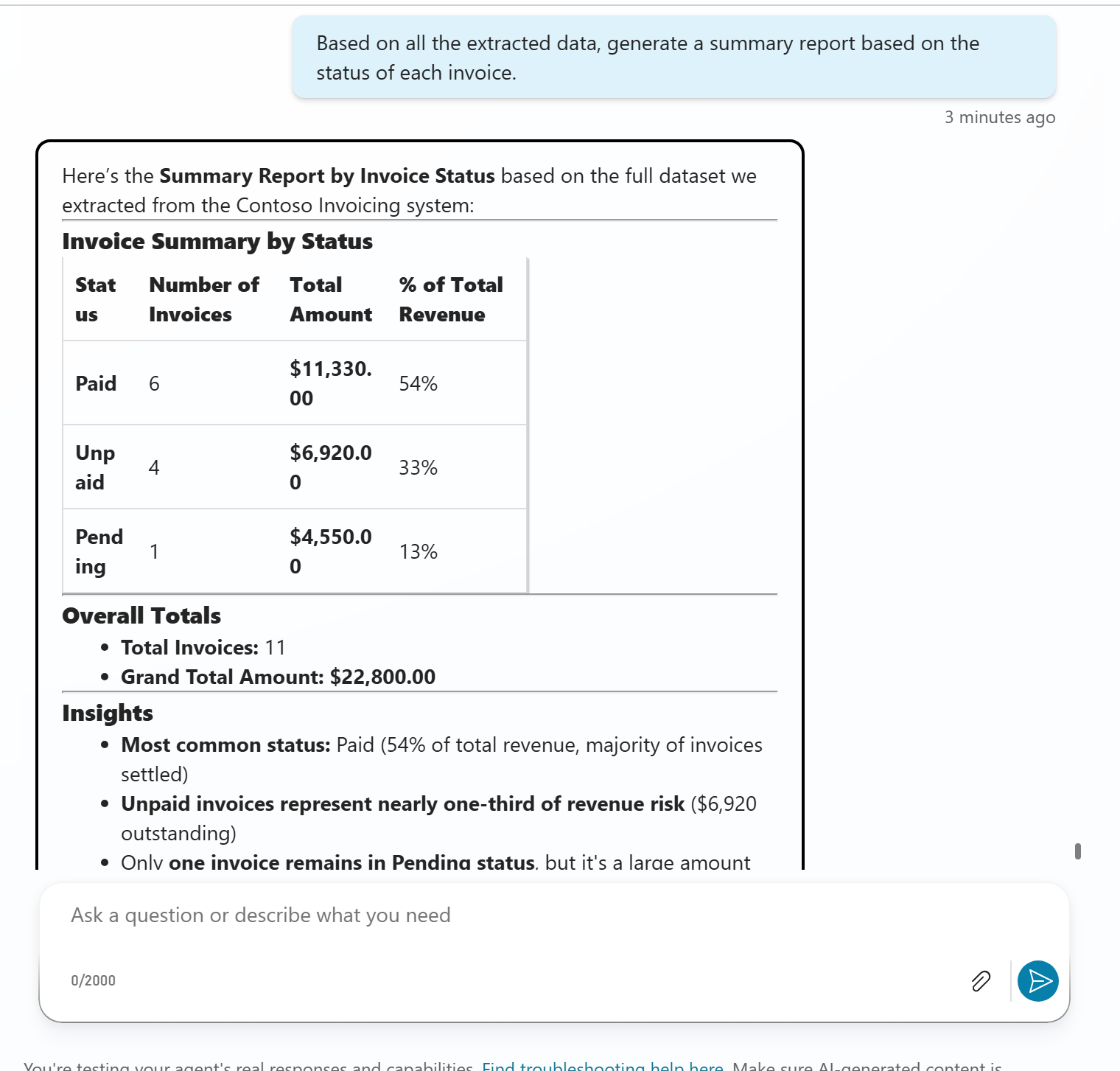
The agent invokes the Computer Use tool, which navigates the desktop application to reach its objectives. Once complete, the retrieved data is surfaced directly in the agent conversation.
Agent test initiated
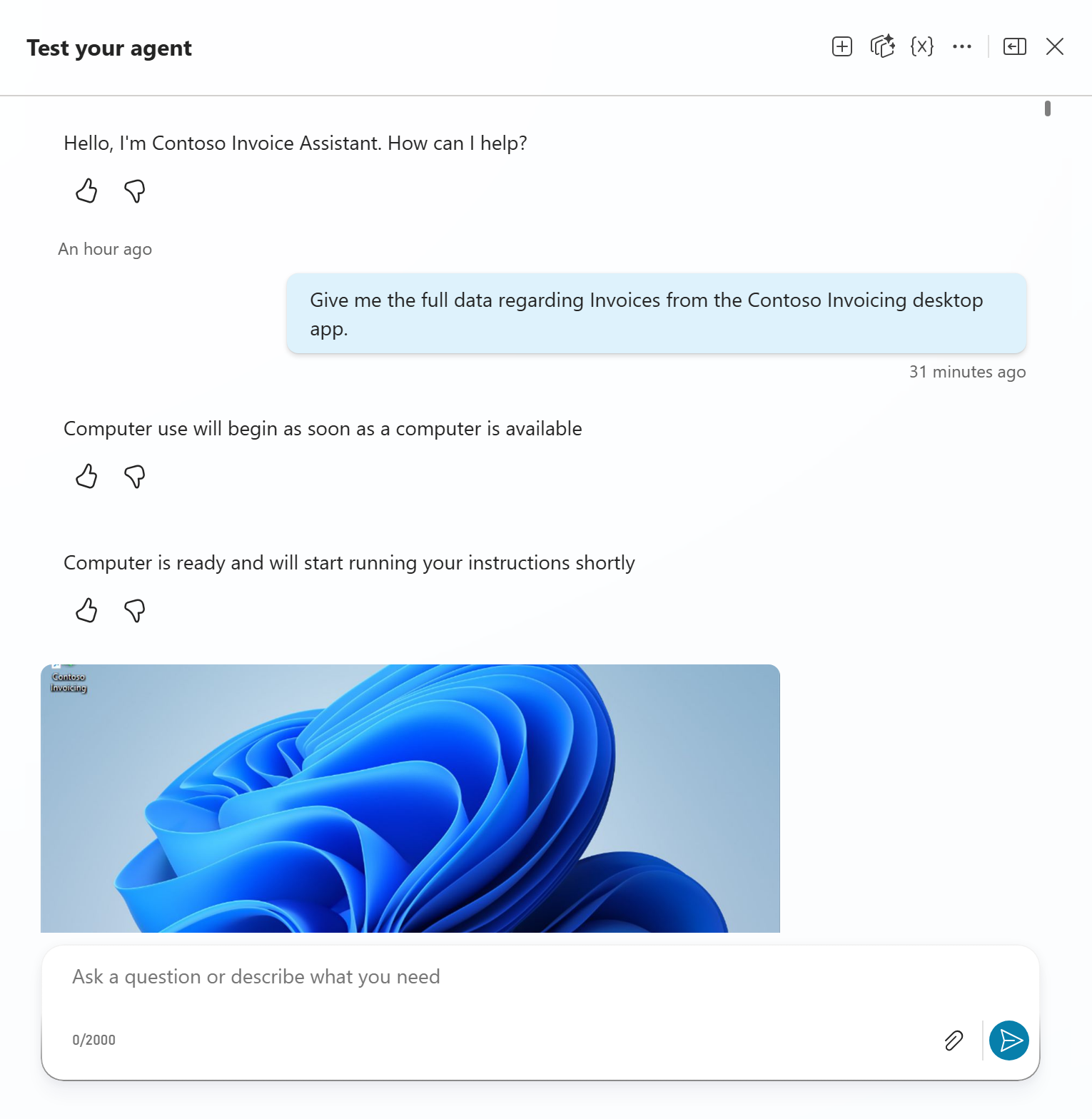
Computer Use steps in action
Data successfully extracted
Agent returns the data
Considerations: CUA is Still in Preview
Before committing to CUA as a production strategy, two factors deserve attention.
First, Computer Use is currently in preview - it may change, carries no SLA guarantees, and is not yet recommended for mission-critical production workloads.
Second, CUA’s goal-based approach comes with a latency cost. Unlike deterministic RPA flows that execute scripted actions at machine speed, CUA reasons about each objective and navigates the UI step by step. For high-volume or time-sensitive scenarios, this might not be optimal.
What’s Next
The two patterns covered in this post represent solid, production-minded approaches for connecting legacy desktop applications to Copilot Studio agents today. In future posts we will explore patterns and best practices for directly invoking RPA functionality through agents.