Enterprise Networking
Use private endpoints, VNets, and private DNS to move Simple Chat into an enterprise network boundary without losing deployment or service connectivity.
Enterprise networking changes the deployment story as much as the runtime story. The main job is to keep the deployment runner, App Service, and Azure dependencies all able to reach one another while you progressively close off public access.
Plan the VNet shape first
Subnet design, delegation, and IP planning should be settled before you start placing private endpoints or integrating App Service.
Private-endpoint every dependency
Cosmos DB, Azure OpenAI, Search, Storage, and other services need a consistent private-connectivity plan rather than one-off exceptions.
DNS and route-all are part of the feature
Private DNS zones and VNet routing are what make private endpoints usable from the app, not optional polish you add later.
Disable public access last
Only shut off public paths after validating name resolution, App Service connectivity, and deployment-runner reachability.
Start with the deployment runner question
Before you touch private endpoints, decide whether the machine running the deployment can already resolve and reach the private network path. That answer determines whether you leave allowedIpAddresses blank or temporarily allow a public egress IP during rollout.
Overview
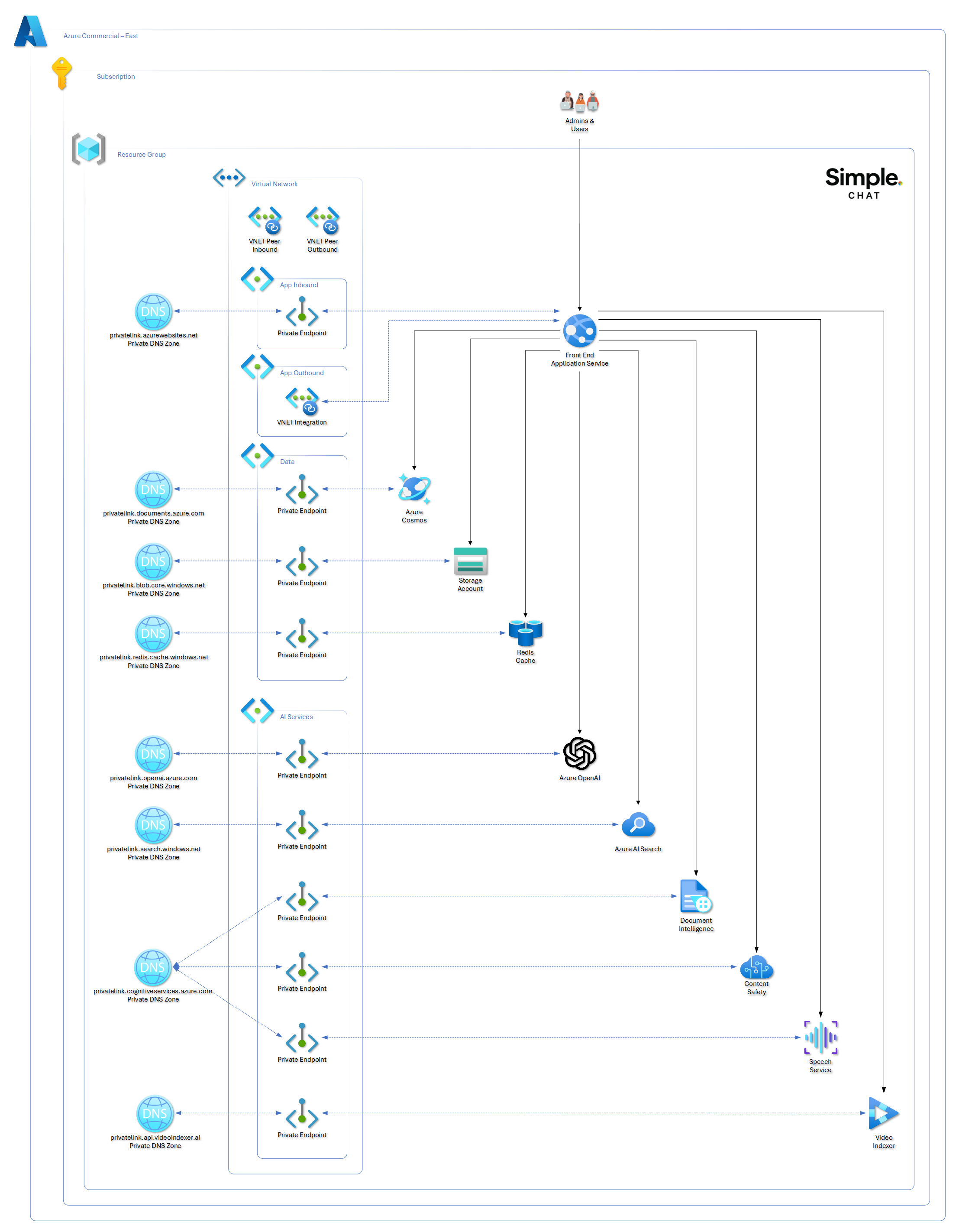
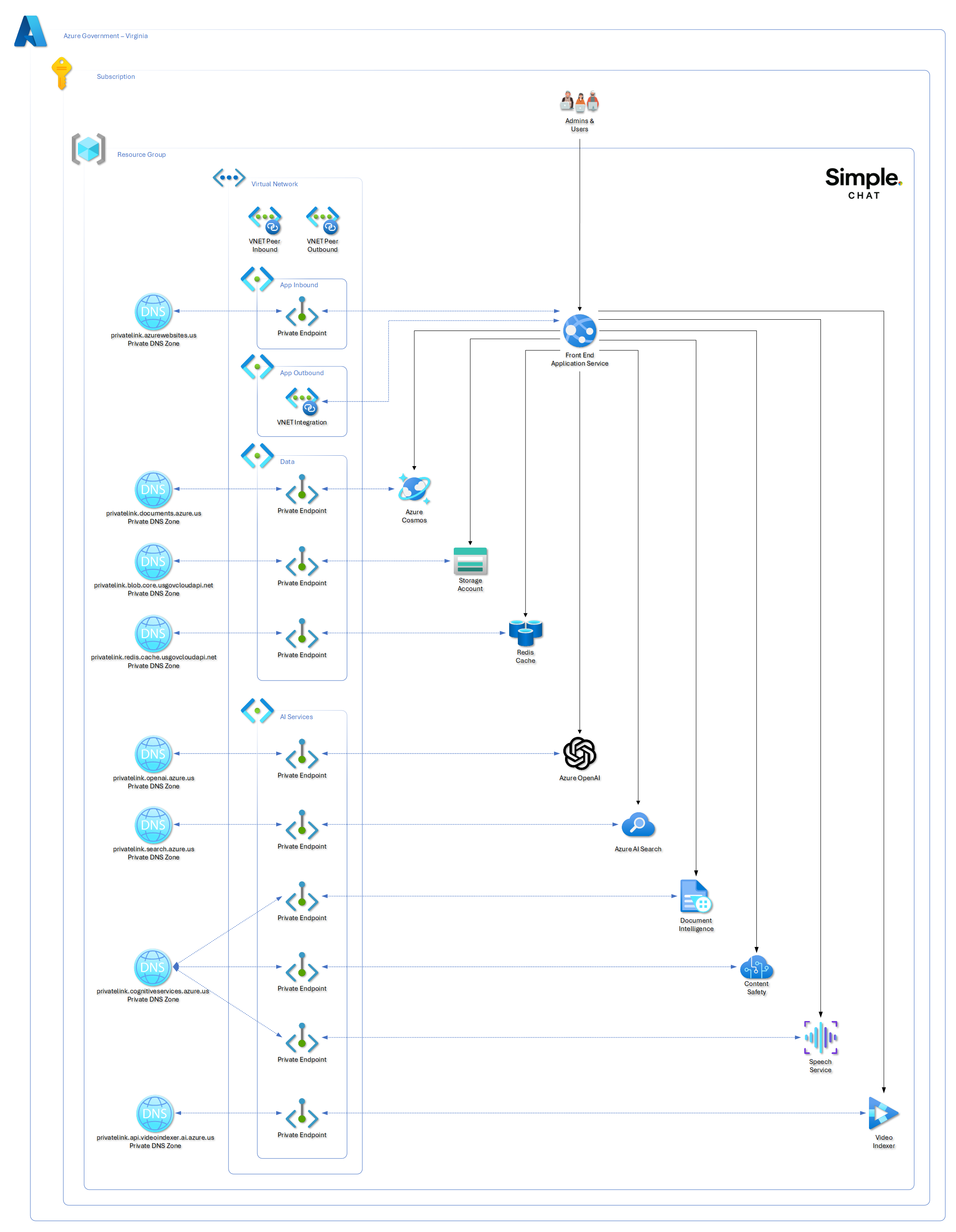
Enterprise networking for Simple Chat involves:
- Private Endpoints: Secure connections to Azure services
- Virtual Networks (VNets): Isolated network environments
- Subnets: Segmented network spaces for different components
- Private DNS Zones: Internal name resolution
Networking in Azure Commercial
Networking in Azure Government
Prerequisites
- Azure subscription with network administrator permissions
- Simple Chat already deployed (can be reconfigured for private networking)
- Understanding of Azure networking concepts
- Planning for IP address ranges and network topology
Deployment Runner Connectivity
For enterprise deployments, the important question is whether the machine running azd up can already reach the private endpoints for Cosmos DB, Azure Container Registry, and the other protected services.
Leave allowedIpAddresses blank when:
- The deployment runner is on a corporate network with routing to the private LAN or connected VNet.
- The deployment runner is connected through VPN or ExpressRoute and can resolve the private DNS zones.
- The deployment runs from a jump host, build agent, or management workstation already inside the private network boundary.
Provide allowedIpAddresses when:
- Private networking is enabled.
- The machine running
azd upmust temporarily reach protected services over a public path during deployment. - Cosmos DB or Azure Container Registry still need a temporary allowlist entry for the deployment runner before public access is disabled at the end of the workflow.
When a value is needed, provide the public egress IP address or CIDR that Azure sees for the deployment runner. In many enterprises this is a company NAT or proxy address, not the laptop’s local 10.x.x.x, 172.16.x.x to 172.31.x.x, or 192.168.x.x address.
If you are unsure which public egress IP is being used, run the lookup from the same machine and network path that will execute azd up, for example by searching what is my IP in Bing.
Step 1: Plan Your Network Architecture
Network Topology Planning
Decide on VNet structure:
Production VNet (10.0.0.0/16):
├── App Service Subnet (10.0.1.0/24)
├── Private Endpoint Subnet (10.0.2.0/24)
├── Database Subnet (10.0.3.0/24)
└── Management Subnet (10.0.4.0/24)
Consider connectivity requirements:
- On-premises connectivity (ExpressRoute/VPN)
- Multi-region deployment needs
- Integration with existing networks
- Compliance and security requirements
Service Endpoint Requirements
Services requiring Private Endpoints:
- Azure App Service (inbound)
- Azure OpenAI
- Azure Cosmos DB
- Azure AI Search
- Azure Storage (for Enhanced Citations)
- Azure Document Intelligence
- Azure Content Safety
- Azure Speech Services (if used)
Step 2: Create Virtual Network Infrastructure
Create Main VNet
- Go to Azure Portal → Create a resource → Virtual Network
- Configure basic settings:
Name: simplechat-prod-vnet Region: Your deployment region Resource Group: Your Simple Chat resource group - Configure IP addresses:
IPv4 address space: 10.0.0.0/16 - Create subnets:
Subnet 1:
Name: app-service-subnet
Address range: 10.0.1.0/24

Subnet 2:
Name: private-endpoint-subnet
Address range: 10.0.2.0/24

Subnet 3:
Name: database-subnet
Address range: 10.0.3.0/24
Configure Subnet Delegation
For App Service integration:
- Select app-service-subnet
- Configure delegation:
- Delegate subnet to:
Microsoft.Web/serverFarms - This allows App Service to integrate with the subnet
- Delegate subnet to:
Network Security Groups (NSGs)
Create NSGs for each subnet:
App Service NSG rules:
Inbound Rules:
- Allow HTTPS (443) from Internet
- Allow HTTP (80) from Internet (redirect to HTTPS)
- Deny all other inbound

Outbound Rules:
- Allow HTTPS (443) to Private Endpoint subnet
- Allow DNS (53) to Azure DNS
- Deny Internet access (force through Private Endpoints)
Private Endpoint NSG rules:
Inbound Rules:
- Allow traffic from App Service subnet
- Deny all other inbound

Outbound Rules:
- Allow as needed for service communication
Step 3: Configure App Service VNet Integration
Enable VNet Integration
- Go to your App Service → Settings → Networking
- Click “VNet integration”
- Select “Add VNet integration”
- Configure:
Virtual Network: simplechat-prod-vnet
Subnet: app-service-subnet
Configure Route All Traffic
Enable route all traffic through VNet:
- In VNet integration settings
- Enable “Route All”
- This forces all outbound traffic through the VNet
Test VNet Integration
Verify integration:
- Go to App Service → Advanced Tools → Kudu
- Open Debug console
- Test name resolution:
nslookup your-cosmosdb-account.documents.azure.com
# Should resolve to private IP (10.x.x.x)
Step 4: Create Private Endpoints
Create Private Endpoints for each Azure service Simple Chat uses.
Azure Cosmos DB Private Endpoint
- Go to Cosmos DB account → Settings → Private endpoint connections
- Click “+ Private endpoint”
- Configure:
Name: simplechat-cosmos-pe Region: Same as VNet Virtual Network: simplechat-prod-vnet Subnet: private-endpoint-subnet Target sub-resource: SQL - Configure DNS:
Integrate with private DNS zone: Yes
Private DNS Zone: privatelink.documents.azure.com
Azure OpenAI Private Endpoint
- Go to OpenAI resource → Networking → Private endpoint connections
- Create endpoint:
Name: simplechat-openai-pe
Target sub-resource: account
Private DNS Zone: privatelink.openai.azure.com
Azure AI Search Private Endpoint
- Go to Search service → Settings → Private endpoint connections
- Create endpoint:
Name: simplechat-search-pe
Target sub-resource: searchService
Private DNS Zone: privatelink.search.windows.net
Storage Account Private Endpoint
- Go to Storage Account → Security + networking → Private endpoint connections
- Create endpoint:
Name: simplechat-storage-pe
Target sub-resource: blob
Private DNS Zone: privatelink.blob.core.windows.net
Document Intelligence Private Endpoint
- Go to Document Intelligence → Networking → Private endpoint connections
- Create endpoint:
Name: simplechat-doc-intel-pe
Target sub-resource: account
Private DNS Zone: privatelink.cognitiveservices.azure.com
Step 5: Configure Private DNS
Verify DNS Zone Creation
Private DNS zones should be created automatically with Private Endpoints:
privatelink.documents.azure.comprivatelink.openai.azure.comprivatelink.search.windows.netprivatelink.blob.core.windows.netprivatelink.cognitiveservices.azure.com
Link DNS Zones to VNet
For each Private DNS zone:
- Go to Private DNS zone
- Settings → Virtual network links
- Add link:
Link name: simplechat-vnet-link
Virtual network: simplechat-prod-vnet
Enable auto registration: No (for Private Endpoint zones)
Test DNS Resolution
From App Service Kudu console:
# Test each service resolves to private IP
nslookup your-cosmos-account.documents.azure.com
nslookout your-openai-account.openai.azure.com
nslookup your-search-service.search.windows.net
Expected results:
- All should resolve to 10.0.2.x addresses (Private Endpoint subnet)
- No public IP addresses should be returned
Step 6: Secure Service Access
Disable Public Access
For each Azure service:
Cosmos DB:
- Settings → Firewall and virtual networks
- Select “Deny all networks”
- Ensure Private Endpoint access is allowed
Azure OpenAI:
- Networking → Firewalls and virtual networks
- Selected networks and private endpoints
- Remove any public IP allowlists
AI Search:
- Settings → Networking
- Private access → All networks disabled
- Verify Private Endpoint access only
Storage Account:
- Security + networking → Firewalls and virtual networks
- Selected networks
- Clear all public network access
Configure Service-Specific Settings
Cosmos DB additional settings:
Connection Policy: Gateway mode (recommended for Private Endpoints)
Firewall: Disabled for public networks
Private Endpoint: Enabled
Azure OpenAI additional settings:
Network access: Private endpoint and selected networks
Custom subdomain: Required for Private Endpoints
Managed Identity: Recommended for authentication
Step 7: Update Application Configuration
Endpoint URLs
Verify application uses correct endpoints:
In Admin Settings, confirm endpoints use private connectivity:
Azure OpenAI: https://your-account.openai.azure.com/
Cosmos DB: Endpoint should connect via private network
AI Search: https://your-service.search.windows.net/
Connection Testing
Test each service connection:
- Go to Admin Settings
- Test each service connection
- Verify successful private connectivity
- Check application logs for any public endpoint attempts
Monitor Network Traffic
Enable network monitoring:
- Configure Network Watcher for the VNet
- Enable Flow logs on NSGs
- Set up monitoring for unusual traffic patterns
Step 8: Configure Additional Security
Application Gateway (Optional)
For additional security and routing:
- Deploy Application Gateway in dedicated subnet
- Configure Web Application Firewall (WAF)
- Route traffic: Internet → App Gateway → App Service
- Enable SSL termination
ExpressRoute/VPN Integration
For on-premises connectivity:
- Configure ExpressRoute or Site-to-Site VPN
- Update route tables for proper routing
- Configure BGP for dynamic routing (ExpressRoute)
- Test connectivity from on-premises
Azure Bastion (Management)
For secure VM management:
- Deploy Azure Bastion in dedicated subnet
- Configure management VM in management subnet
- Use Bastion for secure administrative access
Step 9: Monitoring and Troubleshooting
Network Monitoring Setup
Configure monitoring:
- Network Watcher → Connection Monitor
- Monitor connectivity between App Service and services
- Set up alerts for connectivity failures
- Configure topology monitoring
Application Insights Network Dependency
Monitor application dependencies:
- Enable Application Insights network dependency tracking
- Monitor Private Endpoint connectivity
- Set up alerts for dependency failures
- Track performance across private connections
Common Troubleshooting
DNS Resolution Issues:
Problem: Services resolving to public IPs
Solution:
- Check Private DNS zone configuration
- Verify VNet links are active
- Restart App Service to refresh DNS cache
Connectivity Issues:
Problem: Connection timeouts or failures
Solution:
- Check NSG rules allow required traffic
- Verify Private Endpoints are approved
- Test network connectivity with tcpping
- Review firewall settings on services
Performance Issues:
Problem: Slower response times with Private Endpoints
Solution:
- Verify optimal routing configuration
- Check for network latency between subnets
- Monitor bandwidth utilization
- Consider Express Route for better performance
Security Best Practices
Network Segmentation
- ✅ Use separate subnets for different tiers
- ✅ Apply principle of least privilege with NSGs
- ✅ Regularly review and update security rules
- ✅ Monitor for unauthorized network access
DNS Security
- ✅ Use Private DNS zones for all private services
- ✅ Prevent DNS leakage to public resolvers
- ✅ Monitor DNS queries for suspicious activity
- ✅ Implement DNS filtering where appropriate
Monitoring and Alerting
- ✅ Enable comprehensive network monitoring
- ✅ Set up alerts for connectivity issues
- ✅ Regular security assessments of network configuration
- ✅ Document network architecture and changes
Compliance Considerations
Data Residency
- All traffic stays within Azure backbone
- No data traverses public internet
- Regional data boundaries maintained
- Audit trail of network access
Regulatory Requirements
- Meets most compliance frameworks (FedRAMP, SOC 2, etc.)
- Supports data sovereignty requirements
- Enables network-level audit logging
- Facilitates compliance reporting
Deployment Checklist
Pre-deployment:
- Plan IP address ranges and avoid conflicts
- Design network topology and subnet structure
- Review compliance and security requirements
- Prepare rollback plan for network changes
Deployment:
- Create VNet and subnets with appropriate sizing
- Configure NSGs with security rules
- Enable App Service VNet integration
- Create Private Endpoints for all services
- Configure Private DNS zones and VNet links
- Disable public access on all services
- Test connectivity and DNS resolution
Post-deployment:
- Verify all services accessible via private network
- Test application functionality end-to-end
- Configure monitoring and alerting
- Document network configuration
- Train operations team on troubleshooting
This enterprise networking setup provides the foundation for a secure, compliant Simple Chat deployment that meets the strictest enterprise security requirements.