🔒 User Authentication
At times agents must access secured online resources on behalf of the user, such as checking email, checking on flight status, or placing an order. To enable this, the user must authenticate their identity and grant consent for the application to access these resources. This process results in the application receiving a token, which the application can then use to access the permitted resources on the user's behalf.
This is an advanced guide. It is highly recommended that you are familiar with Teams Core Concepts before attempting this guide.
User authentication does not work with the developer tools setup. You have to run the app in Teams. Follow Quickstart: Register your app to register and sideload your bot.
It is possible to authenticate the user into other auth providers like Facebook, Github, Google, Dropbox, and so on.
Project Setup
If you're creating a new app, use the graph template. Skip this if you're adding auth to an existing app.
Use your terminal to run the following command:
teams project new python oauth-app --template graph
This command:
- Creates a new directory called
oauth-app. - Bootstraps the graph agent template files into it under
oauth-app/src.
Set up the OAuth connection
User authentication requires an Azure-managed bot (Teams-managed bots don't support OAuth connections). If you registered with --teams-managed, migrate first:
teams app bot migrate <appId> --subscription <id> --resource-group <your-resource-group>
Then follow the User Authentication Setup guide to configure the AAD app, create the Azure Bot OAuth connection, and update the manifest. The guide covers both SSO (silent token exchange) and generic OAuth.
If you'd rather have an AI coding assistant run the setup, install the teams-dev skill and ask it to "set up SSO for my Teams bot".
Configure the OAuth connection
- SDK 2.0 (Legacy)
- SDK 2.1 (current)
from microsoft_teams.apps import App

app = App(
    # The name of the auth connection to use.
    # It should be the same as the OAuth connection name defined in the Azure Bot configuration.
    default_connection_name="graph",
)
Register the connections you plan to use. add_oauth_flow returns the object that owns one.
from microsoft_teams.apps import App

app = App()

graph = app.add_oauth_flow(
    "graph",
    oauth_card_text="Sign in to your account",
    sign_in_button_text="Sign in",
)
Both card options are optional. Use app.get_oauth_flow("graph") to get the flow again from another module.
Registering a flow enables per-turn state unless you set state yourself, so sign-in callbacks that don't name a connection can be traced back to the one that started them.
Make sure you use the same name you used when creating the OAuth connection in the Azure Bot Service resource.
In many templates, graph is the default name of the OAuth connection, but you can register the connection under any name — it just has to match the OAuth connection configured on the Azure Bot.
Signing In
Start sign-in from inside a route handler, for example when receiving the /signin message:
This uses the Single Sign-On (SSO) authentication flow. To learn more about all the available flows and their differences see the official documentation.
- SDK 2.0 (Legacy)
- SDK 2.1 (current)
@app.on_message
async def handle_signin_message(ctx: ActivityContext[MessageActivity]):
    """Handle message activities for signing in."""
    ctx.logger.info("User requested sign-in.")
    if ctx.is_signed_in:
        await ctx.send("You are already signed in.")
    else:
        await ctx.sign_in()
@app.on_message_pattern("/signin")
async def handle_signin_message(ctx: ActivityContext[MessageActivity]):
    """Handle message activities for signing in."""
    token = await graph.sign_in(ctx)
    if token:
        await ctx.send("You are already signed in.")
Handling sign-in completion
The sign-in method returns a token when the user already has one, and otherwise sends an OAuth card and returns nothing. The flow finishes on a later turn, so completion is delivered through a callback.
- SDK 2.0 (Legacy)
- SDK 2.1 (current)
@app.event("sign_in")
async def handle_sign_in(event: SignInEvent):
    """Handle sign-in events."""
    await event.activity_ctx.send("You are now signed in!")
The handler is scoped to its connection, so there's no need to branch on the connection name.
@graph.on_signin
async def on_graph_signin(event: SignInEvent):
    """Only fires for the `graph` connection."""
    await event.activity_ctx.send(
        f"Signed in on {event.connection_name}. "
        "Type **/whoami** to see your profile or **/signout** to sign out."
    )
A flow can have more than one handler. They run in registration order and are isolated — if one raises, the error is logged and the rest still run. The app-wide sign_in event also still fires for every connection.
Start using the client
The default graph configuration requests the User.ReadBasic.All permission. It is possible to request other permissions by modifying the App Registration for the bot on Azure.
From this point, you can query graph for the signed-in user, for example to reply to the /whoami message, or in any other route.
- SDK 2.0 (Legacy)
- SDK 2.1 (current)
Use the is_signed_in flag and the user_graph client.
@app.on_message
async def handle_whoami_message(ctx: ActivityContext[MessageActivity]):
    """Handle messages to show user information from Microsoft Graph."""
    if not ctx.is_signed_in:
        await ctx.send("You are not signed in! Please sign in to continue.")
        return

    # Access user's Microsoft Graph data
    me = await ctx.user_graph.me.get()
    await ctx.send(f"Hello {me.display_name}! Your email is {me.mail or me.user_principal_name}")
Build the client from the flow's token, so it always talks to the connection that owns it.
from microsoft_teams.graph import get_graph_client

@app.on_message_pattern("/whoami")
async def handle_whoami_message(ctx: ActivityContext[MessageActivity]):
    """Handle messages to show user information from Microsoft Graph."""
    token = await graph.sign_in(ctx)
    if token is None:
        return  # OAuth card sent — resumes on the callback turn

    client = get_graph_client(token)
    me = await client.me.get()
    await ctx.send(f"Hello {me.display_name}! Your email is {me.mail or me.user_principal_name}")
Signing Out
You can signout by calling the signout method, this will remove the token from the User Token service cache
- SDK 2.0 (Legacy)
- SDK 2.1 (current)
@app.on_message
async def handle_signout_message(ctx: ActivityContext[MessageActivity]):
    """Handle sign out requests."""
    if not ctx.is_signed_in:
        await ctx.send("You are not signed in!")
        return

    await ctx.sign_out()
    await ctx.send("You have been signed out!")
@app.on_message_pattern("/signout")
async def handle_signout_message(ctx: ActivityContext[MessageActivity]):
    """Handle sign out requests."""
    await graph.sign_out(ctx)
    await ctx.send("You have been signed out!")
Using multiple OAuth connections
An agent may need more than one identity — for example Graph for the user's profile and GitHub for their repos. Each connection is registered separately, so tokens, callbacks and sign-out are scoped to the connection that owns them.
app = App()

graph = app.add_oauth_flow("graph", oauth_card_text="Sign in with Microsoft")
github = app.add_oauth_flow("github", oauth_card_text="Sign in with GitHub")

@app.on_message_pattern("/graph")
async def handle_graph(ctx: ActivityContext[MessageActivity]):
    token = await graph.sign_in(ctx)
    if token:
        await send_graph_profile(ctx, token)

@app.on_message_pattern("/github")
async def handle_github(ctx: ActivityContext[MessageActivity]):
    token = await github.sign_in(ctx)
    if token:
        await send_github_profile(ctx, token)

@graph.on_signin
async def on_graph_signin(event: SignInEvent):
    await send_graph_profile(event.activity_ctx, event.token_response.token)

@github.on_signin
async def on_github_signin(event: SignInEvent):
    await send_github_profile(event.activity_ctx, event.token_response.token)

@app.on_message_pattern("/signout github")
async def handle_signout_github(ctx: ActivityContext[MessageActivity]):
    await github.sign_out(ctx)
    await ctx.send("Signed out of GitHub.")
Signing out of one connection leaves the other signed in.
Each connection must exist on the Azure Bot resource under the name you register it with. Follow the User Authentication Setup guide once per connection.
Checking connection status
One call returns the status of every registered connection, so you don't have to probe them individually.
@app.on_message_pattern("/status")
async def handle_status(ctx: ActivityContext[MessageActivity]):
    statuses = await ctx.get_connection_status()
    lines = [
        f"- `{status.connection_name}`: {'signed in' if status.has_token else 'signed out'}"
        for status in statuses
    ]
    await ctx.send("\n".join(lines))
Resuming Pending Messages After Sign-In
When a user isn't signed in and your message handler calls the sign-in method, an OAuth card is sent and the current turn ends. The sign-in completes on a separate turn — meaning the original message text is not available in the sign-in success context.
To avoid ignoring what the user originally asked, store the pending message before initiating sign-in, then retrieve and process it once sign-in succeeds:
- SDK 2.0 (Legacy)
- SDK 2.1 (current)
from microsoft_teams.apps import App, ActivityContext, SignInEvent
from microsoft_teams.apps.routing import SignInOptions
from microsoft_teams.api import MessageActivity

app = App()

pending_messages: dict[str, str] = {}

@app.on_message
async def handle_message(ctx: ActivityContext[MessageActivity]):
    # sign_in() returns the token if already signed in, or None if OAuth card was sent
    token = await ctx.sign_in(SignInOptions(
        oauth_card_text="To help with that, I need to sign you in first."
    ))

    if token is None:
        # OAuth card sent — store the original message for later
        pending_messages[ctx.activity.from_.id] = ctx.activity.text
        return

    # User is already signed in — process normally
    await process_message(ctx.activity.text, ctx)

@app.event("sign_in")
async def handle_sign_in(event: SignInEvent):
    user_id = event.activity_ctx.activity.from_.id
    pending = pending_messages.pop(user_id, None)

    if pending:
        await event.activity_ctx.send("Successfully signed in! Processing your original request...")
        await process_message(pending, event.activity_ctx)
    else:
        await event.activity_ctx.send("You are now signed in!")
from microsoft_teams.apps import App, ActivityContext, SignInEvent
from microsoft_teams.apps.routing import SignInOptions
from microsoft_teams.api import MessageActivity

app = App()
graph = app.add_oauth_flow("graph")

pending_messages: dict[str, str] = {}

@app.on_message
async def handle_message(ctx: ActivityContext[MessageActivity]):
    # sign_in() returns the token if already signed in, or None if an OAuth card was sent
    token = await graph.sign_in(ctx, SignInOptions(
        oauth_card_text="To help with that, I need to sign you in first."
    ))

    if token is None:
        pending_messages[ctx.activity.from_.id] = ctx.activity.text
        return

    await process_message(ctx.activity.text, ctx, token)

@graph.on_signin
async def on_graph_signin(event: SignInEvent):
    user_id = event.activity_ctx.activity.from_.id
    pending = pending_messages.pop(user_id, None)

    if pending:
        await event.activity_ctx.send("Successfully signed in! Processing your original request...")
        await process_message(pending, event.activity_ctx, event.token_response.token)
    else:
        await event.activity_ctx.send("You are now signed in!")
For production apps, consider using a persistent store (database, Redis, etc.) instead of an in-memory map so pending messages survive restarts. You should also implement expiration or cleanup logic (e.g., a TTL) to discard stale entries when sign-in is cancelled, times out, or fails.
Handling Sign-In Failures
When using SSO, if the token exchange fails Teams sends a signin/failure invoke activity to your app. The SDK includes a built-in default handler that logs a warning with actionable troubleshooting guidance. You can optionally register your own handler to customize the behavior:
- SDK 2.0 (Legacy)
- SDK 2.1 (current)
@app.on_signin_failure()
async def handle_signin_failure(ctx):
    failure = ctx.activity.value
    print(f"Sign-in failed: {failure.code} - {failure.message}")
    await ctx.send("Sign-in failed.")
Registering a custom handler does not replace the built-in default handler. Both will run as part of the middleware chain.
from microsoft_teams.apps import SignInFailureEvent

@graph.on_signin_failure
async def on_graph_signin_failure(event: SignInFailureEvent):
    ctx = event.activity_ctx
    ctx.logger.error(f"Graph sign-in failed: {event.code} - {event.message}")
    await ctx.send("Graph sign-in failed.")
A flow can have more than one failure handler; they run in registration order and are isolated from each other.
The most common failure codes are installedappnotfound (bot app not installed for the user) and resourcematchfailed (Token Exchange URL doesn't match the Application ID URI). See SSO Setup - Troubleshooting for a full list of failure codes and troubleshooting steps.
A signin/failure activity doesn't name its connection. The SDK attributes it from the pending sign-in recorded when the flow started; if that can't be resolved, every registered connection's failure handler is notified. Check the connection first if your handler does something destructive.
Registering a flow also turns on per-turn state unless you configure state yourself, defaulting to local, in-process storage. Configure shared state storage before running more than one instance — otherwise pending sign-in attribution and token-exchange dedup don't cross processes, and sign-in fails intermittently.
Regional Configs
You may be building a regional bot that is deployed in a specific Azure region (such as West Europe, East US, etc.) rather than global. This is important for organizations that have data residency requirements or want to reduce latency by keeping data and authentication flows within a specific area.
These examples use West Europe, but follow the equivalent for other regions.
- Azure Portal
- Agents Toolkit
To configure a new regional bot in Azure, you must setup your resoures in the desired region. Your resource group must also be in the same region.
- Deploy a new App Registration in
westeurope. - Deploy and link a new Enterprise Application (Service Principal) on Microsoft Entra in
westeurope. - Deploy and link a new Azure Bot in
westeurope. - In your App Registration, in the
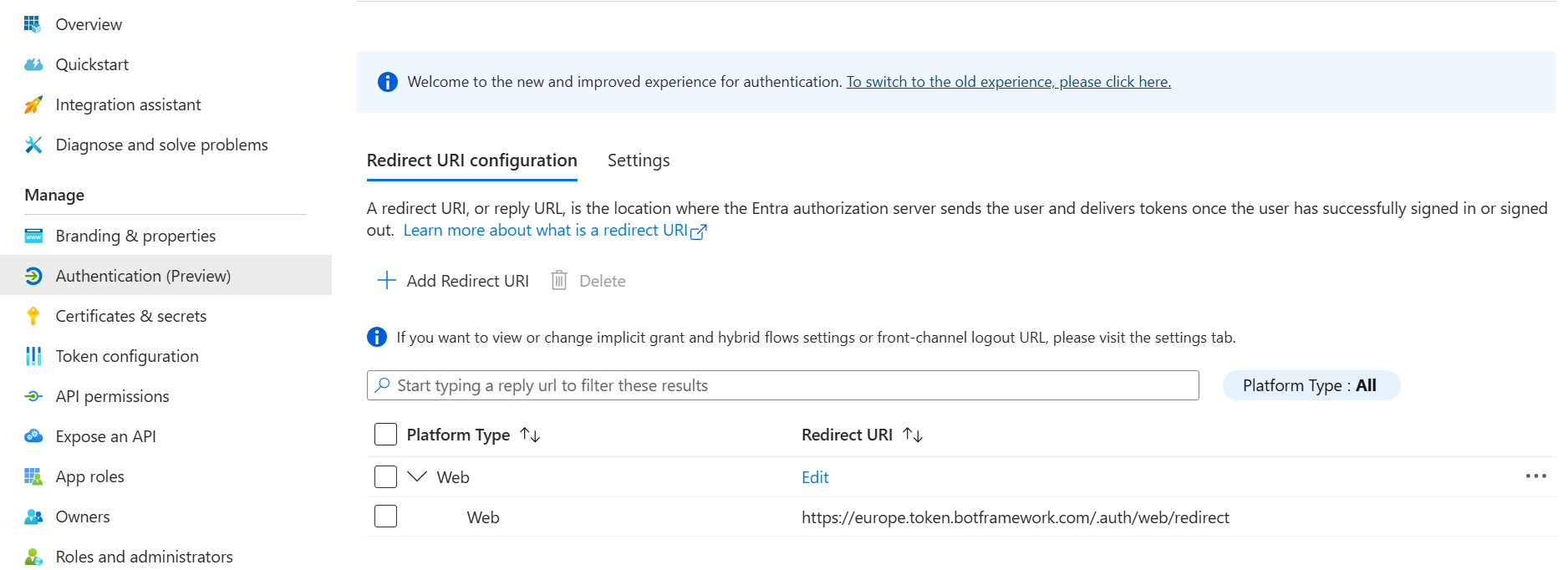
Authentication (Preview)tab, add aRedirect URIfor the Platform TypeWebto your regional endpoint (e.g.,https://europe.token.botframework.com/.auth/web/redirect)
- In your
.envfile (or wherever you set your environment variables), add yourOAUTH_URL. For example:OAUTH_URL=https://europe.token.botframework.com
To configure a new regional bot with ATK, you will need to make a few updates. Note that this assumes you have not yet deployed the bot previously.
- In
azurebot.bicep, replace allglobaloccurrences towesteurope - In
manifest.json, invalidDomains,*.botframework.comshould be replaced byeurope.token.botframework.com - In
aad.manifest.json, replacehttps://token.botframework.com/.auth/web/redirectwithhttps://europe.token.botframework.com/.auth/web/redirect - In your
.envfile, add yourOAUTH_URL. For example:OAUTH_URL=https://europe.token.botframework.com.