Adaptive Card Refresh (Universal Actions)
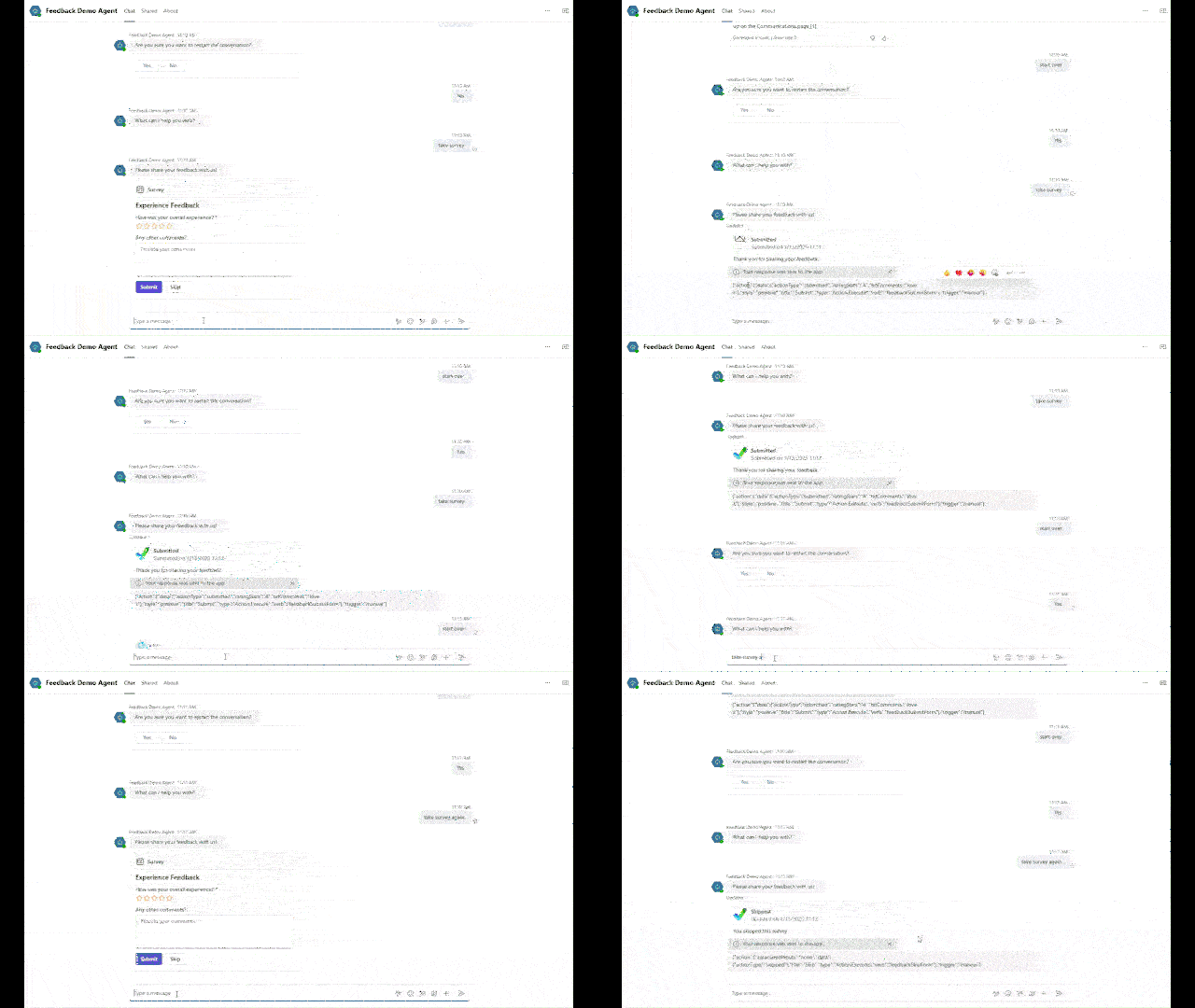
Refresh or replace an Adaptive Card the moment a user submits it in Microsoft Teams, so a completed form can’t be filled in or submitted twice.
By default, an Adaptive Card stays interactive after a user clicks Submit: the
inputs clear, the card still looks fillable, and the user gets no confirmation that
their response was received. This solution fixes that using the
Universal Action model:
the card’s buttons use Action.Execute with a unique verb, a listener topic
catches the resulting invoke activity, branches on the verb, and returns a
replacement card that Teams swaps in place.
Attribution. This solution was authored by Nghiem Doan and is included here under its original MIT license (see
LICENSE). Original repository: nghiemdoan-msft/AdaptiveCardInCopilotStudio.
How it works
- Design the card with
Action.Execute. Instead ofAction.Submit, each button usesAction.Executewith a uniqueverb(for examplefeedbackSubmitFormandfeedbackSkipForm) and"fallback": "Action.Submit"for clients that don’t support Universal Actions. - Display it with a “Send a message” node. Do not use “Ask with Adaptive Card”,
because that node uses
Action.Submitinternally and won’t trigger the invoke/refresh flow. - Listen for the invoke. A topic triggered by Invoke Received parses the
activity payload and reads
resultData.action.verb. - See the raw payload (debug). The listener’s first action sends the invoke
payload back as a message, prefixed with
Debug (remove for production), so you can inspect the verb and submitted form data while learning. Delete thisSendActivitynode before shipping so submitted values are not shown as raw chat. -
Return a replacement card. The listener branches on the verb and returns the Universal Action response format, and Teams replaces the original card in place:
{
  "statusCode": 200,
  "type": "application/vnd.microsoft.card.adaptive",
  "value": { "type": "AdaptiveCard", "body": [] }
}
The
Debug (remove for production)message inCardListenerV2is intentional for learning: it surfaces the raw Universal Action payload (verb + form data) so you can see what the invoke carries. Remove that firstSendActivitynode before you publish the agent, otherwise submitted ratings and comments appear as a raw chat message.
What’s in the solution
| Topic | Role |
|---|---|
CaptureFeedbackV2 |
Displays the survey Adaptive Card (Action.Execute buttons) |
CardListenerV2 |
Listens for the invoke activity and returns the replacement card |
The package also contains the default Copilot Studio system topics (Conversation Start, Greeting, Escalate, Fallback, and so on), unchanged from a new agent.
Unpacked source (PnP format) is in sourcecode/; the importable
package is in solution/.
Prerequisites
- A Power Platform environment with Microsoft Copilot Studio enabled.
- Permission to import solutions at make.powerapps.com.
- A Microsoft Teams channel to test the invoke/refresh flow.
No connection references or environment variables are required; the solution contains only topics.
Importing
- Download
solution/FeedbackAgent_1_0_0_5.zip. - Go to make.powerapps.com > Solutions > Import solution.
- Select the zip, then Next > Import.
- Open the imported FeedbackAgent in Copilot Studio and Publish it.
- Add the Microsoft Teams channel.
Test in Teams, not the Copilot Studio test canvas. The invoke/refresh flow only runs in a published channel, so the card replacement won’t appear in the test panel.
Notes and trade-offs
- Teams-specific. The invoke/refresh flow relies on the Teams channel. For custom web portals built on BotFramework-WebChat, use the client-side attachment middleware pattern instead. Neither pattern applies in the Microsoft 365 Copilot channel today.
- Publish to debug. Because the invoke response only works in a published channel, you’ll need to publish the agent to test each change.