

This page covers information about a Windows MIDI Services feature and application that will be released to consumers in 2027. It’s currently available for developers.
Windows MIDI Player plays standard MIDI files to any MIDI device on your PC: a hardware synth, a software instrument, a sound module, or the built-in General MIDI synthesizer. It shows you the music as it plays, so you can see which track is doing what rather than just hearing the result.
A MIDI file isn’t audio. It’s a list of instructions, and what it sounds like depends entirely on the instrument you send it to. That’s the point of this app: the same file through your sound module and through the built-in synthesizer are two different performances, and you can switch between them while it plays.
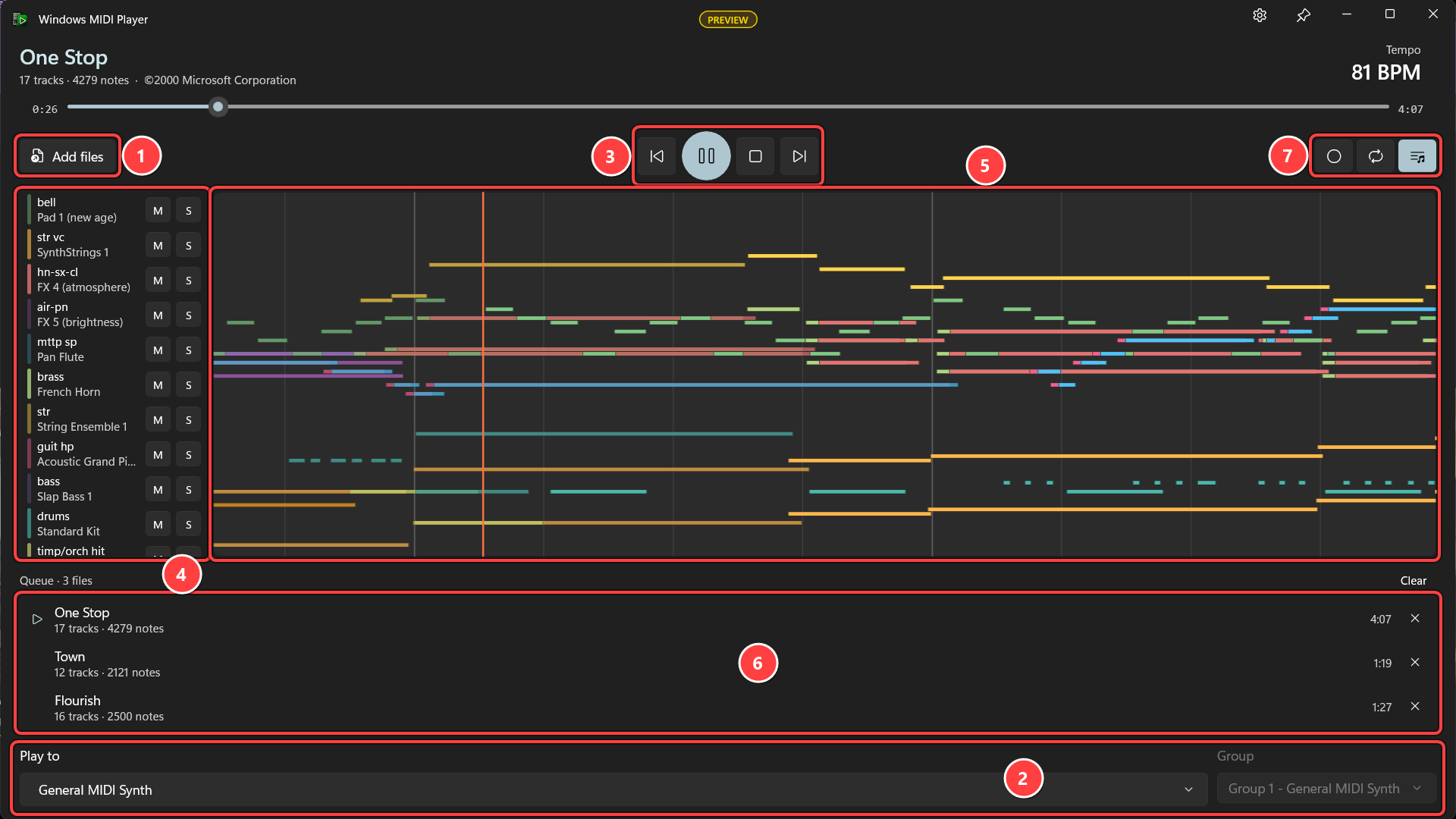
Speed and Transpose, under the transport buttons, play the music slower or faster, or in another key. See Slowing down or speeding up and Playing in another key. The transport buttons, speed, transpose, and repeat all have keyboard shortcuts.
You can also open a MIDI file straight from File Explorer. Windows MIDI Player is added to the Open with menu for .mid, .midi, .kar, .rmi, and .smf files, and appears in Settings › Apps › Default apps if you want it to be the app that opens them. It deliberately doesn’t take that over during installation — Windows doesn’t allow an installer to claim a file type for you, and apps that try get reset.
Opening a file while the player is already running hands it to the window that’s already open rather than starting a second one.
The Play to list at the bottom holds every MIDI output on the PC. Next to it, Group picks which group of that endpoint to play to, which matters for a MIDI 2.0 device with more than one. Most MIDI 1.0 gear has a single group and you can leave it alone.
Your choice is remembered, so the next time you open the player it’s already pointing at the same instrument. If that instrument isn’t connected when you start, the player tells you so rather than quietly playing to something else.
The top of the window is the file that’s playing.
| What you see | What it tells you |
|---|---|
| File name | The file currently playing |
| Tracks and notes | How many tracks the file has, and how many notes in total |
| Lyrics | The words at this point in the song. Only appears for files that have them |
| TEMPO | The tempo you hear right now, not a single number for the file |
| CHORD | The chord in force right now. Only appears for files that have chord symbols in them |
Tempo changes as the music plays, and that’s not a bug. A MIDI file doesn’t have a tempo, it has a tempo map. The sample file that ships with Windows changes tempo twenty times. The number shown is the tempo at the playhead, so it moves when the music does. If you’ve changed the speed, it’s the tempo at that speed.
Chord symbols and lyrics are only there if the file has them. Both panels stay out of the way completely on a file that doesn’t, rather than showing you an empty label. Chord symbols in particular are uncommon — they turn up in lead sheet and karaoke files.
The position bar under the file name shows where you are. Drag it, or tab to it and use the keys:
Screen readers read the position as a time, such as “1:25 of 3:40”. While the music plays and the position bar has focus, it moves once a second, when the time changes, so your screen reader doesn’t talk over the music.
Speed, under the transport buttons, plays the music slower or faster without changing its pitch. It’s there for learning a part by ear: slow a hard passage down, then bring it back up as you get it.
Slowing down a MIDI file doesn’t make it sound worse, the way slowing down a recording does. The file is a list of notes, so the instrument plays the same notes, just further apart.
The times shown are the file’s own. At 50%, a three-minute song still says 3:00. It just takes six minutes to play. The position bar, the lyrics, the chords, and the note views all stay in step with the music. TEMPO shows the tempo you hear, so a 120 BPM song shows 60 BPM at 50%.
The speed isn’t saved. It stays the same for every file in the queue until you change it, and it’s back to 100% the next time you open the player.
Transpose, beside Speed, moves every note up or down so you can play or sing along in a key that suits you. It counts in semitones. A semitone is the step from one key on a piano to the next one, black or white.
Transpose isn’t saved either. It stays the same for every file in the queue until you change it, and it’s back to 0 the next time you open the player.
These work from anywhere in the window. Most are the keys Windows Media Player has always used, so you may already know them.
| Press | To |
|---|---|
| Ctrl+P | Play or pause |
| Ctrl+S | Stop, and go back to the start |
| Ctrl+B | Start the file again, or go back to the one before it |
| Ctrl+F | Go to the next file |
| Ctrl+Shift+B | Go back 5 seconds |
| Ctrl+Shift+F | Go forward 5 seconds |
| Ctrl+J | Go to a time you type |
| Ctrl+Shift+S | Slow down by 5% |
| Ctrl+Shift+G | Speed up by 5% |
| Ctrl+Shift+N | Go back to normal speed |
| Ctrl+Shift+U | Transpose up a semitone |
| Ctrl+Shift+D | Transpose down a semitone |
| Ctrl+Shift+K | Go back to the original key |
| Ctrl+T | Turn repeat on or off |
| Ctrl+O | Add files |
With a screen reader, each shortcut says what it did. Focus doesn’t move when you use one, so the player tells your screen reader the result instead: “Paused”, “Speed 80 percent”, “Transposed up 2 semitones”, the new position, such as “1:25 of 3:40”, or the name of the file you moved to. When the slider a shortcut changes has focus, your screen reader reads the slider’s new value instead, so you don’t hear it twice.
Each control’s tooltip shows its shortcuts, and screen readers read them when you move to the control. A shortcut does nothing when its control can’t be used, such as Ctrl+S when nothing is playing.
There are two ways to watch the music, and the button at the right of the transport row switches between them.
The track roll is the default. Time runs left to right, each track has its own color, and the playhead sits a little in from the left so you can see what’s coming. Notes that have already played are drawn dimmer, so the playhead reads as a boundary rather than a line you have to find.
The keyboard view shows notes falling towards a piano keyboard, and each key lights in the color of the track playing it. A note meets the key at the moment it sounds.
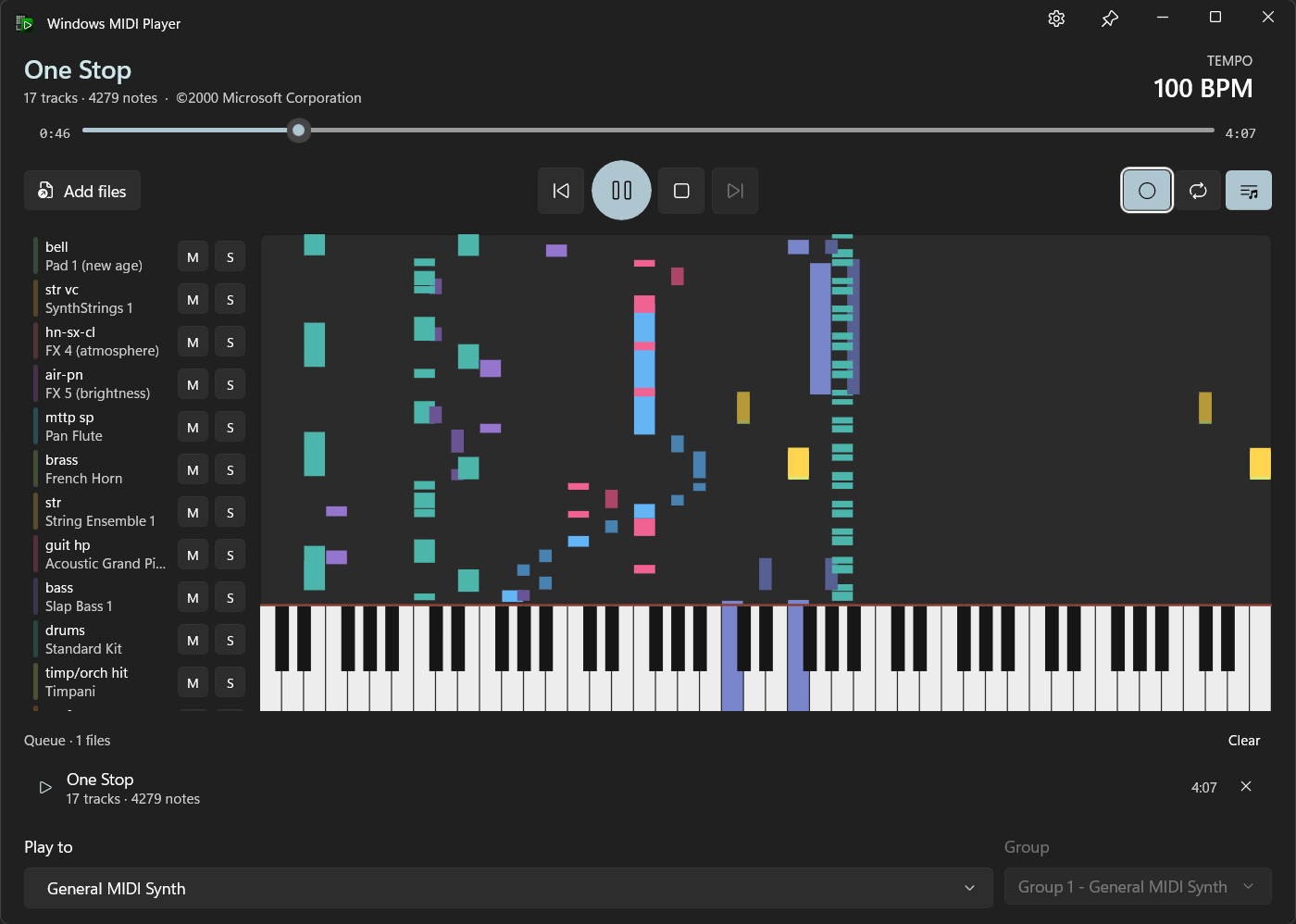
Both views draw bar lines and beat lines from the file’s own time signatures, and beats are dropped automatically when the music gets too dense for them to be useful.
Your choice is remembered between sessions.
Down the left of the note display is one row per track, and it’s where most of the useful work happens.
| Part of the row | What it does |
|---|---|
| Color bar | Matches the color of that track’s notes, and brightens as the track plays, so you can see at a glance which tracks are busy |
| Name | The track’s name from the file, and the instrument it’s set to |
| M | Mute the track |
| S | Play only this track |
Tracks with no notes in them aren’t listed. A conductor track holding nothing but tempo changes has nothing to silence, so offering a mute button for it would be a lie.
The instrument name comes from the file itself where the file names it, and from the General MIDI instrument list where it doesn’t.
Muting only holds back the start of notes. Notes already sounding still get their note off, and program changes and controllers still go out. If muting held everything back, unmuting would bring the track back playing the wrong sound, with a chord still hanging.
The button at the right of the transport row shows and hides the queue.
Files play in order, and Repeat starts again from the top when the last one finishes. Previous restarts the file you’re on if you’re more than three seconds in, and goes back to the one before it if you’re not, which is what a transport button usually does.
A file that couldn’t be read stays in the list with a warning on it and says why — not a MIDI file, no longer there, couldn’t be opened, or too large. That’s more useful than silently dropping it, because the usual reason is that a file moved.
Every MIDI file player has to deal with stuck notes, because MIDI notes are switched on and off separately and anything that interrupts the music between the two leaves a note sounding.
MIDI File Player sends note offs for everything that’s sounding, then sustain off, all notes off, all sound off, and pitch bend back to center, when you stop, pause, seek, mute, solo, load a new file, close the app, and at the end of a file. That last one matters more than it sounds: real MIDI files are quite often missing their final note offs. Changing the speed or the key doesn’t need any of this, so it doesn’t cut anything off.
It only does this on the channels the file actually uses. Windows MIDI Services lets more than one application share a device, so blasting all sound off across all sixteen channels would silence whatever else is using the same instrument.
When you press Play after Pause, or move the position, the player first sets up each channel the way the file had it at that point: the bank, the program, every controller the file set, and pitch bend. That way, the music doesn’t carry on with the wrong sound. It only sends values the file actually wrote. It never resets a controller to zero.
Notes that were already sounding at that point don’t come back on their own, because a note only starts when the file says so. For most music, that’s what you want. But some files hold a note down for a long time on purpose. Organ files often turn a stop on by holding a note on a control channel, and drones and pads hold notes for bars at a time. For those, turn on Restart held notes when you resume or move the position in the settings. The player then also restarts every note that should be sounding, at the same velocity it started with. Leave it off for piano and drums. Restarting a note partway through gives it a new attack, and on those instruments you hear it.
With that switch on, muting or soloing a track also brings back what the tracks you can still hear should be holding. That’s needed because muting silences every channel, not just the muted track’s. Unmuting a track brings back that track’s held notes, too.
After you move the position, or press Previous or Next, while the music is playing, the player waits about a third of a second before it starts again. Part of the silence it sends is timed to land a moment later, and waiting for it means it can’t cut off the first notes.
The gear button at the top right opens the settings.
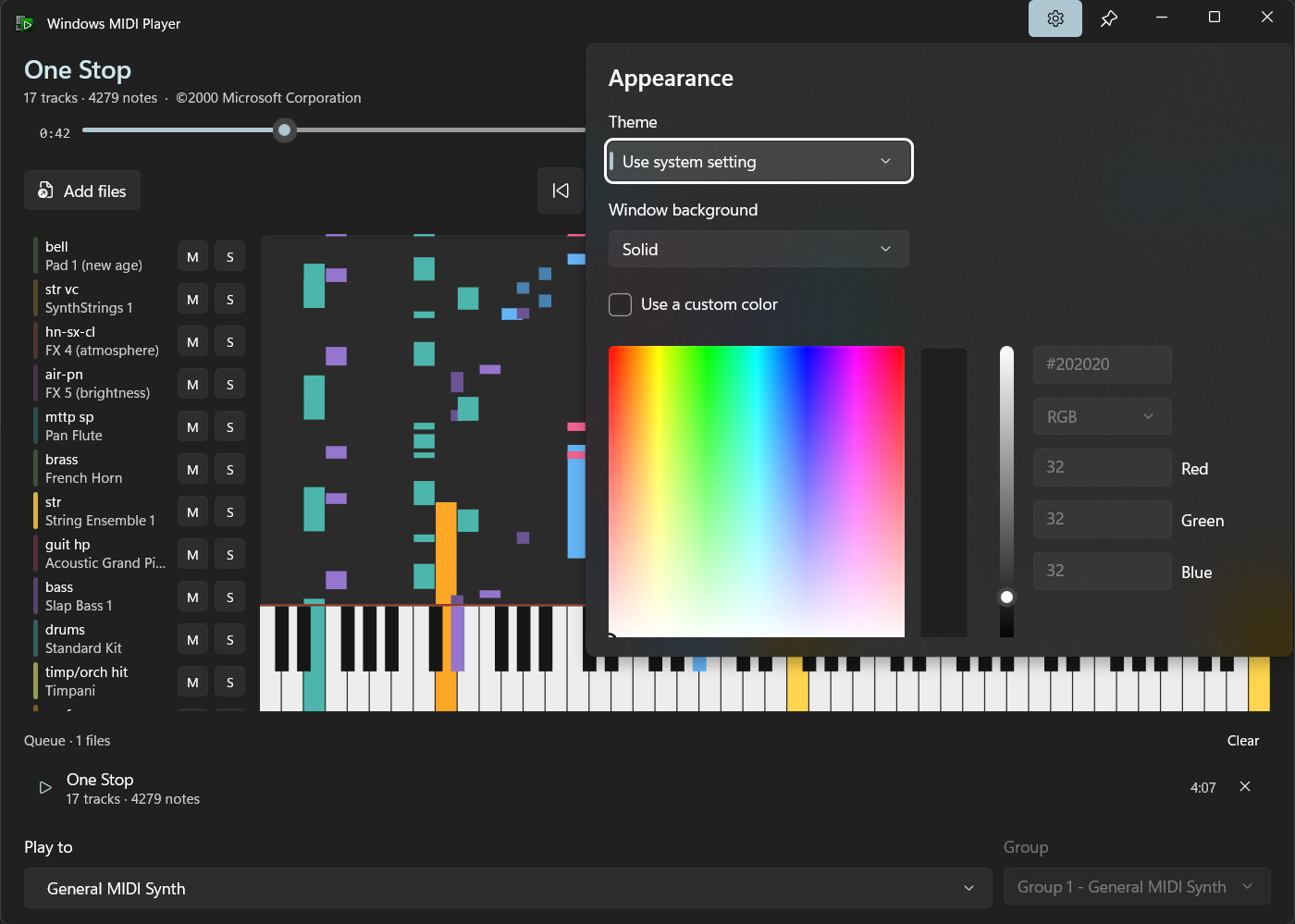
Appearance sets whether the app follows your Windows light or dark mode, and which window background to use. Mica and Acrylic pick up colors from your desktop; Acrylic is the one that lets what’s behind the window show through.
Playback has one switch, Restart held notes when you resume or move the position. It’s off until you turn it on. See Starting partway through for when you’d want it.
The pin button next to the settings button keeps the player above your other windows.
midiplayer.exe [files...] [options]

  [files...]             Optional. One or more MIDI files to add to the queue.

  --endpoint  id         Optional. The full endpoint device id to play to.

  --group     number     Optional. The group number, 1 through 16, to play to.

  --no-play              Optional. Add the files to the queue without starting
                         playback.
For example:
midiplayer.exe "C:\Windows\Media\onestop.mid" --group 1
You can find the endpoint device id for a device using the MIDI Console or the MIDI Settings app.
Windows MIDI Services is an open source project with all source available on GitHub. We have a great community on Discord as well. Between GitHub and Discord, you should find the information you are looking for.
