A Fun Way to Learn with Kitty-Explain Skill for Agents
Custom skills in declarative agents are now generally available 🎉
Updated October 28, 2026 for general availability.
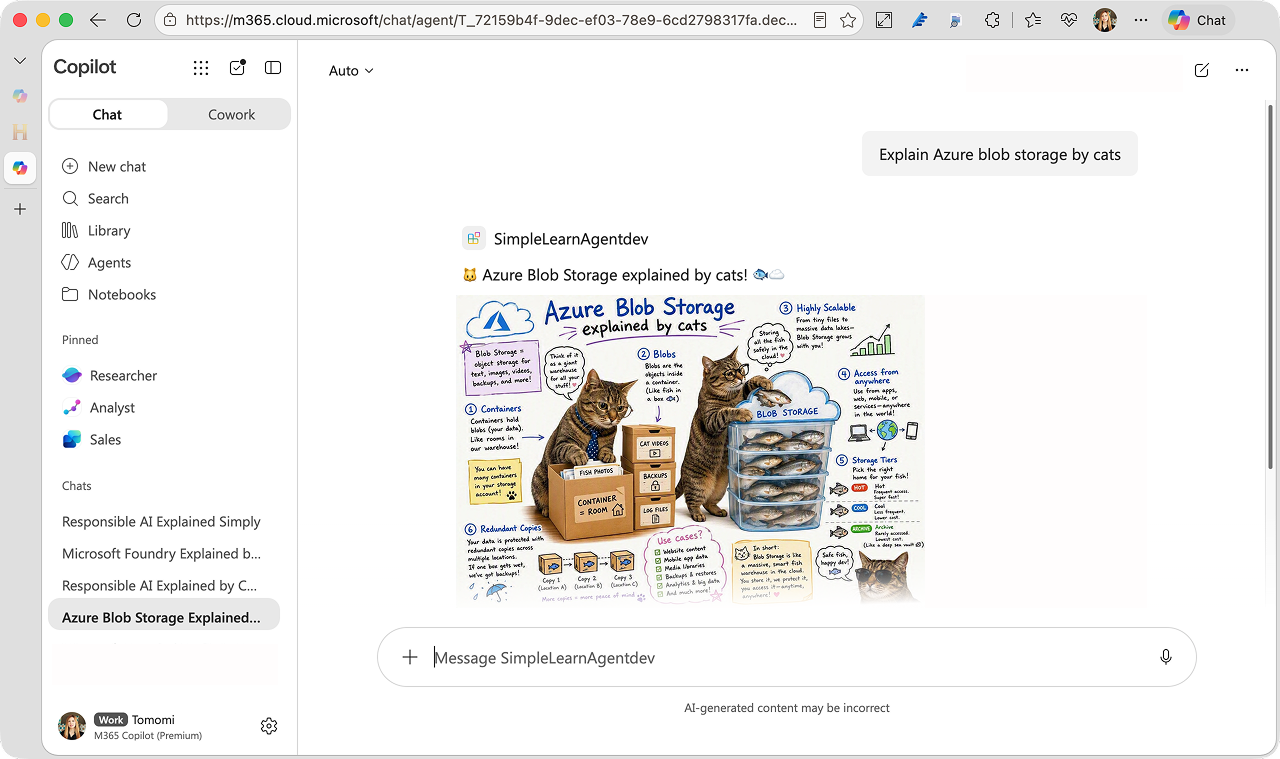
I hope you joined The Microsoft 365 Copilot Agent's Playbook | Microsoft Reactor Livecast. If not, it's not too late to catch up, because this article walks you through the demo from the episode 1. Let's explore how the Kitty Explain skill brings a playful, visual twist to learning with agents.
🐱 Kitty Explain Skill
Kitty Explain is a skill that generates a "Kitty Explain" meme-style cat visual explainer that makes complex ideas feel more approachable.
In this demo, the skill is used with the Simple Learn agent, which uses Microsoft Learn documentation to summarize complex topics and explain them in simple language.
Because skills package instructions and resources, you can also add a separate copy of Kitty Explain to another agent whenever it suits the use case. Let's say I have another agent called Explain-to-Me, who explains content from a given URL. This skill works well with the agent. Shared skill reuse across agents isn't currently supported, so updating one copy doesn't update other agents.
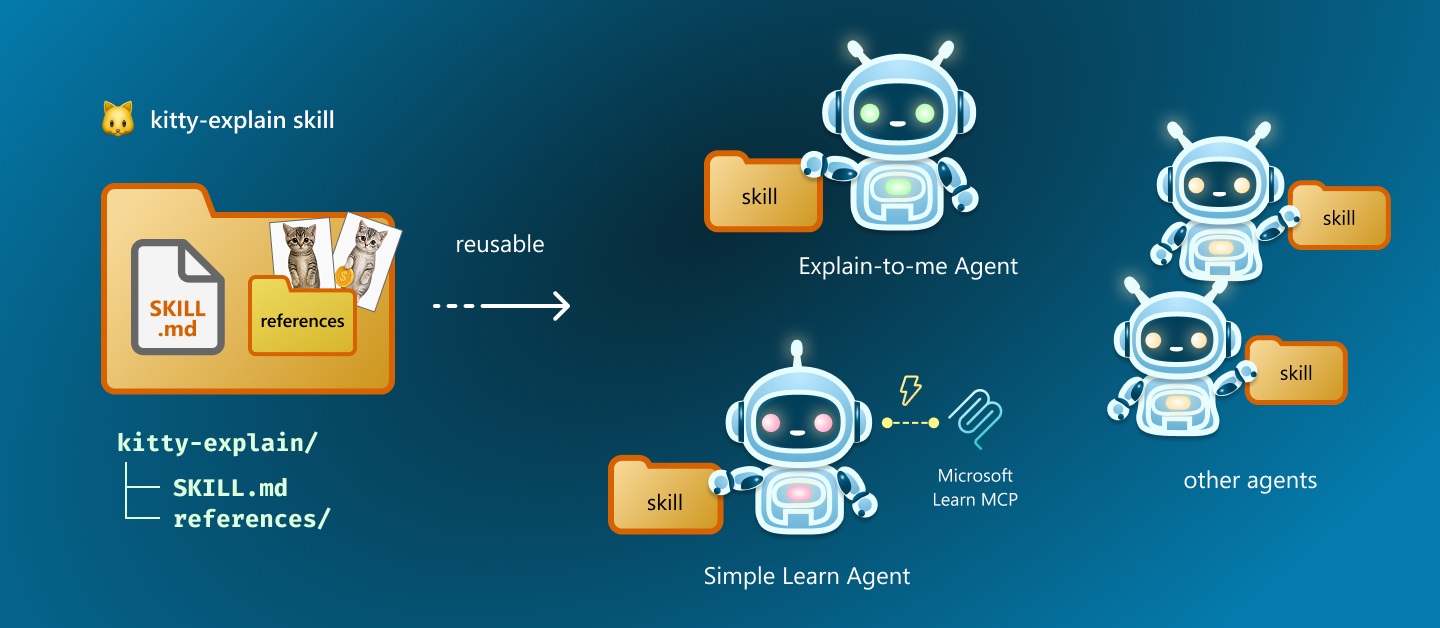
kitty-explain skill contains a SKILL.md file (instructions in plain markdown, with YAML metadata up top) plus reference folder with cat meme images to be references.
📂 kitty-explain
    ├── 📄 SKILL.md
    └── 📂 references
      ├── 📄 kitty01.png
      ├── 📄 kitty02.png
      └── 📄 ...
💪 How to use the skill in an agent
The skill source code is located in another GitHub repo (so you probably want to open in a new browser tab!):
Basically, all you need to do is just dumping this kitty-explain folder into your agent, and add a few lines to the agent's instruction.
🎨 Add Skill to an agent built with Agent Builder (No-Code)
First, compress the contents of the kitty-explain folder, including SKILL.md and references, to create kitty-explain.zip. Keep SKILL.md at the root of the ZIP, not inside an extra folder.
- Go to https://m365.cloud.microsoft/ and from the left menu, select Agents & Skills, then New agent.
- Choose your agent or create a simple agent that summarizes a given content.
- In the agent instruction, include a "Use skill" instruction (See below)
- Add a sample prompt under Suggested prompts: Title: "Kitty Explain visual" and Message should be something similar to "Explain [content] by cats.". Make this fit to what the agent does.
- On the Configure tab, expand Skills, select Add, and upload the complete kitty-explain ZIP package.
- Voilà! Test your agent on the Try it tab, then select Create.
You need a qualifying Microsoft 365 Copilot license or pay-as-you-go access, but Frontier Program enrollment is no longer required. In tenants using Microsoft Purview Information Barriers, end users can't add skills to agents they create; admins can still deploy agents with skills.
⚙️ Add Skill to an agent built with Microsoft 365 Agents Toolkit
Skills are also supported in Microsoft 365 Agents Toolkit. Use an existing declarative agent project with declarative agent manifest version 1.9.
- Follow the Toolkit skills setup guide to enable
TEAMSFX_AGENT_SKILLSbefore launching Visual Studio Code, then restart VS Code completely if it was already running. - In the Microsoft 365 Agents Toolkit pane, select Add Skill and create a skill named
kitty-explain. - Copy the Kitty Explain instructions and resources into the generated skill directory under
appPackage/skills/kitty-explain. - Add the "Use Skill" instruction below to your agent's instructions and add a suggested prompt such as "Explain [concept] by cats".
- Select Provision, then test the agent in Microsoft 365 Copilot.
Unlike Agent Builder, Toolkit takes a skill directory, not a ZIP. The complete app package is limited to 10 MB. Publishing agents with skills through Partner Center isn't supported yet.
📜 "Use Skill" instruction example
You should add this instruction to your agent's instruction.
Either the Agent Builder instruction field, or in the instruction.text if you're using M365 Agents Toolkit, add this extra instruction to have the agent use the skill:
# Use Skills

- **Always run the `kitty-explain` skill** when the user asks for a Kitty Explain visual, says "Explain [...] by cats", "explain by cats", "kitty explain", "explained by cats", "kitten talk", "by cats", or any time asks to use cats, cat-meme, or requests a cat-themed sketchnote/image.
- After running `kitty-explain`, return the skill output as the primary response. Do not replace it with a text-only explanation.
- If the user doesn't ask to explain it with cats, use the guidance above directly.
Modify your agent instruction to make it compatible with the skill if you need.
🥜 Go nuts with skills!
Try creating your own skills! Maybe you can just swap cats to your headshot photos 😆
I hope this gave you a better understanding of how skills work and inspired you to create your own skills for declarative agents.
🐈
📓 Learn More
- 🧪 Lab E12: Build Agent with Skill using Agent Builder
- 📖 Learn Doc: Custom skills in declarative agents