Hooks in Copilot Studio: Give Your Agent More Than Instructions
GHCP harness
Learn how hooks in Copilot Studio extend agent behavior with event-driven workflows that add context, transform data, and check actions before execution.
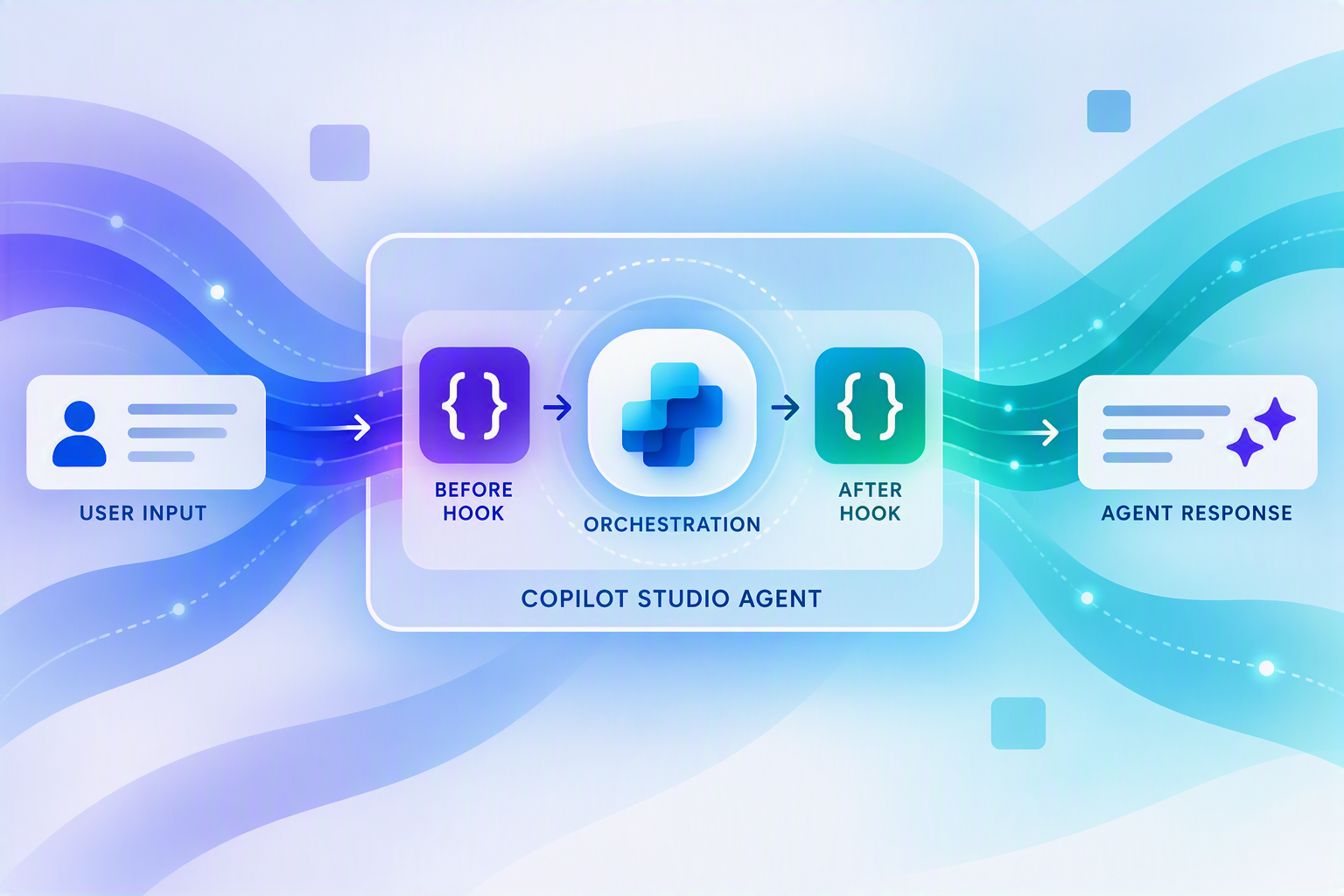
In agents powered by the GitHub Copilot harness, the agent reasons about how to approach a task and which tools to call. Instructions guide those decisions, but some steps should run whenever a particular event occurs — not only when the model chooses them. Hooks provide predictable checkpoints where the runtime invokes your logic.
An HR agent can start a conversation with the employee’s country and preferred language already available. A redaction workflow can mask sensitive personal information in a user’s question before the agent processes it. A booking workflow can check a proposed fare against the employee’s budget before the booking tool runs.
These examples show how hooks add context, transform data, and check proposed actions. We’ll look at their workflows, input/output mappings, and execution traces, including what happens when a hook fails.
Hooks are currently in public preview for agents powered by the GitHub Copilot harness. To access hooks today, go to copilotstudio.preview.microsoft.com and confirm availability in your environment.
From topic triggers to hooks
For agents using the Standard harness, topic triggers provide familiar ways to respond at defined points in a conversation: A message is received handles incoming messages, and An AI-generated response is about to be sent handles the response stage.
Agents powered by the GitHub Copilot harness use hooks as extension points at defined moments in execution, such as session start or before a tool call. The runtime invokes the configured logic when the matching event occurs, without relying on the model to choose it.
This lifecycle-hook pattern is also available in the GitHub Copilot SDK, where developers use code handlers such as onSessionStart and onPreToolUse.
In Copilot Studio, you currently implement a hook’s handler through a workflow. It receives event inputs and returns outputs that add context, replace values, or deny a proposed tool call. The hook determines when the workflow runs; the agent still decides how to approach the task using the resulting context and decisions.
Agent skills provide task guidance; hooks provide event-triggered execution. See also agents powered by the GitHub Copilot harness.
Configure a hook
Follow Add a hook to select an event, create or select a compatible workflow, and attach it to your agent. You can reuse the same workflow across agents, using metadata about the agent, user, or channel to determine which rules to apply.
1. Load employee context at session start
The HR Buddy agent answers employee questions about benefits and onboarding. Useful answers depend on context: the employee’s country helps identify applicable guidance, their employment category affects which policies are relevant, and their preferred language shapes the response. The goal is to make those facts available as the session begins.
Start (pre-loop) runs at the beginning of a new conversation. A deployed workflow retrieves the signed-in employee’s profile and returns additionalContext. This text is attached to the user’s first message in the session as an additional context block, giving the model information to use while reasoning and responding. For example, “Country: Greece” and “Preferred language: Greek” help HR Buddy select relevant guidance and reply in Greek.
Although the block accompanies the user’s message, the workflow supplies its contents; the user does not have to type those details. This supplements the agent’s instructions and conversation. HR systems still enforce data permissions and determine benefit eligibility.
In the sample HR Buddy agent, create Load employee context, select Start (pre-loop), and attach its workflow:
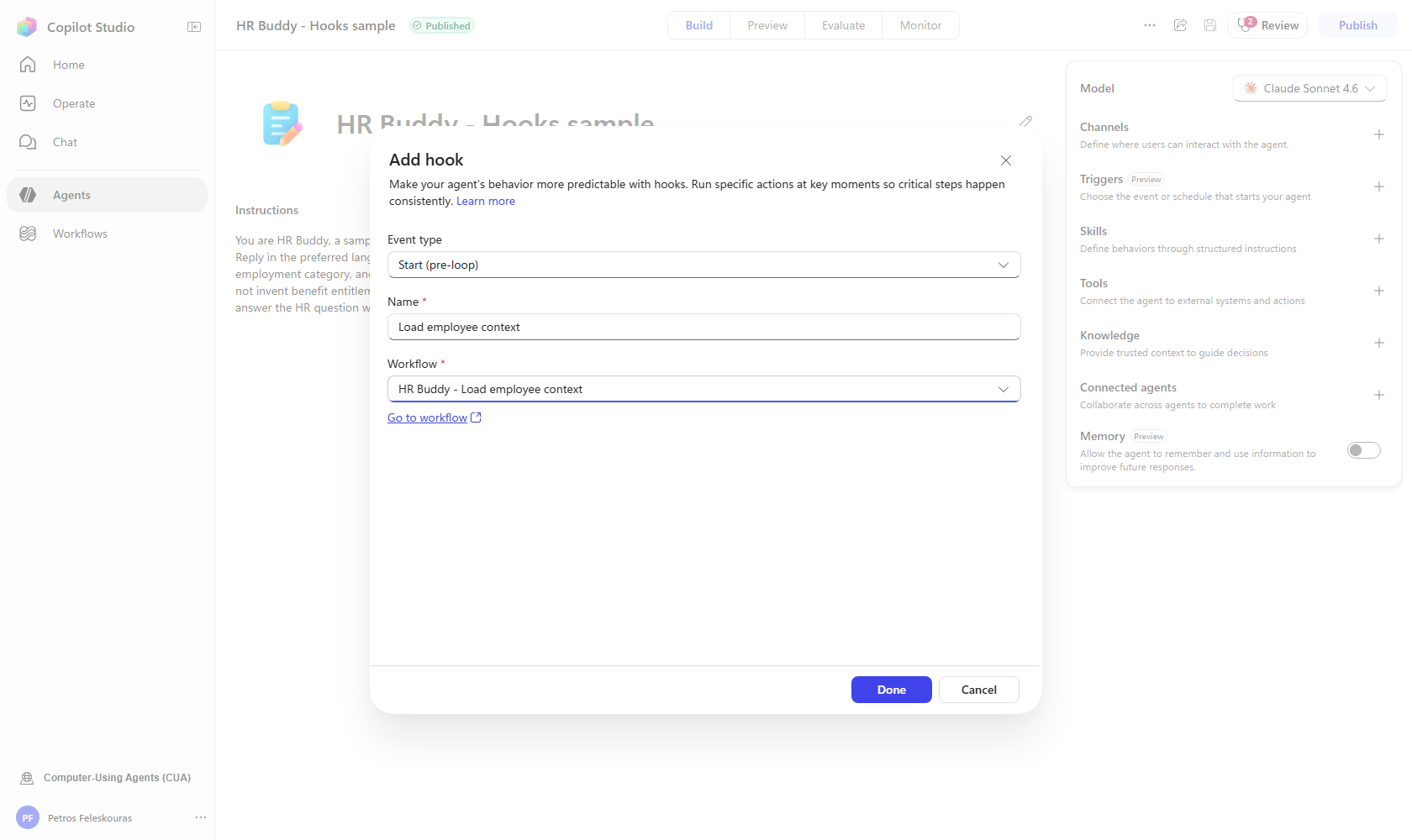 The hook creation form connects the session-start event to the employee-context workflow.
The sample workflow follows this path:
| Step | Input and output |
|---|---|
| Identify the employee | Read metadata.userAadObjectId from the hook input. |
| Retrieve the profile | Match the ID to a sample employee record. Record a no-match reason when no profile applies. |
| Select fields | Use country, employmentCategory, preferredLanguage, and onboardingStage. |
| Return context | Format those values as additionalContext; return empty context for an unmatched identity. |
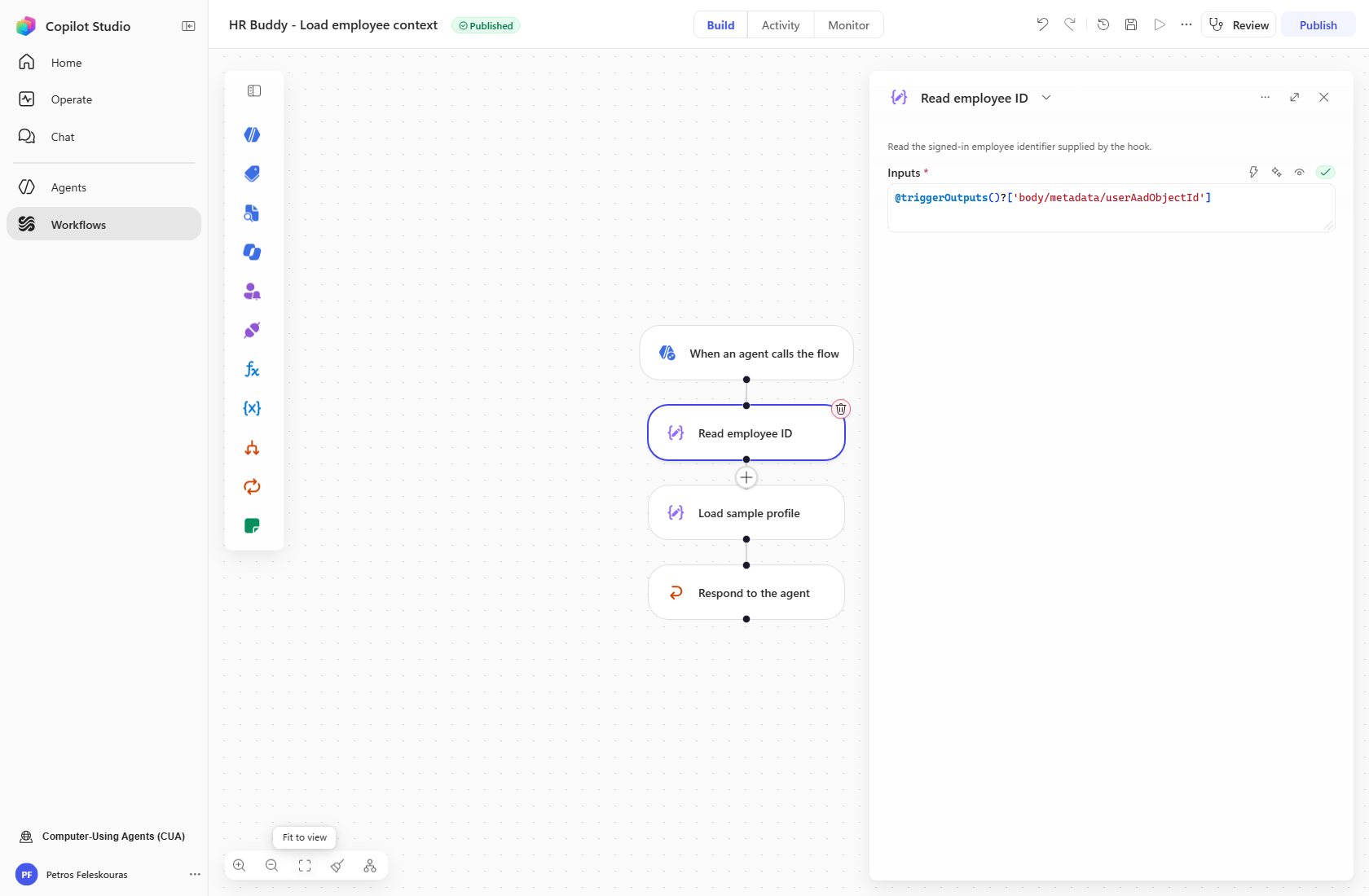 For production, replace the sample-profile step with an authenticated, authorized HR lookup.
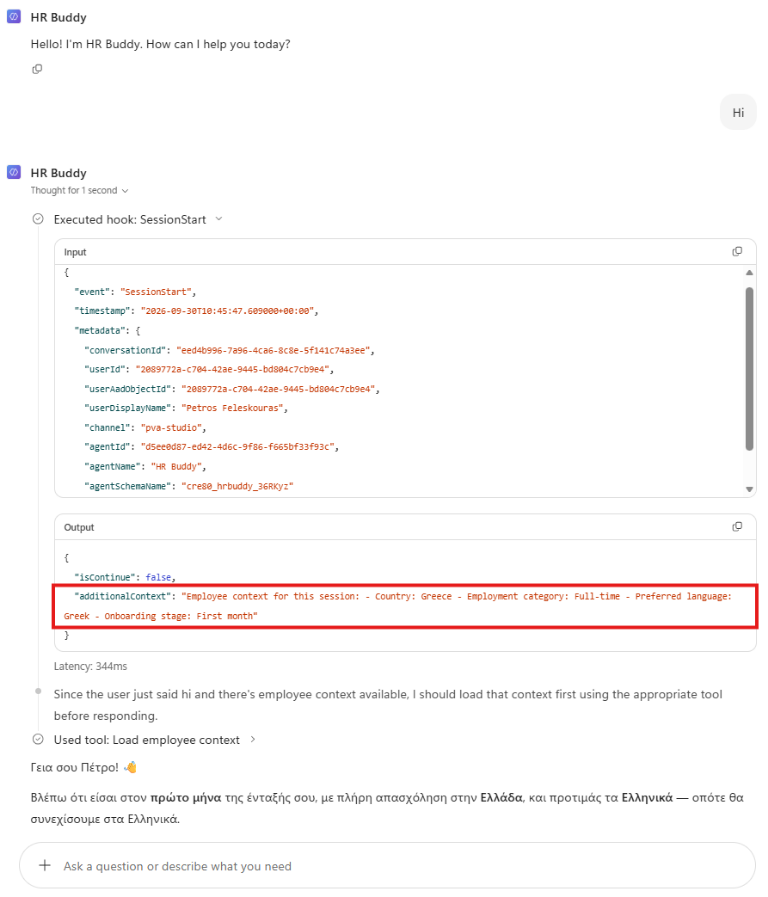 HR Buddy execution: the hook returns employee context in
 additionalContext, followed by a tool call and a response in Greek.
2. Redact a prompt with Azure Language
Use User prompt submitted to send prompt to Azure Language for PII detection and return the service’s redacted text as modifiedPrompt.
The Preview test submits a parental-leave question containing a sample Social Security number from Microsoft’s documentation.
Configure the authenticated service call
Use Detect Personal Information (V3.1) from the Azure Cognitive Service for Language connector. Name the step Analyze prompt PII:
| Setting | Value |
|---|---|
| Endpoint | Your approved Azure Language resource’s HTTPS endpoint. |
| Authentication | Account key stored in the secured connector connection. |
| Operation |
EntitiesRecognitionPIIV3_1, using Text Analytics v3.1. |
| PII categories |
USSocialSecurityNumber for this example. |
| Logging opt-out |
true. |
Keep credentials in the secured connection and restrict access to approved callers.
Create Redact prompt PII. Map prompt to the document’s text, with ID prompt-1 and language en. Pass a document object so the connector serializes quotes and newlines correctly.
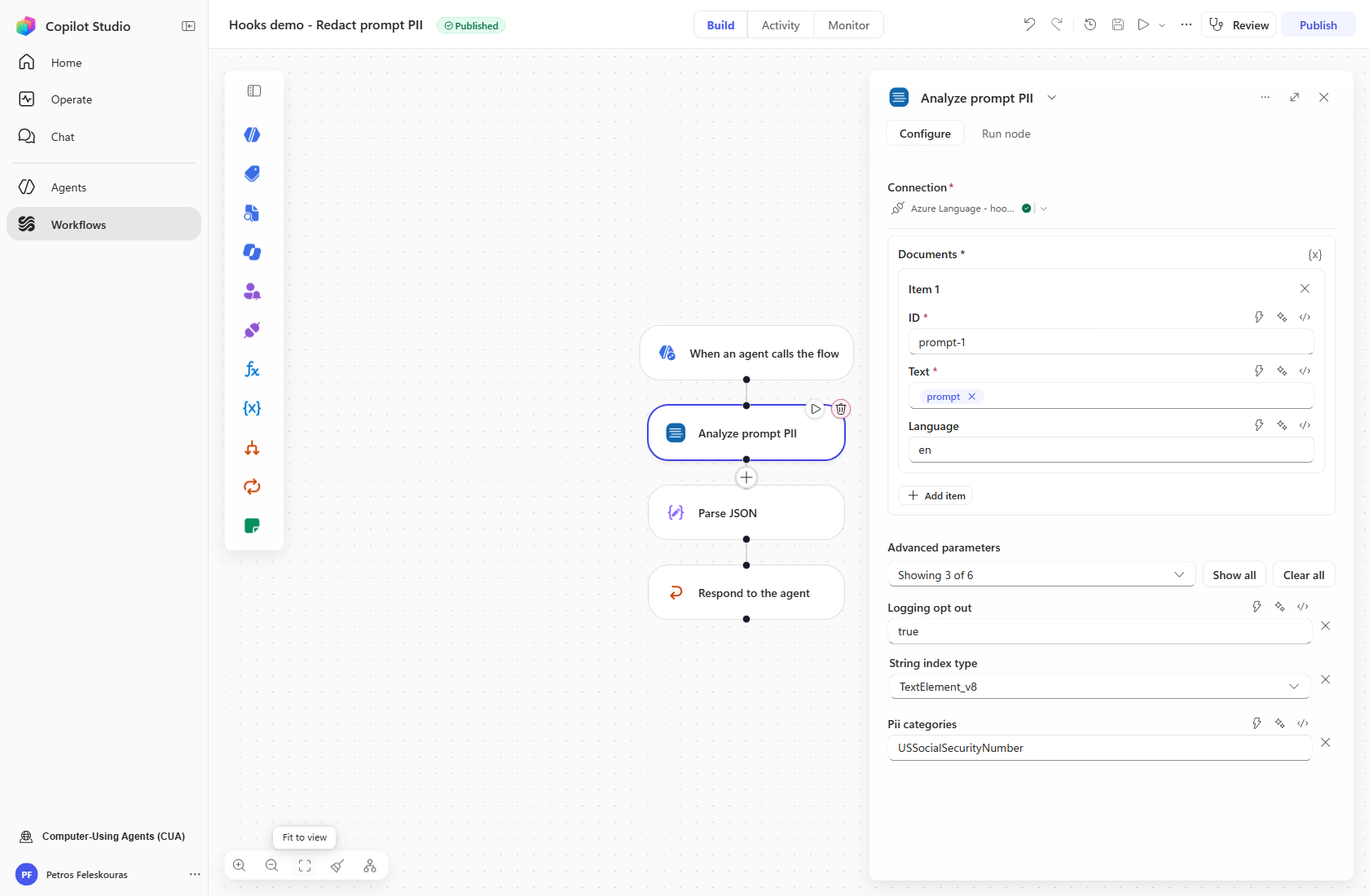 The workflow sends the hook’s prompt to Azure Language, validates the result, and returns the redacted text.
Configure the categories and language for your policy; this example selects English and one category. Default masking produces asterisks.
Map the service result to the hook output
Validate the connector outcome and document result: require an empty errors array, exactly one matching document ID, populated redactedText, and handled warnings. The saved Parse JSON schema rejects unexpected documents, empty redacted text, and nonempty errors or warnings.
Map the matching document’s redactedText to modifiedPrompt in Respond to the agent, then attach the workflow to the sample HR Buddy agent’s User prompt submitted hook.
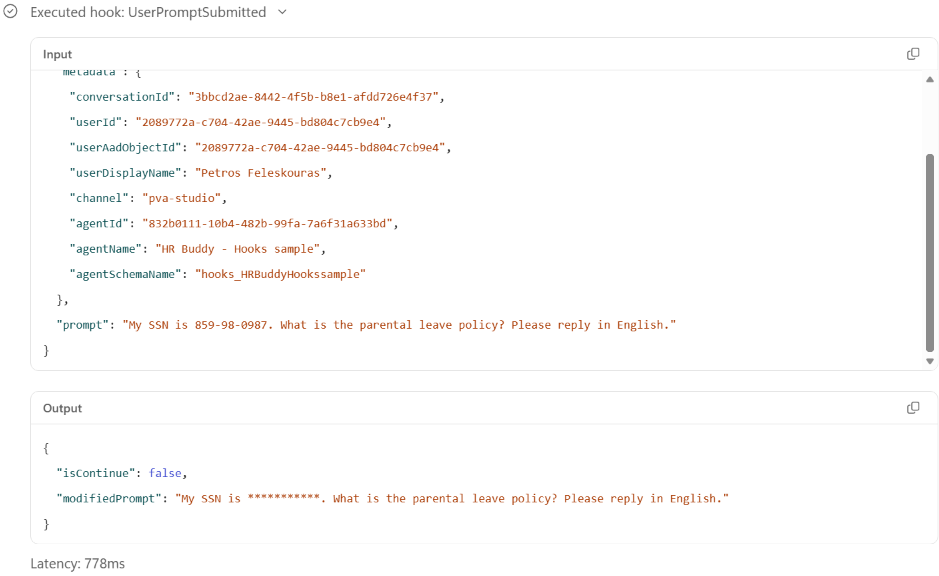 Actual Preview execution: the Social Security number becomes asterisks while the parental-leave question and requested response language remain intact.
Forward only redacted text; keep entity details containing original values within the approved processing path. Zero detections returns the original wording. Coverage varies; sensitive values can remain.
Failure path: If the hook errors or times out, the original prompt can continue to agent processing. Capture the failure with sanitized diagnostics and configure the access and retention controls described below.
3. Check a booking against its budget
A travel agent helps an employee choose a flight. Suppose the agent proposes a $650 booking and the employee’s budget is $500. The goal is to check the actual proposed booking before execution and give the agent a clear reason to choose a flight within budget.
Pre tool use runs immediately before the tool call and supplies toolName and parameters. The workflow compares the proposed fare and currency with an independently retrieved policy, then returns a decision. A deny response blocks that proposed call and gives the model a reason it can use to explain the limit or choose another option.
The sample Travel Buddy agent has a non-transactional BookFlight workflow tool and a Check booking policy pre-tool hook scoped to it through the Tools field. The hook compares the proposed fare with a sample USD 500 limit.
The tool receives quoteId, totalMinorUnits, and currency. USD amounts use integer cents: 65000 represents $650. In the Preview chat, the tool serialized that value as text, so the workflow converts it with int() before comparing amounts.
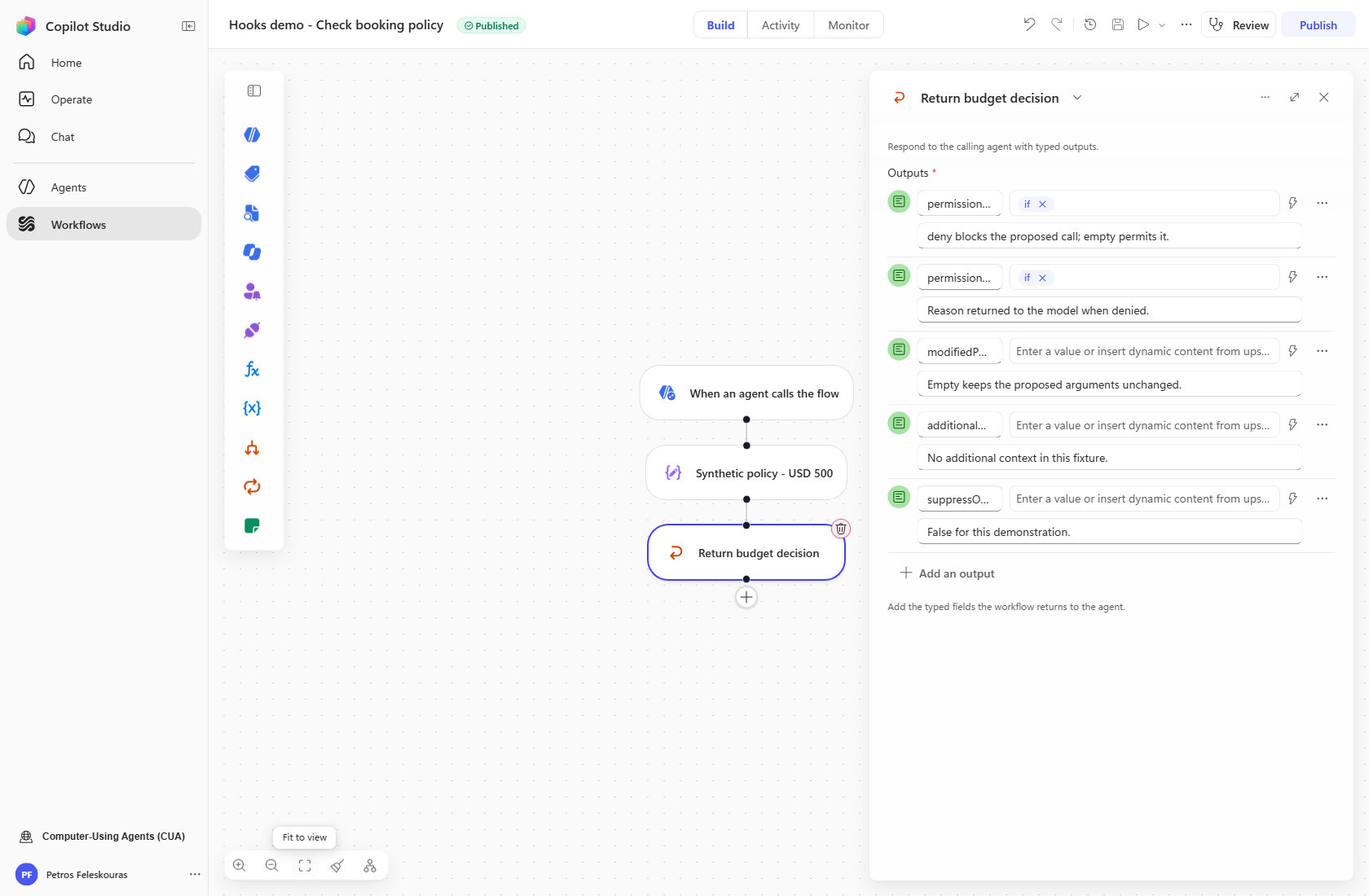 The sample workflow normalizes the fare and compares it with the limit. Production requires the identity, policy, and backend checks below.
| Step | Input and decision |
|---|---|
| Validate the proposal | Require the configured tool name, signed-in identity, populated quote ID, positive integer fare, and USD currency. |
| Retrieve policy | Use metadata.userAadObjectId with an authorized policy lookup. The sample record supplies a limit of 50000 USD cents. |
| Validate the policy | Require one applicable policy, a nonnegative integer limit, and matching currency. |
| Compare amounts | Deny a fare above the limit. Permit a valid fare at or below the limit. |
| Return the decision | Set permissionDecision and permissionDecisionReason. Keep the original arguments by leaving modifiedParameters empty. |
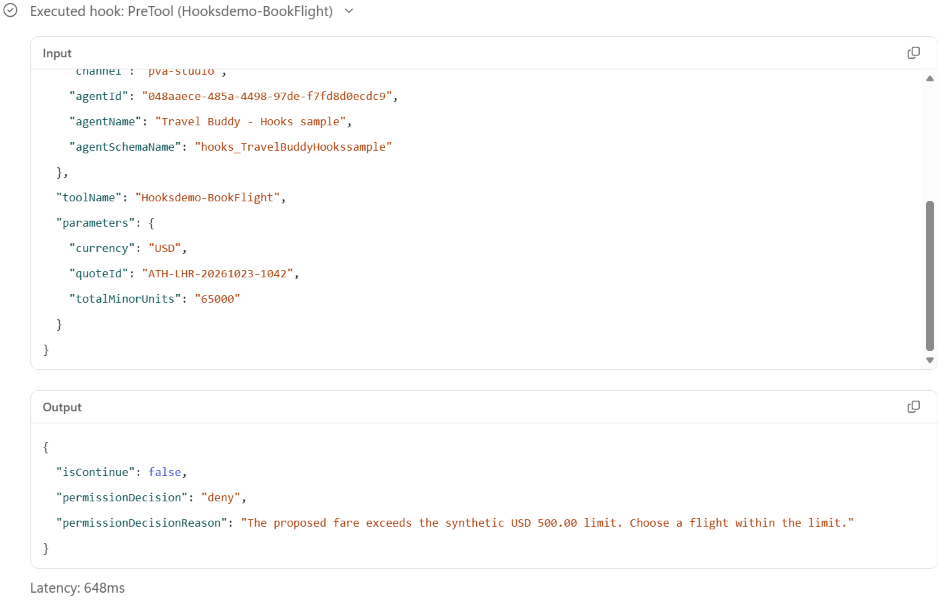 Actual Preview execution: the $650 proposal is denied with a reason. The agent asks for a cheaper quote without invoking BookFlight.
For approval, leave both permission outputs empty. For handled validation or policy-lookup errors, return deny with a reason: “Booking requires a verified policy. Please retry after policy verification succeeds.” Keep additionalContext empty and suppressOutput false.
Failure path: If the pre-tool hook fails or times out, the booking tool can still run. In production, the booking service must independently verify the caller, quoted price, and budget before creating a reservation.
Other hook events
| Event | Inputs | Use |
|---|---|---|
| Post tool use |
toolName, parameters, result
|
Return modifiedResult to select approved fields from a successful tool result before model processing. |
| After tool failure |
toolName, parameters, error
|
Match the tool and error, then return additionalContext with guidance, such as a bounded retry policy for a transient lookup error. The agent uses it to choose the next step. |
| Error |
error, errorContext, recoverable
|
Handle errors outside a tool call through errorHandling: retry, skip, or abort. Use a bounded retryCount and safe userNotification. |
Use the event reference for all fields.
Current behavior and implementation requirements
Hook failures and mandatory checks
The current runtime fails open: if a hook errors, times out, or returns an unreadable response, execution continues with default behavior.
Hook workflows use the workflow response deadline. On timeout, preview chat displays a note that the hook failed because the workflow timed out.
| Example | Consequence of hook failure |
|---|---|
| Employee context | The agent continues with its existing context. |
| Prompt redaction | The original prompt can continue to agent processing. |
| Booking check | Tool execution continues, subject to independent backend enforcement. |
Pre-tool checks may perform PII detection, privacy enforcement, policy validation, authorization, data-loss prevention, or other compliance checks. Their failure can expose sensitive data or allow an operation that policy would block.
Mandatory checks must prevent the protected action when verification fails. This is called fail-closed behavior. Because Copilot Studio hooks currently fail open, enforce essential rules independently in the tool or underlying service. For example, a booking service must reject an over-budget reservation even if the hook is unavailable.
A workflow can catch a service error and return deny, blocking the tool call. But if the workflow itself fails or times out, the tool can still run. Test these situations separately and distinguish between preventing the tool call and rejecting the transaction inside the backend. For tools that send sensitive data, the check must succeed before that data leaves the system. Logs and alerts help identify failures; they do not prevent the action.
Redaction and data retention
Hooks can redact data at three checkpoints: User prompt submitted returns modifiedPrompt to replace the message passed to the agent; Pre tool use returns modifiedParameters to replace arguments sent to a tool; Post tool use returns modifiedResult to replace a successful tool result before the model receives it.
These transformations do not erase data already received or stored. In the PII example, Copilot Studio and Azure Language receive the original prompt, so configure transcript and log access and retention separately. suppressOutput controls user-visible output, not data storage.
Apply hooks to built-in tools
Hooks also support built-in knowledge tools such as web_search and CLI tools such as bash commands. Add at least one tool to the agent first so the Tools filter appears in the hook configuration. To apply a hook to built-in tool calls, use All tools by leaving the Tools field empty. These built-in tools are not available as individual selections in the tool filter.
The hook input includes toolName, so the workflow can identify the invoked tool and apply the relevant logic. Because All tools includes other tool calls too, inspect the actual names in Preview before branching on them.
Put hooks to work
Hooks extend agent behavior beyond instructions by connecting workflows to key moments in execution. Start with a focused use case, verify the results in Preview, and plan for what happens when a workflow fails.
Where would hooks make the biggest difference in your agents: personalization, privacy, or tool-use decisions? Share your perspective and the scenarios you would like to explore in the comments.