Page-Level PDF Citations in Copilot Studio
Standard harness
How to deliver page-level PDF citations in Copilot Studio for SharePoint and uploaded file knowledge sources, so users land on the exact page that grounded the answer.

Copilot Studio can answer from lengthy PDF files, but the default citation sends the user back to the start of the document. For a field engineer checking a maintenance procedure, a compliance reviewer validating a policy clause, or a healthcare worker confirming a dosage guideline, that’s the difference between trusting the answer and spending ten minutes hunting through the source.
Page-level citations are the answer to this. Instead of linking to the document root, we need a citation URL that includes the specific page number, and takes the user directly to the content that grounded the answer.
This post shows you how to emit page-level citations for PDFs in Copilot Studio. We’ll cover two scenarios depending on which knowledge source you’re using, the differences in how page markers are returned, and what to watch out for when testing with different models.
The Pattern
Both approaches in this post use the same interception mechanism in Copilot Studio. When generative orchestration produces a response grounded on knowledge, it fires the OnGeneratedResponse trigger. Using topics to react to this, this gives you access to:
-
System.Response.FormattedText— the full response text including the citations footer -
System.Response.Citations— a table of citations withName,Url, andTextcolumns
The default citations footer looks something like this:
1
2
3

Here is the relevant information from the manual...

[1]: https://contoso.sharepoint.com/docs/manual.pdf "manual.pdf"
What we want is:
1
2
3

Here is the relevant information from the manual...

[1]: https://contoso.sharepoint.com/docs/manual.pdf#page=37 "manual.pdf"
The approach is the same in both scenarios: first we intercept the generated response, then parse page markers from the citation text, rebuild the citations footer with #page=N appended to PDF URLs, and suppress the default response using System.ContinueResponse = false.
Where the two approaches differ is in the page marker format and the URL handling, because SharePoint and uploaded file knowledge sources return citations differently.
| SharePoint Knowledge Source | Uploaded Files (Unstructured Data) | |
|---|---|---|
| Page marker format | <page_X> |
<page value=X> |
| Citation URL | Already points to SharePoint | Needs replacing with an external URL |
| Primary sample use case | Enhance existing SharePoint citations | Swap internal citations to point to a URL |
SharePoint as a Knowledge Source
If your agent uses SharePoint as a knowledge source, citations already point to the correct SharePoint document. The goal here is only to append the page number so the user lands on the right page when they click through.
Model behaviour and citations outputs
When a generative answer is grounded on a PDF from SharePoint, the citation text in the System.Response.Citations table may include page markers using the format <page_X> where X is the page number.
Page markers are not guaranteed on every citation. The topic logic in this sample detects markers when present and falls back to the document root when they are not. This means you get page-level precision when the data is available, and a graceful fallback when it is not.
Something to be aware of when customising citations is that different models handle citations differently. As of May 2026, GPT-5 Chat tends to return a single citation per source file, even when multiple chunks from the same PDF were used to ground the response. Claude Sonnet 4.6, on the other hand, returns multiple citations for the same file when multiple chunks are used, which allows us to emit multiple citations per file for the pages used to ground it.
Evaluate your agent with different models to understand how citation behaviour varies. The citation shape directly affects the page-level experience, and this should be one of the factors you consider when selecting a model for production. Maintain ongoing evaluations as model behaviour can change over time.
What the topic does
The topic intercepts the generated response and for each citation:
- Checks if the cited file is a PDF (based on the file extension)
- Looks for a
<page_X>marker in the citation text - Extracts the page number and appends
#page=Nto the URL - For Office files, optionally appends
?web=1to force browser opening depending on the variable in the topic for this.
This is the PowerFx that handles the page extraction for PDFs when using SharePoint as a knowledge source:
1
2
3
4
5
6
7
8
9
10
11
12
13
14
15

resolvedUrl: If(
    EndsWith(citation.Name, ".pdf"),
    citation.Url & "#page=" &
    If(
        Find("<page_", citation.Text) > 0,
        Mid(
            citation.Text,
            Find("<page_", citation.Text) + Len("<page_"),
            Find(">", citation.Text, Find("<page_", citation.Text))
                - Find("<page_", citation.Text) - Len("<page_")
        ),
        "1"
    ),
    // ... Office file handling
)
The Mid function extracts the page number from between <page_ and >, and if no marker is found, defaults to page 1.
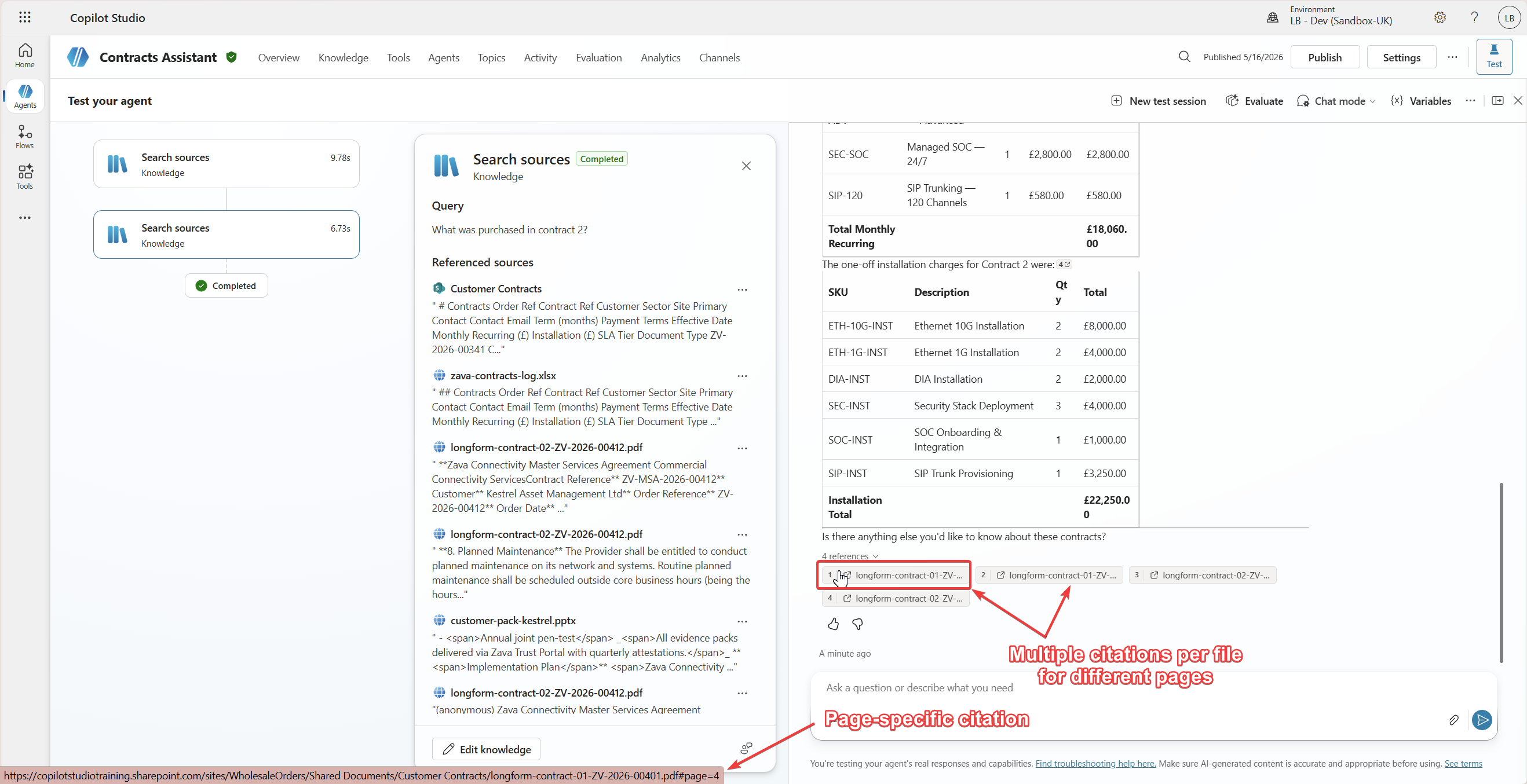 Copilot Studio surfacing page-specific citations with multiple references per file
Office files: open in browser or desktop?
The sample also includes a configurable variable OpenOfficeFilesInWeb. When set to true, it appends ?web=1 to Office file URLs (Word, Excel, PowerPoint), which forces them to open in the browser rather than the desktop app.
Full topic YAML
The complete topic YAML is available in the CopilotStudioSamples repository.
Click to expand full topic YAML
kind: AdaptiveDialog
beginDialog:
  kind: OnGeneratedResponse
  id: main
  priority: -1
  actions:
    - kind: SetVariable
      id: setVariable_HJ0sml
      displayName: Control whether Office Files should open in the web
      variable: Topic.OpenOfficeFilesInWeb
      value: =true

    - kind: SetVariable
      id: rZYmg1
      displayName: Store citations table
      variable: Topic.SystemCitations
      value: =System.Response.Citations

    - kind: SetVariable
      id: MHFmGu
      displayName: Store orchestrators response
      variable: Topic.SystemResponseText
      value: =System.Response.FormattedText

    - kind: ConditionGroup
      id: has-answer-conditions
      conditions:
        - id: has-answer
          condition: =CountRows(System.Response.Citations)>0
          displayName: Only customise when citations are present
          actions:
            - kind: SetVariable
              id: setVariable_responseBody
              displayName: Response with citations table removed
              variable: Topic.ResponseBodyWithoutCitations
              value: |-
                =If(
                    Find(Char(10) & Char(10) & "[1]:", System.Response.FormattedText) > 0,
                    Left(
                        System.Response.FormattedText,
                        Find(Char(10) & Char(10) & "[1]:", System.Response.FormattedText) - 1
                    ),
                    If(
                        Find(Char(10) & "[1]:", System.Response.FormattedText) > 0,
                        Left(
                            System.Response.FormattedText,
                            Find(Char(10) & "[1]:", System.Response.FormattedText) - 1
                        ),
                        System.Response.FormattedText
                    )
                )

            - kind: SetVariable
              id: setVariable_EjZ42D
              displayName: Customise citations with PDF page references
              variable: Topic.CitationsSnip
              value: |-
                =Concat(
                    Sequence(CountRows(System.Response.Citations)),
                    With(
                        {
                            citation: Last(FirstN(System.Response.Citations, Value)),
                            citationIndex: Text(Value)
                        },
                        With(
                            {
                                resolvedUrl: If(
                                    EndsWith(citation.Name, ".pdf"),
                                    citation.Url & "#page=" &
                                    If(
                                        Find("<page_", citation.Text) > 0,
                                        Mid(
                                            citation.Text,
                                            Find("<page_", citation.Text) + Len("<page_"),
                                            Find(">", citation.Text, Find("<page_", citation.Text)) - Find("<page_", citation.Text) - Len("<page_")
                                        ),
                                        "1"
                                    ),
                                      If(
                                        Topic.OpenOfficeFilesInWeb And
                                        Or(
                                          EndsWith(Lower(citation.Name), ".doc"),
                                          EndsWith(Lower(citation.Name), ".docx"),
                                          EndsWith(Lower(citation.Name), ".ppt"),
                                          EndsWith(Lower(citation.Name), ".pptx"),
                                          EndsWith(Lower(citation.Name), ".xls"),
                                          EndsWith(Lower(citation.Name), ".xlsx")
                                        ),
                                        If(
                                          Find("web=1", Lower(citation.Url)) > 0,
                                          citation.Url,
                                          citation.Url & If(Find("?", citation.Url) > 0, "&web=1", "?web=1")
                                        ),
                                        citation.Url
                                      )
                                )
                            },
                            "[" & citationIndex & "]: " & resolvedUrl & " """ & citation.Name & """"
                        )
                    ),
                    Char(10)
                )

            - kind: SendActivity
              id: sendActivity_FplCvD
              displayName: Respond with formatted response + new citations table
              activity: |-
                {
                  Topic.ResponseBodyWithoutCitations & Char(10) & Char(10) & Text(Topic.CitationsSnip)
                }

            - kind: SetVariable
              id: setVariable_jrTAIw
              displayName: Prevent orchestrator from responding directly
              variable: System.ContinueResponse
              value: =false

            - kind: EndDialog
              id: end-topic
              clearTopicQueue: true
Prerequisites
- A Copilot Studio agent with Generative Orchestration enabled
- One or more SharePoint knowledge sources configured that contain PDF documents
Setup steps
- In your agent, ensure you have a SharePoint knowledge source configured with PDFs. Keep in mind, for best-practice ALM you can use Dynamic Knowledge URLs in Copilot Studio
- Create a new topic, switch to the Code editor view, and paste the contents of the YAML file.
- Review the
OpenOfficeFilesInWebvariable. Set it totrueif you want Office files to open in the browser instead of desktop apps. - Save the topic and test by asking a question that will cite a PDF document.
Uploaded Files (Unstructured Data) as a Knowledge Source
If your agent uses uploaded files as a knowledge source (unstructured data), the default citations point to Dataverse-hosted chunks rather than the original document. This is where Remi’s citation-swap sample provides a solution for something more useful.
When to use this approach
The uploaded files approach is designed for a specific scenario: you’ve chosen to upload documents directly to Copilot Studio as your knowledge source, but you want the citations to point to a location where end users can actually access the full document, such as a public website, rather than showing previews. For PDFs, you also want page-level precision.
With uploaded files, there is no role-based access control. Users of the agent have access to generated answers from all uploaded content. If your content requires access restrictions, consider SharePoint as a knowledge source instead.
Different marker format
Uploaded file knowledge sources use a different page marker format: <page value=X> instead of the <page_X> format used by SharePoint. The parsing logic accounts for this difference.
This is the PowerFx that handles the page extraction for PDFs when using uploaded files as a knowledge source:
1
2
3
4
5
6
7
8
9
10
11
12
13

If(
    And(
        EndsWith(currentRecord.Name, ".pdf"),
        StartsWith(currentRecord.Text, "<page value=")
    ),
    "#page=" & Mid(
        currentRecord.Text,
        Find("<page value=", currentRecord.Text)
            + Len("<page value=") + 1,
        Find(">", currentRecord.Text)
            - Len("<page value=") - 3
    )
)
What the topic does
For each citation, the topic:
- Checks if the citation URL is blank (indicating an uploaded file rather than a web source)
- Replaces the blank URL with the external website URL combined with the file name
- For PDFs with a
<page value=X>marker, appends#page=Nto the constructed URL - Handles URL encoding for file names with spaces
You need to configure a single variable in the topic: externalWebsiteURL. Set this to the base URL of the website where your documents are hosted, including the directory path. For example: https://www.contoso.com/documents/policies/.
The file names in your website directory must match the file names uploaded to Copilot Studio exactly. The topic constructs the URL by concatenating the base URL with the file name.
Full topic YAML
The complete topic YAML is available in the CopilotStudioSamples repository.
Click to expand full topic YAML
kind: AdaptiveDialog
beginDialog:
  kind: OnGeneratedResponse
  id: main
  condition: =CountRows(System.Response.Citations)>0
  actions:
    - kind: SetVariable
      id: setVariable_xHJ4lf
      variable: Topic.Var1
      value: =System.Response.FormattedText

    - kind: SetVariable
      id: setVariable_wtNwaw
      variable: Topic.externalWebsiteURL
      value: https://yourwebsite.com/citations/

    - kind: SetVariable
      id: setVariable_9IFwdP
      variable: Topic.CitationsSnip
      value: |-
        =With(
            {CitationsTable: System.Response.Citations},
            Concat(
                ForAll(
                    Sequence(CountRows(CitationsTable)),
                    Value
                ),
                With(
                    {
                        currentRecord: Index(
                            CitationsTable,
                            Value
                        )
                    },
                //begin logic
                    "[" & Text(Value) & "]: " & If(
                        IsBlank(currentRecord.Url),
                        If(
                            Left(
                                currentRecord.Name,
                                8
                            ) = "https://",
                            Substitute(
                                currentRecord.Name,
                                " ",
                                "%20"
                            ),
                            Substitute((Topic.externalWebsiteURL & currentRecord.Name), " ", "%20") &
                            If(
                                // check if cited source is a PDF and we have page data available
                                And(
                                    EndsWith(currentRecord.Name, ".pdf"),
                                    StartsWith(currentRecord.Text, "<page value=")
                                ),
                                // add page for PDFs
                                "#page=" & Mid(
                                    currentRecord.Text,
                                    Find("<page value=", currentRecord.Text
                                    ) + Len("<page value=") + 1,
                                    Find(
                                        ">",
                                        currentRecord.Text
                                    ) - Len("<page value=")-3
                                )
                            )
                        ),
                        currentRecord.Url
                    ) & " " & """" &
                    Substitute(
                        If(
                            Find(
                                "?",
                                Last(
                                    Split(
                                        currentRecord.Name,
                                        "/"
                                    )
                                ).Value
                            ) > 0,
                            Left(
                                Last(
                                    Split(
                                        currentRecord.Name,
                                        "/"
                                    )
                                ).Value,
                                Find(
                                    "?",
                                    Last(
                                        Split(
                                            currentRecord.Name,
                                            "/"
                                        )
                                    ).Value
                                )
                            ),
                            Last(
                                Split(
                                    currentRecord.Name,

                                    "/"
                                )
                            ).Value
                        ),
                        "%20",
                        " "
                    ) & """"
                //end logic
                ),
                Char(10) & Char(10)
            )
        )

    - kind: SendActivity
      id: sendActivity_i4mW3G
      activity: |-
        {If(
            System.Activity.ChannelId = "msteams",
            System.Response.FormattedText & Char(10) & Char(10) & Text(Topic.CitationsSnip),
            Left(System.Response.FormattedText, Find("[1]:", System.Response.FormattedText) + -1) & Char(10) & Char(10) & Text(Topic.CitationsSnip)
        )}

    - kind: SetVariable
      id: setVariable_jVzQGX
      variable: System.ContinueResponse
      value: false

inputType: {}
outputType: {}
Prerequisites
- A Copilot Studio agent with Generative Orchestration enabled
- Uploaded file knowledge sources containing PDF documents
- A site you can point to hosting the same documents
Setup steps
- Upload your PDF files to the agent as knowledge sources.
- Ensure the same files are available at a public URL with matching file names.
- Create a new topic, switch to the Code editor view, and paste the contents of the YAML file.
- Update the
externalWebsiteURLvariable to your website’s base URL including the directory path. - Save the topic and test by asking a question that will cite a PDF document.
Choosing the Right Approach
If you’re unsure which sample to use, it comes down to your knowledge source:
- SharePoint knowledge source — use the SharePoint PDF page citations sample. Your citations already have URLs pointing to SharePoint, the topic just makes them page specific.
- Uploaded files — use the citation-swap sample. You need to swap the citation URLs entirely and can add page precision as part of that.
If you want to go further, handling knowledge and customised citations for custom platforms as an example, consider using Azure AI Search as a knowledge source where you can map citation URLs at the index level.
And if you want to remove citations entirely, Henry covered that in Kill the [1]: How to Remove Citations from Copilot Studio Answers.
Summary
These samples and the guidance in this article lets you handle citations data with a customised approach, emitting page-specific citations rather than the default which results in users always landing on page 1 of a PDF. For those scenarios where users don’t have ten minutes to spend scrolling through a file to find the right part, implement page-specific citations handling to handle the page marker data when it’s available, and save users time in getting to the content they need.
A few key takeaways to keep in mind:
-
Page-level PDF citations are achieved by parsing page markers from the
System.Response.Citationstable and appending#page=Nto citation URLs. -
SharePoint and uploaded files use different marker formats —
<page_X>for SharePoint,<page value=X>for uploaded files. - Page markers are not always returned — the topic logic handles this gracefully by falling back to the document root.
- Model selection affects citation behaviour — At May 2026, Claude Sonnet 4.6 returns multiple citations per file (enabling multiple page references), while GPT-5 Chat tends to consolidate into a single citation. Evaluate with different models and factor citation behaviour into your model selection.
-
Non-PDF files still get citations — both samples emit citations for all file types, not just PDFs. The SharePoint sample also includes a method to ensure Office files (Word, Excel, PowerPoint) open in the browser via the
?web=1parameter. - Both samples use the same foundational pattern: intercept with
OnGeneratedResponse, rebuild the citations footer, and suppress the default response withSystem.ContinueResponse = false.
Have you tried customising citations in your agents? Share the other citation customisation scenarios you’ve tried out in the comments.