Configure Azure Automation Private Endpoint

This section will configure the Azure Automation accounts to use a private endpoint with SQL.

Manual Steps:

Step 1: Assign Azure Role to System Assigned Managed Identity (SAMI)

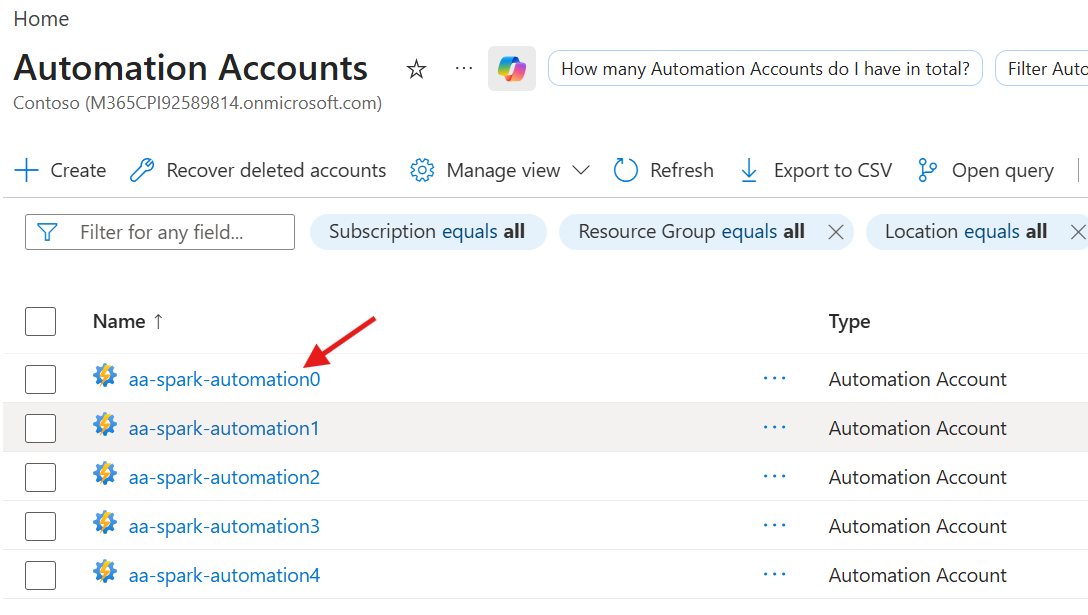
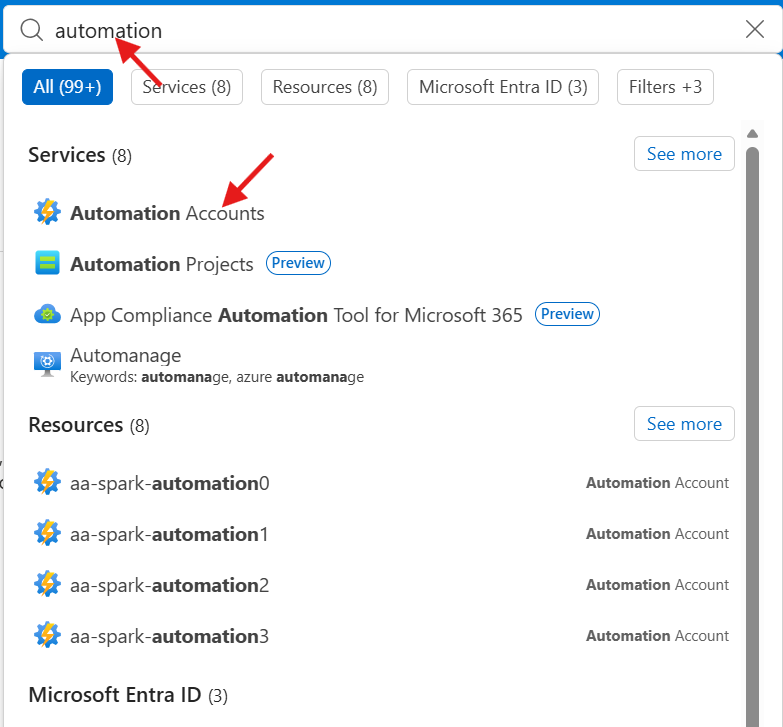
  1. Type in automation in the top search box
  2. Select Automation Accounts
View Azure Automation

  1. Select aa-automation-00
Select Automation Account

  1. Select Identity under the Account Settings navigation menu
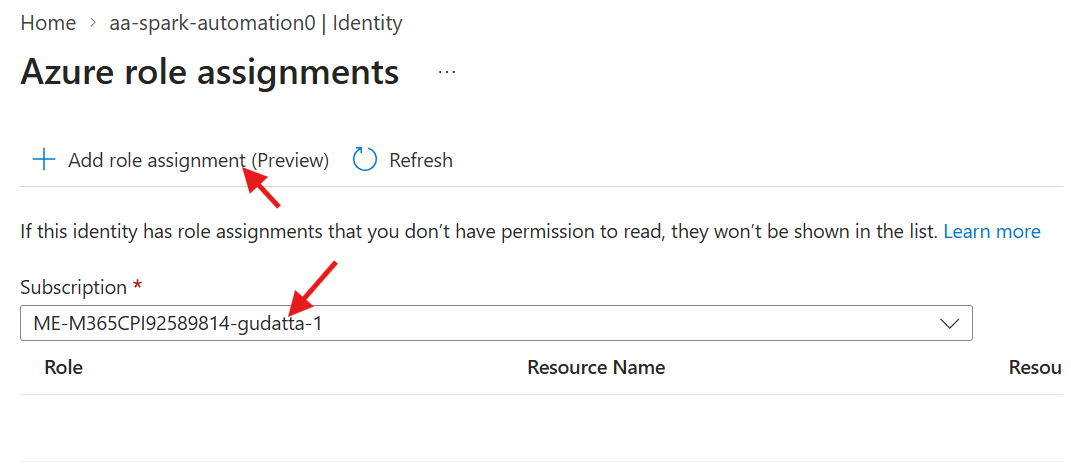
  2. Select Azure role assignements for the System Assigned Managed Identity
SAMI Role Assignments
  1. Select the subscription associated with this account
  2. Select + Add role assignment
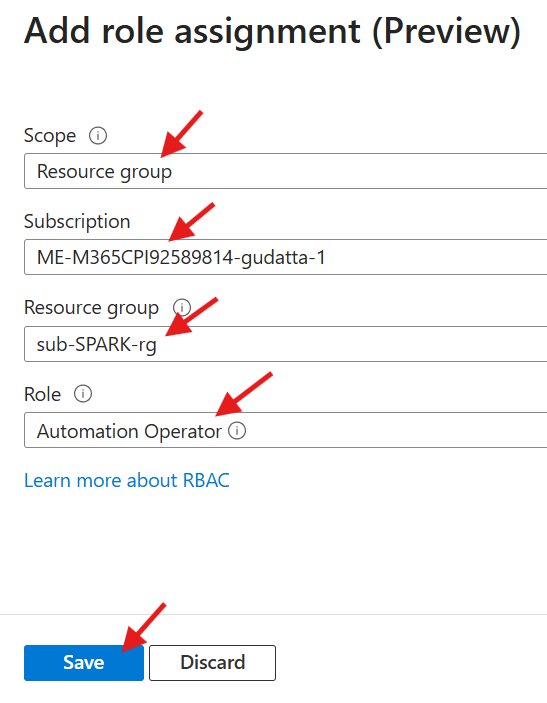
Add Role Assignment
  1. Fill out the values to add the roles to the aa-spark-automation0 account
  2. Select Save to add the role
Name Value
Scope Resource Group
Subscription The subscription associated with this account
Resource Group The Resource Group created for SPARK
Role Automation Operator & Storage Blob Data Contributor
Add Azure Role Assignment

Step 2: Configure Azure Automation Network

  1. Type in automation in the top search box
  2. Select Automation Accounts
View Azure Automation

  1. Select aa-automation-00
Select Automation Account

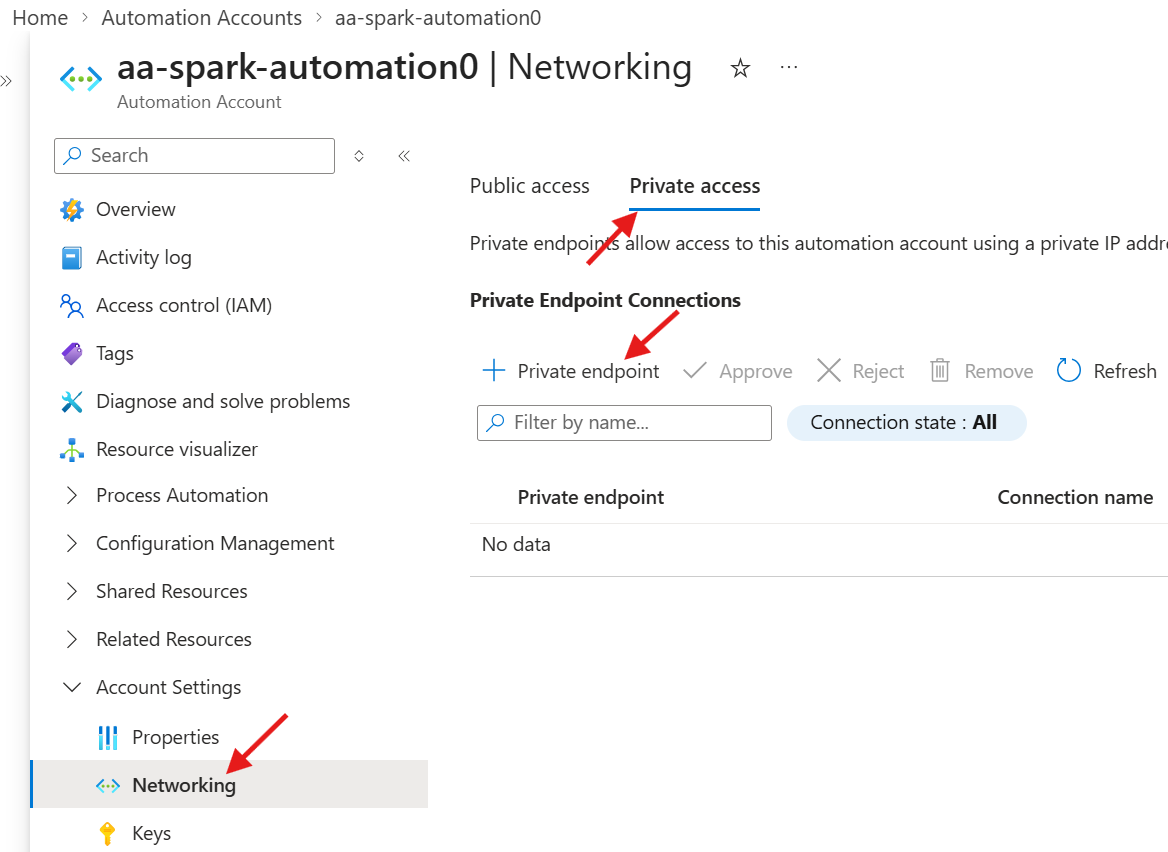
  1. Select Networking under the Account Settings navigation menu
  2. Select the Private access tab
  3. Select + Private endpoint
Create Private Endpoint

  1. Fill in the values and select Next
Name Value
Subscription The subscription associated with this account
Resource Group The Resource Group created for SPARK
Name pe-spark-automation0

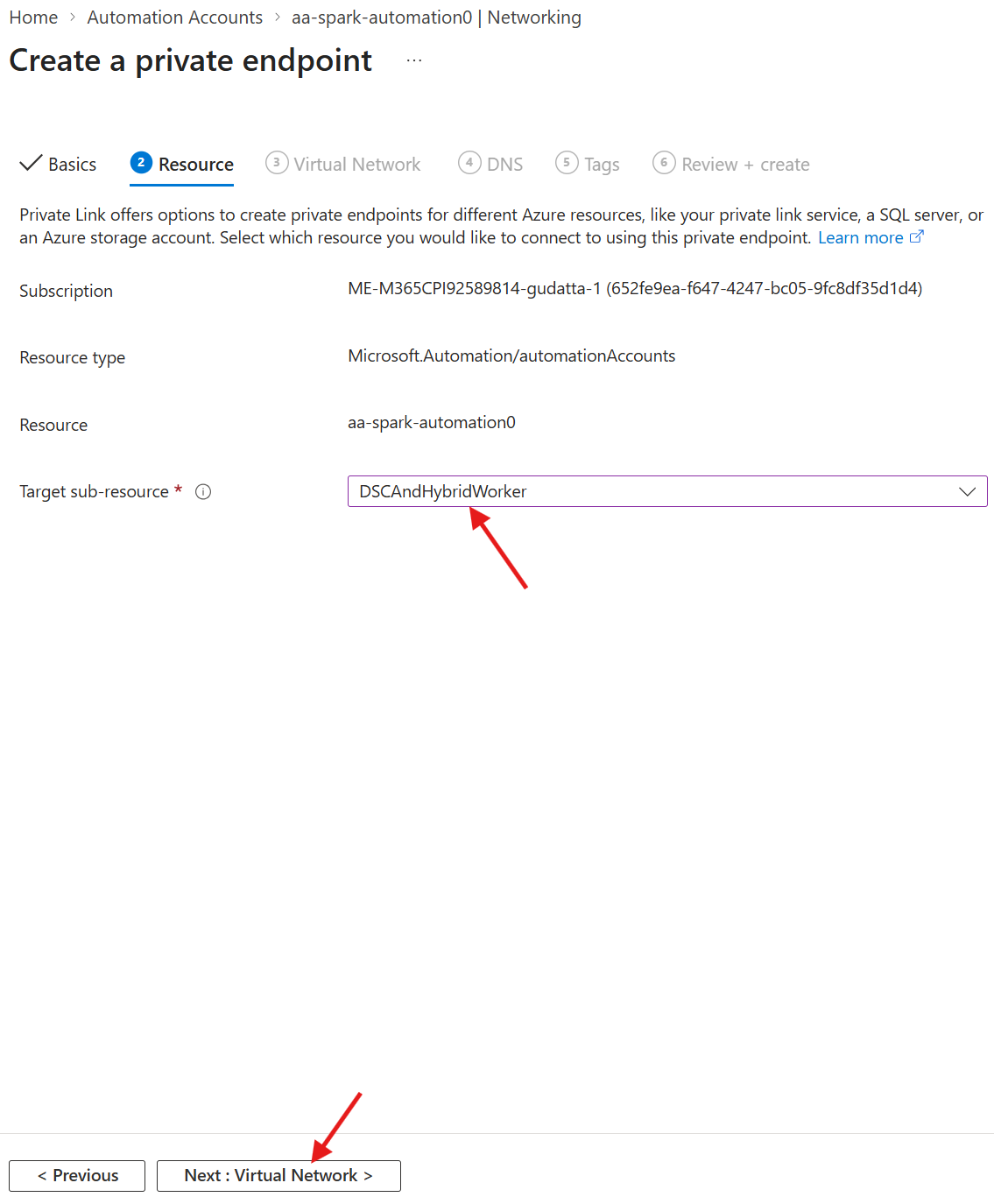
  1. Select DSCAndHybridWorker for the Target sub-resource
  2. Select Next
Create Private Endpoint

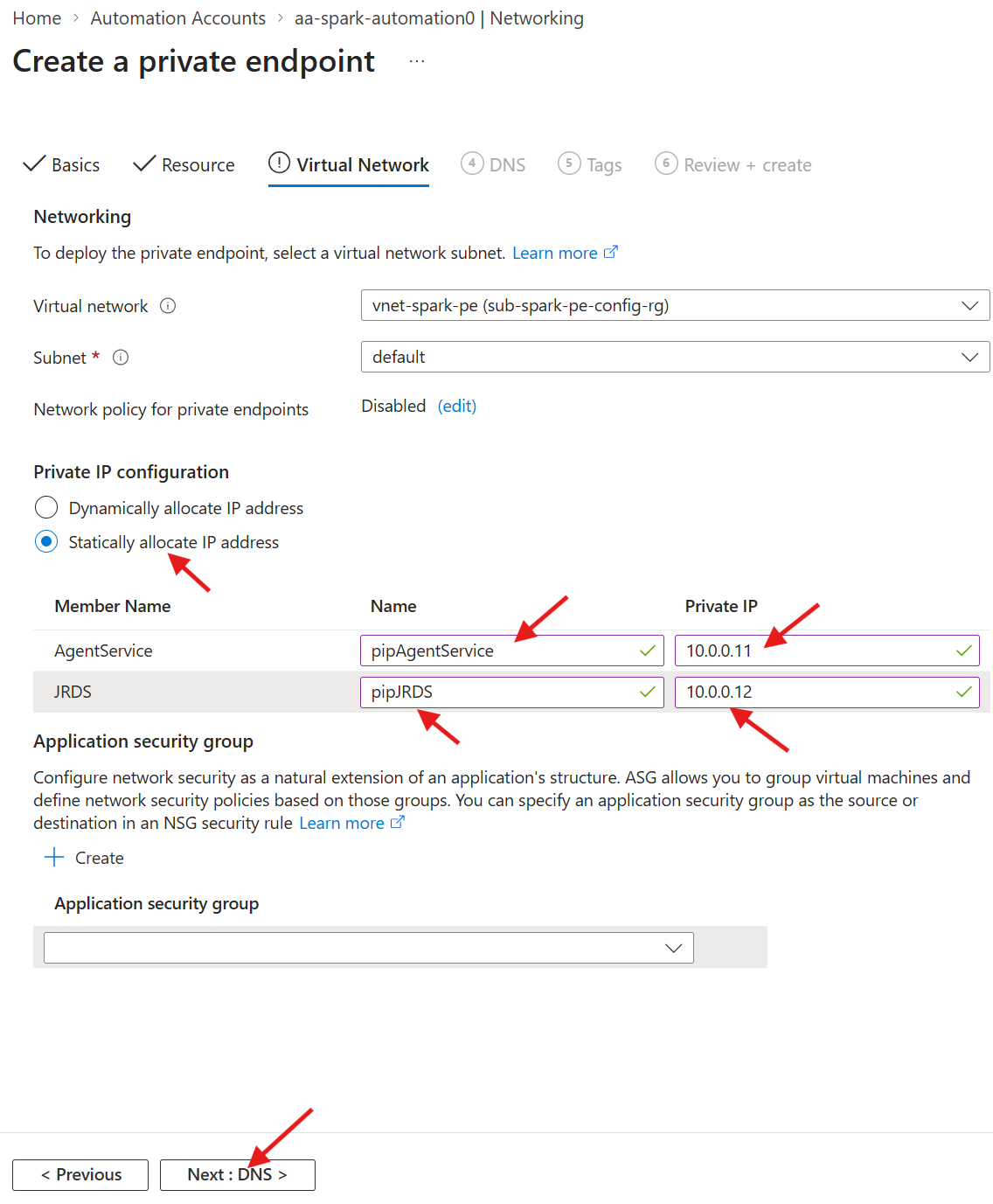
  1. Fill in the values
  2. Select Next
Name Value
Subscription The subscription associated with this account
Resource Group The Resource Group created for SPARK
Private IP Configuration Statically allocate IP address
Name pipAgentService
Private IP 10.0.0.11
Name pipJRDS
Private IP 10.0.0.12
Create Private Endpoint

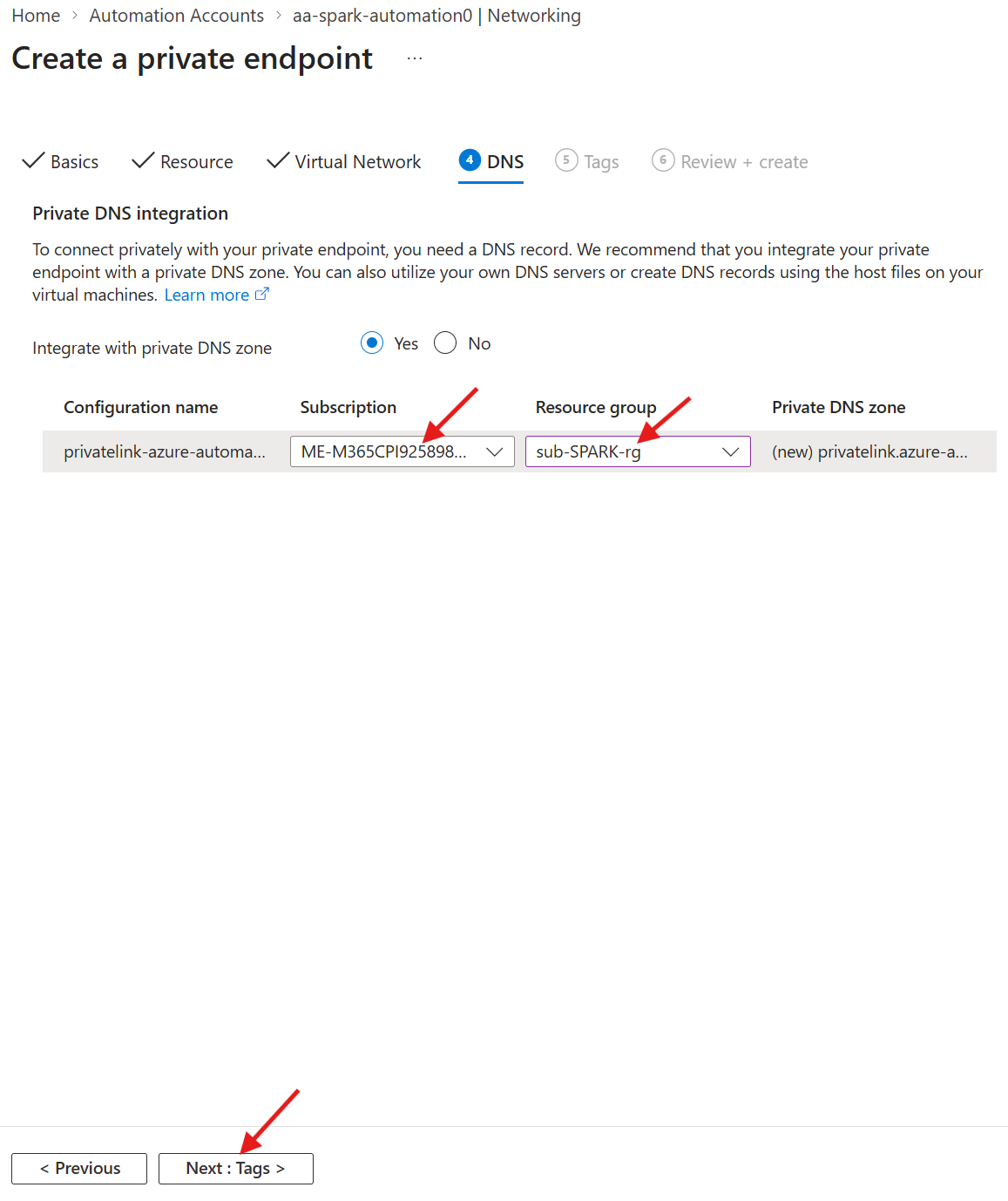
  1. Fill in the values
  2. Select Next until you get to Review + Create
  3. Select Create
Name Value
Subscription The subscription associated with this account
Resource Group The Resource Group created for SPARK
Create Private Endpoint

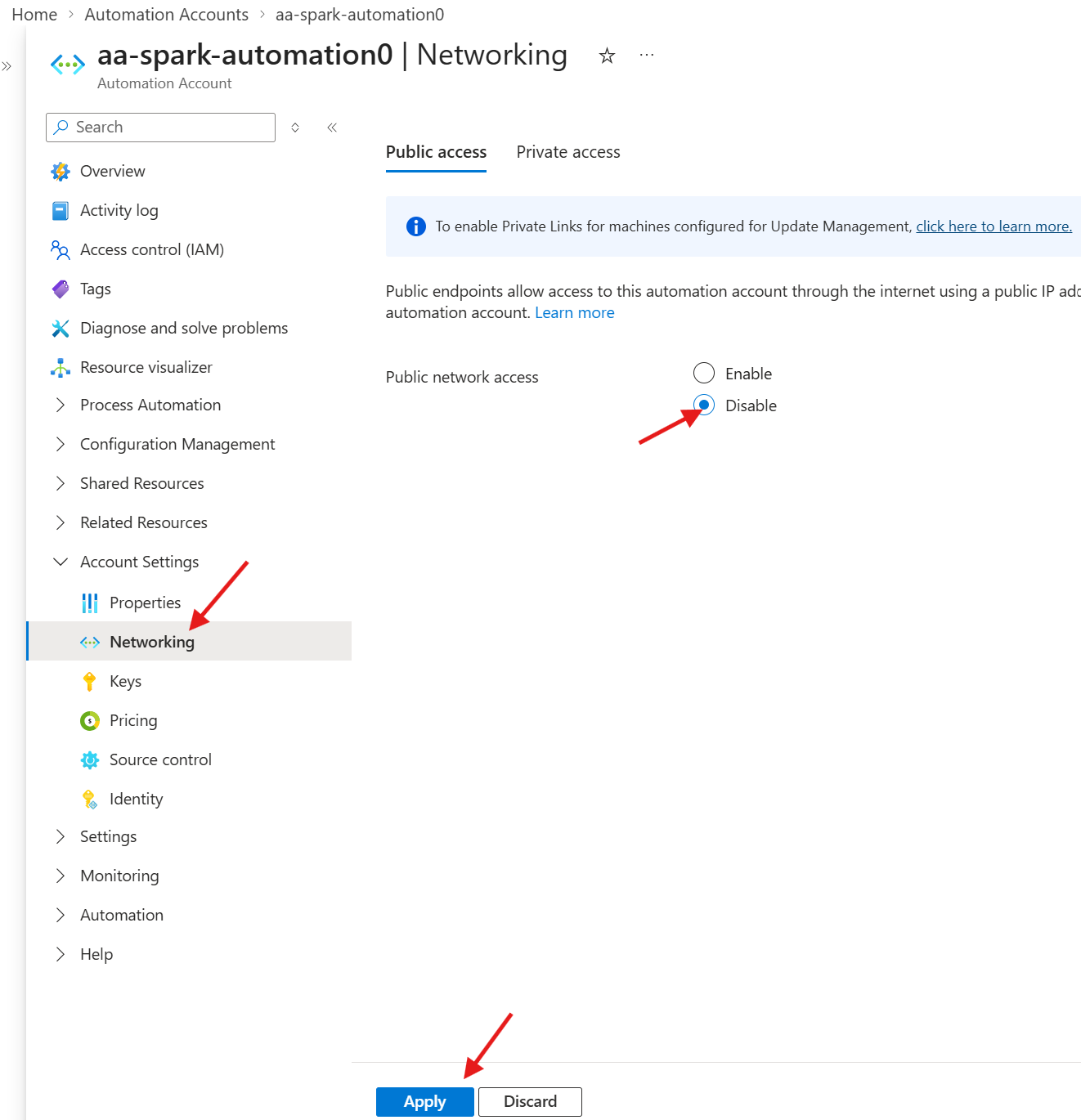
  1. Select Networking under the Account Settings navigation menu
  2. Select Disable and then Apply to remove public network access
Remove Public Access

Step 3: Create Hybrid Worker Group

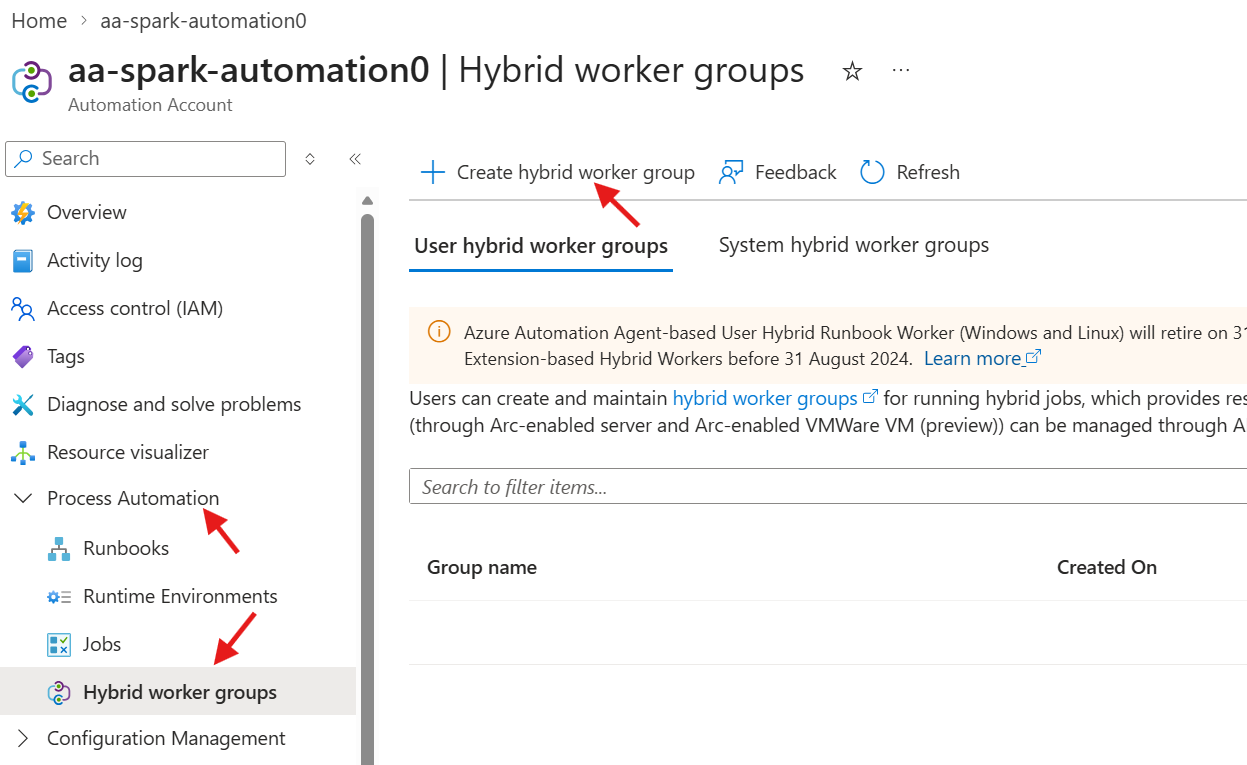
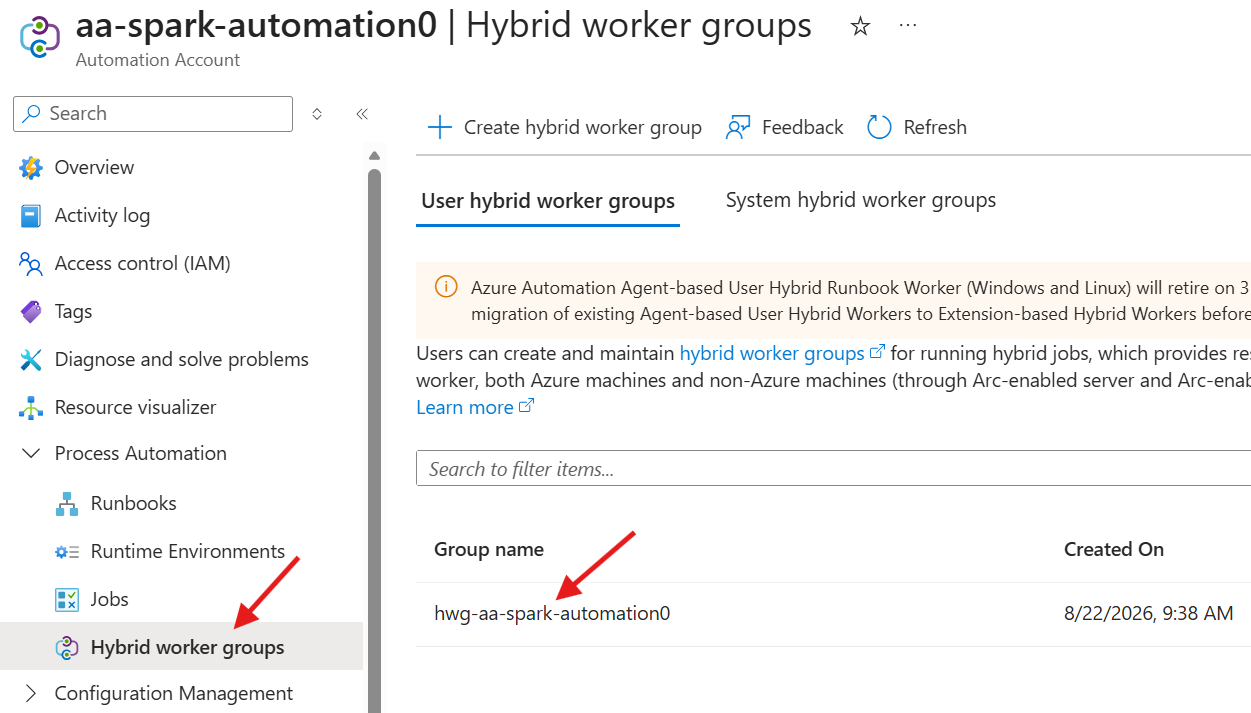
  1. Select Hybrid Worker Groups under the Process Automation navigation menu
  2. Select + Create Hybrid Worker Group
Create Hybrid Worker Group

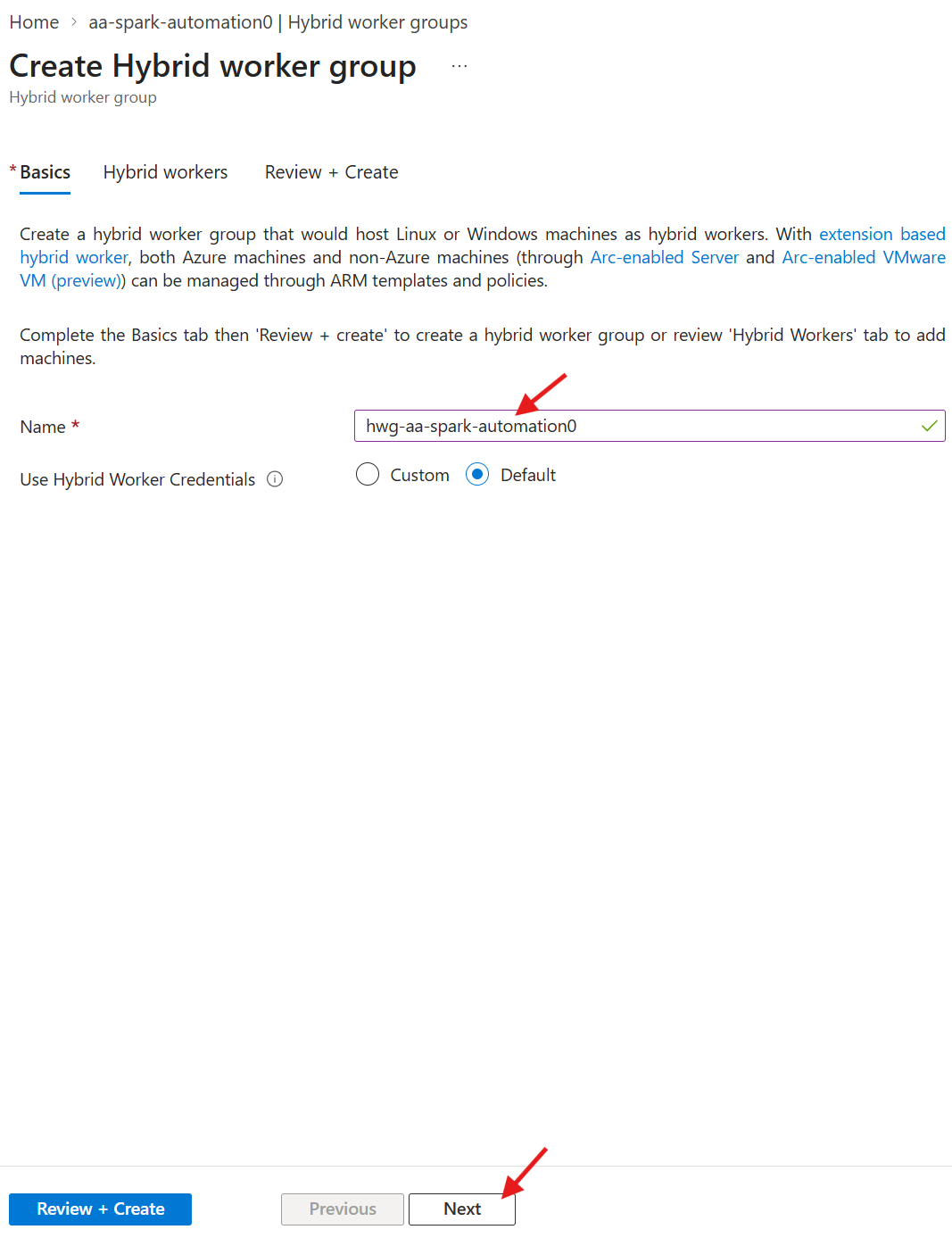
  1. Set the Name to hwg-aa-spark-automation0
  2. Select Next until you get to Review + Create

We will create the Virtual Machine in the next step and associate it with this Hybrid Worker Group afterwards.

Create Hybrid Worker Group

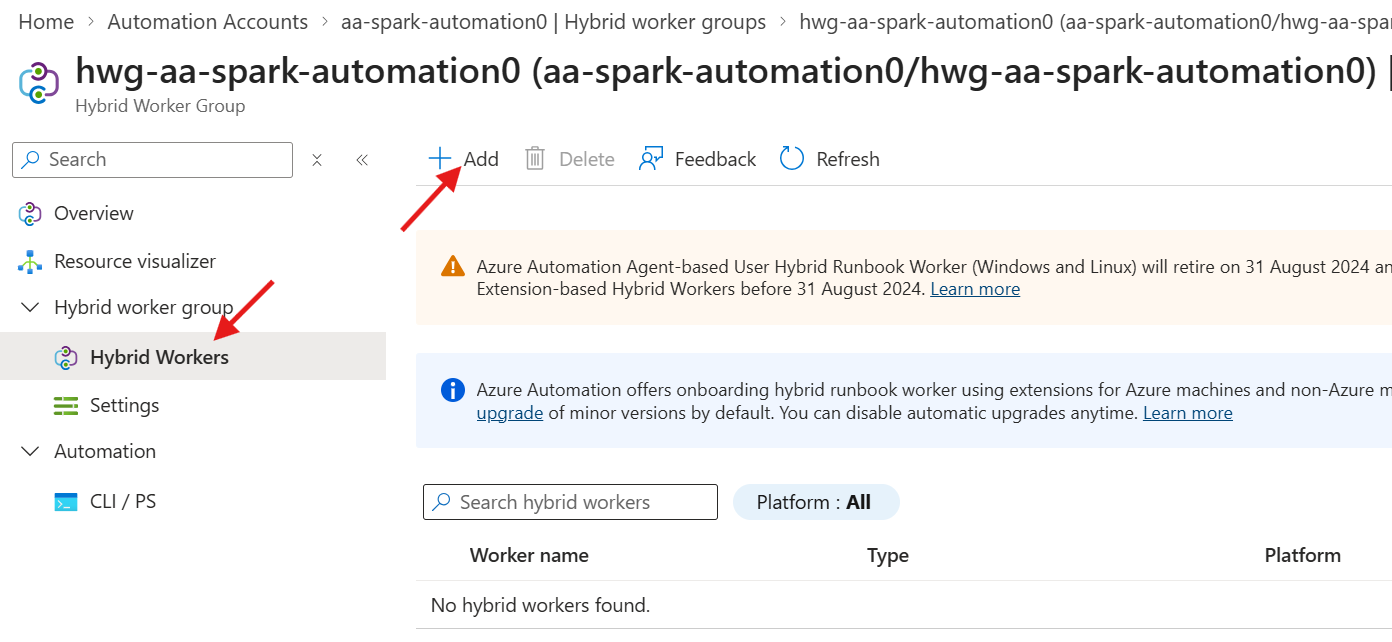
  1. Select + Add Machine
  2. Select Add
Create Hybrid Worker Group

Step 4: Create Virtual Machine

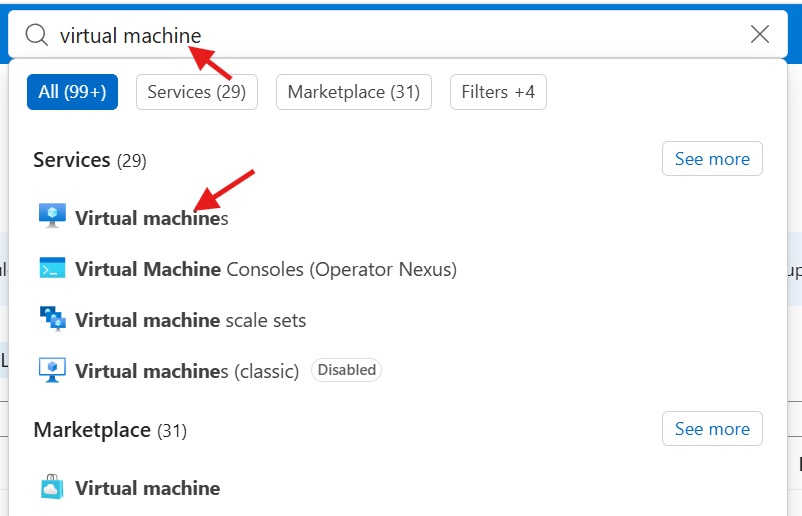
  1. Type in virtual machine in the top search box
  2. Select Virtual Machines
View Virtual Machines

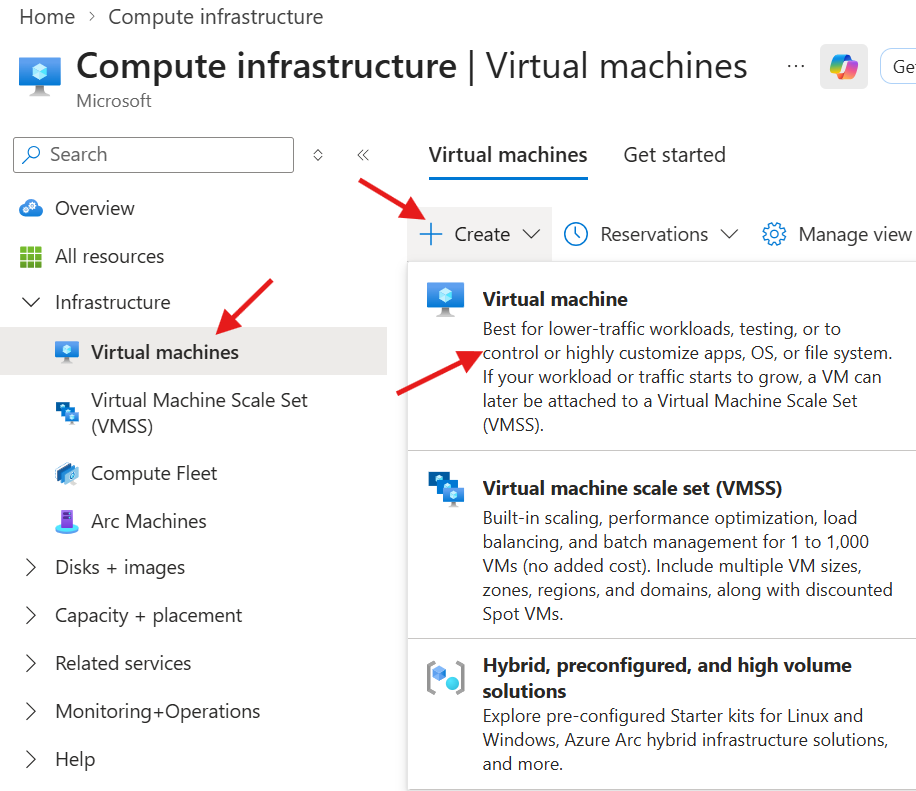
  1. Select Virtual Machines from the left navigation menu
  2. Select + Create and then Virtual Machine
Create Virtual Machine

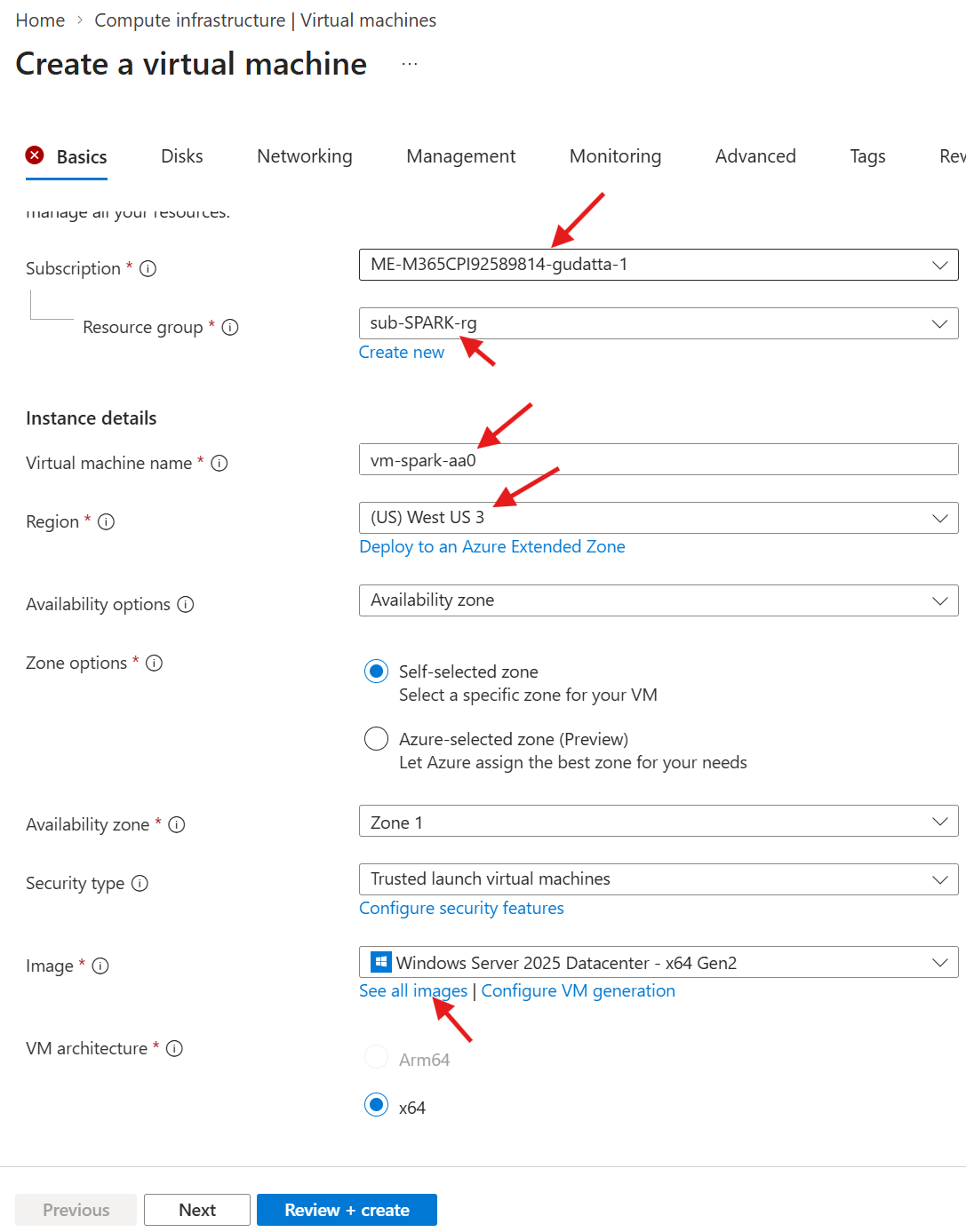
  1. Fill in the values
  2. Select See all images under Image
Name Value
Subscription The subscription associated with this account
Resource Group The Resource Group created for SPARK
Virtual Machine Name vm-spark-aa0
Region The Region associated with the Resource Group
Create Virtual Machine

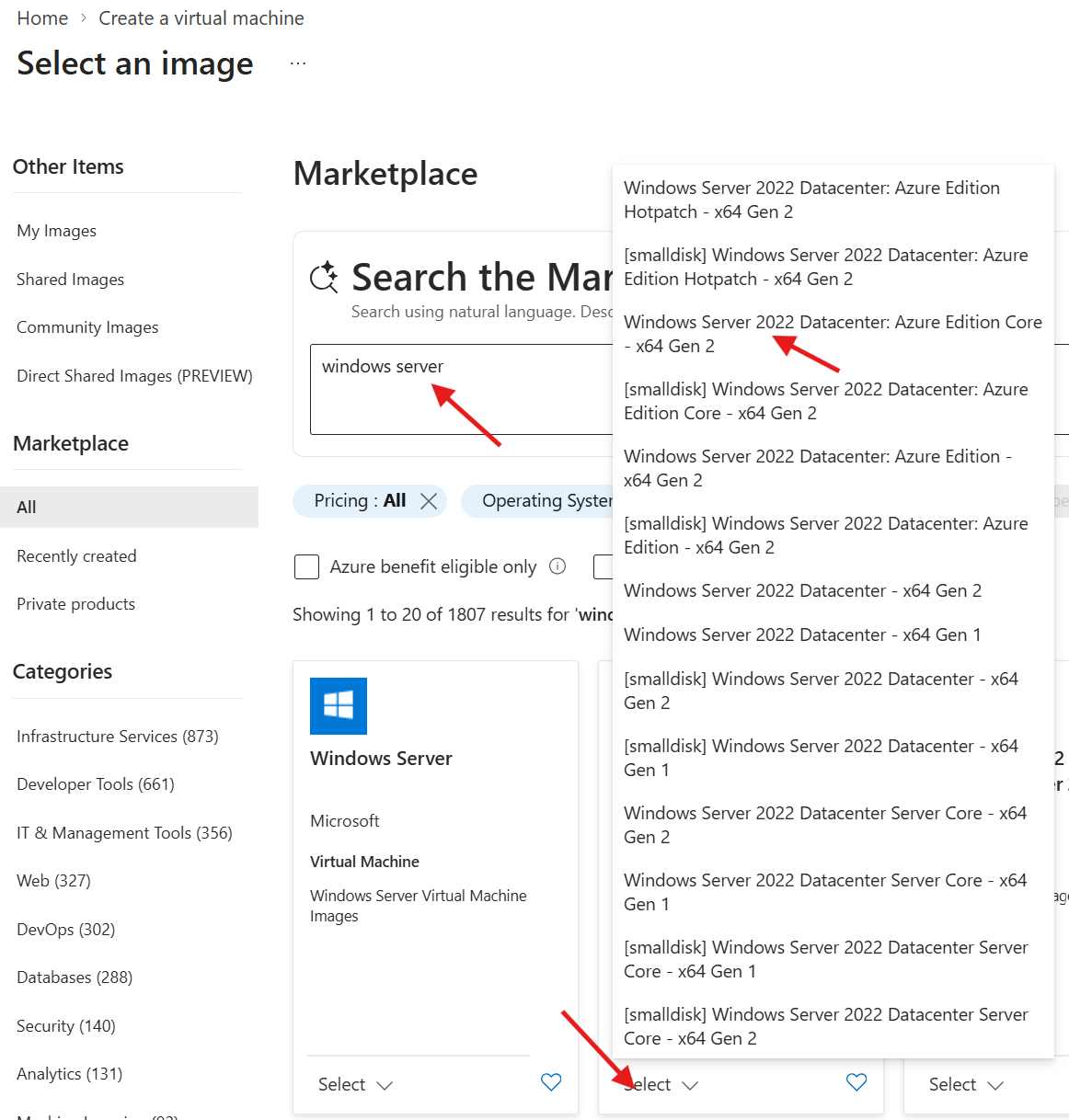
  1. Search for windows server
  2. Find Windows Server 2022
  3. Select Windows Server 2022 Datacenter: Azure Edition Core - x64 Gen 2
Create Virtual Machine

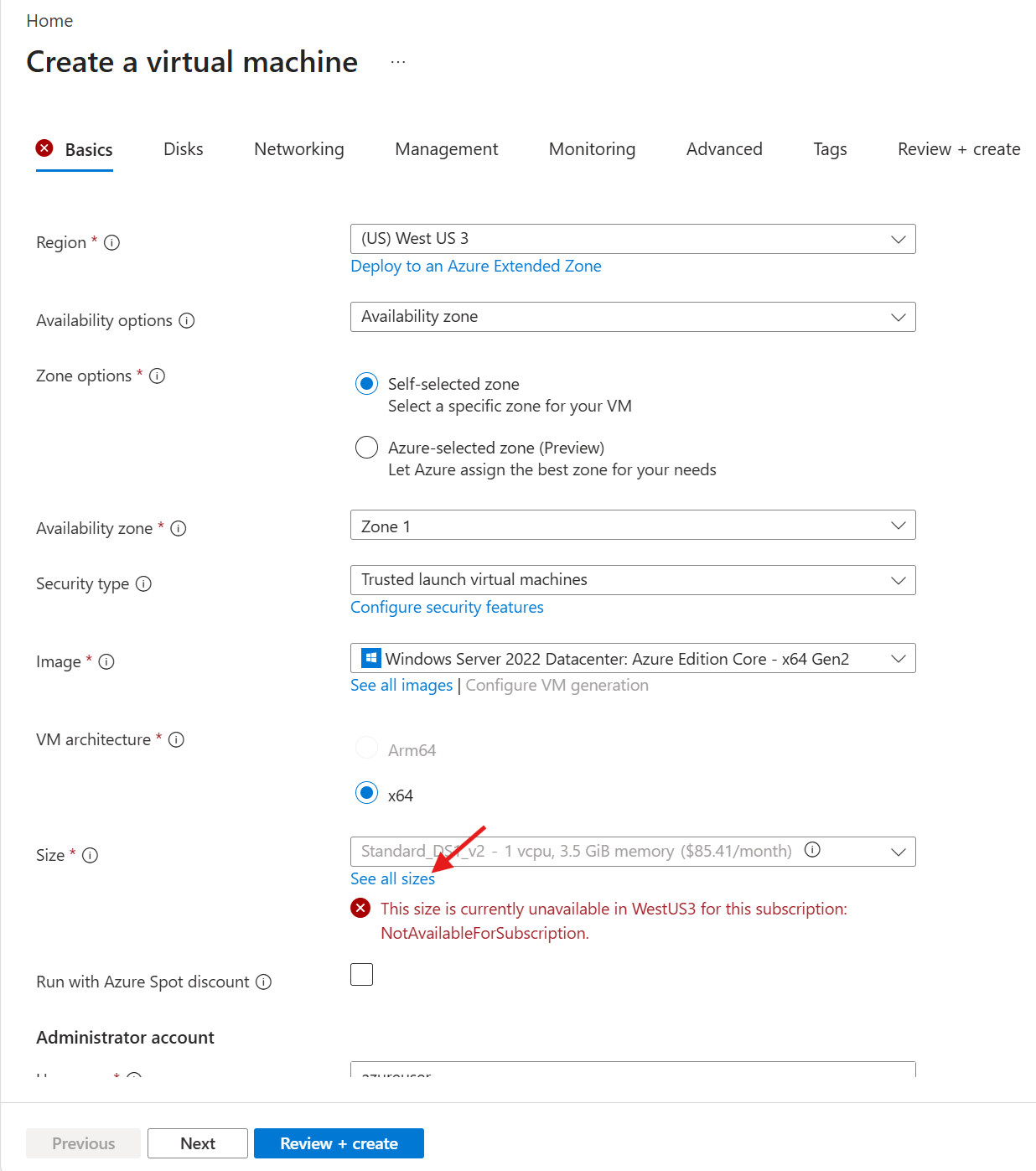
  1. Select See all sizes under Size
Create Virtual Machine

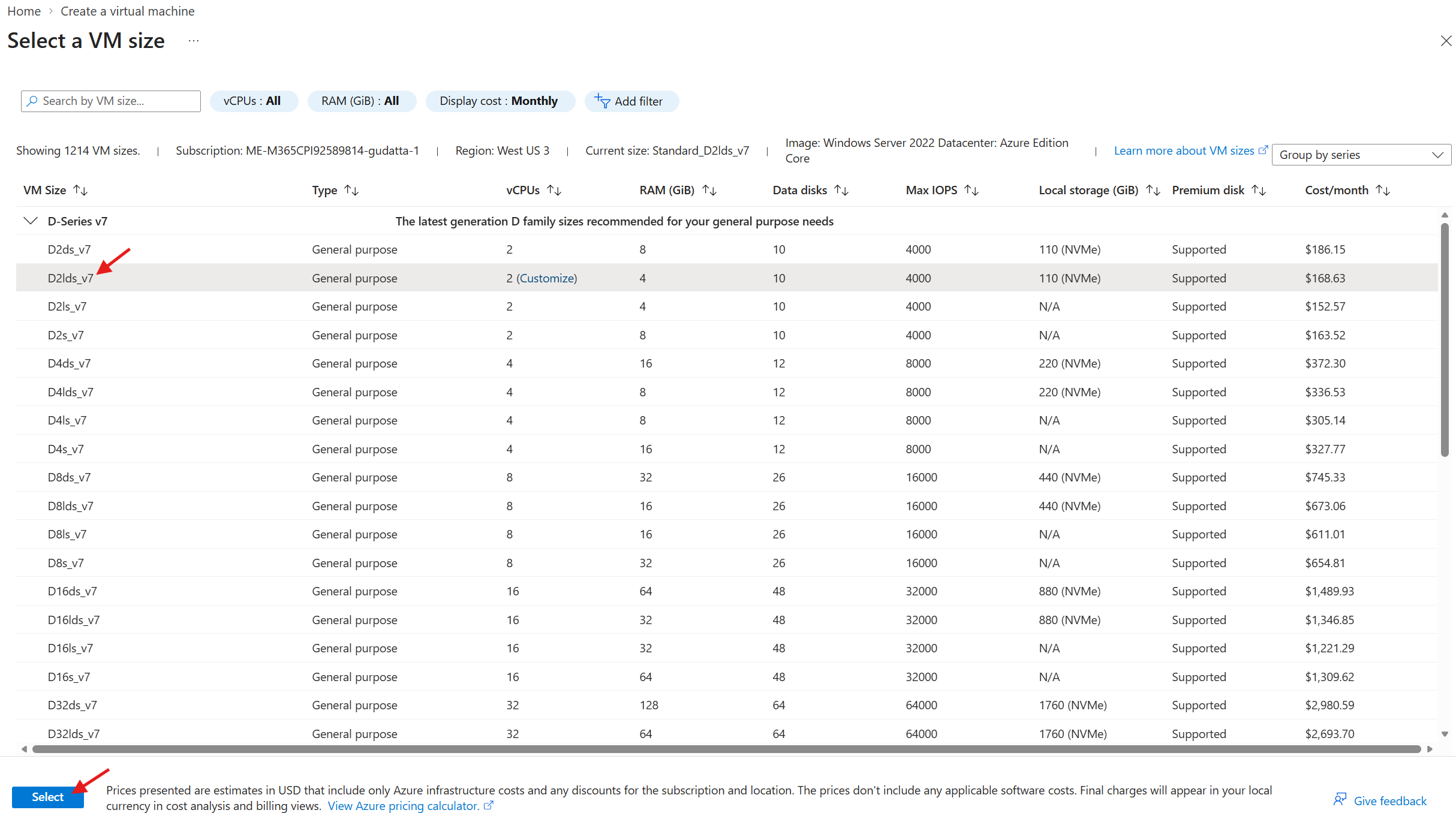
  1. Select D2lds_v7
Create Virtual Machine

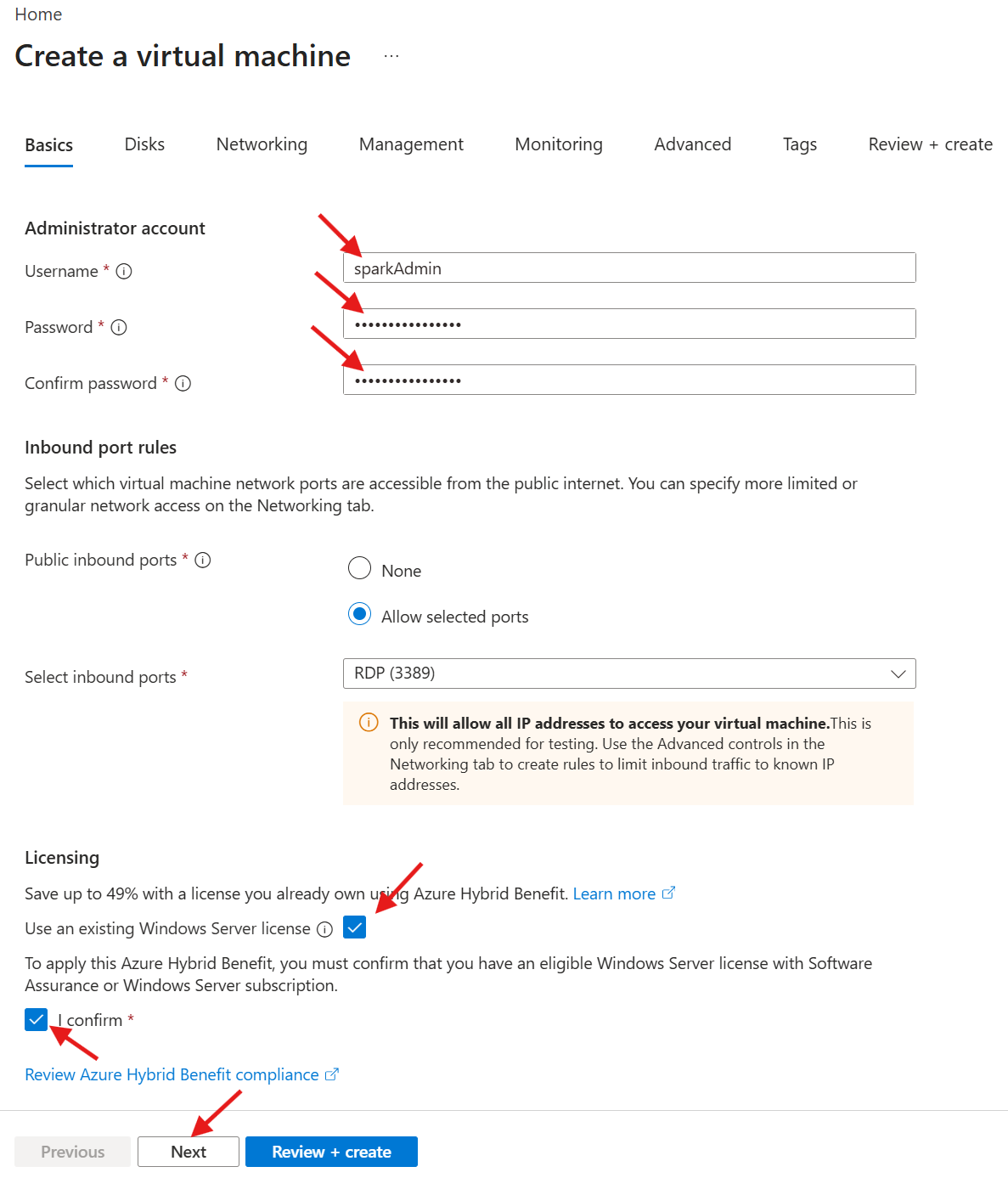
  1. Set the Username to sparkAdmin
  2. Set the Password to a strong value
  3. If you already have a license, then select and confirm license option
  4. Select Next until you get to Review + Create
  5. Select Create
Create Virtual Machine

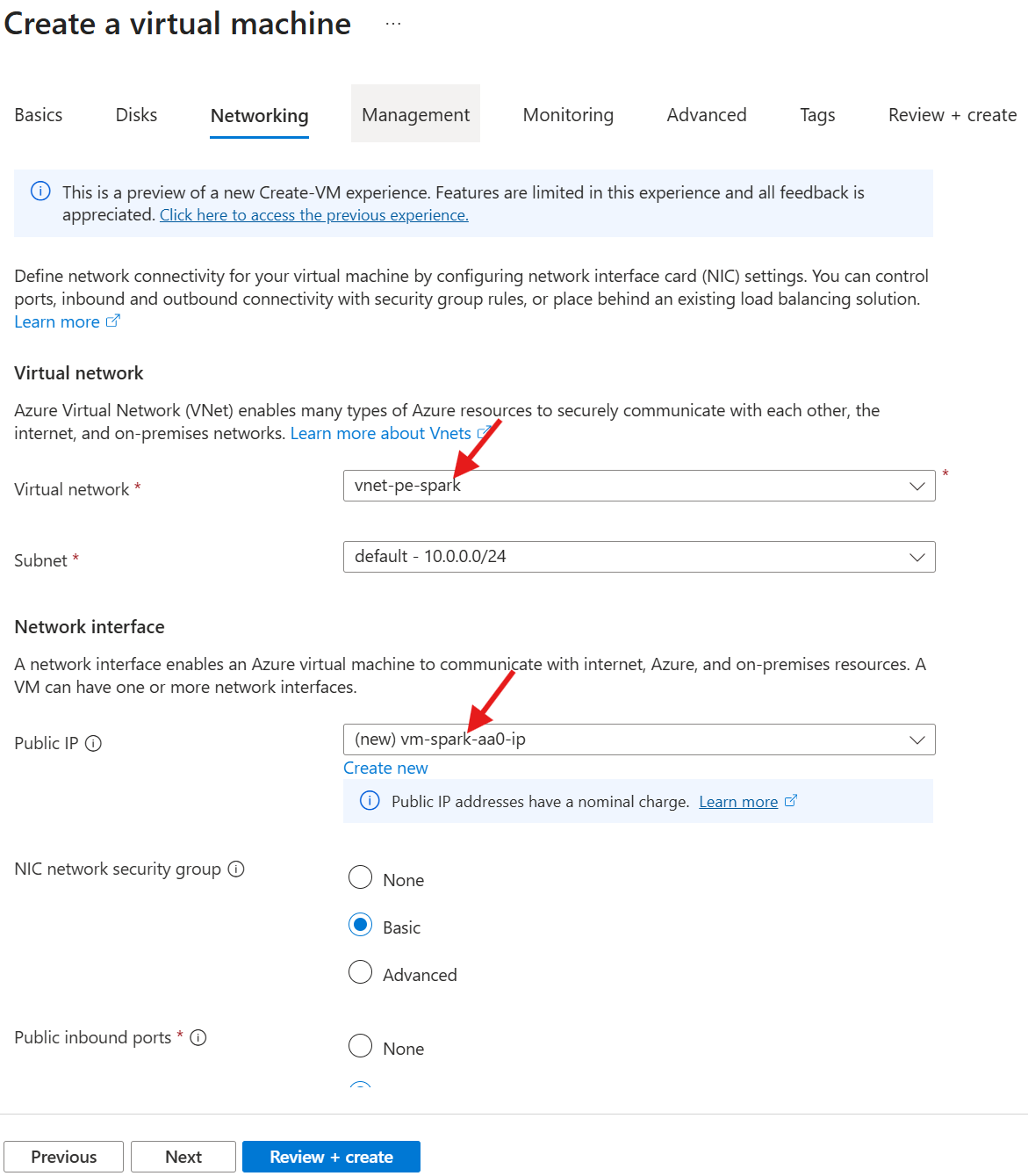
  1. Select vnet-pe-spark for the Virtual Network
  2. Select the option to create a public ip, and then Next
Create Virtual Machine

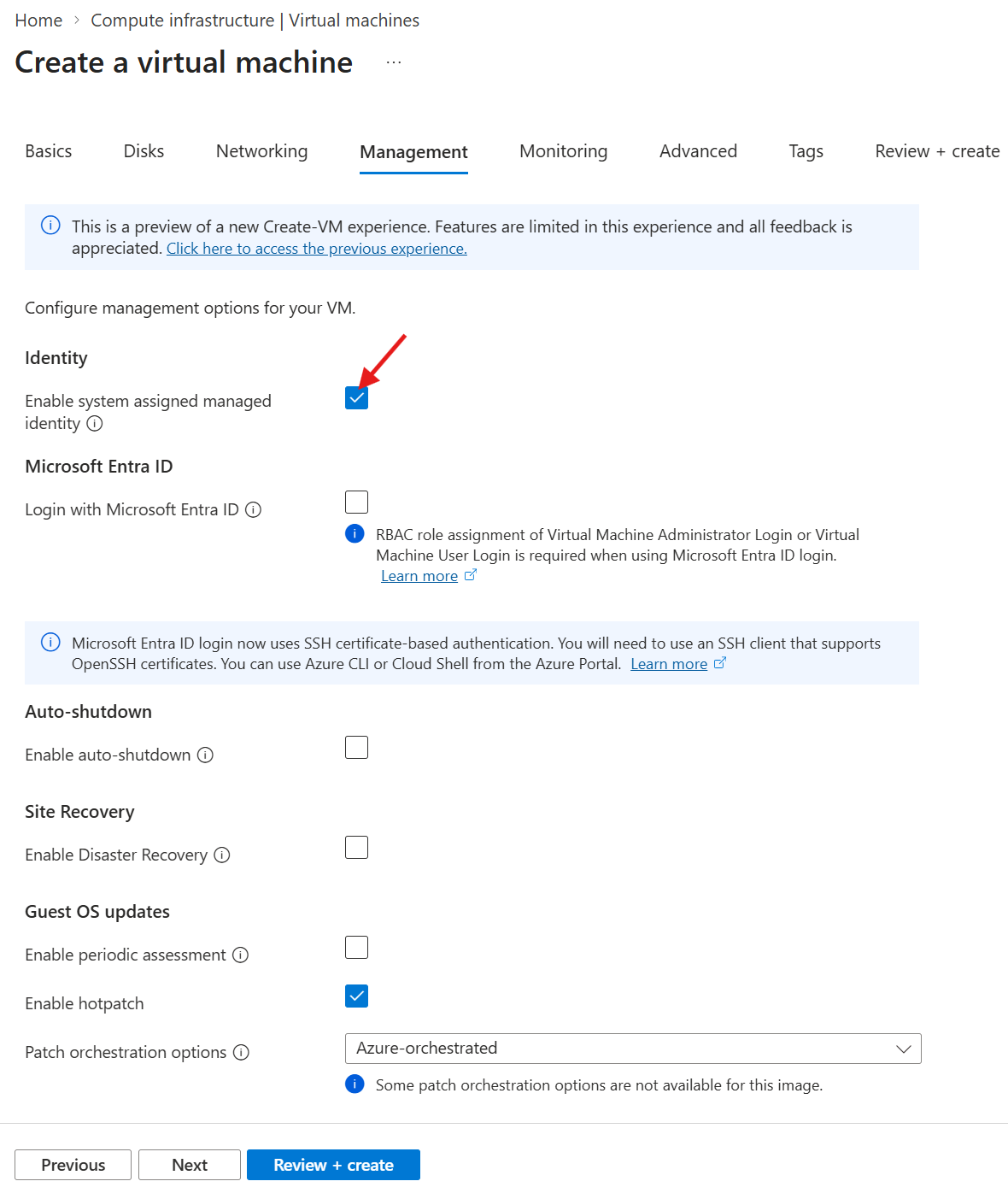
  1. Check Enable system assigned managed identity under Identity
  2. Select Next until you get to Review + create
  3. Select Create
Create Virtual Machine

Step 5: Associate Virtual Network with Hybrid Worker Group

  1. Select Hybrid Worker Groups under the Process Automation navigation menu
  2. Select spark-hwg-automation0

When you associate the VM with the hybrid worker group, it will automatically add the Hybrid Worker Extension to the VM. We must have this complete before testing the runbook.

Associate VM

  1. Select Hybrid Workers from the left navigation
  2. Select + Add
Add VM

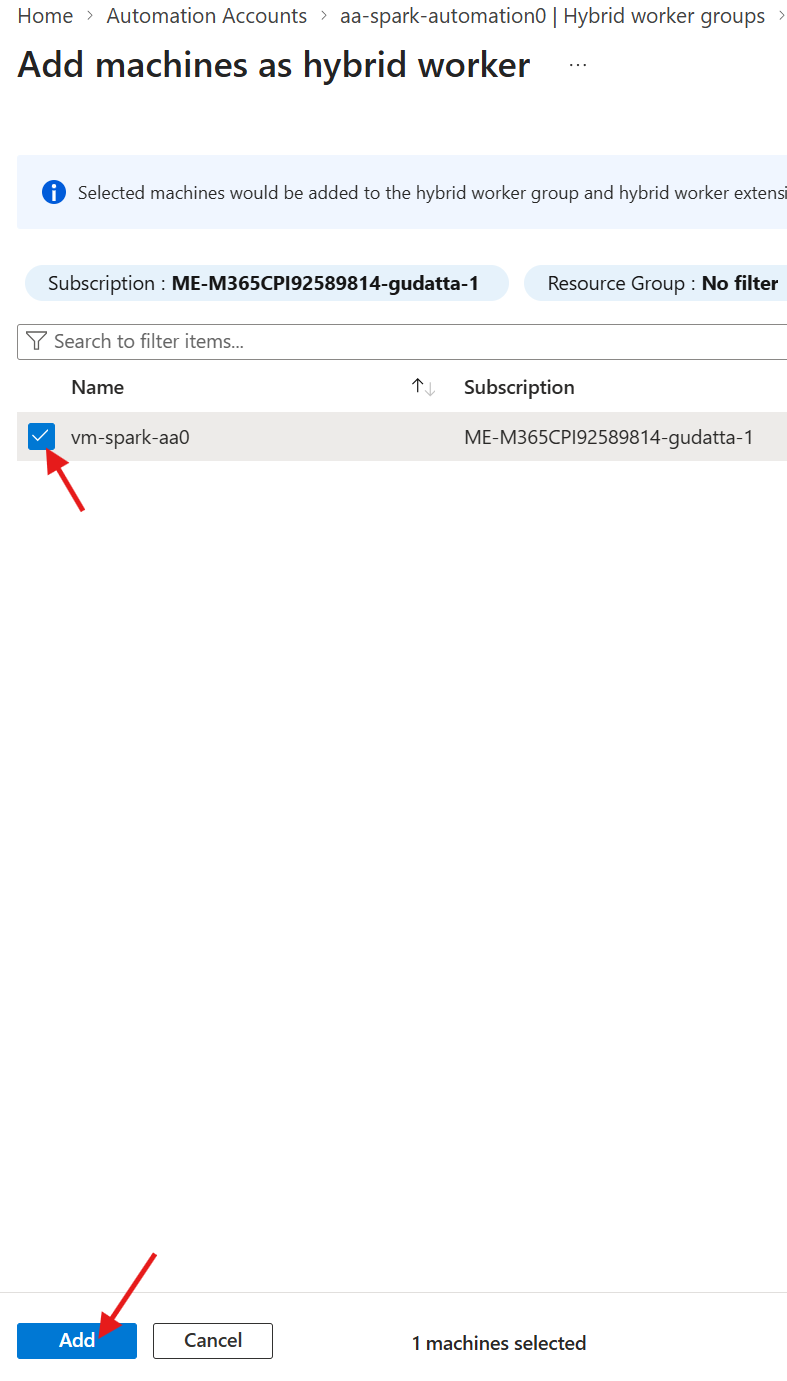
  1. Select the vm-spark-aa0 virtual machine
  2. Select Add
Add VM to Hybrid Worker

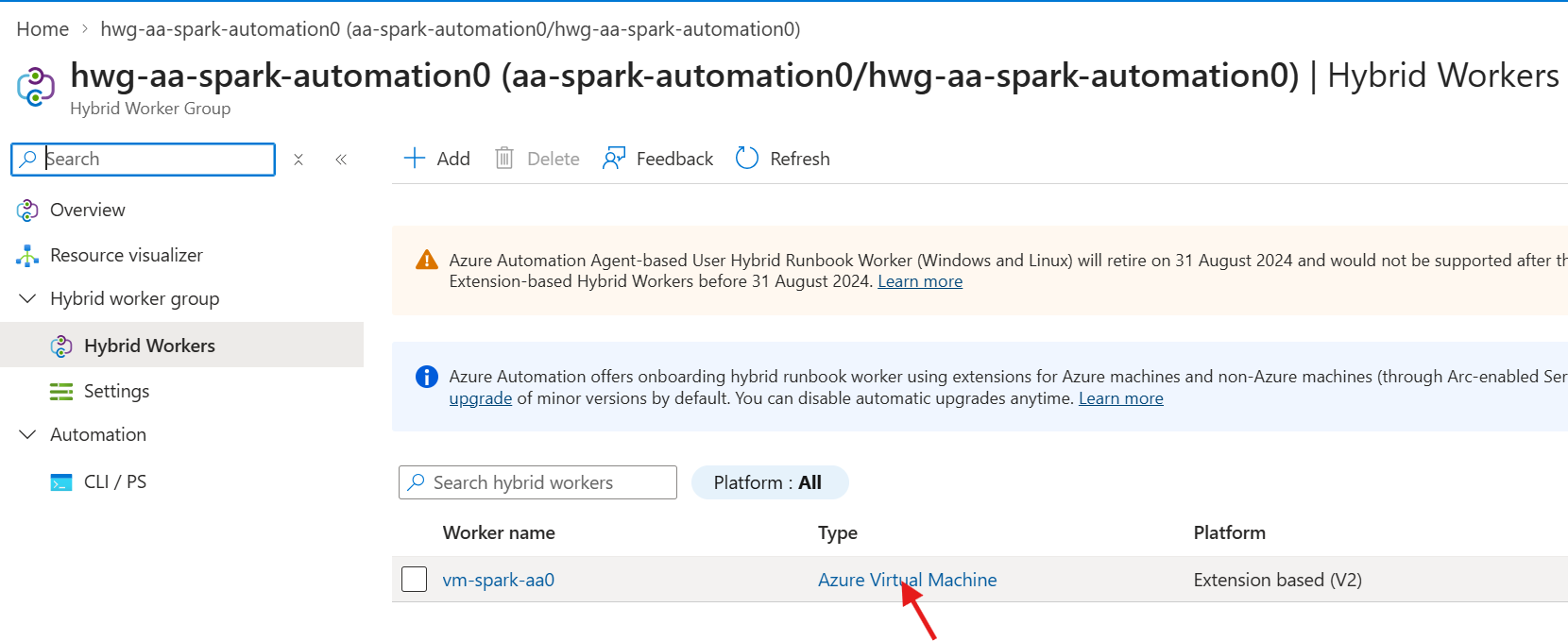
  1. Click on the Azure Virutal Machine link to view the virtual machine
View VM

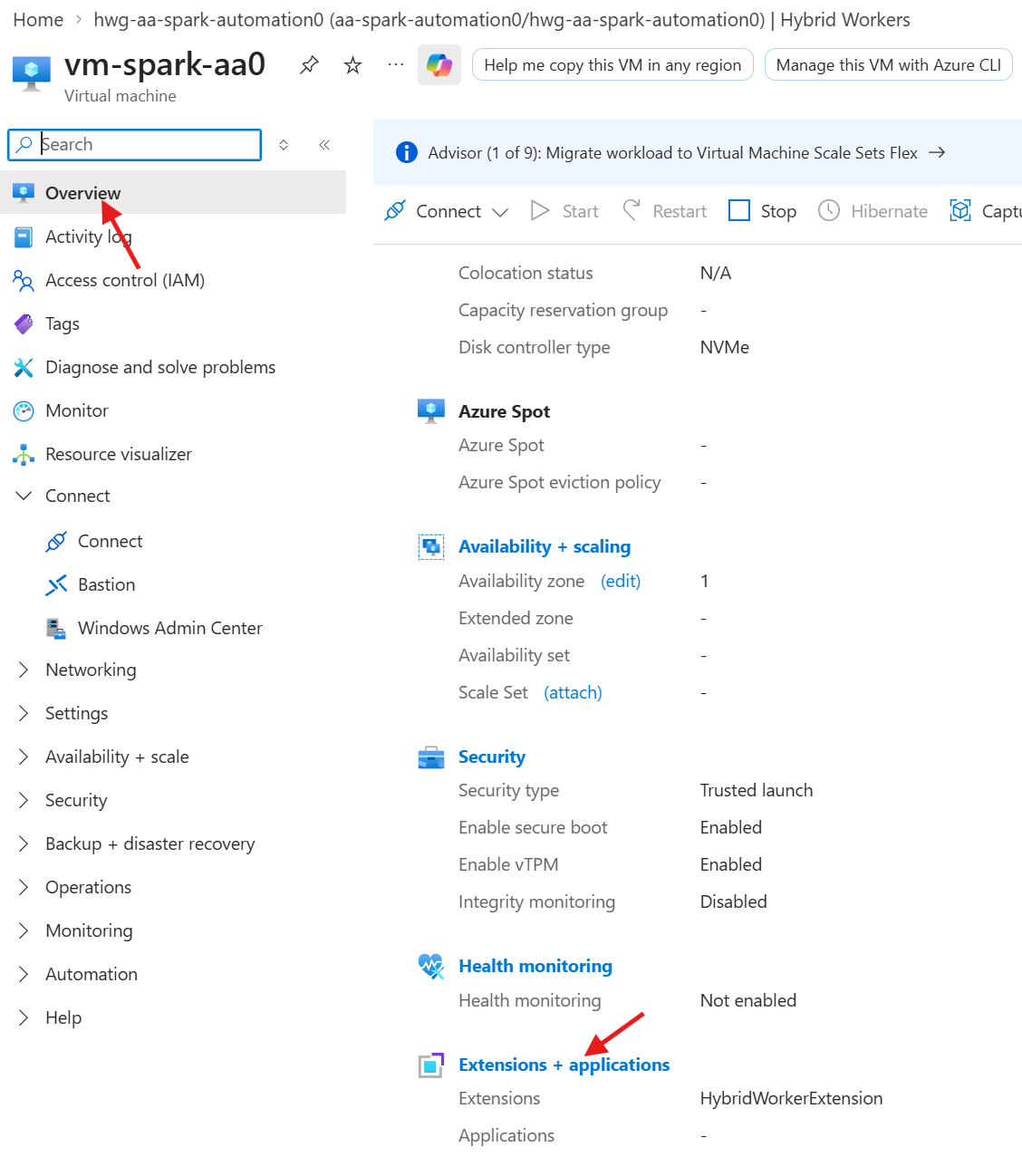
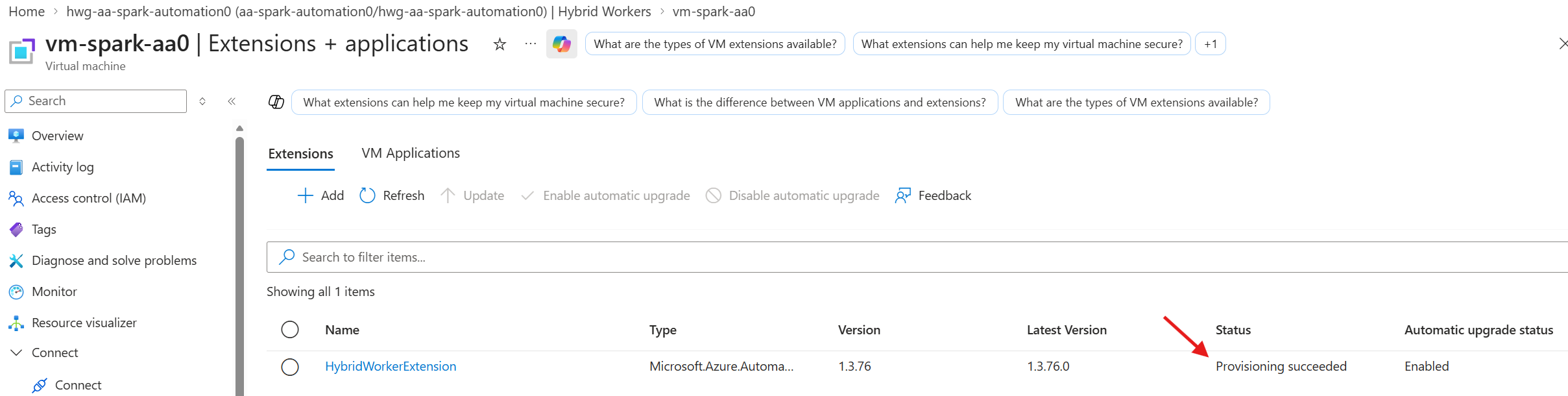
  1. Select Extensions + applications
View Extensions

  1. View the provisioning status
Provisioning Status

The virtual machine extension must succeed before testing the runbooks.


Step 6: Virtual Machine Modules

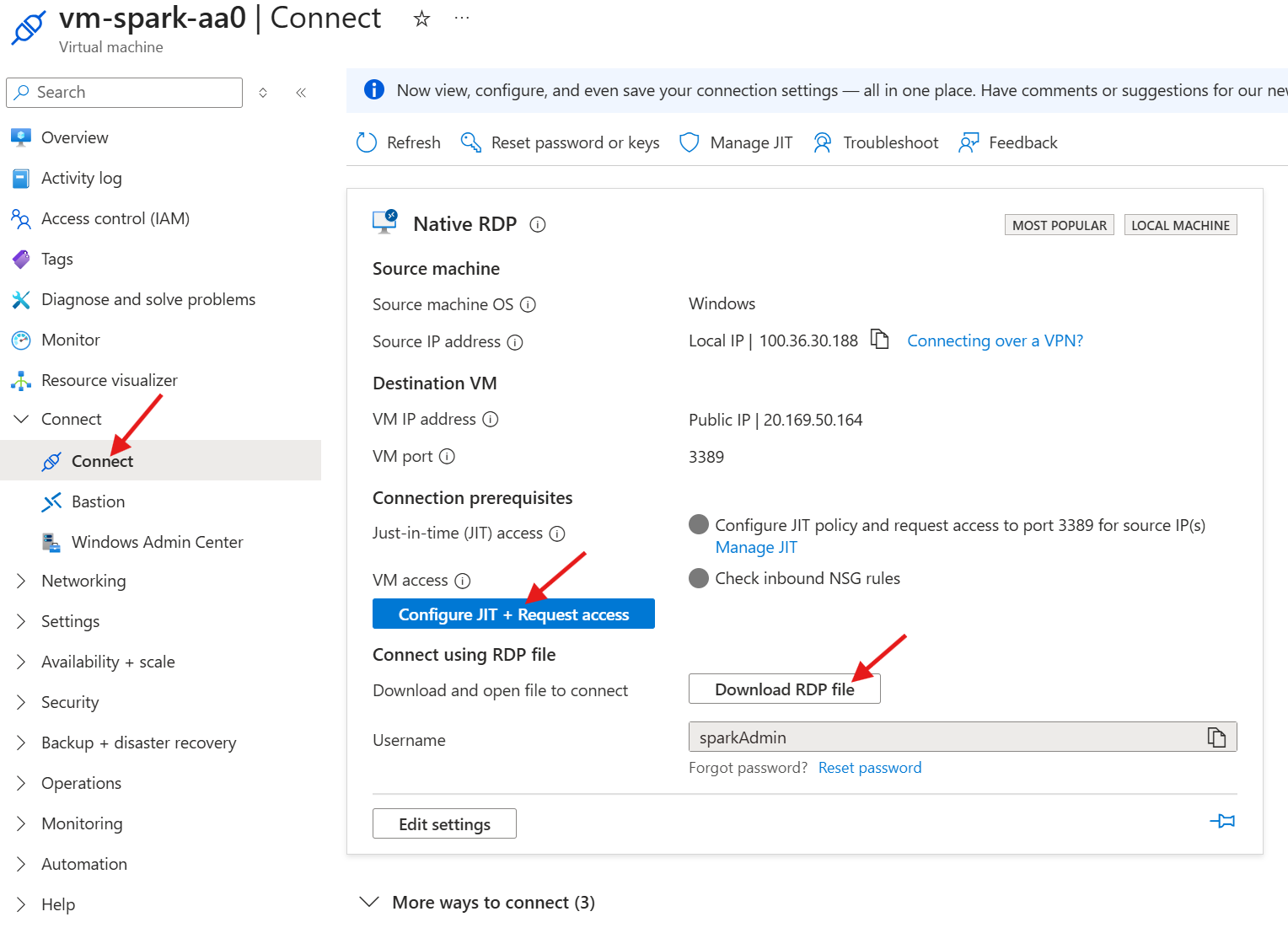
  1. Select Connect from the left navigation
  2. Select Configure JIT + Request access
  3. Select Download RDP file

Wait for the JIT request to complete before connecting to the virtual machine.
Connect to VM

  1. Select 15 to access powershell
  2. Run the following script to add PowerShell v7.4
1
2
3
4
5
6
7
8
9
10
11
12
13
14
15
16
17
18
19
20
21
22
23
24
25
26
27
28
29
30
31
32
33
34
35
36
37
# Requires Administrator

$ErrorActionPreference = 'Stop'

# Latest known 7.4 LTS release
$Version = "7.4.18"

# Build download URL
$MsiUrl = "https://github.com/PowerShell/PowerShell/releases/download/v$Version/PowerShell-$Version-win-x64.msi"

$Installer = Join-Path $env:TEMP "PowerShell-$Version-win-x64.msi"

Write-Host "Downloading PowerShell $Version..."
Invoke-WebRequest -Uri $MsiUrl -OutFile $Installer

Write-Host "Installing PowerShell..."
Start-Process msiexec.exe -ArgumentList @(
    "/i"
    "`"$Installer`""
    "/qn"
    "ADD_EXPLORER_CONTEXT_MENU_OPENPOWERSHELL=1"
    "ENABLE_PSREMOTING=1"
    "REGISTER_MANIFEST=1"
    "USE_MU=1"
    "ENABLE_MU=1"
) -Wait

Write-Host "Installation complete."

# Verify
$Pwsh = "C:\Program Files\PowerShell\7\pwsh.exe"

if (Test-Path $Pwsh) {
    & $Pwsh -NoLogo -NoProfile -Command '$PSVersionTable.PSVersion'
} else {
    throw "pwsh.exe not found after installation."
}

  1. Run the following script to add the required modules for the runbooks.
1
2
3
4
5
6
7
8
9
10
11
12
13
14
15
16
17
18
19
20
21
22
23
24
25
26
27
28
29
30
31
32
33
34
35
36
37
38
39
40
41
42
43
44
45
46
47
48
49
50
51
52
53
54
55
56
57
58
59
60
61
62
63
64
65
66
67
68
69
70
71
72
73
74
75
76
77
78
79
80
81
82
83
84
85
86
87
88
89
90
91
92
93
94
95
96
97
98
99
100
101
102
103
104
105
106
107
108
109
110
111
112
113
114
115
116
117
118
119
120
121
122
123
124
125
126
127
128
129
130
131
132
133
134
135
136
137
138
139
140
141
142
143
144
145
146
147
148
149
150
151
152
153
154
155
156
157
158
159
160
161
162
163
164
165
166
167
168
169
170
171
172
173
174
175
176
177
178
179
180
181
182
183
184
185
186
187
188
189
190
191
192
193
194
195
196
197
198
199
200
201
202
203
204
205
206
207
208
209
210
211
212
213
214
215
216
217
218
219
220
221
222
223
224
225
226
227
228
229
230
231
232
233
234
235
236
237
238
239
240
241
242
243
244
# Requires -RunAsAdministrator

$ErrorActionPreference = 'Stop'

# ------------------------------------------------------------------
# PowerShell Runtime
# ------------------------------------------------------------------

Write-Host "PowerShell Version: $($PSVersionTable.PSVersion)"
Write-Host "PSEdition: $($PSVersionTable.PSEdition)"
Write-Host ""

# ------------------------------------------------------------------
# Required Modules
# ------------------------------------------------------------------

$RequiredModules = @(
    @{
        Name = 'Az'
        MinimumVersion = $null
    }
    @{
        Name = 'Az.Accounts'
        MinimumVersion = $null
    }
    @{
        Name = 'Az.Automation'
        MinimumVersion = $null
    }
    @{
        Name = 'Az.Resources'
        MinimumVersion = $null
    }
    @{
        Name = 'ExchangeOnlineManagement'
        MinimumVersion = $null
    }
    @{
        Name = 'Microsoft.Graph.Authentication'
        MinimumVersion = $null
    }
    @{
        Name = 'Microsoft.Graph.Groups'
        MinimumVersion = $null
    }
    @{
        Name = 'Microsoft.Graph.Sites'
        MinimumVersion = $null
    }
    @{
        Name = 'Microsoft.Graph.Users'
        MinimumVersion = $null
    }
    @{
        Name = 'Microsoft.Graph.Users.Actions'
        MinimumVersion = $null
    }
    @{
        Name = 'PnP.PowerShell'
        MinimumVersion = '3.2.0'
    }
    @{
        Name = 'SqlServer'
        MinimumVersion = $null
    }
)

# ------------------------------------------------------------------
# Package Providers / Repository
# ------------------------------------------------------------------

Write-Host "Configuring PSGallery..."

if (-not (Get-PackageProvider NuGet -ErrorAction SilentlyContinue))
{
    Install-PackageProvider `
        -Name NuGet `
        -MinimumVersion 2.8.5.201 `
        -Force
}

if ((Get-PSRepository PSGallery).InstallationPolicy -ne 'Trusted')
{
    Set-PSRepository `
        -Name PSGallery `
        -InstallationPolicy Trusted
}

# ------------------------------------------------------------------
# Azure CLI (winget method)
# ------------------------------------------------------------------

Write-Host ""
Write-Host "Checking Azure CLI..."

try
{
    $azVersion = az version 2>$null

    if (-not $azVersion)
    {
        Write-Host "Azure CLI not detected."

        if (Get-Command winget -ErrorAction SilentlyContinue)
        {
            winget install `
                --id Microsoft.AzureCLI `
                --exact `
                --accept-source-agreements `
                --accept-package-agreements
        }
        else
        {
            Write-Warning "winget not found. Install Azure CLI manually."
        }
    }
    else
    {
        Write-Host "Azure CLI already installed."
    }
}
catch
{
    Write-Warning $_
}

# ------------------------------------------------------------------
# Install / Upgrade Modules
# ------------------------------------------------------------------

$Results = @()

foreach ($Module in $RequiredModules)
{
    $Name = $Module.Name
    $MinimumVersion = $Module.MinimumVersion

    Write-Host ""
    Write-Host "================================================="
    Write-Host "Processing $Name"
    Write-Host "================================================="

    try
    {
        $Installed = Get-Module `
            -ListAvailable `
            -Name $Name |
            Sort-Object Version -Descending |
            Select-Object -First 1

        $InstallRequired = $false

        if (-not $Installed)
        {
            $InstallRequired = $true
        }
        elseif ($MinimumVersion)
        {
            if ($Installed.Version -lt ([version]$MinimumVersion))
            {
                $InstallRequired = $true
            }
        }

        if ($InstallRequired)
        {
            Write-Host "Installing/Updating $Name..."

            Install-Module `
                -Name $Name `
                -Scope AllUsers `
                -Repository PSGallery `
                -AllowClobber `
                -Force `
                -SkipPublisherCheck
        }
        else
        {
            Write-Host "Installed Version: $($Installed.Version)"
        }

        # Import latest available version
        Import-Module `
            -Name $Name `
            -Force `
            -ErrorAction Stop

        $Current = Get-Module `
            -ListAvailable `
            -Name $Name |
            Sort-Object Version -Descending |
            Select-Object -First 1

        $Results += [PSCustomObject]@{
            Module  = $Name
            Version = $Current.Version
            Status  = 'Validated'
        }

        Write-Host "Validation successful."
    }
    catch
    {
        $Results += [PSCustomObject]@{
            Module  = $Name
            Version = 'Unknown'
            Status  = $_.Exception.Message
        }

        Write-Error $_
    }
}

# ------------------------------------------------------------------
# Final Validation
# ------------------------------------------------------------------

Write-Host ""
Write-Host "================================================="
Write-Host "INSTALLED MODULES"
Write-Host "================================================="

$Results | Format-Table -AutoSize

Write-Host ""
Write-Host "================================================="
Write-Host "MODULE PATHS"
Write-Host "================================================="

$env:PSModulePath -split ';'

Write-Host ""
Write-Host "================================================="
Write-Host "RUNTIME"
Write-Host "================================================="

Write-Host "PowerShell Version: $($PSVersionTable.PSVersion)"
Write-Host "Edition: $($PSVersionTable.PSEdition)"

Write-Host ""
Write-Host "Bootstrap completed."

# Reboot the machine
Restart-Computer -Force

Step 7: Test Runbook

  1. Type in automation in the top search box
  2. Select Automation Accounts
View Azure Automation

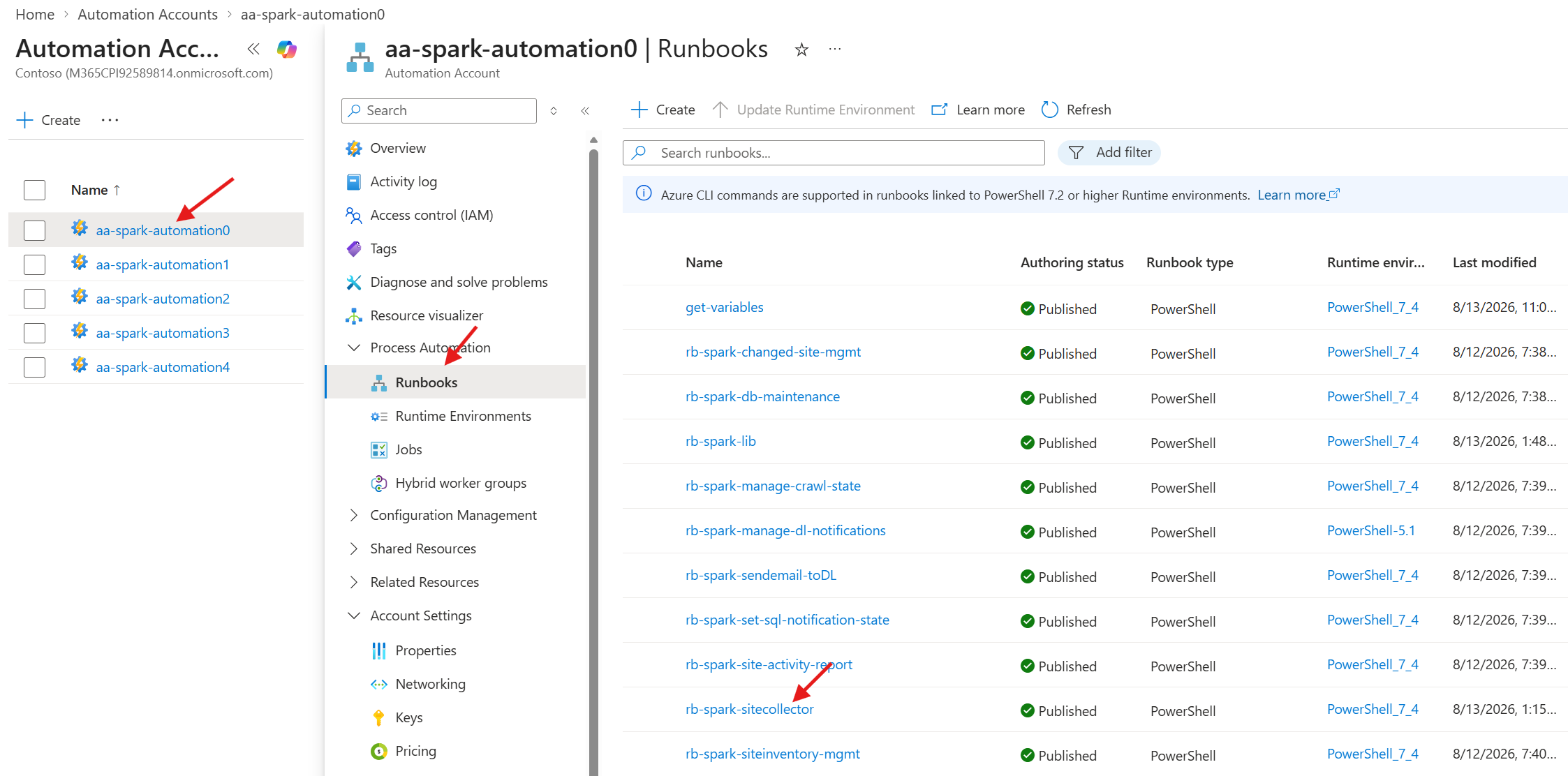
  1. Select aa-spark-automation0
  2. Select Runbooks under Process Automation
  3. Select the rb-spark-sitecollector runbook
Test Virtual Machine

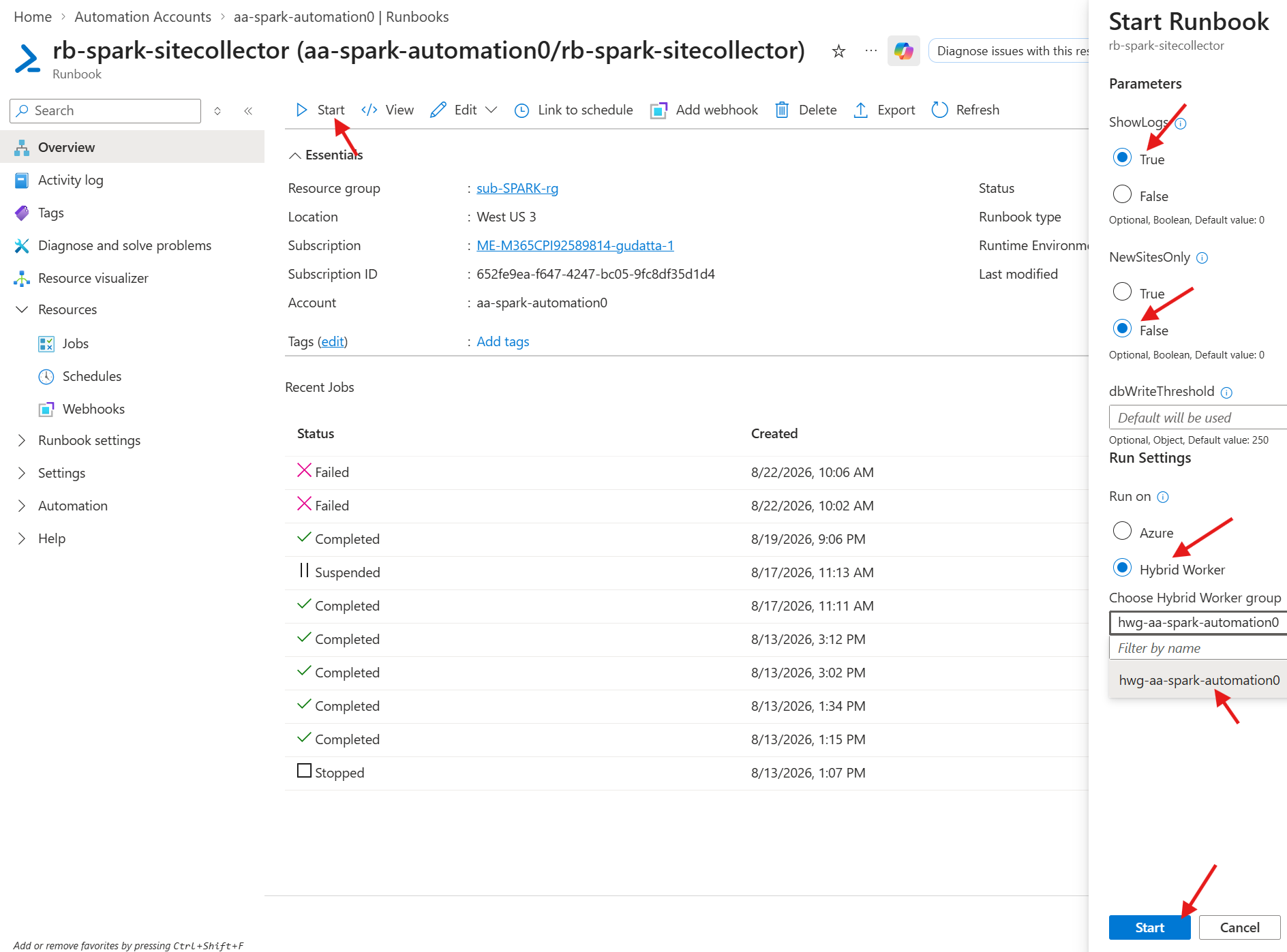
  1. Select Start
  2. Select True for Show Logs
  3. Select False for NewSitesOnly
  4. Select Hybrid Worker for Run on
  5. Select Start to test the virtual machine and validate it runs successfully

The modules must be installed before testing the runbook.

Start Runbook