Configure Function App Private Endpoint
This section will configure the Function App to use a private endpoint with SQL.
Manual Steps:
Step 1: Create Subnet
- Browse and log into the Azure Portal
Use the correct URL for your environment:
Worldwide (Commercial) & GCC
https://portal.azure.comGCC-High and DoD
https://portal.azure.us
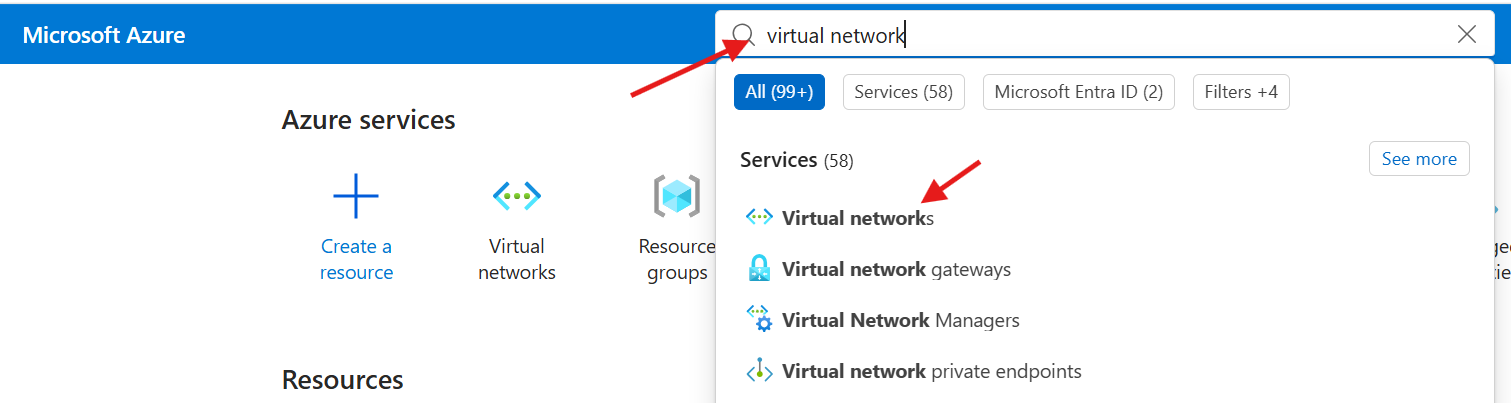
- Type in virtual network in the top search box
- Select Virtual networks
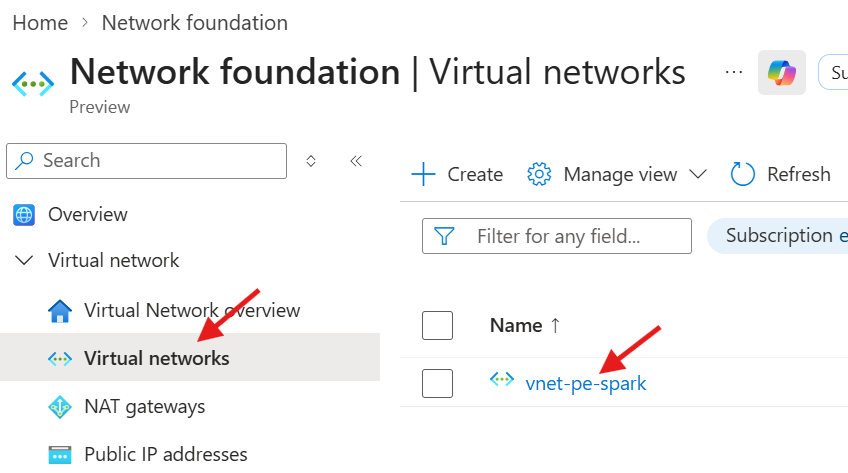
- Select vnet-pe-spark
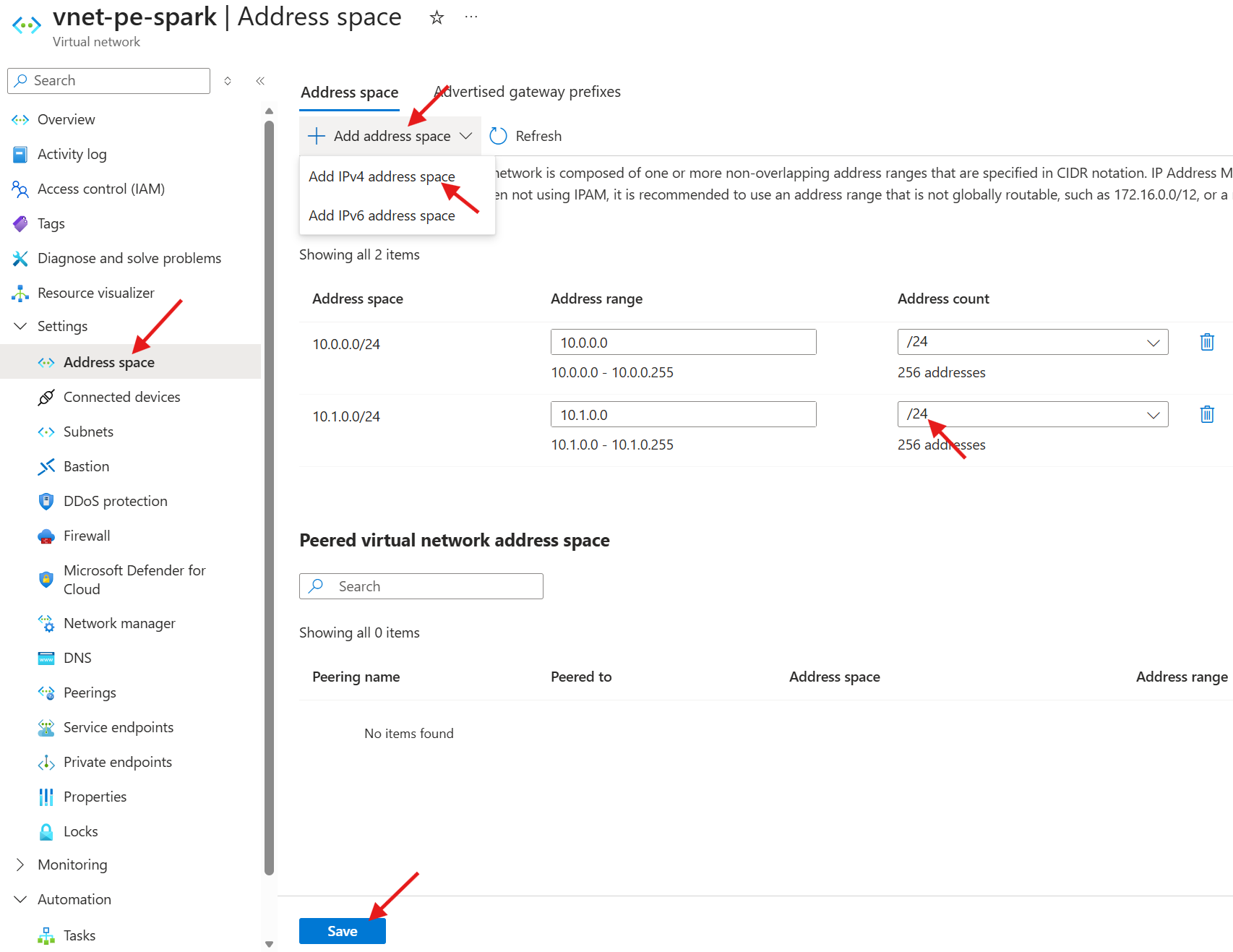
- Select Address space from the left navigation
- Select + Add address space
- Select Add IPv4 address space
- Select /24 for the new address space
- Select Save
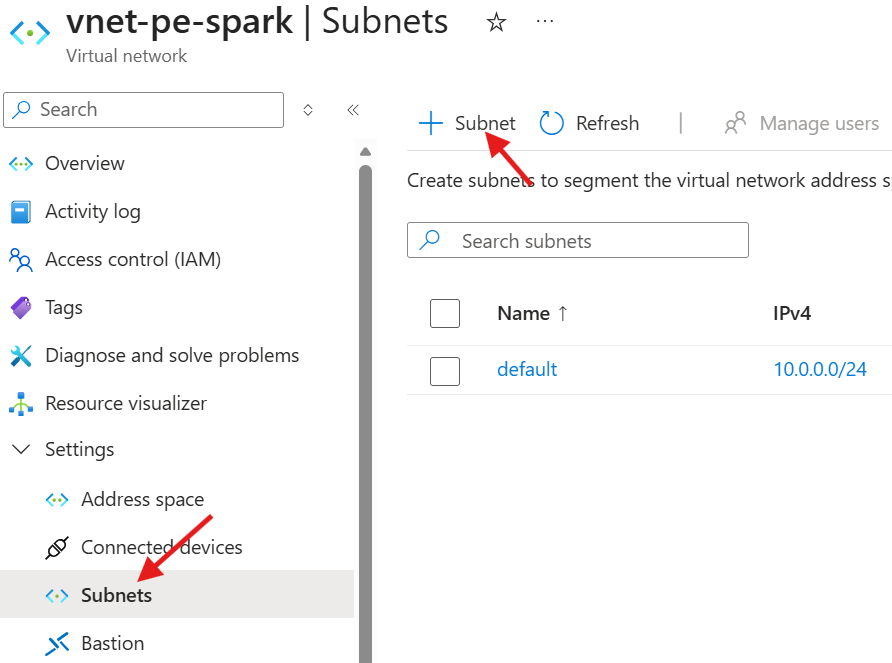
- Select Subnets from the left navigation
- Select + Subnet
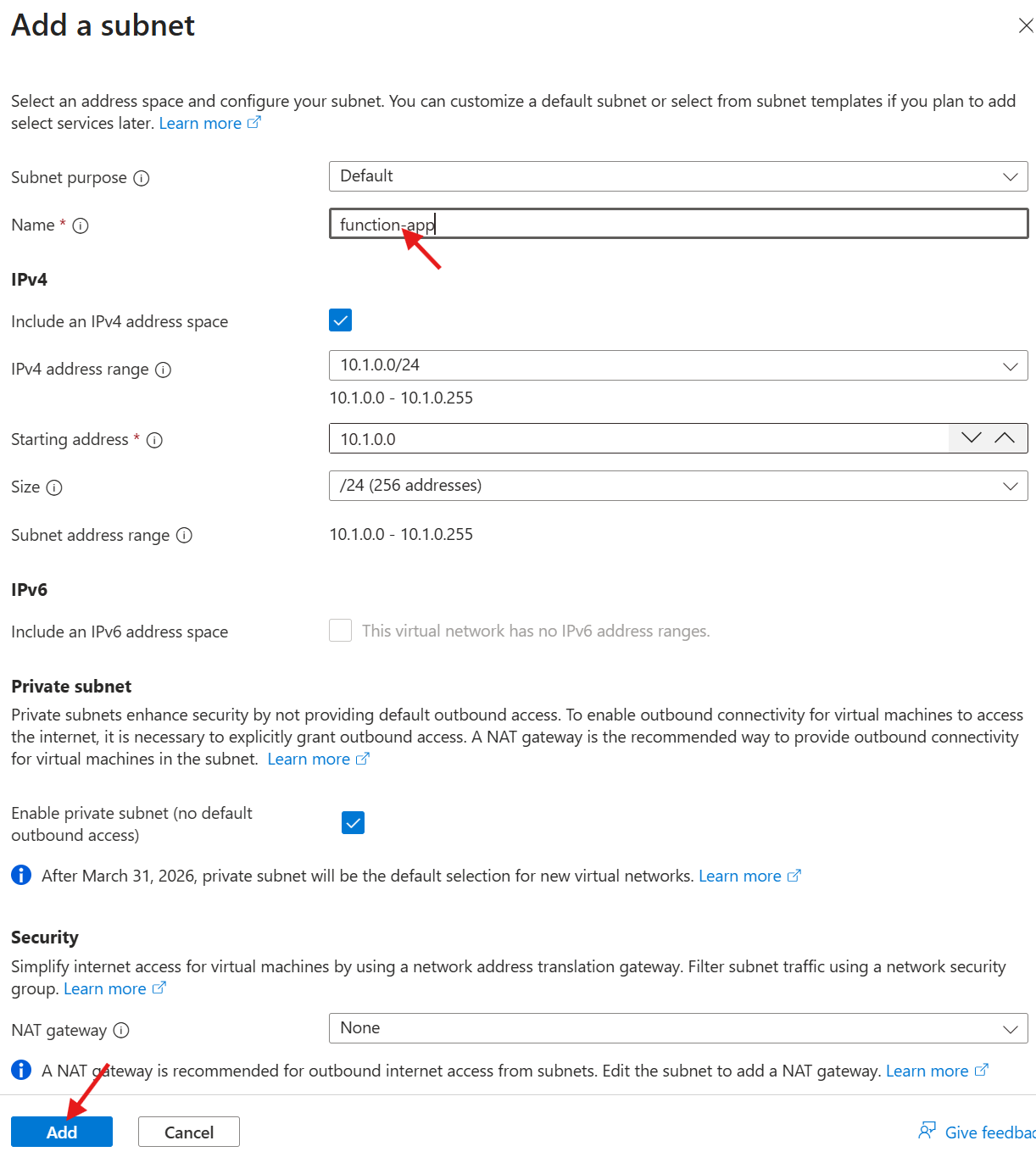
- Set function-app as the Name
- Set Add
Step 2: Configure Network
- Browse and log into Azure Portal
Use the correct URL for your environment:
Worldwide (Commercial) & GCC
https://portal.azure.comGCC-High and DoD
https://portal.azure.us
- Enter function app in the top search navigation
- Click on Function App

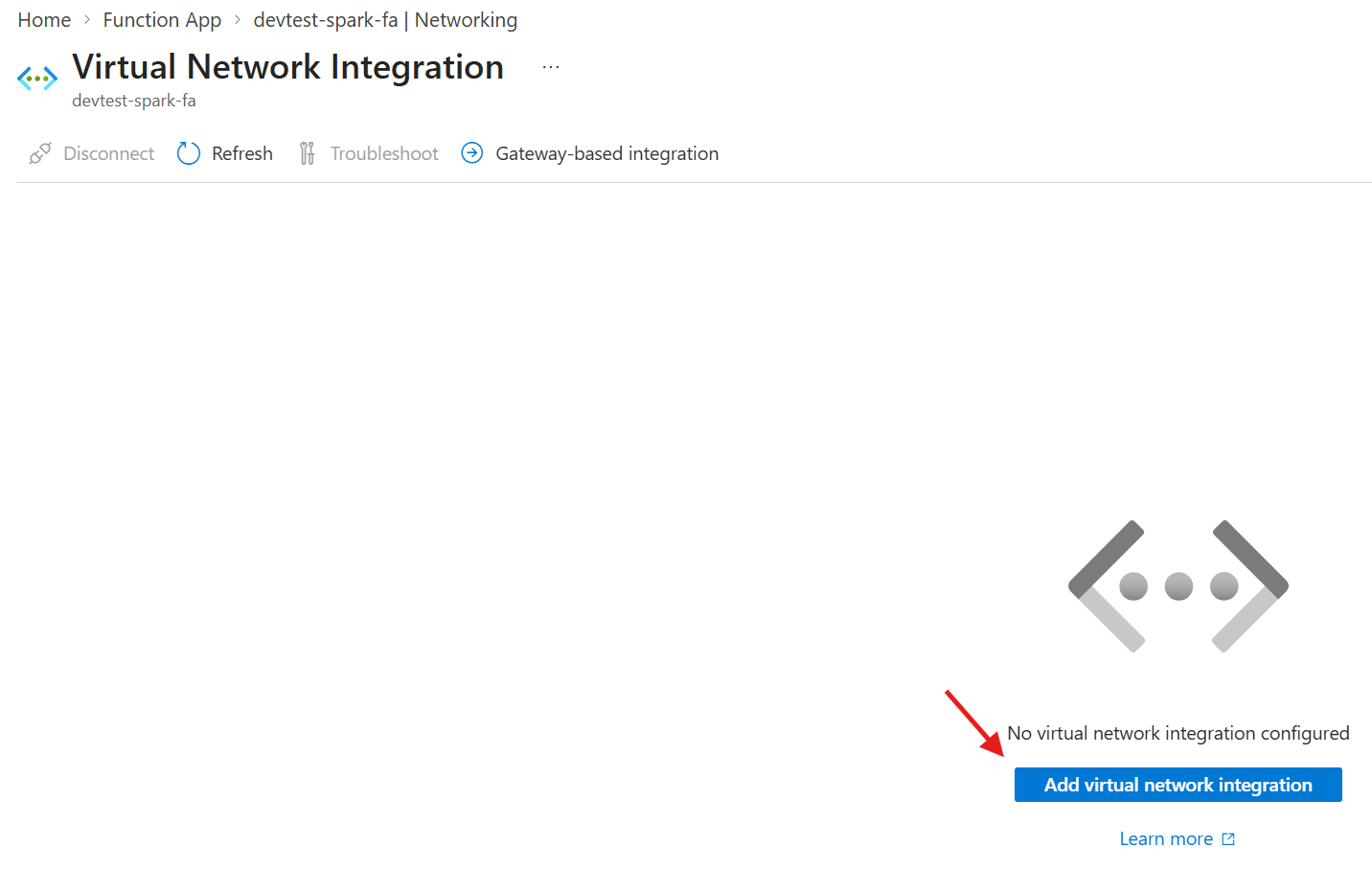
- Select Networking under Settings
- Select Not Configured for the Virtual network integration setting
- Select Add virutal network integration
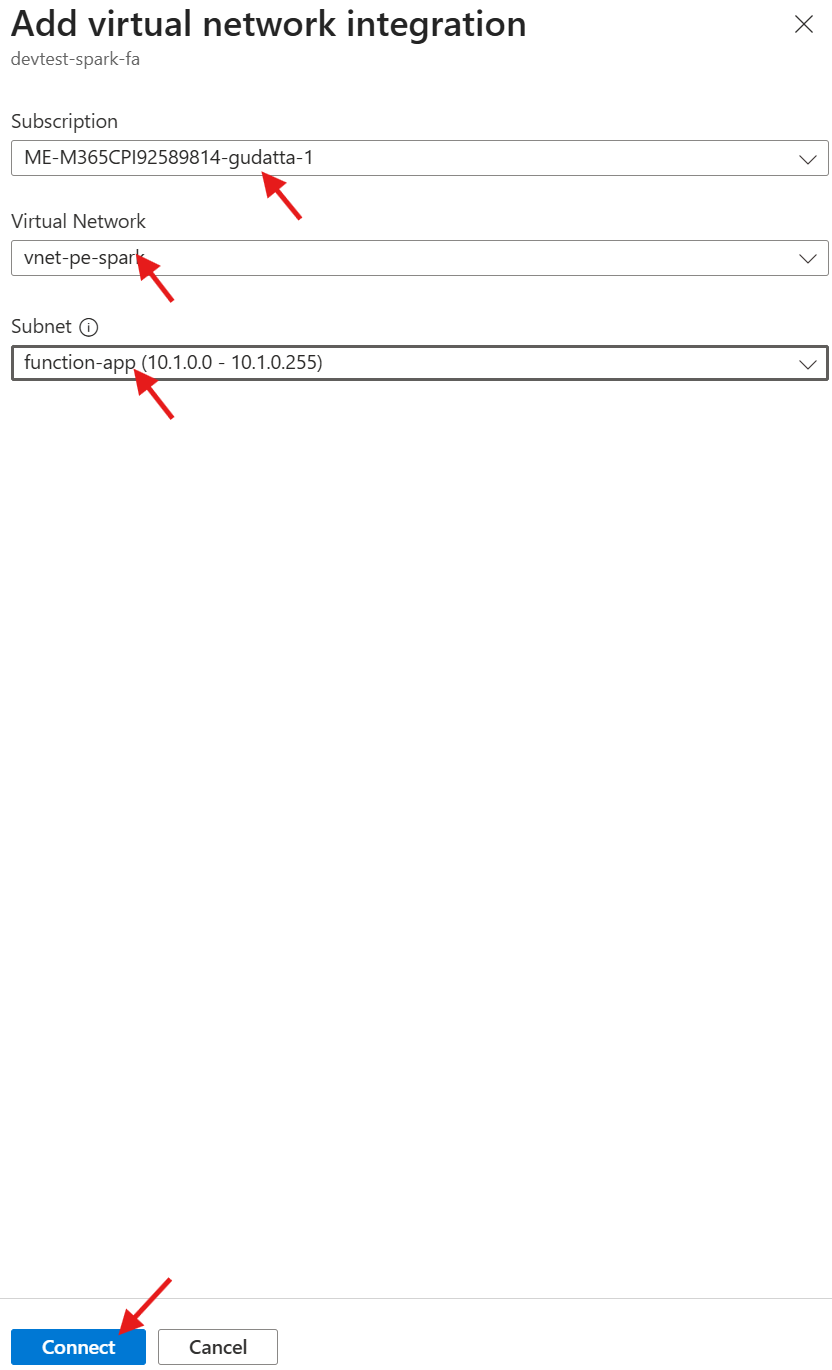
- Select the spark subscription
- Select the vnet-pe-spark virtual network
- Select the function-app subnet
- Select Connect