Porting your Slack Bolt bot
This guide will help you migrate or port your existing Slack Bolt application to the Teams SDK. We'll cover the key conceptual similarities and differences between Slack and Teams APIs, and provide code examples to help you port things over in no time. Let's get started!
Introduction
Similar to Slack Bolt, the Teams SDK is designed to interface with the Teams backend APIs for building conversational applications. Both SDKs provide abstractions for handling incoming events, messages, and interactions, as well as sending responses back to users. If you already have a Slack bot, the concepts should feel familiar.
However, there are some key differences, such as with app installation. In Slack, apps are installed to workspaces via OAuth, whereas in Teams they are installed via the Teams App Store. Additionally, Teams apps can be installed personally by individual users, or to collaborative scopes like group chats, channels, and meetings.
Let's take a look at some similarities and differences between Slack and Teams concepts:
| Concept | Teams | Slack |
|---|---|---|
| Installation | Installed via app store on per-scope basis | Installed via OAuth to Workspace |
| Quickstart | New projects created via Agent Toolkit CLI, Visual Studio extension, or VS Code extension. | New projects created via Slack CLI. |
| App manifest | Authored via JSON, Agent Toolkit, and/or via Teams Developer Portal. Must also setup Azure Bot and Azure App Registration resources, which can be done via Azure Portal or Agent Toolkit. | Authored via JSON, YAML, or app management page. |
| Messaging endpoint | Set in Azure Bot resource. | Set in Slack app manifest. |
| App authentication | Entra App Registration is authorized during Teams app installation. Teams SDK fetches Entra app token internally when sending messages. Core app features like messaging use this auth type internally within the SDK. | App stores Slack bot token after user authorizes application-delegated scopes (e.g.,incoming-webhook,commands). Core app features like messaging use this auth type internally within the SDK. |
| User authentication for REST APIs | User Entra tokens can be obtained using Teams SSO. Graph REST APIs are integrated into the Teams SDK. Tokens are stored and refreshed by Azure Bot Token service. | User Slack tokens can be obtained using OAuth 2.0. Slack REST APIs are integrated into Slack Bolt. Tokens must be stored and refreshed by application. |
| Authentication with external services | Obtain user access tokens for external services using OAuth 2.0. Tokens are stored and refreshed by Azure Bot Token service. | Users authenticate to external services using OAuth 2.0, perhaps initiated via account binding (see below). Tokens must be stored and refreshed by application. |
| Account linking | Activity events include Activity.from.id, which is the user's AAD object ID. If you authenticate your external service with OAuth 2.0, these accounts are implicitly bound via the Azure Token Service, but you can also follow a similar flow as what Slack recommends. | Slack recommends following their Binding accounts across services guide. |
| Cards | Rich UI elements in messages using Adaptive Cards. | Rich UI elements in messages using Block Kit. |
| Files | Files can be attached or downloaded using SharePoint / OneDrive Graph APIs. | Files can be attached or downloaded via Slack's files APIs. |
| Targeted messages | Teams does not currently support targeted messages. | Slack supports targeted ephemeral messages. |
| Slash commands | Teams supports slash commands that are declared in the app manifest. Unlike Slack, commands are sent as messages and thus are visible to all users in the conversation. Listen for new commands using app.message handler, either via app.message('/command') or app.message(regexp). | Slack Bolt has a dedicated app.command handler for commands in the Slack app manifest. Slash commands are not displayed to other users in collaborative contexts. |
| Workflows | Teams Workflows is not integrated with the Teams SDK. To integrate with Teams Workflows, you must create a custom Power Platform Connector. | Slack Workflows are integrated with Slack Bolt. |
| UI dialogs | Adaptive Cards can include actions that open UI dialogs with an embedded website or another adaptive card. Dialogs must be opened via an adaptive card action and thus cannot be opened directly via a slash command. | BlockKit UI modals can be opened via slash commands (using client.views.open) or BlockKit actions. |
| AI strategy | Teams has unique AI-native features for things like user feedback, AI-generated labels, prompt suggestions, streaming, and citations. We also feature an optional ChatPrompt class to simplify integrating LLMs into your bot. Leverage grounded search via the Microsoft 365 Copilot Retrieval Graph API. AI features are generally designed for use in any conversation type. | Slack has a dedicated Assistant class for AI interactions in a dedicated agent side panel view, which differs from Teams's strategy of using existing bot interaction patterns. Can still use AI in other conversation types using standard bot APIs. Can use Slack Data Access API for grounded search. |
| AI user feedback | User feedback buttons are natively rendered in Teams with dedicated APIs for handling feedback. After user gives positive or negative feedback, a modal is opened where additional information (e.g., plain text response) can be captured. | Slack uses a dedicated feedback_buttons BlockKit element type and app.action('feedback') for attaching user feedback (positive vs. negative) to messages. |
Configuring your application
First, setup a new Teams application, as shown in Teams Integration.
Installing Teams SDK
First, let's install the Teams SDK into your project. This will install the Teams SDK alongside any existing packages. After you've completed your migration, you can safely remove the @microsoft/teams-ai dependency from your package.json file.
npm install @microsoft/teams.apps
Configure application
First, let's configure the App class in Teams JS. This is equivalent to Slack Bolt's App class.
- Diff
- Slack Bolt
- Teams SDK
  // Setup app
  import { App } from '@slack/bolt';

  const app = new App({
      signingSecret: process.env.SLACK_SIGNING_SECRET,
      clientId: process.env.SLACK_CLIENT_ID,
      clientSecret: process.env.SLACK_CLIENT_SECRET,
      scopes: [
          "channels:manage",
          "channels:read",
          "chat:write",
          "groups:read",
          "incoming-webhook",
      ],
      installerOptions: {
          authVersion: "v2",
          directInstall: false,
          installPath: "/slack/install",
          metadata: "",
          redirectUriPath: "/slack/oauth_redirect",
          stateVerification: "true",
          /**
          * Example pages to navigate to on certain callbacks.
          */
          callbackOptions: {
              success: (installation, installUrlOptions, req, res) => {
                  res.send("The installation succeeded!");
              },
              failure: (error, installUrlOptions, req, res) => {
                  res.send("Something strange happened...");
              },
          },
          /**
          * Example validation of installation options using a random state and an
          * expiration time between requests.
          */
          stateStore: {
              generateStateParam: async (installUrlOptions, now) => {
                  const state = randomStringGenerator();
                  const value = { options: installUrlOptions, now: now.toJSON() };
                  await database.set(state, value);
                  return state;
              },
              verifyStateParam: async (now, state) => {
                  const value = await database.get(state);
                  const generated = new Date(value.now);
                  const seconds = Math.floor(
                      (now.getTime() - generated.getTime()) / 1000,
                  );
                  if (seconds > 600) {
                      throw new Error("The state expired after 10 minutes!");
                  }
                  return value.options;
              },
          },
      },
  });
  import { App } from '@microsoft/teams.apps';

  // Define app
  const app = new App({
      clientId: process.env.ENTRA_APP_CLIENT_ID!,
      clientSecret: process.env.ENTRA_APP_CLIENT_SECRET!,
      tenantId: process.env.ENTRA_TENANT_ID!,
  });

  // App starts local server with route for /api/messages
  (async () => {
      await app.start();
  })();
import { App } from '@slack/bolt';

const app = new App({
    signingSecret: process.env.SLACK_SIGNING_SECRET,
    clientId: process.env.SLACK_CLIENT_ID,
    clientSecret: process.env.SLACK_CLIENT_SECRET,
    scopes: [
        "channels:manage",
        "channels:read",
        "chat:write",
        "groups:read",
        "incoming-webhook",
    ],
    installerOptions: {
        authVersion: "v2",
        directInstall: false,
        installPath: "/slack/install",
        metadata: "",
        redirectUriPath: "/slack/oauth_redirect",
        stateVerification: "true",
        /**
        * Example pages to navigate to on certain callbacks.
        */
        callbackOptions: {
            success: (installation, installUrlOptions, req, res) => {
                res.send("The installation succeeded!");
            },
            failure: (error, installUrlOptions, req, res) => {
                res.send("Something strange happened...");
            },
        },
        /**
        * Example validation of installation options using a random state and an
        * expiration time between requests.
        */
        stateStore: {
            generateStateParam: async (installUrlOptions, now) => {
                const state = randomStringGenerator();
                const value = { options: installUrlOptions, now: now.toJSON() };
                await database.set(state, value);
                return state;
            },
            verifyStateParam: async (now, state) => {
                const value = await database.get(state);
                const generated = new Date(value.now);
                const seconds = Math.floor(
                    (now.getTime() - generated.getTime()) / 1000,
                );
                if (seconds > 600) {
                    throw new Error("The state expired after 10 minutes!");
                }
                return value.options;
            },
        },
    },
});

// App starts local server with route for /slack/events
(async () => {
    await app.start();
})();
import { App } from '@microsoft/teams.apps';

// Define app
const app = new App({
    clientId: process.env.ENTRA_APP_CLIENT_ID!,
    clientSecret: process.env.ENTRA_APP_CLIENT_SECRET!,
    tenantId: process.env.ENTRA_TENANT_ID!,
});

// App starts local server with route for /api/messages
// To reuse your restify or other server,
// create a custom `HttpPlugin`.
(async () => {
    await app.start();
})();
Migrate message handlers
In Slack, there are message handlers for events with different subtypes (e.g., undefined subtype is a regular message, event.subtype == 'file_share' is a file share message, etc.). In Teams, there are different Activity handers for different types of events that are enumerated via the ActivityTypes enum (e.g., app.activity(ActivityTypes.Message)), with some Activity types having tailored APIs within the SDK (e.g., app.message). These concepts are roughly similar, though the naming conventions and syntax differ.
Message handlers
- Diff
- Slack Bolt
- Teams SDK
// triggers user sends "hi" or "@bot hi"
app.message("hi", async ({ message, say }) => {
    // Handle only newly posted messages here
    if (message.subtype) return;
    await say(`Hello, <@${message.user}>`);
});
app.message("hi", async ({ send, activity }) => {
  await send(`Hello, ${activity.from.name}!`);
});
// listen for ANY message to be received
app.message(async ({ message, say }) => {
    // Handle only newly posted messages here
    if (message.subtype) return;
    // echo back users request
    await say(`you said: ${message.text}`);
});
app.on('message', async ({ send, activity }) => {
    // echo back users request
    await send(`you said: ${activity.text}`);
});
// triggers when user sends a message containing "hi"
app.message("hi", async ({ message, say }) => {
    // Handle only newly posted messages here
    if (message.subtype) return;
    await say(`Hello, <@${message.user}>`);
});
// listen for ANY message
app.message(async ({ message, say }) => {
    // Handle only newly posted messages here
    if (message.subtype) return;
    // echo back users request
    await say(`you said: ${message.text}`);
});
// triggers when user sends "hi" or "@bot hi"
app.message("hi", async ({ send, activity }) => {
  await send(`Hello, ${activity.from.name}!`);
});
// listen for ANY message to be received
app.on('message', async ({ send, activity }) => {
    // echo back users request
    await send(`you said: ${activity.text}`);
});
BlockKit -> Adaptive Cards
To include Rich UI in messages sent by your bot, Slack's Block Kit is equivalent to Teams's Adaptive Cards.
- Diff
- Slack Bolt
- Teams SDK
app.message('card', async (client) => {
    await say({
        blocks: [
            {
                type: 'section',
                text: {
                    type: 'plain_text',
                    text: 'Hello, world!',
                },
            },
        ],
    });
});
import { Card, TextBlock } from '@microsoft/teams.cards';

app.message('/card', async ({ send }) => {
    await send(
        new Card(new TextBlock('Hello, world!', { wrap: true, isSubtle: false }))
            .withOptions({
                width: 'Full',
            })
    );
});
For existing cards like this, the simplest way to convert that to Teams SDK is this:
app.message('card', async (client) => {
    await say({
        blocks: [
            {
                type: 'section',
                text: {
                    type: 'plain_text',
                    text: 'Hello, world!',
                },
            },
        ],
    });
});
For a more thorough port, you could also do the following:
import { Card, TextBlock } from '@microsoft/teams.cards';

app.message('/card', async ({ send }) => {
  await send(
    new Card(new TextBlock('Hello, world!', { wrap: true, isSubtle: false })).withOptions({
      width: 'Full',
    })
  );
});
Learn more in the Adaptive Cards guide.
User authentication
There are two primary types of user authentication for Teams and Slack: authentication for Slack & Graph REST APIs, and authentication for external services. Let's take a look at each of these in turn.
User-delegated REST APIs
In Slack, if you want to use Slack REST APIs that require user-delegated scopes, you need to implement an OAuth 2.0 installation flow in your application to obtain and store Slack user tokens, even if the app was already installed by another user. In Teams, you can leverage Teams SSO to obtain user Entra tokens for calling Graph REST APIs. The Teams SDK integrates with Teams SSO and Azure Bot Token Service to handle token acquisition, storage, and refresh automatically for you.
First, follow the instructions in the Teams SSO guide.
Then, configure the authentication in your code.
- Diff
- Slack Bolt
- Teams SDK
// TODO: Configure App class with user OAuth permissions and install app for user

app.message('me', async ({ client, message }) => {
    const me = await client.users.info({ user: message.user });
    await client.send(JSON.stringify(me));
});
import { App } from '@microsoft/teams.apps';
import * as endpoints from '@microsoft/teams.graph-endpoints';

const app = new App({
    // ... rest of App config
    oauth: {
        // The key here should match the OAuth Connection setting
        // defined in your Azure Bot resource.
        defaultConnectionName: 'graph',
    },
});

app.message('me', async ({ signin, userGraph, send }) => {
    if (!await signin()) {
        return;
    }
    const me = await userGraph.call(endpoints.me.get);
    await send(JSON.stringify(me));
});
// TODO: Configure App class with user OAuth permissions and install app for user

app.message('me', async ({ client, message }) => {
    const me = await client.users.info({ user: message.user });
    await client.send(JSON.stringify(me));
});
import { App } from '@microsoft/teams.apps';
import * as endpoints from '@microsoft/teams.graph-endpoints';

const app = new App({
    // ... rest of App config
    oauth: {
        // The key here should match the OAuth Connection setting
        // defined in your Azure Bot resource.
        defaultConnectionName: 'graph',
    },
});

app.message('me', async ({ signin, userGraph, send }) => {
    if (!await signin()) {
        return;
    }
    const me = await userGraph.call(endpoints.me.get);
    await send(JSON.stringify(me));
});
User authentication for external services
In Slack, you can access external services by implementing an account binding flow using OAuth 2.0 as documented here. In Teams, you can access external services by implementing an OAuth 2.0 flow, with the Azure Bot Token Service handling token acquisition, storage, and refresh for you.
First, setup your OAuth 2.0 connection settings in the Azure Portal for your Azure Bot resource.
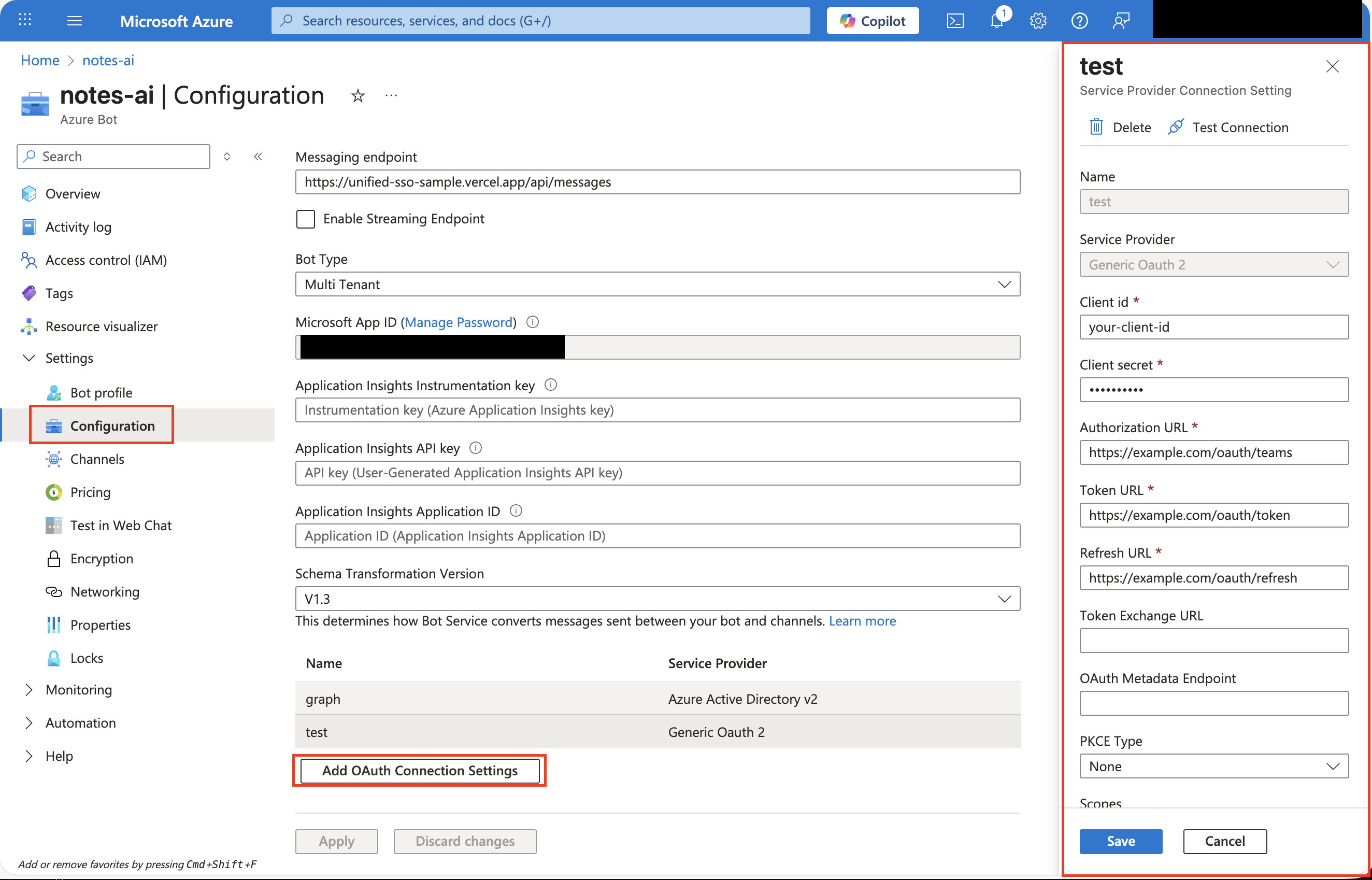
Then, add the authentication code to your application to get the relevant user token and call your external service.
import { App } from '@microsoft/teams.apps';

const app = new App({
    // ... rest of App config
    oauth: {
        // The key here should match the OAuth Connection setting
        // defined in your Azure Bot resource.
        defaultConnectionName: 'custom',
    },
});

app.message('me', async ({ activity, signin, token, send }) => {
    // In production, it is probably better to implement a local cache.
    // (e.g. \`activity.from.id\` <-> token).
    // Otherwise this triggers an API call to Azure Token Service on every inbound message.
    if (!await signin()) {
        return;
    }

    // Call external API
    const response = await fetch('https://example.com/api/helloworld', {
        method: 'POST',
        headers: {
            "Authorization": token,
        },
    });
    const result = await response.json();
    await send(JSON.stringify(result));
});