Exercise 01: Create an SAP account and configure SAP resources
Scenario
In this exercise, you’ll create an SAP account. You’ll also create an account so that you can access the SAP Gateway Demo system. The Gateway Demo system serves as the SAP data source for this lab.
Objectives
After you complete this exercise, you’ll be able to:
- Create an SAP account.
- Configure access to the SAP Gateway Demo system.
Duration
Estimated time: 10-15 minutes
Task 01: Create an SAP account
Introduction
AP controls access to demos and documentation. You need to create an account before you can access the SAP Gateway Demo system data.
Description
In this task, you create an account so that you can access SAP resources.
Success criteria
- You receive an email from SAP that includes the URI and credentials to access the SAP Gateway Demo system.
- You successfully connect to the AP Gateway Demo system.
Learning resources
Key tasks
01: Create the SAP account
Expand this section to view the solution
-
Open Edge and go to SAP page.
-
At the upper right of the page, select the Sign in icon.

If the Sign in icon is not visible, select the ☰ icon.

-
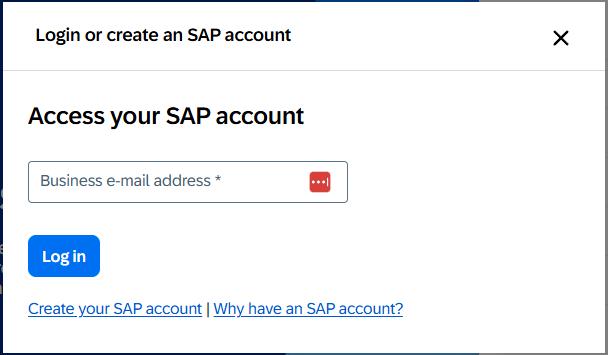
In the Login or create an SAP account dialog, select Create your SAP account.
-
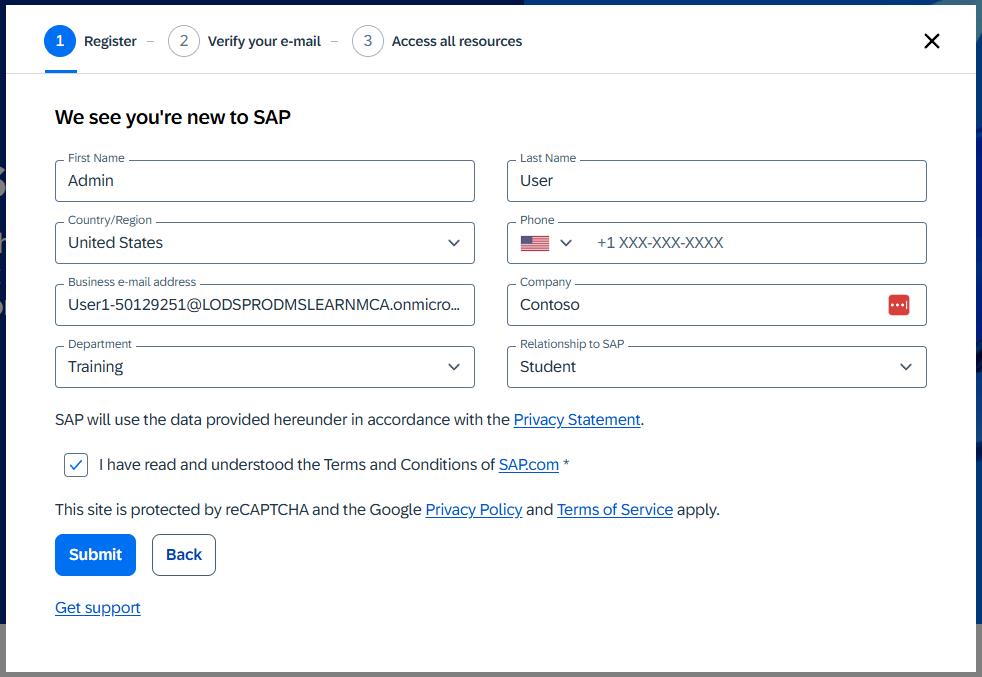
Enter the following information on the Register page of the We see you’re new to SAP dialog:
Field Value First name AdminLast name UserCountry/Region Select your country/region Business e-mail address Enter your work or personal email address Company ContosoDepartment Training Relationship to SAP Student -
Select the I have read and understood the Terms and Conditions of SAP.com checkbox and then select Submit.
-
If prompted, complete the Captcha process.
-
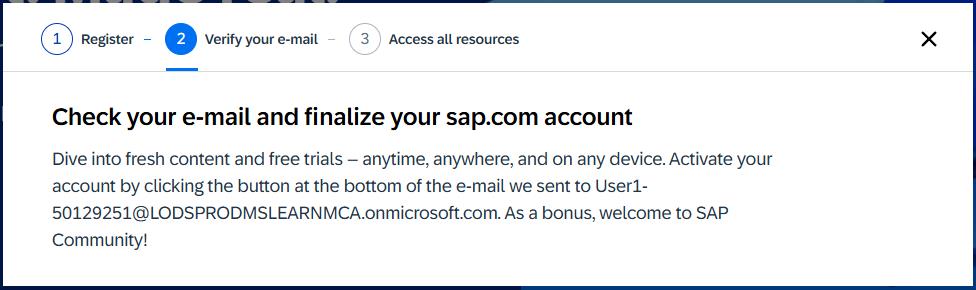
Wait for the Verify your e-mail page of the We see you’re new to SAP dialog to display.
-
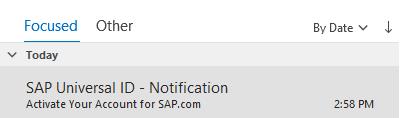
Open your email app and go to the inbox. Locate an email from the sender SAP Universal ID - Notification.
-
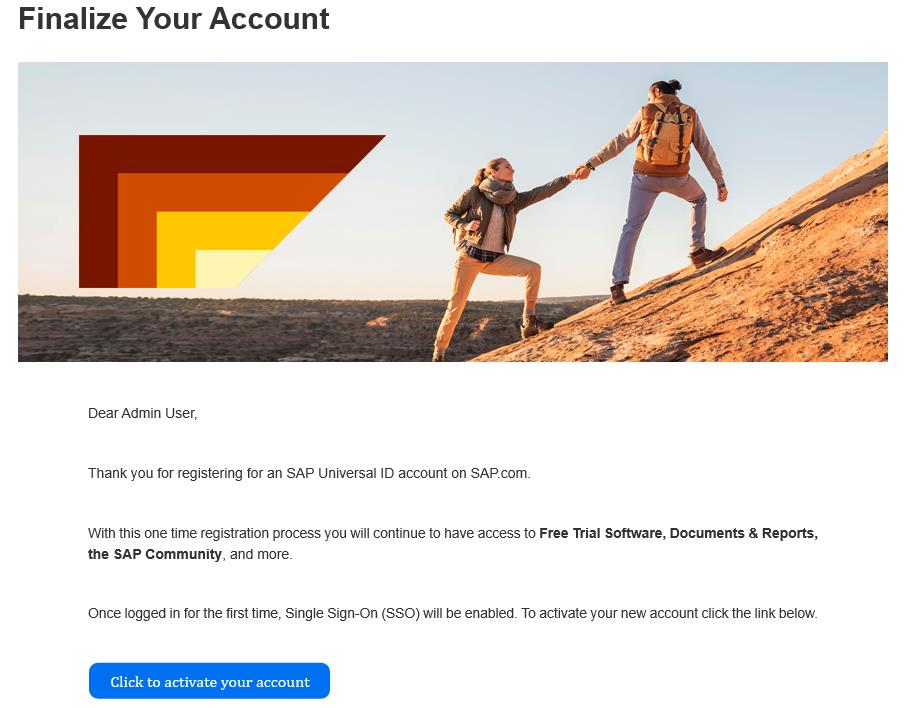
Open the email. Locate the hyperlink below the Click to activate your account button.
-
Copy the link and then paste it into a notepad document for later use.
After pasting the value into the text field, select the Tab key, or select any element outside of the text field. This ensures that the value is saved for use later in the lab.
-
Return to the lab environment. Open a new browser window and go to
@lab.Variable(SAPActivationLink). -
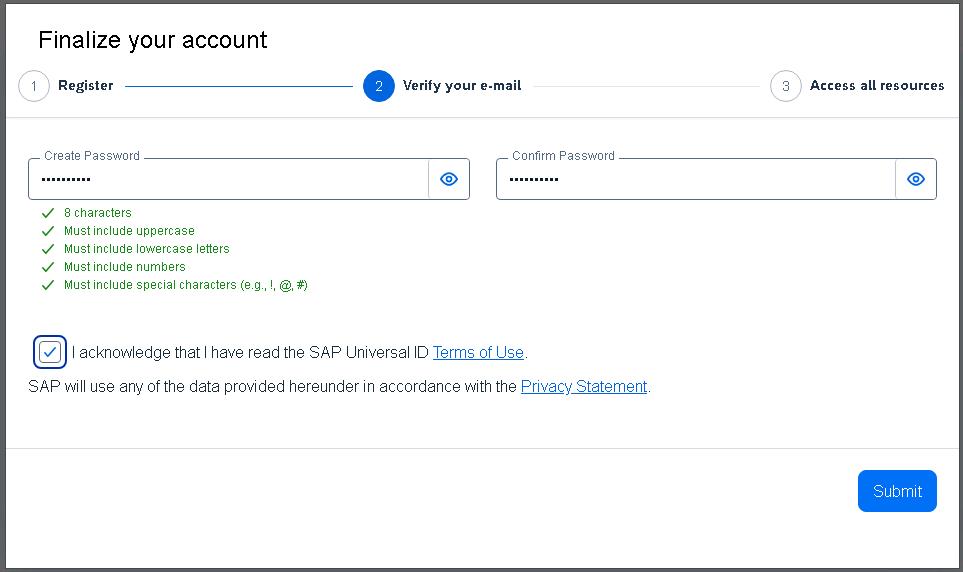
In the Finalize your account dialog, enter
your SAP portal password, confirm it to proceed. -
Select the I acknowledge that I have read the SAP Universal ID Terms of Use checkbox and then select Submit.
-
On the SAP ID Service Sign in page, enter the following email address and then select Continue. Then enter a
SAP portal username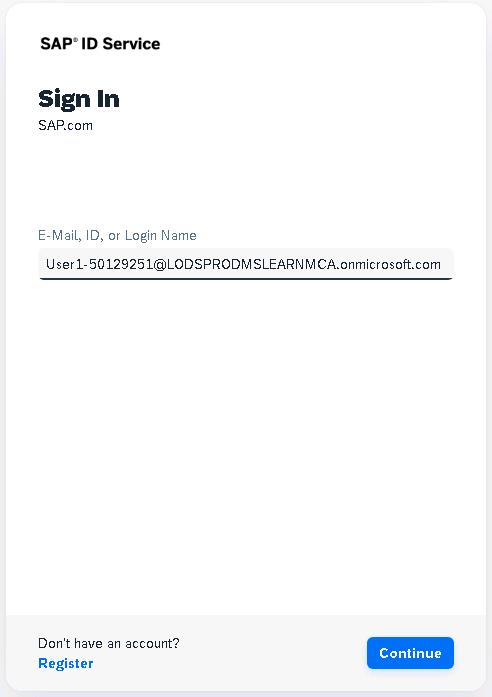
-
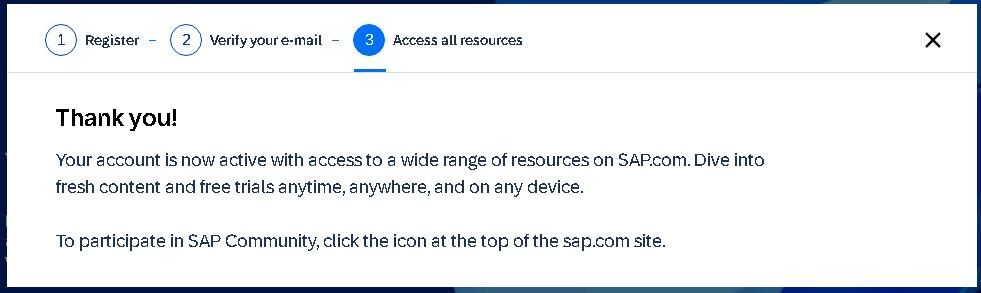
Wait for the Thank you! page to display.
-
Close the Thank you dialog.
Task 02: Create an account for the SAP Gateway Demo system
Introduction
Now that you can access SAP resources, you must create an account to access demo data.
Description
In this task, you sign in to the SAP developer site and create an account. The account provides access to the SAP Gateway Demo system. At the end of the process, you open the Fiori Launchpad app
Success criteria
- You have valid credentials to use the SAP Gateway demo system
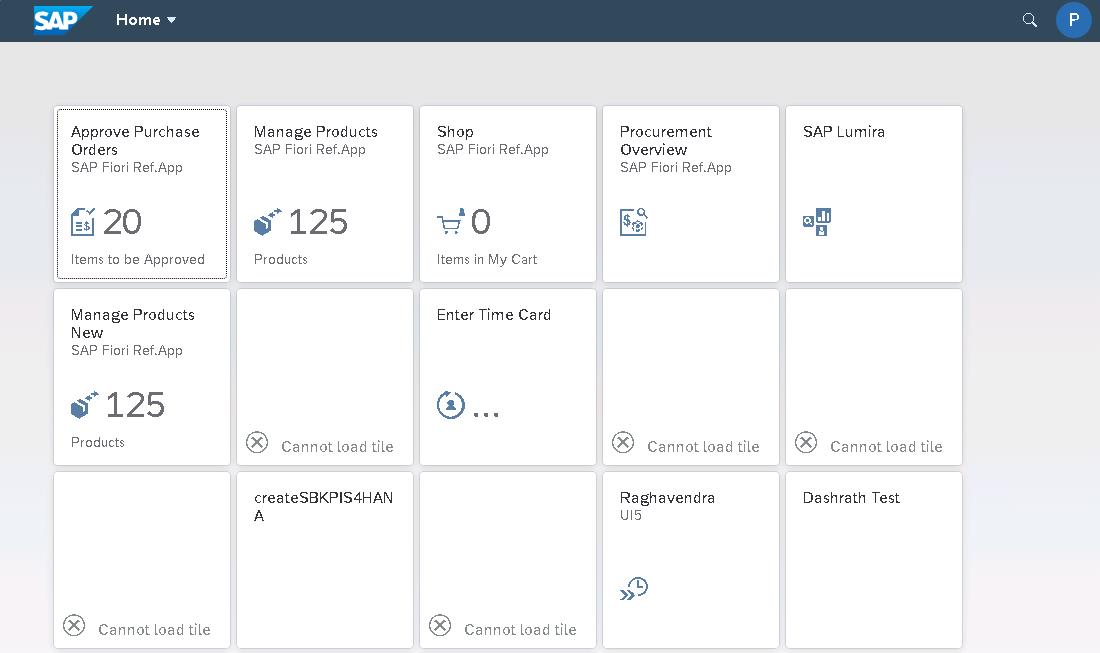
- You can open the Fiori Launchpad app. This app provides an environment where you can run SAP applications to explore data.
Learning resources
Key tasks
01: Register on SAP Gateway Demo server
Expand this section to view the solution
-
Open a new browser window and go to SAP Gateway Demo Server.
-
If prompted, sign in by using the following credentials:
Username:
your SAP portal username
Password:your SAP portal password -
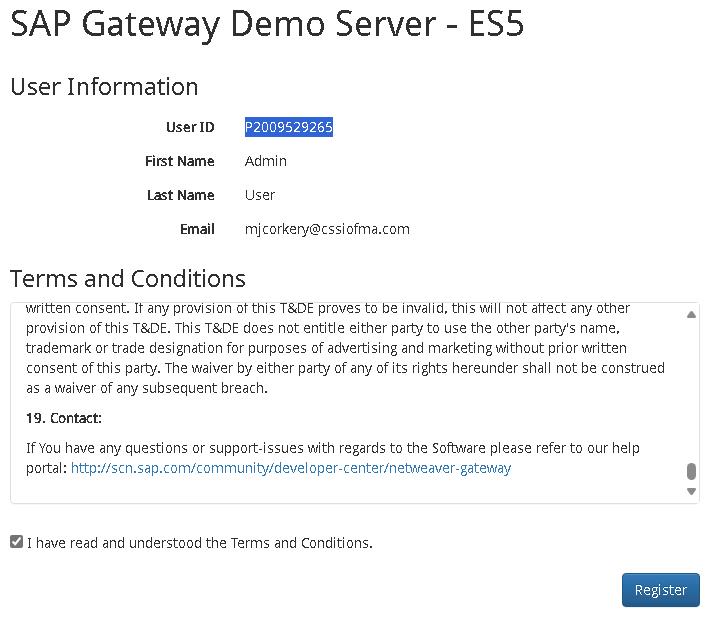
On the SAP Gateway Demo Server -ES5 page that displays, copy the User ID value to the Windows clipboard and paste then in a notepad file for future use.
-
On the SAP Gateway Demo Server -ES5 page, select the I have read and understood the Terms and Conditions checkbox and then select Register.
-
You should see a new page display. The page will report that the registration is being processed.
-
Select Show password. Paste the temporary password into a notepad for future use.
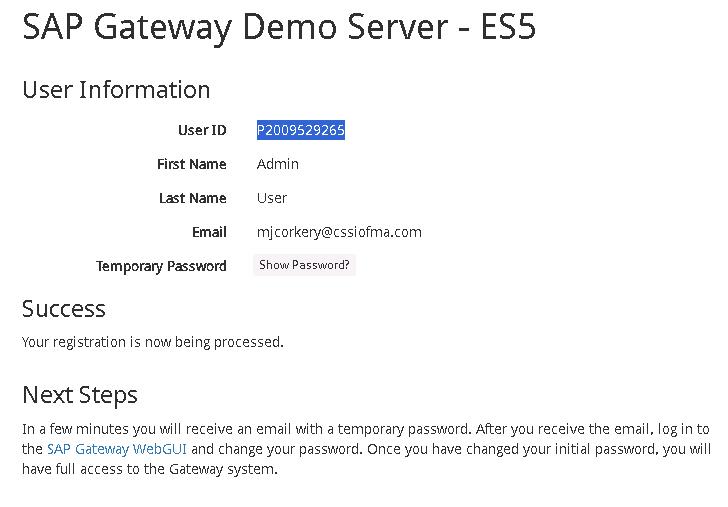
The SAP system will send you an email that includes the Server URI, username, and initial password.
-
Open a new browser window and go to the SAP WebGUI.
-
On the SAP NetWeaver page that opens, enter the following credentials and then select Log on:
Username: Your SAP Gateway Demo system user ID Password: You SAP Gateway Demo system temporary password 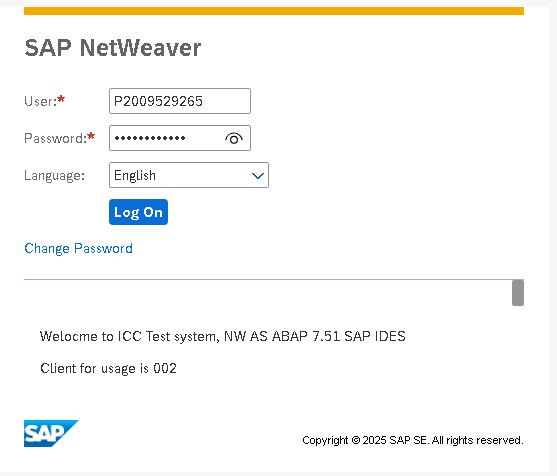
-
On the SAP NetWeaver page that displays, enter the following information to replace the temporary password and then select Change:
Current Password: the SAP Gateway Demo system temporary passwordNew Password: your SAP portal passwordRepeat Password: your SAP portal password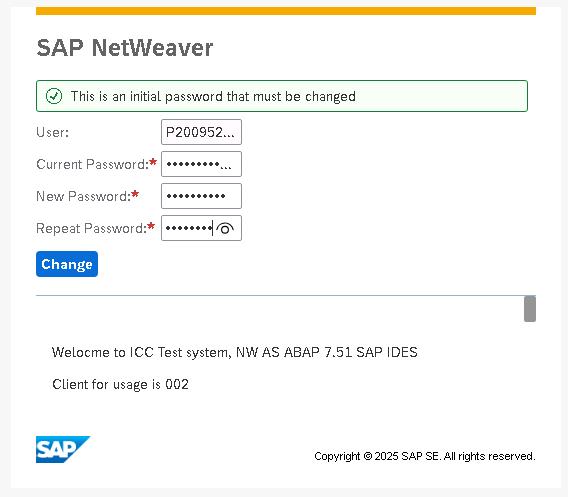
-
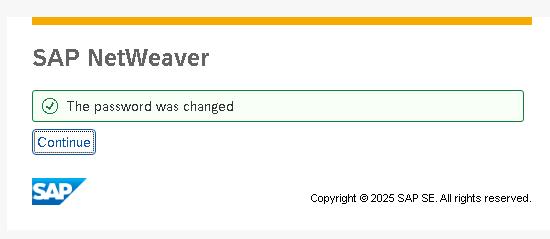
On the SAP NetWeaver page that displays, verify that the password was changed successfully and then select Continue.
-
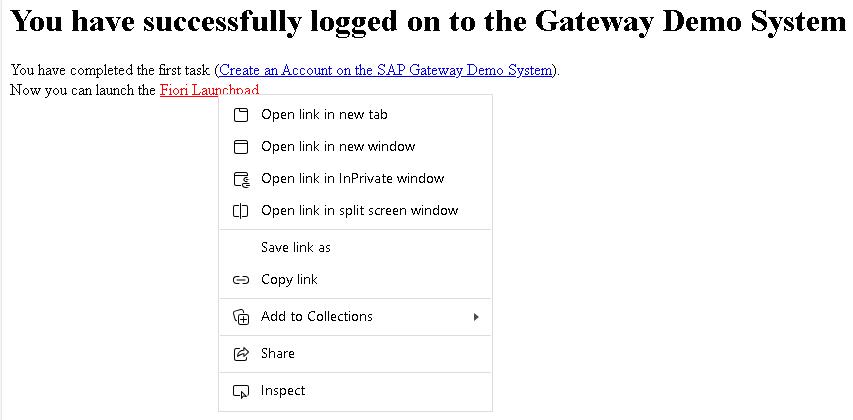
The You have successfully logged on to the Gateway Demo System page displays. Right-click the Fiori Launchpad link and then select Copy link.
-
Copy the link then paste it into a notepad document for later use.
-
Select the Fiori Launchpad link to start the app.