

How-To Guide
Scale Simple Chat on Azure
Use this guide when a working deployment needs more throughput, higher availability, or cleaner scaling rules across App Service, Cosmos DB, Search, and AI services.
- App Service and data scale
- Search and AI throughput
- Monitor before you overprovision
Scaling Simple Chat is about coordinating several Azure services, not just adding more web instances. This page is the canonical scaling guide and replaces the former application scaling overview. Use this guide when you already have a functioning deployment and need to expand capacity without breaking session behavior, retrieval performance, or downstream service quotas.
Component overview
Azure App Service
Scale up when single requests need more memory or CPU. Scale out when concurrent users, long chats, and upload traffic rise.
Azure Cosmos DB
Watch RU consumption and move to container-level autoscale for the busiest containers so chat and document traffic do not fight each other.
Azure AI Search
Replicas lift query throughput, partitions lift storage and indexing throughput, and higher tiers raise the service ceiling when S1 runs out.
Azure AI and Cognitive Services
OpenAI, Document Intelligence, Speech, Content Safety, and Video Indexer are usually quota-driven. Route them through APIM if you need retries, load balancing, or consistent policy enforcement.
Redis comes before App Service scale-out
If you plan to run more than one web instance, configure shared session storage first. Without it, scale-out can create authentication and session consistency problems that look like random app instability.
When to Scale
Monitor these indicators to know when scaling is needed:
Performance Metrics to Watch
-
CPU utilization consistently above 70%
-
Memory usage consistently above 80%
-
Request latency increasing beyond acceptable levels
-
Queue lengths growing consistently
-
RU consumption approaching limits in Cosmos DB
-
Rate limit responses (HTTP 429 errors) from Azure services
Use Azure Monitor and Application Insights to track these metrics.
Scaling principle
Scale the bottleneck you can prove. Track CPU and memory, request latency, queue depth, Cosmos DB RU consumption, Azure AI Search query latency, indexing backlog, and rate-limit responses before changing service sizes.
Scaling Azure App Service
The App Service hosts your Python backend application.
Scale Up (Vertical Scaling)
When to scale up:
-
Individual requests are resource-intensive
-
Single instances need more power
-
Complex document processing operations
How to scale up:
-
Go to Azure Portal → your App Service
-
Navigate to Scale up (App Service plan)
-
Select a higher pricing tier:
-
From P0v3 → P1v3, P2v3, P3v3
-
Consider Premium v3 tiers for better performance
-
-
Click Apply
Immediate benefits:
-
More CPU cores per instance
-
Increased RAM per instance
-
Better disk I/O performance
Scale Out (Horizontal Scaling)
When to scale out:
-
High number of concurrent users
-
Need improved availability
-
Load balancing across instances
Prerequisites:
Important: You must configure Azure Cache for Redis before scaling out. Without Redis, user sessions will be tied to specific instances, causing authentication issues.
Setup Redis first:
-
Deploy Azure Cache for Redis instance
-
Configure Simple Chat to use Redis for session storage
-
Update application configuration
-
Test with multiple instances
How to scale out:
-
Go to Azure Portal → your App Service
-
Navigate to Scale out (App Service plan)
-
Increase Instance count manually, or
-
Configure Autoscale rules:
-
Based on CPU percentage (scale out at 70%, scale in at 30%)
-
Based on memory usage
-
Based on request queue length
-
Autoscale example configuration:
Scale Out Rule:

- Metric: CPU Percentage

- Operator: Greater than

- Threshold: 70%

- Duration: 5 minutes

- Action: Increase instance count by 1


Scale In Rule:

- Metric: CPU Percentage

- Operator: Less than

- Threshold: 30%

- Duration: 10 minutes

- Action: Decrease instance count by 1


Minimum instances: 2

Maximum instances: 10
Scaling Azure Cosmos DB
Cosmos DB stores conversations, metadata, and settings.
Understanding Request Units (RU/s)
Request Units measure the cost of database operations:
-
Read operations: Lower RU cost
-
Write operations: Higher RU cost
-
Complex queries: Variable RU cost based on complexity
Autoscale Throughput (Recommended)
Benefits:
-
Automatic scaling between 10% and 100% of max RU/s
-
Pay only for what you use
-
Handles traffic spikes automatically
How to configure:
-
Go to Azure Portal → your Cosmos DB account
-
Navigate to Data Explorer
-
For each container, select Scale & Settings
-
Choose Autoscale throughput
-
Set Maximum RU/s
Recommended Container Scaling
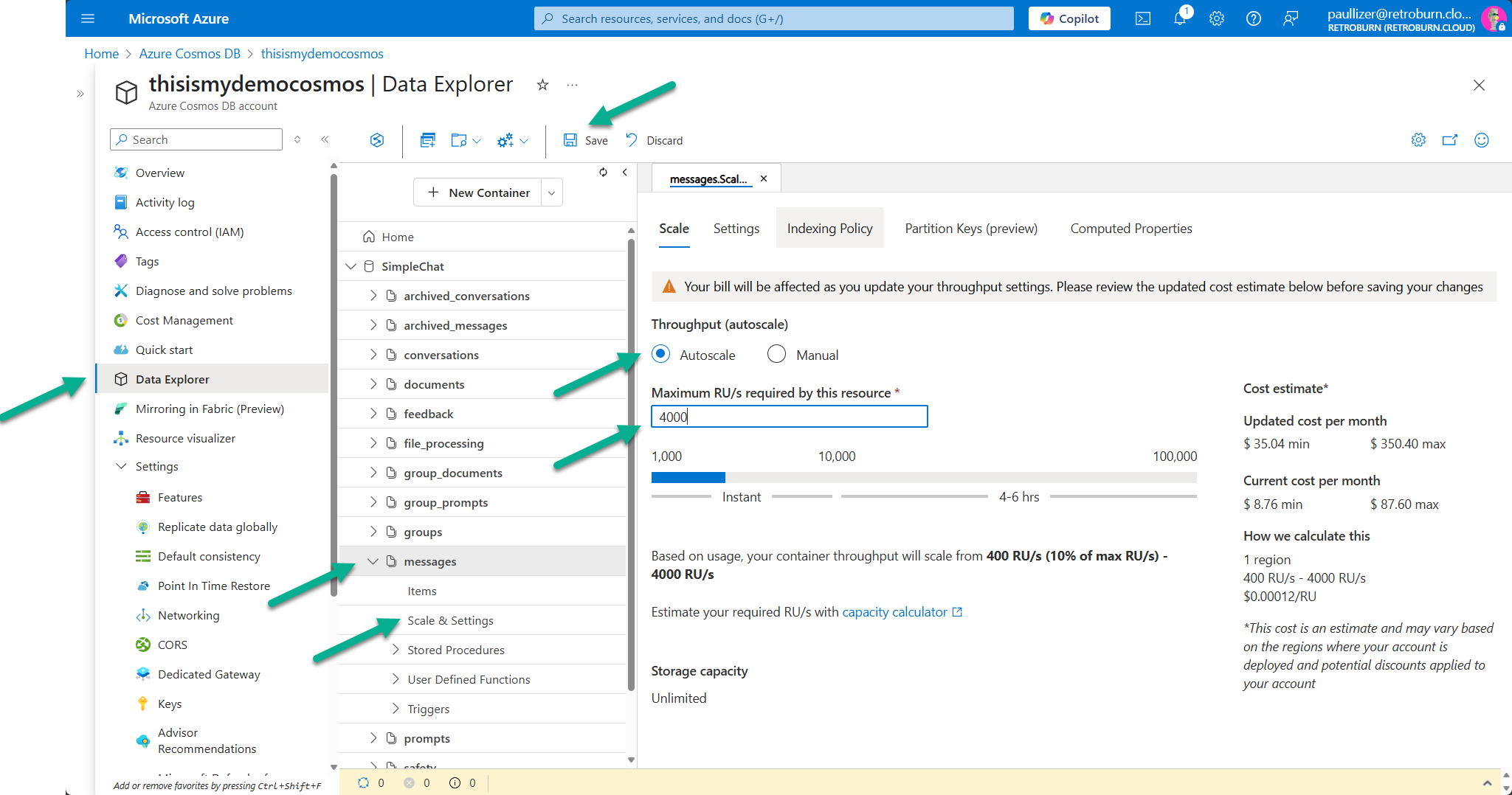
High-traffic containers:
messages container:

- Max RU/s: 4,000 (scales 400-4,000)

- Reason: High read/write volume from chat


documents container:

- Max RU/s: 4,000 (scales 400-4,000)

- Reason: Document metadata operations


group_documents container:

- Max RU/s: 4,000 (scales 400-4,000)

- Reason: Group document sharing
Lower-traffic containers:
settings container:

- Max RU/s: 1,000 (scales 100-1,000)

- Reason: Infrequent configuration changes


feedback container:

- Max RU/s: 1,000 (scales 100-1,000)

- Reason: Periodic feedback submission


archived_conversations container:

- Max RU/s: 1,000 (scales 100-1,000)

- Reason: Archive operations are less frequent
Monitor and Adjust
Key metrics to monitor:
-
Request Unit consumption per container
-
Throttling events (HTTP 429 errors)
-
Query performance and latency
How to monitor:
-
Use Azure Monitor metrics for Cosmos DB
-
Set up alerts for high RU consumption
-
Review query performance in Data Explorer
-
Check throttling metrics regularly
When to increase RU/s:
-
Consistent throttling (429 errors)
-
Query latency increasing
-
Application performance degrading
Scaling Azure AI Search
AI Search powers document retrieval and hybrid search.
Search Service Tiers
Basic tier:
-
Limited storage and query volume
-
Good for development and small deployments
Standard tiers (S1, S2, S3):
-
Increased storage capacity
-
Higher query per second (QPS) limits
-
Better performance for production workloads
Storage Optimized tiers (L1, L2):
-
Optimized for large document collections
-
Lower cost per GB of storage
When to Scale AI Search
Scale up when you experience:
-
Slow search response times
-
Query throttling
-
Running out of storage space
-
Need higher availability (replicas)
How to Scale AI Search
Increase search units:
-
Go to Azure Portal → your Search Service
-
Navigate to Scale
-
Adjust Search units (combination of replicas and partitions)
-
Replicas: Improve query performance and availability
-
Partitions: Increase storage and indexing capacity
Scaling examples:
Small deployment:

- 1 replica, 1 partition (1 search unit)

- Up to 15 million documents

- Basic query performance


Medium deployment:

- 2 replicas, 2 partitions (4 search units)

- Up to 30 million documents

- Better performance and availability


Large deployment:

- 3 replicas, 3 partitions (9 search units)

- Up to 45 million documents

- High performance and high availability
Monitor AI Search Performance
Key metrics:
-
Query latency: Time to execute searches
-
Query per second (QPS): Current query load
-
Storage utilization: How much space is used
-
Indexing performance: Document processing speed
Optimization tips:
-
Use semantic search for better relevance
-
Implement query caching where appropriate
-
Consider index optimization for large datasets
-
Monitor suggester performance if using autocomplete
Scaling Azure OpenAI Services
OpenAI services power the chat models and embeddings.
Understand Rate Limits
Each deployment has rate limits measured in:
-
Tokens per minute (TPM)
-
Requests per minute (RPM)
Scale OpenAI Deployments
Increase quota:
-
Go to Azure OpenAI Studio
-
Navigate to Deployments
-
Select your deployment
-
Increase TPM/RPM limits if quota allows
-
Request quota increases if needed
Multiple deployments:
-
Deploy same model to multiple regions
-
Implement load balancing between deployments
-
Use API Management for advanced routing
Model selection for scale:
-
GPT-4: Higher quality, lower throughput
-
GPT-3.5 Turbo: Lower cost, higher throughput
-
Consider newer models as they become available
APIM as the scaling control plane
Azure API Management is the recommended control plane when SimpleChat needs a stable gateway in front of AI services.
-
It can spread traffic across multiple Azure OpenAI deployments or regions.
-
It can rate-limit callers before they hit backend service quotas.
-
It can retry transient failures such as HTTP 429 responses.
-
It gives operations teams one place to apply authentication, policy, and logging rules.
SimpleChat supports APIM-backed configuration for GPT, embeddings, image generation, Content Safety, Document Intelligence, and Azure AI Search through Admin Settings.
For a strong Azure OpenAI pattern, review the AzureOpenAI-with-APIM repository.
Scaling Other Components
Azure Cache for Redis
When to scale Redis:
-
High memory utilization (>80%)
-
Increased connection counts
-
Performance degradation
How to scale:
-
Scale up: Move to higher pricing tier (C1 → C2 → C3, etc.)
-
Scale out: Use Redis clustering (Premium tiers)
-
Monitor: Memory usage, CPU, network throughput
Azure Storage Account (Enhanced Citations)
When to scale:
-
High transaction volumes
-
Storage capacity approaching limits
-
Performance degradation
How to scale:
-
Performance tiers: Standard → Premium storage
-
Replication: LRS → ZRS → GRS for availability
-
Multiple accounts: Distribute load across accounts
Document Intelligence and Other AI Services
Scaling approach:
-
Request rate limits: Similar to OpenAI services
-
Multiple regions: Deploy across regions for availability
-
Service tiers: Standard tiers offer higher limits
Best Practices for Scaling
Planning
-
Baseline performance: Measure current metrics before scaling
-
Load testing: Test scaling decisions in non-production first
-
Gradual scaling: Make incremental changes
-
Monitor impact: Watch metrics after each scaling change
Cost Optimization
-
Autoscale where possible: Use autoscale for variable workloads
-
Right-sizing: Don’t over-provision resources
-
Reserved instances: Use reservations for predictable workloads
-
Resource cleanup: Remove unused resources
Monitoring and Alerting
-
Comprehensive monitoring: Monitor all components
-
Proactive alerts: Set alerts before hitting limits
-
Regular reviews: Review performance and scaling regularly
-
Scaling runbooks: Document scaling procedures
High Availability
-
Multi-instance App Service: At least 2 instances
-
Redis clustering: Use Premium Redis for HA
-
Multiple search replicas: Ensure search availability
-
Cross-region: Consider multi-region for critical workloads
Troubleshooting Scaling Issues
App Service Scaling Problems
Session issues after scale out:
-
Verify Redis configuration
-
Check session storage settings
-
Test load balancer configuration
Performance not improving:
-
Check if bottleneck is elsewhere (database, AI services)
-
Verify application is utilizing multiple cores
-
Review application performance profiles
Database Scaling Issues
Continued throttling after RU increase:
-
Check for hot partitions
-
Review query patterns and indexing
-
Consider data modeling changes
High costs:
-
Review RU consumption patterns
-
Optimize queries to reduce RU usage
-
Consider data archival strategies
Search Performance Issues
Slow queries after scaling:
-
Review index design and field configuration
-
Check query complexity and filters
-
Consider semantic search optimizations
Scaling Checklist
Before scaling:
-
Identify performance bottlenecks
-
Review current resource utilization
-
Plan scaling approach
-
Prepare monitoring and rollback plans
During scaling:
-
Enable Redis before App Service scale out
-
Configure autoscale rules appropriately
-
Set up proper monitoring and alerting
-
Test functionality after each change
After scaling:
-
Monitor performance improvements
-
Verify cost impacts are acceptable
-
Document changes and decisions
-
Plan next scaling steps if needed
This guide provides the foundation for scaling Simple Chat effectively. Remember that scaling is an iterative process - monitor, adjust, and optimize continuously as your usage grows.