

FAQ
Answers to the questions that come up most often when teams deploy, secure, and operate Simple Chat in Azure environments.
Use this page as the fast triage layer: it focuses on the recurring questions that show up after a team has already deployed or started hardening the environment.
Start with the category that matches the failure mode
Each category points to the section where the most likely causes and checks are grouped together.
| Area | Start here when… | Section |
|---|---|---|
| Network | Uploads, search, or admin actions break only after the app is placed behind a firewall, WAF, or private network boundary. | Firewall and private endpoint issues |
| Identity | Users cannot sign in, role assignments do not behave as expected, or model enumeration fails because of tenant boundaries. | Authentication and access |
| Admin UI | Users need to know where branding, home page text, health checks, Swagger, Support, and external links are configured. | Branding, support, and docs |
| Ingestion and retrieval | Files fail during processing, indexes stay empty, or grounded answers are missing expected source material. | Uploads and retrieval |
| Configuration | GPT, embeddings, DALL-E, or APIM-mode settings are the part of the system behaving unexpectedly. | Model and endpoint configuration |
Firewall and private endpoint questions
These connectivity issues usually surface after the app is moved behind network controls that only allow a subset of browser or outbound service traffic.
We put Simple Chat behind a firewall or WAF and uploads, search, or admin updates stopped working
The browser still needs to reach the backend API routes that power the app.
What to verify:
- Simple Chat serves a frontend in the browser and a backend API from the app service, so blocking
/api/*traffic breaks core features even when the page shell still loads. - Allow browser-originated
GET,POST,PUT,PATCH, andDELETEcalls to your app service API routes. - Use the repository OpenAPI specification under
artifacts/open_api/openapi.yamlto understand which endpoints the frontend depends on.
Can I use Azure OpenAI and related services through private endpoints?
Yes, but the app service must be able to resolve and reach those private addresses.
What to verify:
- Integrate the app service with a VNet that can reach the private endpoints for Azure OpenAI, AI Search, Cosmos DB, Storage, and any other required service.
- Make sure private DNS zones or custom DNS resolve those endpoints to the expected private IP addresses.
- Validate outbound connectivity from the app service, not just from an admin workstation.
Authentication and access questions
When sign-in or model management fails, start by confirming the identity plane before you assume the app itself is broken.
Users are getting authentication errors or cannot log in
Most login failures come from app registration or assignment drift.
What to verify:
- The redirect URI for
/.auth/login/aad/callbackis configured correctly in the Entra app registration. - App Service Authentication is enabled, points at the correct app registration, and is set to require authentication.
- Users or groups are assigned to the enterprise application when assignment is required.
- Microsoft Graph permissions such as
User.Read,openid, andprofileare configured and have admin consent. TENANT_IDandCLIENT_IDvalues in the app settings match the intended tenant and application.
Fetch Models fails when the authentication app registration is in a different tenant than Azure OpenAI
The data plane can still work even when cross-tenant management-plane model listing is blocked.
Workaround:
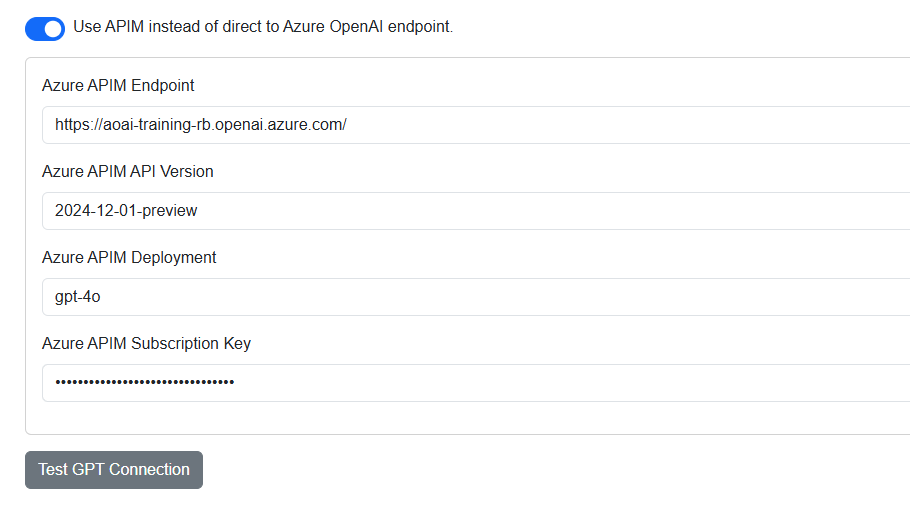
- In Admin Settings under GPT, enable Use APIM instead of direct to Azure OpenAI endpoint.
- Enter the Azure OpenAI endpoint URL, API version, and deployment name in the APIM fields instead of a true APIM proxy.
- Save the settings and fetch models again.
That route shifts model listing into the APIM-mode flow and avoids the cross-tenant management-plane enumeration failure.
Branding, support, and documentation questions
These answers point admins to the General settings that control the parts of Simple Chat users notice first.
Where do I change the application title, logo, favicon, or home page text?
Branding and landing content are both in Admin Settings under General.
What to do:
- Open Admin Settings > General > Branding to change the application title, logo visibility, light and dark logos, home page logo size, and favicon.
- Open Admin Settings > General > Home Page Text to edit the landing page Markdown and alignment.
- Use Configure Branding, Home Page, and Support Settings for the full checklist.
How do I check whether the system is healthy?
Enable one of the external health check routes before wiring a monitor to it.
What to verify:
- Use Admin Settings > General > Health Check to enable
/external/healthcheckor/external/healthcheckz. - Use
/external/healthcheckwhen the monitoring path can reach a protected route. - Use
/external/healthcheckzonly when the monitor cannot authenticate and the network path is trusted. - Test from the monitoring network path, not only from an admin workstation.
Where are the API docs?
Swagger is available at /swagger when the admin toggle is enabled.
What to use:
- Enable Admin Settings > General > API Documentation > Enable Swagger/OpenAPI Documentation (/swagger).
- Open
/swaggerfor the interactive browser. - Use
/swagger.jsonor/swagger.yamlfor tooling. - See the API Reference for endpoint details.
How do I show a classification banner, Support menu, or external resource links?
These navigation and guidance features are configured from General settings.
Where to go:
- Classification Banner: set banner text, background color, and text color for the top-of-page sensitivity label.
- Support: enable Support, rename the menu, configure Send Feedback, and choose which Latest Features users can see.
- External Links: add links to policies, prompt guides, help desks, or other trusted resources.
- System Settings: tune maximum file size, conversation history limit, and the default system prompt.
Upload and search questions
These problems usually come from permission gaps, failed indexing, or missing model configuration for embeddings and extraction.
File uploads are failing
Start by checking the dependent services the pipeline writes to during ingestion.
What to verify:
- The app service has permission to reach AI Search, Document Intelligence, Storage, Speech, Video Indexer, and any other enabled service in the upload path.
- Managed identity role assignments or configured keys are valid and match the services you enabled.
- Application Insights and App Service logs show whether the failure happens during extraction, embedding, indexing, or storage.
- File Processing Logs in Admin Settings can expose the exact stage that failed.
RAG is not returning expected results or any results
When search quality drops, verify indexing and embeddings before tuning prompts.
What to verify:
- Uploaded documents finished processing successfully in the workspace UI.
- The relevant Azure AI Search index contains the documents you expect and its count increases after uploads.
- The embedding deployment is configured correctly and reachable from the application.
- The Search Documents toggle is enabled in the chat UI and the user question is phrased in a way that maps to indexed content.
Model management questions
These checks matter when the application loads but the configured AI capabilities do not behave the way you expect.
How do I update the GPT, embedding, or DALL-E models used by the application?
Model selection is handled through admin configuration rather than code deployment.
What to do:
- Open Admin Settings.
- Go to the GPT, Embeddings, or Image Generation section that matches the model you want to change.
- Fetch the available deployments from the configured Azure OpenAI endpoint and select the desired deployment name.
- Save the settings. A code redeploy is not required when the endpoint stays the same.