Microsoft 365 Extensions
Microsoft 365 Extensions let you extend an existing Teams SDK application to channels such as Direct Line and Email without rewriting any Teams-specific capabilities.
Register your existing Teams SDK handlers on the App returned by useTeamsSdk (TypeScript), use_teams_sdk (Python), or AddTeamsSdk (C#).
Microsoft 365 Extensions work with your existing Teams SDK configuration and handlers.
This app is a bridge where Microsoft Agents SDK AgentApplication acts the multichannel host.
Matching Teams activities continue through your Teams SDK handlers, while non-Teams activities and unmatched Teams activities flow through the Agents SDK application.
How to Use It
Install the Microsoft 365 Extensions package alongside the Microsoft Agents SDK:
dotnet add package Microsoft.Agents.Hosting.AspNetCore
dotnet add package Microsoft.Agents.Authentication.Msal
dotnet add package Microsoft.Teams.M365Extensions
Add an Agents SDK host to your existing Teams SDK application, then register your Teams SDK bot with AddTeamsSdk:
using Microsoft.Agents.Storage;
using Microsoft.Teams.M365Extensions;

var builder = WebApplication.CreateBuilder(args);

// Your existing Microsoft Agents SDK agent
builder.AddAgent<MyAgent>();
builder.Services.AddSingleton<IStorage, MemoryStorage>();
builder.Services.AddAgentAspNetAuthentication(builder.Configuration);

// Embed your Teams SDK bot as middleware in the Agents SDK pipeline
builder.Services.AddTeamsSdk<MyTeamsBot>();

var app = builder.Build();

app.UseAuthentication();
app.UseAuthorization();
app.MapAgentApplicationEndpoints(requireAuth: !app.Environment.IsDevelopment());

app.Run();
Key Benefits
Extend Your Teams App to Other Channels
Through this extension, you can connect your existing Teams SDK app to other channels such as Direct Line and Email without rewriting your Teams-specific logic.
| Activity | Route |
|---|---|
| Teams activity matching a Teams SDK handler | Teams SDK |
| Teams activity without a matching Teams SDK handler | Agents SDK |
| Direct Line / Direct Line activity | Agents SDK |
| Email activity | Agents SDK |
Example Message Handler
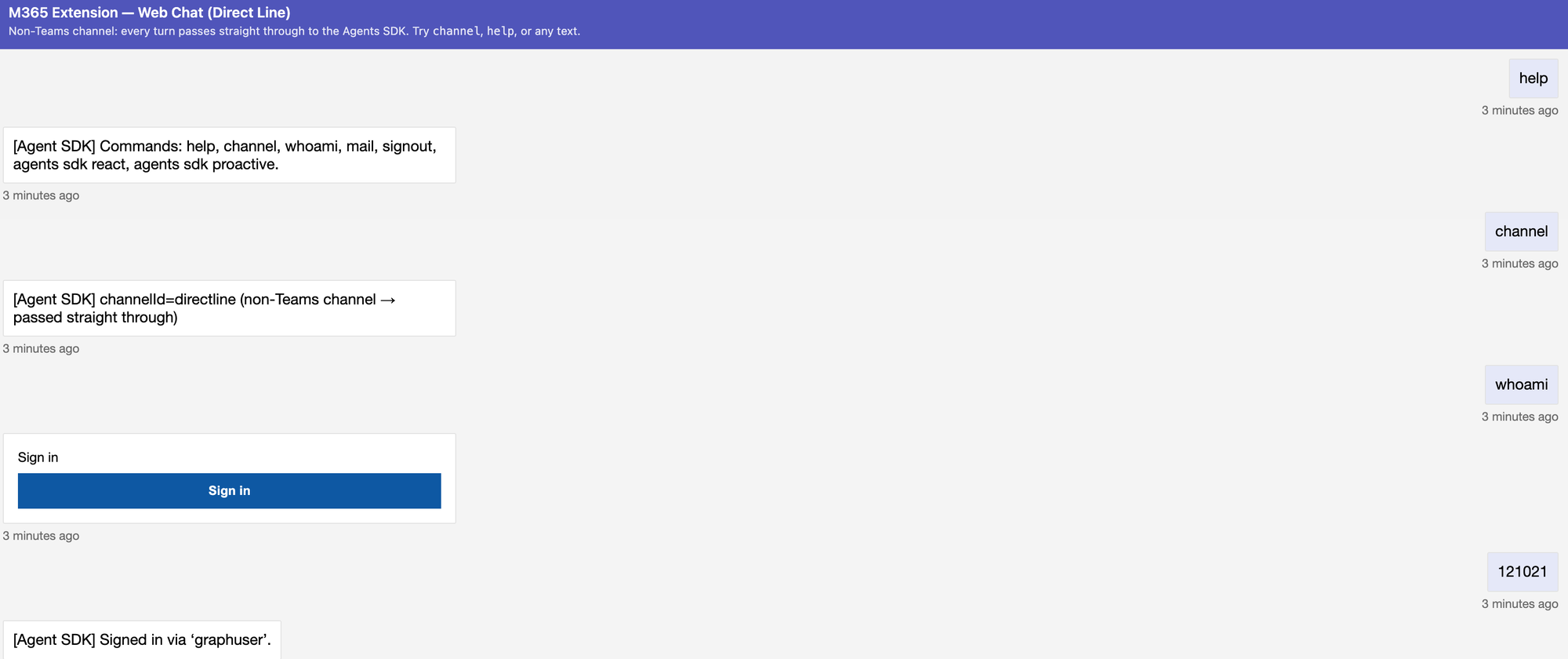
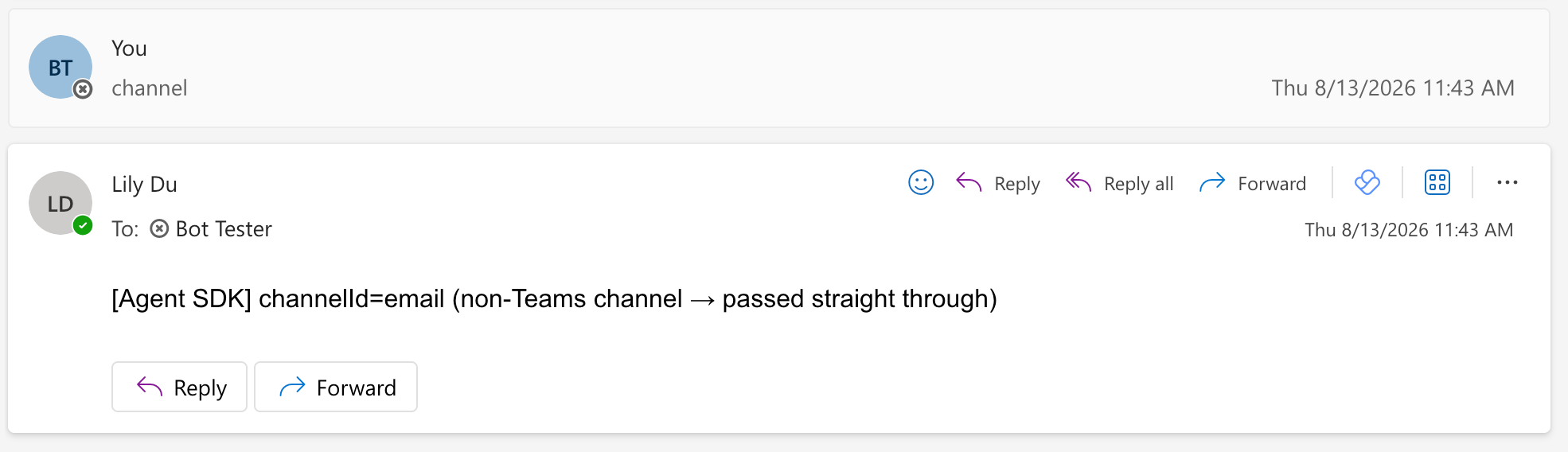
You can use the Agents SDK message handler to identify the incoming channel and confirm how each activity was routed.
The incoming activity is recognized as Teams if the channelId="msteams".
using Microsoft.Agents.Builder;
using Microsoft.Agents.Builder.State;
using Microsoft.Teams.M365Extensions;

private async Task ChannelAsync(ITurnContext context, ITurnState state, CancellationToken ct)
{
    string via = TeamsSdkMiddleware.IsTeamsChannel(context.Activity)
        ? "Teams turn with no matching teams.net route → fell through"
        : "non-Teams channel → passed straight through";
    await context.SendActivityAsync($"[Agent SDK] channelId={context.Activity.ChannelId} ({via})", cancellationToken: ct);
}
Direct Line
Email
Access Rich Teams Capabilities from Agents SDK
When an Agents SDK handler receives a Teams activity, it can use the Teams SDK API client to access Teams-specific capabilities, such as message reactions:
using Microsoft.Agents.Builder;
using Microsoft.Agents.Builder.State;
using Microsoft.Teams.Apps.Schema;
using Microsoft.Teams.M365Extensions;

private async Task AgentsSdkReactAsync(ITurnContext context, ITurnState state, CancellationToken ct)
{
    if (!TeamsSdkMiddleware.IsTeamsChannel(context.Activity))
    {
        await context.SendActivityAsync("Message reactions are only available in Teams.", cancellationToken: ct);
        return;
    }

    var response = await context.SendActivityAsync("Adding then removing a reaction.", cancellationToken: ct);
    var api = _teamsBot.Api.ForServiceUrl(new Uri(context.Activity.ServiceUrl));
    string conversationId = context.Activity.Conversation.Id;

    await api.Conversations.AddReactionAsync(conversationId, response!.Id, ReactionTypes.Like, cancellationToken: ct);
    await Task.Delay(2000, ct);
    await api.Conversations.DeleteReactionAsync(conversationId, response.Id, ReactionTypes.Like, cancellationToken: ct);
}
For a full example, the .NET Microsoft 365 Extensions sample demonstrates a single application running across Teams, Web Chat, and Email.
How It Works
Microsoft 365 Extensions adds a lightweight middleware bridge to your existing Teams SDK application. Aside from app initialization, your Teams-specific code stays the same.
- Add the bridge. Call
useTeamsSdk(TypeScript),use_teams_sdk(Python), orAddTeamsSdk(C#) to connect your app to Agents SDK. - Keep your Teams logic. Existing handlers and API client calls continue handling Teams activities.
- Add more channels. Direct Line, Email, and unmatched Teams activities flow to the Agents SDK.