Task 02: Acquire a Power Platform environment
Description
You’ll provision or reconfigure a Power Platform environment so it meets the requirements for computer-using agents: a Managed Production type, Dataverse enabled, and hosted in the United States region. Depending on your tenant, you’ll either create a new environment named EnvironmentForCUAgents or convert the existing default environment into a managed environment and add Dataverse.
Success criteria
- You created or reconfigured a Power Platform environment of type Production with Managed - Environments enabled and Dataverse added.
- The environment is hosted in the United States region.
- The environment status shows as Ready on the Environments page.
Computer-using agents must run in a Power Platform environment that meets these requirements:
- Environment type: Managed Production with Dataverse enabled
- Hosting region: United States
Some documentation indicates that Sandbox environments may cause provisioning issues. For this lab, use a Production environment.
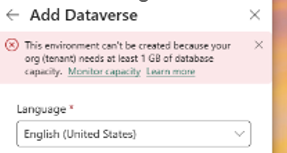
Adding Dataverse consumes tenant storage capacity. If you receive a storage capacity error when adding Dataverse or creating an environment, try configuring the default environment instead.
01: Create a new Power Platform environment
Complete this section only if you are creating a new environment.
If you plan to use an existing environment, skip to Section 02: Convert the default environment to a managed environment and add Dataverse.
-
Open an InPrivate browser session in Microsoft Edge and go to
https://admin.powerplatform.microsoft.com/. -
Sign in with your tenant administrative credentials.
-
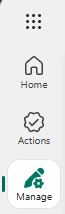
In the left pane, select Manage.
-
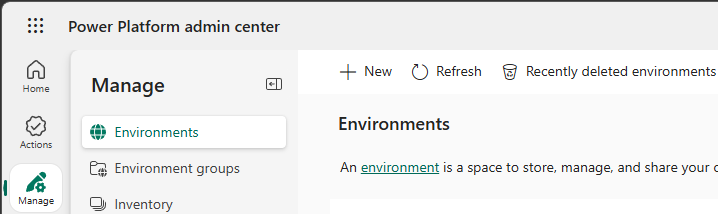
On the Environments page, select + New.
-
In the New environment pane, configure the fields by using the information in the following table:
Field Value Type Production Region United States. Name EnvironmentForCUAgents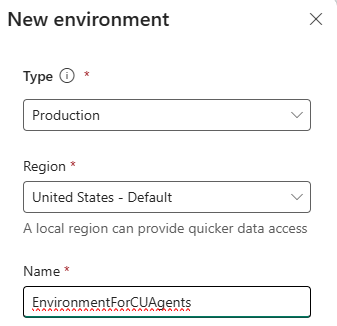

-
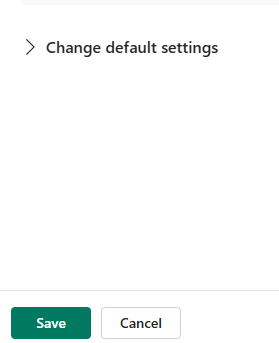
Go to the New environment pane and expand Change default settings.
-
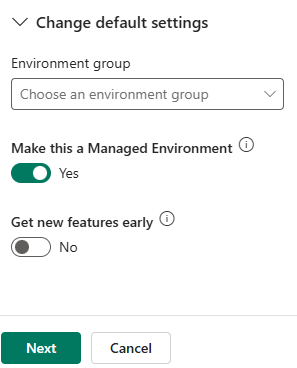
Set Make this a Managed Environment to Yes and select Next.
-
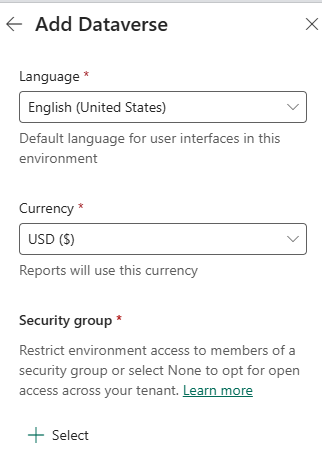
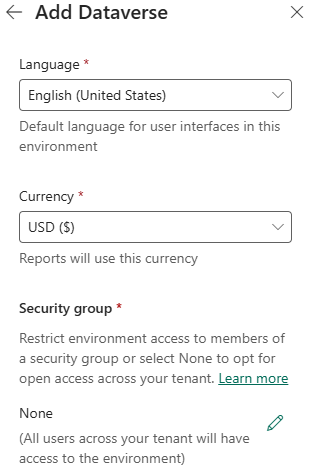
On the Add Dataverse pane, in the Security group section, select + Select.
-
In Open access, select None, then select Done.
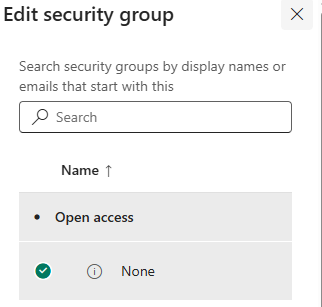
This option grants all tenant users access to the environment. For production deployments, configure restricted access.
-
On the Add Dataverse pane, select Save.

-
On the Environments page, monitor the State column.
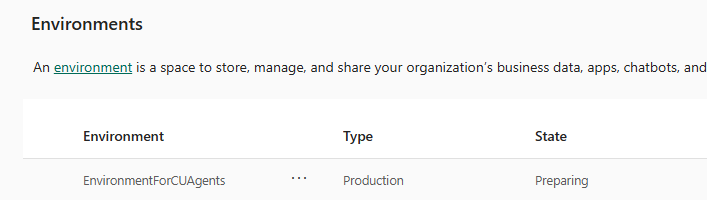
Provisioning is complete when the state changes to Ready. Select Refresh to update the status.

02: Convert the default environment to a managed environment and add Dataverse
In many cases, you can use the default environment for your agents. The environment must be hosted in the United States region. You cannot change the region after provisioning.
Perform the steps in this section of Task 02 if you plan to configure an existing Power Platform environment.
Skip these steps and complete the steps in Section 01: Create a new Power Platform environment to create a new environment.
-
Open an InPrivate browser session in Microsoft Edge and go to
https://admin.powerplatform.microsoft.com/. The Power Platform admin center Home page displays. -
Sign in with your tenant administrative credentials.
-
In the left pane, select Manage.
-
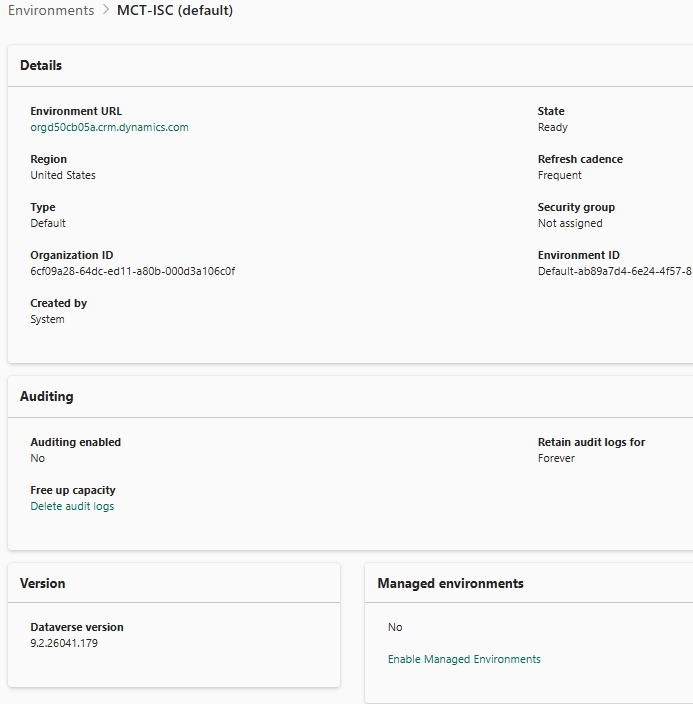
Locate the environment where the type is Default. The default environment depicted in this screenshot is not managed but does include Dataverse.

-
Select the environment. The environment details page displays.
-
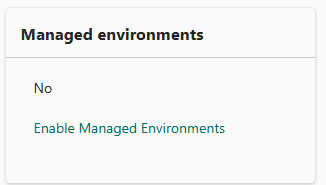
To make this a managed environment, go to the Managed environments tile and select Enable Managed Environments.
-
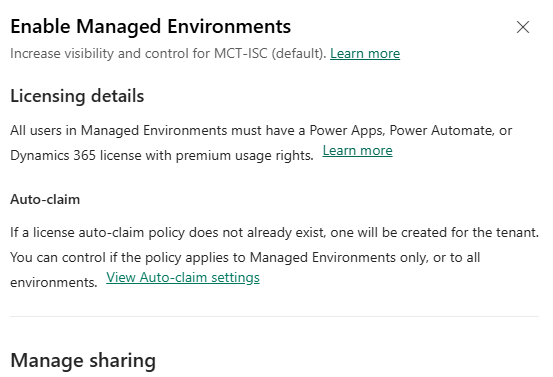
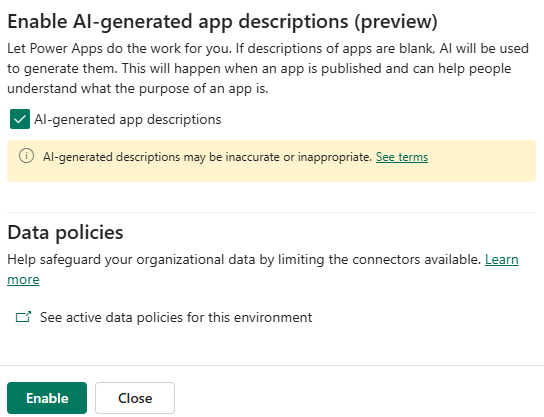
In the Enable Managed Environment pane, select Enable.
Some versions of the interface include an option to add Dataverse during this step. If your environment does not already include Dataverse, select that option before you select Enable.
-
To add Dataverse, on the environment details page, in the Add Dataverse tile, select + Add Dataverse.

-
In the Add Dataverse pane, in the Security group section, select + Select.
-
In the Open access section, select None. Then, select Done.
-
Select Add.