Task 03: Publish the agent and add a channel
Description
You’ll publish the Order Processing Agent to make it available to others, add the Microsoft 365 and Microsoft Teams channel, and submit the agent to the org catalog so that an administrator can approve its distribution to all users.
Success criteria
- You published the agent using the Publish command and confirmed the process completed.
- You added the Microsoft 365 and Microsoft Teams channel and selected Add channel.
- You submitted the agent to the org catalog using Submit to org catalog and confirmed the submission dialog.
Publishing agents from trial accounts is no longer permitted. The user must have a valid Copilot license.
01: Publish the agent and add a channel
-
On the command bar, select Publish.

-
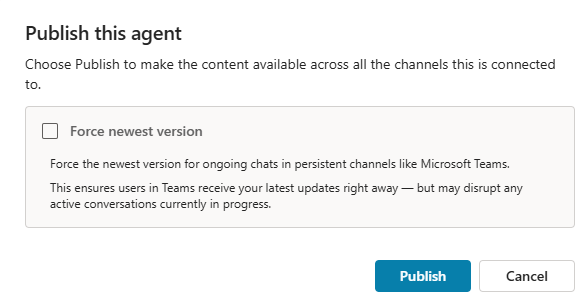
In the confirmation dialog, select Publish. Wait for the publishing process to complete.
-
On the command bar, select Channels.

-
In the list of tiles that display, select Microsoft 365 and Microsoft Teams.

-
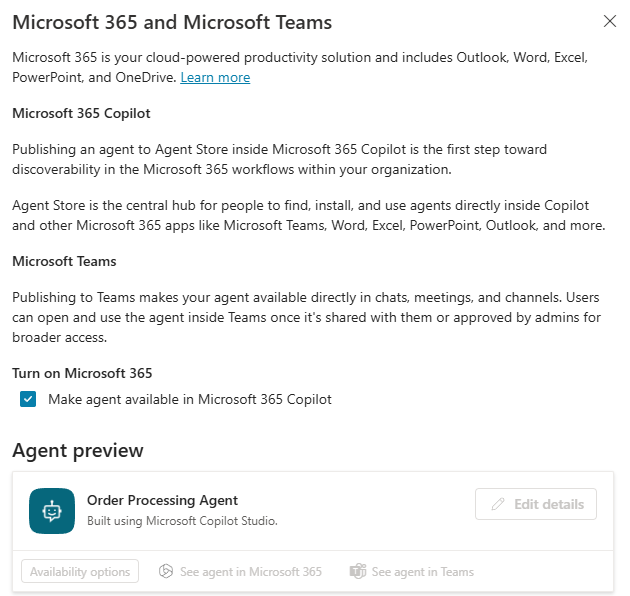
In the Microsoft 365 and Microsoft Teams pane, select Add channel.

-
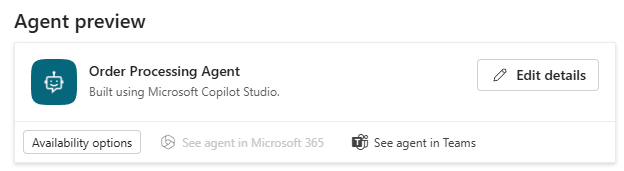
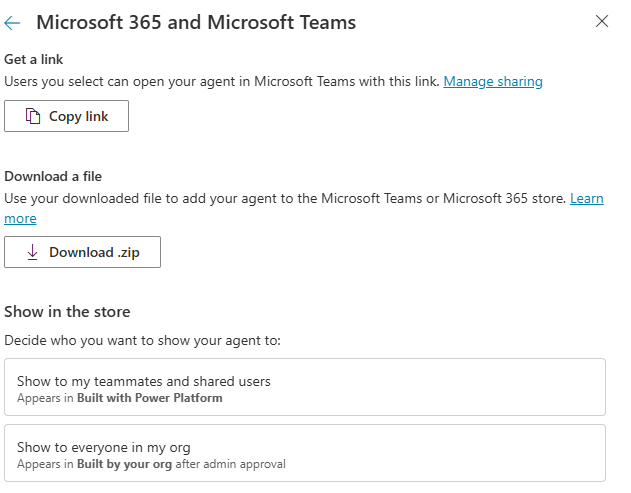
In the Microsoft 365 and Microsoft Teams pane, select Availability options.
-
In the Show in the store section, select Show to everyone in my org.
This action sends an approval request to an administrator. Before the agent becomes visible to everyone, the administrator must approve the request. You will approve the request in the next exercise.
-
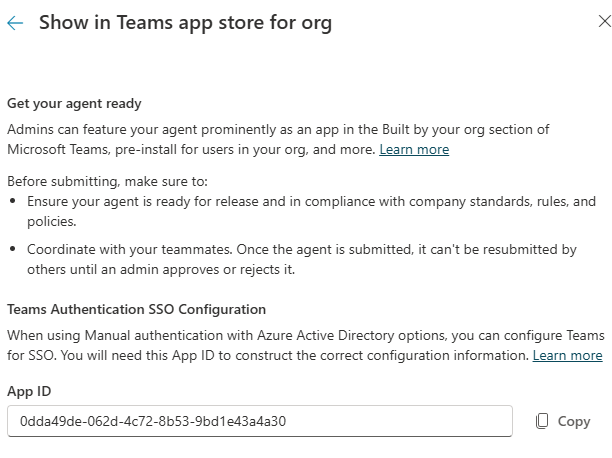
In the Show in Teams store for org pane, select Submit to org catalog.
-
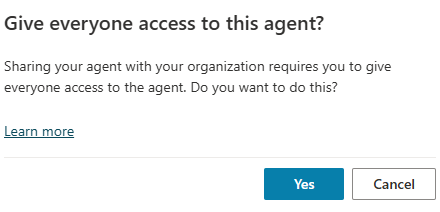
In the confirmation dialog, select Yes.