Task 05: Create a SharePoint site and upload an Excel workbook that represents orders
Description
You’ll create a SharePoint Communication site named Sales and Marketing, download the W365A Lab Product Orders.xlsx workbook from GitHub, and upload it into a Sales folder in the site’s document library. The SharePoint site URL you capture here will be used to populate the agent instructions in Exercise 02.
Success criteria
- You created a SharePoint Communication site named Sales and Marketing and copied its URL into the lab text field.
- You downloaded W365A Lab Product Orders.xlsx from the GitHub repository to your Downloads folder.
- You created a Sales folder in the site’s document library and uploaded the Excel file into it.
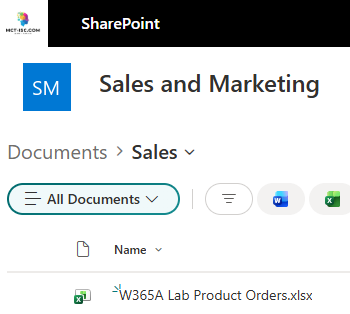
- You confirmed the file is visible in the SharePoint document library.
01: Create the site
-
Open an InPrivate browser session in Microsoft Edge and go to
https://www.microsoft.com/en-us/microsoft-365/sharepoint. -
Sign in by using your administrative credentials.
-
On the command bar, select Create site.

-
In the Select a template dialog, select Communication site.

-
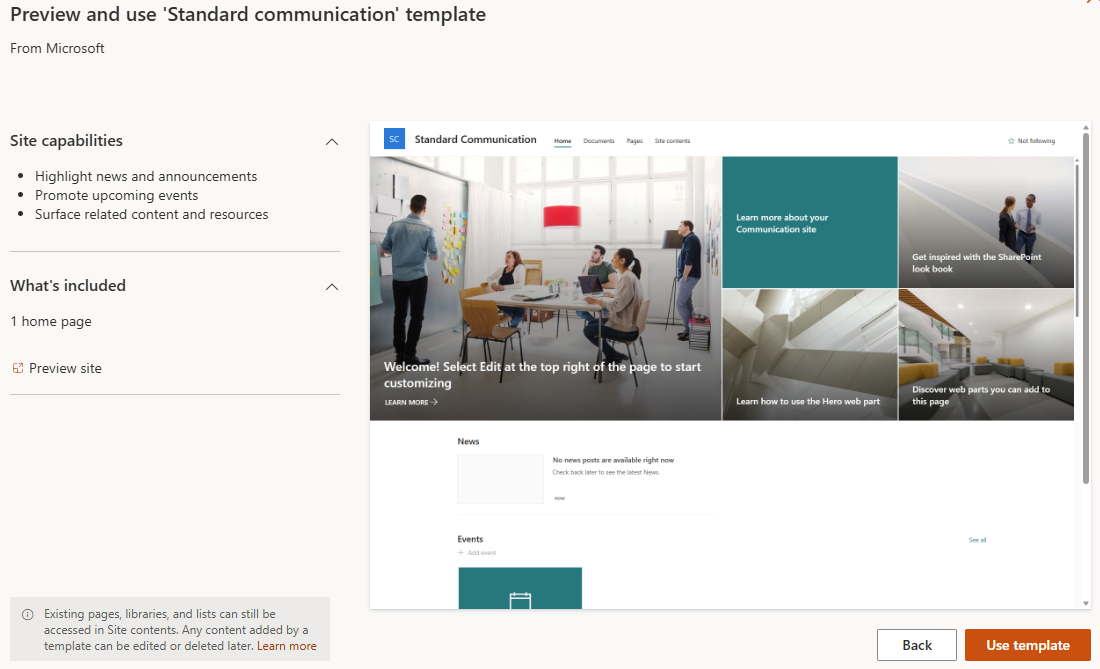
In the Select a template dialog, select Standard communication.

-
Select Use template.
-
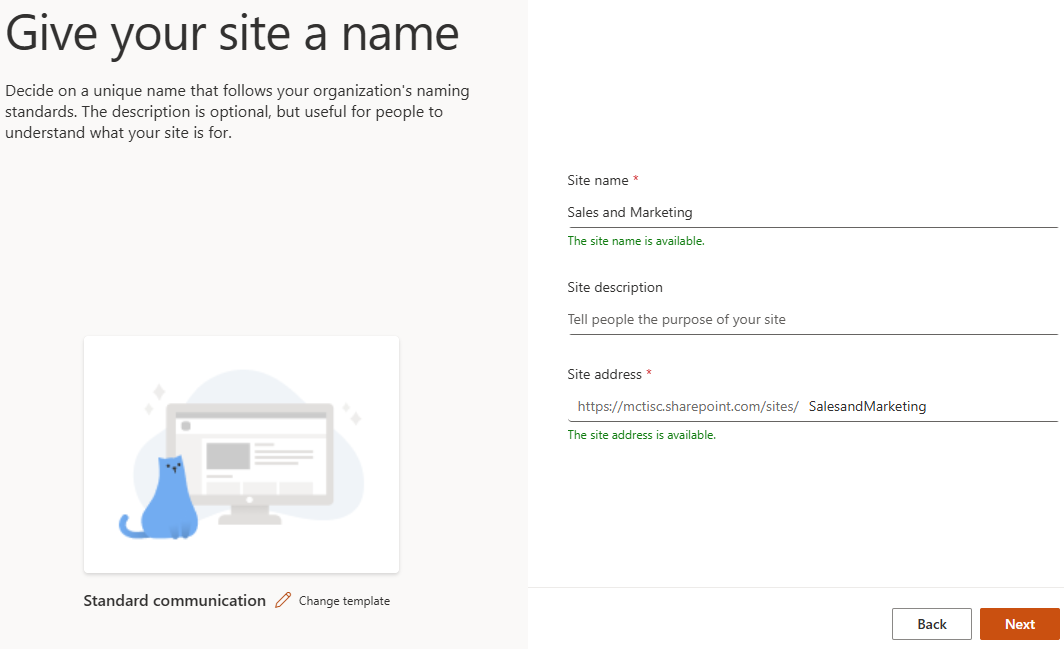
In the Site name field, enter the following text and then select Next.
Sales and MarketingYou may see a message stating that the site name is not unique and cannot be used. If you see this message, try adding numbers to the end of the name until the name is accepted.
-
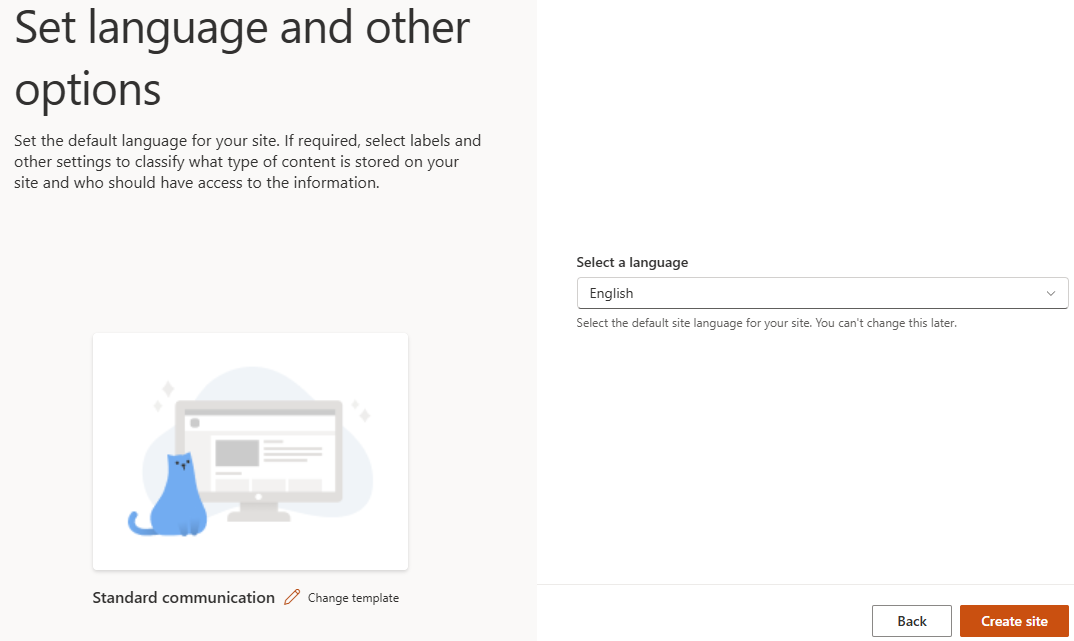
Select Create site.
-
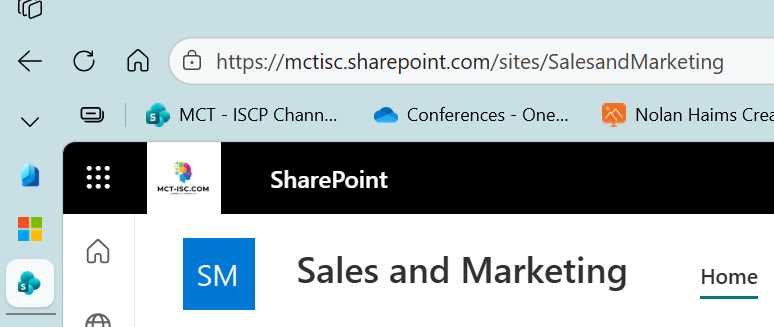
In the browser address bar, copy the URL for the site. The URL should resemble the following:
https://msce09878345.sharepoint.com/sites/SalesandMarketing/
-
Paste the URL into a notepad file for later use.
-
Leave the SharePoint site open. You will return to the site to upload a Microsoft Excel workbook later in this task.
02: Download the Excel workbook from GitHub
We have placed the Excel workbook in a GitHub repository so that you can easily access the file. In this section, you will download the file so that you can add the file to the SharePoint document library.
-
Open a web browser and go to
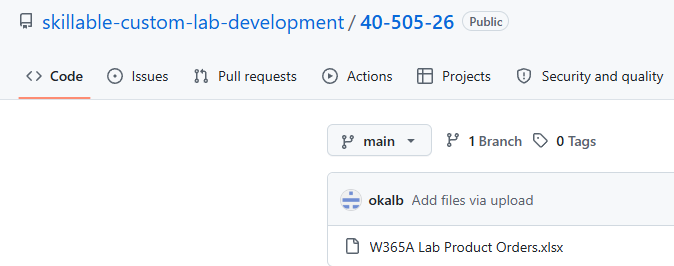
https://github.com/skillable-custom-lab-development/40-505-26. -
In the list of files, select W365A Lab Product Orders.xlsx.
-
On the page for the W365A Lab Product Orders.xlsx file, on the command bar, select Download raw file.

-
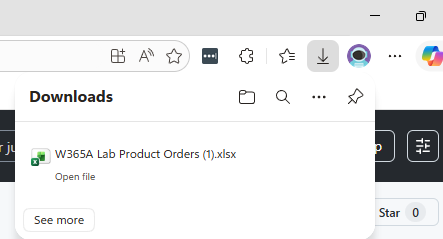
Confirm that the file has downloaded to your Downloads folder.
03: Upload the Excel file to SharePoint
In this section, you’ll upload the Excel workbook to the SharePoint document library.
-
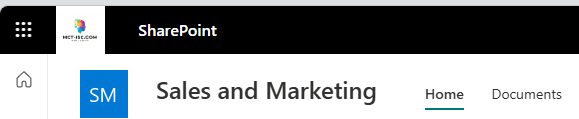
On the SharePoint site page, on the command bar, select Documents.
-
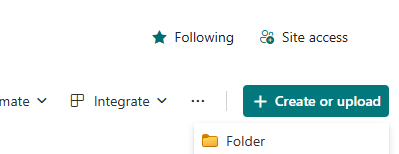
On the command bar for the document library, select + Create or upload and then select Folder.
-
In the Create a folder dialog, in the Name field, enter
Salesand then select Create.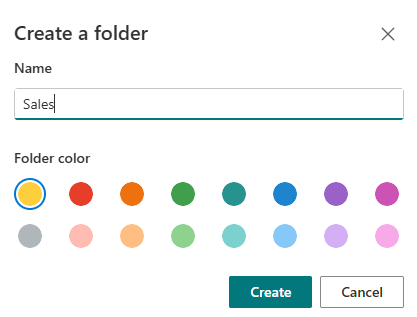
-
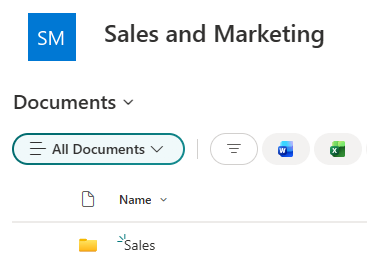
On the document library page, double-click Sales to open the folder.
-
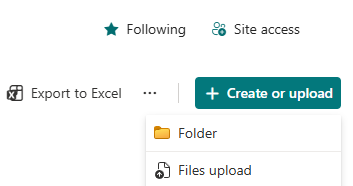
On the command bar for the document library, select + Create or upload and then select Files Upload.
-
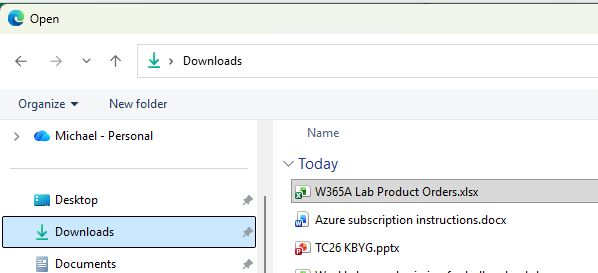
In the File Open dialog, go to the folder where you downloaded the file. Select the W365A Lab Product Orders.xlsx file and then select Open.
-
Check the SharePoint document library to ensure that the file is available.