Task 02: Test the agent
Description
You’ll run a test of the Order Processing Agent tool from the Instructions section and monitor the Activity pane and test machine interface as the agent reads the Excel workbook, submits orders to the Order Management Portal, and writes the generated Order IDs back to the spreadsheet. You must be available to approve any MFA prompts during the test.
Success criteria
- You initiated a test from the Instructions section and monitored the agent processing orders in the test machine interface.
- You confirmed the agent opened the Order Management Portal and the SharePoint site, submitted at least one order, and updated the spreadsheet with the Order ID and status.
- You selected Finish Testing to close the test session.
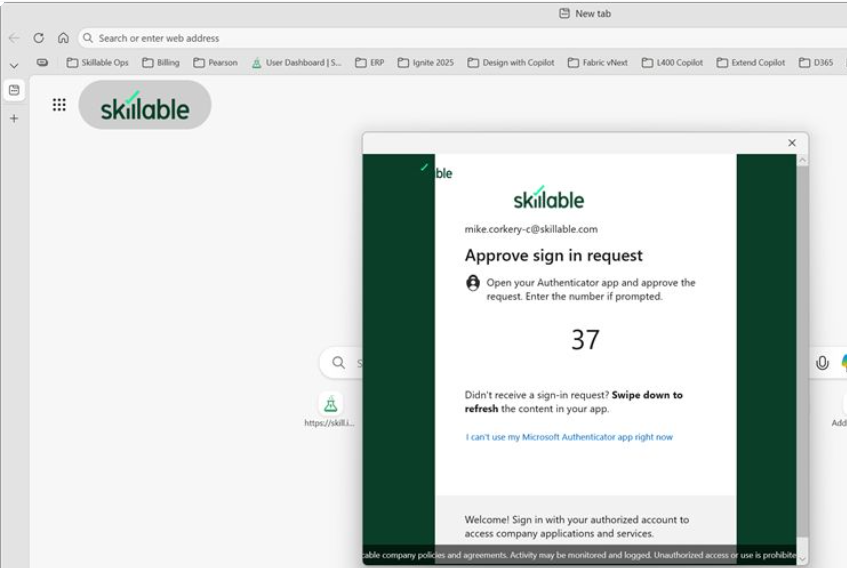
The agent connects to an internal SharePoint site that requires authentication. You must monitor the activity window during testing so that you can complete multi-authentication (MFA) if prompted. Testing will be suspended when the system is waiting for MFA, and the process will time out if you do not complete MFA.
You may also receive an email notification to approve the test. The email is sent to the email address that you configured in Task 01. You must approve the request for the test to continue.
-
On the Order Processing Agent tool page, go to the Instructions section and then select Test.
During lab development, the entire testing process (from the request for a computer to successful submission of the invoice took between 15-20 minutes.)
-
Wait while the system prepares to test the process.
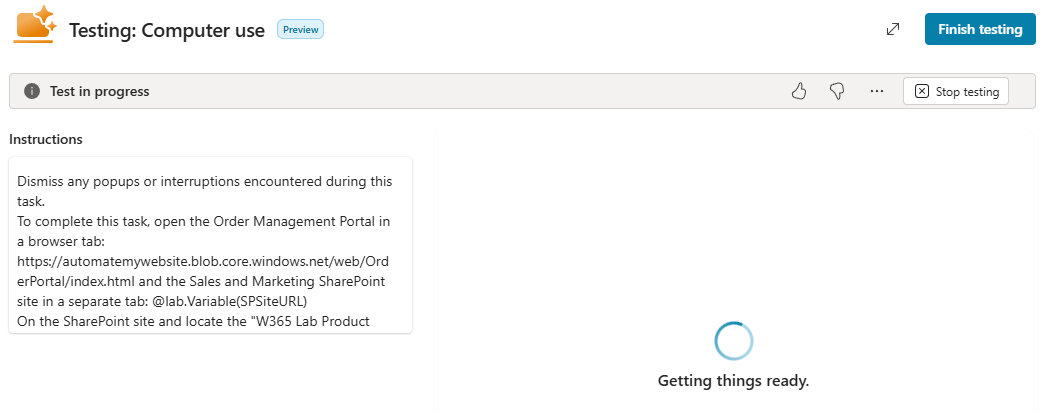
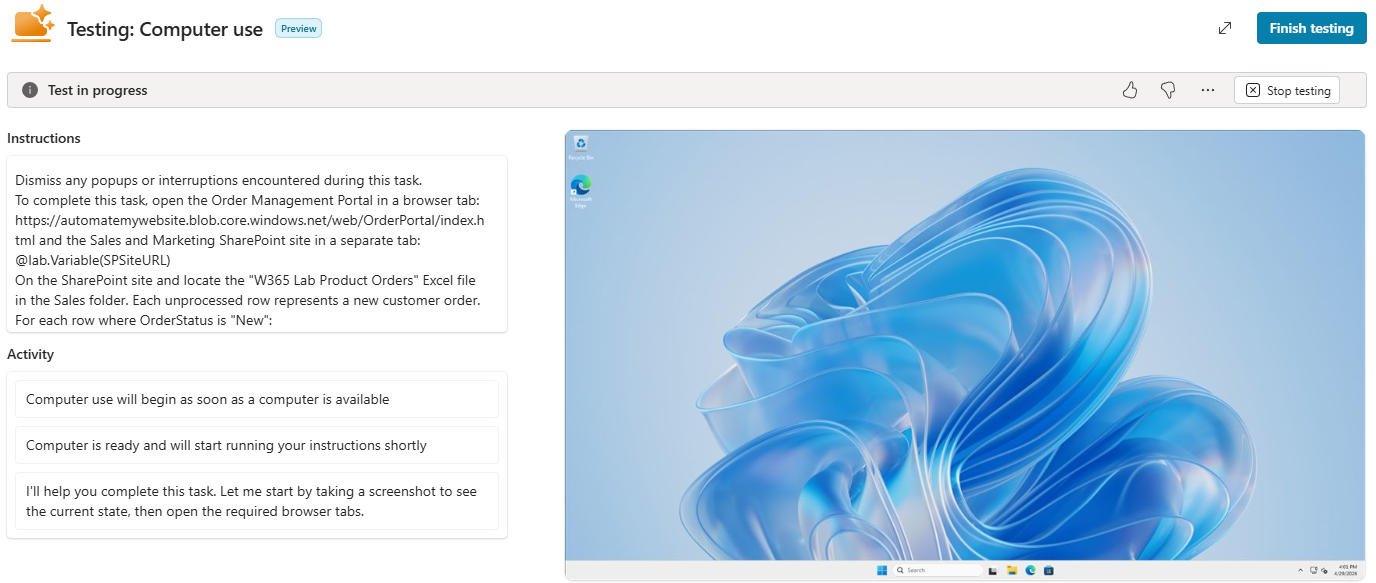
In the Testing: Invoice processing dialog, the Instructions and Activity panes display on the left. The test machine user interface appears on the right.
-
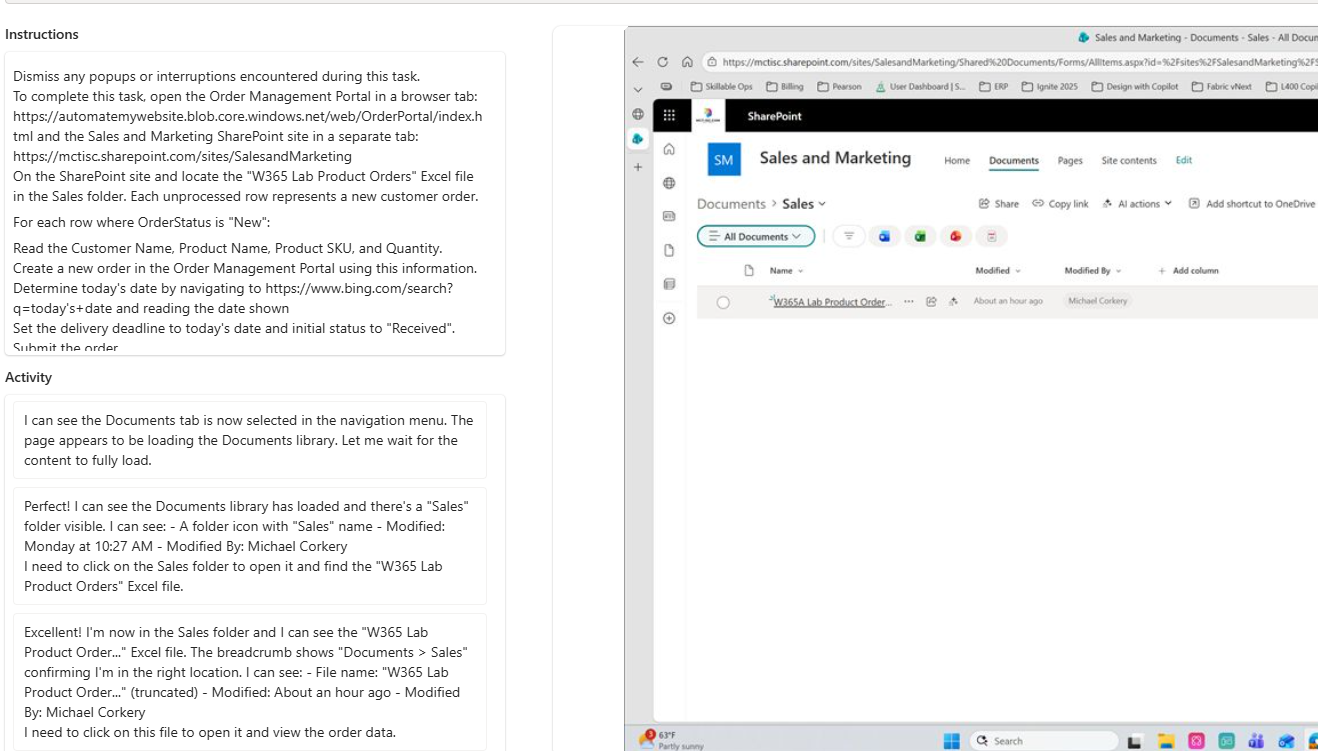
Monitor the Activity pane. The following screenshot shows that the agent successfully opened the Orders site and the SharePoint site.
-
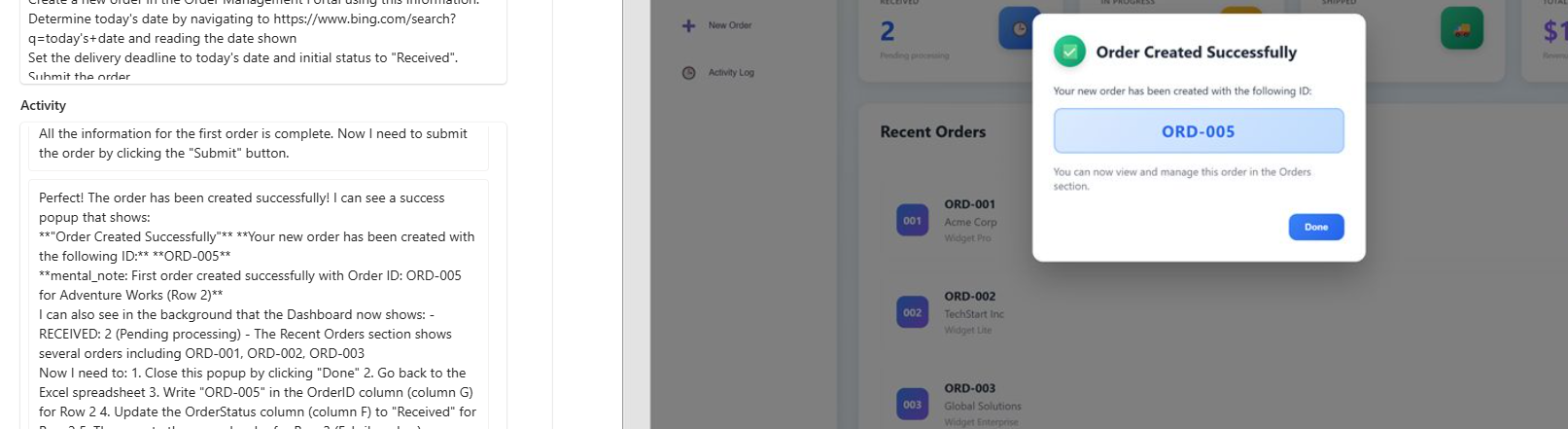
The following screenshot shows that the agent successfully entered an order.
-
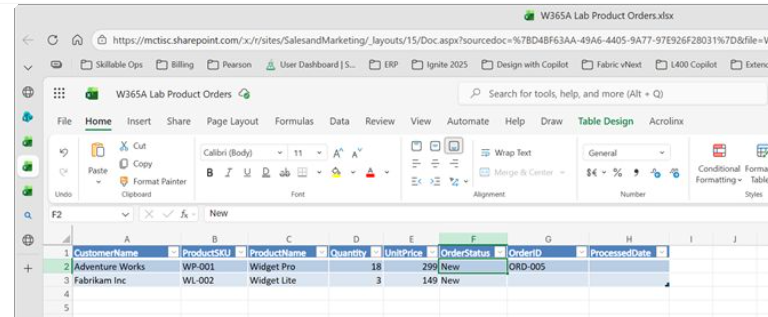
Here, you can see that the agent is updating the Excel workbook to show the new status for the order.
-
At the upper right of the Testing: Invoice processing dialog, select Finish Testing.

-
The following screenshot shows that the agent is waiting for you to complete MFA. Check your Authenticator app and approve the request.
You may experience issues with MFA. If you can’t finish this task because you are blocked please continue on.