Turn Your Daily Digest Into a Podcast You'll Actually Listen To
GHCP harness
A Copilot Studio Skill that turns any document, email, or press review into a two-host podcast episode, with multi-voice SSML, an Azure Text to Speech endpoint, and an agent you can listen to from your phone.

Every morning at 7:12, a press review lands in my inbox. Fifteen headlines, three paragraphs each, curated by someone who clearly cares. And every morning, I open it, scroll to the bottom in about four seconds, and tell myself I’ll read it properly later.
I never read it properly later.
The frustrating part is that I have a perfectly good forty-minute window every day where my eyes are busy and my ears are not: the commute. Same on the treadmill. Same while cooking. That’s more than enough time to absorb everything in that email, and none of it is time I can spend reading.
So I built an agent that takes the email and hands me back a podcast episode. Two hosts, actual conversation, roughly six minutes, playing in my headphones on the train.
Today’s menu:
- What I was actually after — and why a summary isn’t it
- The Azure Speech endpoint — creating it and wiring it into the agent
- The Skill — what it does, and why this had to be a Skill
- Publishing to Teams and M365 Copilot so it lands on your phone
- The SSML details that decide whether it sounds like a podcast or a train announcement
This one needs the GitHub Copilot harness. Skills live there, not in the Standard harness, and the whole thing hangs off them. If you aren’t building with it yet, this post is a preview rather than a build guide.
The thing I actually wanted
Let me be precise about the goal, because “summarize my email” is not it. I’ve had agents summarize that press review before. What you get back is a bulleted list, which is a perfectly good artifact for reading and a terrible one for listening. Bullets read aloud sound like a fire drill.
What makes something listenable is friction between two people. One of them says a number, the other one says “wait, off what base?” That exchange is what makes a fact stick. It’s why the NotebookLM audio overview format caught on so fast, and it’s the format I wanted for my inbox.
So the agent produces three things:
| Artifact | What it’s for |
|---|---|
<slug>_Podcast_Script.txt |
The human-readable transcript, with NOVA: / MILES: labels, so you can skim what you’re about to hear |
<slug>_Podcast.ssml |
The machine artifact. Multi-voice SSML, nothing else, ready to hand to a text-to-speech service |
<slug>_Podcast.wav |
The narrated episode, if you ask for it |
The source can be almost anything: a newsletter, a press review, a set of articles pasted into chat, a PDF, a document. Or nothing at all, if you just want an episode about a topic. I’ve used it on a twelve-page architecture doc I was supposed to review before a meeting, and it was genuinely better preparation than skimming would have been.
Here’s the finished thing before we build it, so you know what we’re aiming at.
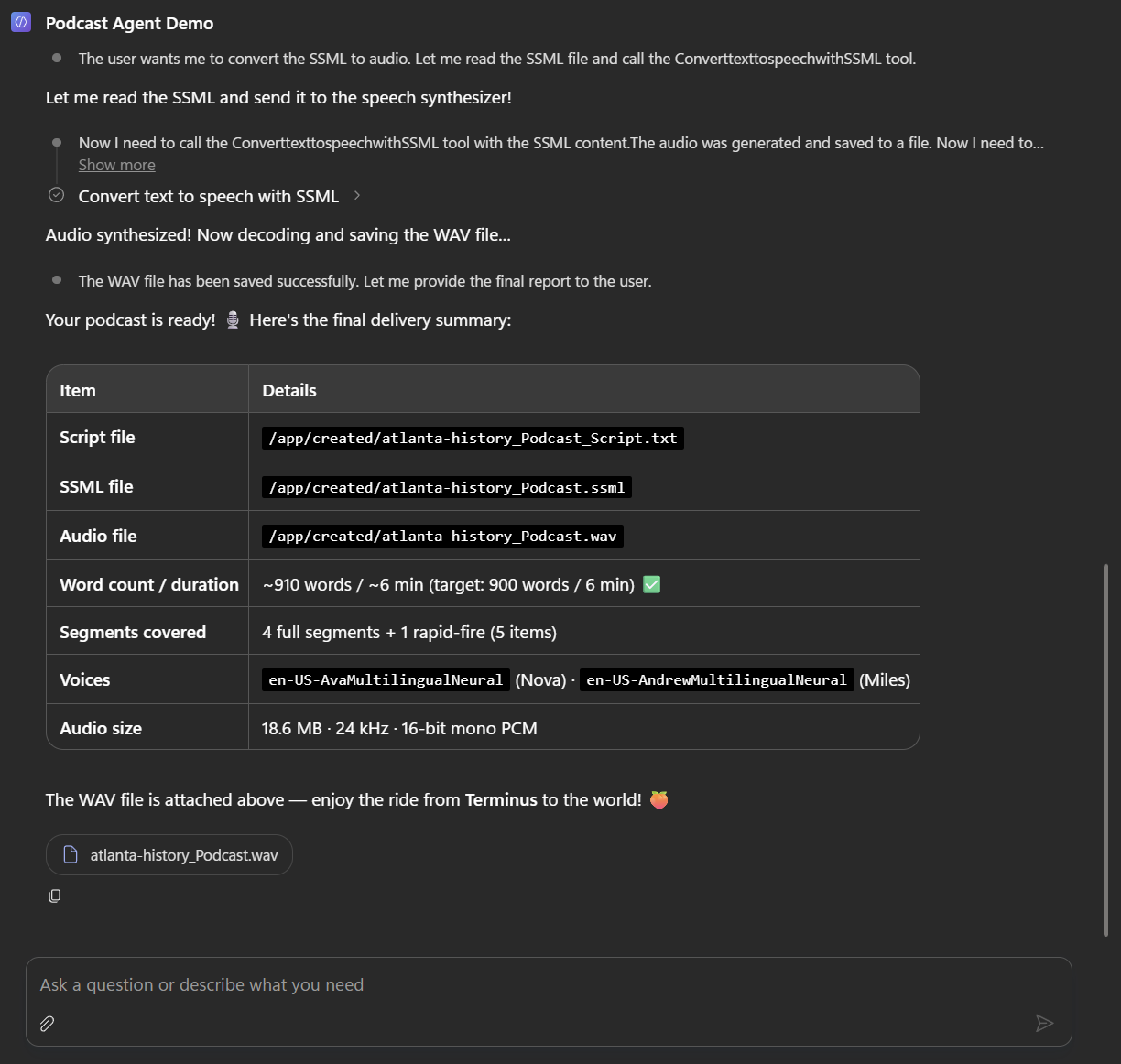 Paste the digest, get a segment breakdown, say yes to audio, get a
 .wav. The whole loop is one conversation.
Part 1: The Azure Speech endpoint
The agent needs somewhere to actually synthesize audio. That’s an Azure AI Speech resource, and it takes about three minutes to stand up.
Create the Speech resource
In the Azure portal, create a Speech service resource. The choices that matter:
-
Region. Pick one close to you, and write it down. The connector asks for it by short code (
westeurope,eastus, and so on), not by display name. - Pricing tier. The free tier includes a monthly allowance of neural text-to-speech characters, which is enough to prove the whole thing works before you commit to anything. A six-minute episode is roughly 5,000 characters of spoken text.
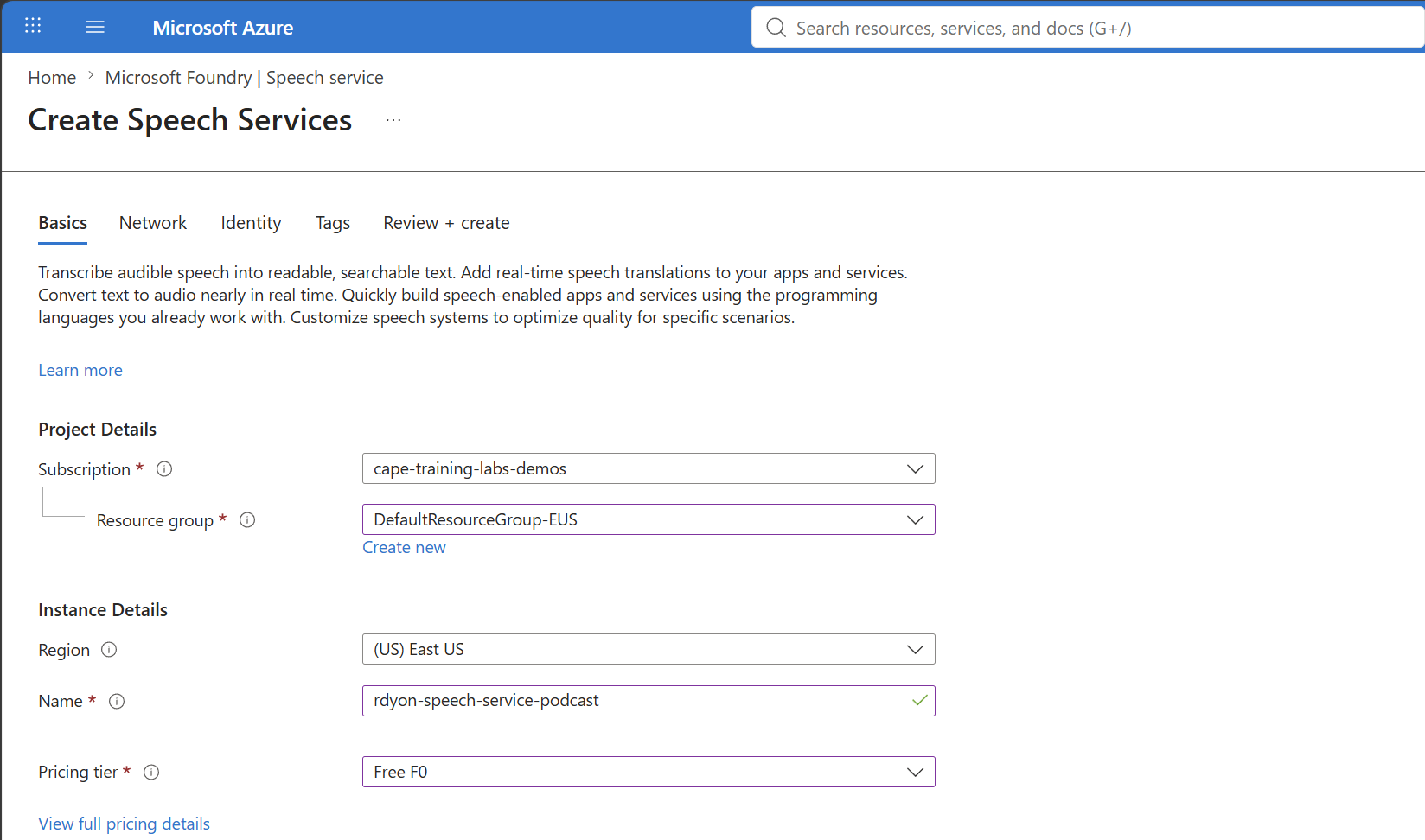 Region and pricing tier are the only two real decisions here. Note the region string, you’ll need it in a minute.
Grab the key and region
Once it deploys, open the resource and go to Resource Management → Keys and Endpoint. You need KEY 1 and the Location/Region value. That’s it, the connector doesn’t need the endpoint URL.
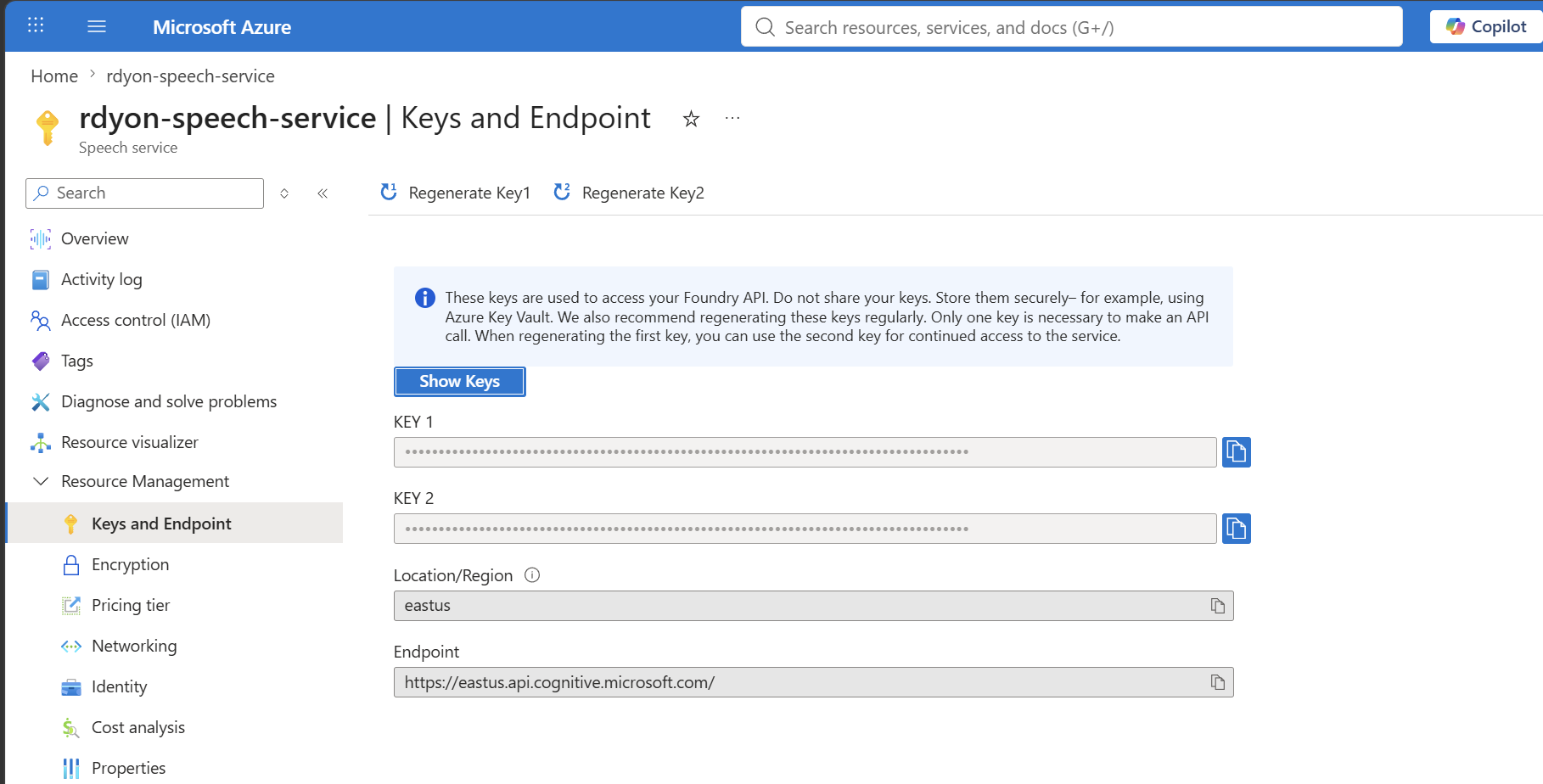 Key 1 and the region string. Both go straight into a Power Platform connection and nowhere else.
Treat the key like any other credential. It goes into a Power Platform connection, not into a Skill file, an instruction, or a variable. If you’d rather not handle a key at all, the connector also supports Microsoft Entra ID authentication against the resource ID, which is the better answer for anything beyond a personal demo.
Check your voices exist
The default cast uses en-US-AvaMultilingualNeural and en-US-AndrewMultilingualNeural. Both are standard neural voices, but availability varies by region, so it’s worth a quick look at the supported voices list for the region you picked before you go further.
Part 2: Wire the connector into the agent
Over to Copilot Studio. In your agent, go to Tools → Add a tool → Connector, and search for Azure Text to speech.
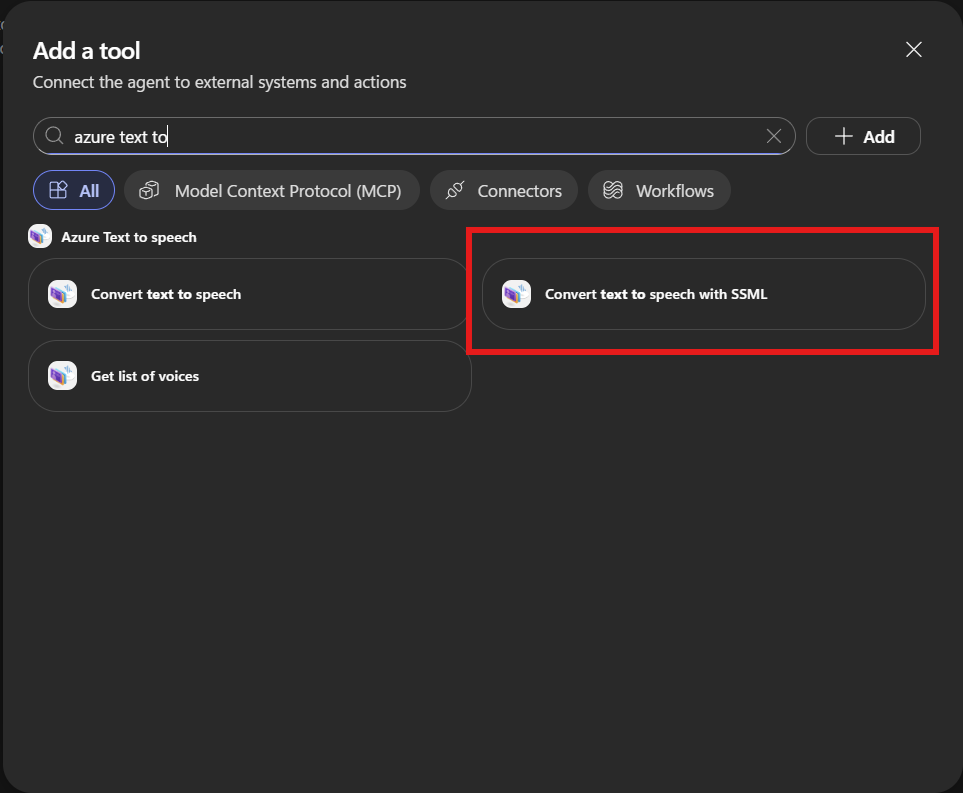 The connector ships three operations. You only need one of them.
Add the Convert text to speech with SSML action. This is the one that matters. Its sibling, Convert text to speech, takes a plain string and a single voice name, which means one host reading at you in a flat monotone. The SSML operation is what buys you two speakers, per-line prosody, and controlled pauses.
When prompted, create the connection. Choose API Key authentication and fill in the two values from the Azure portal:
| Field | Value |
|---|---|
| Account Key | Key 1 from the Speech resource |
| Region | The region short code, e.g. westeurope
|
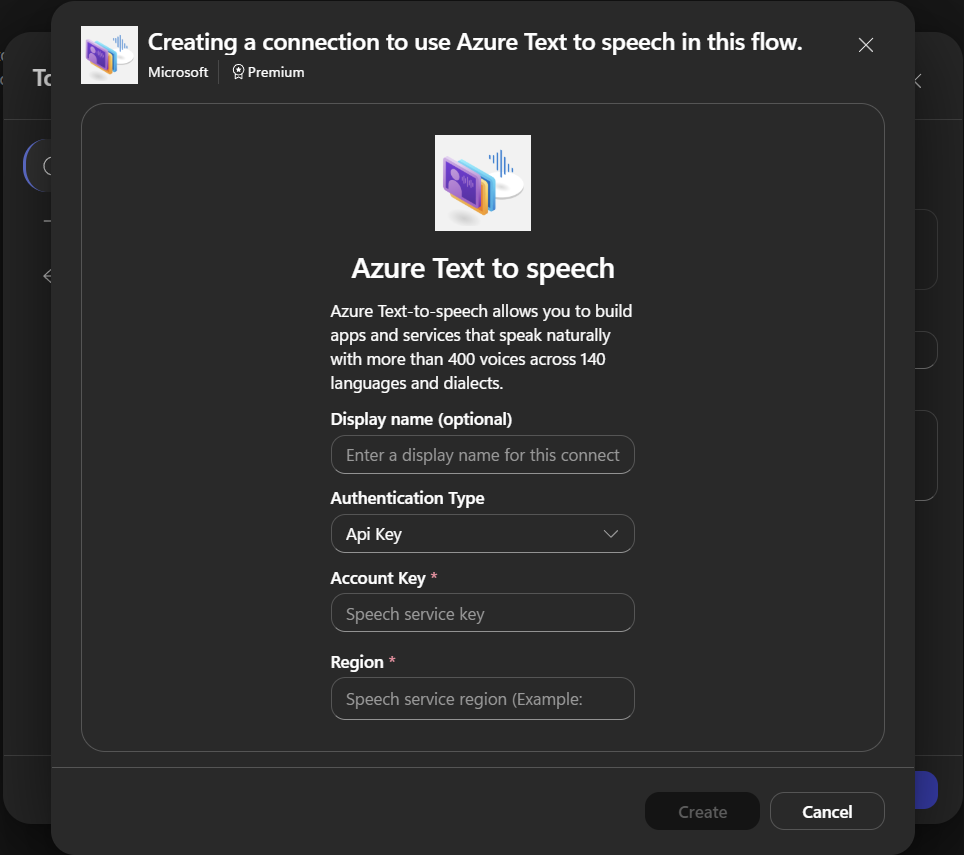 Two fields. The region is the one people get wrong, it’s the short code, not the friendly name.
Two things worth knowing before you build a habit on this connector:
- It’s a premium connector, so the usual Power Platform licensing rules apply.
- It throttles at 100 calls per connection per 60 seconds. Irrelevant for one episode a day, very relevant if you ever point this at a batch of documents.
Once the tool is added, check that its description still reads sensibly in the agent’s tool list. The agent picks tools on description, and the Skill instructs it to reach for this one by name, so a heavily rewritten description will break the handoff.
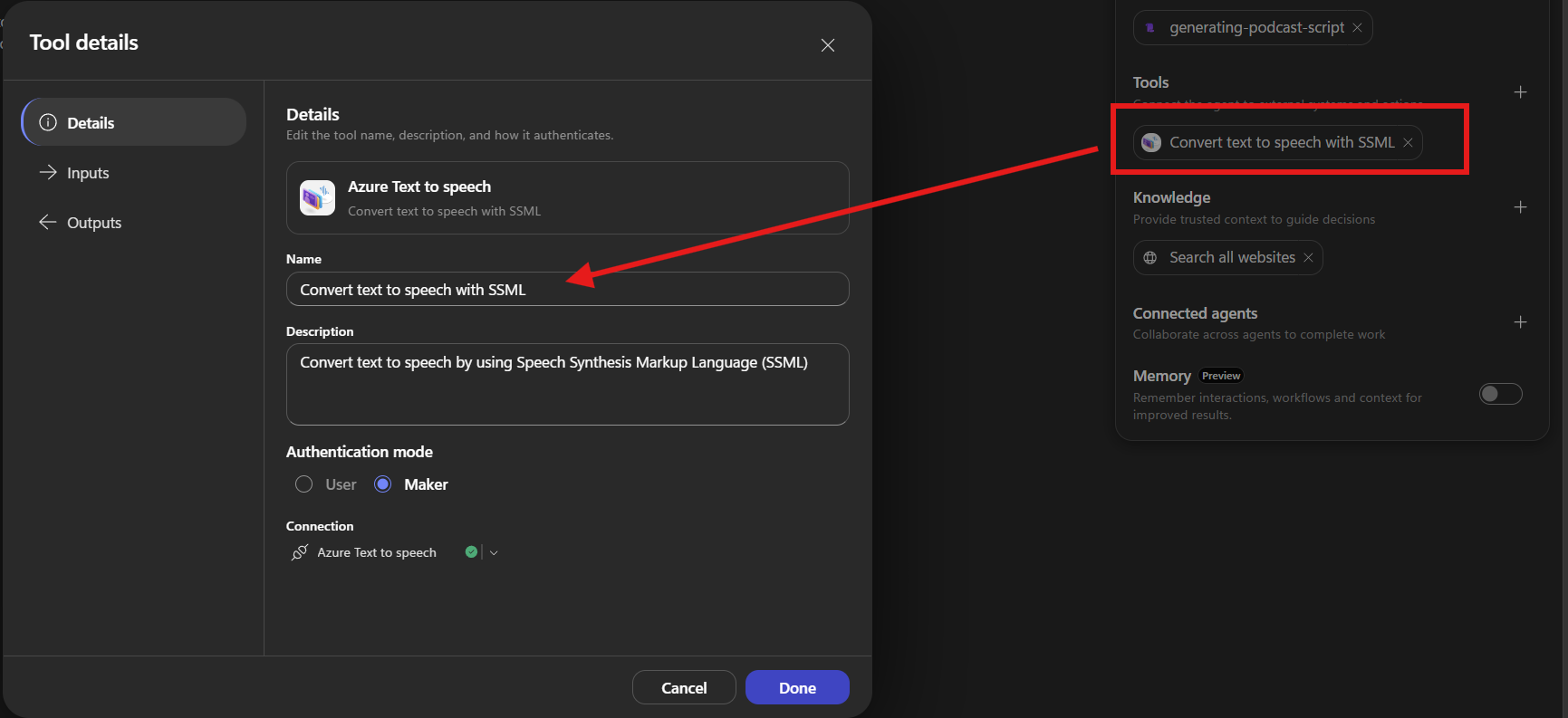 The tool as the Skill expects to find it.
Part 3: Add the Skill
With the plumbing in place, the interesting part is the instructions.
Why a Skill and not a prompt
You could write all of this as one enormous instruction block on the agent. I tried. It’s a bad idea for two reasons.
The first is that the guidance is long. Parsing source material, ranking items editorially, writing conversational dialogue, spelling out numbers for a synthesizer, and emitting valid multi-voice SSML add up to a few thousand words of very specific procedure. If that sits in the agent’s instructions, it’s in context on every single turn, including the ones where someone just says “hi”.
The second is that it’s situational. Most of what my agent does has nothing to do with podcasts. Roel’s post on how Skills work in Copilot Studio puts the rule better than I can: if guidance is true in every conversation, it belongs in instructions; if it only applies to specific scenarios, it belongs in a Skill. This is about as scenario-specific as it gets.
Get it and upload it
You don’t have to write this one from scratch. The Skill is published in the CAT skill library: Podcast Script Generator. Download it from there and you get exactly what’s described below.
The Skill is a folder with three files:
1
2
3
4

generating-podcast-script/
├── SKILL.md        # front matter + the eleven-step procedure
├── README.md       # human-facing explanation
└── metadata.json   # name, description, tags, version
Zip the folder and upload it in the agent’s Skills tab via Add a Skill → Upload. A standalone SKILL.md works too, but the zip keeps the README and metadata travelling with it.
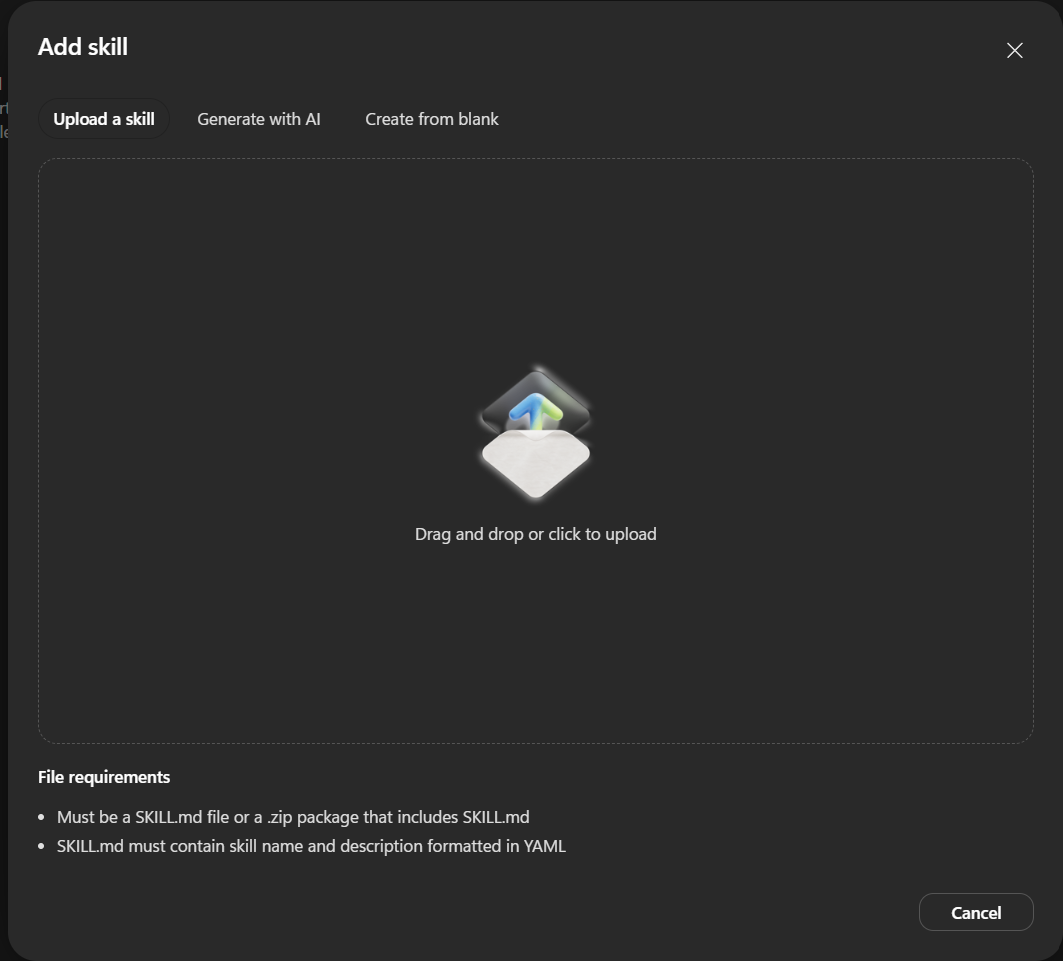 Upload the zip and the Skill becomes part of the agent, scoped to it and travelling with it through solutions.
The routing signal is the description in the front matter, and it’s deliberately explicit about the follow-ups:
1
2
3
4
5
6
7
8

name: generating-podcast-script
description: >
  Use this skill whenever the user asks to write, generate, or create a
  podcast script or podcast episode, from a topic, or from source material
  such as a news digest, newsletter, email review, or set of articles, and
  optionally convert it to audio with Azure Text-to-Speech. Handles the
  initial request and every follow-up refinement (source, topic, length,
  cast, narration) in the same task.
That last sentence exists because of a bug I spent too much time on. Without it, the Skill fired cleanly on “make this a podcast”, then quietly dropped out of context when I said “actually, make it shorter”, and the agent improvised a script with none of the rules applied. Saying out loud that the Skill owns the follow-ups fixed it.
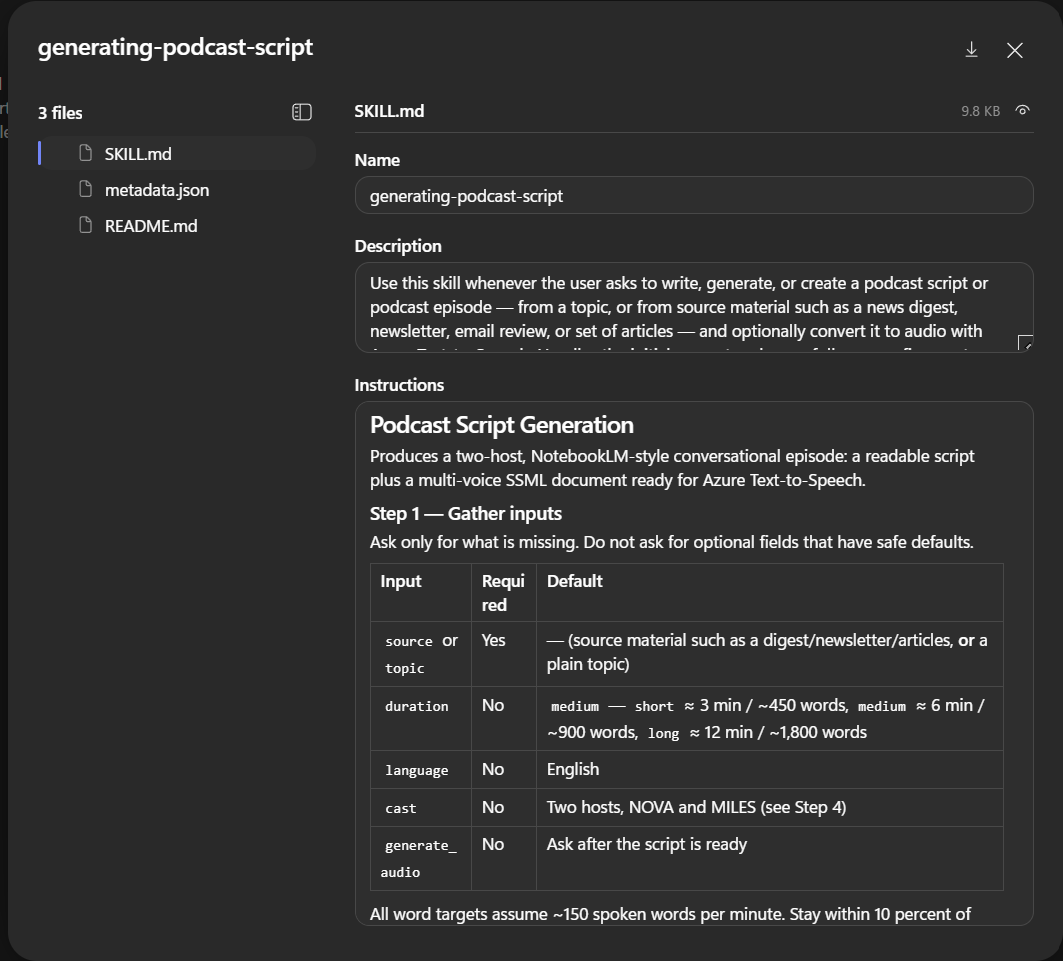 Name and description are the routing metadata. Everything else loads only when a podcast request shows up.
What the Skill actually does
The interesting part isn’t “generate a podcast”, it’s the sequence. The Skill walks the agent through eleven steps, and the ordering is what keeps the output from turning to mush.
It parses before it writes. Given source material, the first pass extracts every distinct item: headline, publication, date, the core factual claim, any figures or quotes, and the “so what”. Duplicates covering the same event get merged. Footers, disclaimers, unsubscribe text, and image captions get thrown away. This step alone is why the output from a real newsletter is usable, because a real newsletter is about 30 percent boilerplate.
It makes an editorial decision. The remaining items get ranked by newsworthiness and impact. The top four to six get full segments. Everything else gets swept into a single rapid-fire round. That’s the difference between an episode and a list, and it’s the step most people skip when they try this with a one-shot prompt.
It writes for a mouth, not an eye. Contractions everywhere. Most lines under thirty words. Long explanations broken across two or three turns so the other host can interject. One concrete analogy per complex idea. One host regularly asks the naive question so the other can unpack it.
There are guardrails on this, and they matter. Reactions to facts are fine, “that number is wild” is fine. Invented opinions about people, companies, or politics are not. Unconfirmed claims get flagged out loud: “the report is careful to call that unconfirmed”. Headlines never get read verbatim, they get paraphrased into speech. Sources get attributed by name.
It budgets length as a real target. Everything is costed at roughly 150 spoken words per minute. Short is about 450 words, medium about 900, long about 1,800, and the agent aims to land within 10 percent. Six minutes means six minutes, which matters a lot when you’re building a habit around a fixed commute.
The cast
Two recurring hosts, always the same personalities:
- Nova is the lead. Warm, curious, quick. She drives the agenda, asks the question the listener is thinking, and reframes jargon into plain language.
- Miles is the analyst. Calm, dry, precise. He supplies the context, the numbers, the caveats, and the second-order implications. He occasionally pushes back on Nova.
Neither of them is a narrator. They talk to each other, not to the microphone. There’s no “welcome to the podcast”, no channel branding, no music cue. The episode opens cold on the single most striking fact in the material, which is the right way to open anything.
You can override all of it. Different names, different voices, a single host, a different language. Nova and Miles are just the default so you don’t have to decide.
Running it
Paste the digest into the agent and ask:
1
2

Here's this morning's press review. Make it a six-minute episode
and give me the audio.
The agent parses, ranks, writes both files, and shows you a table of segments with rough durations before it asks whether you want audio. Keep that review step. It’s much cheaper to fix the running order in text than after synthesis.
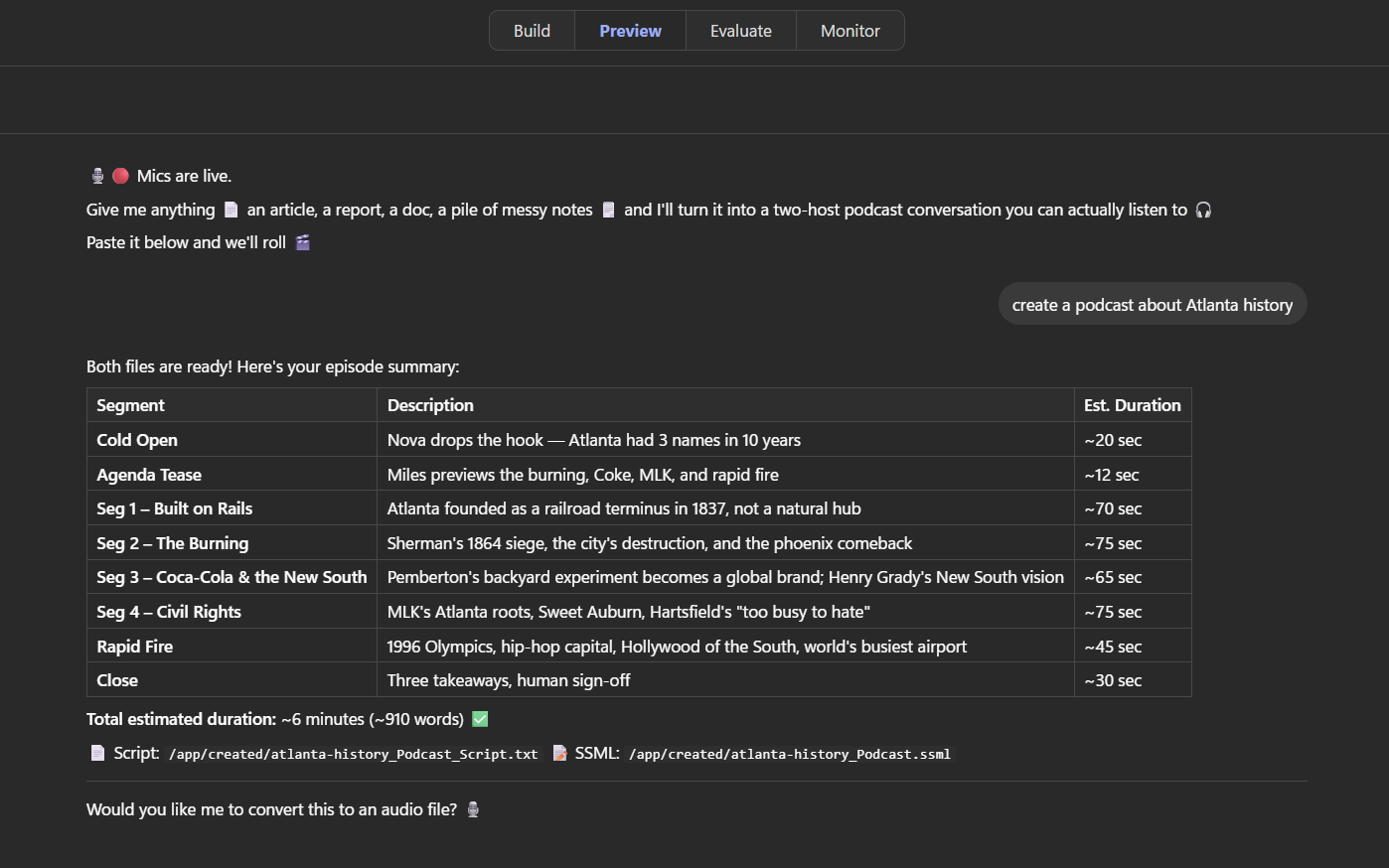 Six segments, a rapid-fire round, and an estimated duration. Say yes and it calls the connector.
Say yes, and the agent hands the SSML to ConvertTextToSpeechWithSSML with outputFormat: riff-24khz-16bit-mono-pcm, decodes the base64 response, and writes out the .wav as a downloadable file.
Part 4: Getting it onto your phone
This is the part that turns a demo into a habit, and it’s why the whole thing is worth building rather than running a one-off prompt somewhere.
Publish the agent, then enable the Microsoft 365 Copilot and Microsoft Teams channels under Channels. Both are covered properly in Henry’s post on Teams and M365 Copilot deployment, so I won’t relitigate the admin approval flow here.
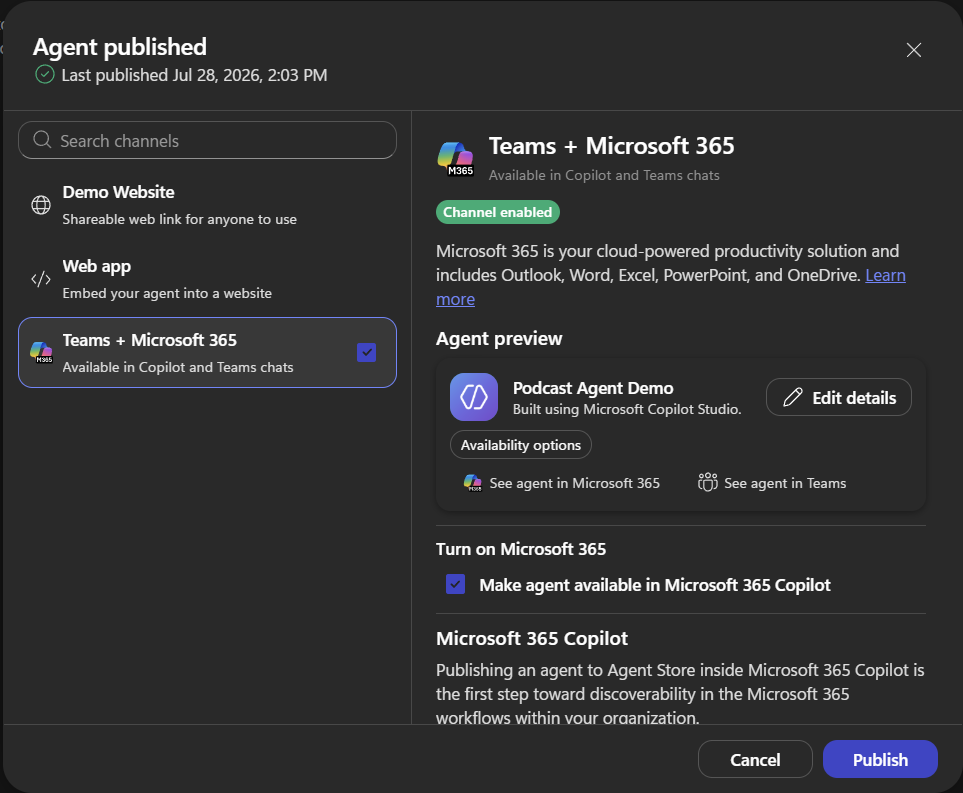 One agent, two surfaces. The mobile clients come along for free.
What you get from that is the bit I actually care about. Teams mobile renders the returned .wav as a playable attachment, so a weekday morning looks like this:
- Forward the press review to the agent in Teams on my phone, or paste it in
- Put the phone in my pocket and put my coat on
- By the time I’m at the door, the audio is sitting in the chat
- Tap play, headphones in, walk
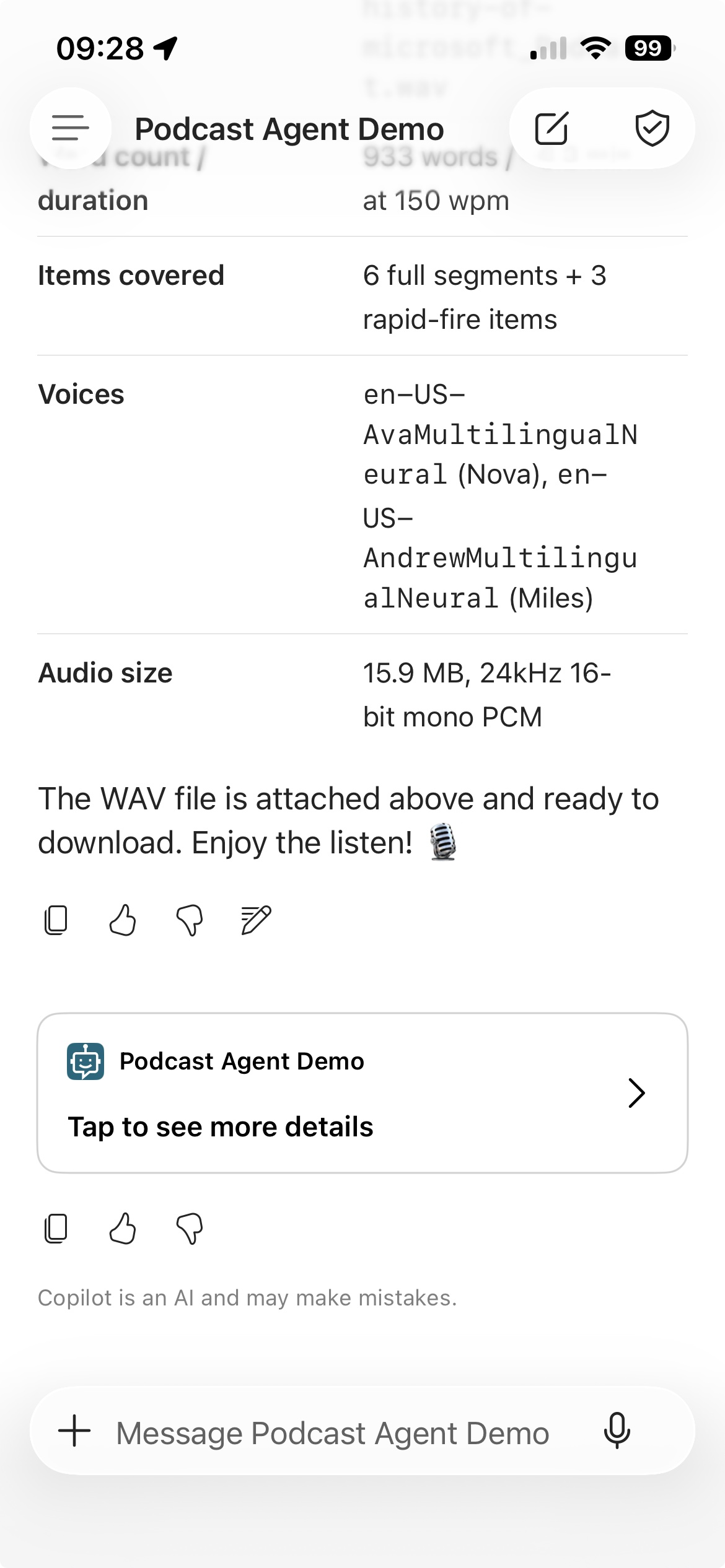 The whole point of the exercise, sitting in a chat thread on a phone.
Audio playback behavior differs across channels. Teams mobile handles the attachment well; other surfaces may hand you a download rather than a player. Test on the channel you’ll actually use before you build a morning routine around it.
The part that decides whether it sounds good
Everything above is plumbing and editorial. This part is mechanical, and it’s where the first dozen attempts fell over.
Spell out anything a synthesizer will mangle
Text-to-speech engines are confidently wrong about symbols. So nothing numeric or abbreviated survives into the spoken text:
- “twenty twenty-six”, not
2026 - “three point two billion dollars”, not
$3.2B - “about fifteen percent”, not
~15% - Acronyms get expanded on first mention, then shortened
- Letter-by-letter acronyms get
<say-as interpret-as="characters">API</say-as> - Odd proper nouns get
<sub alias="phonetic spelling">Name</sub> - A French phrase inside an English line gets wrapped in
<lang xml:lang="fr-FR">
No smart quotes, no em dashes, no asterisks, no underscores, no URLs. All of it either gets read out loud in a way you won’t enjoy or quietly breaks the XML.
One voice element per turn
This is the rule that cost me the most time, so I’ll be blunt about it.
In a multi-voice SSML document, a <break> element placed directly between two <voice> elements is invalid and synthesis fails. Not “sounds odd”, fails. The pause you want between turns has to live at the end of the preceding turn’s text, inside that turn’s <prosody>. Two <voice> elements sit flush against each other with nothing in between.
1
2
3
4
5
6
7
8
9
10
11
12
13
14
15
16
17
18
19

<speak version="1.0"
       xmlns="http://www.w3.org/2001/10/synthesis"
       xmlns:mstts="http://www.w3.org/2001/mstts"
       xml:lang="en-US">
  <voice name="en-US-AvaMultilingualNeural">
    <mstts:express-as style="excited">
      <prosody rate="+8%" pitch="+3%">Okay, so the number that stopped me cold
      this morning was forty percent. <break time="300ms"/> Forty percent, in one
      quarter. <break time="250ms"/></prosody>
    </mstts:express-as>
  </voice>
  <voice name="en-US-AndrewMultilingualNeural">
    <mstts:express-as style="chat">
      <prosody rate="-2%" pitch="-4%">Right, and the part everyone's skipping is
      that it's off a very small base. <break time="250ms"/> Context matters
      here. <break time="700ms"/></prosody>
    </mstts:express-as>
  </voice>
</speak>
Note the trailing breaks. The 250ms is the gap before the next turn. The 700ms is the longer gap before the next segment. Nothing sits between the two <voice> elements.
Vary the delivery or it goes flat
A single rate and pitch applied to the whole document sounds like an airport announcement. The Skill sets baselines per host, Nova at rate="+6%" pitch="+2%" and Miles at rate="-2%" pitch="-4%", then nudges them line by line to match the emotion of the sentence.
<mstts:express-as> does the rest: chat for banter, friendly for explanation, narration-professional for the factual core of a story, excited sparingly for the cold open. Styles are deliberately optional rather than structural, because an unsupported style is silently ignored by the service. If you swap in a voice that doesn’t support excited, you lose a little color, not the whole episode.
<emphasis level="moderate"> gets used on one or two key terms per segment. More than that and emphasis stops meaning anything.
Before you debug anything in Copilot Studio, paste the generated SSML into Audio Content Creation in Speech Studio. It tells you exactly which line is malformed, which the connector does not.
Trade-offs, honestly
It’s not instant. Parsing, ranking, writing, and synthesizing a six-minute episode is real work. This is a “kick it off and go put your shoes on” operation, not a chat response.
Long episodes need splitting. The SSML stays under 40,000 characters. If an episode goes past what a single synthesis call can take, the agent splits at a segment boundary, synthesizes each part, and stitches the decoded audio back together in order. It works, but it’s more moving parts.
Editorial judgment is still judgment. The ranking is the agent’s opinion of what matters in your source material. It’s usually reasonable and occasionally wrong, which is exactly why the Skill shows you the segment table before it narrates anything. Reorder it if you disagree.
Garbage in, confident garbage out. If the source material is thin, you get six minutes of two people being enthusiastic about very little. The Skill won’t invent facts to fill time, but it also won’t tell you your newsletter was boring.
Where this goes next
The obvious extension is removing myself from the loop entirely. An autonomous trigger on the inbox, the Skill fires when the press review lands, the .wav gets dropped in a OneDrive folder my phone already syncs. Giorgio’s meeting transcript analyzer is basically that shape already, pointed at a different problem. I haven’t wired it up yet, mostly because I wanted to be sure the output was good enough to commit to before automating it. It is now, so that’s the next weekend project.
The other direction is source material that isn’t news. Release notes for a product I don’t follow closely. The changelog for a repo I contribute to occasionally. That architecture doc nobody read. Anything where the information is genuinely useful and the format is genuinely unappealing, which describes a depressing amount of what lands in a work inbox.
If you’re curious how far you can push a Skill’s instructions before they stop being followed, this one is a decent stress test. It asks the agent to do editorial work, creative writing, and strict XML generation in a single pass, and the constraints on each conflict a little with the others. Watching where it strains taught me more about writing Skill instructions than any of my well-behaved ones did. Incidentally, the way I found the SSML failures in the first place was by making the agent narrate its own steps, which is trick number one in my post on topics.
So: what’s the thing in your inbox that you keep meaning to read and never do? That’s the one to point this at first.