The New Copilot Studio Agent Sandbox
GHCP harness
How the Copilot Studio agent sandbox turns model reasoning into finished files, calculations, and other executable work while keeping external access governed.
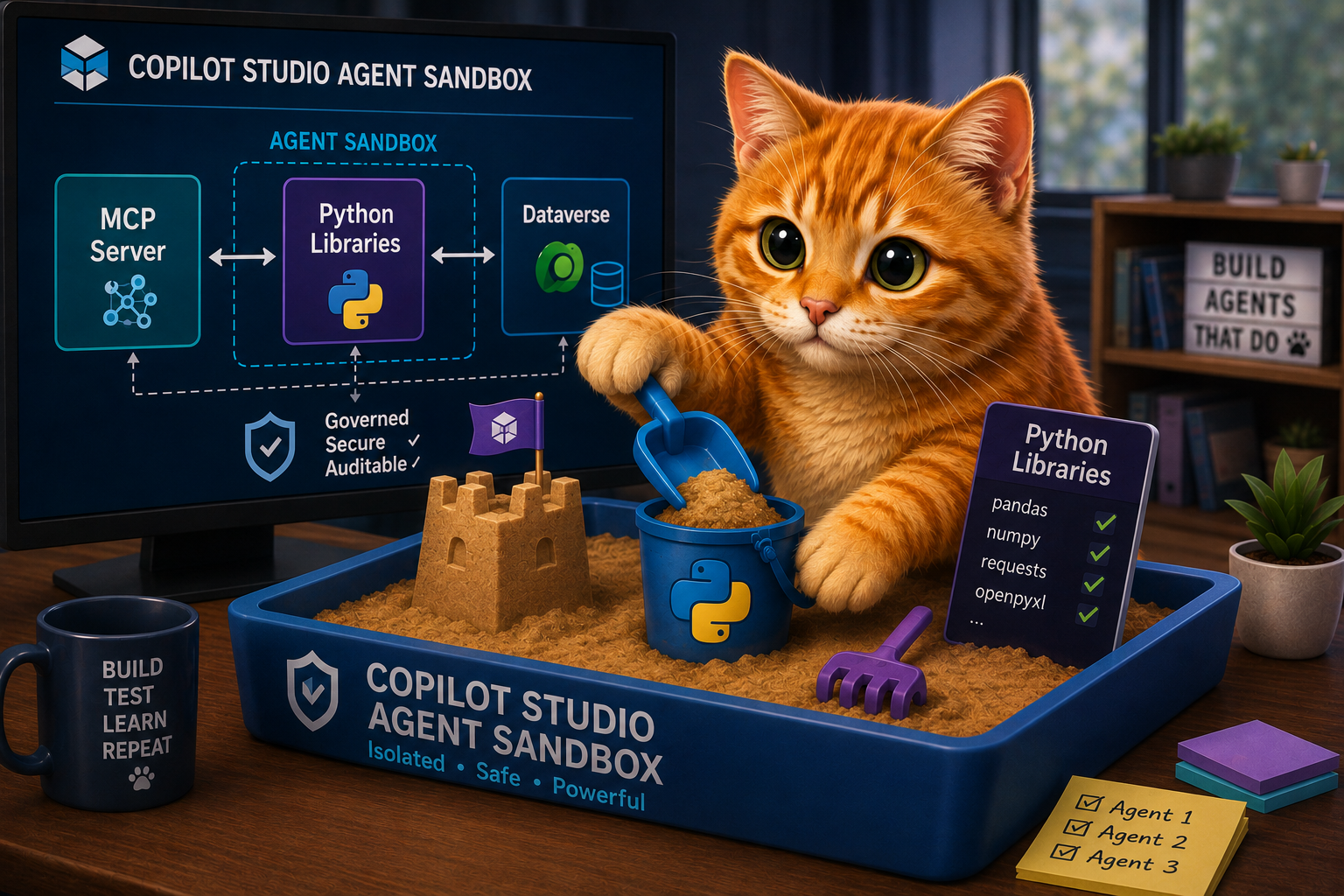
Typically, there are two things we don’t want a large language model to do directly: perform a calculation, or generate a large, exact payload (a filled spreadsheet, a valid .docx, a long JSON document). A model predicts a plausible result; it doesn’t compute one. The number it returns isn’t guaranteed to be the correct sum, and the file it emits isn’t guaranteed to be valid.
What language models are genuinely good at is writing the code that does those things. A few lines of Python can total the column exactly, or build the file byte for byte, the same way every run. But code is only useful if something can run it, and that requires an execution environment.
In Copilot Studio agents powered by the GitHub Copilot harness, that execution environment is the agent sandbox.
Why give an agent a sandbox?
If you have used a coding agent such as GitHub Copilot CLI on your own machine, the basic idea will feel familiar. The agent can work at a terminal: inspect files, write code, run it, read the output, make corrections, and try again.
The Copilot Studio sandbox gives an agent that kind of working environment without requiring you to provision and manage a machine. It is a container with a Python runtime, local files, preinstalled libraries, and shell tools, all managed by Copilot Studio.
The sandbox is one part of the wider agent harness. Instructions, Knowledge, Skills, and Tools help the model understand and act on a task. As explained in Modern Agents Have Skills Now, a Skill can bring task-specific instructions and scripts when they are needed. The sandbox gives those scripts somewhere to perform the local, executable part of the work.
Take Knowledge as an example. Copilot Studio leans on the sandbox even for its own retrieval pipeline: when an agent retrieves files from Knowledge, they land in the sandbox, and the agent can open them, analyze them with Python, and chart what it found. Without the sandbox, the agent would be limited to the snippets that retrieval returns. With the whole file sitting there, it can work across every row.
Demonstrating the power of the Copilot Studio agent sandbox
Here’s a quick demo you can run yourself. Download this sample sales data of fictional orders that deliberately has no revenue column, so the totals have to be calculated rather than looked up. Create an agent, add the CSV as a knowledge file, and ask for “Generate a chart for the sales data showing revenue growth per region per quarter”:
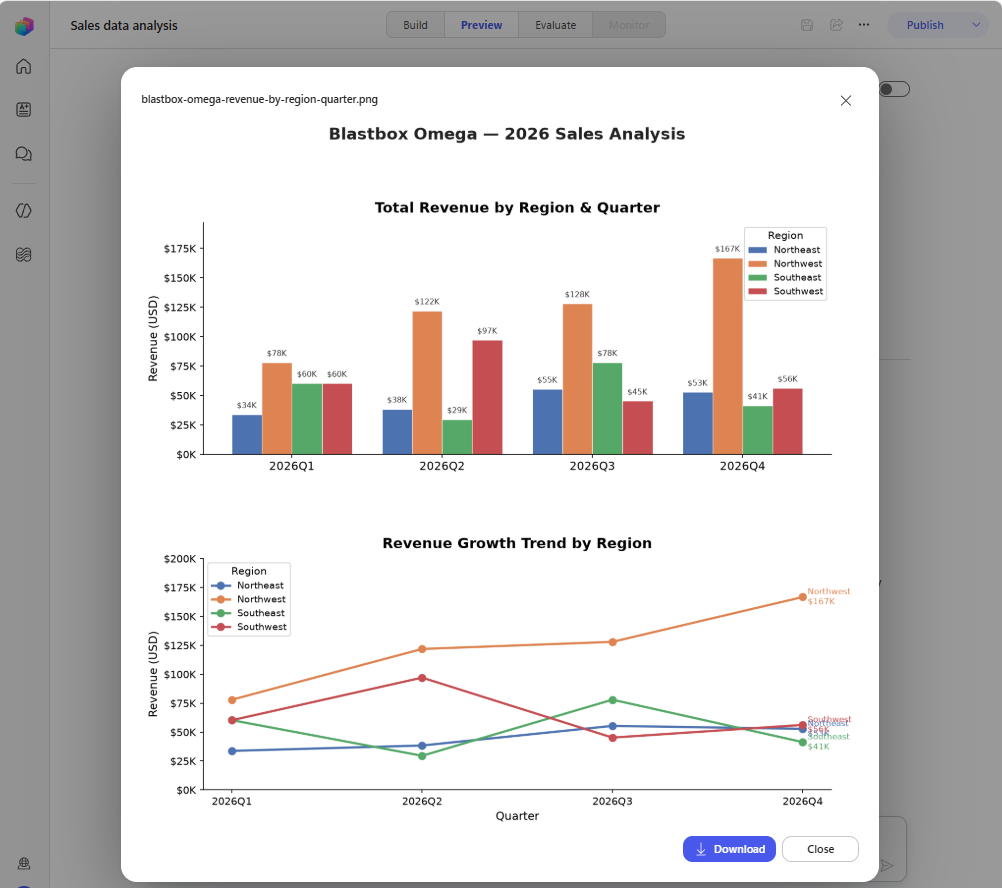 Revenue calculated from 538 rows, totaled by region and quarter, and charted by a new Copilot Studio agent without a custom Skill.
Make agent behaviors more easily repeatable with Skills
In the demo above, the agent wrote the code itself. Skills let you supply it in advance instead: a reviewed script and the instructions for using it, so a specific task runs the same way every time. Our document redlining example shows what that looks like. The sandbox runs the script against the supplied documents and creates the finished Word file:
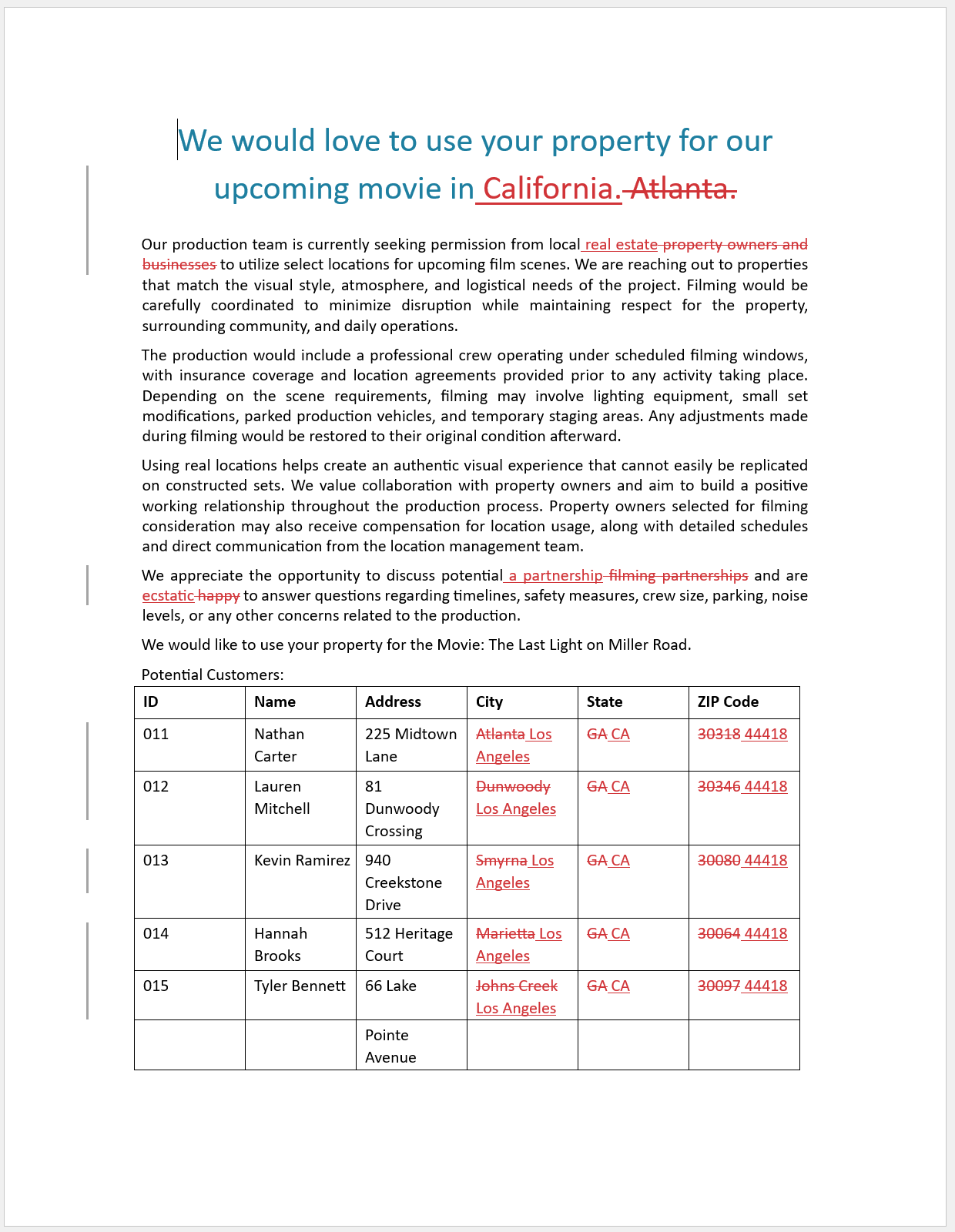 A
A .docx file created in the sandbox with genuine Word tracked changes.
The agent can return the file to the user and revise it in the sandbox if further changes are needed.
Live code, or a script you packed yourself?
Code reaches the sandbox in two main ways:
- Code generated for the task. The model can write Python, run it, inspect the result, and revise it. This works well for novel work, such as understanding an unfamiliar export or finding a useful way to chart a newly uploaded file. The trade-off is that writing and iterating on code takes time, and the implementation may vary between runs.
- A script packaged in a Skill. A pre-written script is ready to run immediately. It is usually faster and more consistent for repeatable work, and your team can test and version it like any other code asset.
The maker does not choose between those paths for every conversation. You give the model good options, including Skills with clear descriptions, and the model decides what to use at runtime.
The practical rule is: give the model room to generate code for novel work. For repeatable work, provide a well-described Skill with a reviewed script so the agent can run it immediately and consistently. Then use evals to verify that the complete agent still behaves as intended. The quality-gate pattern shows one way to automate that check. Packaged Skills travel with the agent and follow your normal application lifecycle management process.
What the sandbox unlocks
The sandbox ships with libraries for working with documents, spreadsheets, PDFs, data, charts, and images. The exact package names are less important than the agentic loop they enable: the agent can create a file, run a command, inspect the result, adjust its approach, run a new command, and continue to iterate.
That means an agent can do things such as:
- Calculate a prorated bonus, run a what-if on a set of numbers, or validate a formula, with the arithmetic done in code rather than in the model’s head.
- Turn an uploaded spreadsheet into a cleaned workbook, calculated summary, and chart.
- Compare documents and return a redlined Word file.
- Extract content from a PDF, apply a set of checks, and produce a findings report.
- Transform supplied data into a presentation or another formatted artifact.
For makers, this removes the need to build a separate service for every calculation or file transformation.
No network egress from the sandbox
The sandbox has no outbound network path. Code running there cannot call an API, send an email, or write a file to SharePoint, no matter what it imports.
The requests Python package is installed, for example, but nothing you build with it can leave the sandbox. Reaching anything outside happens only through the paths you configure: Knowledge sources for grounded information, and Tools such as connectors and MCP servers for live data and external actions.
For administrators, that same boundary is the reassurance. Execution is managed by Copilot Studio, and because those are the only ways out, everything the agent does externally stays within your governance controls and data policies.
The sandbox is temporary
The sandbox is a working area, not permanent storage. If the redlining agent creates contract-redlined.docx, it needs to return that file to the user or use a configured Tool to save it somewhere durable. Do not design the next conversation around finding that same file in the sandbox.
Agent Memory, when enabled, persists facts and context across conversations. It does not store files, so it is not a way to keep sandbox output around.
How do I know what is available in the sandbox?
When you are building an agent, you might want it to write and run code, or you might be writing a script yourself to package into a Skill. Either way, you need to know what is already installed in the sandbox. The simplest way to find out is to ask the agent which runtime, libraries, Tools, and Skills it can access.
For a repeatable and detailed inventory, the agent-harness-explorer Skill automates that check and creates a self-contained HTML report. A report from an otherwise empty Copilot Studio agent on 2026-07-21 found Python 3.12.9 in a container, with 99 Python libraries, 11 built-in tools, 8 Skills, and no MCP servers configured for that agent.
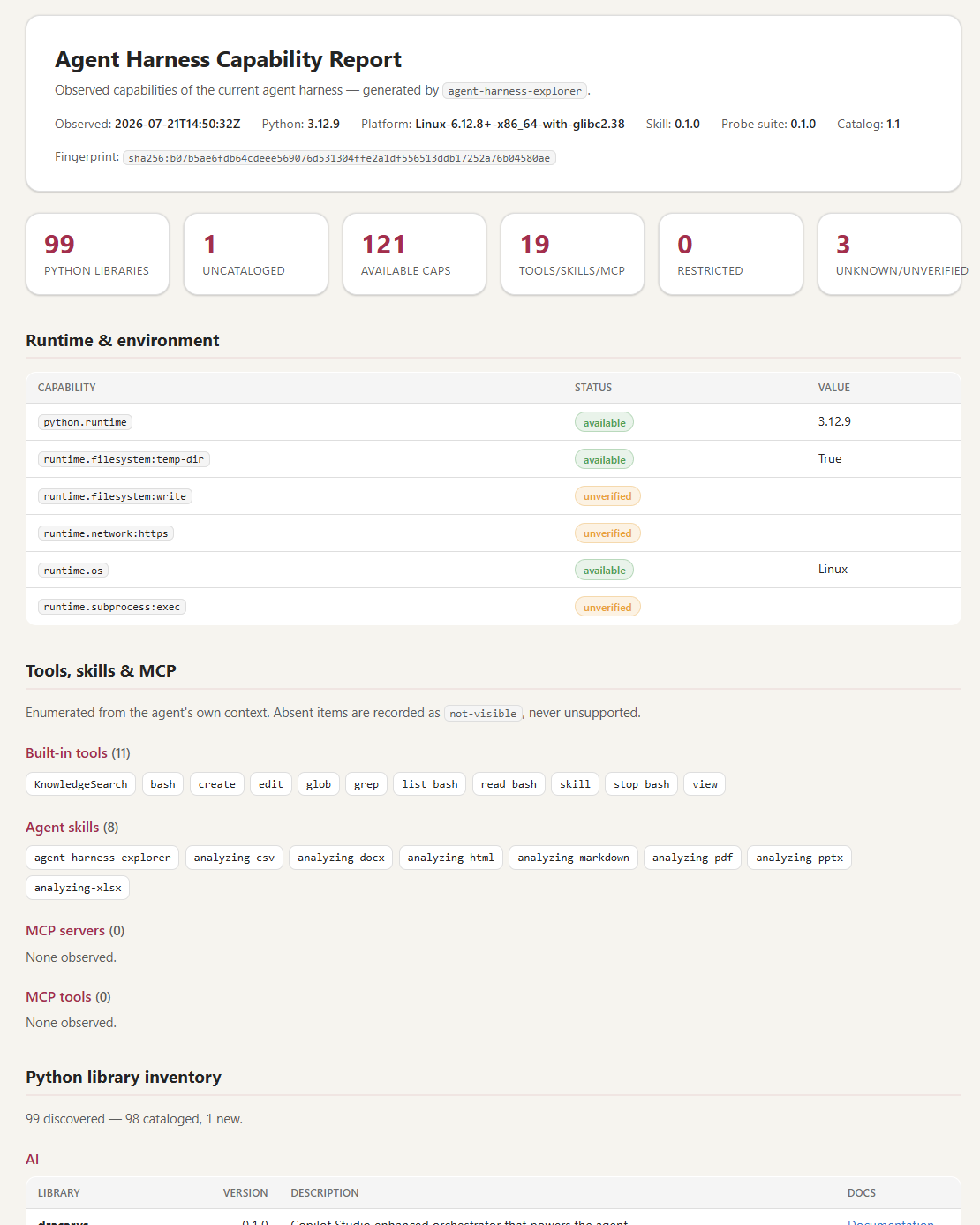 An example report generated by the agent-harness-explorer Skill.
To create an agent and generate an agent harness explorer report:
- Download the agent-harness-explorer bundle (zip) from the cat-agent-skills skills library
- In Copilot Studio, create or open an agent that uses the GitHub Copilot harness
- On the Build tab, in the right panel, click “Skills +” to add an existing Skill
- Upload the zip file and wait for the Skill to load
- Open the Preview tab
- In the agent chat, enter “Please inspect the harness” (harness/sandbox/environment)
- Review the activity trace to see the tools and scripts used to generate the report.
- Open and review the “harness-inspection-report” HTML report
If Agent Memory is enabled, then a snapshot can be saved for later comparison by asking the agent to “Capture a snapshot”. These comparisons can highlight additional capabilities added over time.
Ready for action
The sandbox is what lets a Copilot Studio agent inspect, calculate, create, and iterate instead of stopping at an explanation. Calculations run in code rather than the model’s head, files get built and checked in a real environment, and the limits are clear: the only ways out are the Knowledge and Tools you configure, and nothing persists once the conversation ends.
Now that Copilot Studio agents are so much more capable, what business problems will your next Copilot Studio agent help solve?