Task 01: Set up a hub and project in Azure AI Foundry
Introduction
To support Adatum’s initiative for AI-driven customer engagement, the first step is to establish a structured environment where AI projects can be built and managed. By creating a hub in Azure AI Foundry, Adatum can centralize AI models, configurations, and data integrations, ensuring scalability and efficiency for future AI implementations.
Description
In this task, you’ll create a hub within Azure AI Foundry to host your projects and resources. The hub serves as the foundation for deploying AI solutions and integrating AI services that Adatum will use to enhance customer engagement. After setting up the hub, you will also create a project within it to organize and manage AI-related workflows effectively.
Success Criteria
- The Azure AI Foundry hub has been created successfully.
- A new project has been set up within the hub.
Learning Resources
Key tasks
01: Create hub in Azure AI Foundry
Expand this section to view the solution
-
Open the Microsoft Edge browser, go to the Azure Portal site, and sign in with your credentials.
-
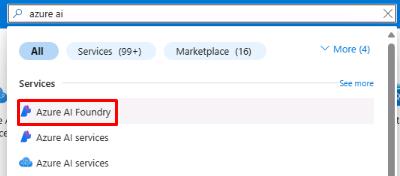
Once signed in to the portal, select the search bar at the top. Search for Azure AI and then select Azure AI Foundry.
-
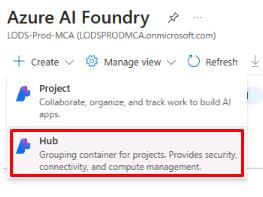
From Azure AI Foundry, select + Create and then select Hub.
-
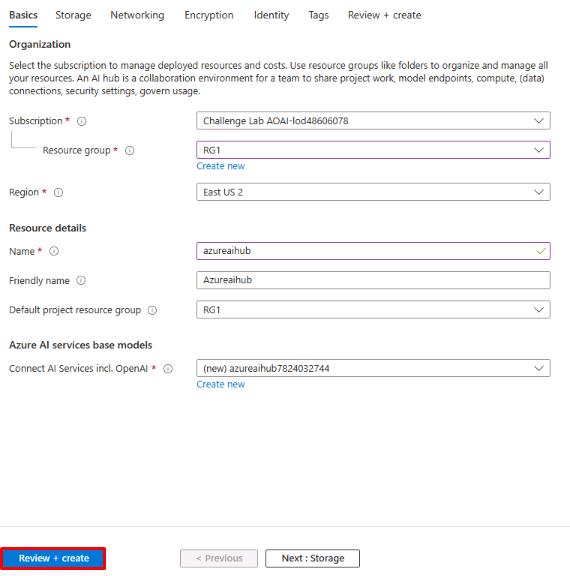
On the Azure AI hub page, select your resource group and region (these may differ from the screenshot). Name the hub azureaihub and leave the default setting to create a new AI service model.
-
Select Review + create, then select Create.
The availability of models and other resources will depend on the region chosen. Ensure you are using a region that supports Azure AI.
-
Once the deployment is complete, select Go to resource.
To create a hub, you’ll need the Owner or Contributor role on the associated resource group or an existing hub.
02: Create project in Azure AI Foundry
Expand this section to view the solution
-
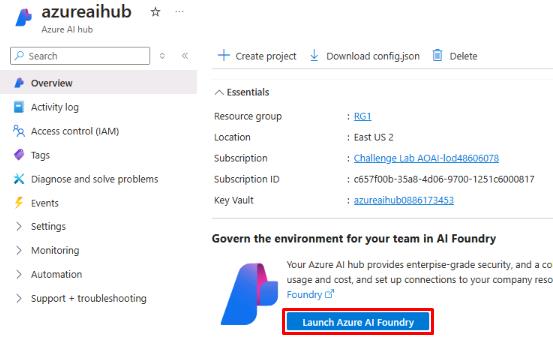
From the azureaihub page, select Launch Azure AI Foundry.
-
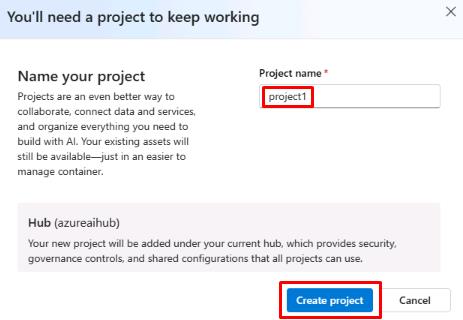
Azure AI Foundry will open in a new tab. You’ll see a pop-up window to create a new project. Enter project1 and select Create project.
The hub is the overarching development environment. Access to the hub allows you to modify the infrastructure, create new hubs, and create projects. Projects exist within a hub and can have different permissions and resources. When granted access to a project, the user is also automatically granted Reader level access to the associated hub. The user is also granted the Inference Deployment Operator role, which allows them to create deployments on the resource group that the project is in. To create a project, you’ll need either the Azure AI Developer or Azure AI Inference Deployment Operator roles.

You’ve successfully completed this task.