Task 01: Setup Azure AI Content Safety
Introduction
To ensure the chatbot operates within safe and ethical guidelines, Adatum needs to set up Azure AI Content Safety. This enables automatic monitoring and filtering of harmful or inappropriate content.
Description
In this task, you’ll set up Azure AI Content Safety and integrate it with your chatbot to monitor and filter content dynamically.
Success Criteria
- The Content Safety resource has been created.
- The chatbot is successfully connected to the Content Safety resource.
Learning Resources
Key tasks
01: Create Content safety resource
Expand this section to view the solution
-
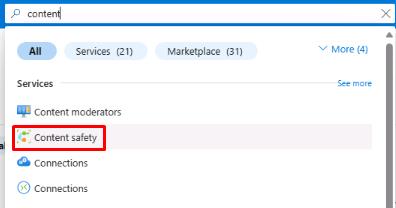
To connect the content safety tool to the prompt flow, you’ll need to first create a Content safety resource. Return to the tab with the Azure portal, and select the search box at the top. Enter content, then select Content safety.
-
Select Create Content Safety.
-
On the Create Content Safety page, select your resource group and region (these may differ from the screenshot), name the resource csfilter-1, and set the Pricing tier to Free F0.
-
Select Review + Create, then select Create.

02: Connect to Content safety resource
Expand this section to view the solution
-
Once the resource is created, return to the tab with project1 and open the Management center.
-
On the Overview tab for project1, select + New connection at the bottom of the window.

-
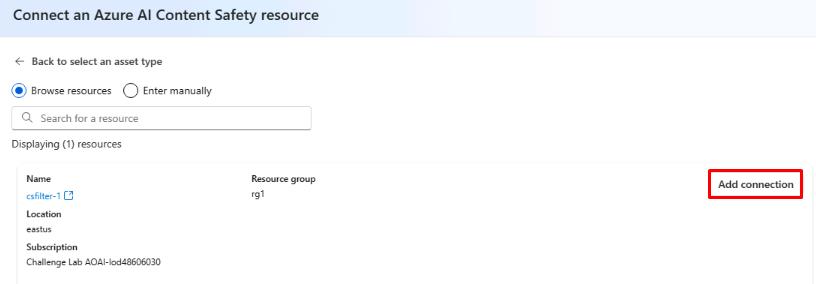
On the Add a connection to external assets page, select Azure AI Content Safety, then select Add connection next to the csfilter-1 resource that was just created.
-
Close the connection window and return to the project by selecting Go to project at the bottom of the left menu.
-
Return to chatflow1 by selecting Prompt flow from the left menu.
-
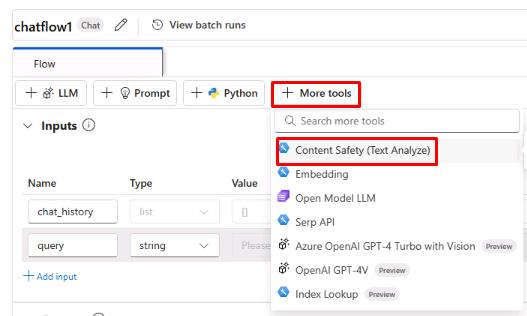
Select + More tools at the top, then select Content Safety (Text Analyze).
-
This will add a node to the bottom of the flow and jump to it. Enter contentsafety for the node name, then select Add.
The content safety tool enables moderation of user queries by filtering text that contains violence, self-harm, hate speech, or sexual content. Once activated, the tool allows for customized filtering levels for each category, prompting the user and logging relevant data when a filter condition is triggered.
It’s important to note that the filter doesn’t block queries entirely but flags them based on the set criteria. While the content safety tool is particularly useful for open-source models or those lacking built-in moderation, the gpt-4o-mini model used here already includes integrated content moderation that automatically blocks harmful queries.
-
Once the node has been added, you’ll see multiple settings for it. Use the dropdown menus to set the connection to csfilter1, set the text to ${inputs.query}, and set the violence_category to low_sensitivity.

You’ve successfully completed this task.