Task 03: Create a search service and add data connections
Introduction
Adatum’s chatbot must provide accurate and context-aware responses. To achieve this, an AI-powered search service is required. By implementing Azure AI Search, Adatum can index and retrieve relevant information from a structured data repository, ensuring customers receive the most relevant responses based on their queries.
Description
In this task, you’ll create an Azure AI Search service resource and connect it to your Azure AI project. The AI Search service enhances chatbot functionality by allowing it to pull relevant information from customer reviews, product catalogs, and historical interactions.
Success Criteria
- The Azure AI Search service has been created.
- The Azure AI Search service has been connected to the Azure AI project.
Learning Resources
Key tasks
01: Create the azureaiss search service
Expand this section to view the solution
-
To create a search service, return to the Azure portal tab.
-
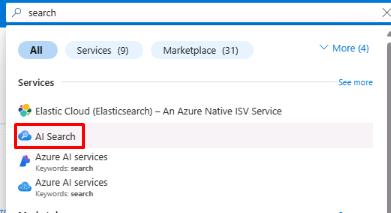
In the search bar at the top, search for search , then select AI Search.
-
From the AI Search page, select Create search service.
-
On the Create a search service page, select your resource group and region (these may differ from the screenshot). Name the search service srch1, select Review + create, then select Create.
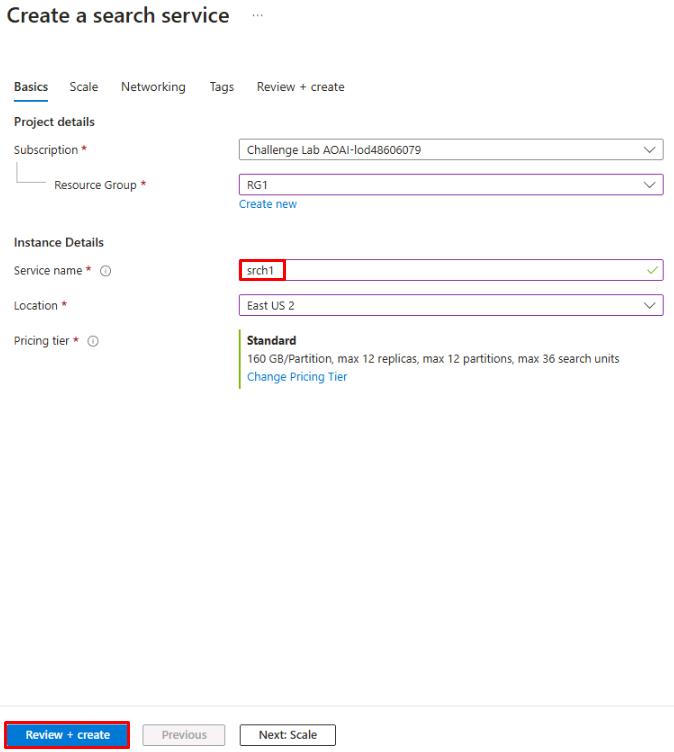
Ensure the Location is set to the same location where the hub was created earlier.
-
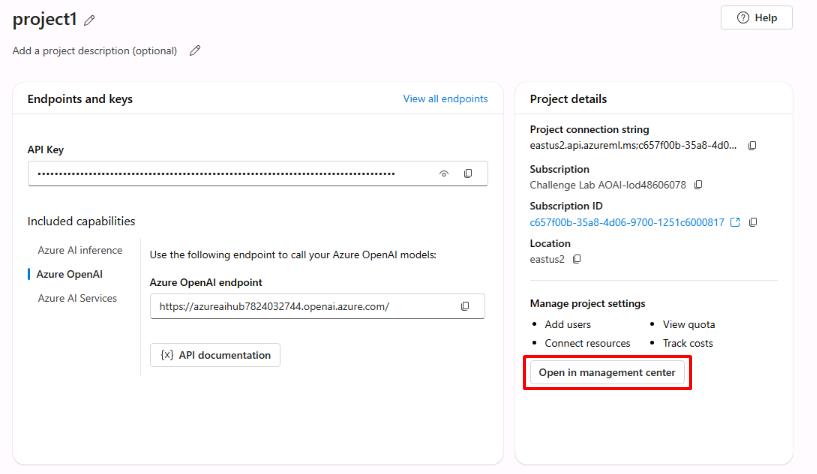
Return to the tab with Azure AI Overview . On the right of the Overview page, select Open in management center.
-
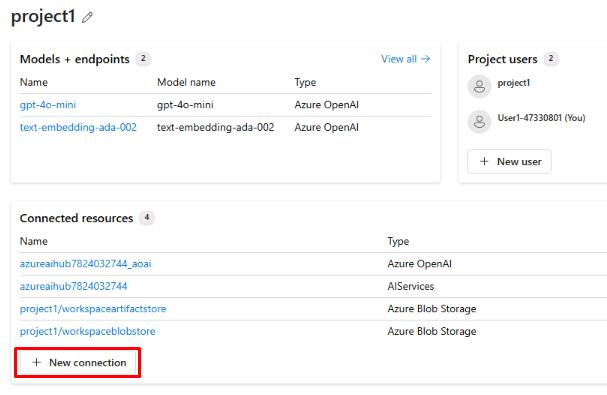
From the Management center for project1, under Connected resources, select + New connection.
-
On the Add a connection to external assets page, select Azure AI Search, then select Add connection next to the srch1 service.

You’ve successfully completed this task and exercise.