Task 03 - Scan repositories for vulnerabilities and code quality
Introduction
In this lab you will observe how GitHub Enterprise security features can help you with code quality reviews, security reviews, and vulnerability detection.
Description
GitHub Advanced Security provides many tools that assist developers with keeping their code clean and secure, while also improving the efficiency of this process. In this task you will explore how to check code for vulnerabilities and code quality and how to automate fixing issues.
Success Criteria
- You have detected vulnerabilities in the solution
- You have scanned the solution for code quality
- You have enabled Copilot to automatically review your Pull Requests
- You have accepted changes proposed by Copilot
Key Tasks
01: Enable Code Quality features
Enable GitHub’s built-in code quality tools in your repository settings to receive scan results and Copilot recommendations for code improvements.
Expand this section for detailed steps
-
Navigate to your repository Settings → Security → Code quality
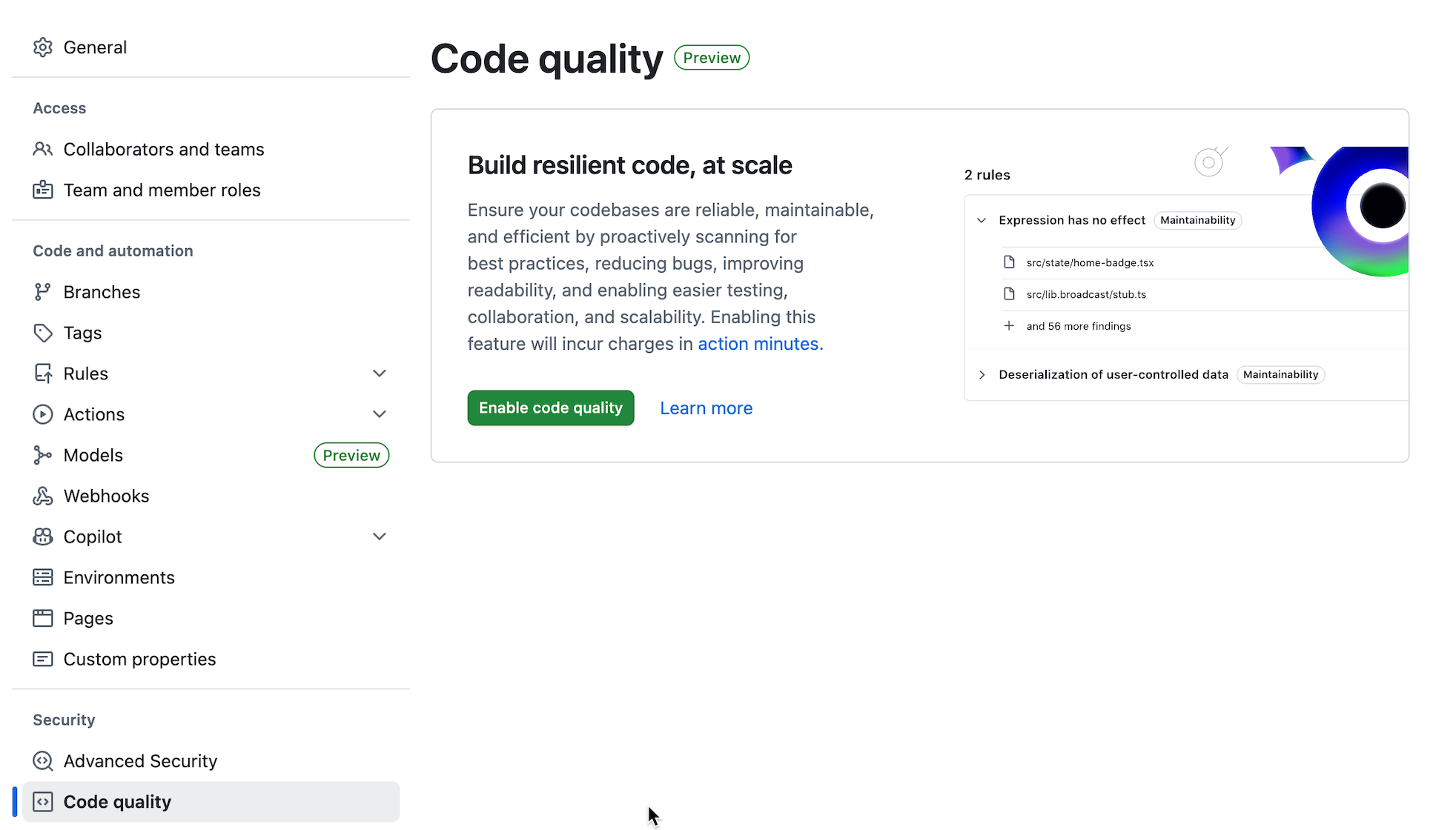
-
Once open, it will spend some time setting up and then will show default settings
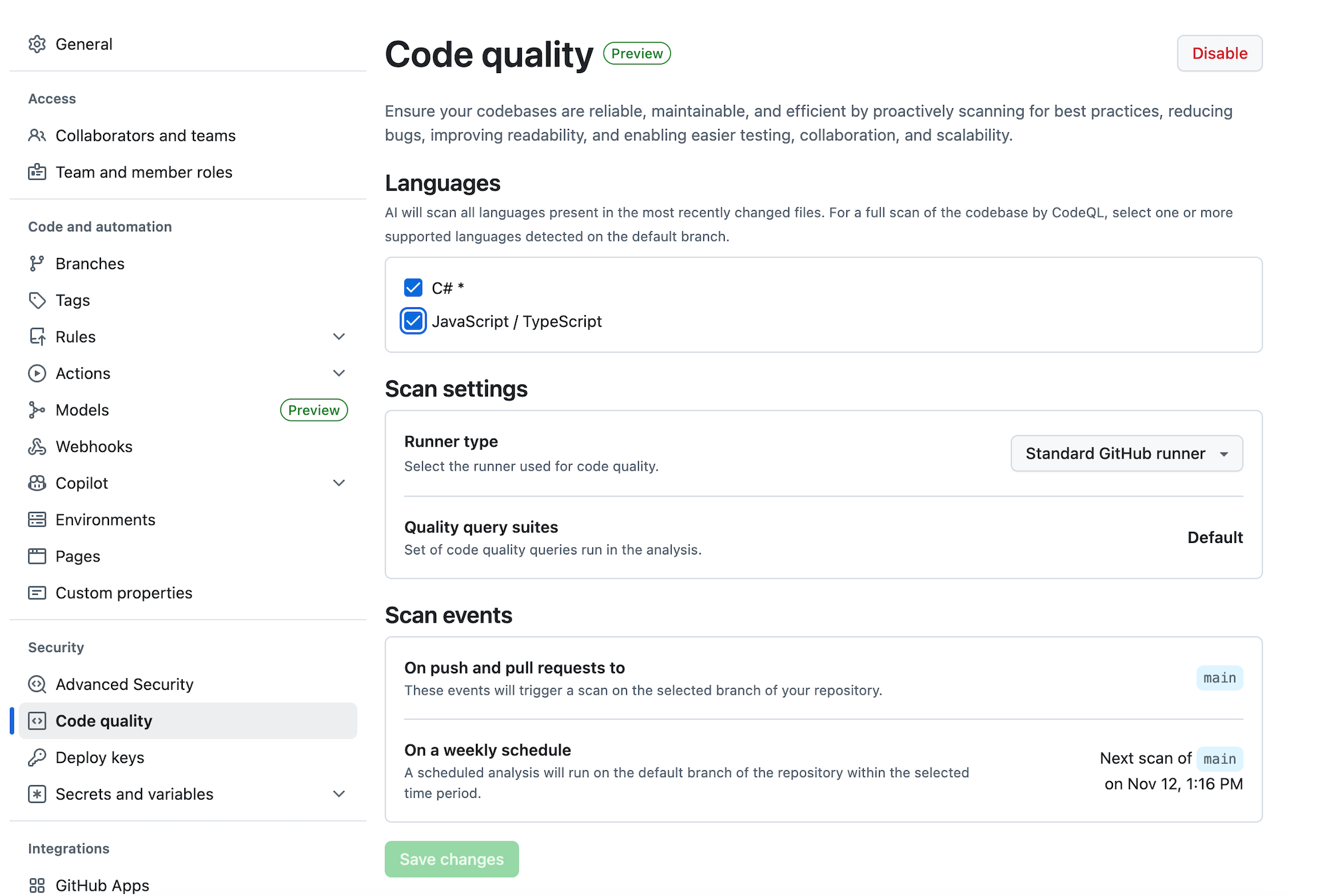
02: Add vulnerable packages to the solution
Add vulnerable packages to the solution and commit the changes to demonstrate how GitHub Advanced Security detects and reports security vulnerabilities.
Expand this section for detailed steps
-
Go to the solution in Visual Studio Code.
-
Open the
ZavaStorefront.csprojfile. Add the following packages to the file and save the changes:<ItemGroup> <PackageReference Include="System.Text.Encodings.Web" Version="4.5.1" /> <PackageReference Include="Newtonsoft.Json" Version="13.0.1" /> <PackageReference Include="Microsoft.Data.SqlClient" Version="2.1.1" /> </ItemGroup> -
From Terminal, issue the commands to add your changes and commit:
 git add .
 git commit -m 'adding vulnerable packages'
 git push
03: Create a Pull Request with Copilot review
Create a Pull Request for your previous commit to trigger security and code quality scans, and observe Copilot’s automatic review assignment.
Expand this section for detailed steps
-
Navigate to your forked repository at GitHub online and select the Code tab.
-
From this tab, select Compare & pull request
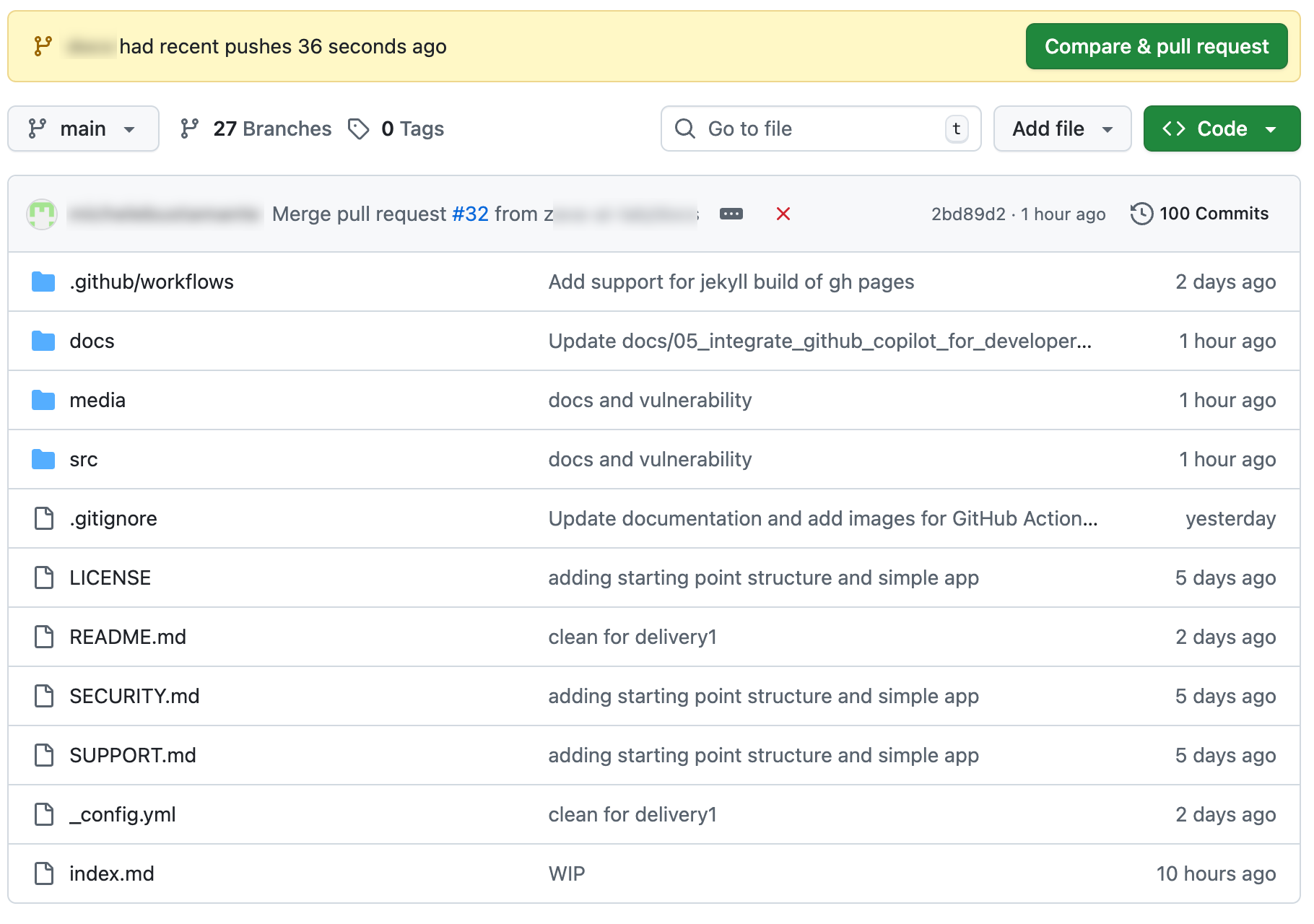
-
Create the Pull Request
You can generate the description for the Pull Request by selecting the Copilot icon and generating a summary for the committed work. Once you have the title and description in place, select Create pull request.
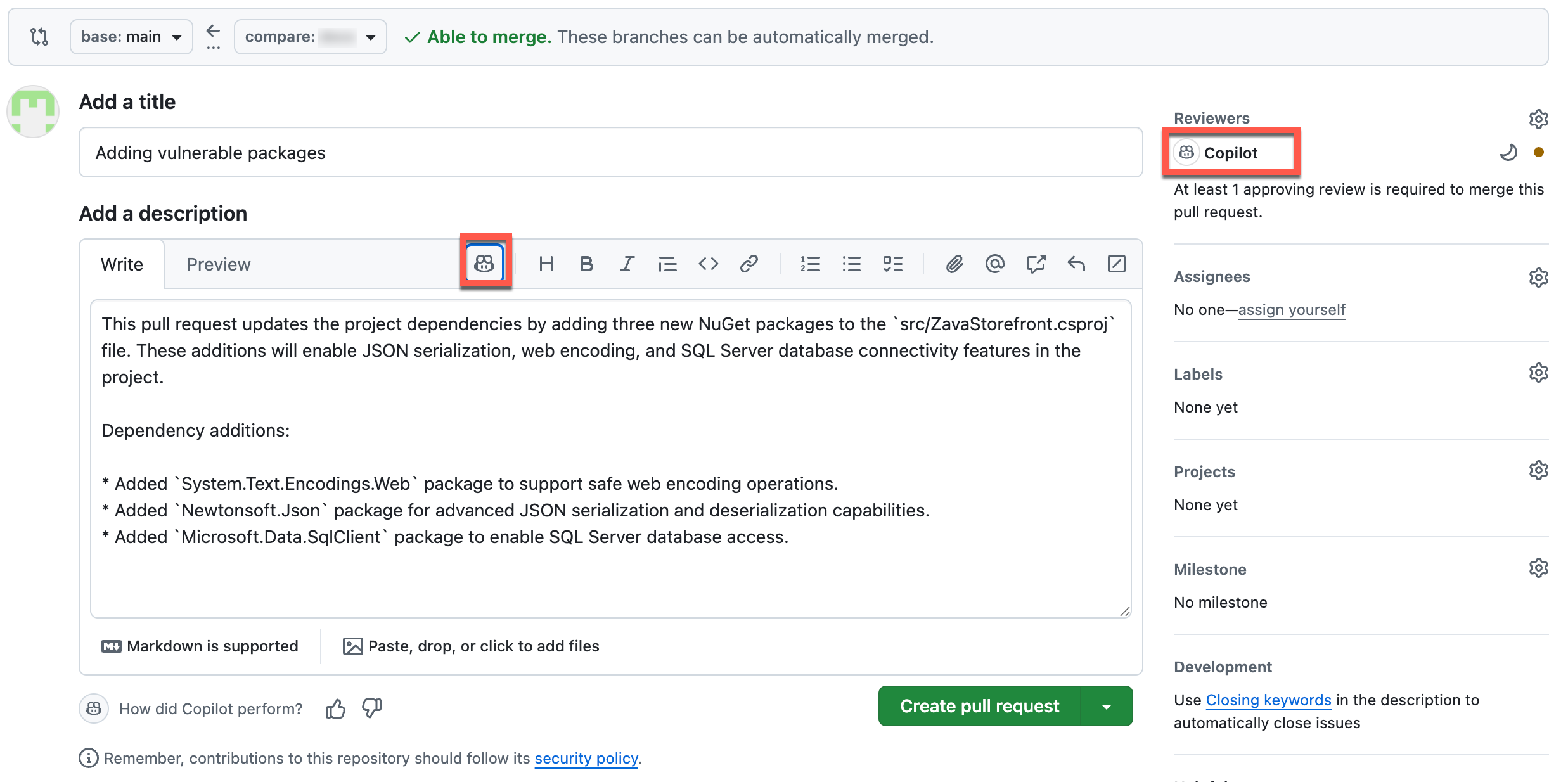
-
Wait for the Pull Request to be ready to merge
The Pull Request shows as pending 1 reviewer (in addition to the Copilot reviewer automatically added to the Pull Request). In addition, security and code quality scans must complete.
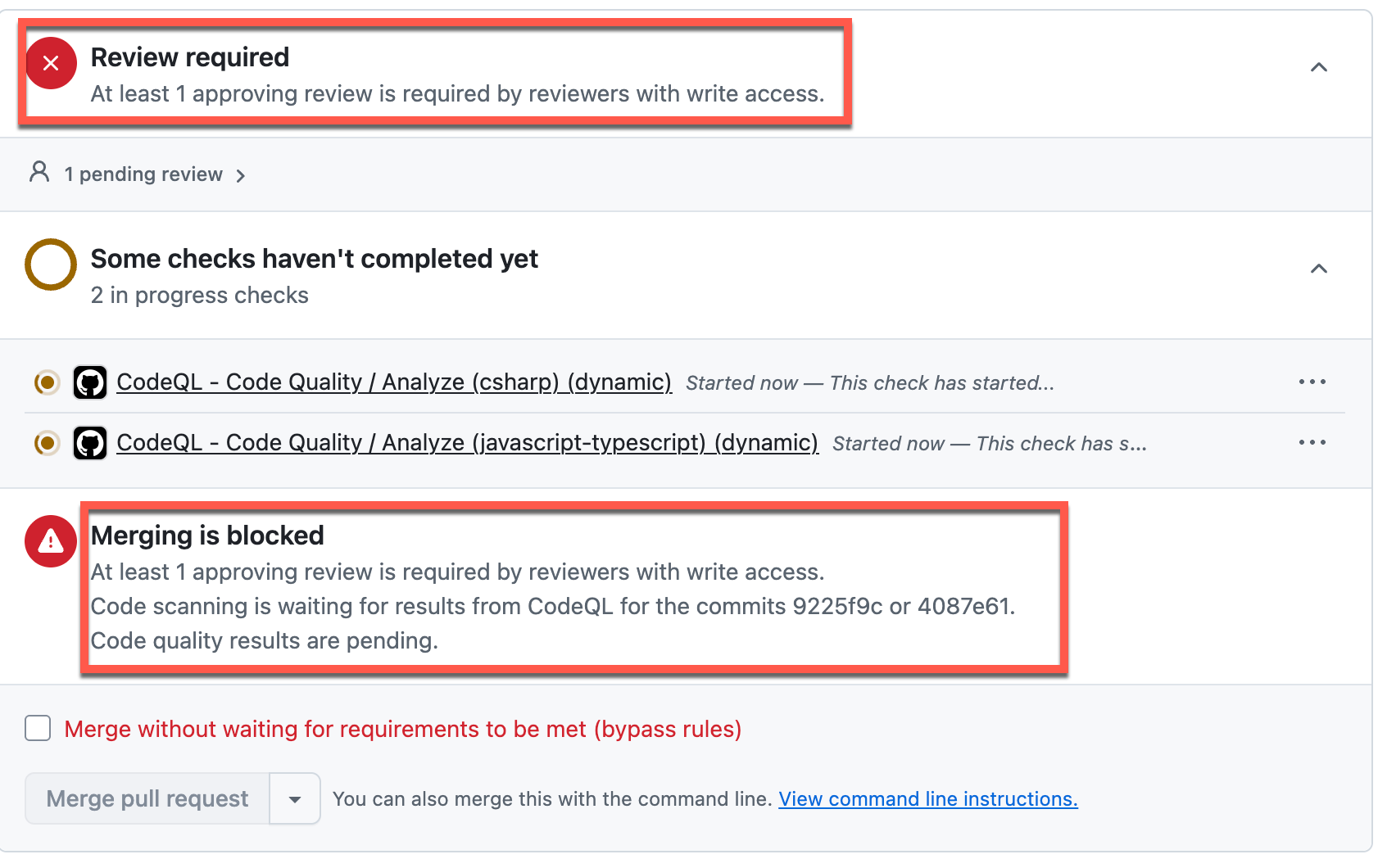
NOTE You can see that Copilot is automatically assigned as a reviewer based on the configurations completed in Task 01 of this Exercise.
04: Review Copilot review recommendations
Review and respond to Copilot’s vulnerability recommendations by accepting suggested commits for some issues and resolving conversations for others.
Expand this section for detailed steps
-
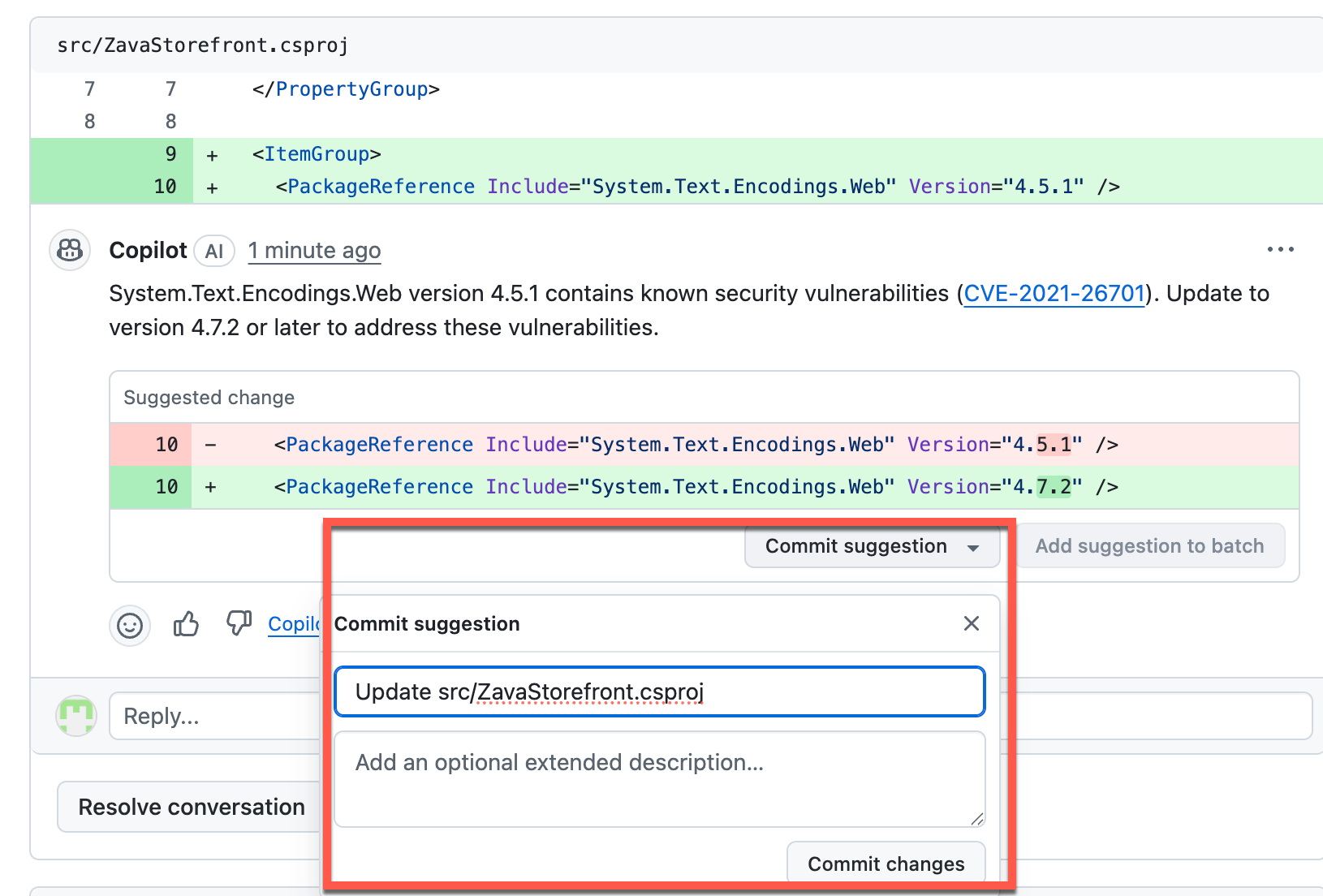
Review the Copilot vulnerability recommendations. The Copilot reviewer will scan code for vulnerabilities and offer suggested updates if there are any available.
-
Accept the commit suggestion for one of the three issues if you agree with the recommendation.
-
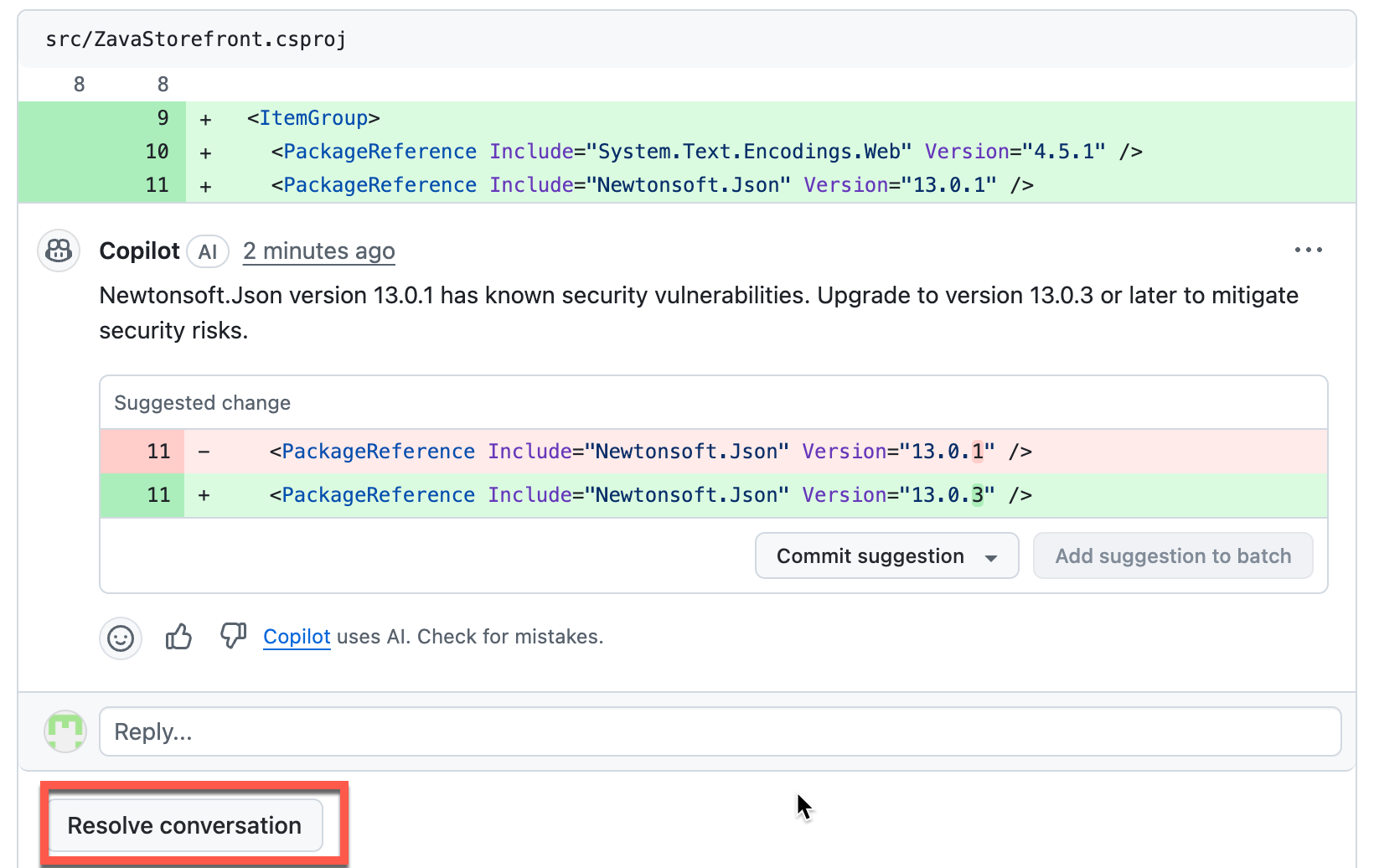
Resolve the conversation without accepting the commit suggestion for the other two issues.
-
Wait for all conversations to be resolved. Conversations must be resolved before the Pull Request can be completed, based on the organization configurations set up earlier.
-
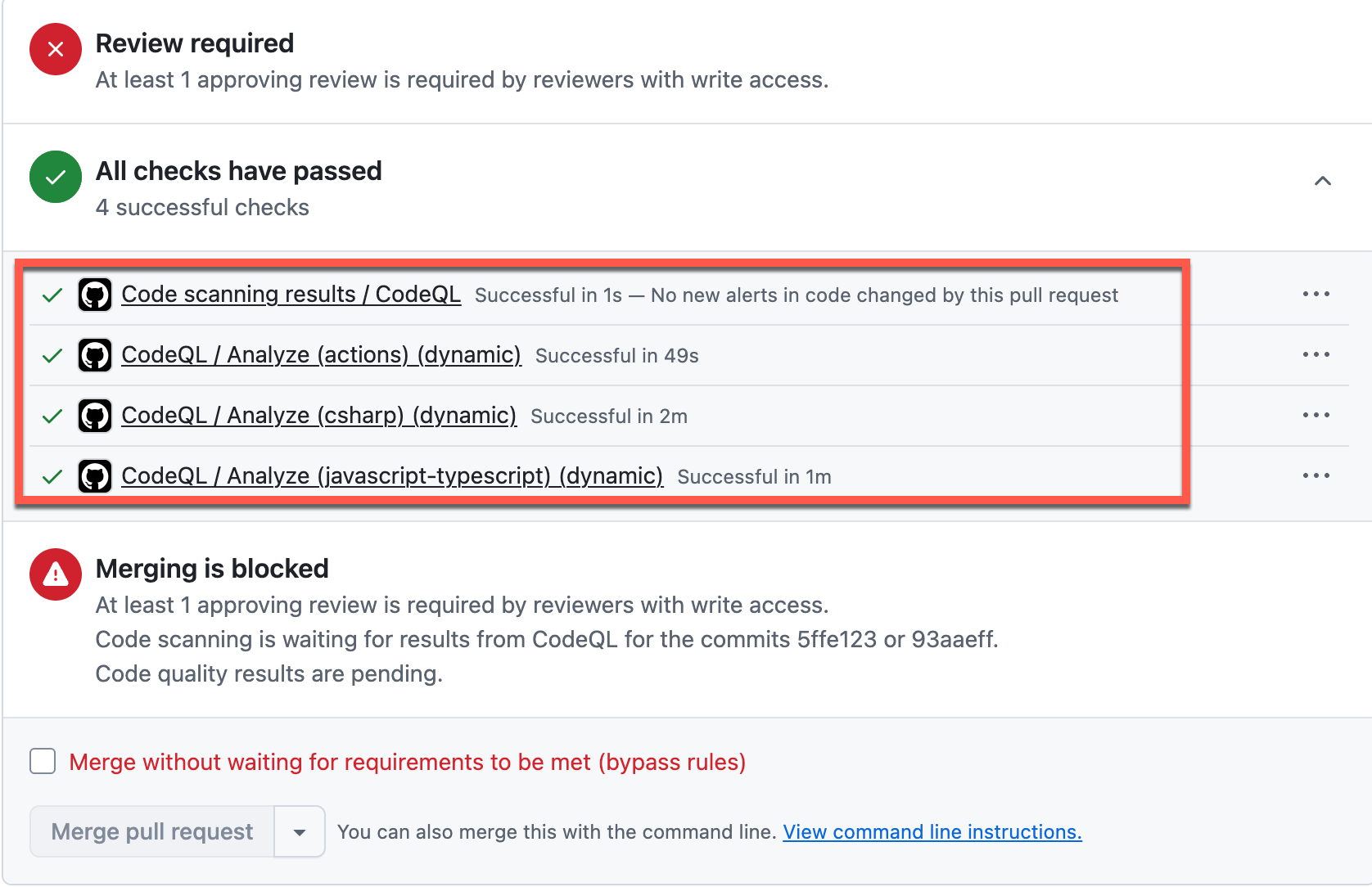
Wait for all scans to complete. Eventually all scans will be completed and the Pull Request will be ready to be completed.
05: Review Dependabot alerts
Review Dependabot alerts for vulnerabilities, accept Copilot updates if applicable, fix alerts by removing vulnerable code, and verify that alerts are resolved.
Expand this section for detailed steps
- View alerts
- Navigate to the Security tab for the repository. Select the Dependabot menu under Vulnerability alerts.
- The two Copilot recommendations for which you did not accept the suggestions will be listed in the Dependabot alerts list.
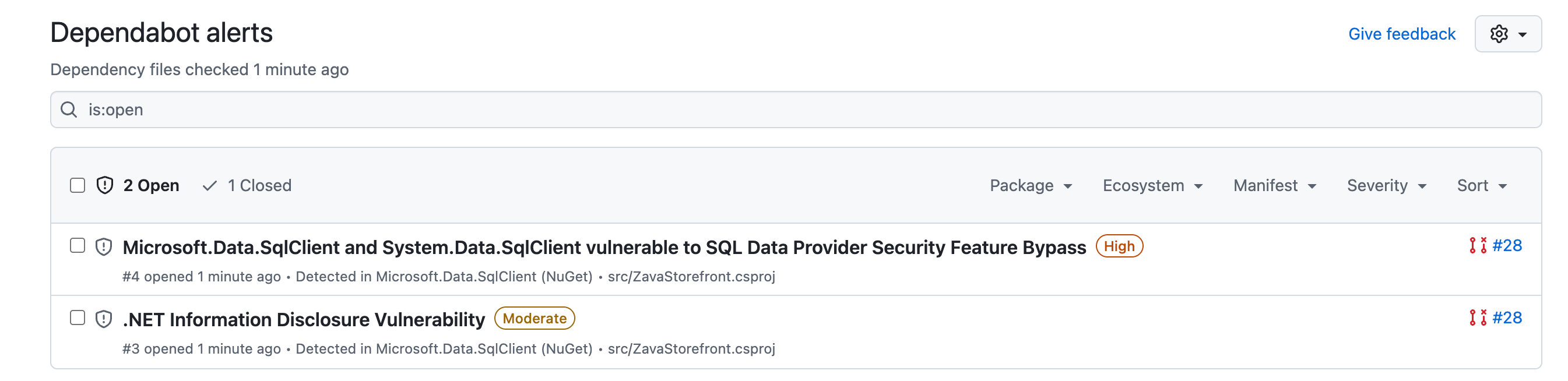
- You can choose to dismiss the alerts if you do not plan to fix them, otherwise you should resolve by removing the vulnerability from the code.
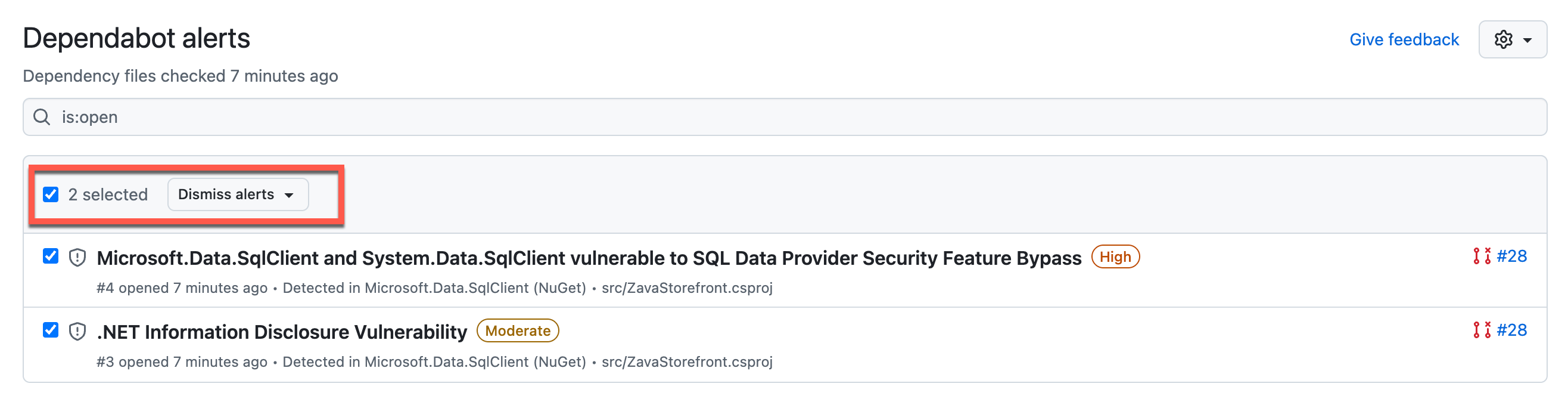
- Accept Copilot updates for vulnerabilities
- If you accepted any suggestions from Copilot review, you will need to pull the changes from the remote repository to your local.
-
From Visual Studio Code, open the Terminal window and enter commands to get latest and merge:
git pull git commit -m 'merging vulnerability fixes' git push -
You’ll notice that the command line also recognizes the vulnerabilities that are in the repository:
remote: GitHub found 2 vulnerabilities on zava-ai-lab/zava-ai-devops-copilot's default branch (1 high, 1 moderate). To find out more, visit: remote: https://github.com/zava-ai-lab/zava-ai-devops-copilot/security/dependabot - This will go away once the repository no longer has the vulnerability.
- Fix Dependabot alerts by removing vulnerable code
-
From Visual Studio Code, open the
ZavaStorefront.csprojfile and remove the vulnerabilities previously added to the file. Commit this change:git add . git commit -m 'removing vulnerable packages' git push -
Go to your repository on GitHub online and create a new Pull Request for this update. Complete the pull request.
-
- View that Dependabot alerts are gone
- If you navigate to the Security tab and select the Dependabot menu under Vulnerability alerts, you’ll see that the alerts have been automatically closed once the scan determined the vulnerable code was removed.
06: Review Code quality findings
Review code quality findings in the Security tab to see recommendations for improving code quality, such as updating .NET versions.
Expand this section for detailed steps
-
Navigate to the Security tab for the repository. Select the Code quality -> AI findings menu under Vulnerability alerts.
-
You will see findings from the
ZavaStorefront.csprojfile. If you select the finding you’ll see a recommendation to update from .NET 6 to .NET 8.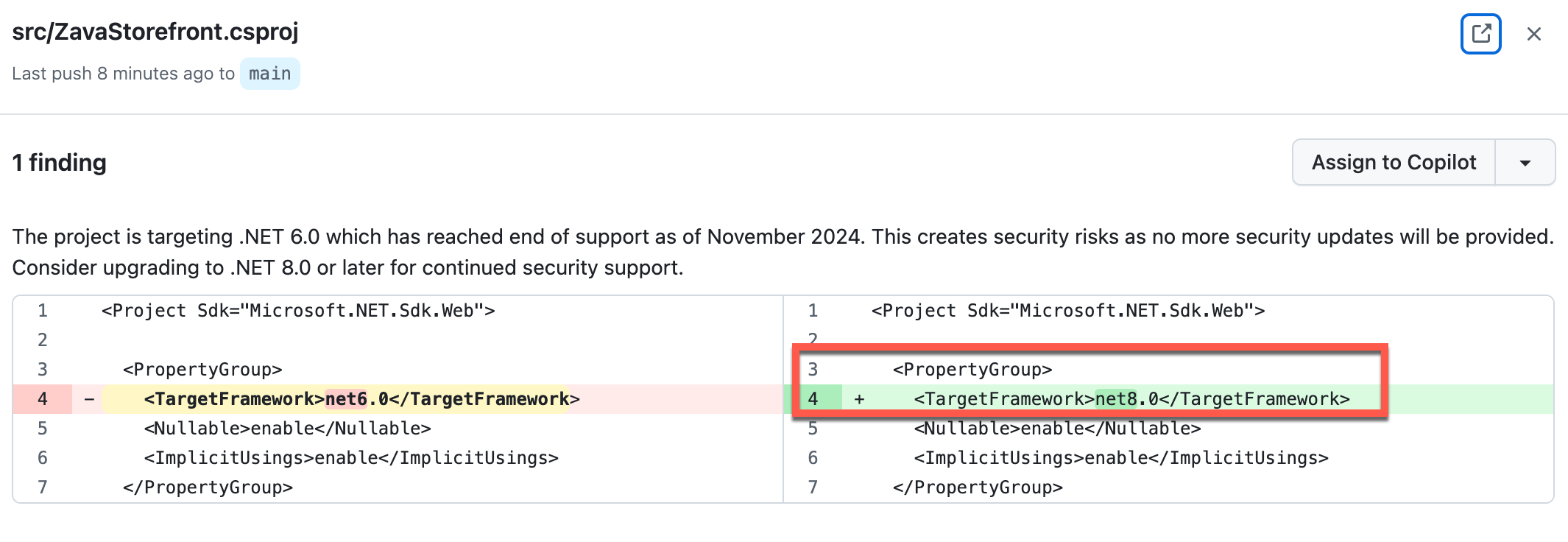
07: Review secret scanning alerts
Review secret scanning alerts in the Security tab to see previously detected passwords and secrets that were introduced into the solution files.
Expand this section for detailed steps
-
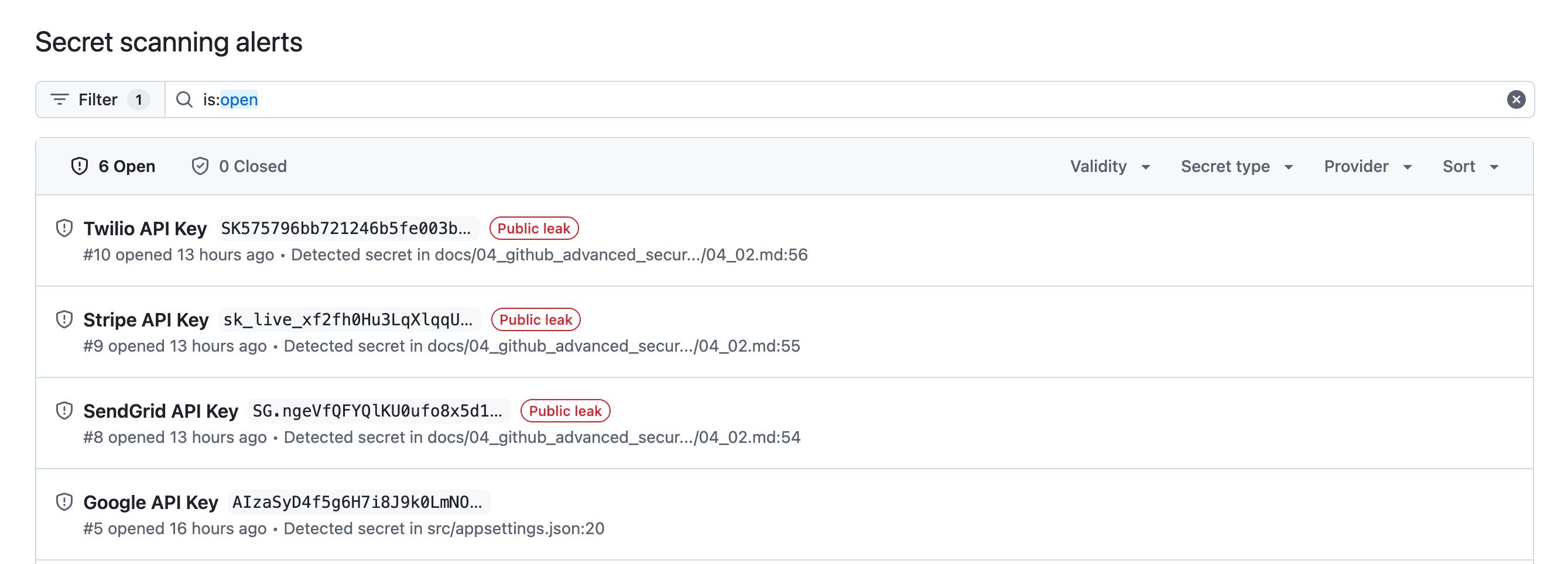
Navigate to the Security tab for the repository. Select the Secret scanning menu under Vulnerability alerts. You can choose from Default or Generic alerts.
-
Review the alerts. The alerts will show the previous passwords and secrets that were introduced into the solution files earlier.

-
These alerts will clear when the scanner runs and no longer detects the secrets present in the solution.
Summary
You’ve completed this task. You have detected vulnerabilities in the solution, scanned the solution for code quality, enabled Copilot to automatically review your Pull Requests, and accepted changes proposed by Copilot.