Exposing Teams to AI Agents (MCP)
In .NET, use SDK 2.1 and host MCP endpoints alongside your Teams endpoint in the same ASP.NET app. Treat Teams as the interaction channel and MCP as the agent-facing control plane.
This guide turns your Teams bot into an MCP server, enabling external AI agents to interact with users in Teams. Through this server, agents can find users by name, send messages into chats, ask questions, and trigger workflows such as notifications or approvals — turning Teams into a communication surface for agent-to-human interaction.
The bot and the MCP server run in the same process, exposing two HTTP surfaces: /api/messages for Teams and /mcp for agents.
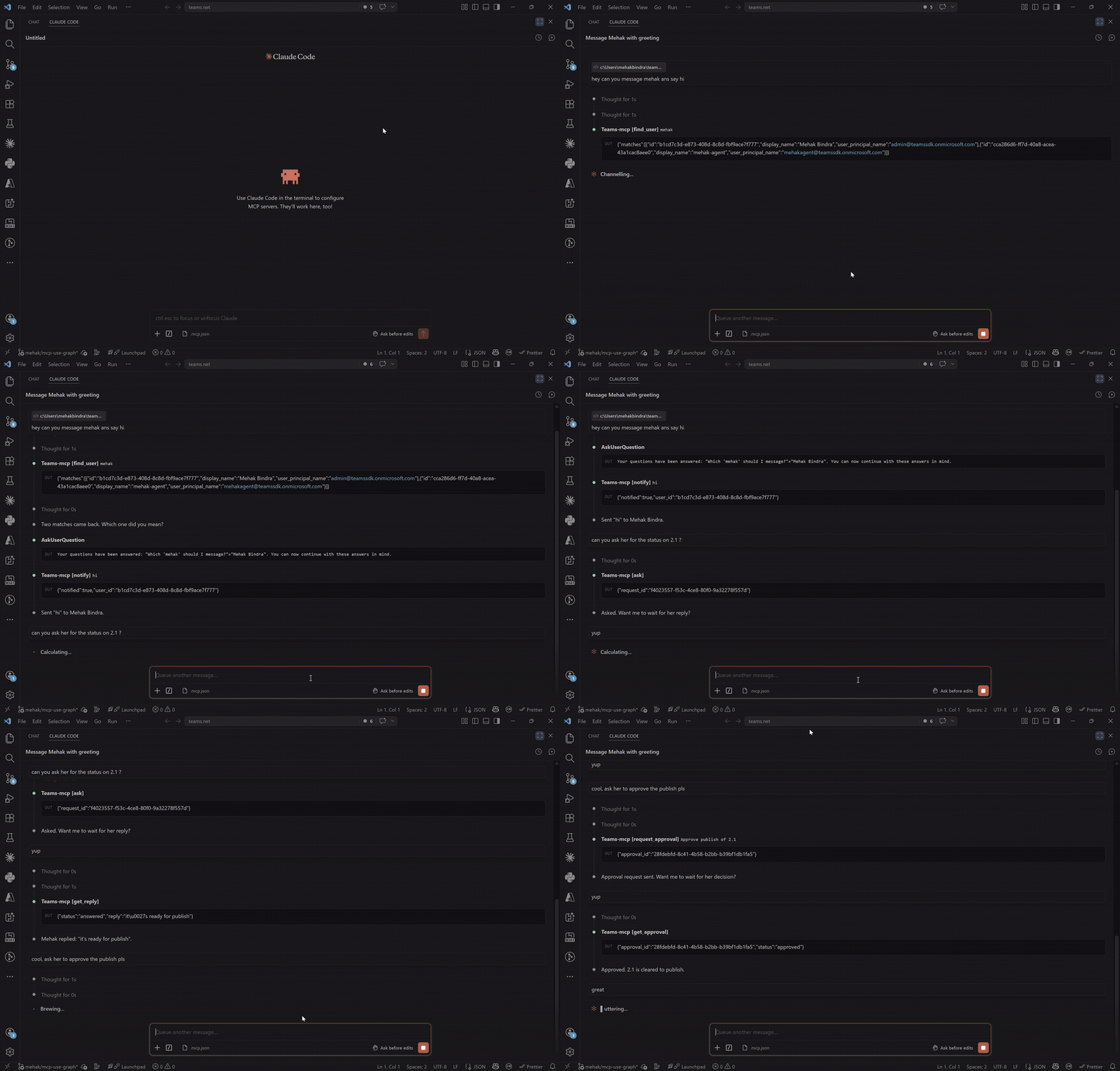
This guide is based on core/samples/McpServer: a single ASP.NET process hosts both Teams (/api/messages) and MCP (/mcp).
Defining a tool
An MCP tool is a function exposed by the server and discoverable by clients. The function signature defines the input schema, the return type defines the output, and the description tells the agent when to use it.
The sample uses MCP tool attributes for discovery:
[McpServerToolType]
public sealed class McpTools(TeamsBotApplication app, State state, IConfiguration config, GraphClient graph)
{
    [McpServerTool(Name = "notify"), Description("Send a notification to a Teams user. No response expected.")]
    public async Task<NotifyResult> Notify(string userId, string message, CancellationToken cancellationToken = default) { ... }
}
Finding users by name
The agent talks in terms of names ("message Mehak about the deploy"), but every other tool needs an AAD object id. find_user bridges that gap by searching the tenant directory through Microsoft Graph, using the bot's own app identity.
find_user delegates to a Graph client and returns stable IDs:
[McpServerTool(Name = "find_user"), Description("Find users in this tenant by partial name, email, or UPN.")]
public async Task<FindUserResult> FindUser(string query, CancellationToken cancellationToken = default)
{
    IReadOnlyList<UserMatch> matches = await graph.SearchUsersAsync(query, top: 5, cancellationToken);
    return new FindUserResult(matches);
}
This requires the bot's app registration to have the User.ReadBasic.All (Microsoft Graph, Application) permission with admin consent granted.
Sending proactive notifications
A one-way notification needs no response. The tool resolves the user's 1:1 conversation — opening one proactively if the user hasn't messaged the bot — and sends the message.
notify resolves/creates a DM conversation and sends proactively:
string conversationId = await GetOrCreateConversationAsync(userId, cancellationToken);
MessageActivityInput notifyActivity = new MessageActivityInput().WithText(message);
await app.ConversationClient.SendActivityAsync(conversationId, notifyActivity, state.ServiceUrl, cancellationToken: cancellationToken);
See Proactive Messaging for the full story on how Teams handles bot-initiated conversations.
Asking the user a question
Unlike notifications, questions need a response. The flow is split into two tools: ask sends an Adaptive Card with a reply box and returns a requestId; wait_for_reply blocks until the user submits (or a timeout fires). Recording the pending ask before sending the card means a fast reply is never lost.
ask + wait_for_reply use request IDs and waiter tasks:
state.PendingAsks[requestId] = new PendingAsk(userId);
await app.ConversationClient.SendActivityAsync(conversationId,
    new MessageActivityInput().WithAdaptiveCardAttachment(Cards.AskCard(requestId, question)),
    state.ServiceUrl,
    cancellationToken: cancellationToken);
TaskCompletionSource<PendingAsk> waiter = state.ReplyWaiters.GetOrAdd(
    requestId,
    _ => new TaskCompletionSource<PendingAsk>(TaskCreationOptions.RunContinuationsAsynchronously));
PendingAsk result = await waiter.Task.WaitAsync(TimeSpan.FromSeconds(timeoutSeconds), cancellationToken);
The user's typed reply arrives through a card-action handler, which records the answer and wakes up any wait_for_reply caller parked on it.
Card submit updates pending state and resolves waiting callers:
case "ask_reply":
    return HandleAskReply(action, state);
...
if (state.ReplyWaiters.TryRemove(requestId, out TaskCompletionSource<PendingAsk>? waiter))
    waiter.TrySetResult(answered);
Requesting an approval
For decisions that need a clear outcome — approving a deployment, confirming an action — an Adaptive Card with explicit Approve / Reject buttons is clearer than free text. The shape mirrors the ask flow: request_approval returns an approvalId, and wait_for_approval blocks for the decision.
Approvals mirror the ask pattern with explicit decision state:
state.Approvals[approvalId] = ApprovalStatus.Pending;
await app.ConversationClient.SendActivityAsync(conversationId,
    new MessageActivityInput().WithAdaptiveCardAttachment(Cards.ApprovalCard(approvalId, title, description)),
    state.ServiceUrl,
    cancellationToken: cancellationToken);
The user's choice arrives through the same card-action mechanism as the ask flow — the approval_response handler records the decision and wakes up any wait_for_approval caller.
Approval card submit wakes wait_for_approval:
if (state.ApprovalWaiters.TryRemove(approvalId, out TaskCompletionSource<string>? waiter))
    waiter.TrySetResult(decision);
Wiring the MCP server into your Teams app
The Teams bot handles /api/messages, while the MCP server is mounted on the same HTTP server at /mcp.
Wire Teams and MCP into one app:
WebApplicationBuilder builder = WebApplication.CreateBuilder(args);
builder.Services.AddTeamsBotApplication();
builder.Services.AddSingleton<State>();
builder.Services
    .AddMcpServer()
    .WithHttpTransport()
    .WithTools<McpTools>();

WebApplication webApp = builder.Build();
TeamsBotApplication bot = webApp.UseTeamsBotApplication();
webApp.MapMcp("/mcp");
webApp.Run();
Testing with MCP Inspector
The easiest way to drive the server before wiring up a real agent is the MCP Inspector:
npx @modelcontextprotocol/inspector
Set the transport to Streamable HTTP and the URL to http://localhost:3978/mcp, then connect and call find_user → ask → wait_for_reply to drive a full round-trip with a real Teams user.