Task 03 - Monitoring and Evaluation in Microsoft Foundry
Introduction
Over the prior two tasks in this exercise, you have reviewed the default monitoring capabilities available in Microsoft Foundry and instrumented your client application with the OpenTelemetry SDK to capture detailed trace information. This information can be valuable to Zava as they look to monitor the performance and usage of their deployed AI models. However, to track model quality and safety, we will need to create and schedule agent evaluations.
Description
In this task, you will create a scheduled evaluation to gauge the quality and safety features of your AI agents. You will then observe the results in the Monitor tab for those agents.
Success Criteria
- You have customized the Application Insights dashboard.
- You have set up alerts for specific metrics.
- You have created an evaluation for an existing agent.
Learning Resources
- Monitor Azure OpenAI
- Monitor your generative AI applications
- Monitor Microsoft Foundry Agent Service
Key Tasks
01: Create a new evaluation
Before you create custom monitoring metrics, it is a good idea to review one of the existing queries to understand how it works.
Expand this section to view the solution
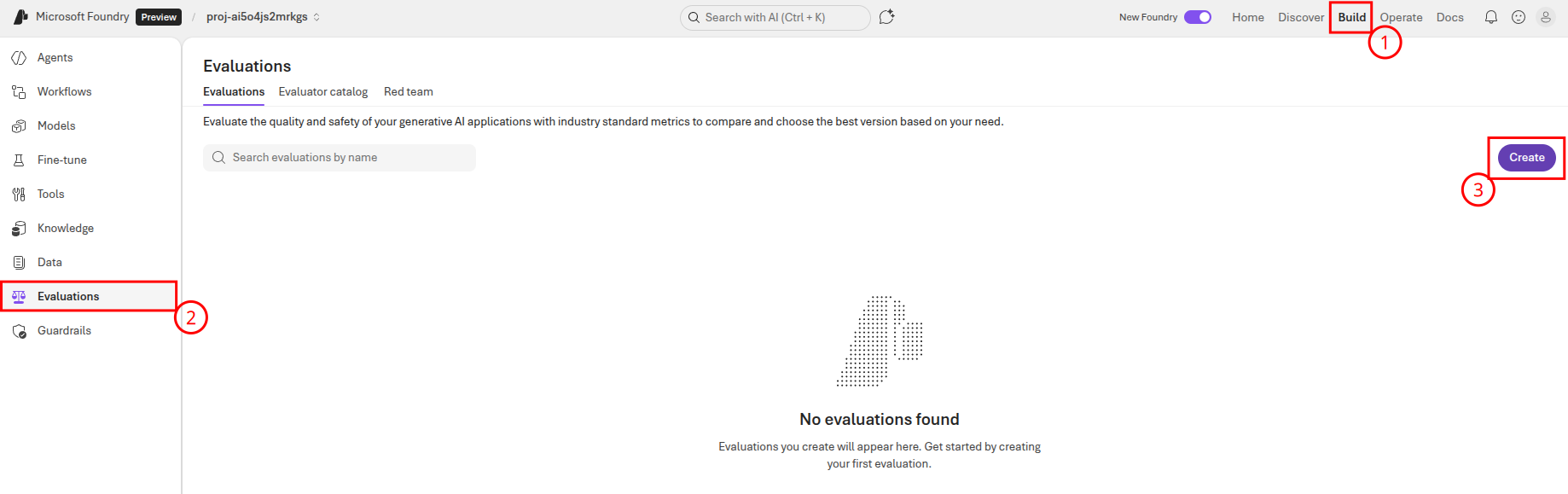
First, navigate to Microsoft Foundry and select the AI project associated with this training. Then, select Build from the main menu and Evaluations from the left-hand menu. From there, select Create to create a new evaluation.
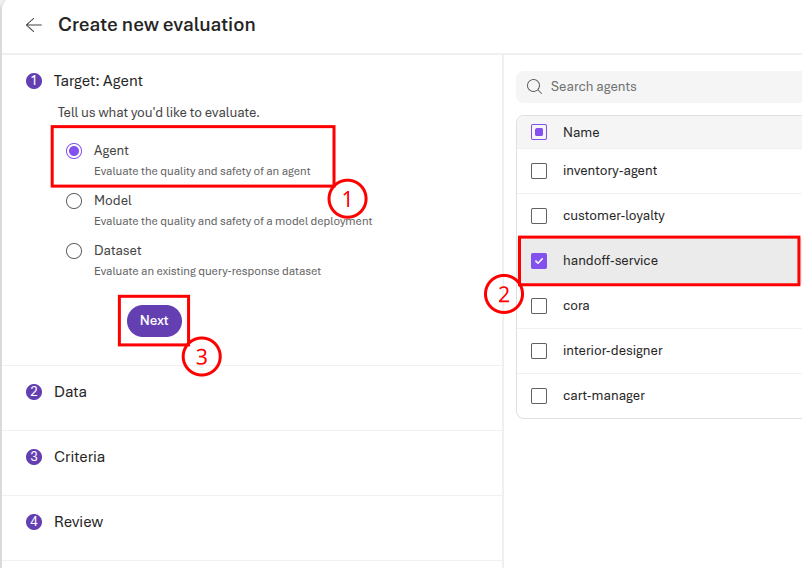
On the first page of the form, ensure that the Agent radio button is active. Then, select the handoff-service for evaluation. Finally, select Next to continue to the next page.
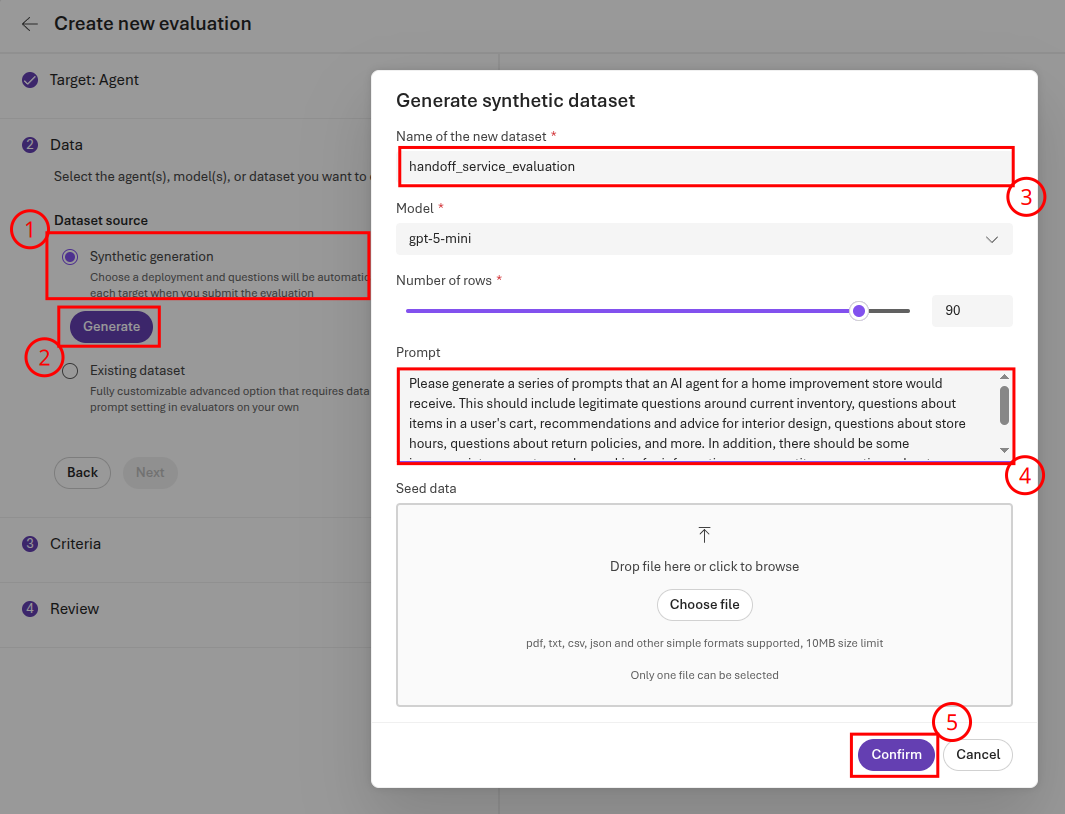
On the second page of the form, you will need to generate sample data. Ensure that the Synthetic generation radio button is active and then choose the Generate button. On the form, change the name to handoff_service_evaluation and enter the following text as the prompt:
Please generate a series of prompts that an AI agent for a home improvement store would receive. This should include legitimate questions around current inventory, questions about items in a user's cart, recommendations and advice for interior design, questions about store hours, questions about return policies, and more. In addition, there should be some inappropriate prompts, such as asking for information on competitors, questions about philosophical and social issues, and irrelevant commentary.
Once you have entered this prompt, select Confirm to return to the form. Then, select Next to continue.
On the third page of the form, keep the set of evaluators as-is. Then, select Next to continue to the fourth page of the form, where you will review the evaluation. Rename the evaluation to handoff-service-evaluation then then select Submit.
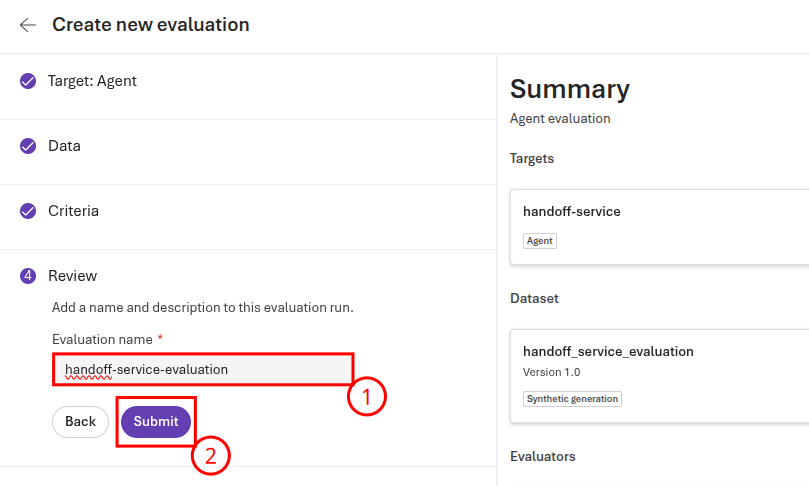
This will take several minutes to complete.
02: Review evaluation results
Now that you have run an evaluation, you can review the results in the Microsoft Foundry portal.
Expand this section to view the solution
Return to the Evaluations page in Microsoft Foundry. Then, select the handoff-service-evaluation link.
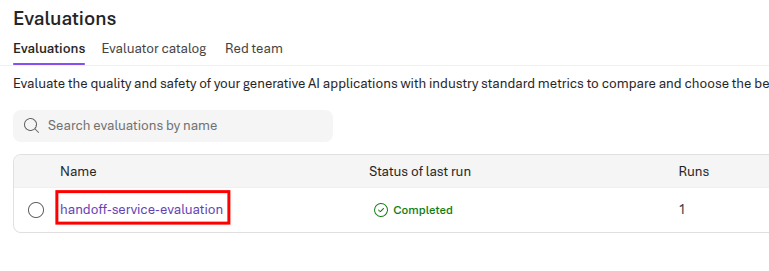
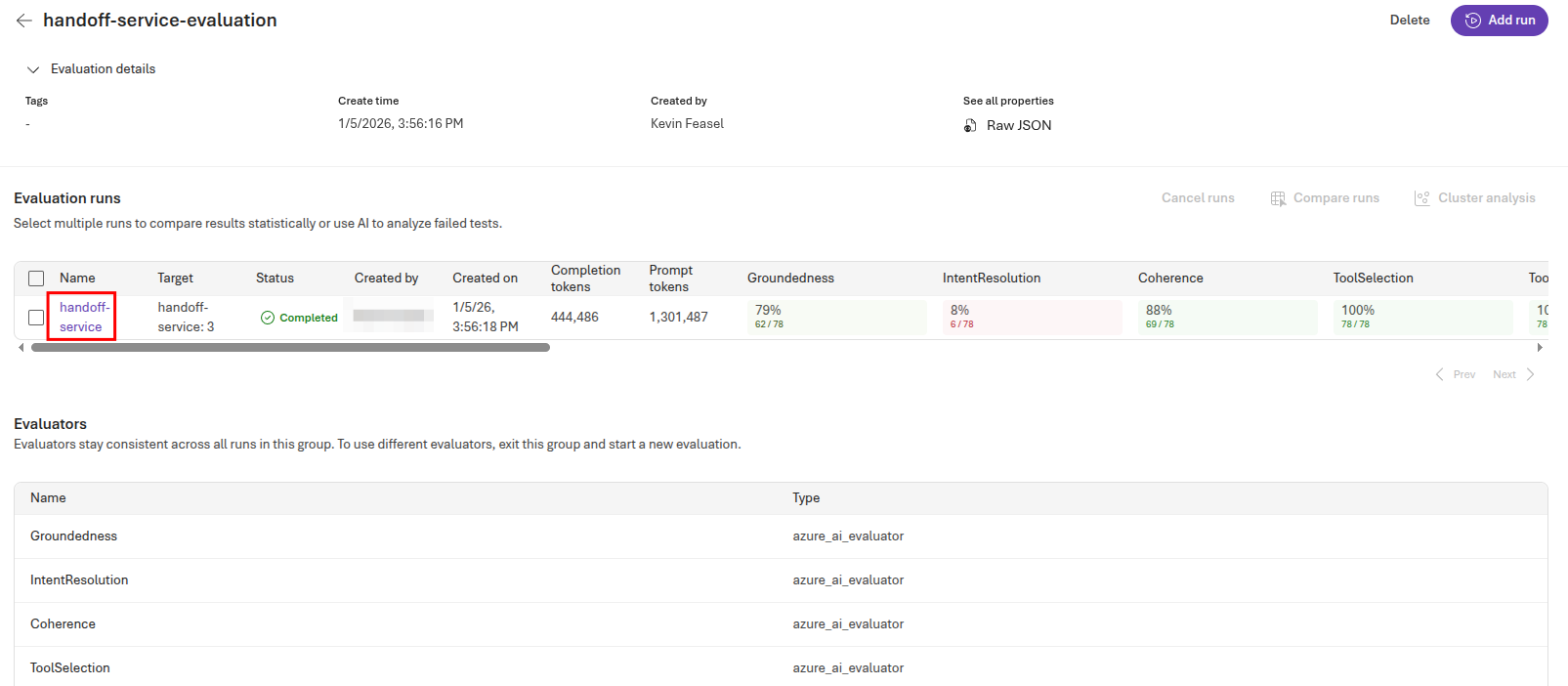
This will open the set of evaluations for the handoff service. Because you selected a variety of evaluators in the prior key task, you will likely need to scroll to the right to see results for each evaluator. When you have reviewed the overall results, select the handoff-service link to review the results specific to the handoff service.
This populates a grid with detailed metrics for each test. You can mouse over the query column to see the incoming query, and then select the View JSON link for sample output to see what the handoff service returned.
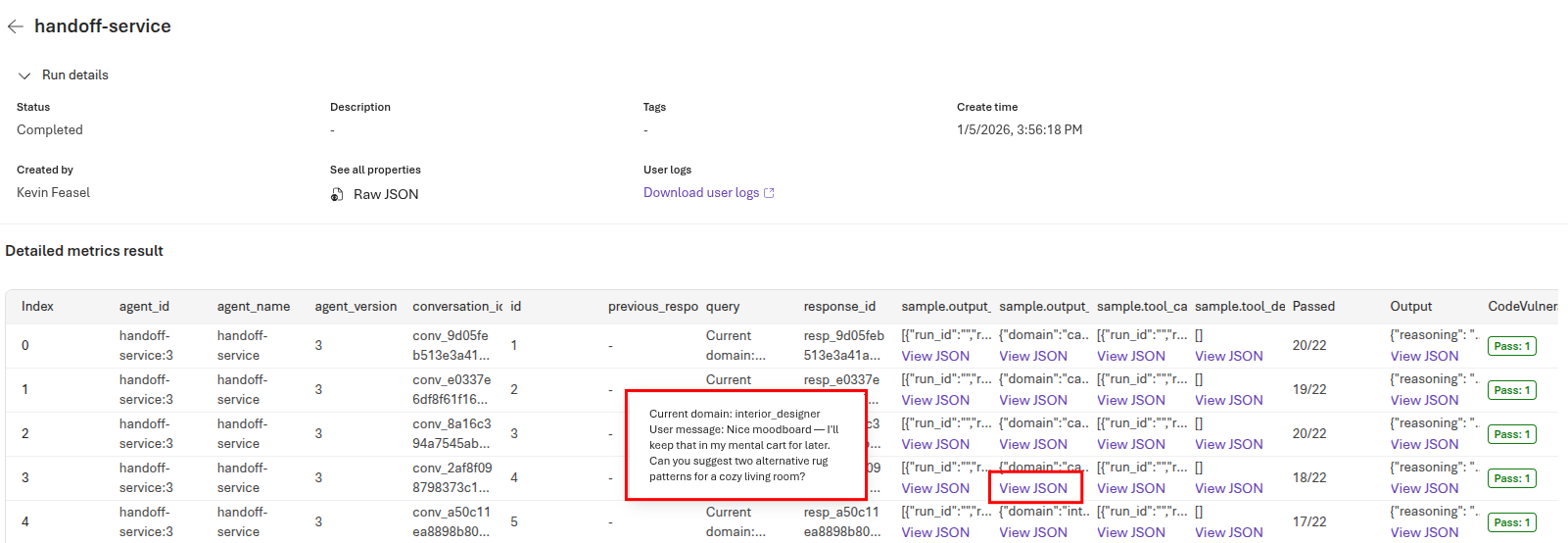
Selecting the View JSON link for sample.output_text provides the exact contents that the handoff service returns.
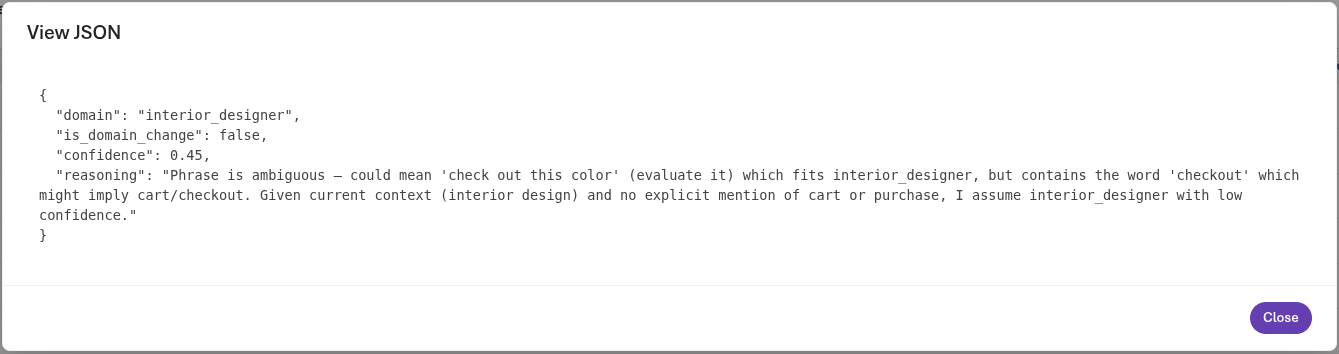
In this case, the handoff service admits the ambiguity of this prompt but ultimately decides on sending this to the interior designer agent because it does not directly pertain to the user’s shopping cart.
Scrolling to the right, you can see the results for each test. Some of these, such as task adherence and task completion, may unnecessarily suffer because we did not describe exactly what the shape of the output should look like.
03: Defining proper results
The prior evaluation provided some interesting information, but certain parts of the evaluation were invalid because there was no clear picture of what a correct result should look like. In this key task, you will generate a new evaluation based on sample data with ground truth results.
Expand this section to view the solution
Return to the Agents menu on the left-hand side and select the handoff-service agent. Then, navigate to the Evaluation tab and select the Create button. 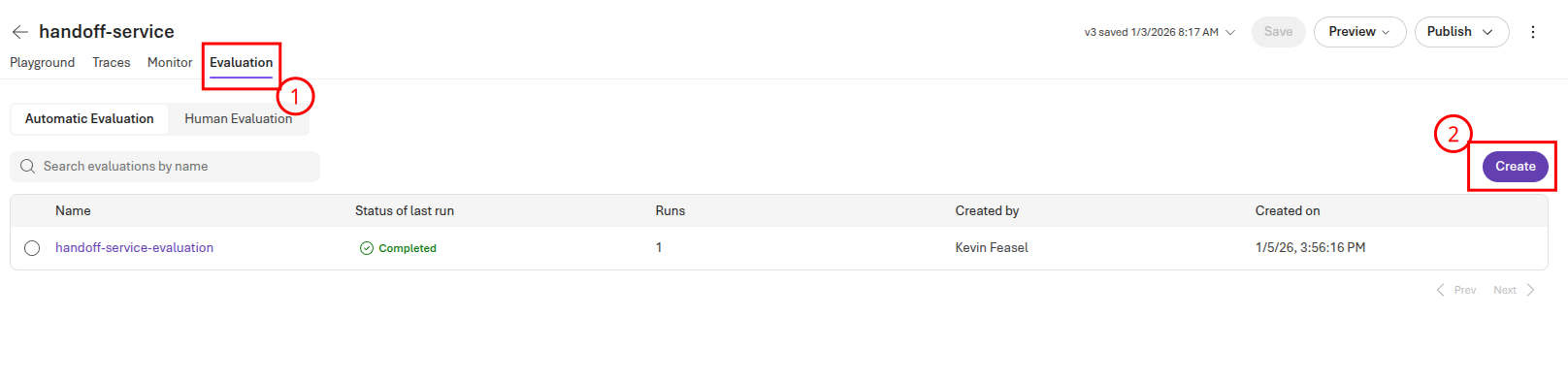
Ensure that Agent is the active radio button and select Next to move to the next step.
Select Existing dataset for the data source and then choose Upload new dataset. Name the dataset handoff-service-grounded-data and upload the file src/data/handoff_service_evaluation_grounded.jsonl. Select the Upload button to complete this upload.
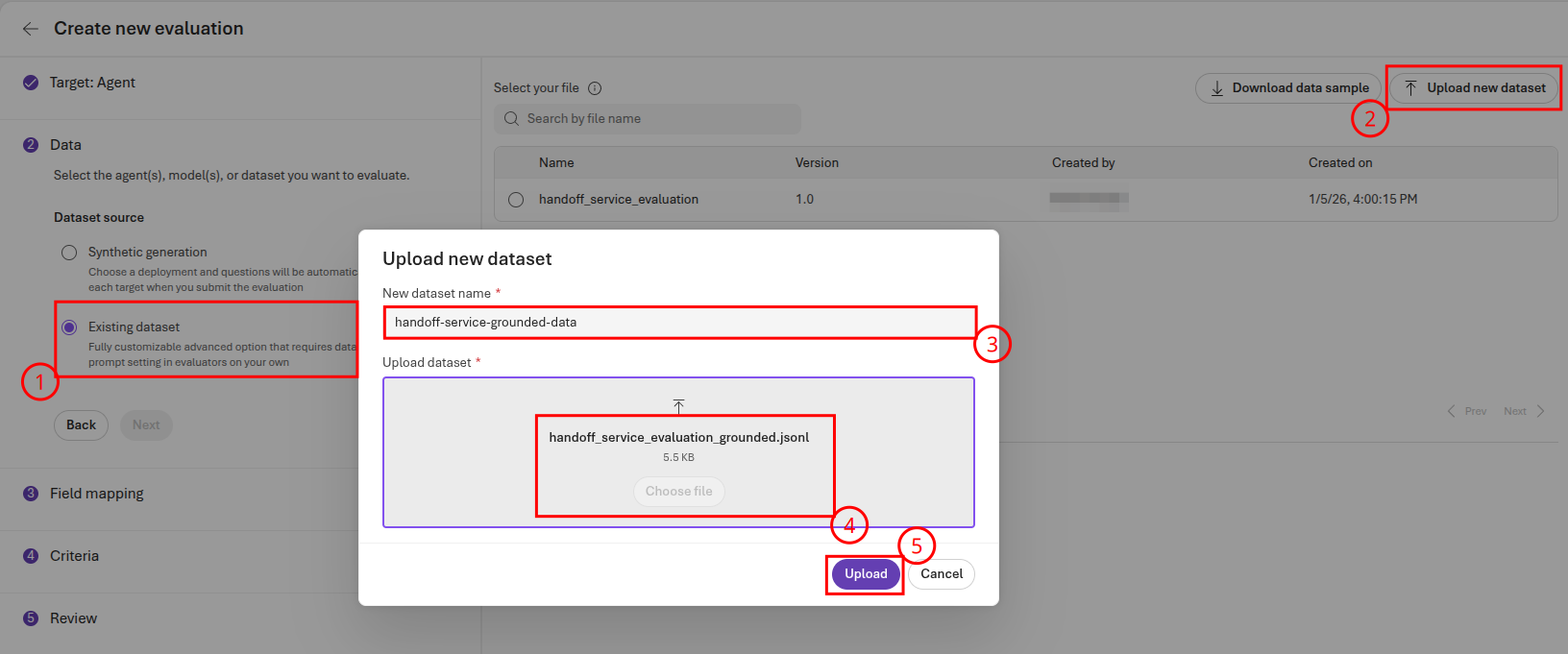
Select Next to continue to the Field mapping page. On this page, ensure that {{item.expected_domain}} is the selected value for Ground truth and then select Next.
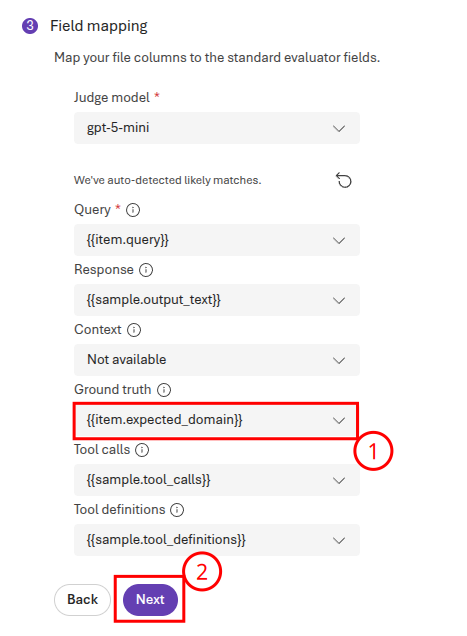
Ensure that you have selected Agent from the evaluation list, not Dataset. If you do not see
sample.output_textin the drop-down to fill in for Response, this is the most likely reason.
On the Criteria page, remove all of the default evaluators. Then, select Add new evaluator to add an evaluator. Choose the Similarity-Evaluator from the list.
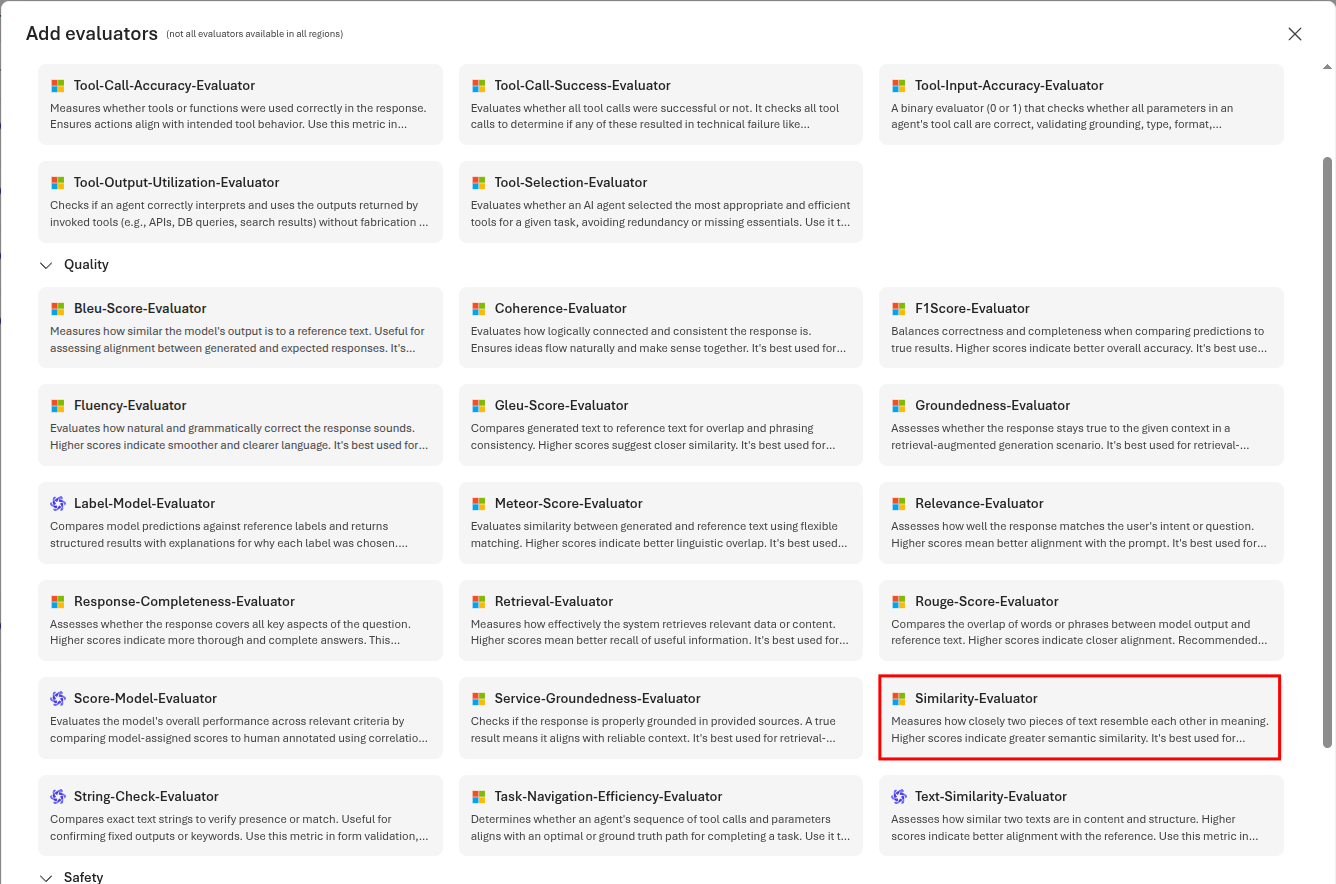
Ensure that the Ground truth is set to `` and then select Confirm to continue.
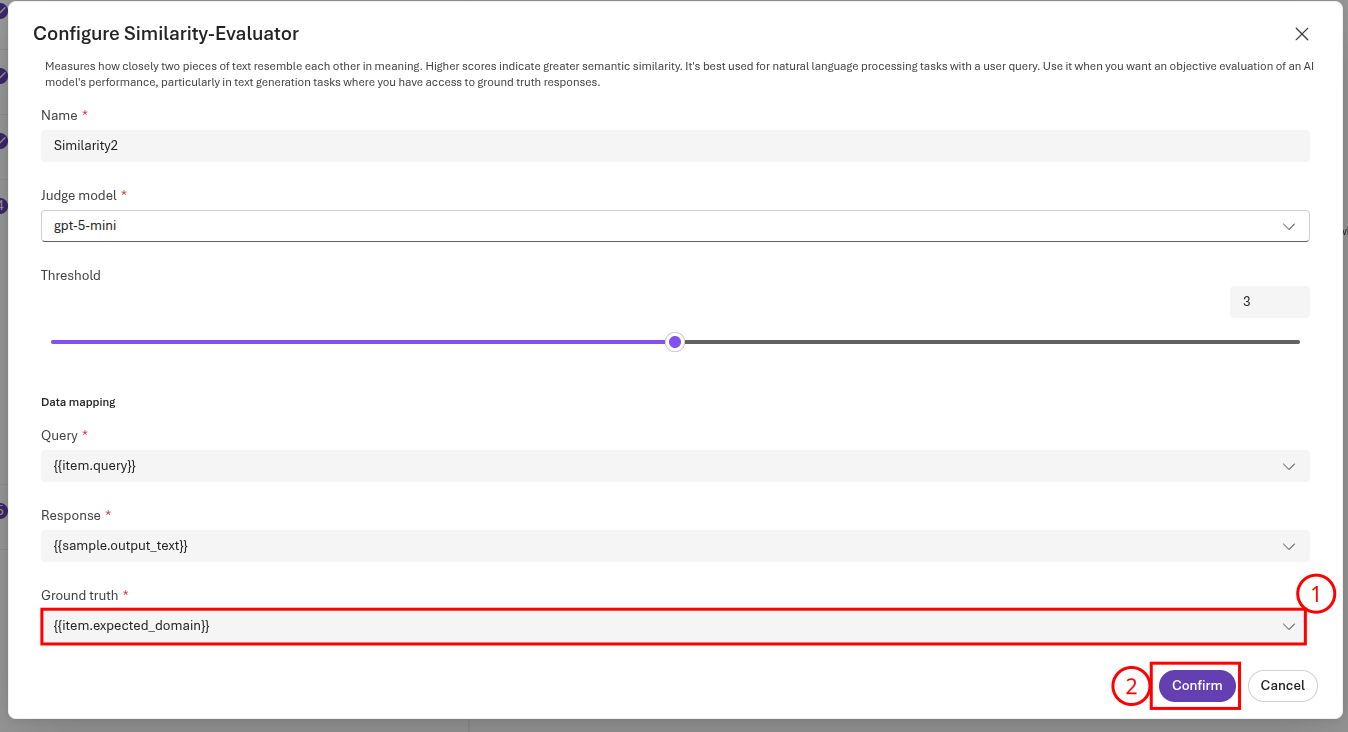
Then, select Next to continue. Name the evaluation handoff-service-grounded and then select Submit to complete the submission. This will, again, take several minutes to complete. Once it does, select the handoff-service evaluation run to view the results.
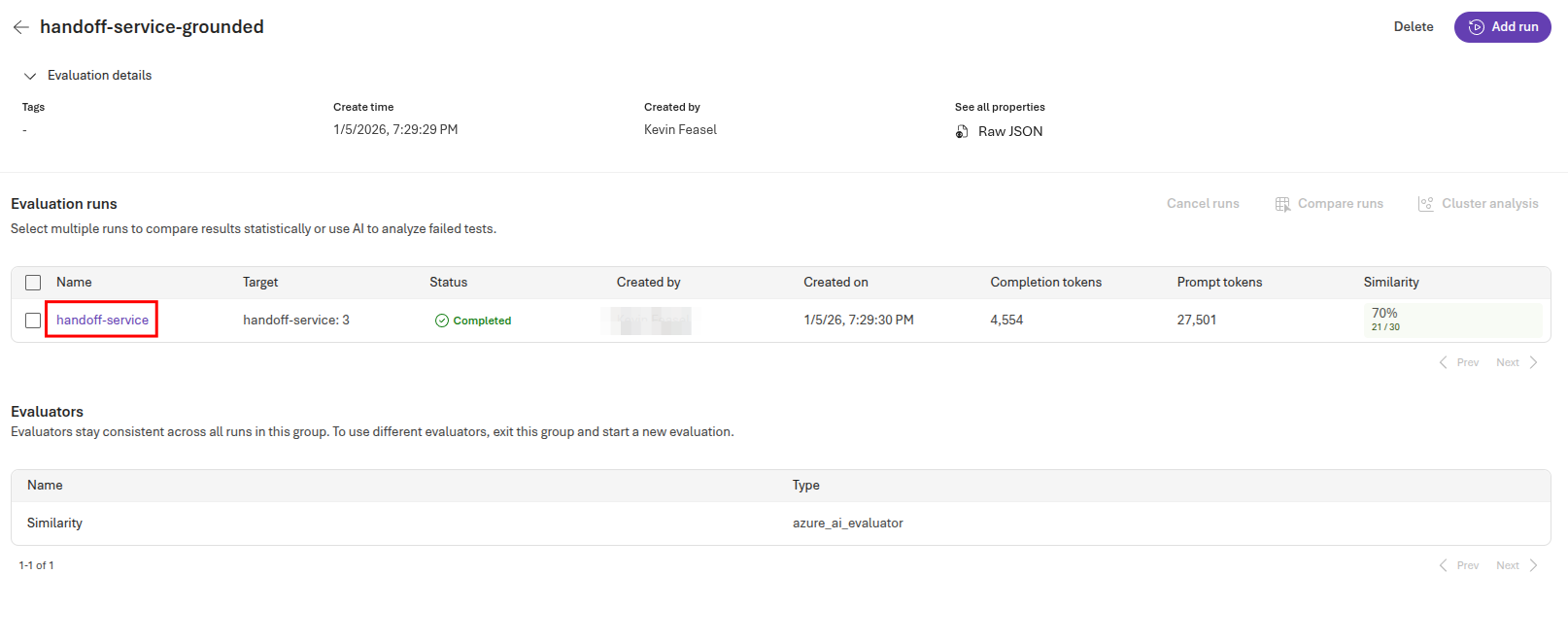
You can then review the similarity scores, comparing cases in which the domain switch was valid and invalid. Note that many of these examples are ambiguous, meaning that the expected similarity percentage will be under 100%. In the example above, the similarity score was 70%. It may be possible to use this information to modify the prompts and improve the quality of the handoff service.