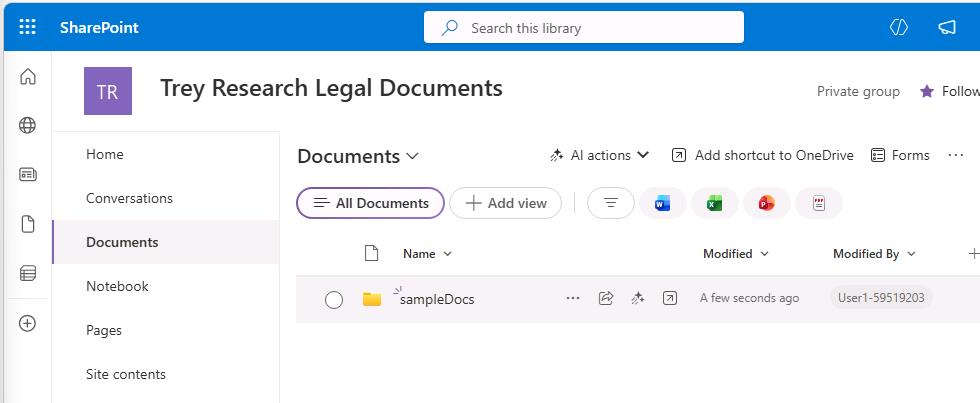
Task 01: Upload sample documents
Description
You’ll create a new SharePoint Team site and upload the sample consulting documents included in the project. The declarative agent will use these documents as grounding knowledge when answering prompts.
Success criteria
- You created a SharePoint Team site named
Trey Research Legal Documentswith the correct group email address and site address suffix. - You uploaded the
sampleDocsfolder fromC:\Lab Files\lab-build-apito the site’s Documents library.
Key steps
01: Create a SharePoint site
-
Open Microsoft Edge, then go to
lodsprodmca.sharepoint.com/_layouts/15/sharepoint.aspx. -
Sign in with your lab credentials:
Item Value Username @lab.CloudPortalCredential(User1).UsernameTemporary Access Pass (TAP) @lab.CloudPortalCredential(User1).AccessToken -
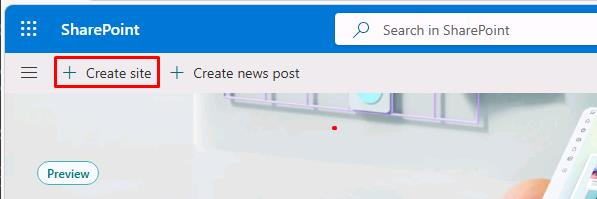
On the top bar, select Create site.
-
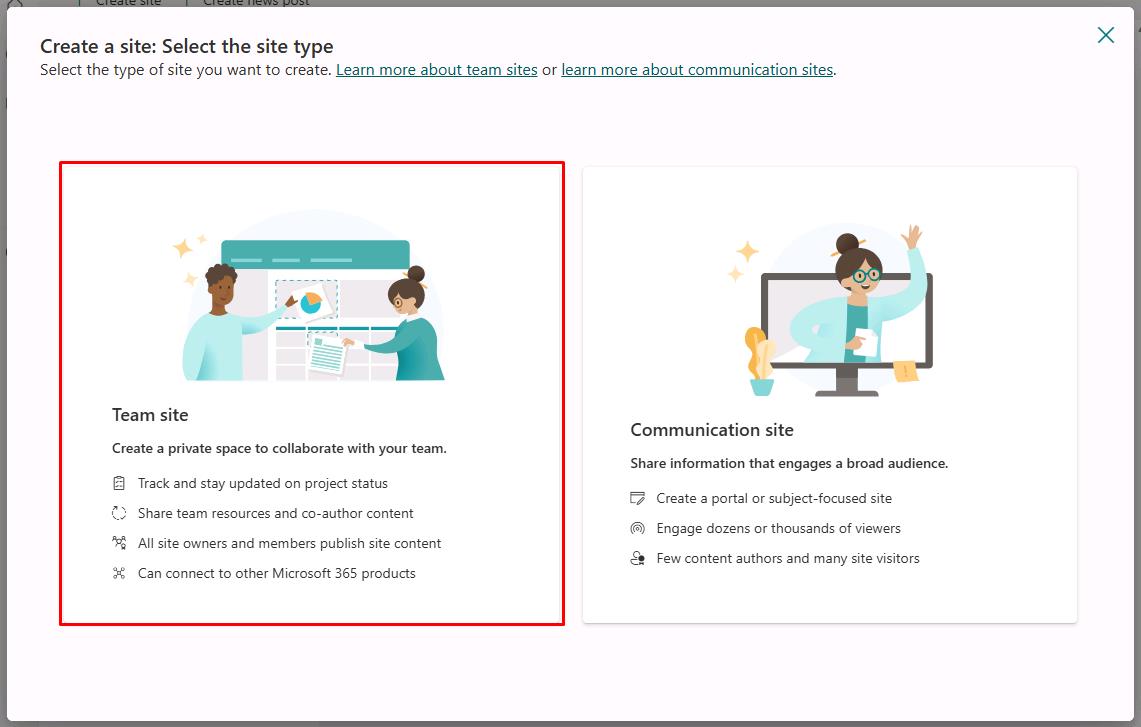
In the dialog, select Team site.
-
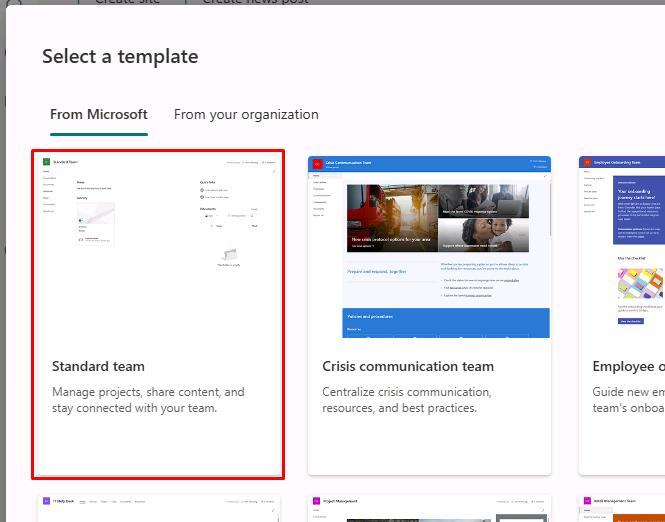
Select Standard team.
-
In the lower-right corner of the dialog, select Use template.
-
In the Give your site a name dialog, enter the following:
Item Value Site name Trey Research Legal DocumentsGroup email address TreyResearchLegalDocuments@lab.LabInstance.IdSite address suffix TreyResearchLegalDocuments@lab.LabInstance.Id 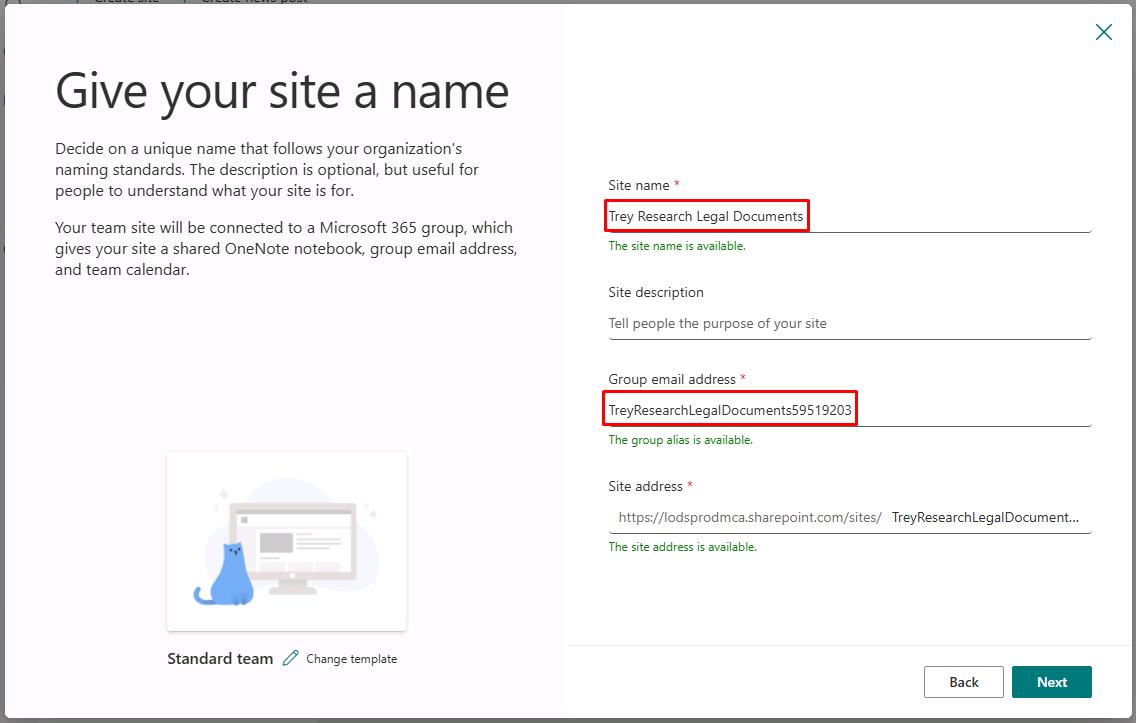
Use the provided values, as these will be referenced again in future steps. The numbers shown in the screenshot will not match your instance.
-
In the lower-right corner of the dialog, select Next.
-
Select Create site.
-
Once the site is created, select Finish.
02: Upload the sample documents
-
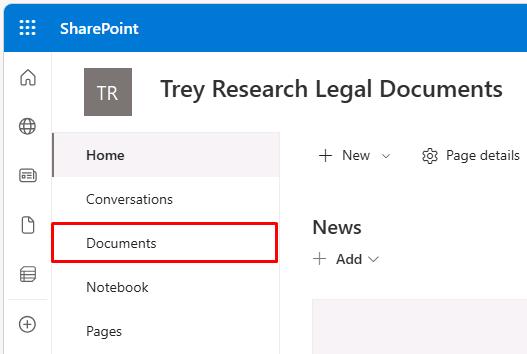
In the site menu, select Documents.
-
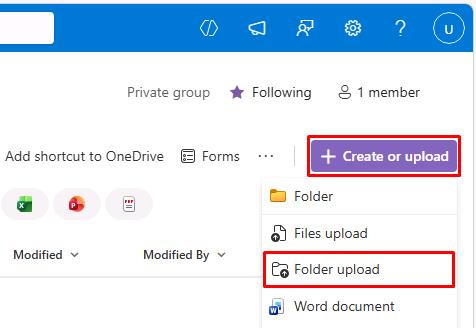
Near the upper-right corner of the page, select Create or upload, then select Folder upload.
-
Go to
C:\Lab Files\lab-build-api, select the sampleDocs folder, then select Upload.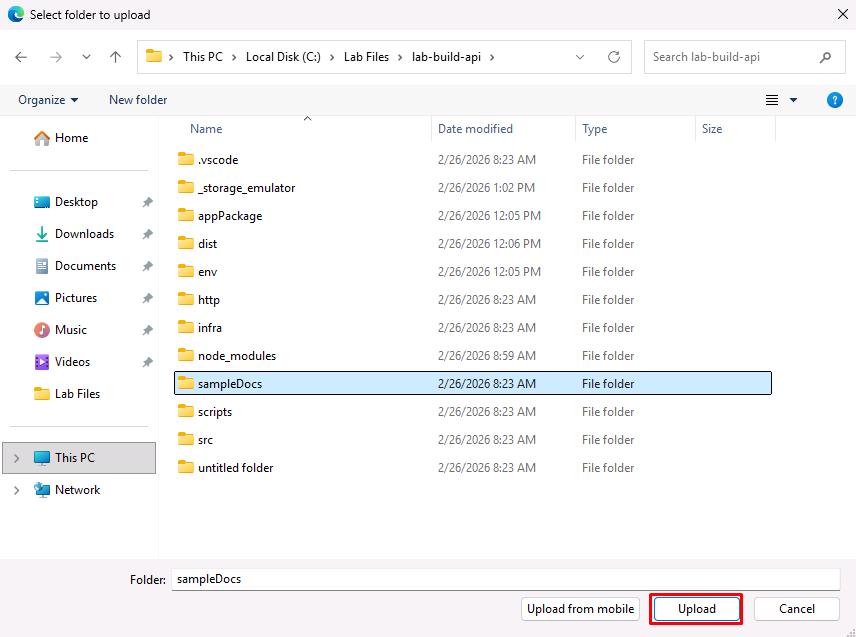
-
In the dialog, select Upload.