Task 01: Create a new declarative agent for embedded knowledge
Description
You’ll create a second declarative agent project - Zava Procurement - that does not call an external API. Instead, it uses the EmbeddedKnowledge capability to bundle static PDF files directly into the agent package. This gives the agent instant, offline access to Zava’s contractor pricing sheets and claims inspection guidelines.
Success criteria
- You created a new Declarative Agent project named
Zava Procurementwith no action using the Microsoft 365 Agents Toolkit. - The new project opened in a separate VS Code window and contains the
appPackage/EmbeddedKnowledgefolder.
Key steps
01: Create new agent using Microsoft 365 Agents Toolkit
-
Go back to VS Code.
-
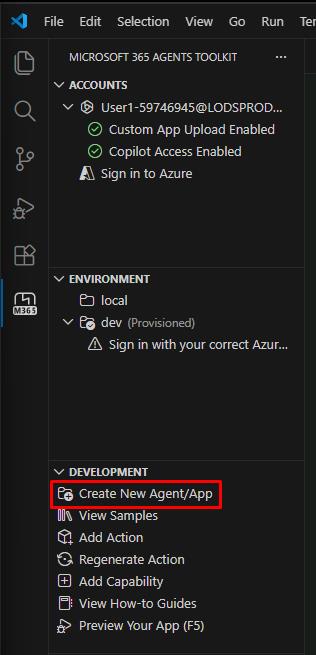
In the Microsoft 365 Agents Toolkit pane, under DEVELOPMENT, select Create New Agent/App.
-
Select Declarative Agent from the template options.
-
Select No Action from the options.
-
Select Default folder.
-
Enter the application name:
Zava ProcurementThis will create a new agent and open a new project window in VS Code.
02: Understand how to embed files
Navigate to the appPackage folder and explore its contents. You’ll recognize familiar files from your previous declarative agent work: the manifest.json file (which defines your agent’s capabilities) and the declarativeAgent.json file (which configures your agent’s behavior).
The key addition you’ll notice is the EmbeddedKnowledge folder. This is where you’ll store Zava’s contractor pricing data files that will be embedded directly into your agent, enabling instant access to pricing intelligence without requiring live database queries.
Sample PDF files without sensitivity labels are provided for testing purposes. If you choose to test with your own files-especially Office documents, ensure they comply with the sensitivity labels configured in your tenant.