Task 04: Test the agent integration
Description
You’ll provision the agent package to your Microsoft 365 tenant and then test it inside Microsoft 365 Copilot Chat using natural language prompts. You’ll also enable developer debug mode to inspect how the agent routes requests to the MCP server.
Success criteria
- You provisioned the
Zava Claims Assistantagent package to your Microsoft 365 tenant without errors. - You opened the Zava Claims agent in Copilot Chat and received a valid response to at least one conversation starter.
- You tested three natural language queries - inspections lookup, inspection creation, and new claim creation - and received correct responses from the MCP server.
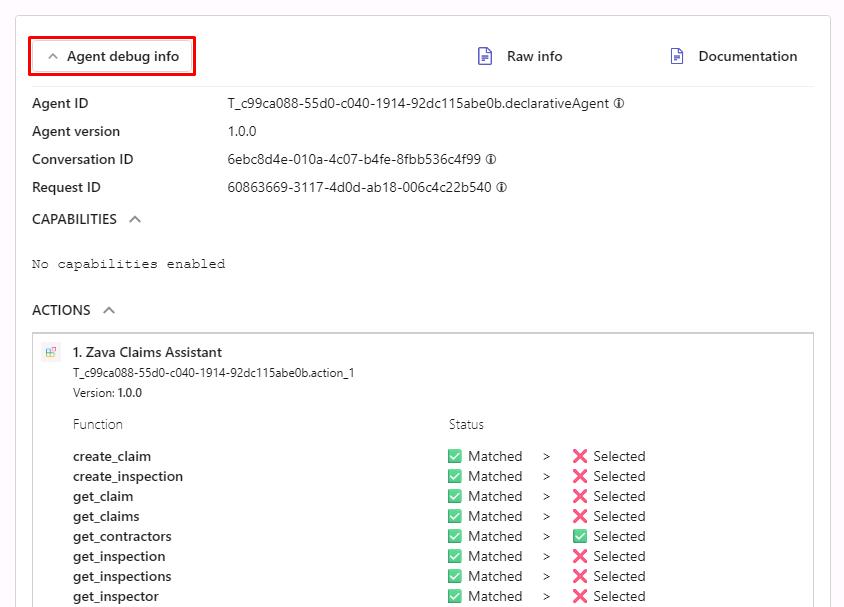
- You enabled developer debug mode and reviewed the Agent debug info panel for at least one query.
Key steps
01: Provision the agent
You’ll need to sign into the Microsoft 365 Agents Toolkit to upload and test your agent from within it.
-
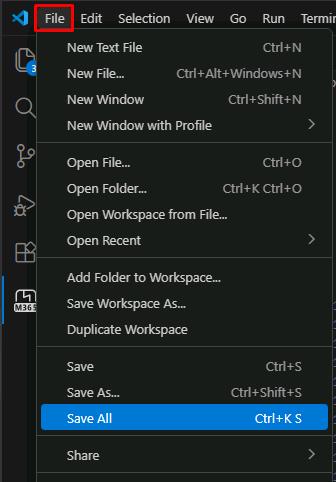
Save your file changes by selecting File, then Save All.
-
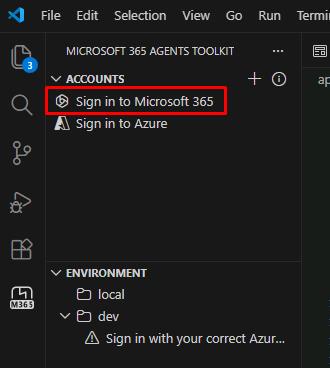
In the leftmost pane, select the Microsoft 365 Agents Toolkit (
) icon.
-
Under the ACCOUNTS section, select Sign in to Microsoft 365.
-
In the dialog, select Sign in.
-
Sign in to the Microsoft 365 tenant using your lab credentials:
Item Value Username @lab.CloudPortalCredential(User1).UsernamePassword @lab.CloudPortalCredential(User1).AccessToken -
Once signed in, close the browser to go back to the project window.
-
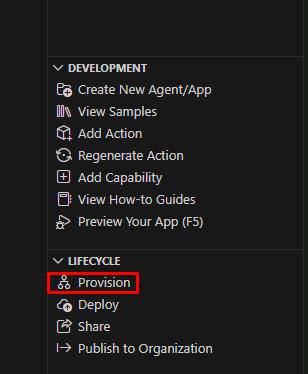
Under the LIFECYCLE section, select Provision.
-
Wait for provisioning to complete.
This creates and uploads the agent package.
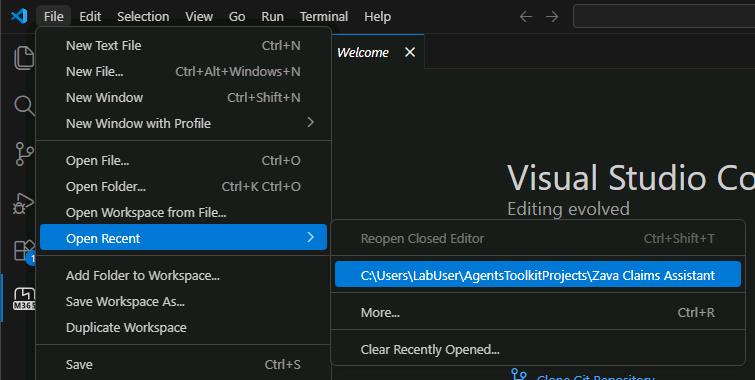
If you receive a timeout error during provisioning, try closing and reopening the project, then provision again.
File > Open Recent > …\Zava Claims Assistant
02: Test in Microsoft 365 Copilot
-
Open Microsoft Edge, then go to
m365.cloud.microsoft/chatto open Copilot Chat. -
Sign in with your lab user credentials:
Item Value Username @lab.CloudPortalCredential(User1).UsernamePassword @lab.CloudPortalCredential(User1).AccessToken -
Close any dialogs.
-
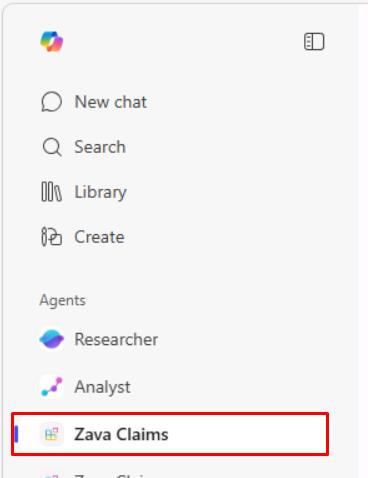
In the leftmost pane, under Agents, select Zava Claims.
-
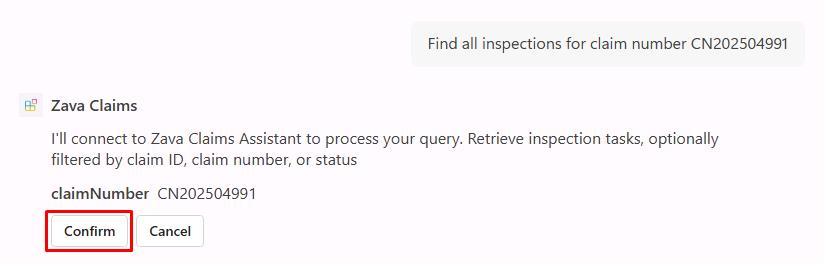
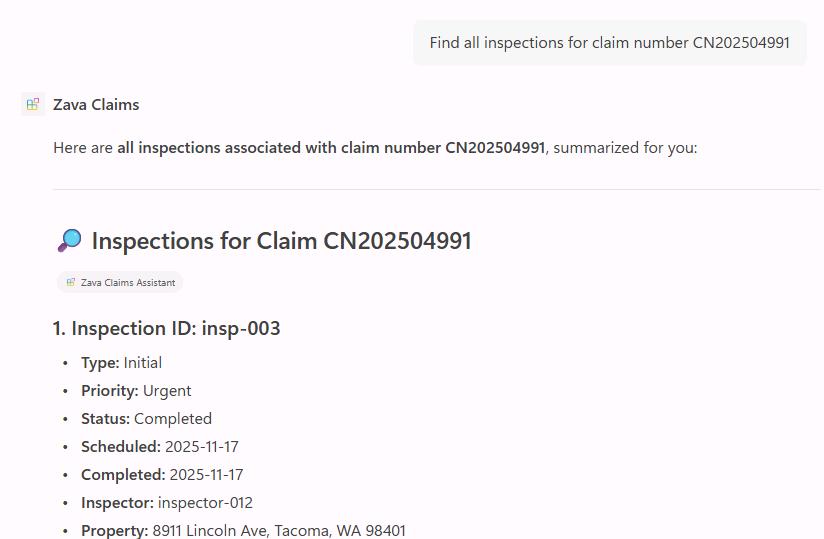
Try a conversation starter, type this prompt:
Find all inspections for claim number CN202504991 -
Select Confirm whenever prompted.
-
Try these natural language queries to test the agent’s capabilities:
-
What claims do we have for storm damage? -
Create a new urgent inspection for claim CN202504990 to assess water damage in the basement -
Create a new claim for Alice Johnson at 456 Oak Street with fire damage from yesterday
Your agent should successfully respond to natural language queries and interact with the MCP server data.
-
03: Debug the agent
-
In the chat with the Zava Claims agent, send the following prompt:
-developer onThis will enable debugging of these conversations.
-
Refresh the browser session (CTRL+F5).
-
Select the Zava Claims agent again.
-
Continue testing the agent with queries:
Find contractors who specialize in roofing and are marked as preferred -
On the lower side of the agent response, select Agent debug info.
Congratulations!
You’ve successfully completed this exercise. You’ve successfully created and deployed the Zava Insurance’s declarative agent that seamlessly integrates with their MCP server.