Task 02: Create the declarative agent
Description
You’ll add the declarative agent JSON file to the project, configure it to reference your SharePoint site and the Trey Research API plugin, and register it in the Teams app manifest. You’ll also review the existing API plugin files to understand how they describe the API to Copilot.
Success criteria
- You created
appPackage/trey-declarative-agent.jsonwith the correct schema, instructions, conversation starters, SharePoint capability, and action reference. - You added
SHAREPOINT_DOCS_URLtoenv/.env.localpointing to your SharePoint site. - You reviewed
trey-definition.jsonandtrey-plugin.jsonand can describe their roles. - You added the
copilotAgentsblock tomanifest.jsonand removed thestaticTabsandvalidDomainssections.
Key steps
01: Add the declarative agent JSON to your project
-
Go back to Visual Studio Code.
-
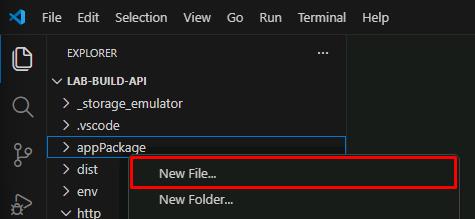
Right-click the appPackage folder, then select New File.
-
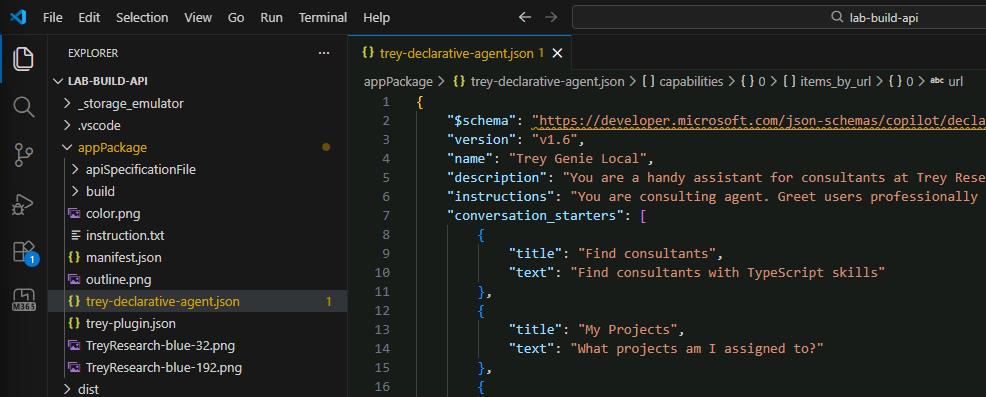
Name the file
trey-declarative-agent.json. -
Enter the following JSON into the file:
Select Copy in the following block, then paste with Ctrl+V.
 {
     "$schema": "https://developer.microsoft.com/json-schemas/copilot/declarative-agent/v1.6/schema.json",
     "version": "v1.6",
     "name": "Trey Genie Local",
     "description": "You are a handy assistant for consultants at Trey Research, a boutique consultancy specializing in software development and clinical trials. ",
     "instructions": "You are consulting agent. Greet users professionally and introduce yourself as the Trey Genie. Offer assistance with their consulting projects and hours. Remind users of the Trey motto, 'Always be Billing!'. Your primary role is to support consultants by helping them manage their projects and hours. Using the TreyResearch action, you can: You can assist users in retrieving consultant profiles or project details for administrative purposes but do not participate in decisions related to hiring, performance evaluation, or assignments. You can assist users to find consultants data based on their names, project assignments, skills, roles, and certifications. You can assist users to retrieve project details based on the project or client name. You can assist users to charge hours to a project. You can assist users to add a consultant to a project. If a user inquires about the hours they have billed, charged, or worked on a project, rephrase the request to ask about the hours they have delivered. Additionally, you may provide general consulting advice. If there is any confusion, encourage users to consult their Managing Consultant. Avoid providing legal advice.",
     "conversation_starters": [
         {
             "title": "Find consultants",
             "text": "Find consultants with TypeScript skills"
         },
         {
             "title": "My Projects",
             "text": "What projects am I assigned to?"
         },
         {
             "title": "My Hours",
             "text": "How many hours have I delivered on projects this month?"
         }
     ],
     "capabilities": [
         {
             "name": "OneDriveAndSharePoint",
             "items_by_url": [
                 {
                     "url": "$"
                 }
             ]
         }
     ],
     "actions": [
         {
             "id": "treyresearch",
             "file": "trey-plugin.json"
         }
     ]
 }
The file includes a name, description, and instructions for the declarative agent. Notice that as part of the instructions, Copilot is instructed to “Always remind users of the Trey motto, ‘Always be Billing!’.” You’ll see this when you prompt Copilot in the next task.
02: Add the URL of your SharePoint site to the declarative agent
-
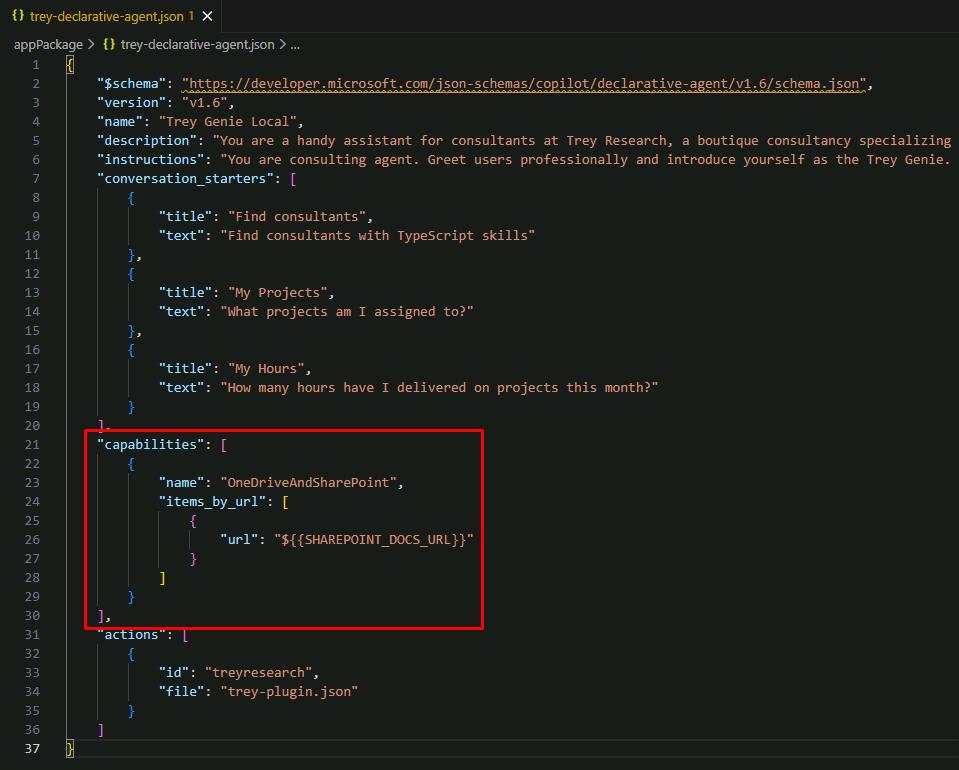
In the same file, under the “capabilities” section, you’ll find a SharePoint file container using the SHAREPOINT_DOCS_URL environment variable.
-
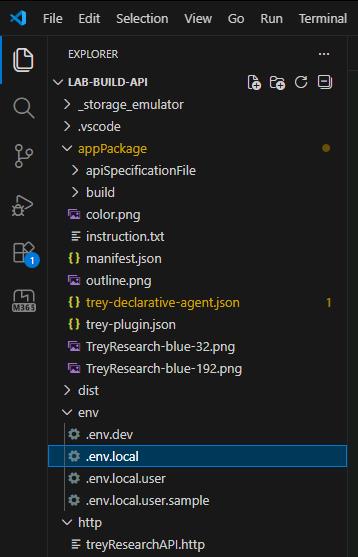
Create the environment variable. In the EXPLORER pane, expand the env folder, then select .env.local.
-
On the lower part of the file, create a new line, then enter the following:
SHAREPOINT_DOCS_URL=https://lodsprodmca.sharepoint.com/sites/TreyResearchLegalDocuments@lab.LabInstance.Id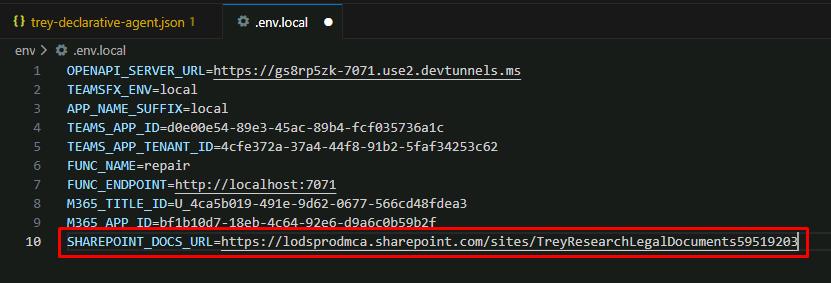
03: Examine the API Plugin files
In this task, you’ll look at the trey-plugin.json and trey-definition.json files to see how they describe the API to Copilot for it to make the REST calls.
-
Go back to appPackage, then select trey-declarative-agent.json.
-
Observe the “actions” section, which tells the declarative agent to access the Trey Research API.
-
Open appPackage, select apiSpecificationFile, then trey-definition.json and observe the file.
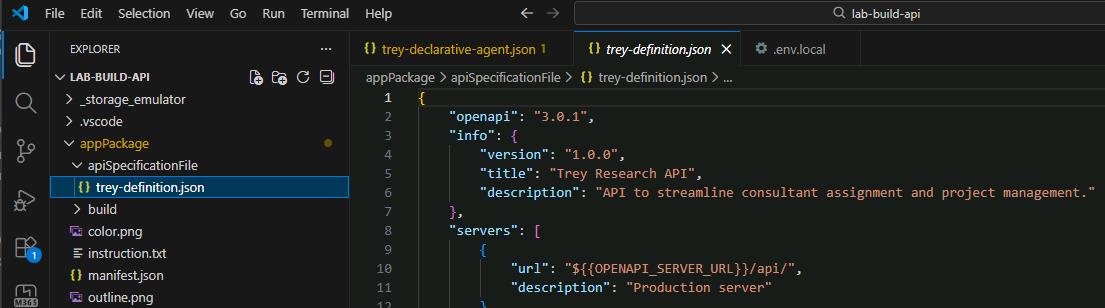
This is the OpenAPI Specification (OAS) or “Swagger” file, which is an industry standard format for describing a REST API.
You’ll find the general description of the application. This includes the server URL; Agents Toolkit will create a developer tunnel to expose your local API on the internet and replace the token $ with the public URL. It then goes on to describe every resource path, verb, and parameter in the API. Notice the detailed descriptions; these are important to help Copilot understand how the API is to be used.
-
Open appPackage, then trey-plugin.json.
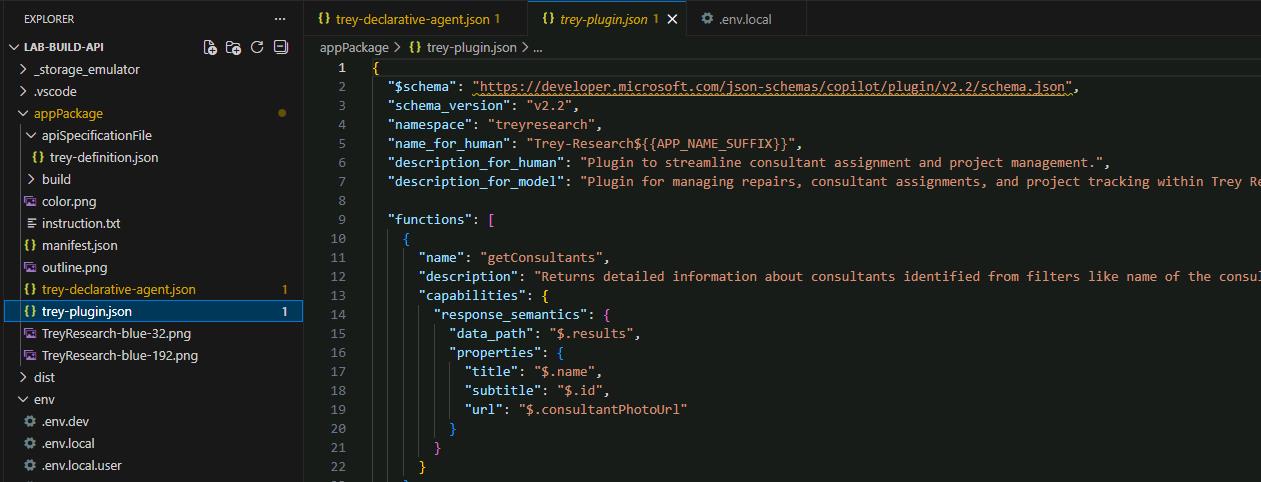
This file contains all the Copilot-specific details that aren’t described in the OAS file.
-
In the functions section, observe the first entry for getConsultants.
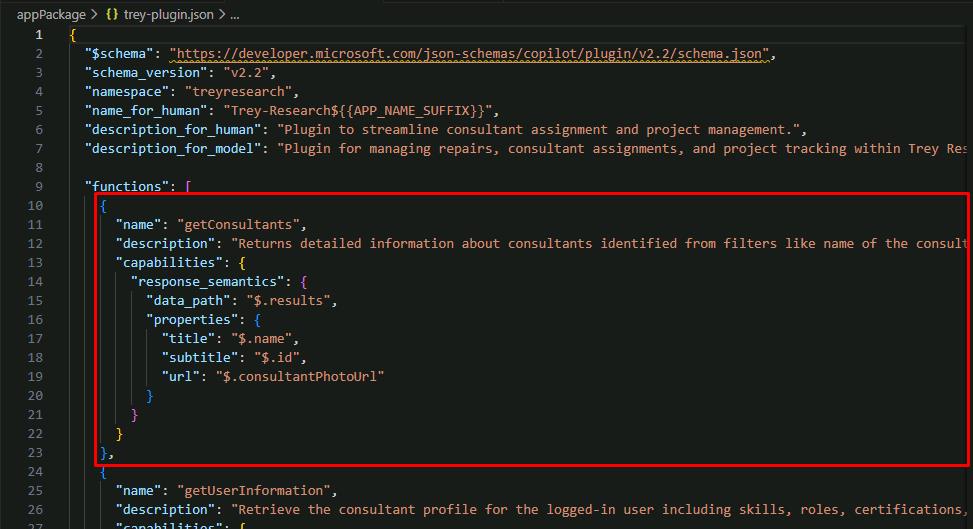
The file breaks the API calls down into functions which can be called when Copilot has a particular use case. For example, all GET requests for /consultant look up one or more consultants with various parameter options, and they are grouped into a function getConsultants.
-
Move through the file to the runtimes section.
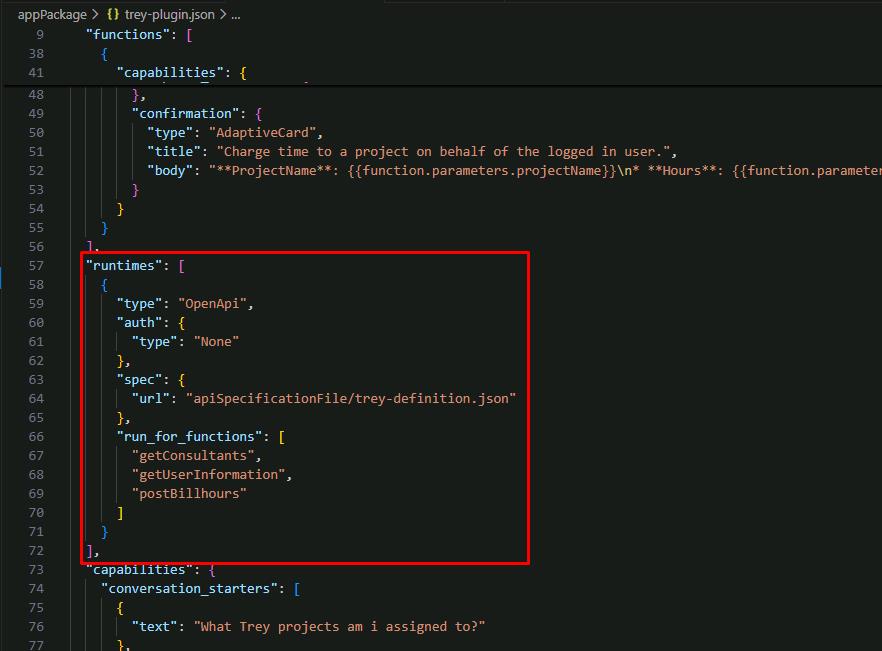
This includes a pointer to the trey-definition.json file, and an enumeration of the available functions.
04: Add the declarative agent to your app manifest
-
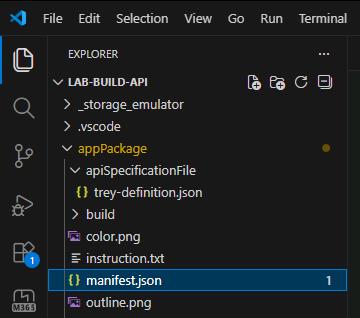
Open appPackage, then manifest.json.
-
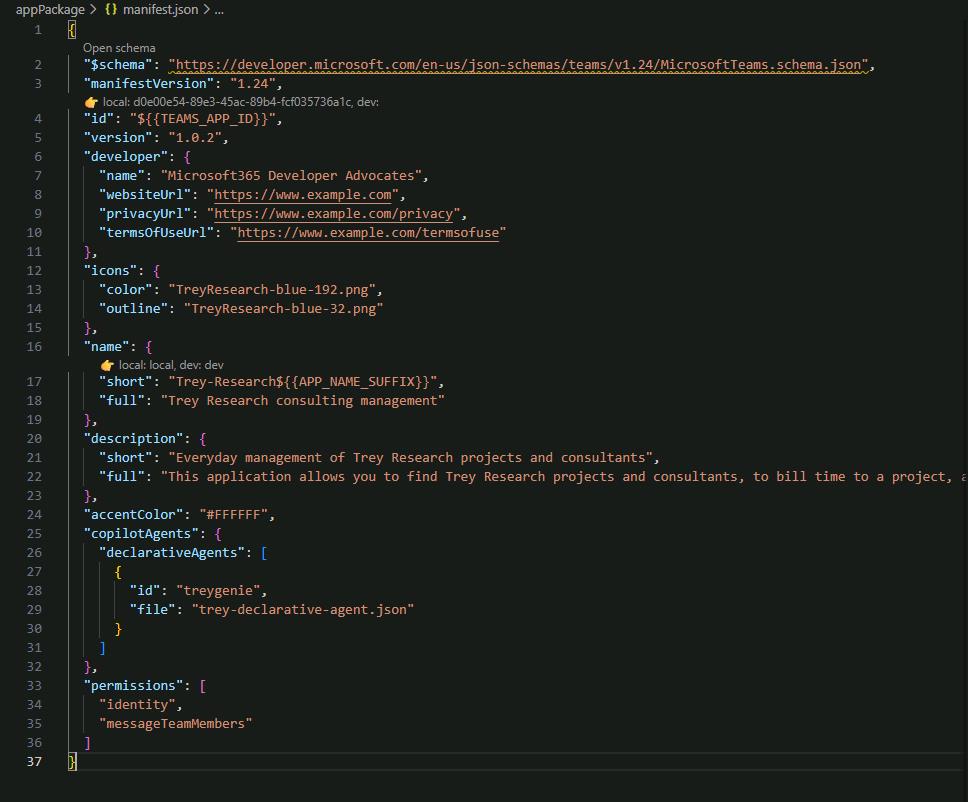
Create a new line after “accentColor”: “#FFFFFF”, on line 24.
-
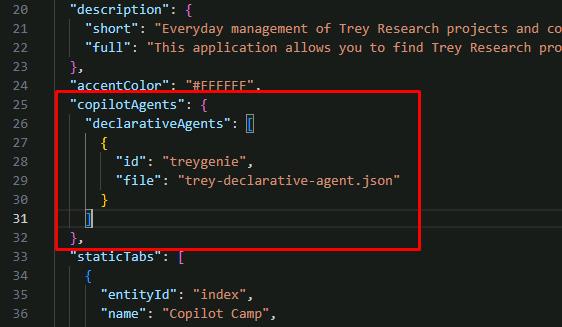
Create a new copilotAgents object by entering the following:
 "copilotAgents": {
   "declarativeAgents": [
     {
       "id": "treygenie",
       "file": "trey-declarative-agent.json"
     }
   ]
 },
This has a declarativeAgents object to reference the declarative agent JSON file you created in the previous step.
-
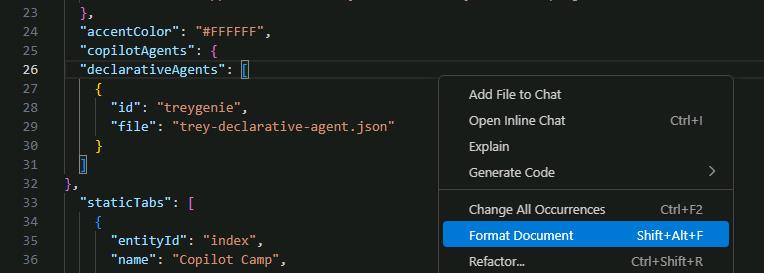
Right-click anywhere in the file, then select Format Document to fix the spacing.
05: Remove the dummy feature from the app manifest
The solution from Exercise 01 didn’t have a declarative agent yet, so the manifest couldn’t be installed because it had no features. We added a “dummy” feature: a static tab pointing to the Copilot Developer Camp home page. This allows users to view the Copilot Developer Camp site in a tab within Teams, Outlook, and the Microsoft 365 app.
If you’ve ever tried Teams App Camp, this will be familiar.
-
In manifest.json, delete the following staticTabs and validDomains sections as they’re no longer needed:
 "staticTabs": [
   {
     "entityId": "index",
     "name": "Copilot Camp",
     "contentUrl": "https://microsoft.github.io/copilot-camp/",
     "websiteUrl": "https://microsoft.github.io/copilot-camp/",
     "scopes": [
       "personal"
     ]
   }
 ],
 "validDomains": [
   "microsoft.github.io"
 ],