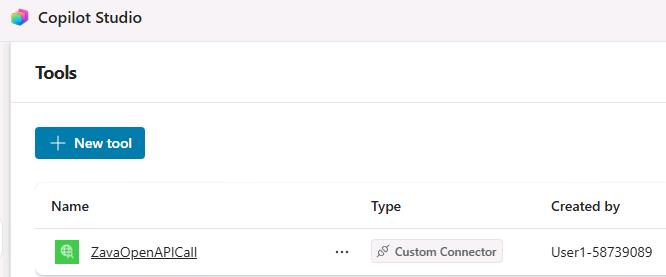
Task 02: Create a custom OpenAPI connector
Introduction
Zava’s hybrid environment requires agents to connect to real business systems through governed, reusable connectors. A custom OpenAPI connector demonstrates how Copilot Studio can securely invoke an external service with schema-defined requests and responses.
Description
In this task, you’ll import an OpenAPI definition and create a custom connector that can be used as a tool by an agent. This connector becomes the marketing system integration point that the marketing child agent will call during execution.
Success criteria
- The ZavaOpenAPICall custom connector is created and available as a usable tool in Copilot Studio.
Key steps
-
Open a new Edge browser tab and go to OpenAI_smart_connector\publicpage_openapi.json.
This is the configuration file for the connector.
-
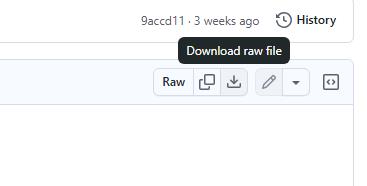
On the command bar for the publicpage_openapi.json page, select Download raw file.
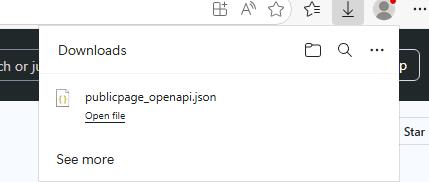
Once the file is downloaded, Edge will present a confirmation dialog.
-
Go back to the Copilot Studio page, and select the Marketing-HR-Domain-Router agent.
-
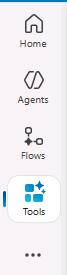
In the left pane for the agent, select Tools.
-
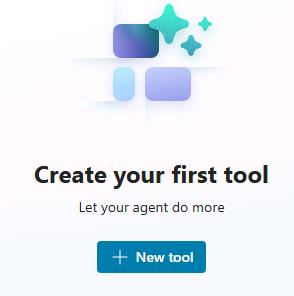
Select + New tool.
-
In the New tool dialog, select Custom connector.
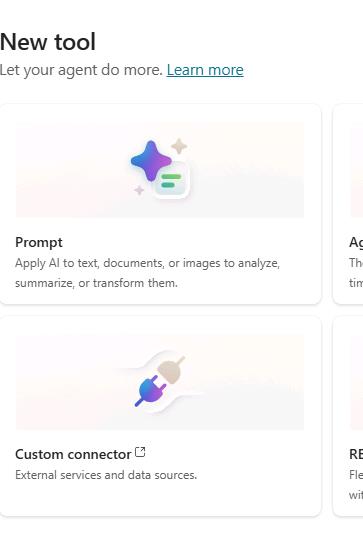
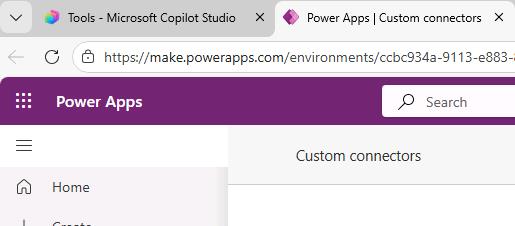
A new browser window opens. You are directed to the Power Apps maker portal. You use the maker portal to create custom connectors. Then, you can access and use the connectors from the Tools page for the agent.
-
If prompted, sign in by using the following credentials:
Item Value Username @lab.CloudPortalCredential(User1).UsernameTemporary Access Pass (TAP) token @lab.CloudPortalCredential(User1).AccessTokenYou are redirected to the Power Apps maker portal Custom connectors page.
-
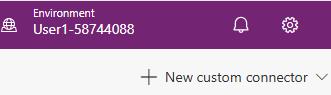
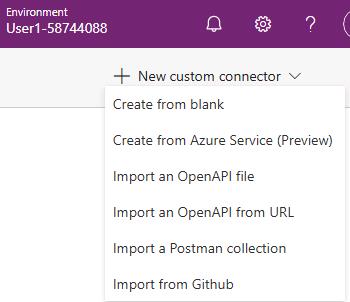
On the command bar, select + New custom connector.
-
Then select Import an OpenAPI file.
-
In the Import an OpenAPI file dialog, in the Connector name field, enter
ZavaOpenAPICall. Then, select Import.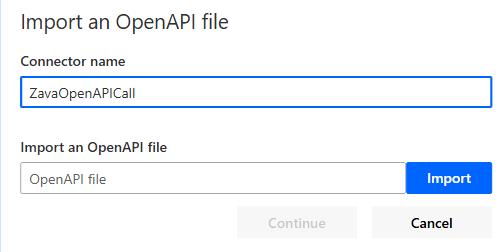
-
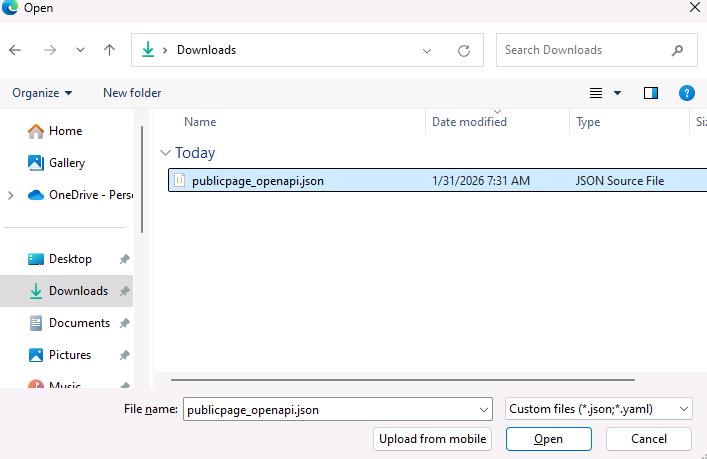
In the File Open dialog, go to the Downloads folder. Select publicpage_openapi.json and then select Open.
-
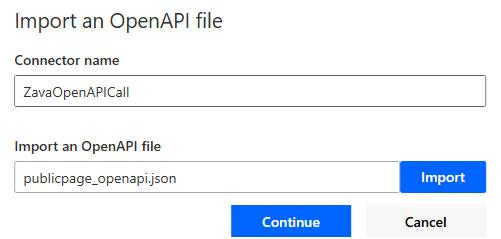
In the Import an OpenAPI file dialog, select Continue.
-
On the command bar for the connector, select Create connector.

-
Wait until the connector configuration process completes.
On the command bar, Create connector changes to Update connector when configuration is complete.

-
Select Close.
-
Close the Power Apps page and return to the Copilot Studio page.
-
Refresh the Tools page. the ZavaOpenAPICall tool will display.