Task 03: Run Purview DSPM Risk scan
-
Switch to the Microsoft Purview portal by selecting the Microsoft Purview tab in the browser.
-
From DSPM for AI, go to Data risk Assessment, then under Custom assessments (preview), select + Create custom assessment.

-
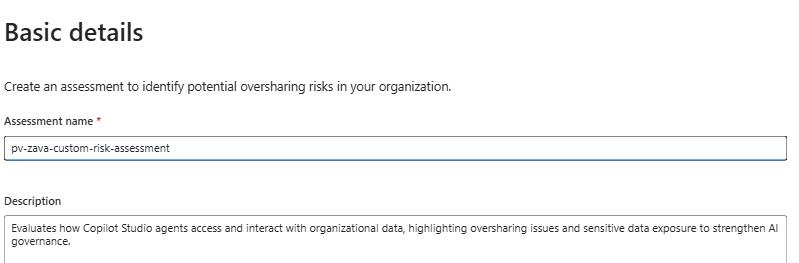
Type the Assessment name: pv-zava-custom-risk-assessment.
-
In the Description field, type: Evaluates how Copilot Studio agents access and interact with organizational data, highlighting oversharing issues and sensitive data exposure to strengthen AI governance.
-
Select Next.
-
Under Add users, leave the All option selected and select Next.
The ideal setup is to choose “All users” for full, organization‑wide visibility, except when you’re running a pilot, investigating specific high‑risk departments, or conducting a targeted investigation, in which case selecting specific users or groups is the better and more focused option.
-
In the Add data sources to assess section, under the Actions column, select Scope sites, then Include specific sites
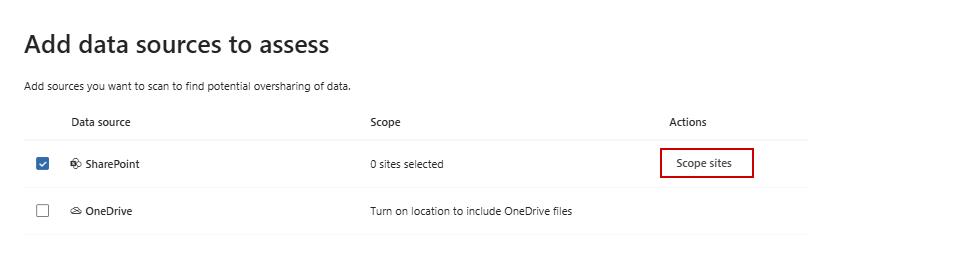
The ideal setup is to include SharePoint as the primary data source since oversharing most commonly occurs across shared sites and libraries, but you should add OneDrive as well when you need visibility into personal storage where individuals may store or share sensitive files; otherwise, leave OneDrive off if your assessment is scoped only to organizational sites or you want to avoid scanning personal user data.
For the sake of this demo you’ll keep the scope sites under Zava Retail Store SharePoint.
-
Select the dropdown next to + Include, then choose From all sites.
-
Under Site ID, check Zava-labs-env then select Done twice then Next
-
Select Save and run then select Done.
-
You’ll be redirected to Data risk assessments portal. Select the pv-zava-custom-risk-assessment assessment.

It could take several minutes before the Run is done.