Task 03: Create a child agent to handle marketing inquiries
Introduction
Zava needs domain-specific agents that can act on enterprise tools while staying within clear scope. The marketing agent must use approved connectors for marketing actions and avoid answering outside its domain.
Description
In this task, you’ll create MarketingInquiryAgent as a child agent and attach the OpenAPI connector as its required tool. You’ll configure the agent instructions so it answers marketing requests only through the tool and declines non-marketing intents.
Success criteria
- MarketingInquiryAgent successfully handles a marketing prompt by calling the marketing tool and returning a grounded response.
Key steps
01: Create the child agent
-
Return to the Copilot Studio page.
-
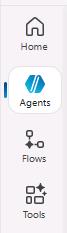
Select Agents and then select Marketing-HR-Domain-Router.
-
On the command bar, select Agents and then select + Add.

-
Select New child agent.

- Add the following information:
- Agent Name:
MarketingInquiryAgent - When will this be used?:
The agent chooses - Based on description - Agent Description:
This agent processes all marketing‑related inquiries, including campaigns, branding, digital assets, analytics, and interactions with systems such as CRM, MAP, and DAM, while upholding established marketing standards and escalating any out‑of‑scope or non‑marketing intents to the parent orchestrator for proper handling. It can also invoke a custom API to retrieve or update campaign data, access approved brand assets, trigger marketing workflows, or perform other system‑level operations, using secure authentication, schema‑validated payloads, and audited request and response logging.
- Agent Name:
-
On the command bar for the agent, select Save.
If Copilot Studio displays a message stating that there is an error, wait a few seconds and then try saving again. Copilot Studio might still be in the process of validating your instructions.
-
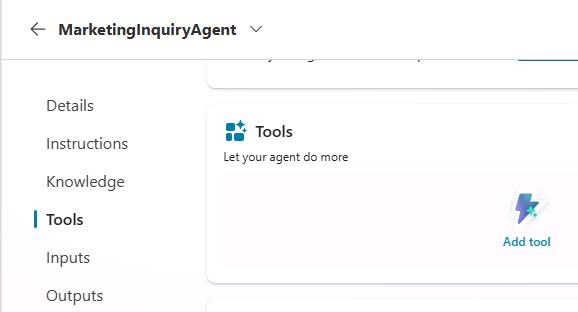
In the left pane for MarketingInquiryAgent, select Tools, and then Add tool.
Be sure to select Tools in the left pane for the child agent and not the left pane in Copilot Studio.
-
Search for and select
ZavaOpenAPICallthen press enter.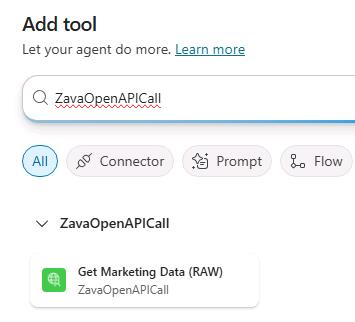
-
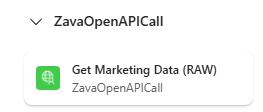
Select the newly created tool, ZavaOpenAPICall.
-
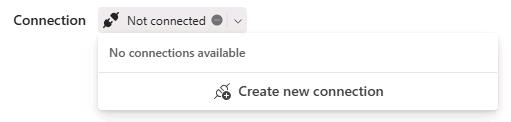
Next to Connection, select the dropdown, and then select Create new connection.
-
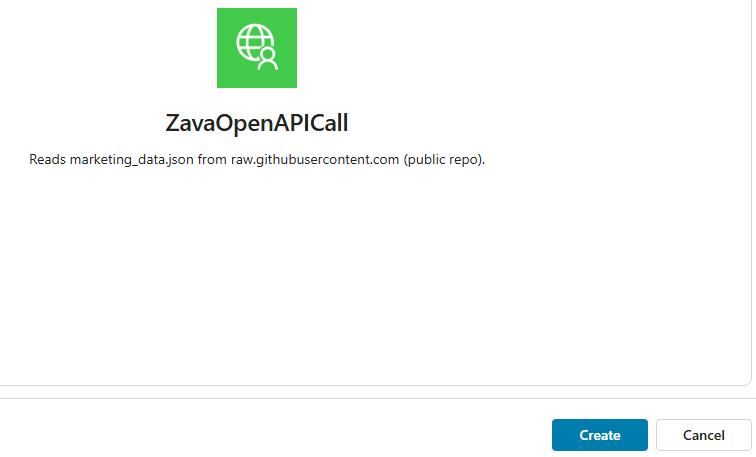
Select Create.
-
Select Add and configure.
-
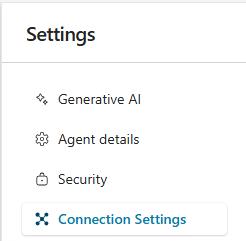
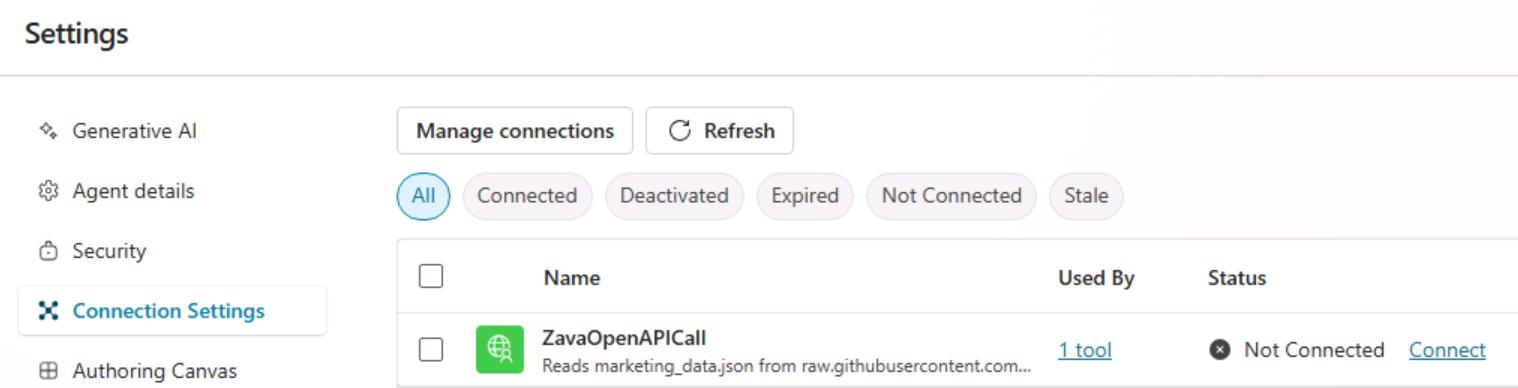
On the command bar, select Settings and then select Connection Settings.
-
Select Connect and then select Submit.
-
Wait until the status is Connected and then exit Settings.
-
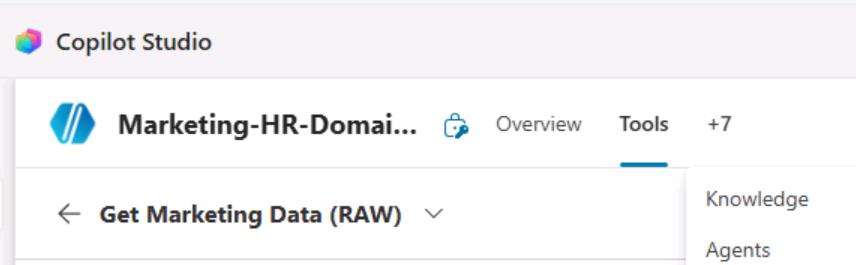
On the Marketing-HR-Domain-Router page, select Agents.
-
Select the MarketingInquiryAgent child agent.
-
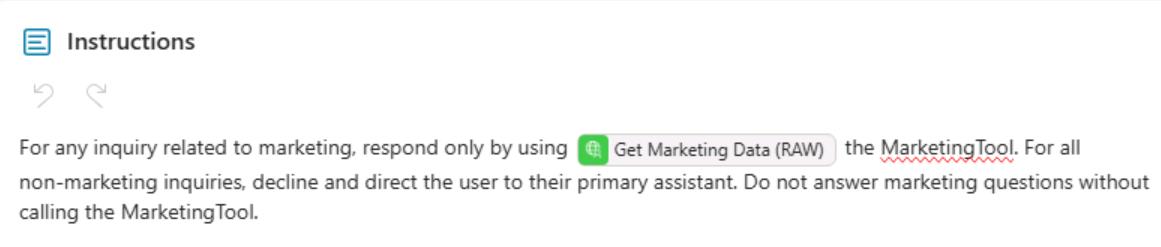
Select Instructions and enter the following text:
For any inquiry related to marketing, respond only by using [tool]. For all non‑marketing inquiries, decline and direct the user to their primary assistant. Do not answer marketing questions without calling MarketingInquiryAgent. -
Highlight and delete [tool] and enter /. In the context menu, in the Tool section, select Get Marketing Data (Raw).
-
On the command bar, select Save.

-
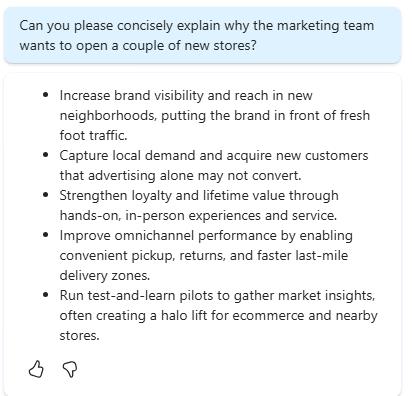
Start a new test session and submit the following prompt:
Please explain why the marketing team wants to open a couple of new stores?It may take a moment to respond because it needs to access external resources, and the GPT model is performing deep reasoning. Once it completes, notice how Marketing‑HR‑Domain‑Router was able to route the request to MarketingInquiryAgent, its child agent.
02: Revise the parent agent’s instructions to reinforce its redirect‑thinking process.
-
Select the Overview tab of the Marketing‑HR‑Domain‑Router agent.

-
In the Instructions tile, select Edit.
-
Locate the text
If Marketing, delegate to MarketingInquiryAgent. -
Highlight and delete MarketingInquiryAgent and then enter
/. Select the MarketingInquiryAgent agent from the list.
-
On the Instructions tile, select Save.
-
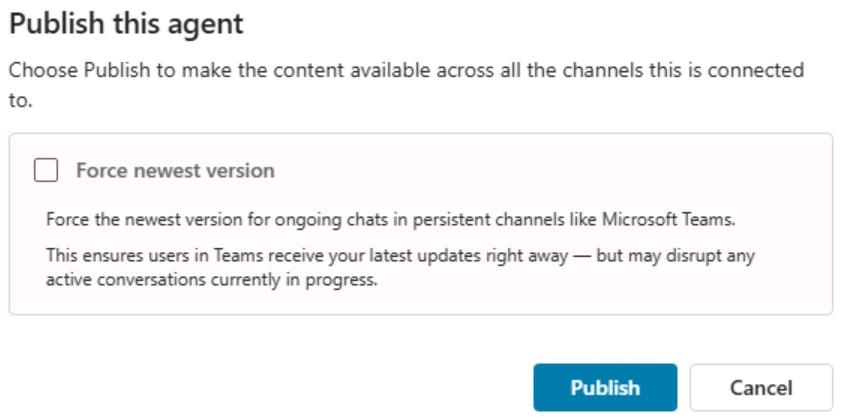
On the command bar, select Publish.

-
In the confirmation dialog, select Publish.
Congratulations!
You have completed this portion of the workshop.