Task 03: Create a modern order processing solution using Plan Designer
-
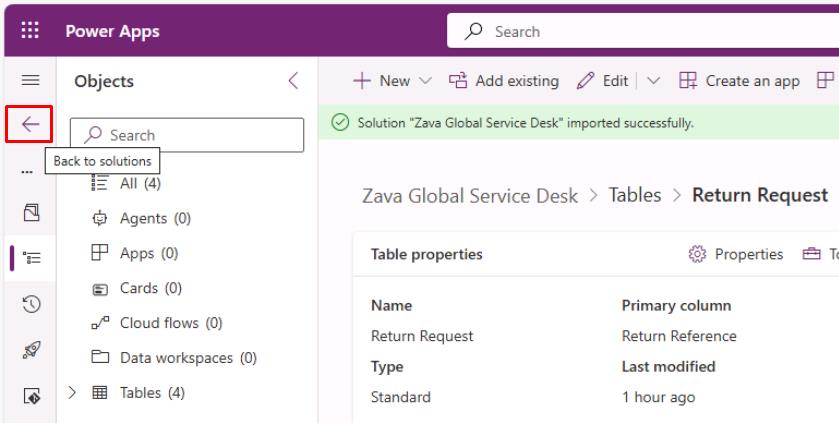
In the leftmost pane, select the <- icon to go Back to solutions.
-
In the leftmost pane, select Plans.
-
On the top bar, select New plan.
-
In the dialog, enter the following business problem:
Modernize global customer order processing by replacing email/Excel trackers with a structured Dataverse-backed solution. Agents can search customers and orders, log cases, and trigger follow-ups integrated with ERP and CRM.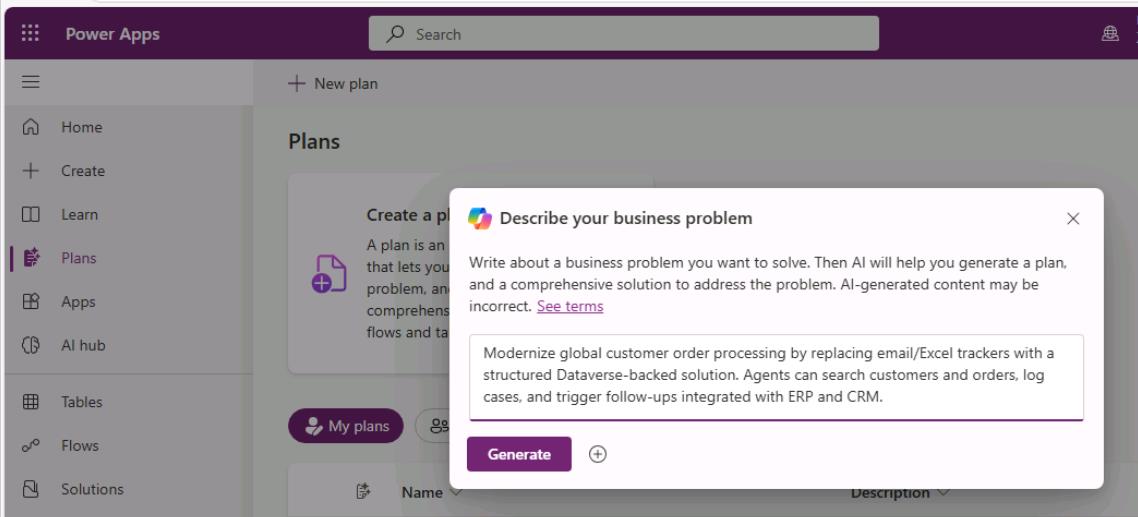
-
Select Generate.
-
In the plan designer’s left pane, it will generate a plan for the User requirements.
-
At the bottom of the pane, in response to the generated User requirements section, select Edit.
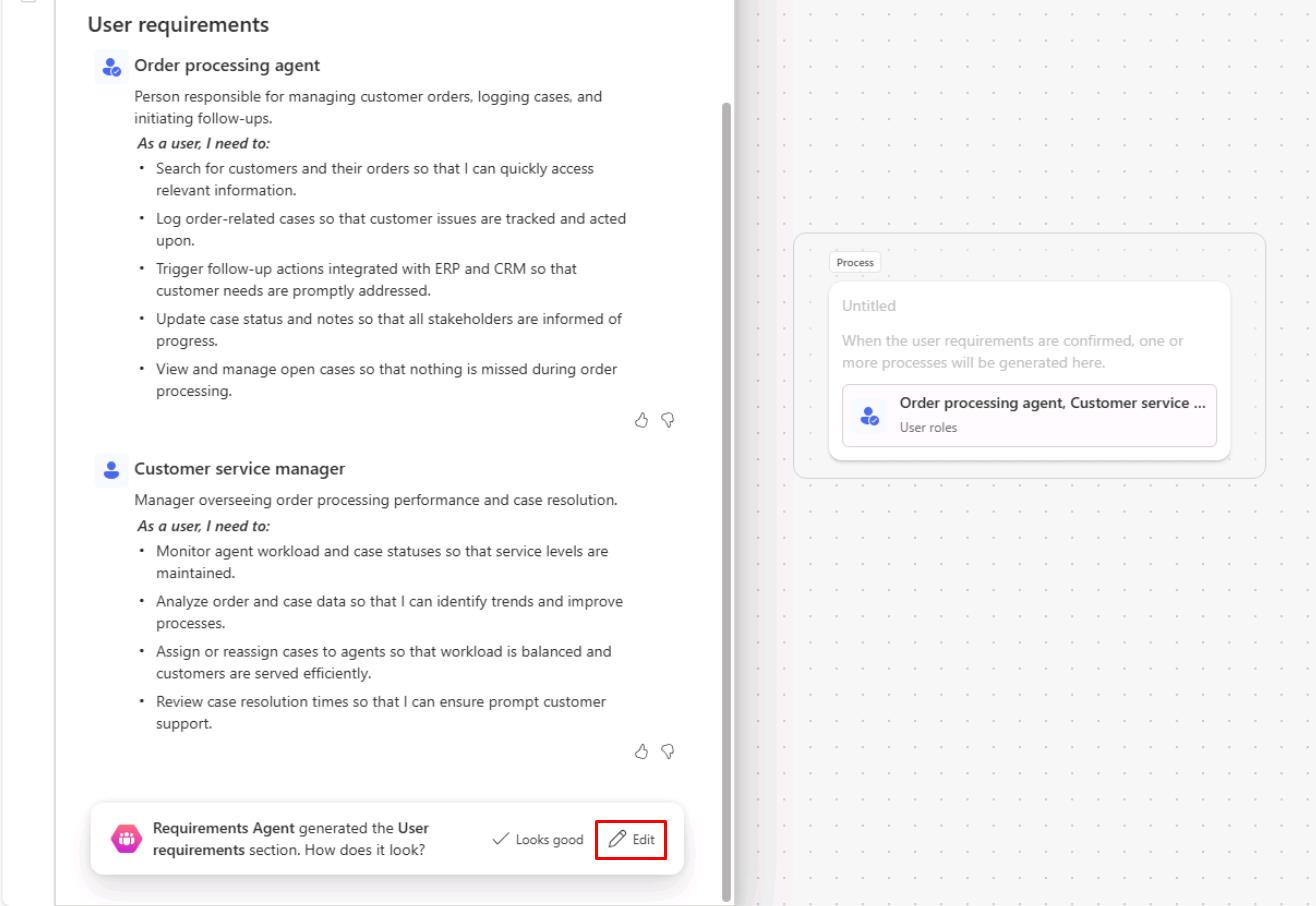
Your generated data will differ from the image.
-
In the upper-right corner of the User requirements section, select the + to Add user role.
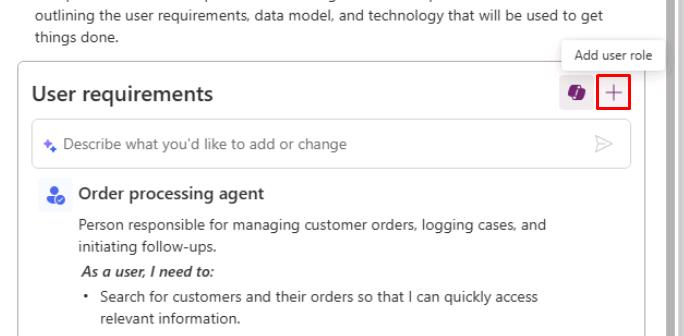
The new role entry will appear at the bottom of the pane.
-
In the Type user role here box, enter:
Global Customer Service Desk team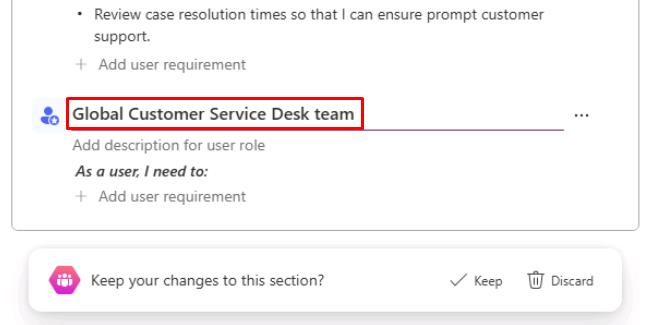
-
Delete all of the other generated roles it proposed. Hover the line over a role, select the ellipsis (…), then select Delete user role.
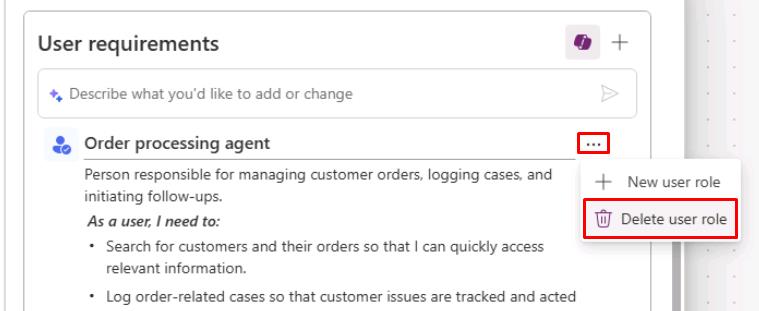
-
Under User requirements, in the Describe what you’d like… box, enter the following:
Build a model-driven app for the Global Customer Service Desk team to: Search customers by name, country, and customer number; View and filter orders by region, status, and channel; Create and manage cases linked to a customer and an order; Track case status, priority, and resolution notes; Provide dashboards for open cases by region, priority, and category.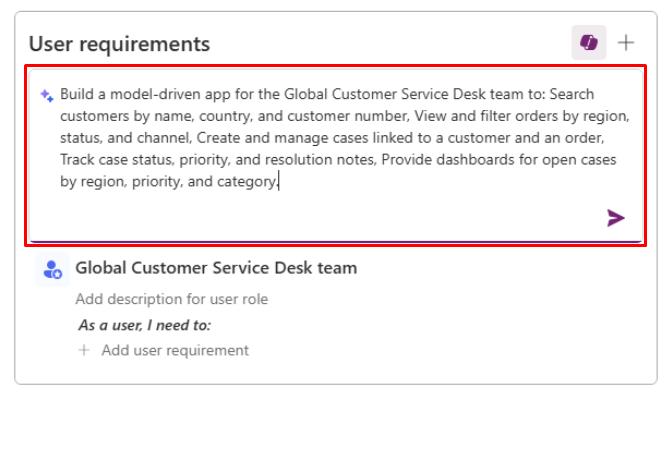
-
Select Enter to send the prompt.
-
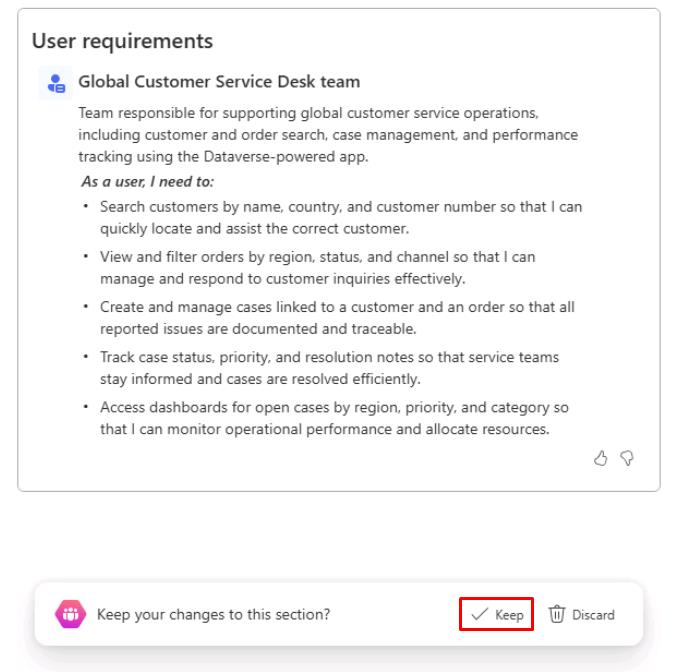
At the bottom of the left pane, select Keep.
-
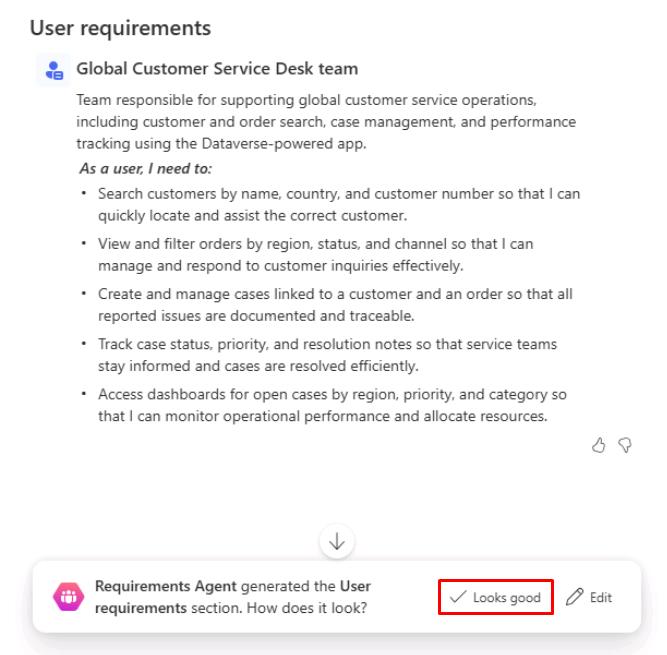
At the bottom of the left pane, select Looks good.
-
Select Looks good to the rest of the agent’s plan.
-
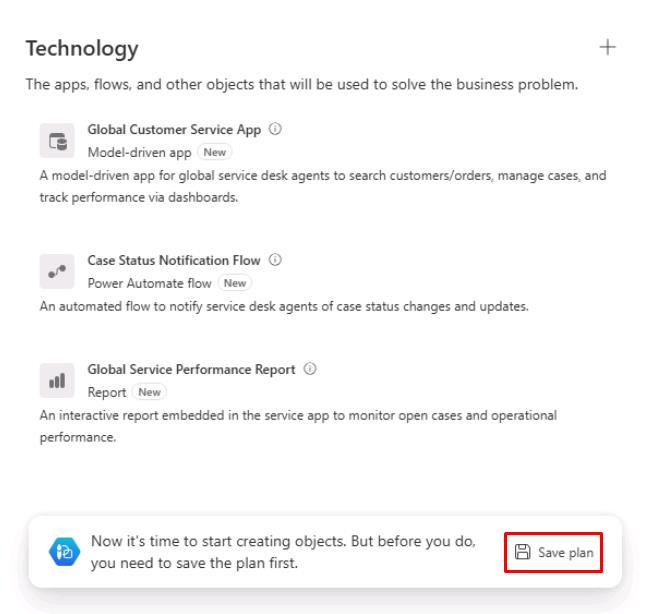
After the Technology proposal, select Save plan.
-
In the dialog:
-
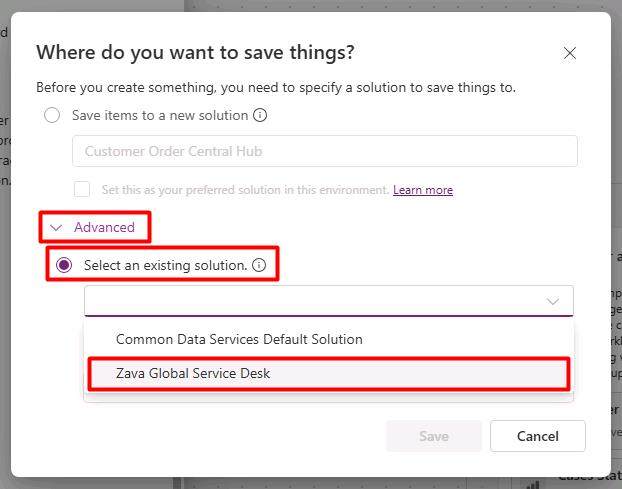
Expand Advanced.
-
Select Select an existing solution.
-
Select Zava Global Service Desk from the dropdown menu.
-
Select Save.
-
-
In the left pane, under the Technology section, hover the Model-driven app, then select the + icon to Create.
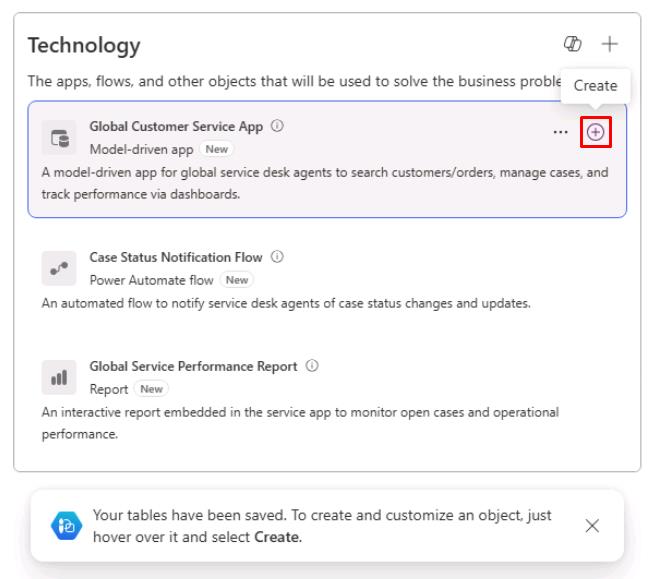
This will open the app editor.
-
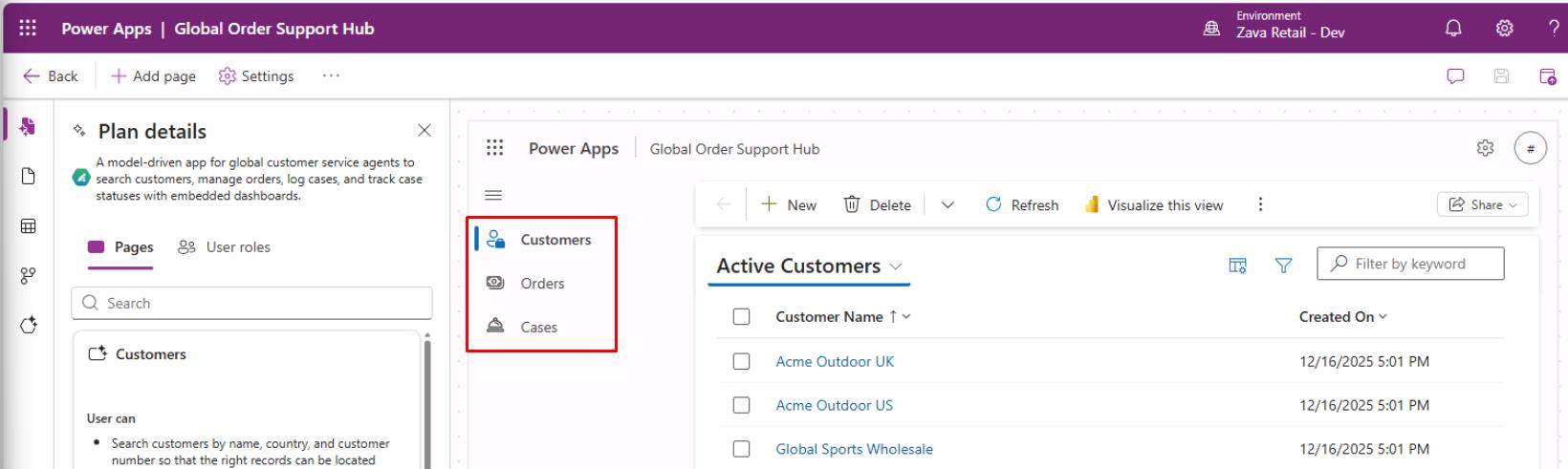
The model-driven app will show several pages it created using the data we imported. Observe the results.
-
In the upper-right corner of the app editor, select the Save and Publish icon.
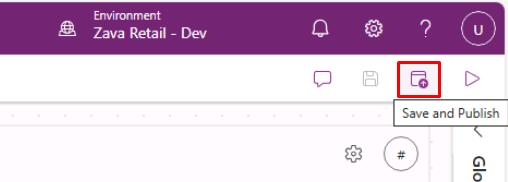
Wait until the page refreshes.
-
After the page refreshes after saving, close the tab to return to the plan designer.
-
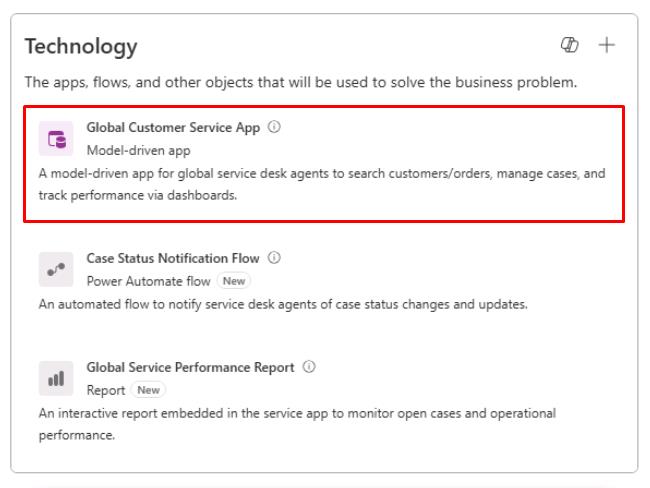
The Model-driven app will become highlighted after a minute.
-
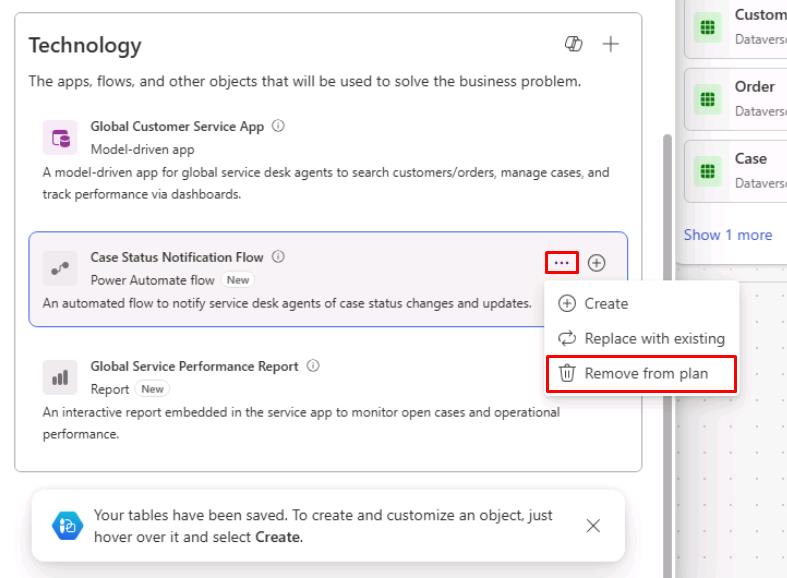
Delete all the other Technology proposals that it allows you to delete.
Hover the line, select the ellipsis (…), then select Remove from plan.
-
At the bottom of the left pane, select Keep.
If you didn’t need to delete anything, you won’t see this option.
-
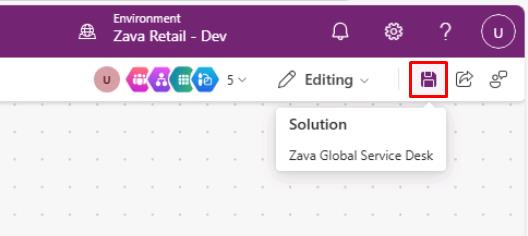
In the upper-right corner of the page, select the Save icon.
-
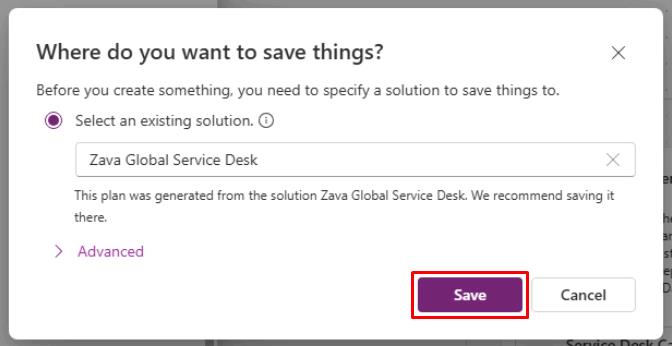
In the dialog, select Save.
-
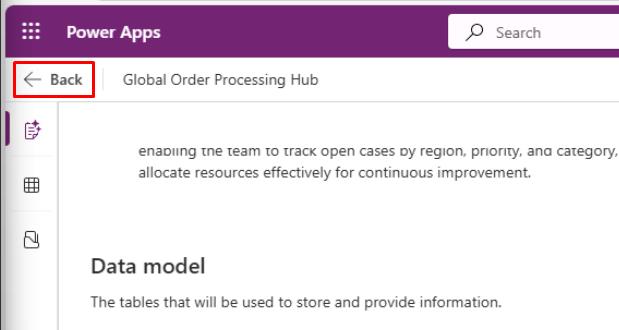
In the upper-left corner of the page, select Back.