Task 05:
-
Go back to Power Apps tab to the Zava Global Service Desk solution.
-
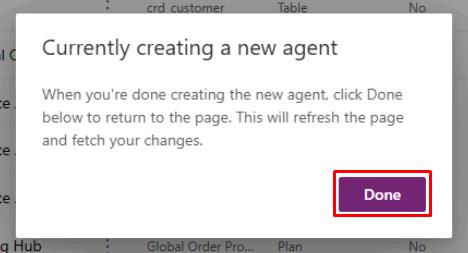
In the dialog, select Done.
-
In the leftmost pane, select the Source control (
 ) icon.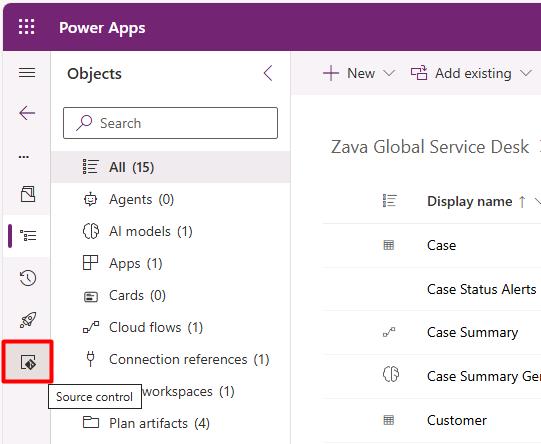
-
Select Connect.
-
In the flyout pane:
-
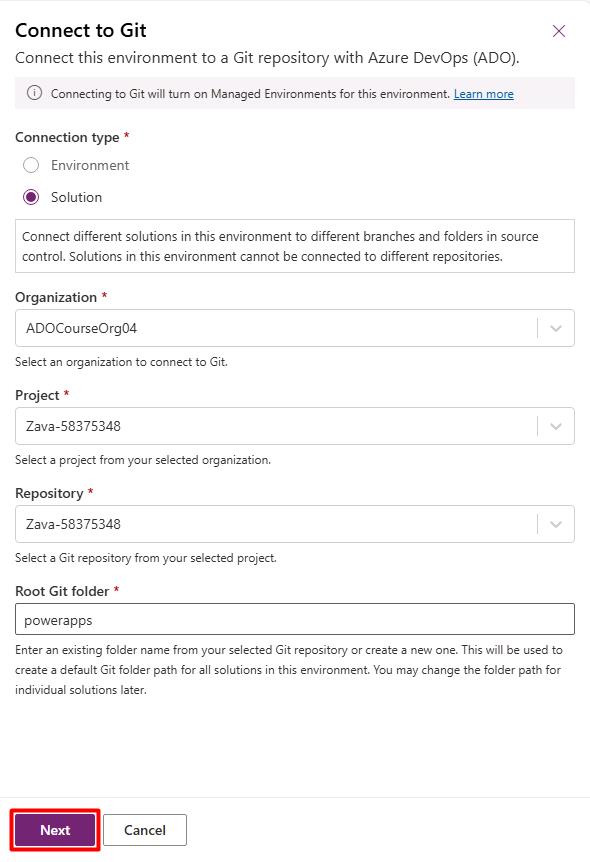
Enter the following information:
Item Value Connection type Solution Organization Select organization Project Zava-@lab.LabInstance.Id Repository Zava-@lab.LabInstance.Id Root Git folder powerapps -
At the bottom of the pane, select Next.
-
Under the Branch dropdown menu, select main.
-
At the bottom of the pane, select Connect.
All source control components will be processed in the background. Commit functionality will be disabled until this finishes.
-
-
Periodically select Refresh on the top bar until the Commit button becomes available.
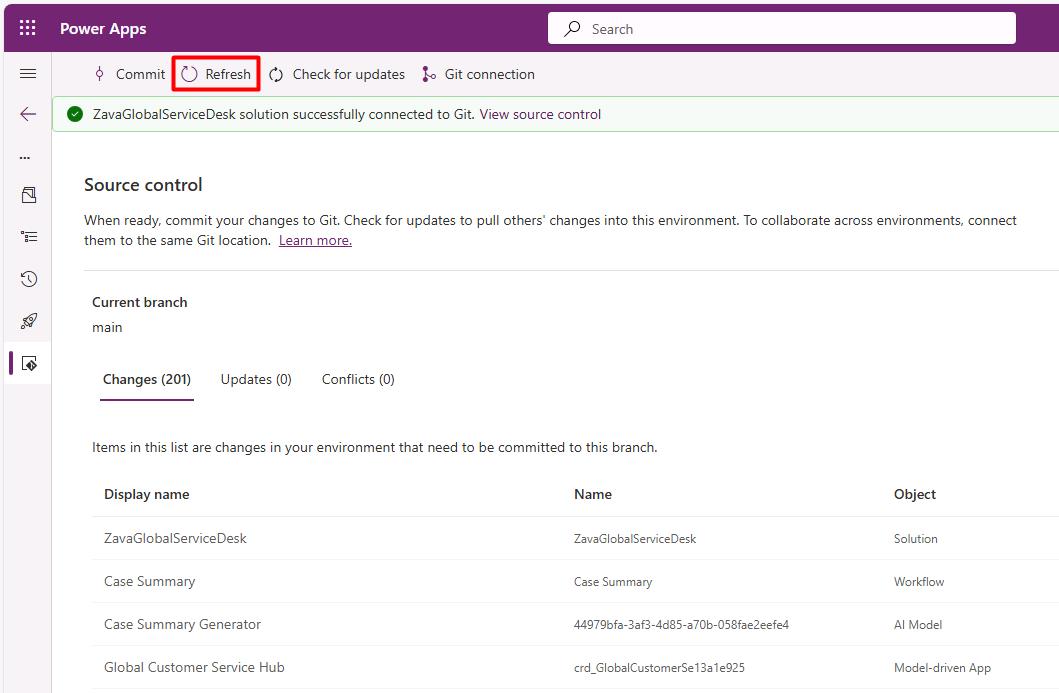
This may take a few minutes.
-
On the top bar, select Commit.
-
In the flyout pane:
- Under Comment, enter
Initial commit of the Zava Global Service Desk Solution.- At the bottom of the pane, select Commit.
This may take a few minutes.
-
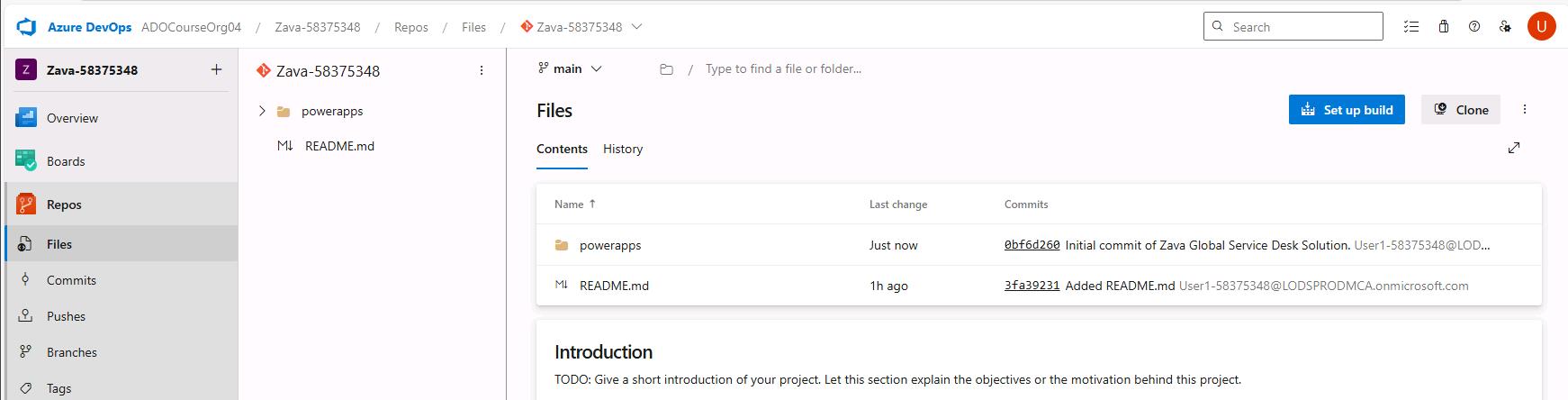
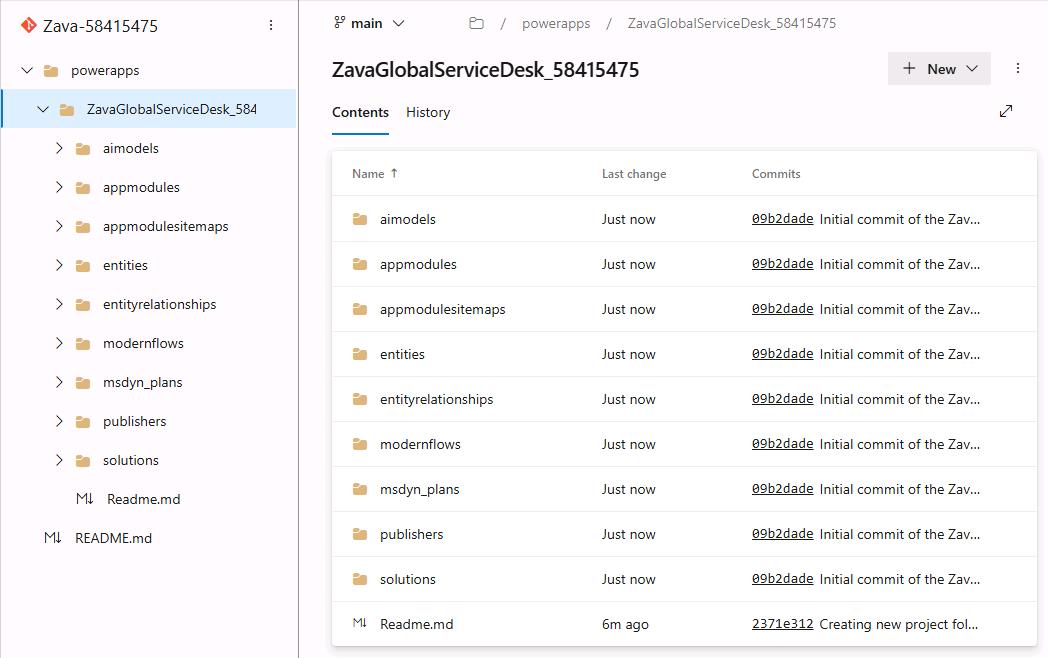
Go back to your tab for Azure DevOps, then refresh the page to observe the new powerapps folder containing your solution.