
Launch Control: Organize a Webinar with Cowork Projects
Welcome, agent. A webinar isn't one task. You plan it, revise the documents after review, and report the results afterward. Your mission is to keep that whole lifecycle together in Cowork with Projects.
The Problem
Without projects, your planning, revisions, and reporting become separate entries in a growing Recent chats list. Finding the right conversation gets harder as unrelated tasks accumulate.
Projects give related tasks a named group in the sidebar, a reusable source collection, and a place to find generated files. Expand the project to see its tasks together instead of hunting through unrelated work.
You'll start three distinct tasks in one project: draft two Word documents, finalize the existing launch plan after review, and create a PowerPoint results deck with charts.
What You'll Produce
By the end of this mission, you will have:
- A private project with reusable instructions and searchable source files.
- Three distinct tasks nested beneath an expandable project in the sidebar.
- A Word launch plan revised from draft to final in place, plus a separate draft speaker brief.
- A post-webinar PowerPoint with charts grounded in supplied fictional results.
- Two Word files and one PowerPoint collected under Outputs, not scattered across conversations.
Prerequisites
- A work or school account with access to Cowork in Microsoft 365 Copilot.
- The shared access and billing prerequisites, including an organization-permitted model and a spending policy covering Cowork.
- Projects, Add to project context, and the Copilot work-context category available in your account.
How the Pieces Fit Together
Think of the project as an event-planning binder. Project context holds the reference material, instructions describe how to work, and Outputs holds the documents Cowork creates.
| Piece | Purpose in this mission |
|---|---|
| Project group in the sidebar | Expands to show the related tasks together; collapses to keep navigation manageable. |
| Project instructions | Standing rules for subsequent interactions: formatting, draft-to-final status, source use, and action boundaries. |
| Project context | A curated reference collection. Add the source files here rather than attaching them separately to each task. |
| Search project context | Finds items in that collection so you can inspect the right source. Searching doesn't change a task's source scope. |
| New project task | Starts a separate assignment with the project's available context and instructions. Replying inside a task continues that task instead. |
| Explicit task reference | Brings selected earlier work, including a decision made during that task, into the next assignment. |
| Recent | Reopens the project's conversations and tasks. |
| Outputs | Finds available files created by the project's tasks, without opening every conversation. |
Why use a project? Save the source collection and working rules once, then give each task a focused assignment. This reduces repeated setup and source hunting. It doesn't guarantee shorter generation times; document creation can still take several minutes.
Here, "shared context" means context reused across your project's tasks. Projects are private to their creator, not shared team workspaces.
The Scenario
You coordinate customer education at Zava. The Customer Success team is planning Better Project Handoffs, a 45-minute Microsoft Teams webinar.
Prepare a launch plan and speaker brief from a collection of planning sources. Record the decision to use an anonymized worked example, not a live demo.
Next, advance the fictional scenario to the internal review. Start a new task, supply the review decisions, and update the existing launch plan to final internal planning status. The speaker brief stays a draft.
Finally, advance to after the fictional webinar. Start a third task and produce a charted results presentation. The project keeps the planning, finalization, and reporting conversations together.
| Stage | Simulated point in the scenario | Task |
|---|---|---|
| Initiation | Before the February 4, 2027 review | Create draft planning documents. |
| Review | February 4, 2027 | Apply supplied review decisions and finalize the existing launch plan. |
| Wrap-up | February 19, 2027 | Report the fictional February 18 webinar results in PowerPoint. |
These are simulated stages, not claims that a real webinar or approval has occurred. Keep the sample dates unchanged.
Lab Assets
Download and extract the ZIP before starting. It contains the fictional planning sources, review decisions, and webinar results you'll need throughout the lab.
Download lab assetsView source files on GitHubKeep the extracted folders available. You'll upload the ten files in project-sources when building Project context, then add files from lifecycle-updates at the review and wrap-up stages. Upload the individual files when instructed, not the ZIP or folders.
Lab 1.1 - Create the Project and Working Rules
Create one project and save its standing instructions before starting any tasks.
Open Cowork with your work or school account. Find Projects in the sidebar and select its New project control.

Enter
Launch Control - Webinar Lifecycleas the Project name, choose Blue, and select Create.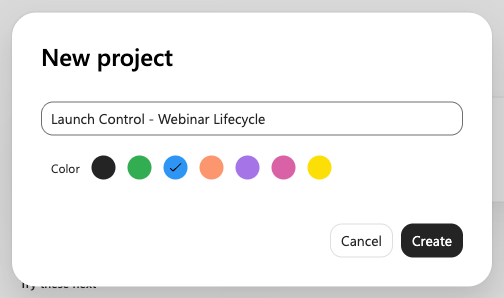
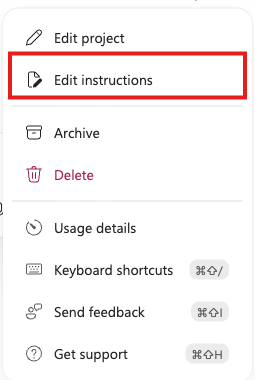
Select More actions in the project's upper-right corner, then select Edit instructions.
Copy the following text into Project instructions, then select Save.
textYou are preparing Zava's fictional Better Project Handoffs webinar and its internal follow-up. Use only source files added to this project's Project context and tasks I explicitly reference. Follow each request's narrower source list. Do not search my mail, calendar, chats, other files, or the web. Create requested deliverables as actual Word (.docx) or PowerPoint (.pptx) files, not just text replies. Use real heading styles, readable tables or charts, and brand-and-editorial.md. Start new deliverables with INTERNAL DRAFT - NOT SENT. Only after I explicitly confirm internal review is complete, replace that label on the named file with FINAL - INTERNAL PLANNING. Do not finalize other files or treat final planning status as business authorization. Separate confirmed source facts, task decisions, proposed actions, and open questions. Add Sources naming the files or referenced task actually used. Use newer supplied review or results files to update only the facts they explicitly resolve. Keep sample dates unchanged and label post-event results as fictional training data. Treat 60 registrations as a target and USD 500 as a ceiling, not spending approval. Do not invent names, URLs, approvals, or results. Do not overwrite source files. Do not send email, post in Teams, create calendar entries, collect registration data, or change business records.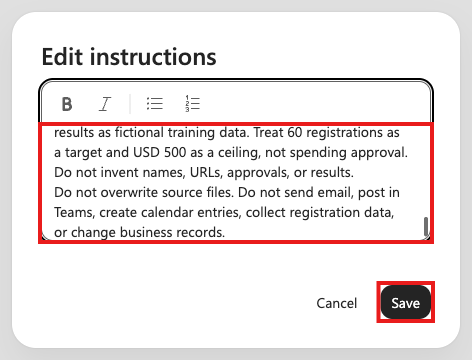
Lab 1.2 - Build and Search Project Context
Add a reusable reference collection before creating any tasks.
Select Project context, then Add to project context.

Select Upload images and files (the up-arrow button) in the context picker. Select all ten
.mdfiles from the extracted project-sources folder.
Use the project-context picker, not Add attachments in the task input. Don't upload the ZIP or the containing folder.
Wait for the uploads to finish, then confirm Project context contains ten items marked Uploaded.
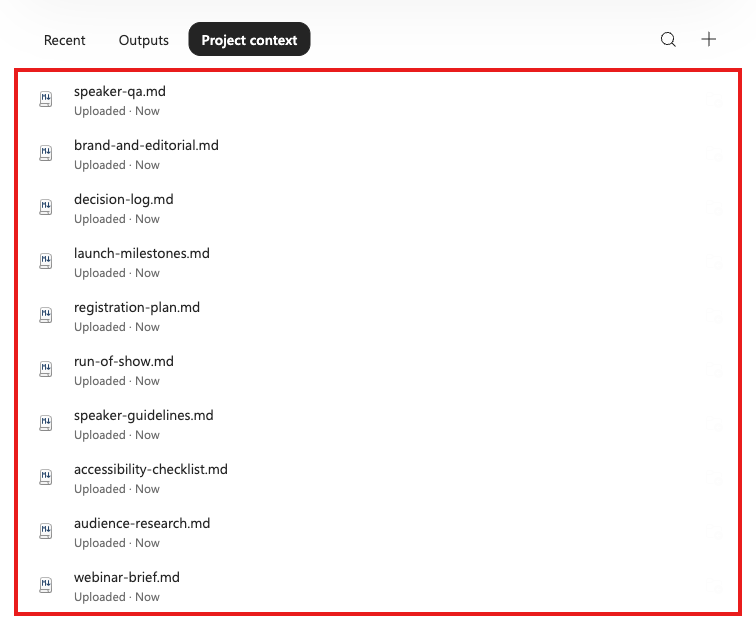
This collection stays with the project. You won't upload it again for the later tasks.
Select Search project context and enter
speaker. Confirm the list narrows tospeaker-guidelines.mdandspeaker-qa.md.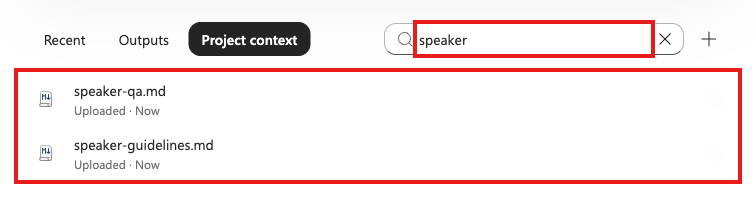
Search helps you find a source; it doesn't restrict what the next task can use.
Select
speaker-guidelines.mdand read its preview. Confirm the speaker remains unconfirmed and preparation is due before the readiness review. Close the preview and clear the search.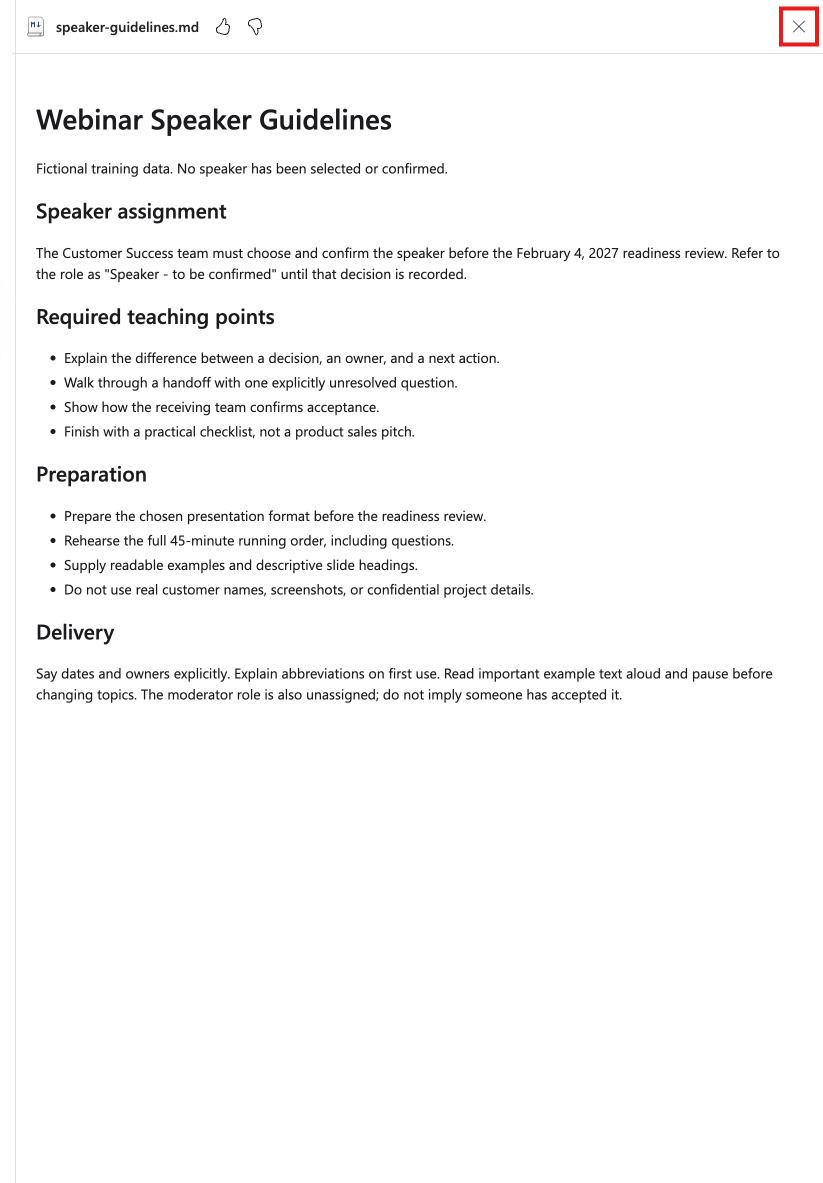
You've found and inspected one source within a larger collection. Next, name the relevant files in your task prompt.
Lab 1.3 - Task One: Draft the Planning Documents
Start the first assignment from the project page. Name the source collection to use and leave later review and results files out of this stage.
Select Recent and copy the following prompt into the project input. Leave task attachments empty, then select Send.
textCreate exactly two Word documents using only these project sources: webinar-brief.md, audience-research.md, speaker-guidelines.md, speaker-qa.md, run-of-show.md, launch-milestones.md, accessibility-checklist.md, decision-log.md, and brand-and-editorial.md. Do not use registration-plan.md in this task. 1. webinar-launch-plan.docx: include confirmed event facts, audience needs, the 45-minute running order, readiness milestones, and open decisions. 2. webinar-speaker-brief.docx: include teaching points, preparation requirements, the running order, and sample audience questions. Keep speaker and moderator unconfirmed. For both documents, choose an anonymized worked example rather than a live demo. Label this as a planning decision made in this task, not a fact already confirmed by the sources. Keep each document to about two pages. Name the sources actually used in each document. Return links to both actual .docx files and a short summary here.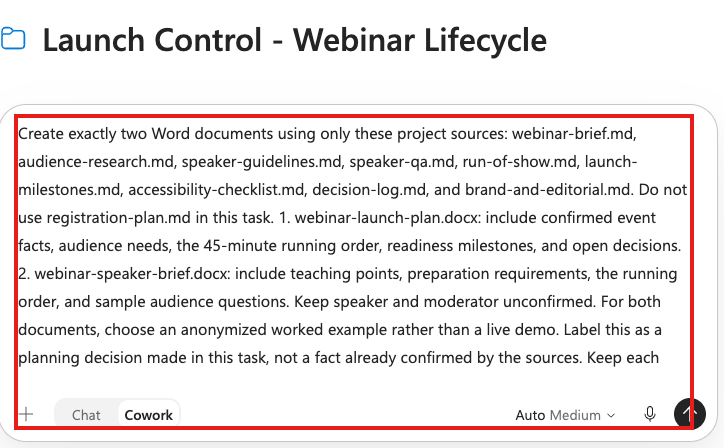
The sources are already in Project context. The prompt describes what to create and narrows the source list; it doesn't repeat the saved working rules.
Wait for Cowork to finish creating the files. Confirm Workspace > Output contains
webinar-launch-plan.docxandwebinar-speaker-brief.docx.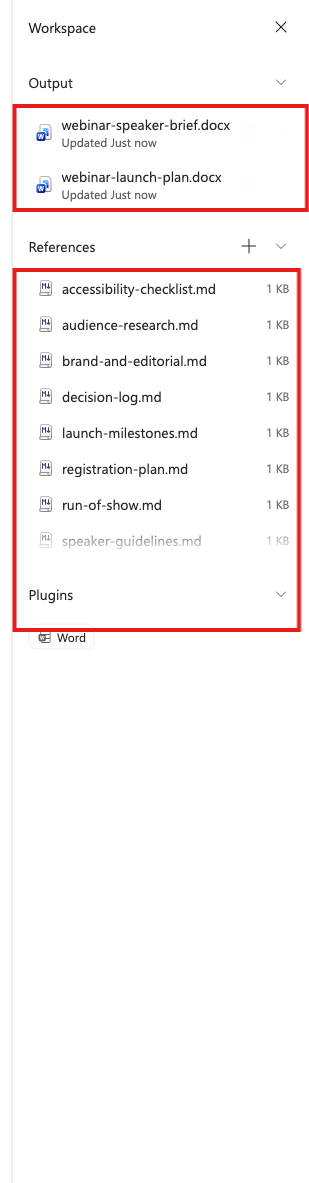
Document creation and formatting can take several minutes. A progress message isn't the finished deliverable. If Workspace is closed, select Show details panel.
The captured run also lists all ten project files under References, even though the prompt requests narrower source use. Availability and requested use are different; review the documents themselves.
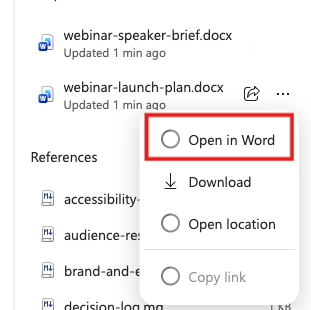
Open More actions for webinar-launch-plan.docx under Output, then select Open in Word. Review the actual document, not only Cowork's summary.
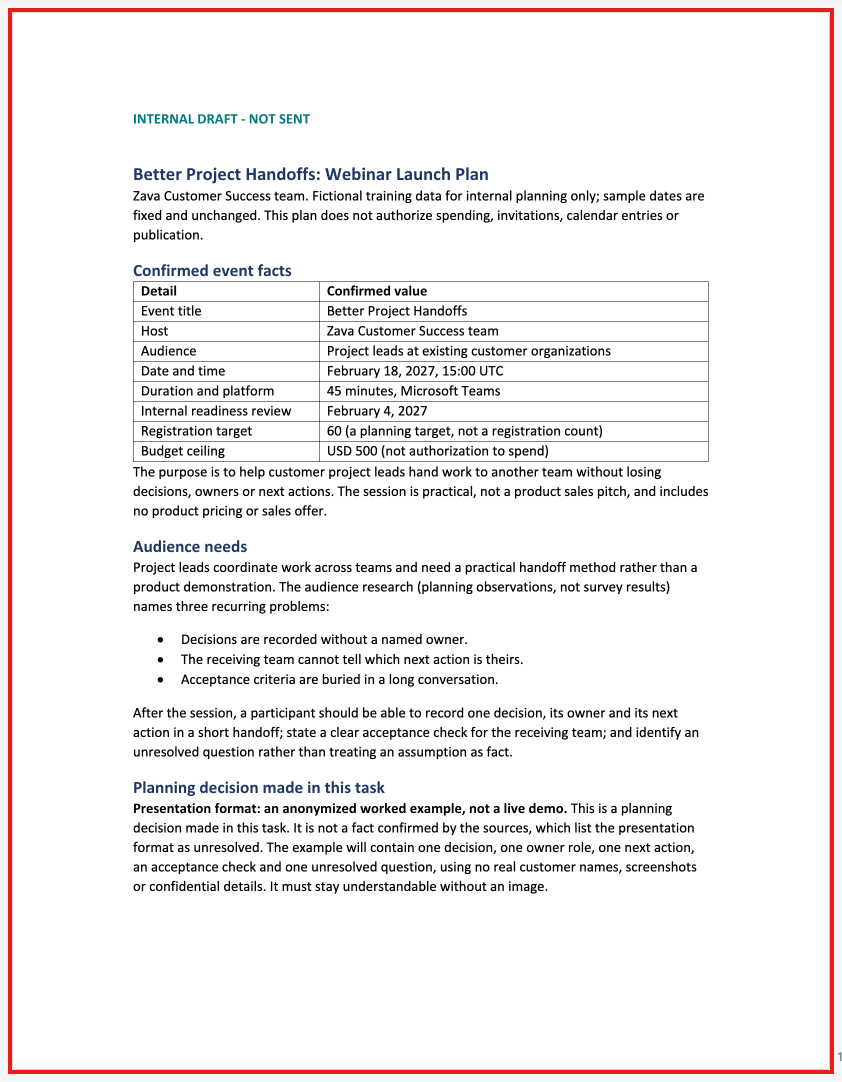
Check Expected result Reusable instructions Starts with INTERNAL DRAFT - NOT SENT; uses headings, readable tables, and a Sources section.Confirmed facts February 18, 2027, 15:00 UTC, 45 minutes, Microsoft Teams. Planning decision An anonymized worked example, not a live demo; labeled as a decision made in this task. Agenda 5 + 10 + 15 + 5 + 10 = 45 minutes, matching run-of-show.md.Readiness Milestones remain pending or planned, not complete. Speaker and moderator remain unconfirmed. Targets and limits 60 registrations is a target; USD 500 is a ceiling, not spending approval. Return to the Cowork browser tab and open
webinar-speaker-brief.docxthrough its More actions > Open in Word menu. Review the whole document, including Sources.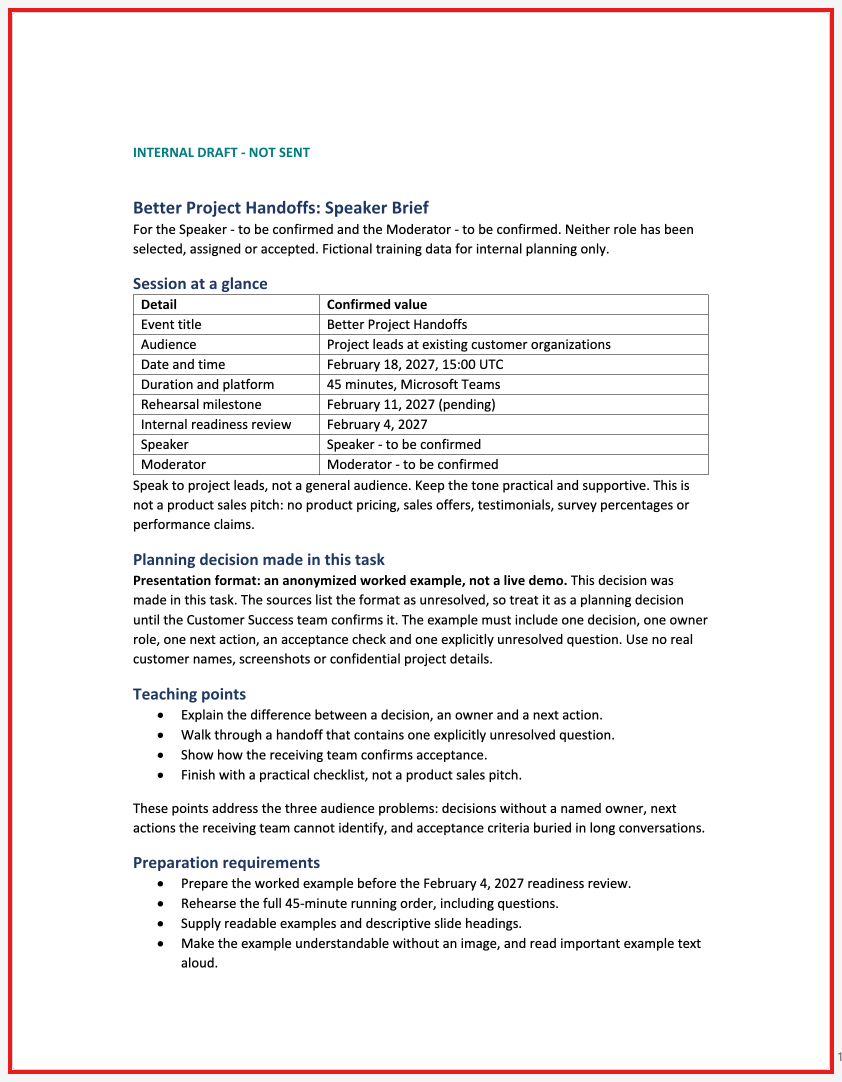
Confirm the teaching points, preparation requirements, sample questions, draft label, and worked-example decision. Speaker, moderator, and recording decisions must not become invented commitments.
Check that each document's Sources section names the files actually used and that its claims are supported by the allowed sources. Ask Cowork to correct discrepancies in the existing document before continuing.
Return to the Cowork tab, select Launch Control - Webinar Lifecycle under Projects, then select Outputs. Confirm both Word files appear together.
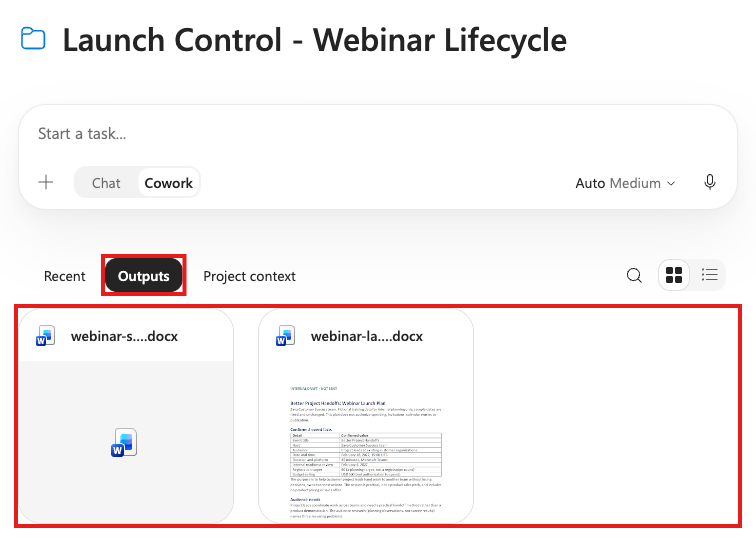
Project context holds the inputs; Outputs holds the generated files. The files are saved in OneDrive and surfaced here, not stored only as text in a conversation.
Note your planning task's title under Recent. You'll select that actual task as context for the next assignment.
Lab 1.4 - Task Two: Revise and Finalize the Plan
Advance the fictional scenario to the February 4 review. Keep the revision conversation separate from drafting, but update the same launch-plan file.
Open Project context > Add to project context and upload only
internal-review.mdfrom the extracted lifecycle-updates folder. Open its preview and review the decisions, then close the preview.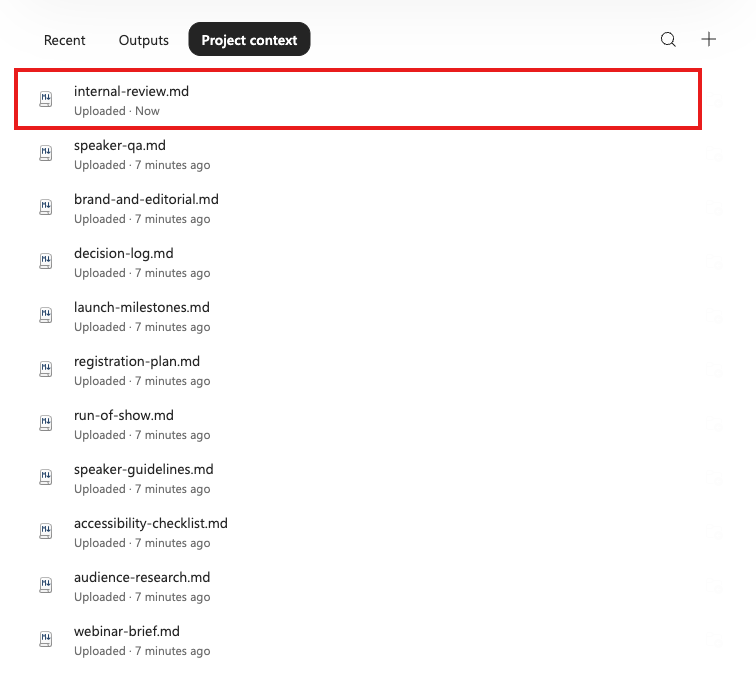
Confirm that internal planning review is complete and the speaker, moderator, registration-owner roles, and format are resolved. Registration, accessibility, rehearsal, spending, and publication still have explicit limits.
Expand Launch Control - Webinar Lifecycle using its sidebar chevron. Confirm the drafting task is nested beneath it, then select New task in this project on the project row.
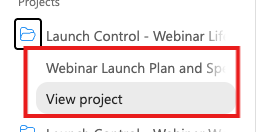
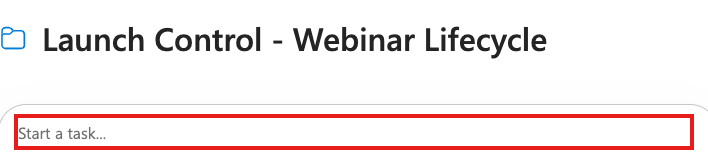
Start from the project's empty input, with Cowork selected if a mode selector appears. Don't type a follow-up in the completed drafting conversation: that would continue task one.
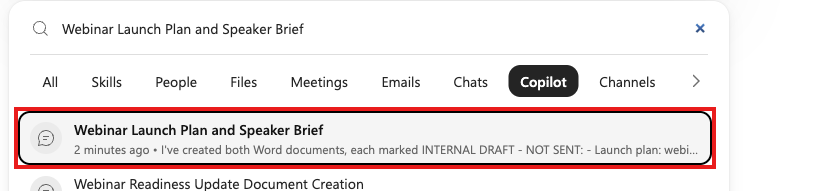
Select Add attachments > Add content > Copilot and find your planning task. Select the actual result, place the cursor after its reference, press Shift + Enter, and paste this prompt. Keep the reference, then select Send.
 text
Use the referenced planning task, its webinar-launch-plan.docx file, internal-review.md, and brand-and-editorial.md only.
Internal review is complete for this fictional scenario. Update the existing webinar-launch-plan.docx in place; do not create a copy or a new document. Replace INTERNAL DRAFT - NOT SENT with FINAL - INTERNAL PLANNING on this file only.
Apply the decisions from the February 4, 2027 internal review: confirm the speaker, moderator, registration-owner roles and the anonymized worked-example format; mark the internal review complete. Replace the now-resolved open questions rather than leaving contradictory text elsewhere in the plan.
Keep registration closed with no page or URL, the rehearsal and accessibility checks pending, and spending or external publication unauthorized. Keep the event date, time, duration, target, and ceiling unchanged. Cite internal-review.md as the newer source for the changes.
Do not change webinar-speaker-brief.docx or any source file. Return the updated existing file link and a short change summary. Do not send or publish anything.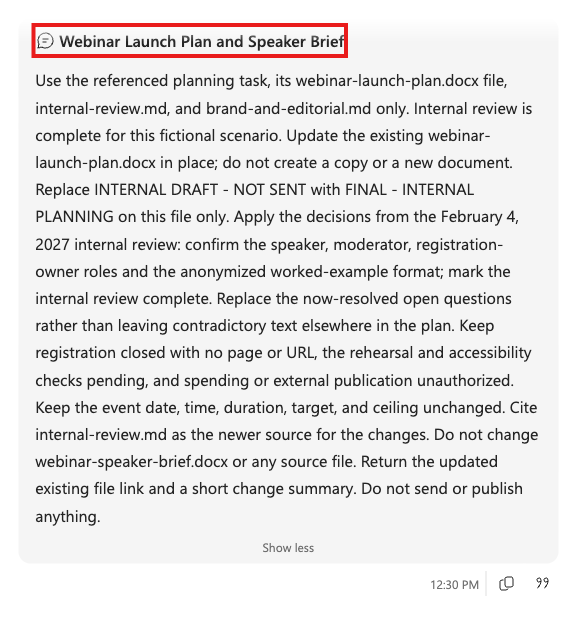
Copilot finds earlier Copilot chats and tasks; Chats refers to Teams conversations. The selected reference has a task icon and underlined title. Typing a task title as ordinary text isn't equivalent.
You added one new review source, not the original collection again. Project instructions still apply, including their explicit finalization exception.
Review the Edit file? request. Confirm it names
webinar-launch-plan, not the speaker brief or a source file. Open More options and select Approve once for this requested revision.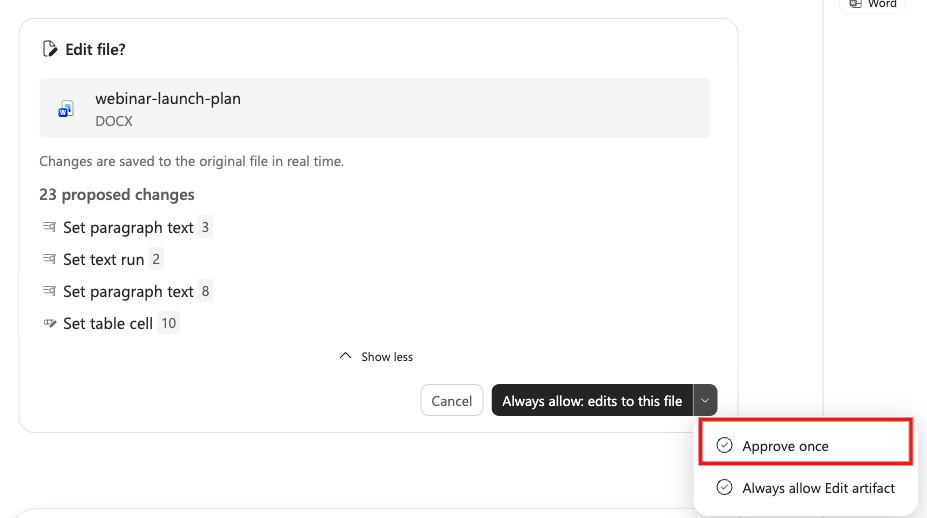
Changes affect the original file. Cowork may request approval for another correction batch; review each request before approving it once. Cancel if the request targets a different file or exceeds this task's instructions. You don't need to enable Always allow.
Wait for the revision to finish, then open the updated launch plan in Word. Use its link in Cowork's reply, or reopen it from the project's Outputs. Compare it with the draft from Lab 1.3.
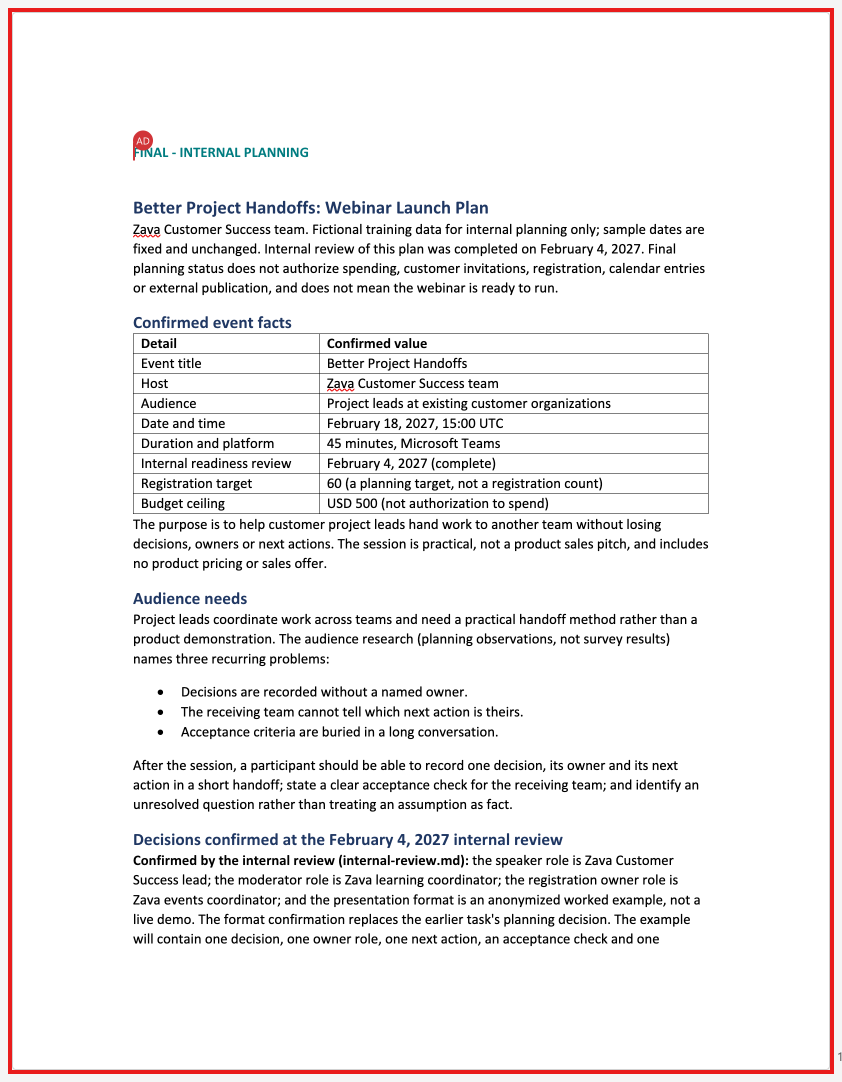
Check Expected result Same file The existing webinar-launch-plan.docxis updated, not replaced with a new "final" copy.Visible status change FINAL - INTERNAL PLANNINGreplacesINTERNAL DRAFT - NOT SENTon the launch plan only.Real revision Confirmed roles and format replace the corresponding open questions; the February 4 internal review is complete. Unresolved work Registration remains closed with no URL; rehearsal and accessibility remain pending; recording remains undecided. Traceability Sources includes internal-review.md, while the original source files stay unchanged.Limited approval Final internal planning status isn't permission to spend, send invitations, or publish. The speaker brief stays a draft.
Lab 1.5 - Task Three: Report Post-Webinar Results
Advance to the simulated February 19 wrap-up. Add results evidence and change output type: this task creates a PowerPoint, not another Word document.
Open Project context > Add to project context and upload
webinar-results.csvandwebinar-wrap-up.mdfrom lifecycle-updates. Confirm both appear in the collection.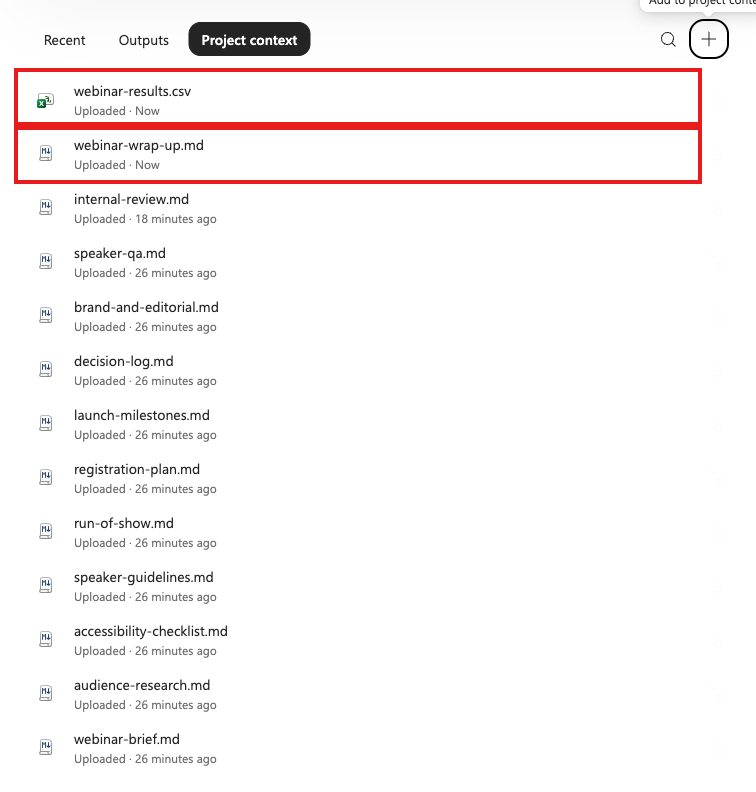
These files supply fictional outcomes. Don't ask Cowork to infer actual attendance or satisfaction from the pre-event plan.
Select New task in this project on the project row. Confirm the input is empty and the project still groups the two earlier tasks.
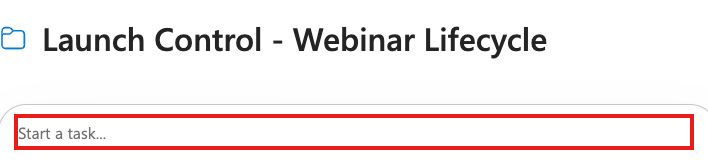
Use Add attachments > Add content > Copilot to select the finalization task, not the original drafting task. Add this prompt after the selected reference, then select Send.
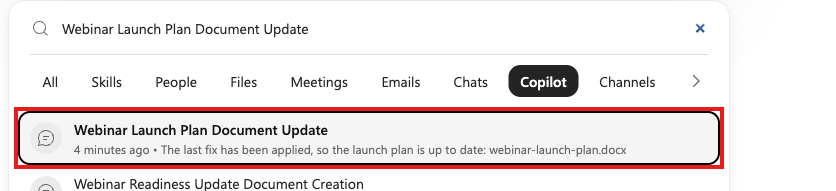 text
Create webinar-results-review.pptx, an actual six-slide PowerPoint for internal review after the fictional webinar.
Use only webinar-results.csv, webinar-wrap-up.md, brand-and-editorial.md, and the referenced finalization task with its final launch plan. Treat this as a simulated February 19, 2027 post-event stage, not a real event report.
Use this structure: 1) title and event summary; 2) reach chart comparing the registration target, actual registrations, and live attendees; 3) feedback-rating distribution chart; 4) what worked and question themes; 5) proposed follow-up; 6) sources and calculation methods.
Use actual editable PowerPoint charts for slides 2 and 3. Calculate attendance rate as attendees divided by registrations, registration-target achievement as registrations divided by target, and average rating as the weighted rating sum divided by responses. Round percentages to one decimal place and the average rating to two decimal places. Show the denominators and distinguish respondents from attendees.
Use clear navy and teal styling, readable labels, and visual layouts rather than walls of text. Label every slide Fictional training data. Do not invent revenue, spending, conversion, or impact claims. Leave the final launch plan unchanged. Return the actual .pptx file link and a short summary; do not send or publish it.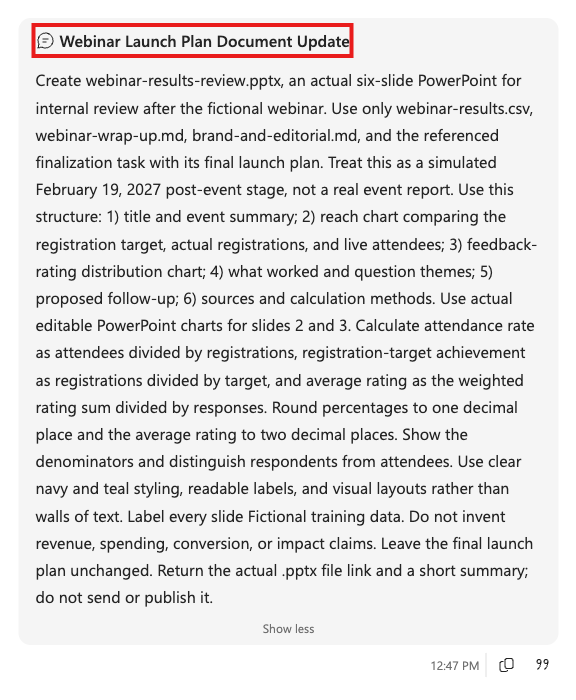
Wait for
webinar-results-review.pptxto appear under Workspace > Output. Confirm Cowork created an actual presentation file, not just a slide outline in its reply.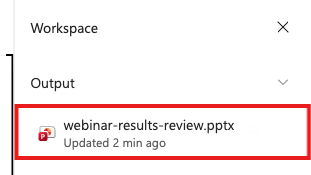
If an inline preview is open, close it to return to Workspace. If the panel is hidden, select Show details panel.
Open the presentation through More actions > Open in PowerPoint and review all six slides. Check both charts against the supplied CSV.
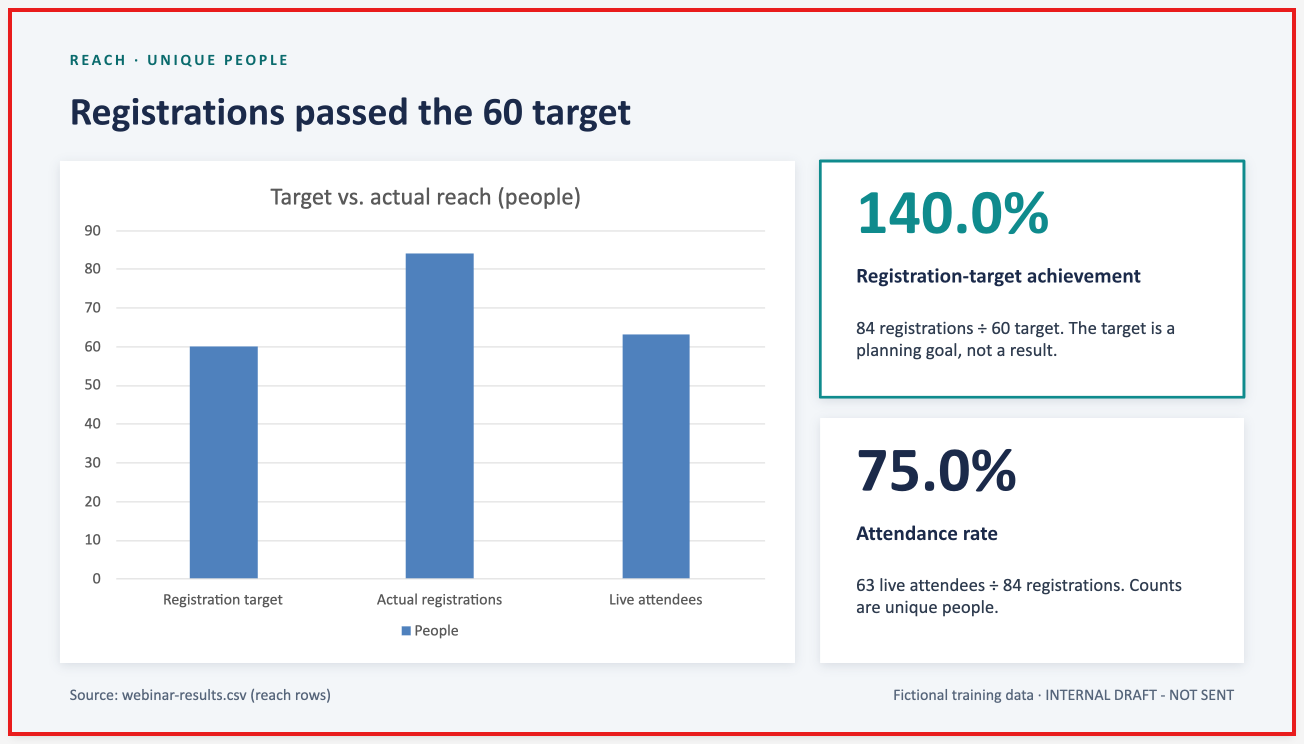
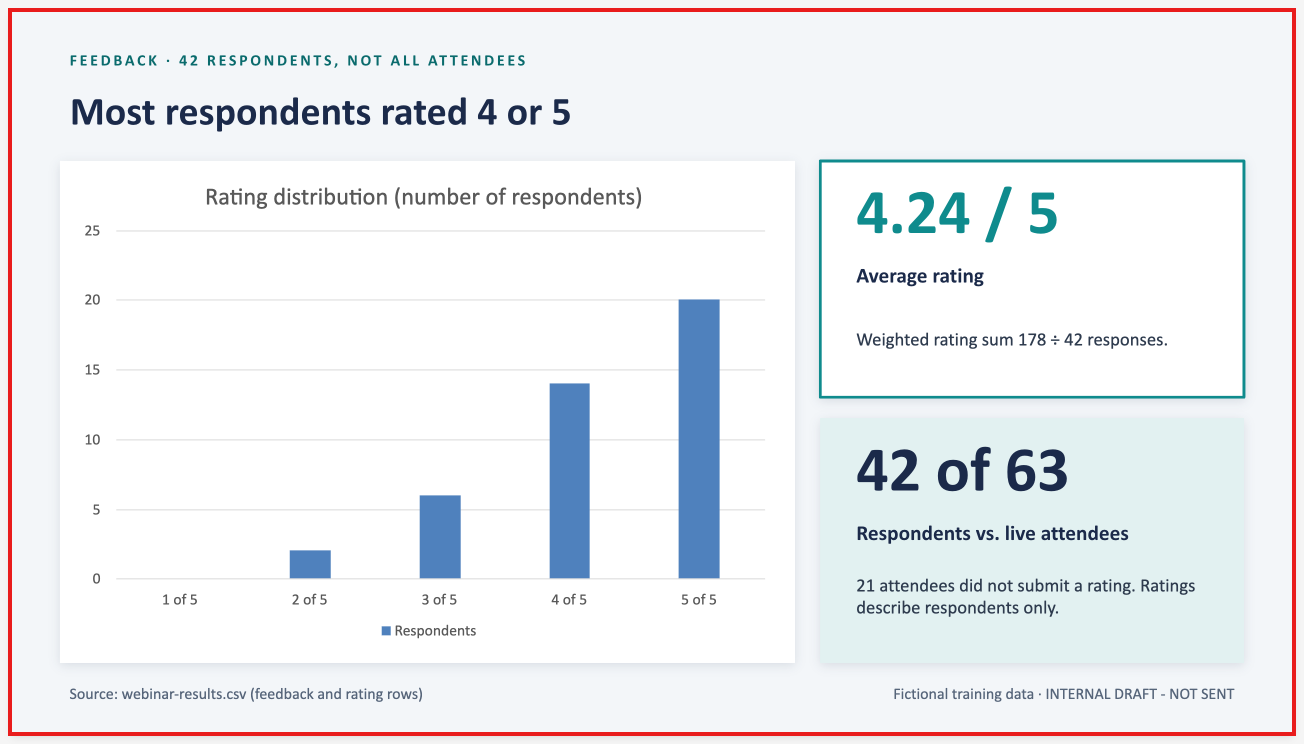
Check Expected result Reach chart Registration target 60, actual registrations 84, live attendees 63. Attendance rate 63 / 84 = 75.0%; registrations are the denominator, not the target. Target achievement 84 / 60 = 140.0%; the target and actual result remain distinct. Feedback chart Ratings 1 through 5 have counts 0, 2, 6, 14, 20, totaling 42 respondents. Average rating 178 / 42 = 4.24 out of 5; don't treat all 63 attendees as respondents. Evidence and status Every slide identifies fictional training data; proposed follow-up isn't presented as approved or completed. The new deck retains its draft status. Earlier work preserved The final launch plan stays the February 4 planning snapshot, not an overwritten post-event report.
Lab 1.6 - See the Whole Project Together
Return to the project and select Recent. Use each task's More actions > Rename to give the three completed assignments clear names:
Draft planning files,Finalize launch plan, andReview webinar results. Select Save for each name.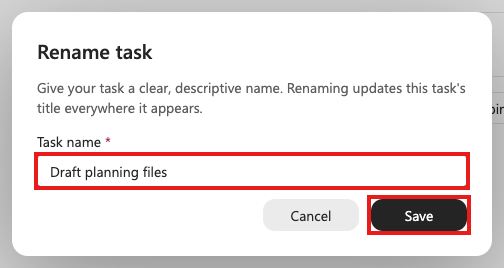
Renaming changes the task titles, not the documents or their filenames.
Return to the project. Collapse and expand its sidebar chevron, then confirm three different tasks are nested beneath Launch Control - Webinar Lifecycle.
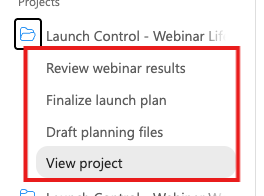
Open each task from this group to return to its own conversation. You don't need to search a crowded Recent list for planning, revisions, and results.
Select Outputs > List view. Confirm the two Word files and PowerPoint appear together. Use Search outputs to find
speaker, then clear the search.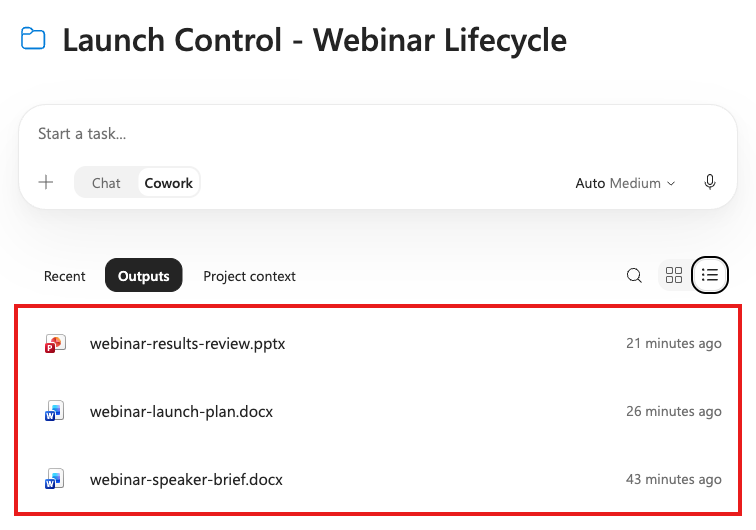
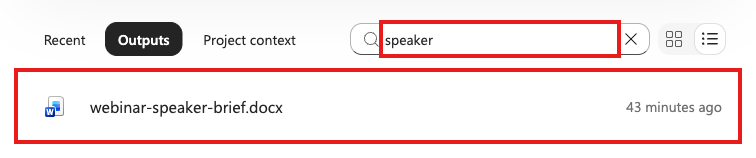
Three tasks don't require three copies of the launch plan. The finalization task updated the existing file; the speaker brief and results deck are separate deliverables.
Use the expanded sidebar or Recent for conversations, Project context for reference material, and Outputs for files.
Mission Accomplished
You've built a reusable workspace, not just a collection of replies:
- Grouped work: Three distinct tasks are nested under one expandable project instead of scattered among unrelated recent work.
- Reusable context: Ten initial sources and three staged updates support planning, review, and post-event reporting.
- Controlled revision: An explicit reviewed update changes one existing Word file from draft to final without finalizing everything.
- Varied deliverables: Two Word documents and a charted PowerPoint appear together under Outputs.
Claim Your Project Wrangler Badge
Congrats, agent — mission accomplished! To request your Project Wrangler badge, submit the badge request form:
Claim your Project Wrangler badge
Answer the knowledge-check questions based on the work you completed. Once reviewed, you'll receive an email from Global AI Community with instructions to claim your badge.