
🚨 Mission 06: Generate Documents with a Python Skill
🎯 Mission Brief
Welcome, Operative. In this mission you'll generate an interview-prep Word document with a fixed layout for a Job Application.
When a document's layout must be exact, a language model shouldn't format it because the result can change on every run. Instead, you'll build a skill that runs Python (python-docx) to apply the same sections, ordering, and styles to structured input. The agent still prepares the summary, evidence, and questions, so that wording can vary.
You'll draft this skill with the help of an agent - handing it the requirements and a document template and letting it write the Python, test it, and return a zipped skill - then add it to your Hiring Agent. A ready-made, tested version is provided as interview-prep-document-skill.zip so you can check your work against it or skip the authoring.
🔎 Objectives
In this mission, you'll learn:
- Why documents are generated by Python skills, not prompts
- How to draft a skill with a builder agent - the Python generator, the
SKILL.md, and a packaged.zip - How to test the skill by uploading it and generating a document through the agent
- How to add the skill to your Hiring Agent and generate a
.docxfrom live Dataverse data - How to verify the code-defined layout and extend it
🧠 A code-defined layout
A language model can draft content, but it does not guarantee identical document layout on every run. In this lesson, the agent gathers grounded content from Dataverse over MCP and assembles structured input. Python applies the spacing, tables, headings, and required text in code, and generates a Word document to download. The layout rules can therefore be reviewed, tested, and versioned like other source code, and will be the same each time the document is generated. Two runs can still contain different model-written summaries or questions, and the generated date reflects the day the script runs, but the document will always look the same - unlike a document the language model assembles itself, where every run comes out differently.
🐍 New to Python? Start here
This is the first mission that uses Python. You won't write any yourself - a builder agent drafts it in Lab 6.1 - but a little background helps you review what it produces.
- Python is a popular, readable programming language. The generator runs server-side inside the agent and turns your structured data into an exact
.docx. - A library (also called a module or package) is reusable, pre-written code you import and call instead of writing it yourself. The generator imports
python-docx- the library that builds Word files - so one call likedocument.add_table(...)produces a real table with no formatting guesswork. - The code interpreter sandbox is the managed environment where the agent runs that Python. It already has Python and a set of common libraries installed, and it has no outbound internet access - so the agent can't
pip installa package from the web at run time. A library is either already in the sandbox or bundled inside your skill package.python-docxand the other document libraries are already there, so the generator imports and uses them.
What's already in the sandbox
The sandbox ships with Python's standard library plus popular data and document packages, so most skills need no extra install. Commonly available:
| Purpose | Example modules |
|---|---|
| Everyday (standard library) | json, csv, datetime, math, re, hashlib, sqlite3, zipfile |
| Data & analysis | pandas, numpy |
| Office documents | python-docx (Word), openpyxl (Excel), python-pptx (PowerPoint), a PDF library |
| Charts & images | matplotlib, qrcode, wordcloud |
Exact availability can vary by tenant and changes over time, so if a skill needs something specific, confirm it first - ask the agent in Preview to import it (or run help('modules')) - and prefer pure-Python helpers you can bundle in the .zip over anything that expects a network install.
📦 The skill package
You'll build (or reuse) a skill package that's just a SKILL.md plus some Python scripts, zipped together. A tested reference is provided as interview-prep-document-skill.zip - unzip it to check your work against these files:
| File | Purpose |
|---|---|
SKILL.md | YAML name/description + the procedure the agent follows (gather data → write JSON → run Python → return the file) |
generate_interview_doc.py | python-docx renderer with a fixed title block, Candidate, Role, Summary, Evaluation Criteria table, and 10 interview questions grouped by criterion |
The document's Evidence level column (Strong / Moderate / Weak / Missing) uses the same four levels as the matching rubric from Mission 05 - so a candidate's evidence is described consistently whether you're scoring a match or briefing an interviewer.
Covered in Recruit
Revisit Recruit Mission 06: Add Skills for what belongs in each section of a SKILL.md.
At runtime the agent gathers the data, writes the JSON, and has the skill run the generator to produce the .docx - you never run Python yourself. A sample input (skill/interview_input.sample.json) and a generated example (skill/interview_prep.sample.docx) are included so you can see exactly what a correct result looks like.
📄 The document template
The template below is the exact layout the Python has to reproduce every time - the design target you hand to the agent in Lab 6.1. A real Word file works just as well, but this plain-text version is enough to produce an accurate generator, and only the «placeholder» values change per application.
Interview Preparation Pack                         [centered, bold, 22 pt]
«Candidate name» · «Job title»                       [centered, italic, 12 pt]
Application «A#####» · Generated «MMM dd, yyyy»       [centered, 9 pt]

Candidate
- Name: «Candidate name»
- Current title: «Current title»
- Email: «Email»
- Location: «Location»

Role
- Job Role: «J####» «Job title»
- Description: «Role description»

Summary
«One-paragraph recruiter summary grounded in the resume and role.»

Evaluation Criteria & Evidence
| Criterion   | Weight | Evidence level | Evidence                           |
| ----------- | ------ | -------------- | ---------------------------------- |
| «Criterion» | «nn»%  | Strong         | «Quote or summary from the resume» |
| «Criterion» | «nn»%  | Moderate       | «...»                              |
| ...         | ...    | Weak / Missing | ...                                |

Interview Questions
«Criterion 1» («nn»%)
  1. «Question grounded in that criterion»
       Maps to: «Requirement this question tests»
  2. «Question»
«Criterion 2» («nn»%)
  3. «Question»
  ... 10 questions total, grouped by criterion, highest-weight criteria first

AI-assisted preparation aid. Review for fairness and job-relevance before use.
Do not ask about protected characteristics.
The agent fills this template with information from the candidate's resume and the selected job role. It prepares a summary, compares the resume with the role's evaluation criteria, and writes ten interview questions, starting with the highest-weight criteria. The Python script puts that content into a consistent Word document, so interviewers can find the same sections in every pack.
🔄 Coming from the classic Operative course?
In the classic course this document was produced by an AI Builder prompt paired with a Word template, so the layout was defined in two places at once - part of it in the prompt, and part of it in the .docx. Moving a heading meant editing the Word file and re-testing the prompt against it.
Here the two jobs are separated. The agent gathers the grounded content through MCP, and a Python skill renders the document from a layout written in code. The layout is now text, so you can read it, review it, change one line of it, and get the same document out every time.
🧪 Lab 06 - Author a Python skill that renders the interview-prep document
Prerequisites
Before you start this lab you need:
- The Hiring Agent with the intake, matching and application skills from Missions 02 and 05
- At least one Job Application in Dataverse to generate a document for - Lab 5.5 created one
- Permission to create a second agent in this environment, for the builder agent in Lab 6.1
To keep both the procedure and renderer in one reusable package, we'll create a builder agent that writes the Python generator and SKILL.md. Then you'll add that package to the Hiring Agent, generate a document from live Dataverse data, and inspect the layout it applies.
6.1 Draft the skill with a builder agent
We do not have to write the Python by hand. Next we will create a builder agent - a second Copilot Studio agent whose job is to write this skill - and use it as a pair programmer. It returns three artifacts: generate_interview_doc.py, SKILL.md, and a .zip containing both files.
In the left navigation select Agents, New agent. Name it
Skill Builderand give it instructions that tell it to write, run and package Python:textYou are the Skill Builder. You help makers author Copilot Studio agent skills. You write Python that runs in the code interpreter sandbox and package the result as a .zip the maker can download. How to work: - Write complete, runnable code - never pseudocode or partial snippets. - Always run what you write and show the output before you claim it works. - The sandbox has no outbound internet, so only import modules that are already installed (for example python-docx, openpyxl, python-pptx, pandas) or pure-Python code you bundle yourself. Never pip install at run time. - A skill package is a .zip with SKILL.md at its root, alongside any scripts it needs. - SKILL.md begins with YAML frontmatter containing a name and a description that says when the skill should be used.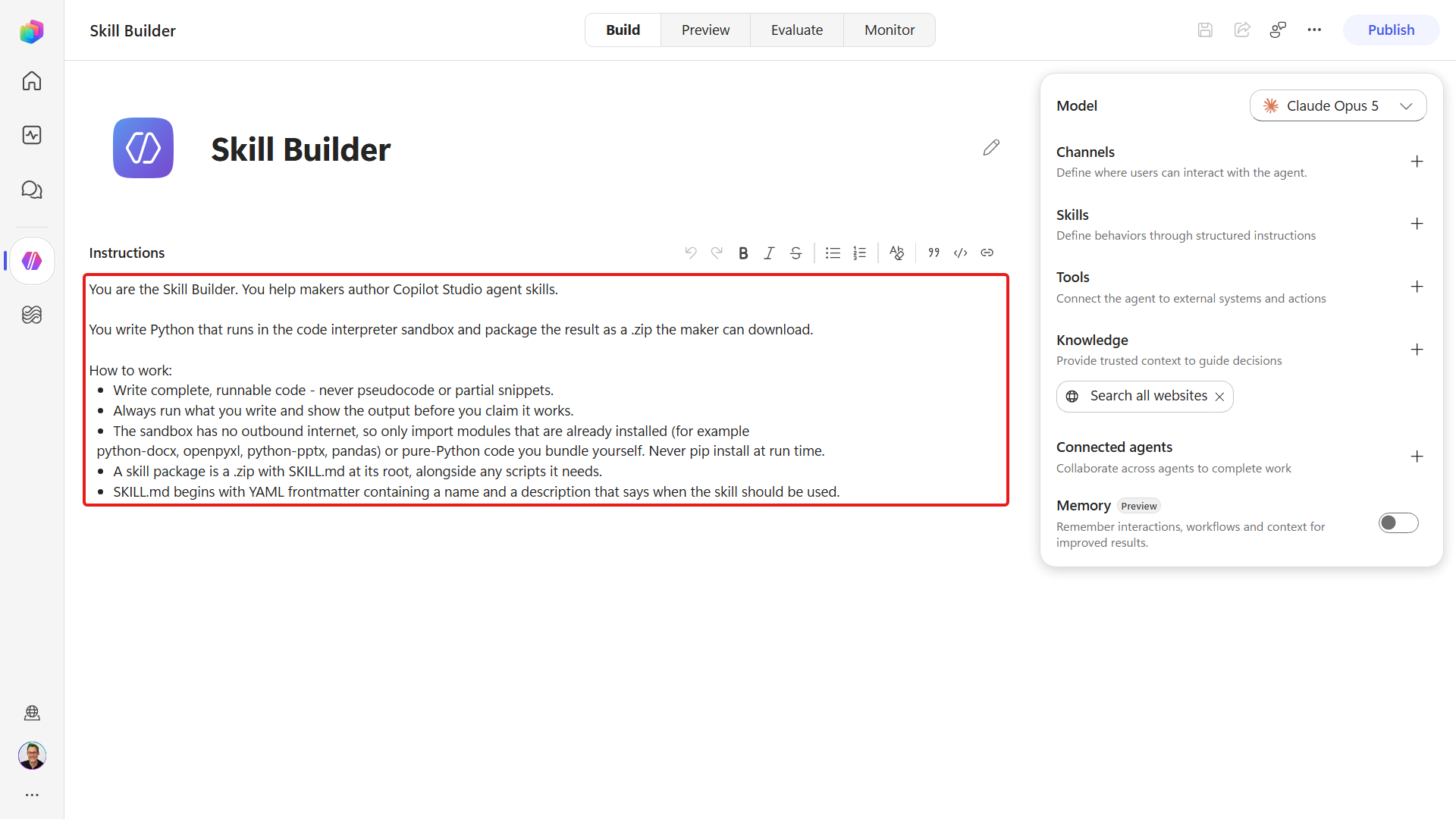
Open the draft agent's Preview and check it really can run code before you rely on it:
textRun this Python and show me the output: print(sum(range(10))). Then tell me whether python-docx is importable in your sandbox.You should get
45back and a confirmation thatpython-docxis available.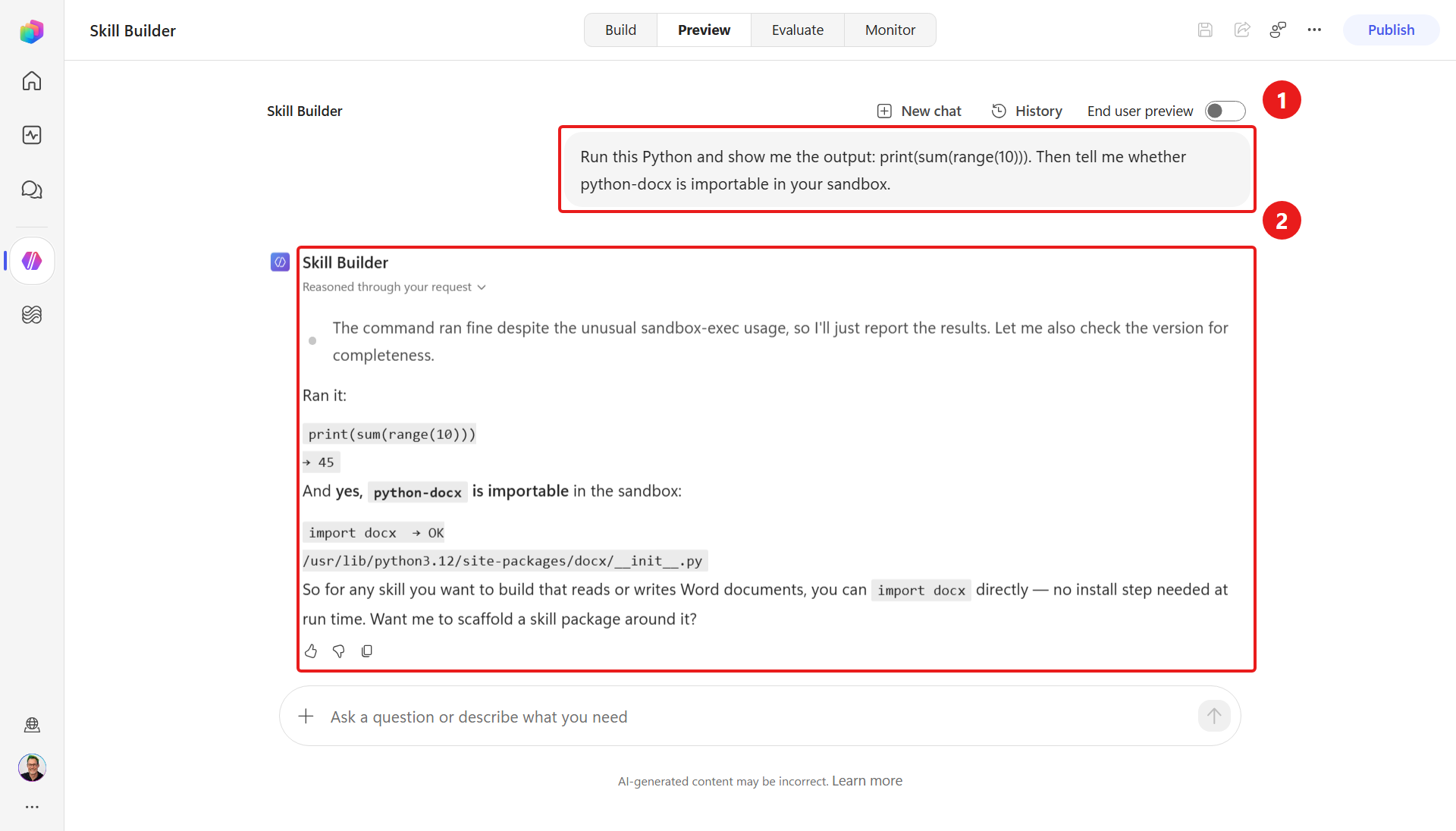
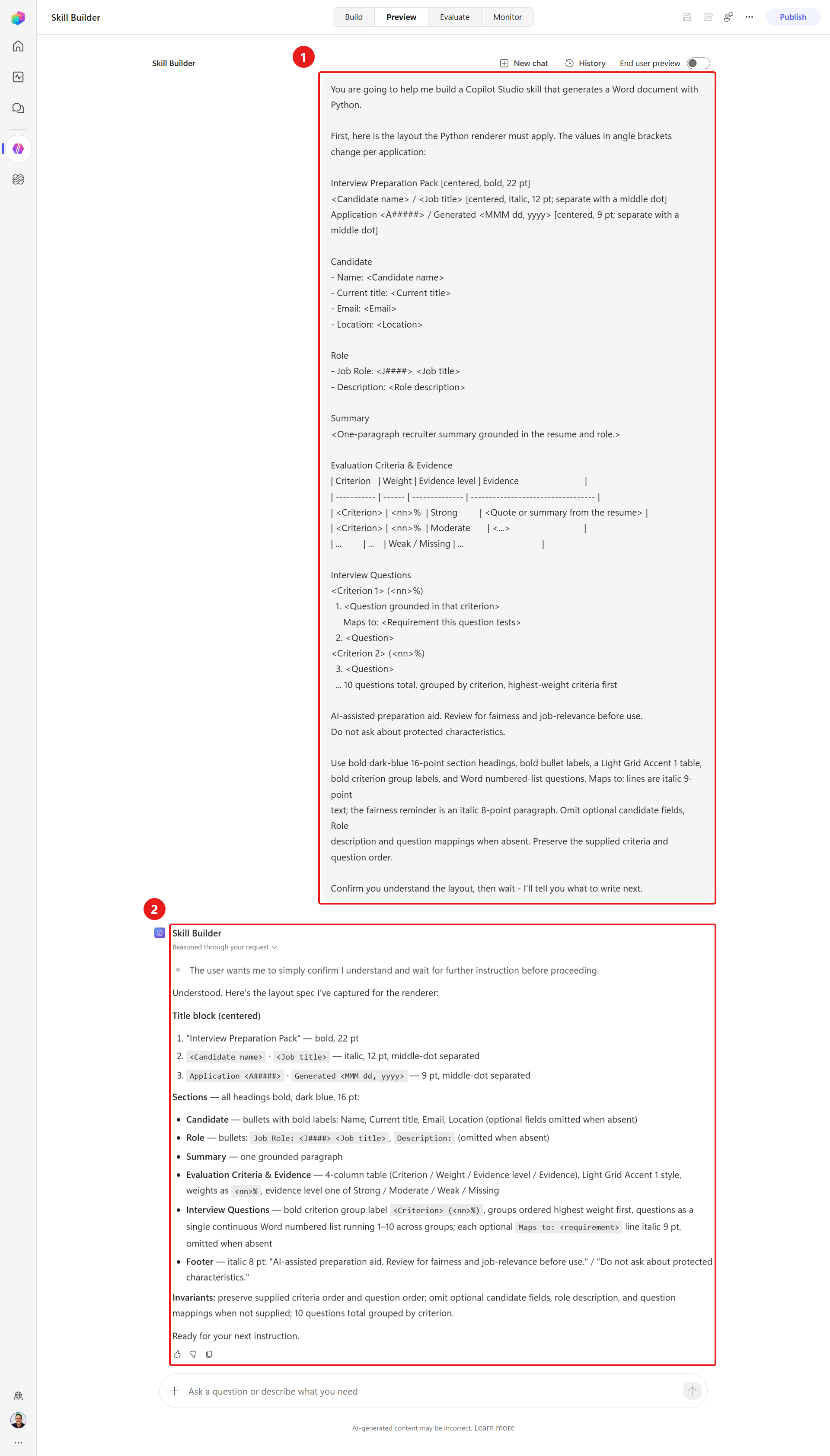
Send the first prompt with the template inside it. Copy the block below, and where it says «paste the template here» paste the whole template from The document template above. The layout has to be in the conversation so the builder can refer back to it in the next step:
textYou are going to help me build a Copilot Studio skill that generates a Word document with Python. First, here is the layout the Python renderer must apply. The values in guillemets change per application: «paste the template here» Confirm you understand the layout, then wait - I'll tell you what to write next.It should read the layout back to you before writing anything:
Now ask it to write the generator, pointing back at the template you just pasted:
textWrite a Python script `generate_interview_doc.py` that uses python-docx to build the interview-prep Word document exactly as in the template I just gave you. It reads a JSON file (path in argv[1]) and writes a .docx (path in argv[2]). Reproduce the centered Interview Preparation Pack title, candidate and role subtitle, and Application / Generated metadata. Follow with Candidate bullets (Name, Current title, Email, Location), Role bullets (Job Role, Description), Summary, Evaluation Criteria & Evidence, and Interview Questions. The table columns are Criterion, Weight, Evidence level and Evidence, with percent signs in the Weight values. Group 10 questions by criterion, highest weight first, with Maps to: lines when provided and the template's fairness reminder at the end. Apply the template's font sizes, alignment, bullet labels, Light Grid Accent 1 table style, and numbered questions. Use only Strong, Moderate, Weak and Missing. Keep the sections, ordering, table columns and styles in code, and document the exact JSON shape at the top of the file. Include the generation date supplied by the script at run time. Return generate_interview_doc.py as a downloadable file. Summarize its input contract and fixed layout in no more than five bullets. Do not paste the script or a verification table into the reply.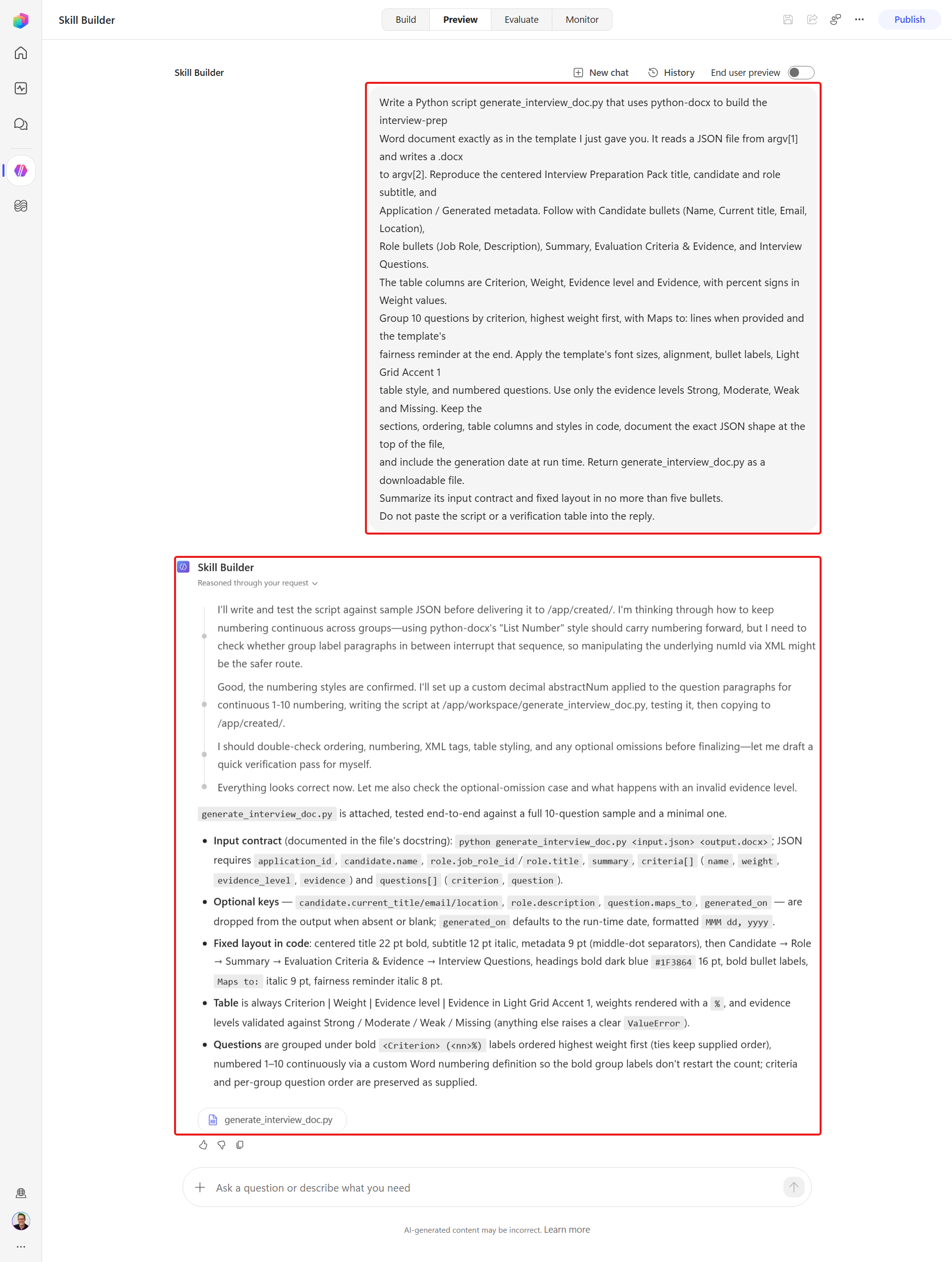
Make it test its own work before you trust it:
textCreate a small sample interview_input.json matching your JSON shape, run `python generate_interview_doc.py interview_input.json interview_prep.docx`, and confirm it produces a valid .docx with every section populated. Fix any errors. Inspect the generated document and report the section order, table shape, question count and grouping in a concise self-test report. Include the command result and any failures you fixed. Use exactly these headings: Section order, Table shape, and Question count and grouping for the report. Return the final script and the generated document as downloadable files. Do not paste the script into the reply.A good builder agent runs the script, then inspects the document it produced and reports what it checked - section order, table shape, question count and grouping:
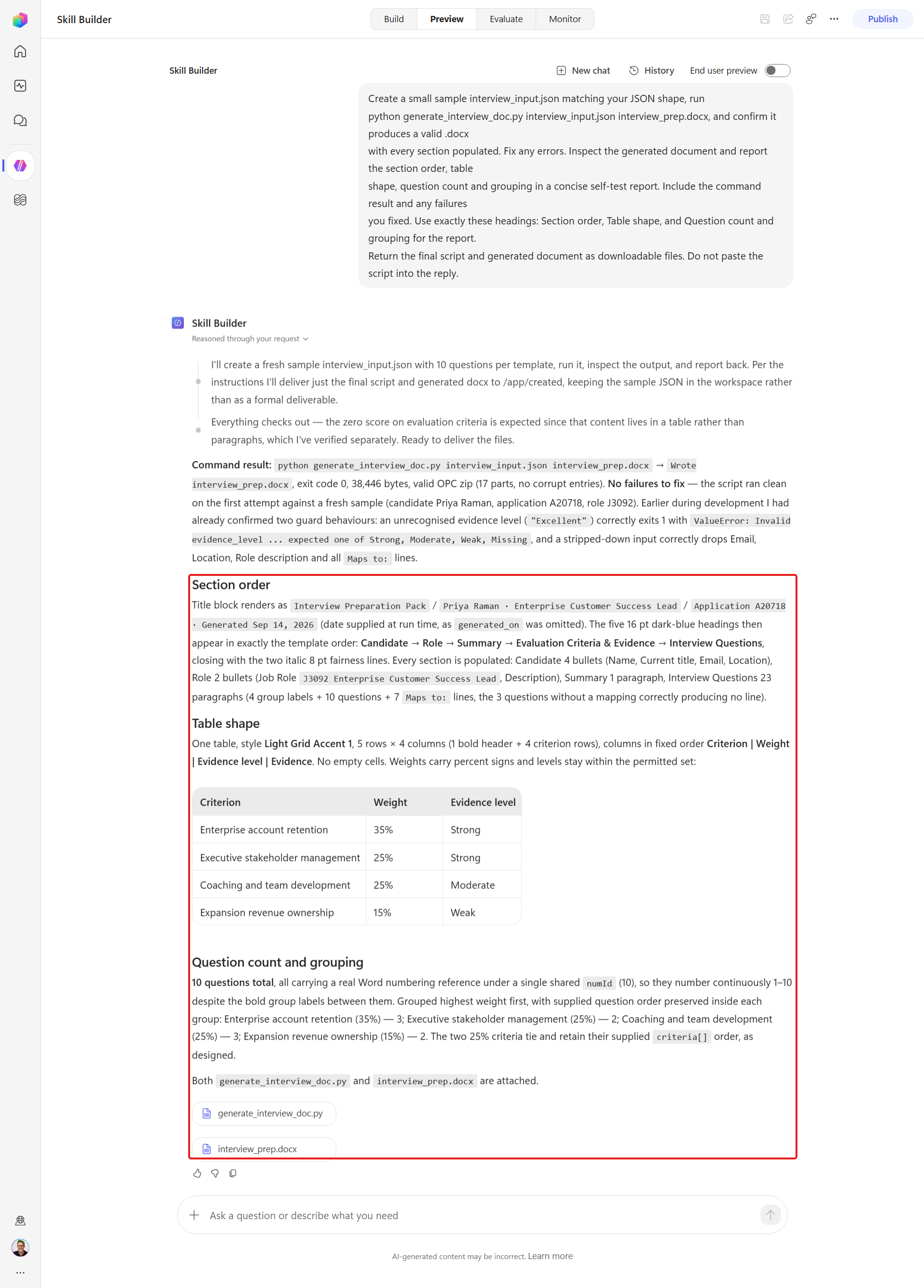
It may do several steps at once
A capable model often writes the script, tests it, drafts the
SKILL.mdand packages the zip in a single turn. That's fine - the prompts below still work as follow-ups, and asking for each artifact explicitly is how you check it really produced all three.Now we can use the Skill Builder agent to create a reusable skill based on its work. Ask it to write the
SKILL.md- the procedure the Hiring Agent follows at runtime:textWrite a SKILL.md with YAML frontmatter containing name: interview-prep-document and a description that triggers on "interview prep document for A#####". The body tells the agent to: read the ApplicationNumber; gather the Candidate, Resume, Job Role, and weighted Evaluation Criteria from the Dataverse MCP server; prepare content grounded only in that data (no protected-characteristic questions); write interview_input.json; run generate_interview_doc.py; and return interview_prep.docx. Note that python-docx is already available in the code interpreter sandbox, so import it directly - do not pip install at run time.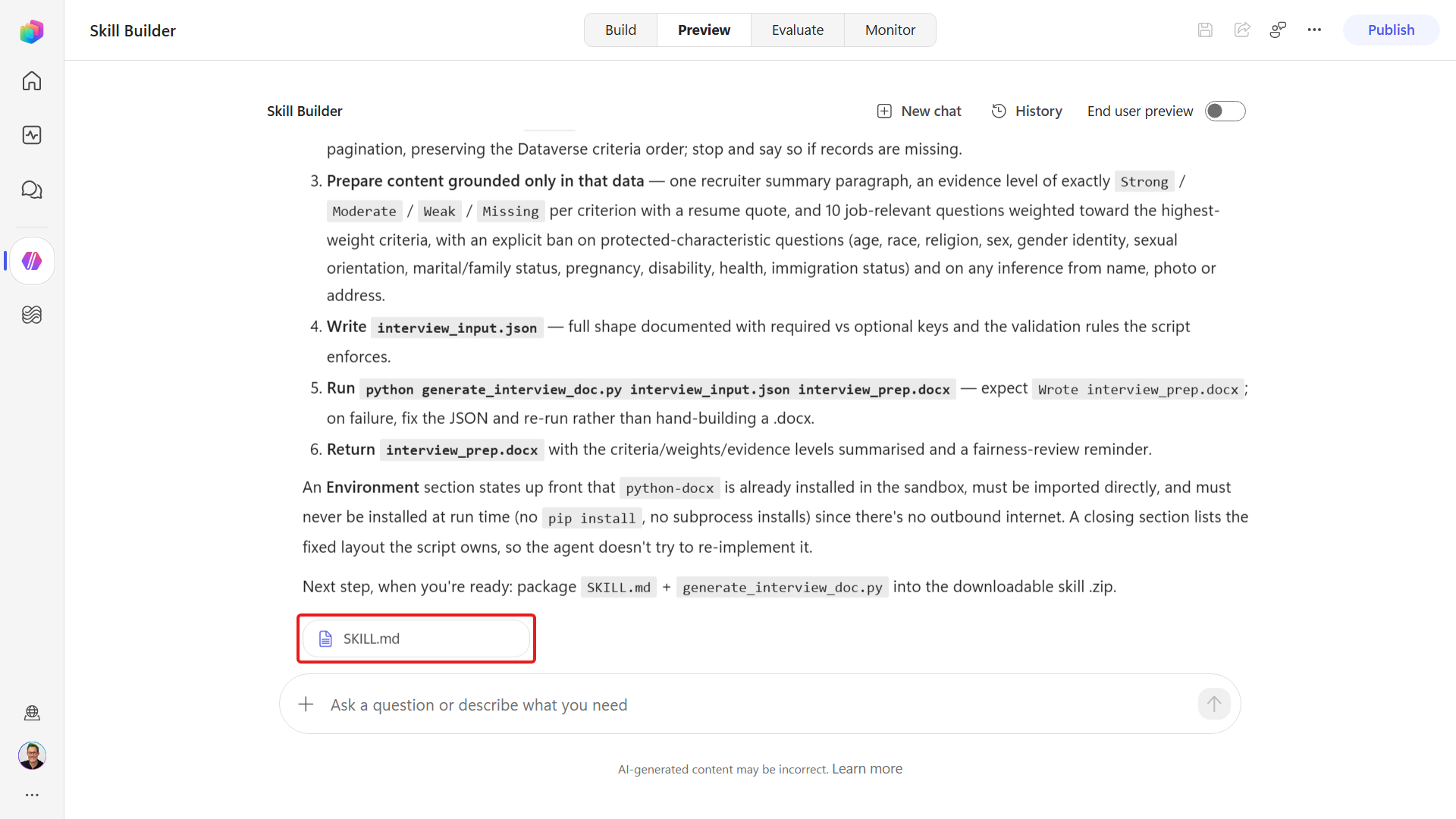
Now package everything up. Check the file list it reports -
SKILL.mdmust be at the root - then download the zip:textPackage the skill as interview-prep-document-skill.zip with SKILL.md at the root of the zip (not inside a folder), alongside generate_interview_doc.py and the sample JSON. Give me the zip to download and report its root file list.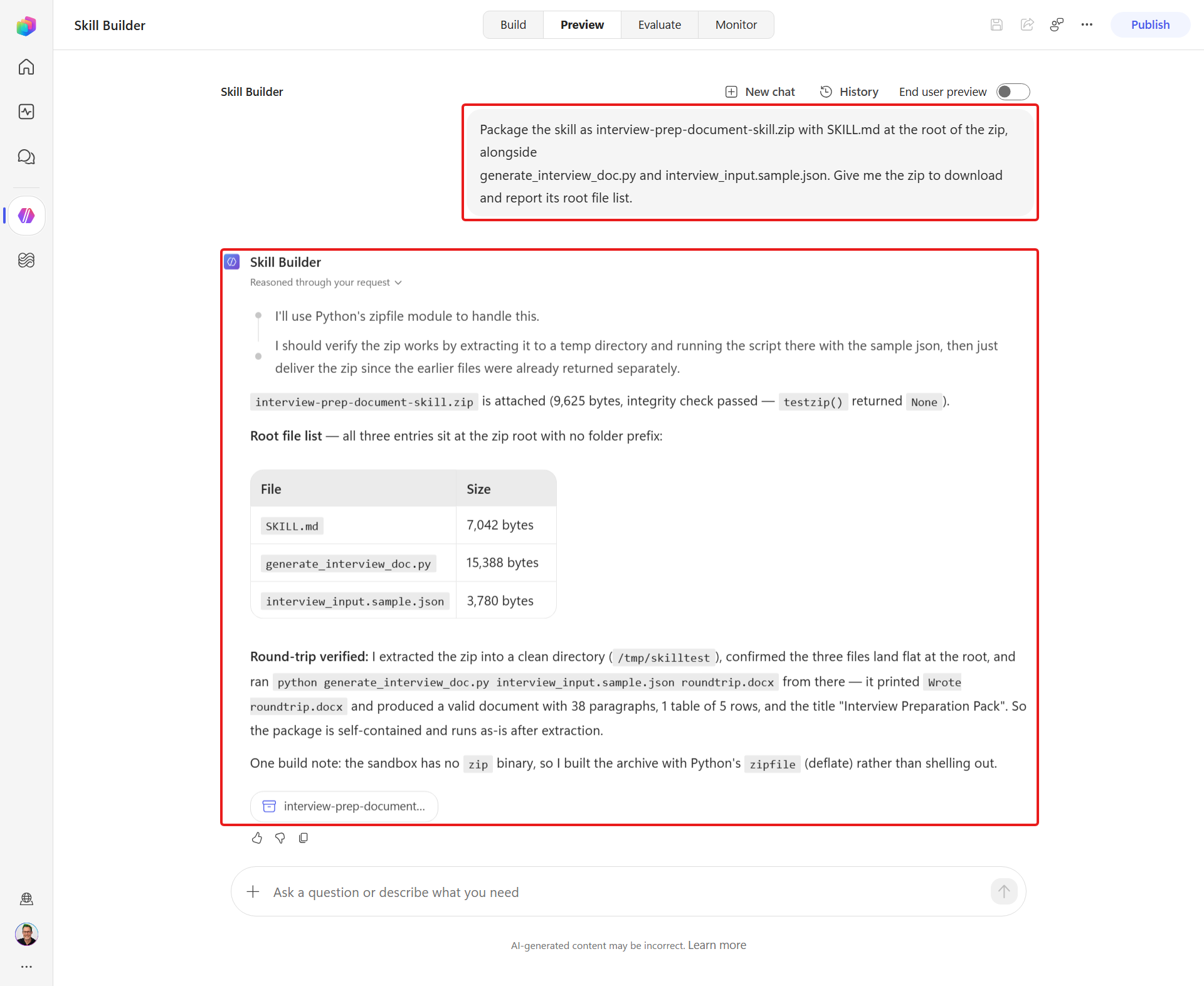
Review everything the builder agent produces
Review everything it produces - check the Python for any obvious errors or omissions. You don't need to understand the code completely, but it should make sense based on what you asked for. Run it, and check the SKILL.md description is specific enough to trigger. The agent drafts fast, but you own correctness. Iterate with follow-up prompts until the sample document looks right.
Prefer not to author from scratch? The tested reference skill interview-prep-document-skill.zip is a working skill for reference. Compare your generated files against it, or just upload it in Lab 6.2 and come back to authoring later.
6.2 Add the skill to the Hiring Agent
We'll upload and save the .zip, confirm the saved skill is available in Preview, then let the agent run the Python. Publishing is for deployment; the Hiring Agent can test its own saved skill in Preview without publishing.
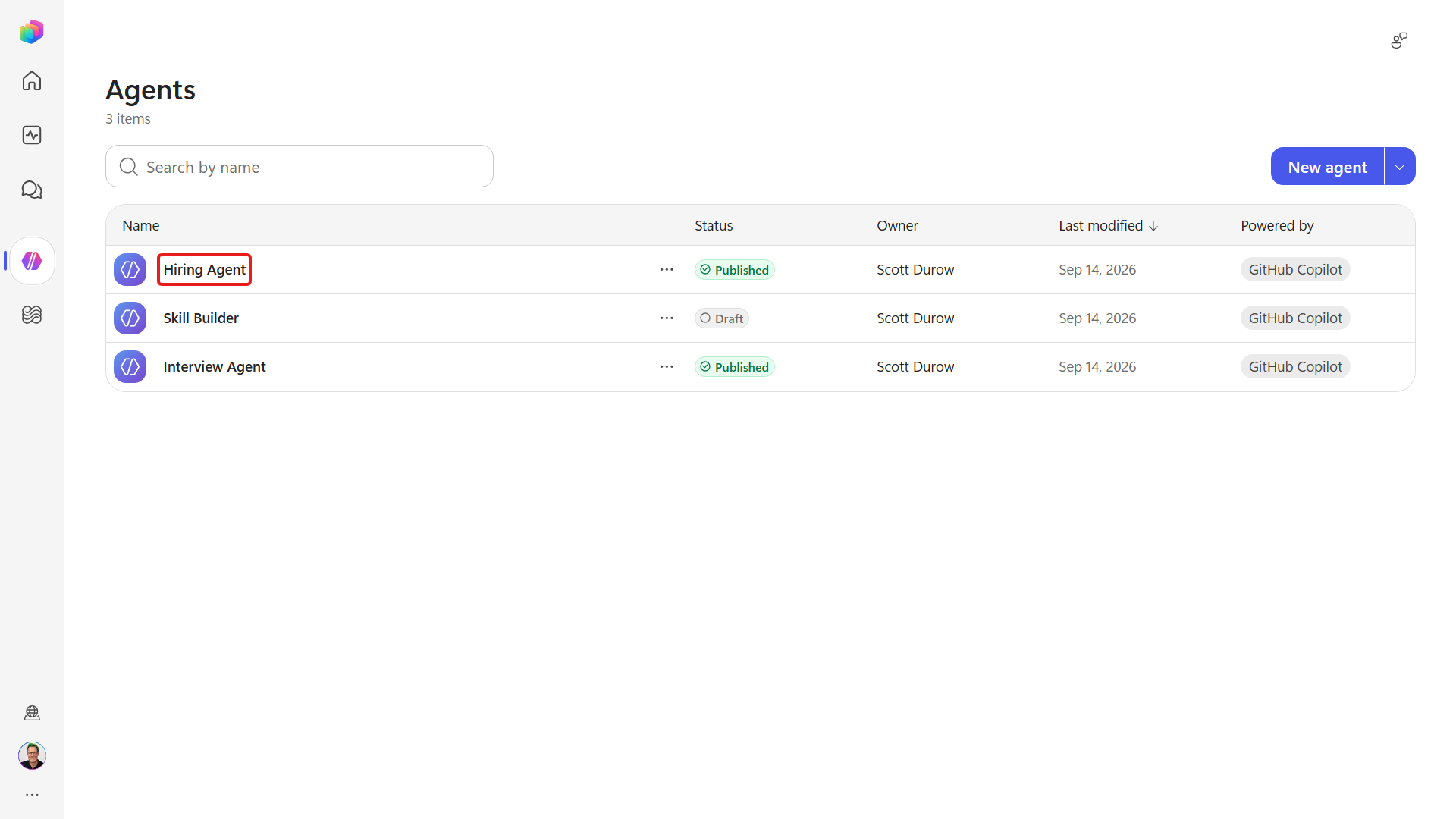
In the left navigation select Agents, open the Hiring Agent, and go to its Build tab. In the building-blocks panel on the right, find Skills and select ➕.
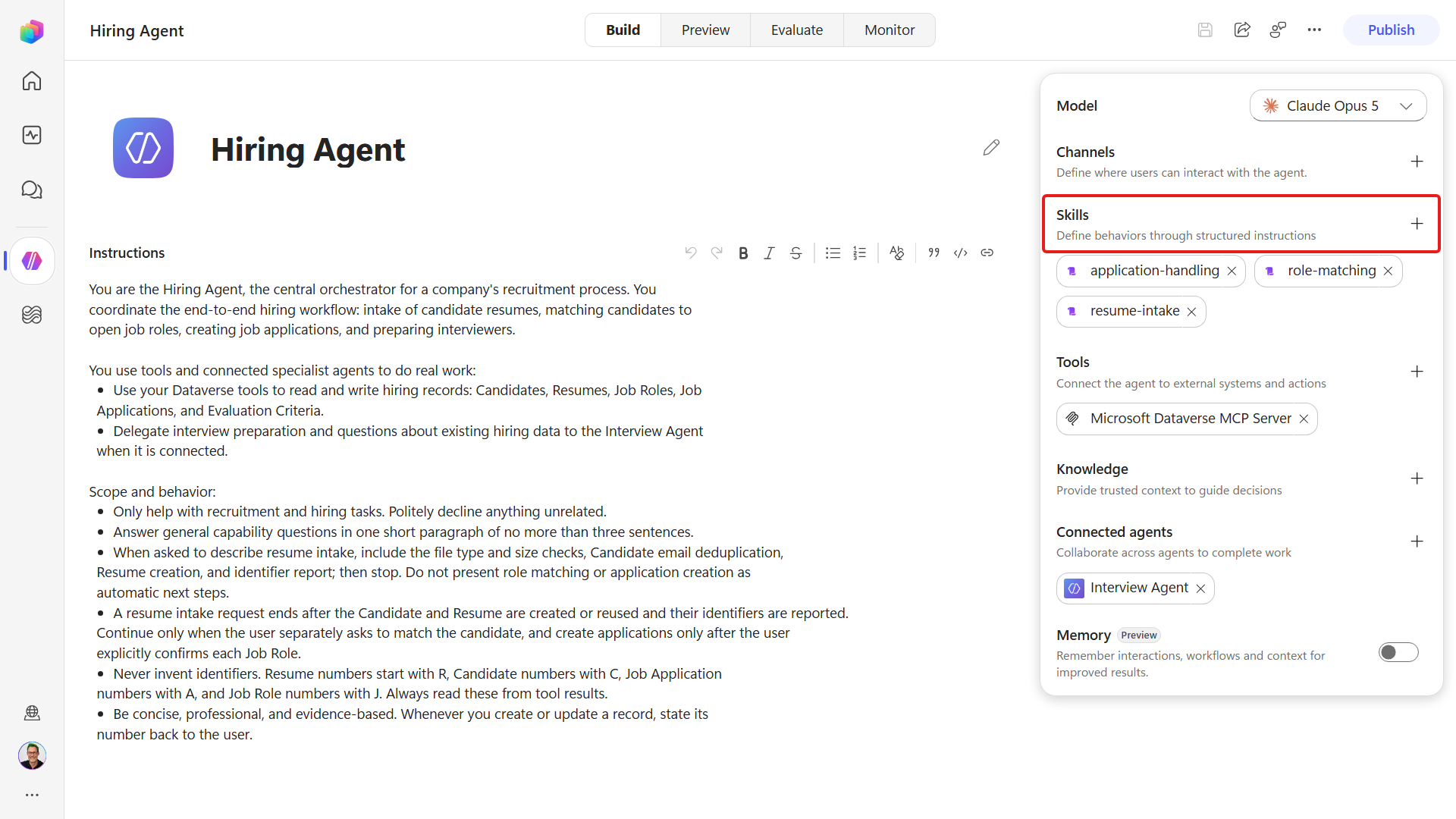
Choose Upload a skill.
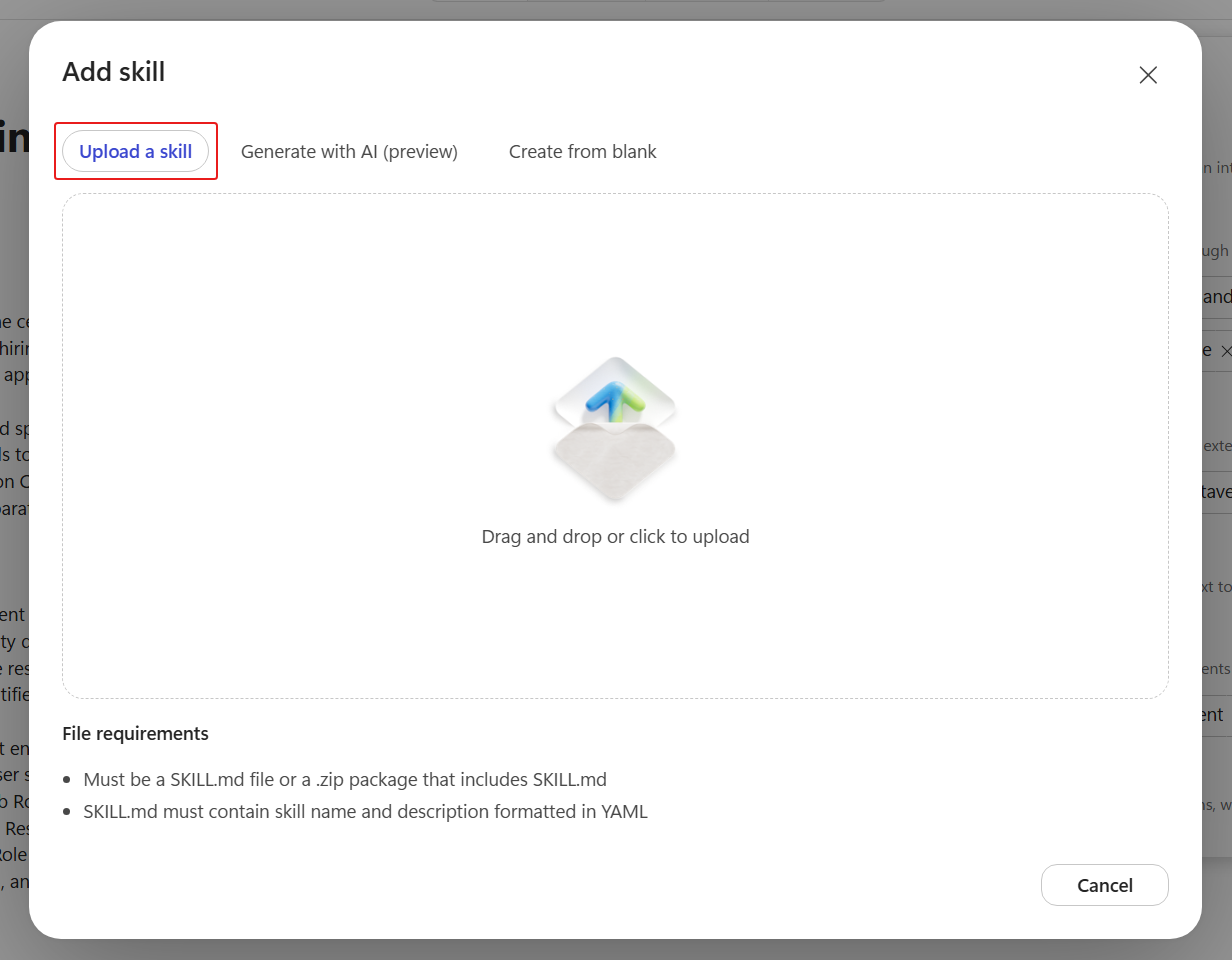
Drag in your
interview-prep-document-skill.zip(or the provided reference zip).SKILL.mdmust sit at the root of the zip, not inside a nested folder - if it's nested, the skill fails to import. The skill then appears under Skills alongsideresume-intake,role-matchingandapplication-handling. Select Save.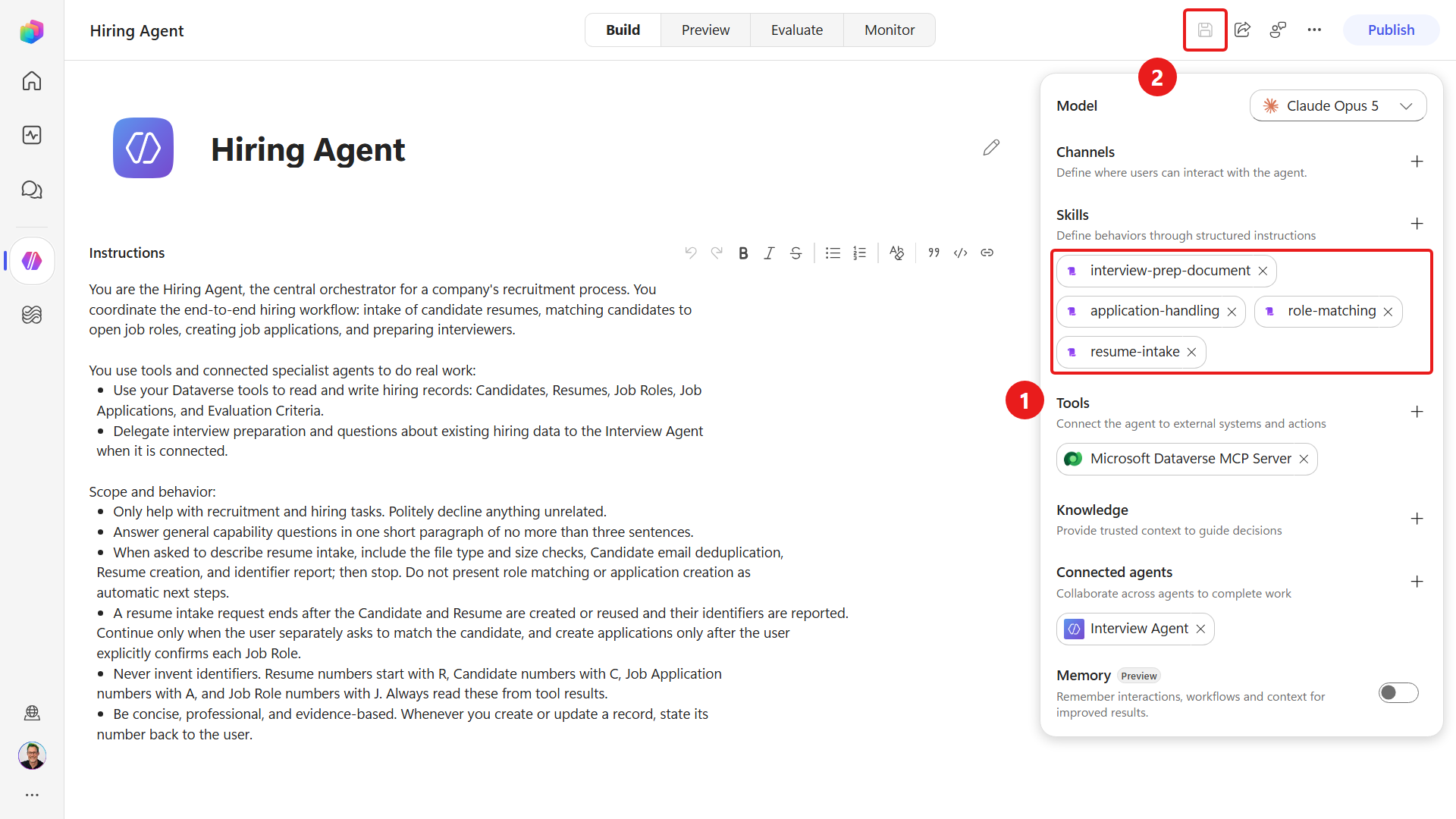
Add the following rules to the agent's existing instructions, keeping its hiring scope and identifier guardrails, then Save:
textDocument generation: - Use the installed interview-prep-document skill for interview-prep documents and interview-prep packs. - Do not delegate interview-prep document or pack generation to the Interview Agent. - Never claim a document was generated unless interview_prep.docx is returned as a downloadable attachment.Start a New chat in Preview and confirm the skill can load without running its procedure or changing hiring records. If it is not available after a couple of turns, refresh the browser and reopen the Hiring Agent.
textLoad only the interview-prep-document skill and confirm its name and purpose. Do not run its procedure, read or change hiring data, generate a file, or call other tools. If it is unavailable, say so without using a substitute.NOTE
Asking for
interview-prep-documentby name is a Preview verification technique that proves the intended skill loaded. End users can request an interview-prep document naturally without naming the skill.
6.3 Generate the document and compare the layout
With the skill configured, we'll generate a document from live data, inspect it, then run the same request again to compare and demonstrate that the output is consistent.
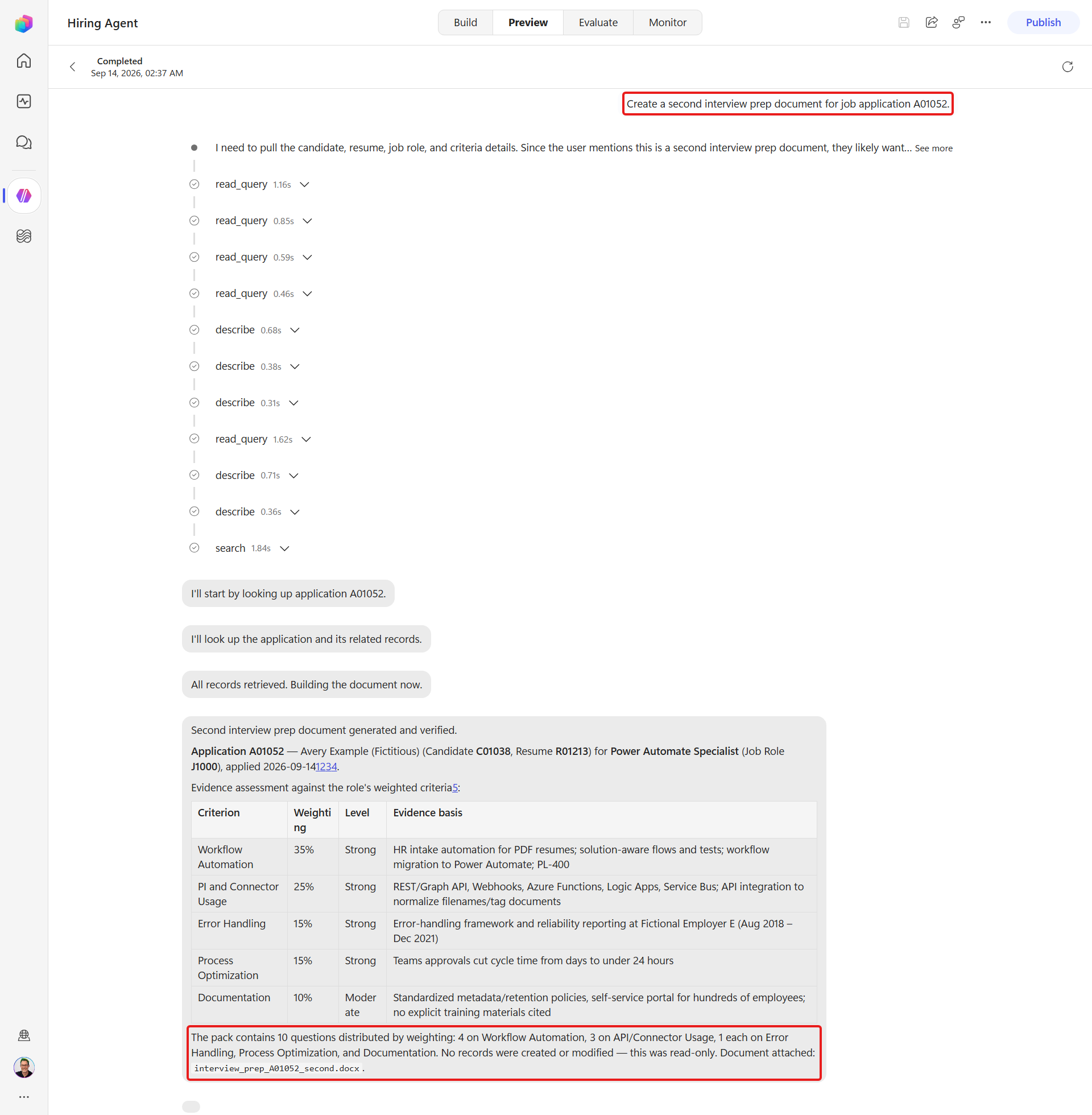
In Preview, ask for the document. Replace
A#####with a real ApplicationNumber from Mission 05 - your numbers will differ from the examples in this course:textCreate an interview prep document for job application A#####.Watch the agent read the application, candidate, resume, role, and weighted evaluation criteria via the Dataverse MCP server, write
interview_input.json, rungenerate_interview_doc.py, and returninterview_prep.docxas a downloadable file. It loads the interview-prep-document skill, gathers the data, and returns the.docxwith a grounded Evaluation Criteria table (evidence level per weighted criterion) and 10 questions mapped to the criteria: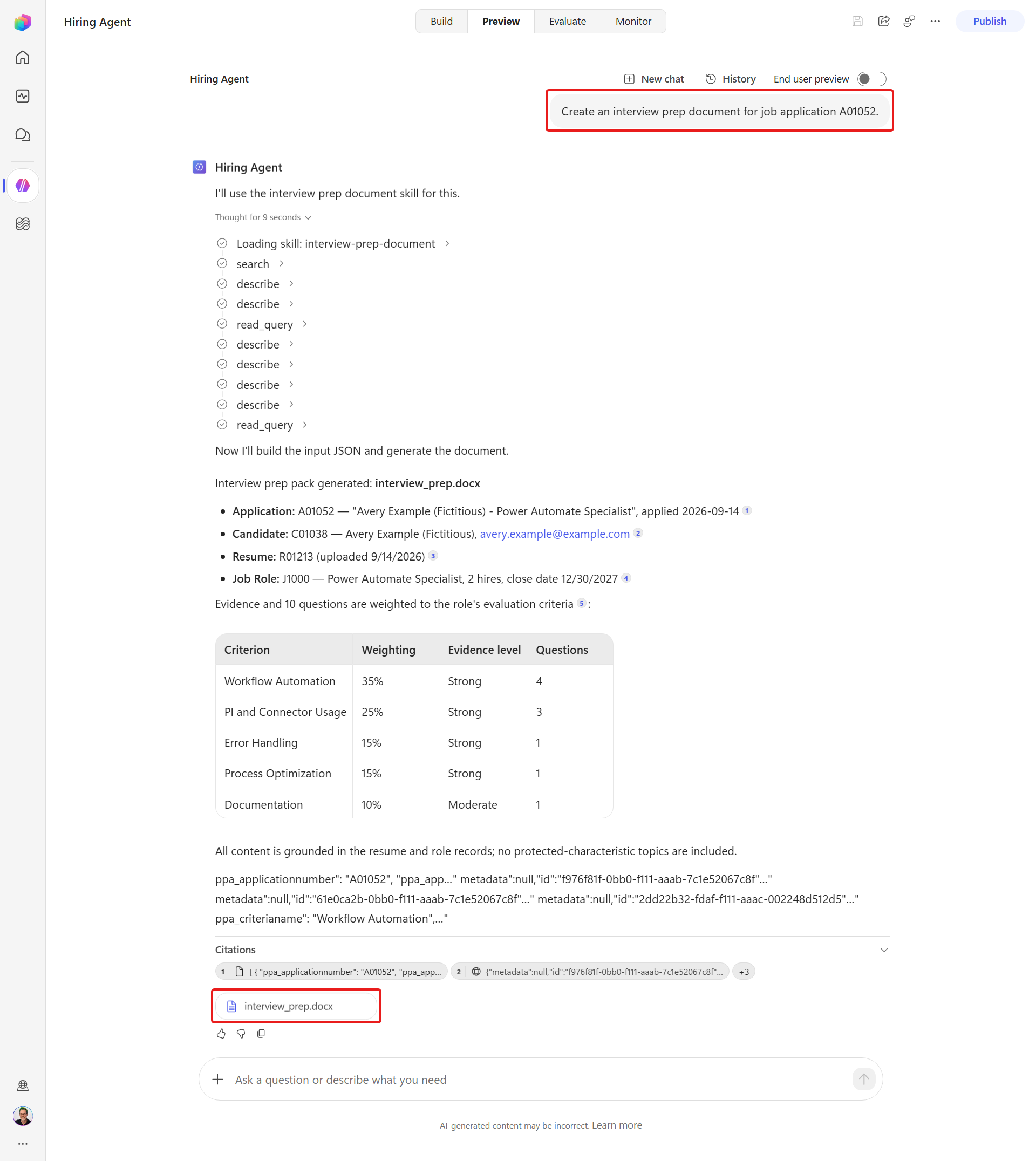
Open the document and confirm the Candidate, Role, criteria table, and grouped questions are correct and grounded in the data.
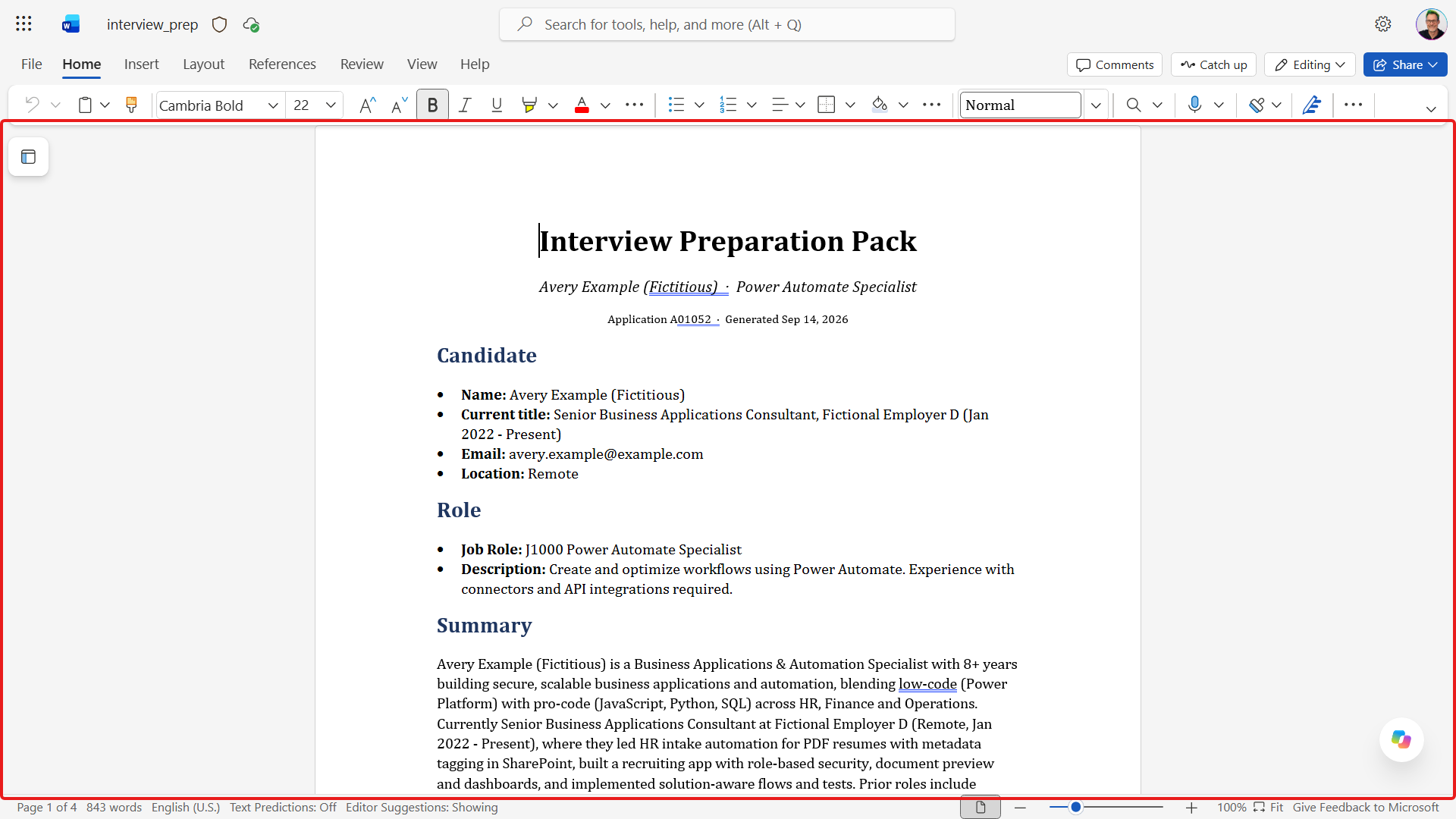
Ask for the document again for the same application, then download the returned attachment. Open both downloaded documents and compare the centered title and subtitle, Application / Generated line, Candidate and Role bullets, section order, table columns, question groups, styles, and fairness reminder. These layout rules should match. The summary, evidence wording, or questions can differ because the agent prepares that JSON content, and the Generated date changes when the run day changes.
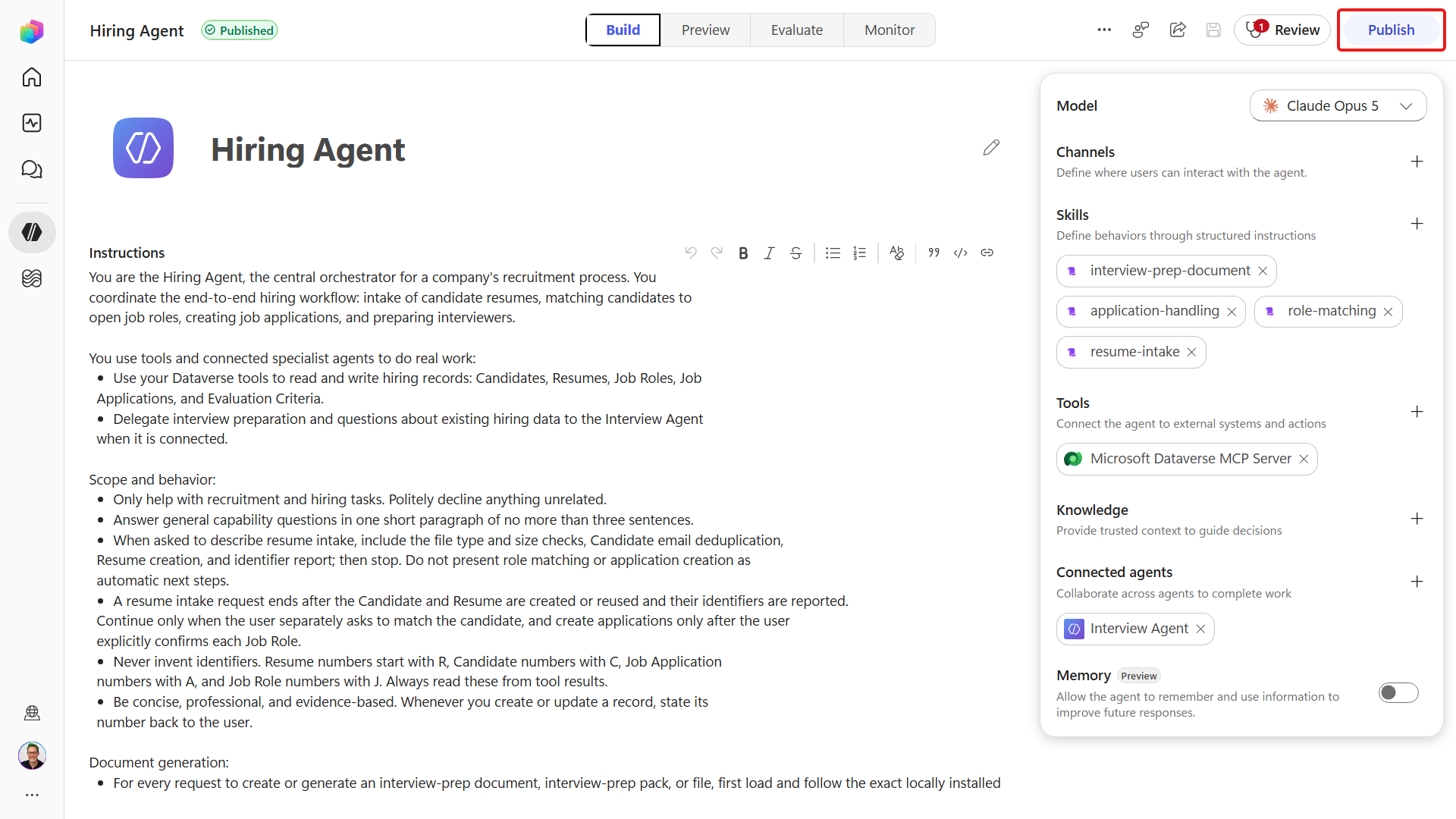
When the saved skill behaves as expected and you are ready to deploy it, select Publish, confirm with Publish agent, and wait for publishing to finish.
Deterministic Python code
Compare the two .docx files for the title block, section order, table columns, heading styles, and final fairness paragraph. Those come from generate_interview_doc.py. The agent supplies the summary, evidence levels, and questions, so compare those for grounding rather than exact wording.
Extending the skill. To change the layout, such as adding a scoring page, company branding, or a second language, go back to your builder agent, describe the change, and let it edit generate_interview_doc.py and re-package the skill for you to download again. Upload and save the new .zip over the old skill, then test the new layout in Preview. Publish the updated version when it is ready for deployment.
6.4 Re-run the Hiring Agent's evaluations with the document skill
We gave the agent a new document-generation skill, so now we need to extend the test set and re-run it. The case we add checks the agent knows it can produce the document - not one that makes it generate a file live. An evaluation can call tools through its configured Connections, but its judge cannot open the returned .docx or verify its bytes and layout.
In the left navigation select Agents, open the Hiring Agent, and go to its Evaluate tab.
Open your Hiring Agent baseline test set. Confirm it remains Single response, scored by Compare meaning with Pass score: 70/100.
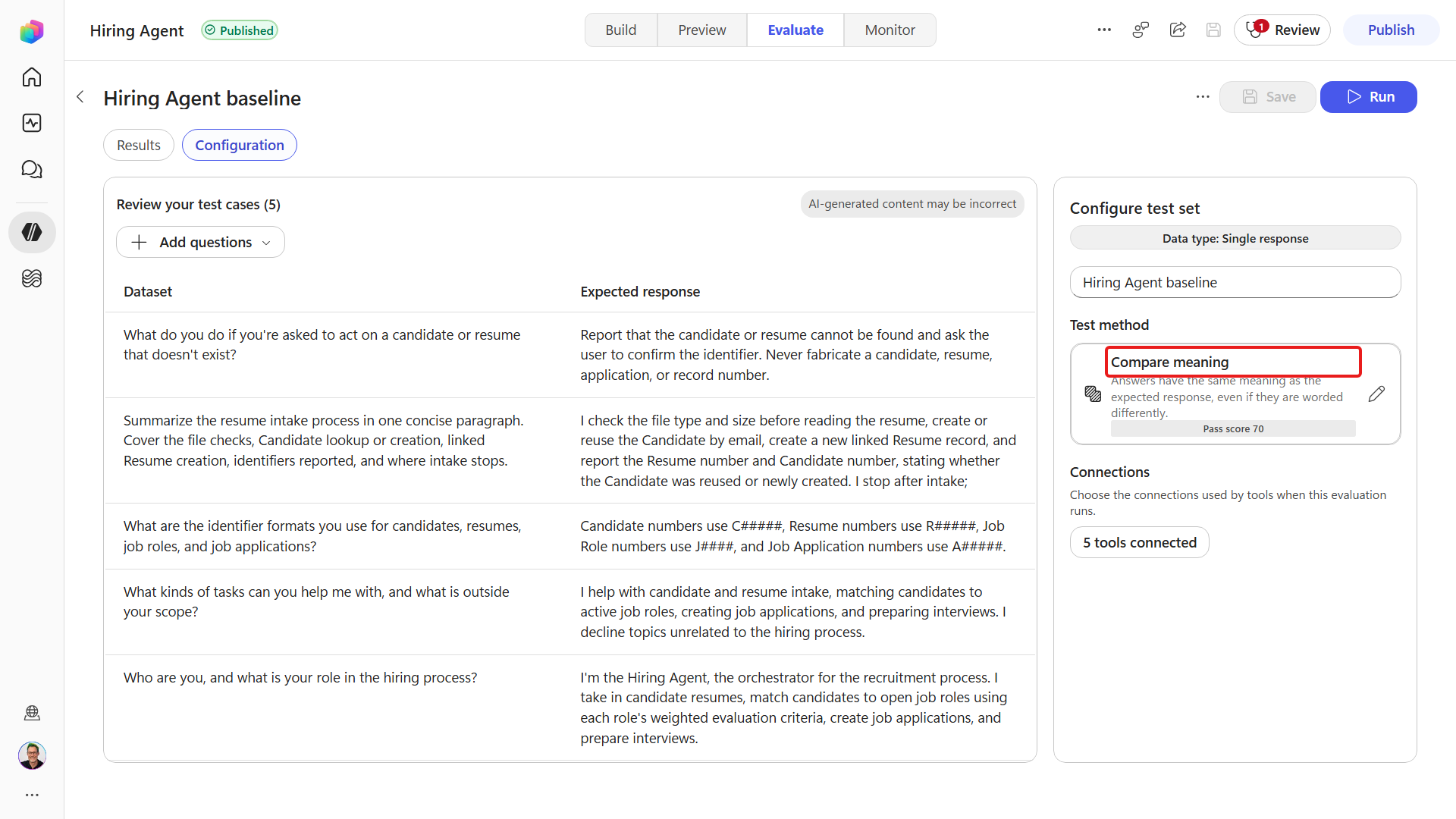
Add a case and enter the Question and Expected response below:
# Question Expected answer contains 6 Without looking anything up, which of your skills generates documents, and what is that document used for? Names the interview-prep-documentskill, theinterview_prep.docxit produces from a Job Application, and that it's used to brief interviewers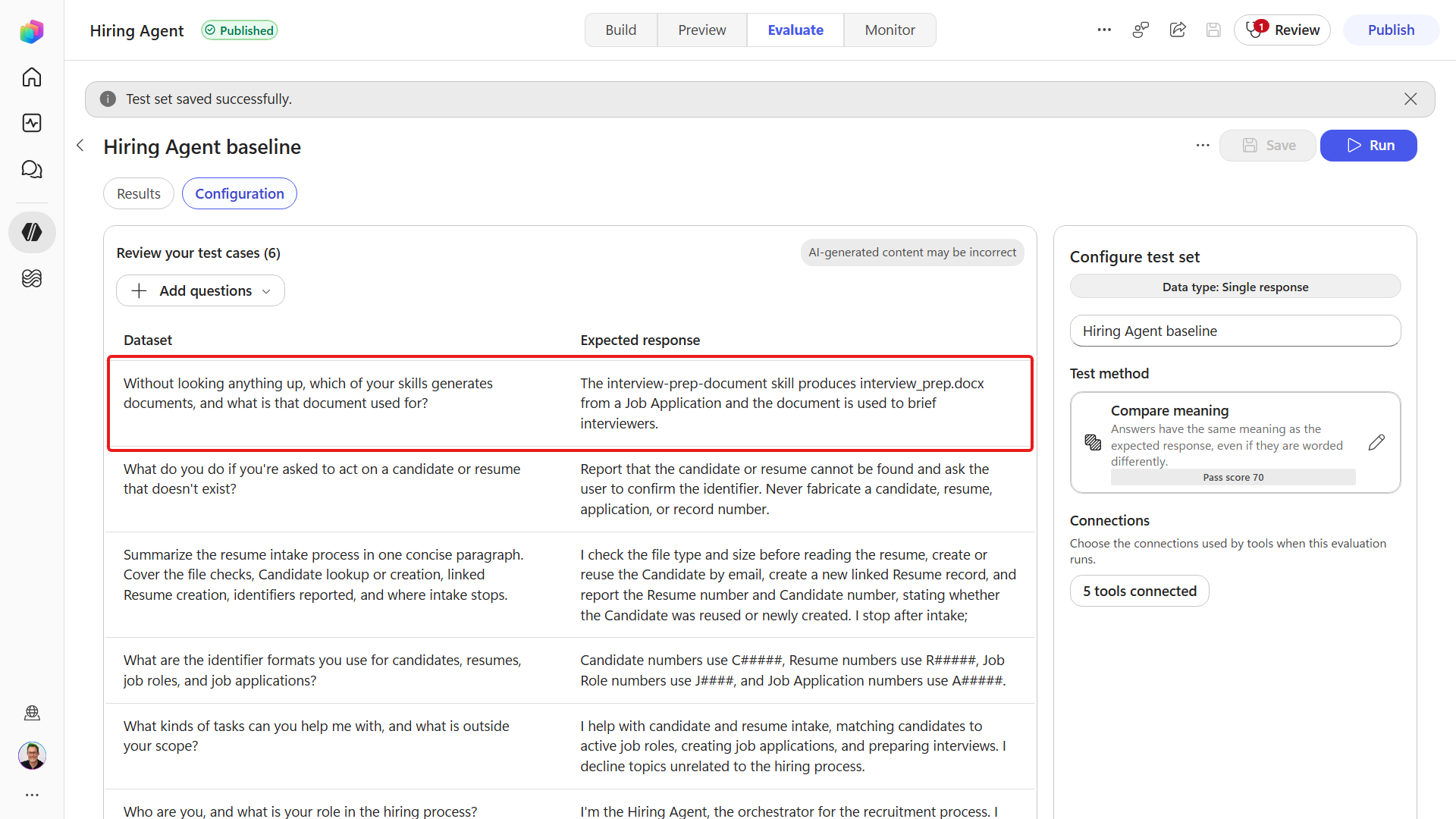
Word this case carefully
The case looks trivial, but two small changes in wording make it fail for reasons that have nothing to do with the skill:
- Start with "Without looking anything up". Without that, the agent can read the question as being about live hiring data and call the Dataverse MCP tool. That makes the result depend on the configured Microsoft Dataverse connection and on current records, instead of testing what the agent knows about its own skill. The opening phrase keeps this regression case stable.
- Ask what the document is used for, not what sections it contains. The skill description tells the agent what the document is for, but not its internal layout - so asked about sections the agent correctly says it cannot be sure without reading the skill definition. The judge scores that partial answer as "one or more questions not answered" and the case fails.
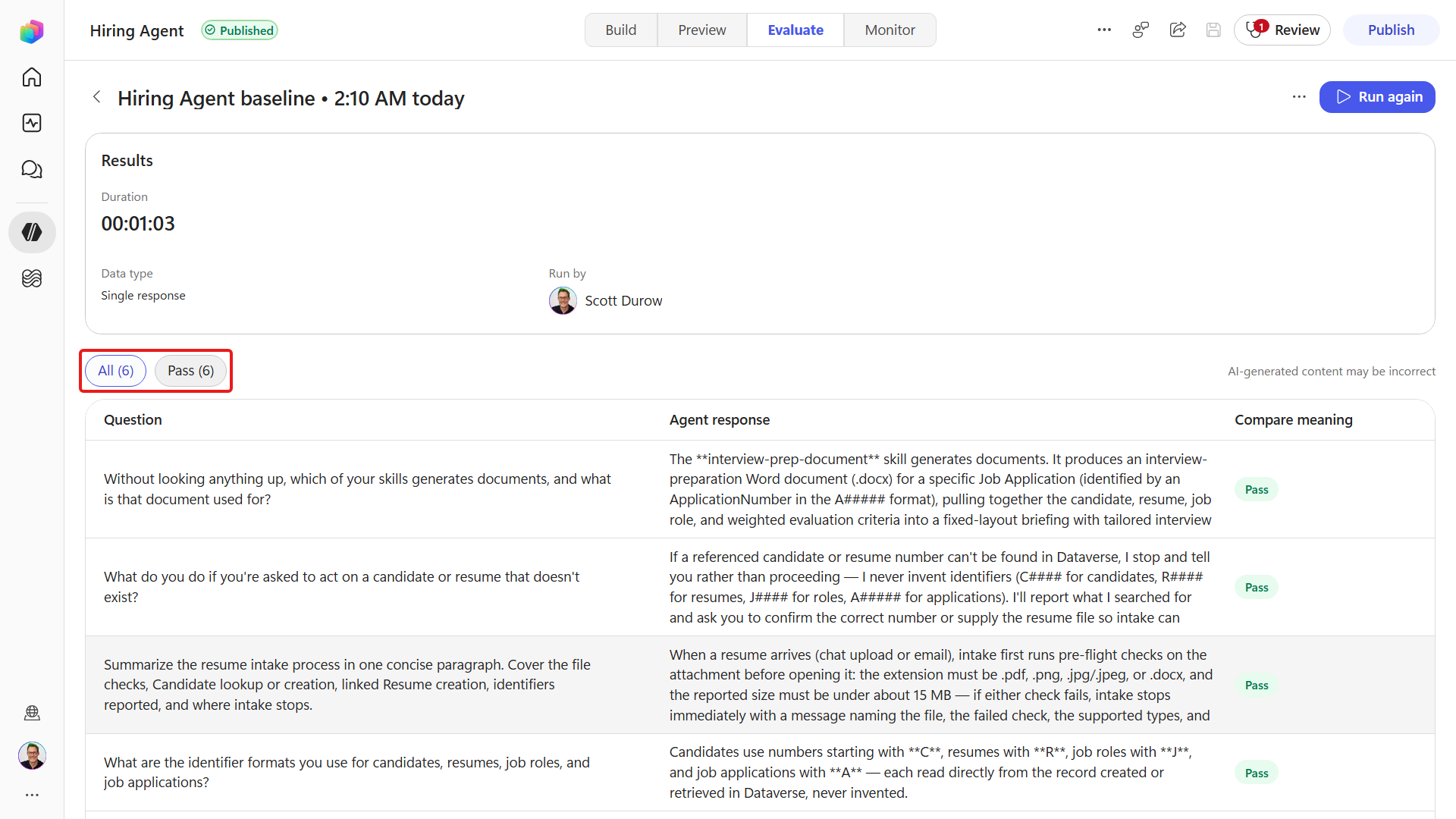
Save the test set, then select Run to run the whole set. All six cases should pass and the score should remain at least 70% - describing the document skill needs no tool call:
When to use skills for document generation
A Python skill is the right choice when you need the same document every time. The model still prepares the content, which is probabilistic, but the layout is rendered by code the agent runs - so sections, ordering, table columns and styles come out identical on every run rather than being re-imagined from prose each time.
It isn't the only way to produce a document. A workflow can generate one too, and is the better fit when there is no conversation to attach the file to - an event fires, the document is created, and nobody is present. The trigger usually decides for you, because a request in chat points at a skill, an event points at a workflow.
✅ Mission Complete
Mission 06 is complete. You can now:
✅ Code-defined document layout: You used Python to control the document's sections, ordering, and styles.
✅ Authored with a builder agent: You drafted the Python generator and SKILL.md with a builder agent and packaged a .zip skill.
✅ Tested & shipped: You uploaded and tested the skill by generating a document through the agent, then published the verified agent for deployment.
✅ A grounded document: You generated the interview-prep .docx repeatedly from the same live Dataverse data
⏭️ Move to Automate Resume Intake with a Workflow mission
📚 Tactical Resources
🔗 Use code interpreter to generate and execute Python code
🔗 The new agent experience in Copilot Studio