Task 02: Register the Azure Migrate appliance
Introduction
Before Terra Firm can estimate cost, downtime, or even a safe migration sequence, they need a clear picture of what’s running on-premises. Registering the Azure Migrate appliance is how Dennis’s team securely feeds Azure Migrate the facts-so the pilot workload can be assessed with real data instead of guesses.
Description
In this task, you’ll generate a project key from the Azure Migrate project and use it to register the pre-deployed Azure Migrate appliance. You’ll complete device sign in and confirm the appliance registration status.
Success criteria
- A project key has been generated and recorded for later use.
- The appliance shows successfully registered in the Appliance Configuration Manager.
Key tasks
- Start appliance-based discovery for Hyper-V and generate a project key.
- Open the Appliance Configuration Manager and verify the project key.
- Complete device sign in and confirm appliance registration completes successfully.
Configure discovery on the Azure Migrate project
-
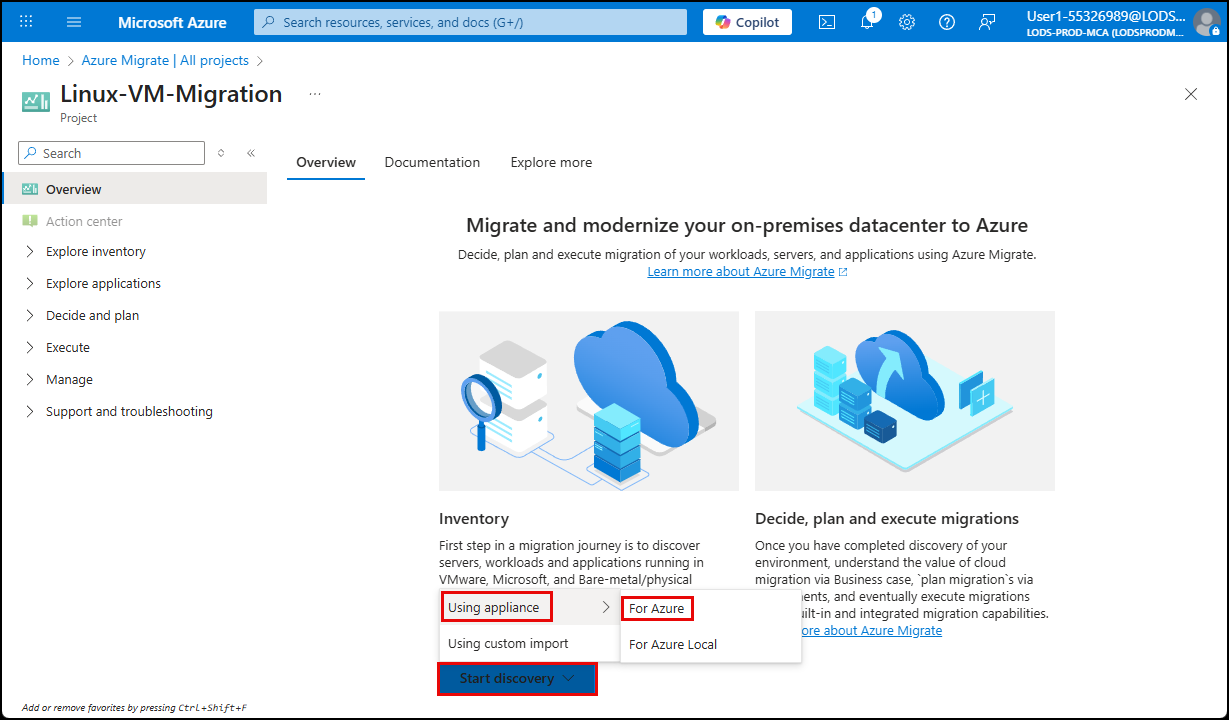
On the Overview page, select Start Discovery, choose Using Appliance, then For Azure.
-
On the Discover blade, under Are your servers virtualized?, select Yes, with Hyper-V.
-
In the Name your appliance field, enter app@lab.LabInstance.Id.
-
Select Generate Key.
After a minute or two, a Project key field will appear on the Discover screen.
-
Copy the project key and then paste it in the text box below, for later use.
@lab.TextBox(ProjectKey)
Do not download the Azure Migrate appliance VHD or ZIP file. The Azure Appliance has already been deployed in the lab environment.
-
Select Close to close the Discover blade.
Configure the Azure Migrate Appliance
-
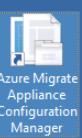
Minimize the browser and then locate and launch the Azure Migrate Appliance Configuration Manager on the lab desktop.
-
On the Terms of use pop-up, select I agree.
-
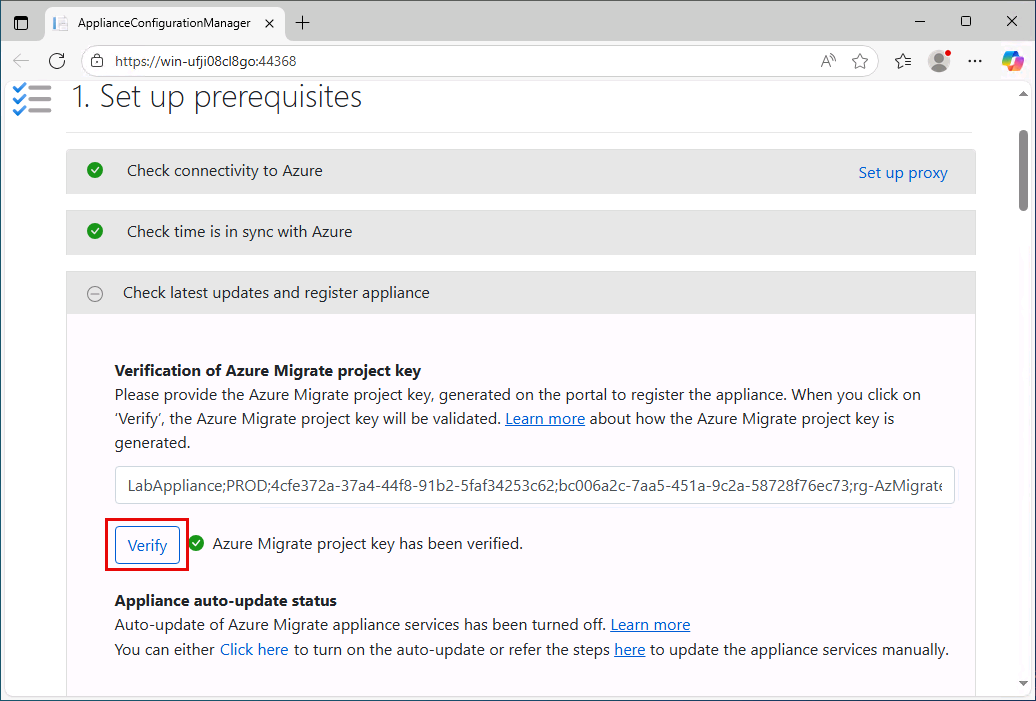
Under Verification of Azure Migrate project key, enter the project key that you copied earlier
@lab.Variable(ProjectKey). -
Select Verify.
-
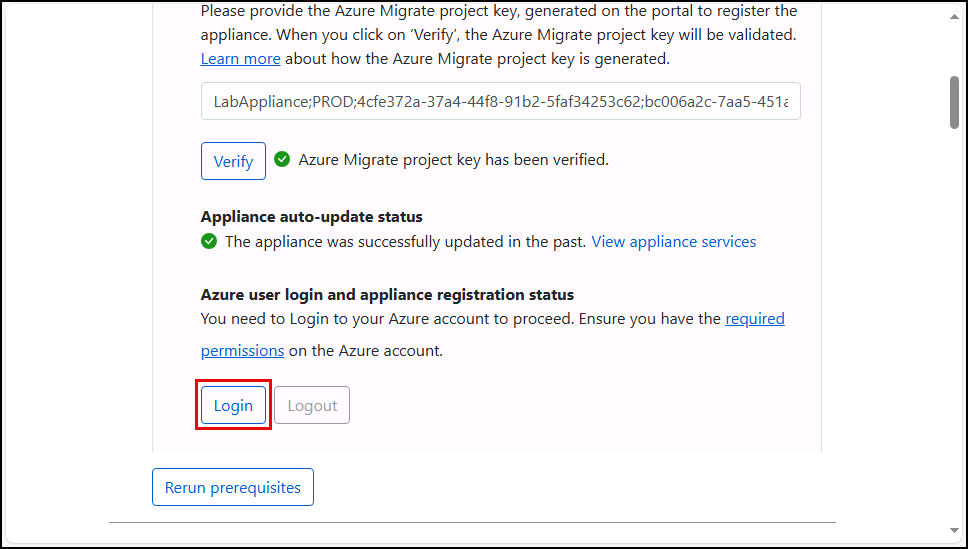
Scroll to the Azure user login and appliance registration status section and select Login.
-
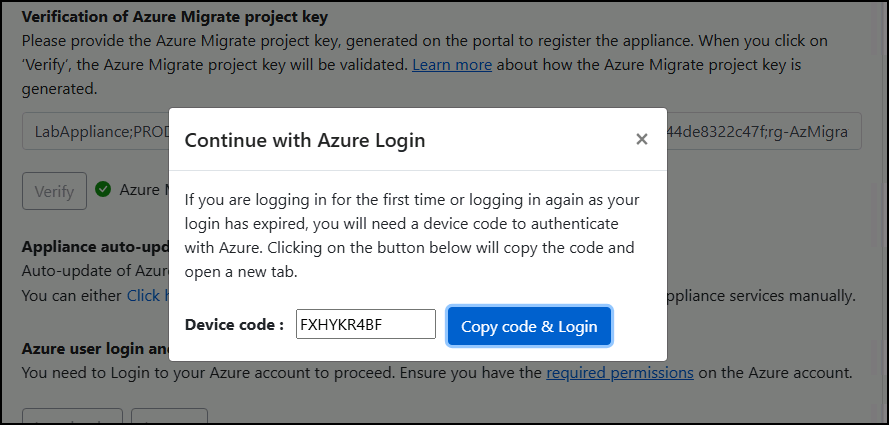
In the pop-up window, select Copy code & Login.
-
Paste the code, and then select Next.
-
Choose the @lab.CloudPortalCredential(User1).Username user account. If prompted, sign in using @lab.CloudPortalCredential(User1).Username and @lab.CloudPortalCredential(User1).AccessToken.
-
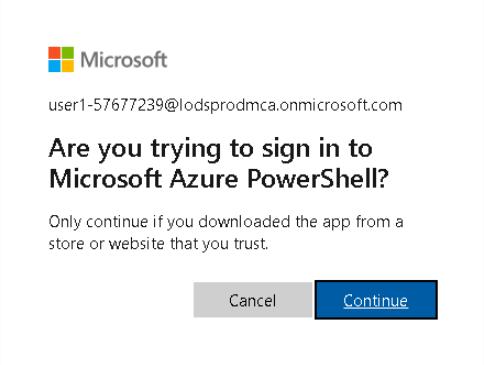
Select Continue.
-
Close the sign-in window and return to the Appliance Configuration Manager browser tab.
The login and appliance registration process can take around 10 minutes. Please wait for this process to complete before continuing to the next task.
Congratulations!
You generated a project key and successfully registered the Azure Migrate appliance to your project so it can upload discovery data.