Task 02: Add-ins - Enable Update Manager on a migrated VM
Introduction
Security is a big concern for Terra Firm, and “zero-day” is not a word Dennis wants to hear in a post-migration incident review. Update Manager helps the team assess and schedule patching so the migrated Linux VM stays current and they can demonstrate ongoing update hygiene across the environment.
Task purpose
Enable patch assessment and schedule patching so the VM can be maintained consistently and you can demonstrate update compliance.
-
On the left menu, under Operations, select Updates.
-
Next to Periodic assessment, select Enable now.
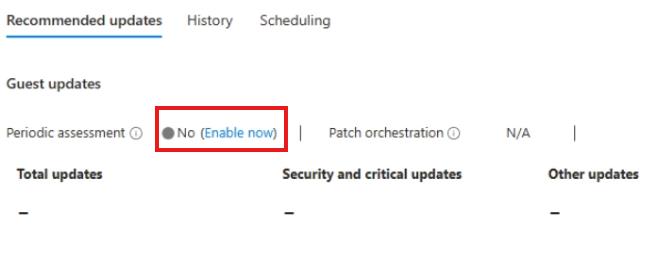
-
Next to the Airsonic-Frontend, configure the following options:
Value Option Periodic assessment Enable Patch orchestration Customer Managed Schedules -
Select Save.
-
In the top menu, select Scheduled updates > Scheduled updates.
-
On the Create a maintenance configuration page, enter the following:
Value Option Resource group AZMigrateRG Configuration name Airsonic-updates-@lab.LabInstance.Id Region @lab.CloudResourceGroup(AZMigrateRG).Location -
Select Add a schedule.
-
On the Add/Modify schedule flyout, select a Start on date of tomorrow, and then select Save.
-
Select Review + create, and then select Create.
Wait for the deployment to complete.
-
In the Azure portal, search for and then select Virtual Machines.
-
Select the Airsonic-Frontend VM.
-
On the left menu, under Operations, select Updates.
-
Ensure that Periodic assessment displays Yes

Congratulations!
You enabled Update Manager periodic assessment for the migrated VM and created a maintenance configuration to schedule updates (or remediated orchestration prerequisites if the assignment failed).