Task 05: Validate and migrate the database
Introduction
Dennis wants to accelerate migration, but not by skipping safety checks. Running validation first helps Terra Firm catch problems early (permissions, connectivity, compatibility) so the actual migration is smoother, and it supports the customer’s rollback concerns by reducing the chance of a failed cutover.
Description
In this task, you’ll run a validation migration job, review results for errors, and then run an offline database migration to PostgreSQL flexible server. You’ll monitor both jobs until they succeed.
Success criteria
- The validation job completes successfully with no blocking errors.
- The migration job completes with status Succeeded for the Airsonic database.
Key tasks
- Create and run a Validate migration job using the Migration Service for PostgreSQL.
- Review validation output for errors/warnings and confirm readiness.
- Create and run a Validate and migrate offline migration job and monitor status to completion.
Validate the database migration
-
In the Azure portal search bar, search for and then select Azure Database Migration Services.
-
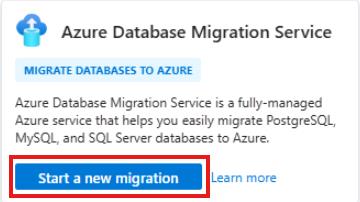
On the Azure Database Migration Services page, select Start a new migration.
-
On the Select migration scenario and Database Migration Service page, enter the following:
Object Value Source server type PostgreSQL Target server type Azure Database for PostgreSQL Database Migration Service Migration Service for Azure Database for PostgreSQL Subscription @lab.CloudSubscription.Name Resource Group @lab.CloudResourceGroup(AZMigrateRG).Name Azure Database for PostgreSQL pgsql-flex-@lab.LabInstance.Id -
Select Go to target server.
-
On the pgsql-flex-@lab.LabInstance.Id Migration page, select + Create. -
On the Setup tab, enter the following values:
Object Value Migration name airsonic-db-validation Source server type On-premises server Migration option Validate Migration mode Offline -
Select Next: Runtime server >
-
Next to Use runtime server, select Yes and then enter the following:
Object Value Subscription @lab.CloudSubscription.Name Resource Group @lab.CloudResourceGroup(AZMigrateRG).Name Server name pgsql-flex-@lab.LabInstance.Id.postgres.database.azure.com If the Next : Source server > icon appears greyed out. Reselect the three options about and it should become available.
-
Select Next : Source server >.
-
On the Source server tab, enter the following values:
Object Value Server name 192.168.1.165 Port 5432 Administrator login admin Password Password~1 SSL mode Prefer -
Select Connect to source and confirm the connection.
-
Select Next: Target server >.
-
On the Target server tab, in the Password field, enter Password~1, and then select Connect to target.
-
Wait for the Connection successful message, and then select Next: Databases to validate or migrate >.
-
On the Databases to validate and migrate tab, select airsonic, and choose Next: Summary >.
-
On the Summary tab, review the configuration and select Start validation.
It will take several minutes to complete the validation. You can periodically refresh the page until the Status displays Succeeded.
-
Once the validation is complete, select the airsonic-db-validation job.
-
Inspect the results of the validation and confirm that there are no errors.
-
Scroll to the bottom and select the airsonic database.
-
Inspect the flyout page for any errors, and then select the X in the top right to close the flyout.
- Select the X in the top right corner to close the validation results page.
Migrate the database
-
On the pgsql-flex-@lab.LabInstance.Id Migration page, select + Create. -
On the Setup tab, enter the following values:
Object Value Migration name airsonic-db-migration Source server type On-premises server Migration option Validate and migrate Migration mode Offline -
Select Next: Runtime server >
-
Next to Use runtime server, select Yes and then enter the following:
Object Value Subscription @lab.CloudSubscription.Name Resource Group @lab.CloudResourceGroup(AZMigrateRG).Name Server name pgsql-flex-@lab.LabInstance.Id.postgres.database.azure.com If the Next : Source server > icon appears greyed out. Reselect the three options about and it should become available.
-
Select Next : Source server >.
-
On the Source server tab, enter the following values:
Object Value Server name 192.168.1.165 Port 5432 Administrator login admin Password Password~1 SSL mode Prefer -
Select Connect to source and confirm the connection.
-
Select Next: Target server >.
-
On the Target server tab, in the Password field, enter Password~1, and then select Connect to target.
-
Wait for the Connection successful message, and then select Next: Databases to validate or migrate >.
-
On the Databases to validate and migrate tab, select airsonic, and choose Next: Summary >.
-
On the Summary tab, review the configuration and select Start validation and migrate.
-
Monitor the progress of the migration on the Migration page.
The migration should take approximately 5 minutes. The migration is complete when the status displays Succeeded. You can periodically refresh to update the status.

Congratulations!
You validated the migration, reviewed results, and completed an offline database migration to PostgreSQL Flexible Server with a successful status.