Task 06: Deploy to AKS
What you’ll do: Deploy the modernized application to AKS Automatic using Service Connector secrets for passwordless authentication with PostgreSQL.
What you’ll learn: Kubernetes deployment with workload identity, Service Connector integration, and testing deployed applications with Entra ID authentication.
About AKS Automatic: AKS Automatic is a new mode for Azure Kubernetes Service that provides an optimized and simplified Kubernetes experience. It offers automated cluster management, built-in security best practices, intelligent scaling, and pre-configured monitoring - making it ideal for teams who want to focus on applications rather than infrastructure management.
Deploy the application to AKS Automatic
Using Containerization Assist we have built a Kubernetes manifest for the Petclini application. In the next steps you’ll deploy it to the AKS Automatic cluster and verify that it is working:
-
Deploy the application:
kubectl apply -f k8s/petclinic.yaml -
Monitor deployment status
kubectl get pods,services,deploymentsIt might take a minute for the AKS Automatic cluster to provision new nodes for the workload, so it is normal to see your pods in a
Pendingstate until the new nodes are available. You can verify if there are nodes available with thekubectl get nodescommand.
Expect:
NAME                                    READY   STATUS              RESTARTS   AGE
petclinic-deployment-5f9db48c65-qpb8l   0/1     Pending             0          2m2s
Verify deployment and connectivity
Test the deployed application and verify Entra ID authentication.
-
Port forward to access the application:
kubectl port-forward svc/spring-petclinic-service 9090:8080 -
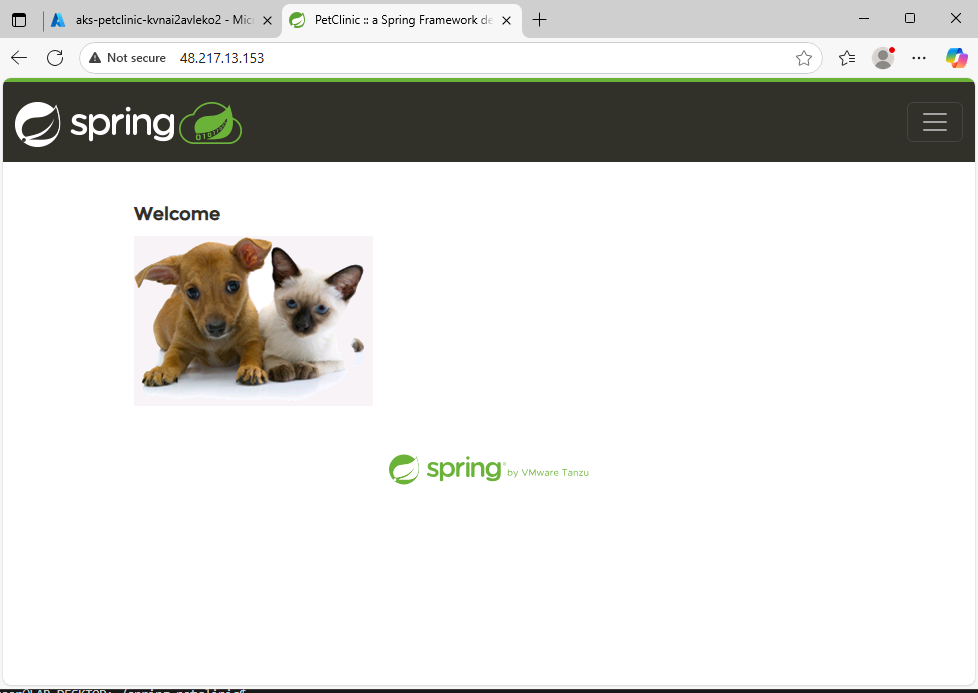
To test the application, open a new tab in Microsoft Edge and go to
http://localhost:9090.
Validate Entra ID authentication
Verify that the application is using passwordless authentication.
-
Check environment variables in the pod (get first pod with label):
 POD_NAME=$(kubectl get pods -l app=spring-petclinic -o jsonpath='{.items[0].metadata.name}')
 kubectl exec $POD_NAME -- env | grep POSTGRES
Expected output:
AZURE_POSTGRESQL_PORT=5432 AZURE_POSTGRESQL_DATABASE=petclinic AZURE_POSTGRESQL_USERNAME=aad_pg AZURE_POSTGRESQL_CLIENTID=1094a914-1837-406a-ad58-b9dcc499177a AZURE_POSTGRESQL_HOST=db-petclinic55954159.postgres.database.azure.com AZURE_POSTGRESQL_SSL=true POSTGRES_USER=aad_pg -
Verify no password environment variables are present:
kubectl exec $POD_NAME -- env | grep -i passExpected output:
SPRING_DATASOURCE_AZURE_PASSWORDLESS_ENABLED=true -
Check application logs for successful authentication:
kubectl logs -l app=spring-petclinic --tail=100 | grep -i "hibernate"Expected output:
 [...]
 Hibernate: drop table if exists pets cascade
 Hibernate: drop table if exists specialties cascade
 Hibernate: drop table if exists types cascade
 Hibernate: drop table if exists vet_specialties cascade
 [...]
Expected output The application is successfully deployed to AKS with passwordless authentication to PostgreSQL using Entra ID and workload identity.
Workshop recap & what’s next
Congratulations! You’ve successfully completed a comprehensive application modernization journey, transforming a legacy Spring Boot application into a cloud-native, secure, and scalable solution on Azure.
What you accomplished
Local environment setup
- Set up Spring Boot PetClinic with PostgreSQL in Docker.
- Validated local application functionality and database connectivity.
Application modernization
- Used GitHub Copilot App Modernization to assess code for cloud readiness.
- Migrated from basic PostgreSQL authentication to Azure PostgreSQL Flexible Server.
- Implemented Microsoft Entra ID authentication with managed identity.
- Applied automated code transformations for cloud-native patterns.
Containerization
- Generated Docker containers using AI-powered tools.
- Created optimized Kubernetes manifests with health checks and security best practices.
- Built and pushed container images to Azure Container Registry.
Cloud deployment
- Deployed to AKS Automatic with enterprise-grade security
- Configured passwordless authentication using workload identity
- Integrated Azure Service Connector for seamless database connectivity
- Validated production deployment with secure authentication
Next ateps and learning paths
Continue your azure journey:
- AKS Automatic Documentation - Deep dive into automatic cluster management
- Azure Well-Architected Framework - Learn enterprise architecture best practices
- AKS Engineering Blog - Stay updated with latest AKS features and patterns
Hands-on labs:
- AKS Labs - Interactive learning experiences
- Azure Architecture Center - Reference architectures and patterns
- Microsoft Learn - AKS Learning Path - Structured learning modules
Key takeaways
This workshop demonstrated how AI-powered tools can dramatically accelerate application modernization while maintaining code quality and security standards. The combination of GitHub Copilot App Modernization and Azure’s managed services enables teams to focus on business value rather than infrastructure complexity.
Help
Expand this section to find tips on how to troubleshoot your lab.
Troubleshooting the local deployment
If the application fails to start:
- Check Docker is running:
docker ps - Verify PostgreSQL container is healthy:
docker logs petclinic-postgres - Check application logs:
tail -f ~/app.log - Ensure port 8080 is not in use:
lsof -i :8080
If the database connection fails:
- Verify PostgreSQL container is running on port 5432:
docker port petclinic-postgres - Test database connectivity:
docker exec -it petclinic-postgres psql -U petclinic -d petclinic -c "SELECT 1;"
Troubleshooting the service connector
Retrieve PostgreSQL configuration from AKS service connector
Before you can use Containerization Assist, you must first retrieve the PostgreSQL Service Connector configuration from your AKS cluster.
This information ensures that your generated Kubernetes manifests are correctly wired to the database using managed identity and secret references.
Access AKS service connector and retrieve PostgreSQL configuration
-
Open a new tab in the Edge browser and navigate to https://portal.azure.com/.
-
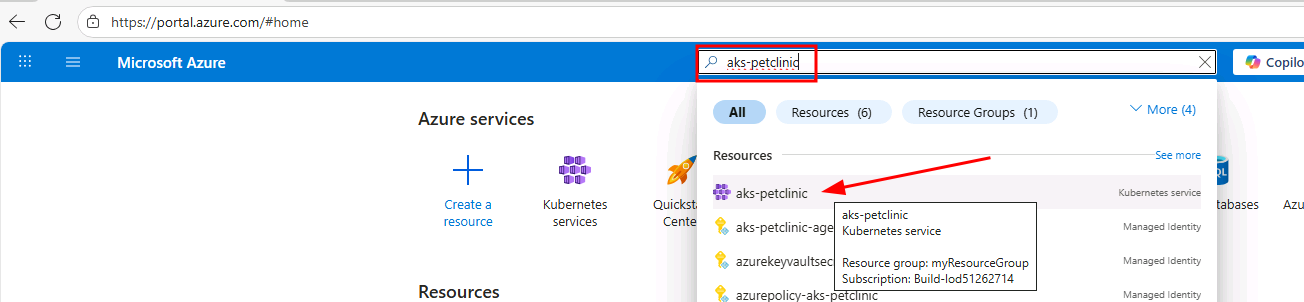
In the top search bar, type aks-petclinic and select the AKS Automic cluster.
-
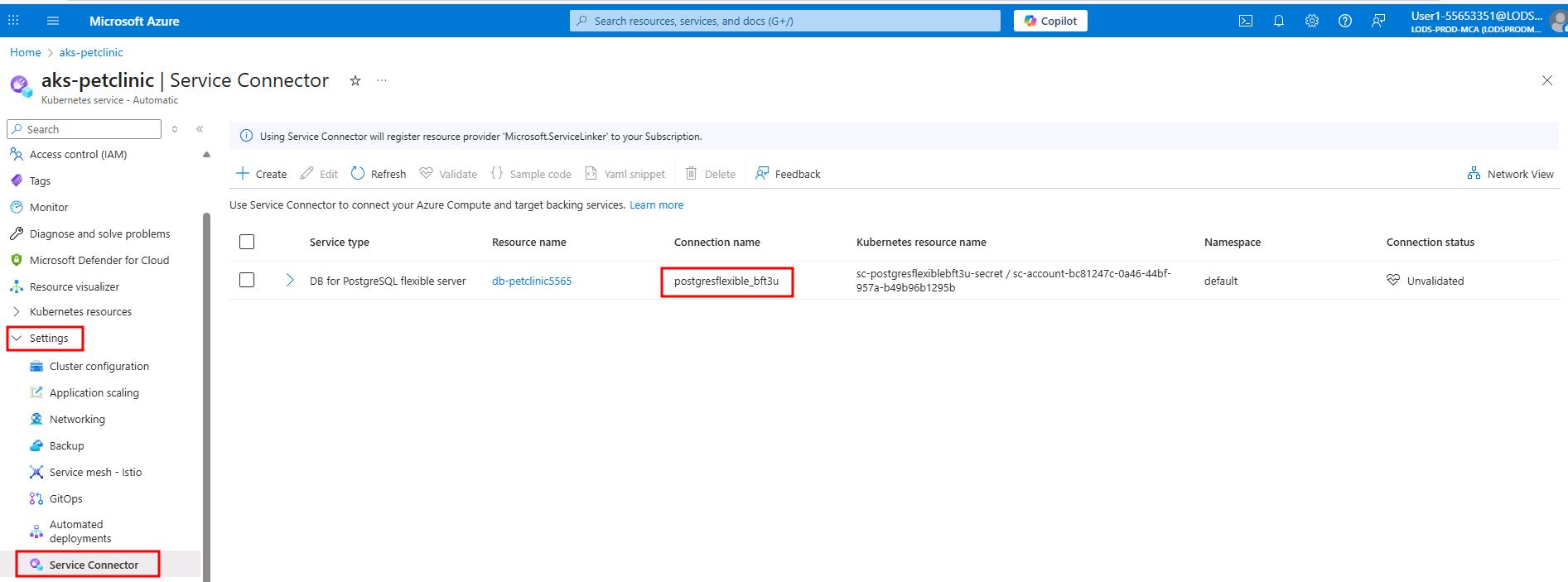
In the left-hand menu under Settings, select Service Connector.
-
You’ll find the service connection that was automatically created PostgreSQL connection with a name that starts with postgresflexible_ connecting to your PostgreSQL flexible server.
-
Select the DB for PostgreSQL flexible server and select the YAML snippet button in the action bar.

-
Expand this connection to see the variables that were created by the
sc-postgresflexiblebft3u-secretin the cluster.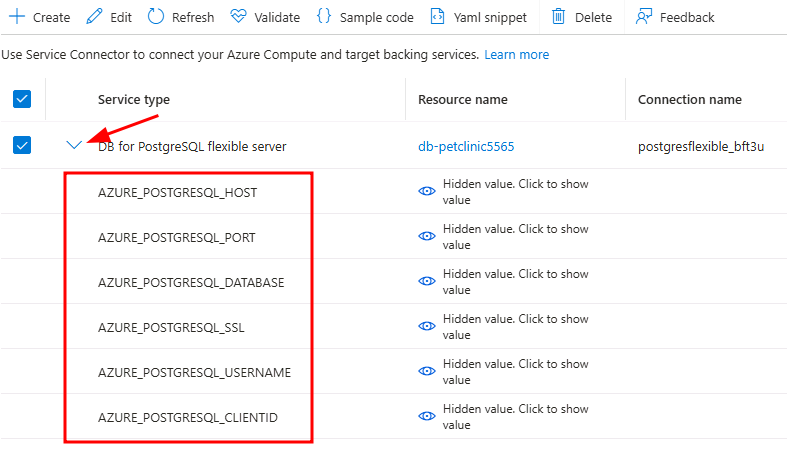
Retrieve PostgreSQL YAML configuration
The Azure Portal will display a YAML snippet showing how to use the Service Connector secrets for PostgreSQL connectivity.
[+] Service Connector YAML snippet
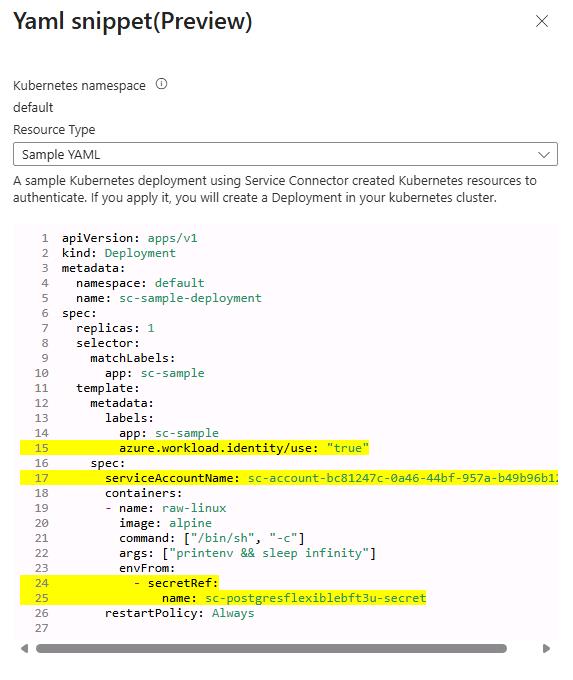
- The portal shows a sample deployment with workload identity configuration
- Key Elements:
- Service account:
sc-account-d4157fc8-73b5-4a68-acf4-39c8f22db792- Secret reference:
sc-postgresflexiblebft3u-secret- Workload identity label:
azure.workload.identity/use: "true"The Service Connector secret (
sc-postgresflexiblebft3u-secretin this example), will contain the following variables:
- AZURE_POSTGRESQL_HOST
- AZURE_POSTGRESQL_PORT
- AZURE_POSTGRESQL_DATABASE
- AZURE_POSTGRESQL_CLIENTID (map to both AZURE_CLIENT_ID and AZURE_MANAGED_IDENTITY_NAME)
- AZURE_POSTGRESQL_USERNAME
Troubleshooting the application in AKS
If for some reason you’ve made here and your deployment did not work, your deployment file should ressemble this example.
Key areas to pay close attention to are:
azure.workload.identity/use: "true"serviceAccountName: sc-account-XXXXthis needs to reflect the service account created earlier during the PostgreSQL Service Connector.image: <acr-login-server>/petclinic:0.0.1this should point to your ACR and image created earlier.
apiVersion: apps/v1
kind: Deployment
metadata:
  name: spring-petclinic
  labels:
    app: spring-petclinic
    version: v1
spec:
  replicas: 1
  selector:
    matchLabels:
      app: spring-petclinic
  template:
    metadata:
      labels:
        app: spring-petclinic
        version: v1
        azure.workload.identity/use: "true"  # Enable Azure Workload Identity
    spec:
      serviceAccountName: sc-account-71b8f72b-9bed-472a-8954-9b946feee95c # change this
      containers:
      - name: spring-petclinic
        image: acrpetclinic556325.azurecr.io/petclinic:0.0.1 # change this value
        imagePullPolicy: IfNotPresent
        ports:
        - containerPort: 8080
          name: http
          protocol: TCP

        # Environment variables from Azure Service Connector secret
        env:
        # Azure Workload Identity - automatically injected by webhook
        # AZURE_CLIENT_ID, AZURE_TENANT_ID, AZURE_FEDERATED_TOKEN_FILE are set by workload identity

        # Map PostgreSQL host from secret - with Azure AD authentication parameters
        - name: POSTGRES_URL
          value: "jdbc:postgresql://$(AZURE_POSTGRESQL_HOST):$(AZURE_POSTGRESQL_PORT)/$(AZURE_POSTGRESQL_DATABASE)?sslmode=require&authenticationPluginClassName=com.azure.identity.extensions.jdbc.postgresql.AzurePostgresqlAuthenticationPlugin"
        - name: POSTGRES_USER
          valueFrom:
            secretKeyRef:
              name: sc-postgresflexible4q7w6-secret # change this value
              key: AZURE_POSTGRESQL_USERNAME
        # Client ID is also needed for Spring Cloud Azure
        - name: AZURE_CLIENT_ID
          valueFrom:
            secretKeyRef:
              name: sc-postgresflexible4q7w6-secret # change this value
              key: AZURE_POSTGRESQL_CLIENTID
              optional: true
        - name: AZURE_MANAGED_IDENTITY_NAME
          valueFrom:
            secretKeyRef:
              name: sc-postgresflexible4q7w6-secret # change this value
              key: AZURE_POSTGRESQL_CLIENTID
        - name: AZURE_POSTGRESQL_HOST
          valueFrom:
            secretKeyRef:
              name: sc-postgresflexible4q7w6-secret # change this value
              key: AZURE_POSTGRESQL_HOST
        - name: AZURE_POSTGRESQL_PORT
          valueFrom:
            secretKeyRef:
              name: sc-postgresflexible4q7w6-secret # change this value
              key: AZURE_POSTGRESQL_PORT
        - name: AZURE_POSTGRESQL_DATABASE
          valueFrom:
            secretKeyRef:
              name: sc-postgresflexible4q7w6-secret # change this value
              key: AZURE_POSTGRESQL_DATABASE
        - name: SPRING_PROFILES_ACTIVE
          value: "postgres"
        # Spring Cloud Azure configuration for workload identity
        - name: SPRING_CLOUD_AZURE_CREDENTIAL_MANAGED_IDENTITY_ENABLED
          value: "true"
        - name: SPRING_DATASOURCE_AZURE_PASSWORDLESS_ENABLED
          value: "true"
        # Make all secret keys available in the pod
        envFrom:
        - secretRef:
            name: sc-postgresflexible4q7w6-secret # change this value
        # Health check probes
        livenessProbe:
          httpGet:
            path: /actuator/health
            port: 8080
            scheme: HTTP
          initialDelaySeconds: 60
          periodSeconds: 10
          timeoutSeconds: 3
          successThreshold: 1
          failureThreshold: 3
        readinessProbe:
          httpGet:
            path: /actuator/health
            port: 8080
            scheme: HTTP
          initialDelaySeconds: 30
          periodSeconds: 5
          timeoutSeconds: 3
          successThreshold: 1
          failureThreshold: 3
        # Resource limits and requests
        resources:
          requests:
            memory: "512Mi"
            cpu: "500m"
          limits:
            memory: "1Gi"
            cpu: "1000m"
        # Security context
        securityContext:
          runAsNonRoot: true
          runAsUser: 1000
          allowPrivilegeEscalation: false
          readOnlyRootFilesystem: false
          capabilities:
            drop:
            - ALL
      # Pod security context
      securityContext:
        fsGroup: 1000
      # Restart policy
      restartPolicy: Always