Task 01: Set up the lab
Sign In to Azure
-
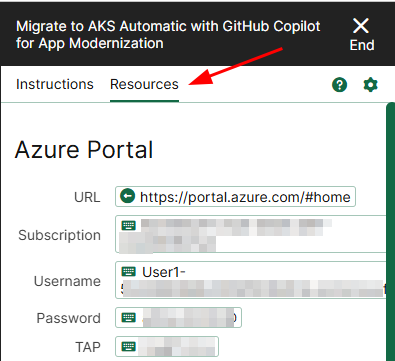
Open Microsoft Edge and log into Azure with the credentials in the Resources tab: https://portal.azure.com/.
-
Next, in a terminal window, sign in to use the Azure CLI:
az login -
Press the
CTRLkey and then select the URL in the terminal. This will open a new tab in Edge.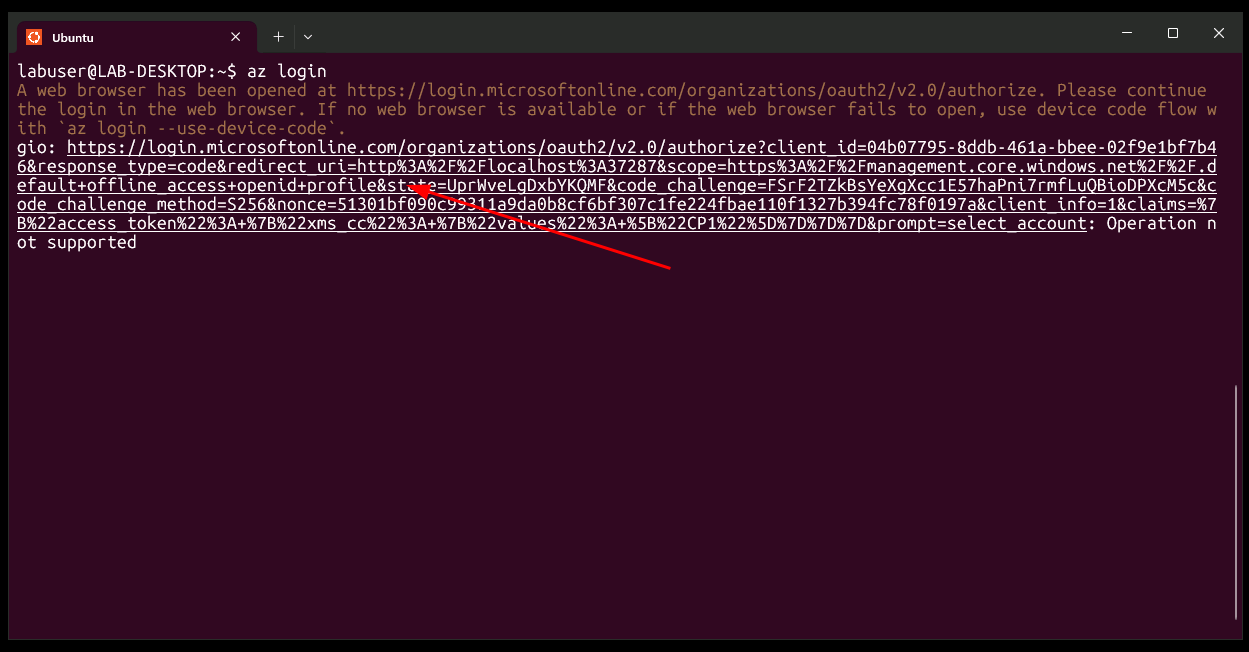
-
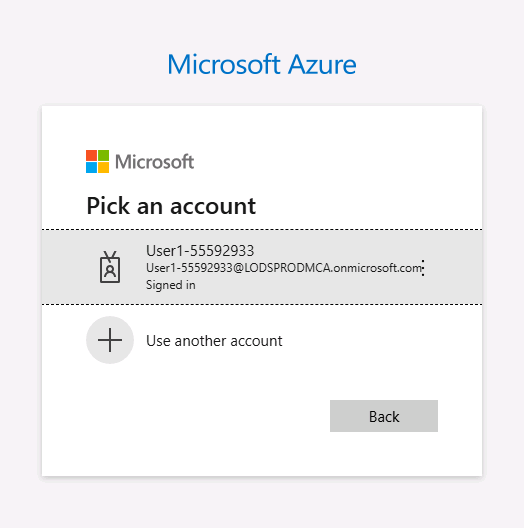
Pick your user account to finish logging in.
-
Back in the terminal window, press Enter to select the current subscription.
Install the Service Connector
-
In a terminal window, run the following command to install the service-connector extension:
az extension add --name serviceconnector-passwordless --upgrade -
Create the sevice-connector for postgres-flexible:
nohup bash -c 'az aks connection create postgres-flexible --connection pg --source-id @lab.CloudResourceTemplate(LAB502).Outputs[aksClusterId] --target-id @lab.CloudResourceTemplate(LAB502).Outputs[postgresDatabaseId] --workload-identity @lab.CloudResourceTemplate(LAB502).Outputs[userAssignedIdentityId] --client-type none --kube-namespace default | tee ~/spring-petclinic/k8s/sc.json' > ~/spring-petclinic/k8s/sc.log 2>&1 &This script will log its output into the ~/spring-petclinic/k8s/sc.log file. You can check for its progress opening that file.
Configure Azure RBAC Authentication for kubectl
Before deploying to AKS, you need to configure kubectl to use Azure RBAC authentication.
- In your terminal window, run the following commands:
  # add Admin to your user
  az role assignment create --assignee @lab.CloudPortalCredential(User1).Username --role "Azure Kubernetes Service RBAC Cluster Admin" --scope  @lab.CloudResourceTemplate(LAB502).Outputs[aksClusterId]

  # Get AKS credentials (this downloads the kubeconfig)
  az aks get-credentials --resource-group  @lab.CloudResourceGroup(myResourceGroup).Name --name @lab.CloudResourceTemplate(LAB502).Outputs[aksClusterName]

  # Configure kubectl to use Azure RBAC authentication
  kubelogin convert-kubeconfig --login azurecli

  # Test AKS access
  kubectl get nodes
The
kubelogin convert-kubeconfig --login azureclicommand configures kubectl to use Entra (Azure AD) authentication with the Azure RBAC roles assigned to your user account. This is required for AKS Automatic clusters with Azure RBAC enabled.
Authenticate GitHub Copilot
To use GitHub Copilot, sign in with the GitHub account provided in your lab environment.
-
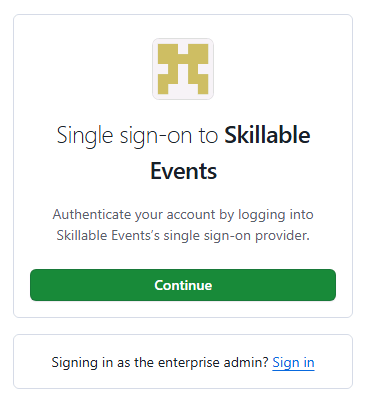
In the browser, open https://github.com/enterprises/skillable-events/sso
-
Select Continue.
-
Log in with the credentials listed in the Resources tab.
Sign in to VS Code with GitHub
After signing in to GitHub, open VS Code and complete the Copilot setup:
-
In your terminal, run the following command to launch a new VS Code instance into the
spring-petclinicsource directory:cd ~/spring-petclinic code . -
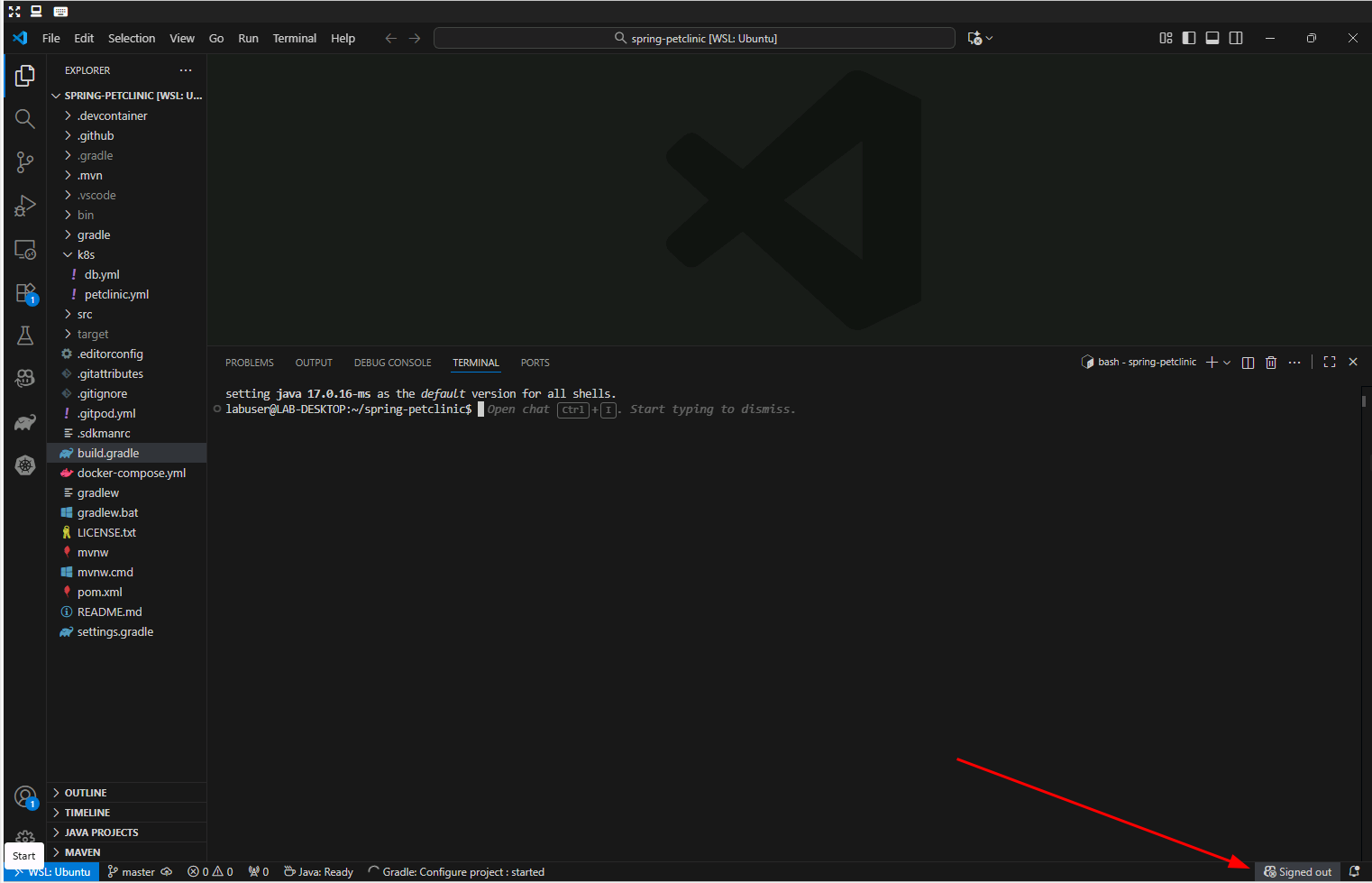
Select the account icon (bottom right), then Sign in to use Copilot.
-
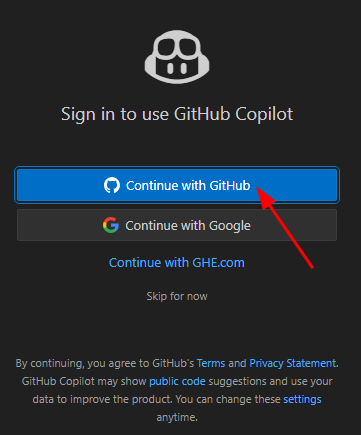
Select Continue with GitHub.
-
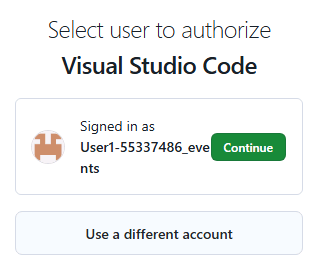
Authorize VS Code to access your GitHub account.
-
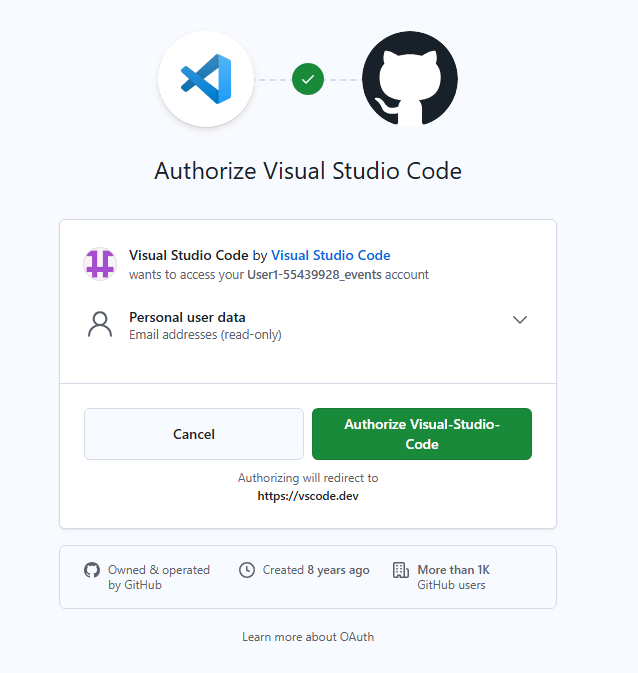
Select Connect, then Authorize Visual-Studio-Code.
-
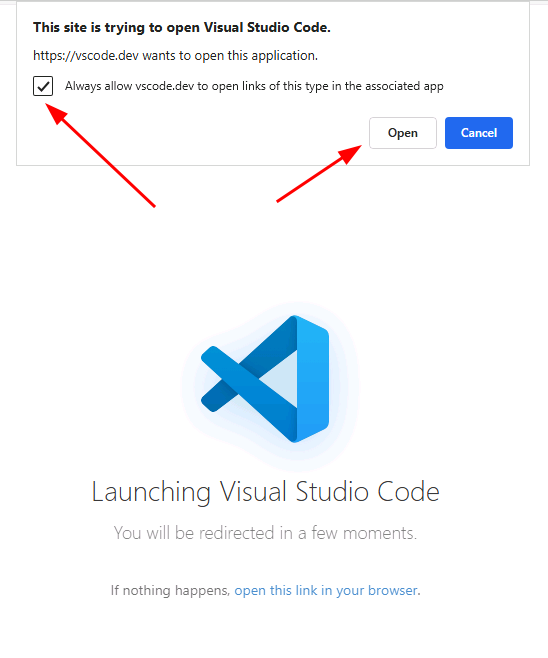
When prompted, choose to always allow vscode.dev to open links.
-
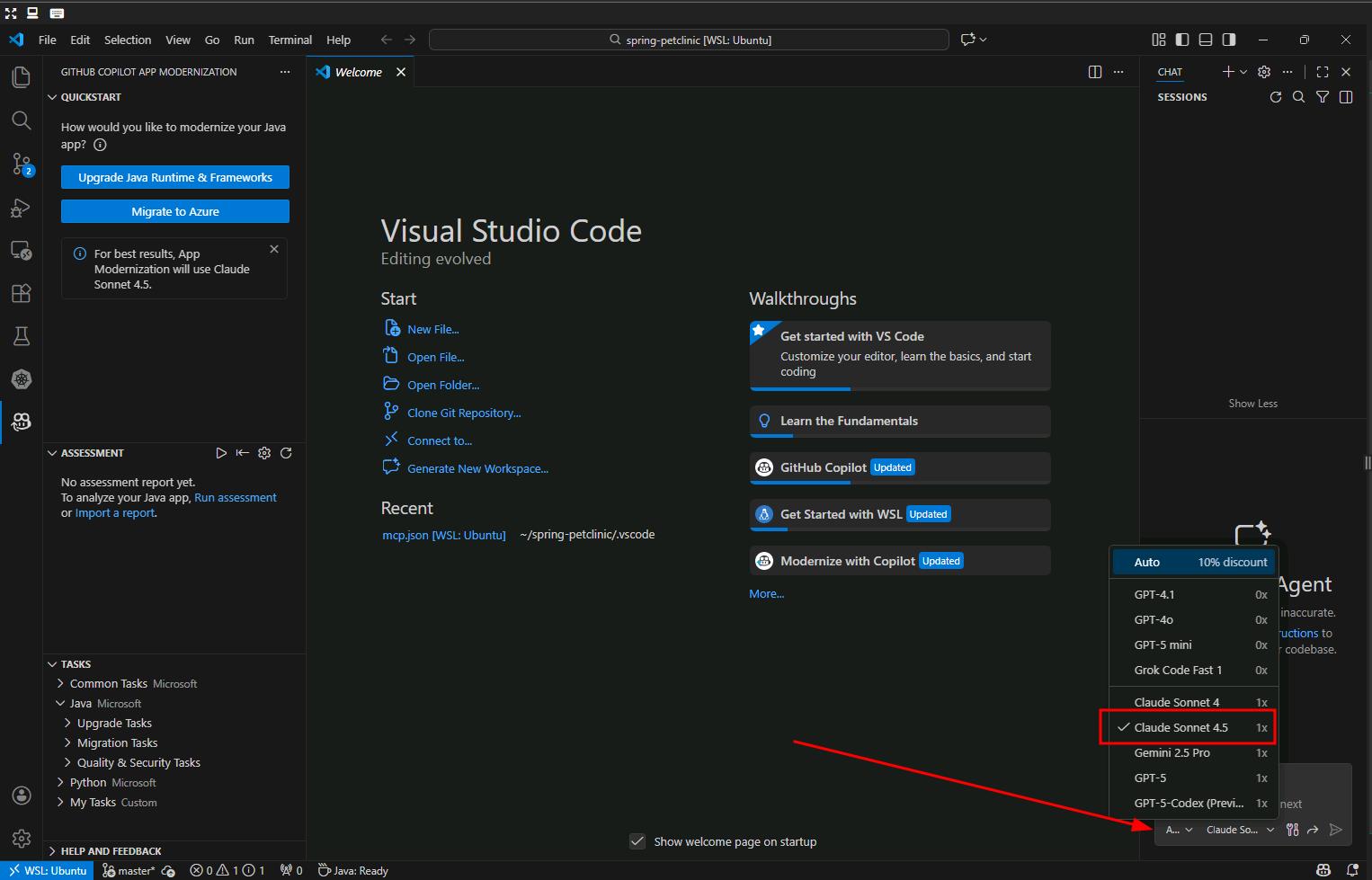
Back in VS Code, open the GitHub Copilot Chat window and switch the model to Claude Sonnet 4.5.
You’re ready to begin
Your environment is now configured. Next, you’ll verify the local PetClinic application and begin the migration and modernization journey.