Task 01: Create the Azure Database for PostgreSQL flexible server
Introduction
For the pilot workload, Terra Firm wants to reduce management overhead and tighten security, especially with concerns about zero-day threats. Moving PostgreSQL to Azure Database for PostgreSQL Flexible Server gives Dennis’s team a managed database foundation with built-in platform capabilities, while private access helps keep traffic off the public internet.
Description
In this task, you’ll deploy a PostgreSQL flexible server using private access (VNet integration). You’ll configure compute, authentication, and networking so the application can connect privately after migration.
Success criteria
- The PostgreSQL flexible server pgsql-flex-@lab.LabInstance.Id is deployed successfully.
- The server is configured with Private access (VNet Integration) and the expected VNet/subnet.
Key tasks
- Create a PostgreSQL flexible server with the specified name, version, and compute sizing.
- Configure Private access (VNet integration) networking using the lab VNet/subnet.
- Confirm the deployment completes successfully before proceeding.
-
On the Lab VM, return to the Azure portal https://portal.azure.com.
-
In the Azure portal search bar, search for and then select Azure Database for PostgreSQL flexible servers.
-
Select + Create
-
On the New Azure Database for PostgreSQL flexible server, enter the following:
Object Value Resource group AZMigrateRG Server name pgsql-flex-@lab.LabInstance.Id Region @lab.CloudResourceGroup(AZMigrateRG).Location PostgreSQL version 17 Workload type Production -
Under Compute + storage, select Configure server.
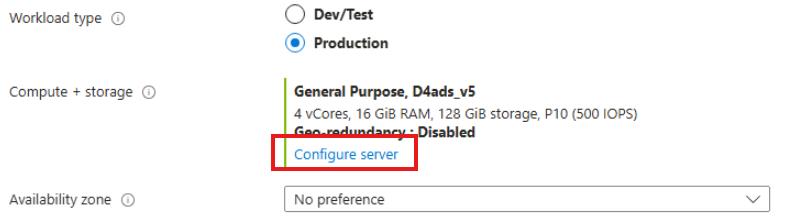
-
Under Compute size, select Standard_D2ads_v5 (2 vCores, 8 GiB memory, 3200 max iops).

-
Select Save and then configure the following:
Object Value Zone resiliency Disabled Authentication method PostgreSQL authentication only Administrator login pgadmin Password Password~1 -
Select Next : Networking >.
-
Select Private access (VNet Integration).
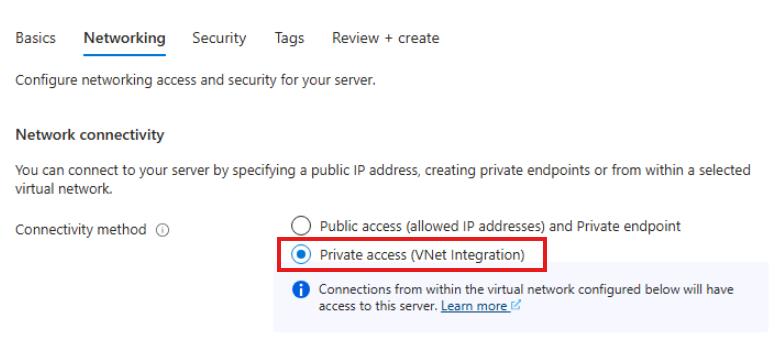
-
In the Virtual network section, ensure that the selected Virtual Network is migrate@lab.LabInstance.Id.
-
Next to Subnet, select migrate@lab.LabInstance.Id/flex_server_subnet (192.168.100/128/26).
Please ensure that you choose the correct subnet above. Not choosing the correct subnet will cause late exercises to fail.
-
Select Next : Security >.
-
Select Next : Tags >.
-
Select Next : Review + create >
-
Select Create.
It will take approximately 8-10 minutes for the deployment to complete. You can continue to the next task while it deploys.
Congratulations!
You deployed a PostgreSQL Flexible Server using private access so the database tier can be modernized to a managed service within the lab VNet.